2015 MERCEDES-BENZ M-Class DVD
[x] Cancel search: DVDPage 22 of 270

Your COMAND equipment
These operating instructions describe all the
standard and optional equipment for your
COMAND system, as available at the time of
going to print. Country-specific differences
are possible. Please note that your
COMAND system may not be equipped with
all the features described. COMAND operating system
Overview
0043
COMAND display (Y page 21)
0044 COMAND control panel with a single DVD
drive
0087 COMAND controller (Y page 26)
You can use COMAND to operate the follow-
ing main functions: R the navigation system
R the audio function
R the telephone function
R the video function
R the system settings
R the online and Internet functions
R the Digital Operator's Manual
(available depending on the vehicle model) You can call up the main functions:
R using the corresponding buttons
R using the main function bar in the COMAND
display
R using the remote control 20
COMAND ope
rating systemAt a glance
Page 24 of 270

Menu overview
Navi Audio Telephone Video System
Symbol
00A7
00A7 Route settings FM/AM
radio (using
HD Radio™) Telephone Video DVD Calls up the
system
menu Calls up the
Digital
Operator's
Manual
(available
depending
on the vehi-
cle model)
Map settings Satellite
radio Address
book AUX Calls up
COMAND
and Internet
Personal POIs Disc Calls up the
weather
service SIR-
IUS
Weather
Messages
(street name
announcements,
acoustic informa-
tion during calls,
audio fadeout,
reserve fuel level) Memory
card Calls up the
Mercedes-
Benz Mobile
website 0073
Activates/
deactivates alter-
native routes MUSIC
REGISTER
Avoids an area USB stor-
age device
SIRIUS service Bluetooth
Audio
Map version Media Inter-
face
AUX22
COMAND operating systemAt a glance
Page 27 of 270

COMAND control panel
Function Page
0043
Switches to radio mode 186
Switches wavebands 187
Switches to satellite radio 191
0044
Switches to navigation
mode 61
Shows the menu system 61
0087
Press
003Arepeatedly • Switches to audio CD and
MP3 mode 197
• Switches to memory card
mode 197
• Switches to MUSIC REG-
ISTER
207
• Switches to USB storage
device mode
197
• Switches to Media Inter-
face or audio AUX mode
218
• Switches to Bluetooth
®
audio mode 215
0085
Calls up the telephone
basic menu: • Telephony via the Blue-
tooth ®
interface 131
0083
Load/eject button 196 Function Page
0084
Selects stations via the sta-
tion search function 188
Rewinds 200
Selects the previous track 199
006B
Disc slot
• To insert CDs/DVDs 196
• To remove CDs/DVDs 196
• Updates the digital map 118
006C
Selects stations via the sta-
tion search function 188
Fast forward 200
Selects the next track 199
006D
Clear button
• Deletes characters 36
• Deletes an entry 36COMAND operating system
25At a glance
Page 33 of 270
Equipped with Bang & Olufsen sound sys-
tem: for the best sound focus, choose the
setting 0
0.
X Select Bal/Fad
Bal/Fad (balance/fader) in the
sound menu by turning 00790052007Athe COMAND
controller and press 0098to confirm.
X Select a balance setting by sliding 009500520096the
COMAND controller and press 0098to con-
firm. Surround
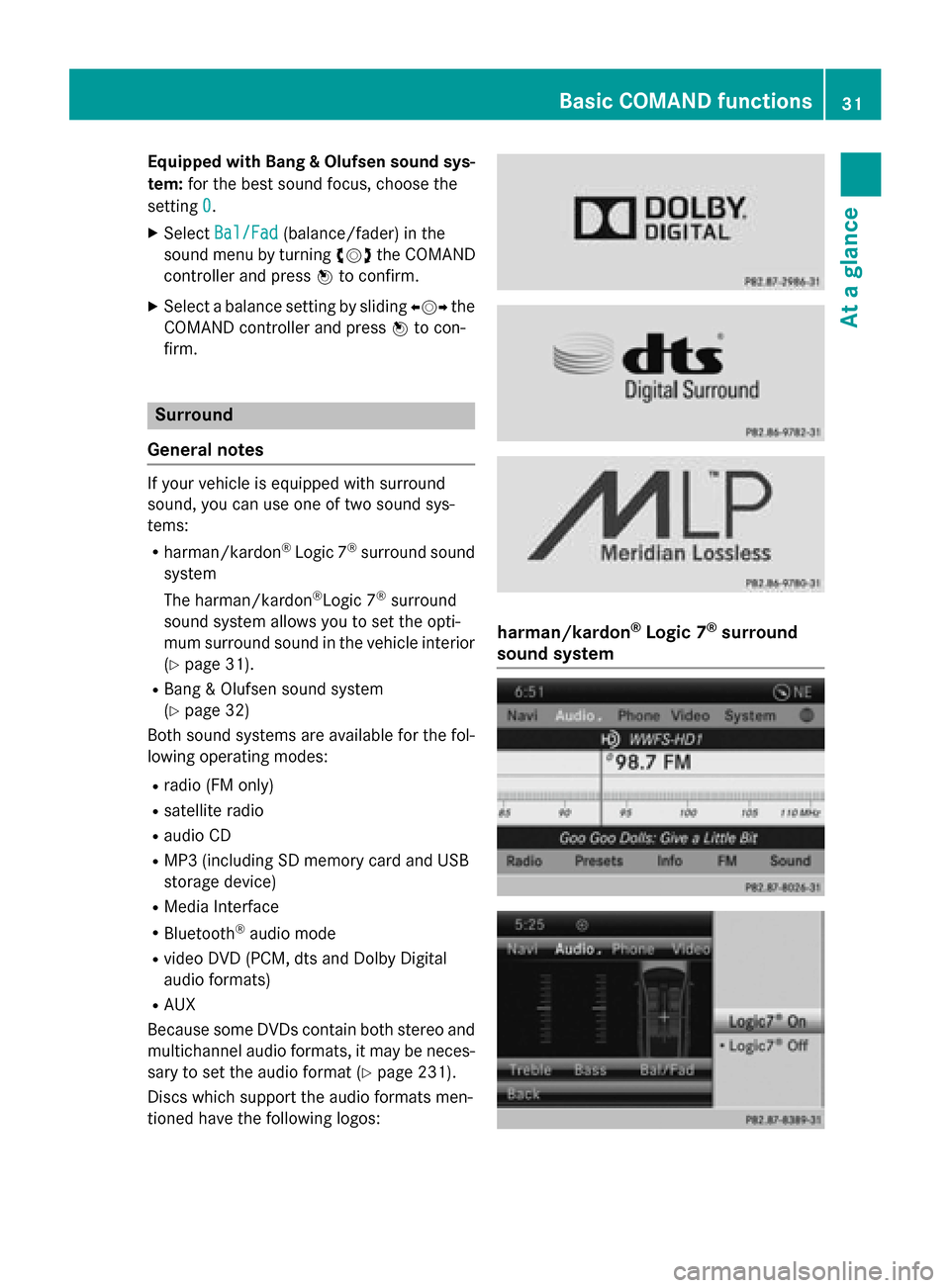
General notes If your vehicle is equipped with surround
sound, you can use one of two sound sys-
tems:
R harman/kardon ®
Logic 7 ®
surround sound
system
The harman/kardon ®
Logic 7 ®
surround
sound system allows you to set the opti-
mum surround sound in the vehicle interior
(Y page 31).
R Bang & Olufsen sound system
(Y page 32)
Both sound systems are available for the fol-
lowing operating modes:
R radio (FM only)
R satellite radio
R audio CD
R MP3 (including SD memory card and USB
storage device)
R Media Interface
R Bluetooth ®
audio mode
R video DVD (PCM, dts and Dolby Digital
audio formats)
R AUX
Because some DVDs contain both stereo and multichannel audio formats, it may be neces-
sary to set the audio format (Y page 231).
Discs which support the audio formats men-
tioned have the following logos: harman/kardon
®
Logic 7 ®
surround
sound system Basic COMAND functions
31At a glance
Page 34 of 270

The example describes how to set the sur-
round sound for radio mode.
X To switch surround sound on/off: press
the 002A button.
The radio display appears. You will hear the
last station played on the last waveband.
X Select Sound
Soundby sliding 00520064and turning
00790052007A the COMAND controller and press 0098
to confirm.
X Select Surround
Surround and press0098to confirm.
X Select Logic7
Logic7 ®
®
On
On orLogic7
Logic7 ®
®
Off
Off by turn-
ing 00790052007A the COMAND controller and press
0098 to confirm.
Depending on your selection, surround
sound is switched on or off and the menu is
exited.
X To exit the menu without saving: press
the 003D back button or slide 009500520096the
COMAND controller.
i Please note the following: for the opti-
mum audio experience for all passengers
when Logic7 ®
is switched on, the balance
should be set to the center of the vehicle
interior.
You will achieve the best sound results by
playing video DVD media.
MP3 tracks should have a bit rate of at least
128 kbit/ s.
Surround sound playback does not func-
tion for mono signal sources, such as for
AM radio mode.
If radio reception is poor, e.g. in a tunnel,
you should switch off Logic7 ®
, since it may
otherwise switch dynamically between
stereo and mono and cause temporary
sound distortions.
On some stereo recordings, the sound
characteristics may differ from conven-
tional stereo playback.
i The
Logic7 Logic7 ®
®
On
On function creates a sur-
round sound experience for every
passenger when playing stereo recordings, for example. It enables optimum playback
of music and films on CD or video DVD with multichannel audio formats, such as MLP,
dts or Dolby Digital. This results in sound
characteristics like those intended by the
sound engineer when the original was
recorded.
i If you select
Logic7 Logic7®
®
Off
Off , the sound sys-
tem plays the tracks as stored on the
medium. Due to the design of the
passenger compartment, an optimum
audio experience cannot be guaranteed for
all passengers.
Bang & Olufsen sound system You can optimize the sound in the vehicle with
the Bang & Olufsen sound system and the
True True Image
Image™ sound technology. The Sound
Sound
Mode
Mode function enables you to focus the selec-
ted sound setting within the vehicle.
The example describes how to set the opti-
mum sound for radio mode.
Selecting the sound setting for True
Image™
X Press a number key, such as 002A.
X Select Sound Soundby sliding 00520064and turning
00790052007A the COMAND controller and press 0098
to confirm.
X Select Bang&Olufsen
Bang&Olufsen and press0098to con-
firm.
A menu appears. A 003Bdot marks the current
setting for True Image™.
X Select reference reference orsurround
surround and press
0098 to confirm.
R reference
reference 32
Basic COMAND functionsAt a glance
Page 40 of 270

To do so, use the special cordless head-
phones (Y page 239). Using the headphones
on the correct sides ensures an optimal
sound.
You can connect your own headphones to a
special headphones jack. You can use the
remote control to operate them. Points to remember
R You can only adjust the volume for the
headphones supplied, directly on the head-
phones.
R Only entertainment functions, i.e. audio,
TV, video and Internet, for example, may be used with SPLITVIEW.
R Different media can be used on the driver
and front-passenger sides as long as they
use different media sources. Example: if a
medium from the single DVD drive is being
played on the driver's side, then another
medium that is also played from the single
DVD drive cannot be played separately on
the front-passenger side. However, other
media can be used at the same time on the
front-passenger side, including radio,
memory card, MUSIC REGISTER, Media
Interface, USB or AUX.
R If you use the same medium on both sides,
you can both carry out the respective set-
tings.
R Internet use is only available at any one
time to the driver or the front passenger.
A corresponding message appears on the
display.
R Internet can only be used, if it is set and
connected via a telephone on the driver's
side.
R The multifunction steering wheel can only
be used for functions which relate to the
driver's side. Switching SPLITVIEW on/off
Switching on SPLITVIEW
X Select System System in the main function bar by
turning 00790052007Athe COMAND controller and
press 0098to confirm.
X Select 0044in the menu bar and confirm.
SPLITVIEW symbol 0043appears in the dis-
play and display 0044switches to Off
Off .
The front passenger sees the display of the
function last activated. If the switch-on
time was longer than 30 minutes previ-
ously, the display from the driver's side is
shown.
The front passenger can now call up the
COMAND functions with the remote con-
trol.
Switching off SPLITVIEW X Select 0044in the menu bar by turning 00790052007A
the COMAND controller and press 0098to
confirm.
SPLITVIEW symbol 0043disappears from the
display. Display 0044switches to On
On.
i If COMAND has already been switched
on, you can also use the remote control to
switch SPLITVIEW on and off. Make sure
that the SPLITVIEW symbol is set on the
remote control thumbwheel (Y page 237).
The SPLITVIEW display remains on for approx-
imately 30 minutes after the SmartKey has
been turned to position 0in the ignition lock.
After this time or after the SmartKey has been
removed, the settings on the front-passenger side are saved for approximately 30 minutes 38
SPLITVIEWAt a glance
Page 120 of 270

Country-specific information
You can call up information on the traffic con-
ditions in the country you are currently driving
in via the COMAND Internet and online func-
tion.
The availability of information is country-
dependent. Information can include maxi-
mum speeds, driving with low-beam head-
lamps or legal alcohol limits, for example.
X To switch to navigation mode: press the
00BE button.
X To show the menu: press0098the COMAND
controller.
X Select Position Position in the navigation system
menu bar by sliding 00520064and turning 00790052007A
the COMAND controller and press 0098to
confirm.
X Select Country Information
Country Information and press
0098 to confirm.
When the connection has been made, the
available country information appears.
X To return to navigation: press the0038
button. Displaying the map data version
X
To show the map data menu: press0098
the COMAND controller.
X Select Navi
Navi in the main function bar by
sliding 00970052and turning 00790052007Athe COMAND
controller and press 0098to confirm. X
Select Map Version Map Version and press0098to con-
firm.
The number of the map data version is
shown. Information about new versions of
the digital map can be obtained from an
authorized Mercedes-Benz Center. Updating the digital map
Important safety notes G
WARNING
Combustion engines emit poisonous exhaust
gases such as carbon monoxide. Inhaling
these exhaust gases leads to poisoning. There is a risk of fatal injury. Therefore never leave
the engine running in enclosed spaces with-
out sufficient ventilation.
Introduction The digital maps generated by the map soft-
ware become outdated in the same way as
conventional road maps. Optimal route guid-
ance can only be provided by the navigation
system in conjunction with the most up-to-
date map software.
Information about new versions of the digital
map can be obtained from an authorized
Mercedes-Benz Center. You can have the dig-
ital map updated there with a DVD, or you can update it yourself.
Carrying out a manual update i
The update process can take a long time
(over an hour), depending on the size of the digital map. During this time, you will only
be able to switch on radio mode and to
accept incoming calls. The update will be
completed more quickly if the vehicle is
stationary.
If you start the update with the engine
switched off and the starter battery has
insufficient power, COMAND may automat-
ically switch off. This protects the battery. If 118
Additional settingsNavigation
Page 121 of 270

this occurs, restart the update with the
engine running.
X Insert the DVD (Y page 196).
COMAND checks whether the digital map
on the DVD is compatible with the naviga-
tion system and system software.
A prompt then appears asking if you want
to install the database. Versions of the
database currently installed and the data-
base that is to be installed are displayed.
X Select Yes YesorNo
No and press 0098to confirm.
After selecting Yes
Yes, an activation code
must be entered when installing a database
for the first time. You will receive the acti-
vation code when you buy the navigation
DVD.
If you select No No, the process will be can-
celed.
X Enter the activation code.
After entering the activation code cor-
rectly, COMAND starts updating the digital
map. Once the update is finished, you will
see a message.
X To confirm the message: press0098the
COMAND controller.
X Take the DVD out of the slot.
While the update is running, you will see a
message to this effect and a progress bar.
The navigation system is not operational
until the update is complete.
i You cannot eject the DVD during the
update. If you switch off COMAND during
the update, the update is interrupted. It
then continues from where it was interrup-
ted when the system is restarted.
COMAND may prompt you to change the DVD during the update.
X Press the 0062load/eject button.
X Take the DVD out of the slot.
X Insert the requested DVD.
Once the update has been successfully
completed, you will see a message to this
effect. X
To confirm the message: press0098the
COMAND controller.
X Take the DVD out of the slot.
The update is complete.
If the update is not successfully completed, you will see a message that the map updateis not possible.
X To confirm the message: press0098the
COMAND controller.
X Take the DVD out of the slot. Additional settings
119Navigation Z