2015 MERCEDES-BENZ M-Class DVD
[x] Cancel search: DVDPage 123 of 270

Problem
Possible causes/consequences and
0050
0050Solutions The
Navigation
Navigation
Unavailable
Unavailable message
appears. COMAND has an integrated hard drive on which the digital map is
stored.
To protect the integrated hard drive against damage, COMAND
deactivates it at very high and low temperatures. The navigation
system will then be temporarily unavailable.
X Let the vehicle and COMAND cool down.
X To hide the message: switch COMAND off and then on again. If an area of the hard disk has a malfunction, COMAND can no
longer access the map data in this area. This may occur when
calculating a route, for example.
X To hide the message: switch COMAND off and then on again.
The navigation system will be operational again until it has to
access the faulty area of the hard drive once more. The message
will then reappear.
X Consult an authorized Mercedes-Benz Center. Problem
Possible causes/consequences and
0050 0050Solutions You see a message
informing you that the
DVD containing the dig-
ital map is incompatible
with the system soft-
ware. The DVD containing the digital map cannot be used for the update.
X To confirm the message: press0098the COMAND controller.
X Eject the DVD.
X Have the system database checked at an authorized Mercedes-
Benz Center. Problem
Possible causes/consequences and
0050 0050Solutions The map software
update has failed. The DVD is dirty.
X Clean the DVD.
X Restart the update. The DVD is scratched.
X Consult an authorized Mercedes-Benz Center. There is overheating due to excessive temperatures in the vehicle
interior.
X Wait until the vehicle interior has cooled down.
X Restart the update. COMAND's integrated hard disk is defective.
X Consult an authorized Mercedes-Benz Center. Problems with the navigation system
121Navigation Z
Page 197 of 270
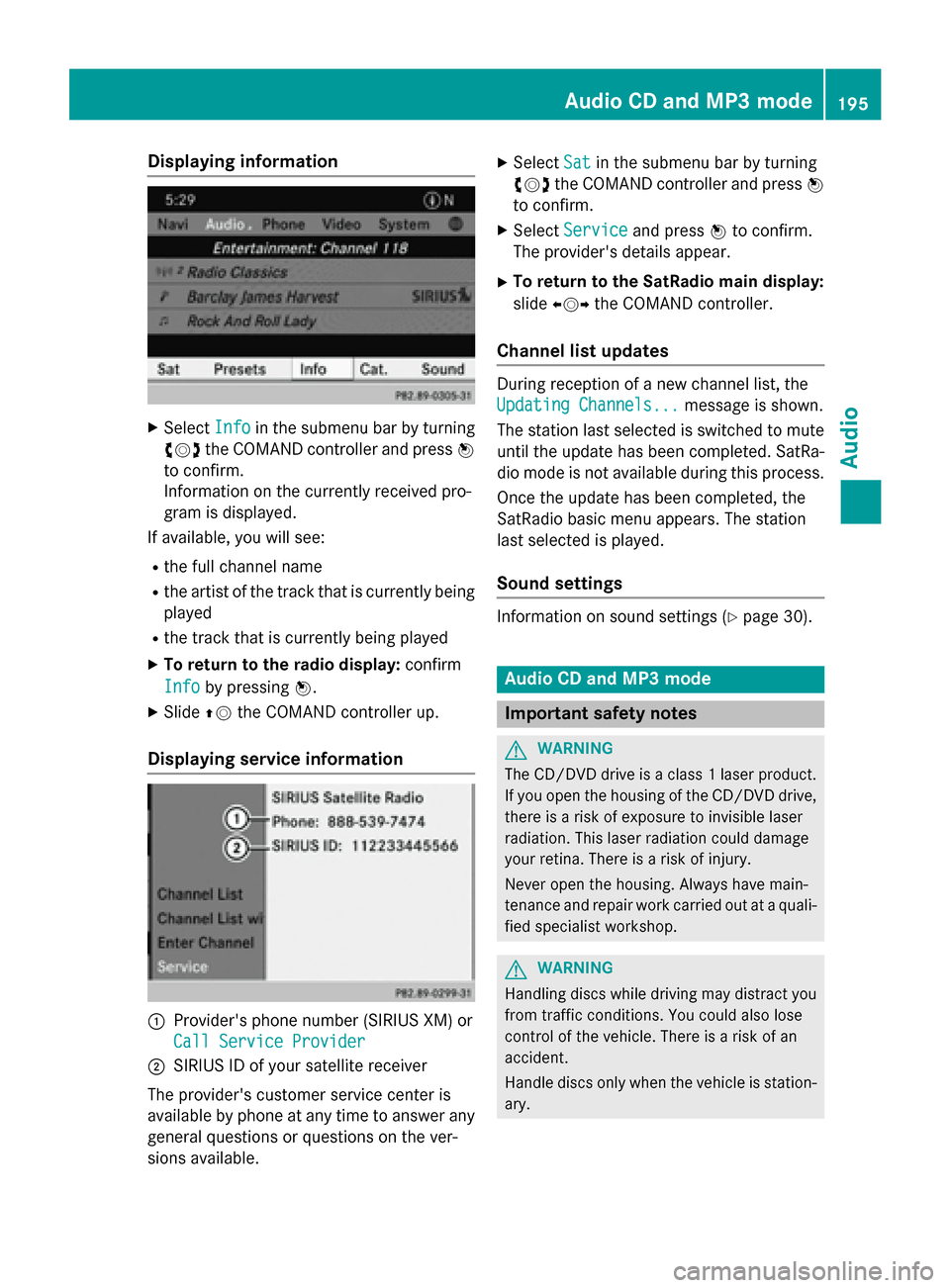
Displaying information
X
Select Info
Info in the submenu bar by turning
00790052007A the COMAND controller and press 0098
to confirm.
Information on the currently received pro-
gram is displayed.
If available, you will see:
R the full channel name
R the artist of the track that is currently being
played
R the track that is currently being played
X To return to the radio display: confirm
Info
Info by pressing 0098.
X Slide 00970052the COMAND controller up.
Displaying service information 0043
Provider's phone number (SIRIUS XM) or
Call Service Provider
Call Service Provider
0044 SIRIUS ID of your satellite receiver
The provider's customer service center is
available by phone at any time to answer any
general questions or questions on the ver-
sions available. X
Select Sat
Sat in the submenu bar by turning
00790052007A the COMAND controller and press 0098
to confirm.
X Select Service Service and press 0098to confirm.
The provider's details appear.
X To return to the SatRadio main display:
slide 009500520096 the COMAND controller.
Channel list updates During reception of a new channel list, the
Updating Channels... Updating Channels...
message is shown.
The station last selected is switched to mute until the update has been completed. SatRa-
dio mode is not available during this process.
Once the update has been completed, the
SatRadio basic menu appears. The station
last selected is played.
Sound settings Information on sound settings (Y
page 30). Audio CD and MP3 mode
Important safety notes
G
WARNING
The CD/DVD drive is a class 1 laser product. If you open the housing of the CD/DVD drive,
there is a risk of exposure to invisible laser
radiation. This laser radiation could damage
your retina. There is a risk of injury.
Never open the housing. Always have main-
tenance and repair work carried out at a quali- fied specialist workshop. G
WARNING
Handling discs while driving may distract you from traffic conditions. You could also lose
control of the vehicle. There is a risk of an
accident.
Handle discs only when the vehicle is station-
ary. Audio CD and MP3
mode
195Audio Z
Page 198 of 270

Bear in mind that at a speed of only 30 mph
(approximately 50 km/h), your vehicle covers
a distance of 44 feet (approximately 14 m)
every se cond. G
WARNING
SD memory cards are small parts. They can be swallowed and cause asphyxiation. This
poses an increased risk of injury or even fatal injury.
Keep SD memory cards out of the reach of
children. If an SD memory card is swallowed,
seek immediate medical attention. Inserting/ejecting CDs/DVDs
Notes If the CD/DVD has a printed side, this must
face upwards when the CD/DVD is inserted.
If neither side is printed, the side to be played should face downwards. CDs/DVDs with
copy protection may not be able to be played
by the system.
i If a medium contains other files in addi-
tion to music files, the loading time before
the first track starts to play may be longer.
Inserting X
Press the 0062button.
If there is a disc already inserted, it will be
ejected.
X Take the disc out of the slot.
X Insert a disc into the slot.
When a suitable data carrier is correctly
inserted, the drive draws it in and plays it.
Removing X
Press the 0062button.
X Take the disc out of the slot.
If you do not take the disc out of the slot, it
is drawn in again automatically after a short
while and reloaded. Inserting and ejecting an SD memory
card
General information COMAND supports SD memory cards
(Secure
Digital), SDHC memory cards
(Secure DigitalHighCapacity) and SDXC
memory cards (Secure Digital eXtended
Capacity.
i Not all memory cards available on the
market are designed for the temperatures
which may be reached in the vehicle.
If the SD memory card is no longer in use,
you should remove it from COMAND. High
temperatures can damage the card.
Due to the wide range of SD memory cards
available on the market, playback cannot
be guaranteed for all brands of SD memory card.
The readable storage capacity depends on
the memory card used. You can obtain fur-
ther information at any authorized
Mercedes-Benz Center.
Inserting an SD memory card X
Insert the memory card into the slot on the
control panel until it engages in place. The
side with the contacts must face down-
wards and point towards the slot.
If no MP3 tracks can be found, you will see a message to this effect.
The first 100 MP3 tracks are loaded. The
first MP3 track is then played. Further
tracks are loaded in the background; this is
indicated by an hourglass symbol.
Ejecting an SD memory card X
Press the memory card.
The memory card is ejected.
X Remove the memory card from slot. 196
Audio CD and MP3 modeAudio
Page 199 of 270

Connecting a USB device
The USB port is located in the stowage com-
partment in the center console.
Electrical consumption at this connection
must not exceed a continuous current of
500 mA. If the electrical consumption is
higher, use a separate source to provide
power for the USB device (e.g.
12 V power supply).
X Connect the USB device (e.g. USB stick) to
the USB port.
If no MP3 tracks can be found, you will seea message to this effect.
The first 100 MP3 tracks are loaded. The
first MP3 track is then played. Further
tracks are loaded in the background; this is
indicated by an hourglass symbol.
i Due to the wide range of USB devices
available on the market, playback cannot
be guaranteed for all brands of USB device.
Information about suitable USB devices
can be obtained from an authorized
Mercedes-Benz Center.
MP3 players must support Media Transfer
Protocol (MTP). The MTP mode must be
active. Switching to audio CD or MP3 mode
Inserting or connecting a medium X
Insert CDs (Y page 196)
or
X Insert an SD memory card (Y page 196)
or
X Connect a USB device (Y page 197).
COMAND loads the medium inserted and
starts to play it.
Switching on using the button X
Press the 003Abutton one or more times. By pressing the
003Abutton repeatedly, you
can switch modes in the following order:
R
R CD/video DVD/MP3 CD/MP3 DVD in the
single DVD drive (disc mode)
R Memory card mode
R MUSIC REGISTER
R USB storage device
R Media Interface or audio AUX mode
R Bluetooth ®
audio mode
X Select an audio medium from the media list
(Y page 198).
Switching modes via the audio menu X
Select Audio Audioin the main function bar by
sliding 00970052and turning 00790052007Athe COMAND
controller and press 0098to confirm.
The last active audio source is now activa-
ted.
You can activate a different audio source
using the audio menu.
X Select Audio Audioby sliding 00970052and turning
00790052007Athe COMAND controller and press 0098
to confirm.
The audio menu appears.
X Select Disc Disc,Memory
Memory Card
Card,Music
Music Regis‐
Regis‐
ter
ter ,USB Storage
USB Storage orMedia Interface
Media Interface
and press 0098to confirm.
This switches to the desired audio source.
X Select an audio medium from the media list
(Y page 198). Audio CD and MP3 mode
197Audio Z
Page 201 of 270

Positions in the media list
Single DVD drive, position 1: readable data
media are audio CDs, MP3 CDs or MP3
DVDs and video DVDs Memory card, position 2
MUSIC REGISTER, position 3
USB storage device, position 4
Media Interface, position 5
Bluetooth
®
audio: position 6 i
If a disc cannot be read, an entry appears
next to the corresponding magazine tray.
i If you select a video DVD, the system
switches to video DVD mode (Y page 226).
Selecting a track using the number key- pad X
When the display/selection window is
active, press a number key, e.g. 0084.
The medium at the corresponding position
in the media list is loaded and then played. Selecting a track
Selecting by skipping to a track X
To skip forwards or back to a track: turn
00790052007A the COMAND controller when the dis-
play/selection window is active.
or
X Press the 0048or0049 button.
The skip forward function skips to the next track.
The skip back function skips to the begin-
ning of the current track if the track has
been playing for more than 8 seconds. If the
track has been playing for less than
8 seconds, it skips to the start of the pre-
vious track. If the
Random Tracks
Random Tracks orRandom Folder Random Folder
playback option has been selected, the
track order is random.
Selecting a track using the number key- pad X
Press the 0056key on the number keypad.
A numerical entry field appears. The num-
ber of positions offered corresponds to the
number of tracks on the CD. Only numbers that correspond to a track number on the
CD can be entered.
X Enter the desired track number using the
number keys.
The track plays after the last possible num-
ber is entered.
i Pressing and holding a number key for
more than 2 seconds completes the entry,
and the corresponding track is played.
Selecting a track using music search X
Select Current Tracklist Current Tracklist, Folder
Folderor a
category and press 0098to confirm.
Select music via categories (e.g. album,
artist) with the music search function.
If you select a category, COMAND starts a
search for track information if the following
conditions are fulfilled: R the data carriers are inserted or connected
R the track information from these data car-
riers is not yet contained in the COMAND
music database. Audio CD and MP3 mode
199Audio Z
Page 203 of 270
Selecting Gracenote
®
data to be dis-
played X
Switch on CD mode (Y page 197).
X Select CD
CDby sliding 00520064and turning 00790052007A
the COMAND controller and press 0098to
confirm.
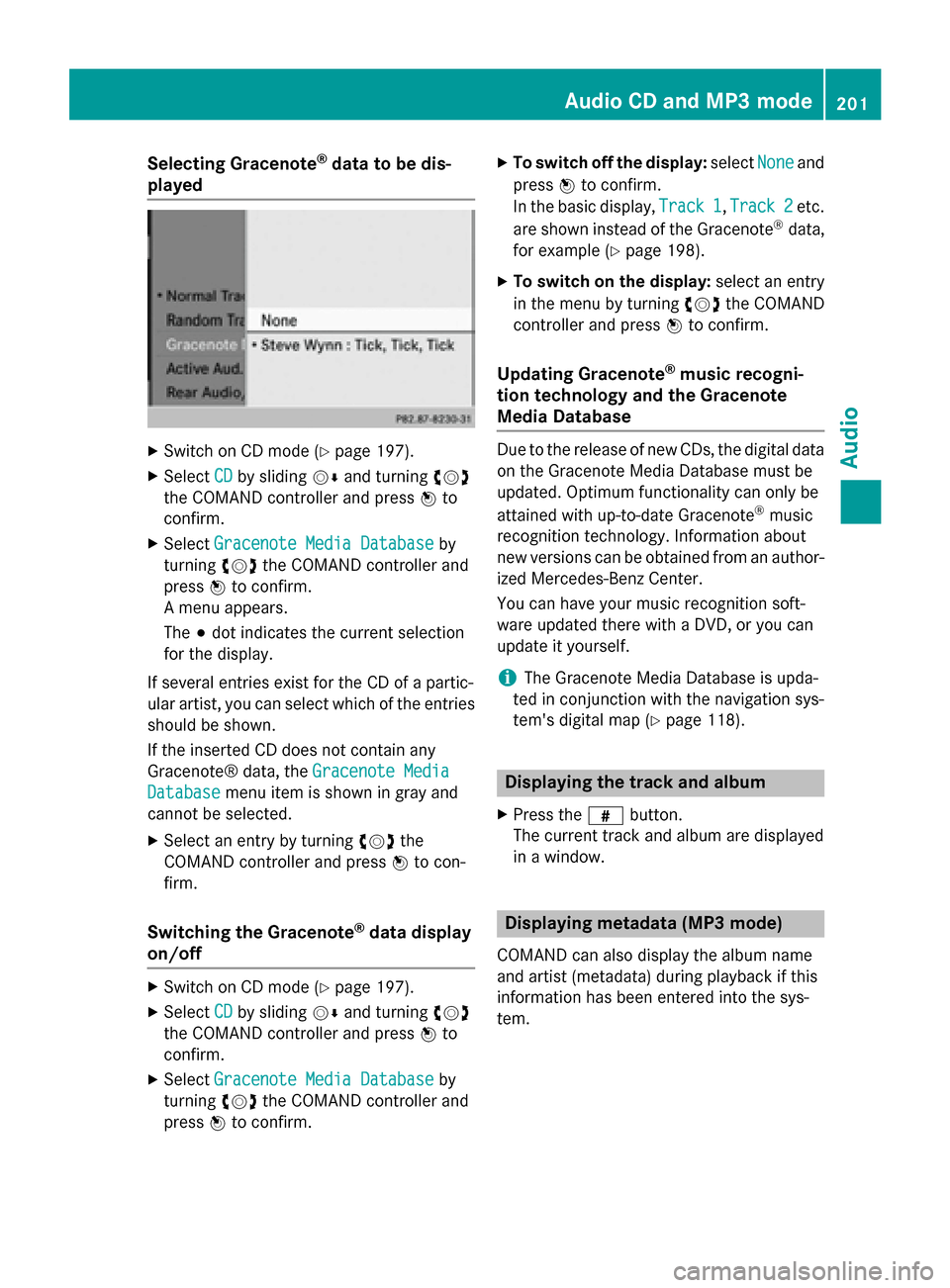
X Select Gracenote Media Database
Gracenote Media Database by
turning 00790052007Athe COMAND controller and
press 0098to confirm.
A menu appears.
The 003Bdot indicates the current selection
for the display.
If several entries exist for the CD of a partic-
ular artist, you can select which of the entries
should be shown.
If the inserted CD does not contain any
Gracenote® data, the Gracenote Media
Gracenote Media
Database
Database menu item is shown in gray and
cannot be selected.
X Select an entry by turning 00790052007Athe
COMAND controller and press 0098to con-
firm.
Switching the Gracenote ®
data display
on/off X
Switch on CD mode (Y page 197).
X Select CD CDby sliding 00520064and turning 00790052007A
the COMAND controller and press 0098to
confirm.
X Select Gracenote Media Database
Gracenote Media Database by
turning 00790052007Athe COMAND controller and
press 0098to confirm. X
To switch off the display: selectNone Noneand
press 0098to confirm.
In the basic display, Track 1 Track 1,Track 2
Track 2etc.
are shown instead of the Gracenote ®
data,
for example (Y page 198).
X To switch on the display: select an entry
in the menu by turning 00790052007Athe COMAND
controller and press 0098to confirm.
Updating Gracenote ®
music recogni-
tion technology and the Gracenote
Media Database Due to the release of new CDs, the digital data
on the Gracenote Media Database must be
updated. Optimum functionality can only be
attained with up-to-date Gracenote ®
music
recognition technology. Information about
new versions can be obtained from an author-
ized Mercedes-Benz Center.
You can have your music recognition soft-
ware updated there with a DVD, or you can
update it yourself.
i The Gracenote Media Database is upda-
ted in conjunction with the navigation sys-
tem's digital map (Y page 118). Displaying the track and album
X Press the 0090button.
The current track and album are displayed
in a window. Displaying metadata (MP3 mode)
COMAND can also display the album name
and artist (metadata) during playback if this
information has been entered into the sys-
tem. Audio CD and MP3 mode
201Audio Z
Page 204 of 270

For all media that contain MP3 data (e.g. MP3
CD, SD memory card, MUSIC REGISTER), you
can determine whether:
R the metadata contained in the tags of the
encoded music data should be displayed
R the file and directory names should be dis-
played during playback
X To display the album and artist name:
select MP3
MP3 orUSB USB in the basic display by
sliding 00520064and turning 00790052007Athe COMAND
controller and press 0098to confirm.
X Select Display Track Information
Display Track Information and
press 0098to confirm. Selecting an active partition (USB
mass storage devices only)
You can select this function for USB mass
storage devices when the storage device is
partitioned. Up to 5 partitions (primary or log- ical, FAT, FAT32 and NTFS) are supported.
X Select MP3
MP3 in the basic display by sliding
00520064 and turning 00790052007Athe COMAND con-
troller and press 0098to confirm.
X Select Select Active Partition
Select Active Partition and
press 0098to confirm. Playback options
X To select options: switch on audio CD or
MP3 mode (Y page 197).
X Select CD CDorMP3
MP3 mode by sliding 00520064and
turning 00790052007Athe COMAND controller and
then pressing 0098to confirm.
The options list appears. The 003Bdot indi-
cates the option selected.
X Select an option by turning 00790052007Aand press
0098 to confirm.
The option is switched on. For all options
except Normal Track Sequence
Normal Track Sequence , you will
see a corresponding display in the display/ selection window.
The following options are available to you:
R Normal Track Sequence
Normal Track Sequence The tracks are played in the normal order
(e.g. track 1, 2, 3, etc.).
In MP3 mode, the track order is determined
by the order in which the tracks are written to the MP3 data carrier when it is created.
Alphabetical order is the most common.
Once all the tracks in a folder have been
played, the tracks in the next folder are
played.
R Random Medium Random Medium
All the tracks on the medium are played in
random order (e.g. track 3, 8, 5 etc.).
R Random Track List Random Track List (MP3 mode only)
You will hear the tracks in the current play-
list or currently active folder (including all
subfolders) in random order.
i The
Normal Track Sequence Normal Track Sequence option is
automatically selected when you change
the disc you are currently listening to or
when you select a different medium. If an
option is selected, it remains selected after COMAND is switched on or off. Notes on MP3 mode
General notes Depending on the volume and format of the
MP3 data, the length of time required for
reading the data may increase.
Permissible data carriers R
CD-R and CD-RW
R DVD-R and DVD-RW
R DVD+R and DVD+RW
R SD memory card
R USB storage device
Permissible file systems R
ISO 9660/Joliet standard for CDs
R UDF for video DVDs
R FAT16, FAT32 and NTFS for SD memory
card and USB storage media 202
Audio CD and MP3 modeAudio
Page 206 of 270

cially the case if you have activated a sur-
round sound function.
Notes on copyright MP3 or WMA tracks that you create or play
back are generally subject to copyright pro-
tection in accordance with the applicable
international and national regulations.
In many countries, reproductions, even for
private use, are not permitted without the
prior consent of the copyright holder.
Make sure that you know about the applicable copyright regulations and that you comply
with these.
If you own these rights yourself, e.g. for yourown compositions and recordings, or if the
copyright holder has granted you permission,
these restrictions do not apply.
Notes on CDs/DVDs !
COMAND is designed to play discs that
comply with the EN 60908 standard. There- fore, you can only use discs with a maxi-
mum thickness of 1.3 mm.
If you insert thicker discs, e.g. those that
contain data on both sides (DVD on one
side and audio data on the other), they can-
not be ejected and can damage the device.
Only use round discs with a diameter of
12 cm. Do not use discs with a diameter of 8 cm, even with an adapter.
Discs with copy protection are not compati-
ble with the audio CD standard and therefore may not be able to be played by COMAND.
Playback problems may occur when playing
copied discs. There is a wide range of data
carriers, disc-writing software and writers
available. This variety means that there is no
guarantee that the system will be able to play
discs that you have copied yourself.
There may be playback problems if you play
CDs that you have copied yourself with a stor- age capacity of more than 700 MB. CDs of
this type do not conform to the currently
applicable standards. i
COMAND is able to play back audio CDs in
multichannel audio format. Music search
Calling up a category list
Category list
X Switch on an audio source and call up the
basic display, e.g. MP3 mode (Y page 197).
X Select Search
Search by sliding 00520064and turning
00790052007A the COMAND controller and press 0098
to confirm.
The category list appears.
The categories are displayed according to the data available. The categories Current Current
Tracklist
Tracklist, Folder
Folder,Playlists
Playlists (if available)
and Photos Photos (if available) are already
assigned. The other available categories are
filled by the music search. Selecting a category
Starting a music search Select music via categories (e.g. album,
artist) with the music search function.
If you select a category, COMAND starts a
music search under the following conditions:
R the data carriers are inserted or connected.
R the music tracks on these data carriers are
not yet in the COMAND music database. 204
Music searchAudio