2015 MERCEDES-BENZ M-Class car play
[x] Cancel search: car playPage 6 of 270

1, 2, 3 ...
360° camera Displaying images ............................ 56
Switching on/off .............................. 56
911 emergency call .......................... 125A
Access data of the mobile phone
network provider Deleting .........................................1 65
Editing .......................................... .165
Making entries ............................... 162
Selecting ........................................ 161
Active partition (USB devices only)
Selecting ........................................ 202
Address book
Browsing ........................................ 147
Calling up ....................................... 147
Changing an entry .......................... 149
Connecting a call ........................... 150
Creating an entry ........................... 148
Deleting an entry ........................... 148
Deleting contacts ........................... 153
Details about an entry ................... 149
Entering characters ......................... 33
Entry as a home address .............. .103
Hiding contact details .................... 154
Importing contacts ........................ 152
Introduction ................................... 146
Receiving vCards ........................... 153
Searching for an entry ................... 148
Starting route guidance ................. 150
Voice tags ...................................... 151
Address entry menu ............................ 64
Adjusting the sound settings
Balance ............................................ 30
Alternative Route ................................ 93
Audio
Radio mode ................................... 186
Audio CD/DVD and MP3 mode
Switching to (Rear Seat Entertain-
ment System) ................................ 245
Audio format, setting
Video DVD ..................................... 231
Autostore .......................................... .189 AUX (audio)
Notes/socket ................................ 223
Switching to ................................... 223
AUX (video)
Setting the volume and sound ....... 232
Showing/hiding the menu ............. 232
Switching to ................................... 232
AUX jacks
CD/DVD drive ............................... 238
Avoiding an area ................................ 115 B
Back button ......................................... 27
Balance, adjusting ............................... 30
Bass, setting ........................................ 30
Bird's-eye view (navigation) ............. 109
Bluetooth®
Activating audio mode ................... 215
Activating/deactivating ................... 45
Conditions (telephone) .................. 125
Connecting another mobile
phone ............................................ 129
Connecting audio devices .............. 212
Device list ...................................... 212
Entering the passcode ................... 128
External authorization .................... 129
General information ......................... 44
Interface ........................................ 124
Introduction ................................... 124
Reconnecting an audio device ....... 214
Searching for a mobile phone ....... .127
Settings .......................................... .44
Telephone basic menu ...................1 31
Telephony ...................................... 125
Telephony notes ............................ 124
Bluetooth® audio basic display ....... 215
Brightness, setting (TV, video) ......... 226
Buttons on the COMAND control-
ler .......................................................... 27 C
Call Accepting/ending/rejecting .......... 132
see Telephone
Call lists
Displaying details ........................... 141 4
Index
Page 7 of 270

Opening and selecting an entry ..... 140
Saving an entry in the address
book ..............................................1
41
Car pool lanes ...................................... 62
Category list (music search) ............ 204
CD
Copy protection ............................ .204
Fast forward/fast rewind .............. .200
General information ....................... 204
Inserting ........................................ 196
Inserting/loading (Rear Seat
Entertainment System) .................. 244
Mode, switching to ........................ 197
Multisession .................................. 203
Notes on discs ............................... 204
Pause function ............................... 198
Removing/ejecting (Rear Seat
Entertainment System) .................. 244
Safety notes .................................. 195
Selecting a media type .................. 198
Selecting a track ............................ 199
Sound settings (balance, bass,
treble) .............................................. 30
CD mode
Playback options ........................... 202
CD/DVD
Inserting ........................................ 196
Removing ....................................... 196
Changing direction
Announcement phase ..................... .88
Change-of-direction phase .............. .88
Preparation phase ............................88
Changing the character set ................ 36
Channel presets ................................ 188
Characters
Changing the character set .............. 35
Changing the language .................... 34
Deleting .......................................... .35
Entering ........................................... 35
Entering (address book, phone
book) ............................................... 33
Entering (navigation) ........................ 35
Moving the cursor ............................ 35
Switching to letters .......................... 34
Clear button ......................................... 27
Color, setting (TV, video) .................. 226COMAND
Active multicontour seat .................. 52
Basic functions ................................ 29
Calling up drive status regulator
(ABC) ............................................... 52
Display ............................................. 21
Examples of operation ..................... 27
Importing POIs ............................... 171
Menu overview ................................. 22
Multicontour seat ............................ 52
Seat functions .................................. 52
Settings ......................................... 183
Switching on/off .............................. 29
COMAND and Internet
see Online and Internet functions
COMAND control panel ....................... 25
COMAND controller ............................. 26
COMAND display
Cleaning instructions ....................... 24
Setting ............................................. 42
Switching on/off .............................. 24
Compass function ............................. 117
Connecting a USB device ................. 197
Contacts
Deleting ......................................... 153
Importing ....................................... 152
Contrast, setting (TV, video) ............ 226
Copy protection (CD/DVD) ............... 204
Country-specific information (nav-
igation) ............................................... 118 D
Data carrier MUSIC REGISTER ........................... 207
Data medium
CD/DVD ........................................ 204
MP3 ............................................... 202
Date format, setting ............................ 43
Day design, setting ............................. 42
Deleting
Call lists ......................................... 142
Destination
Assigning to an address book
entry .............................................. 105
Destination (navigation)
Displaying information ..................... 94
Entering a destination by address .... 63 Index
5
Page 9 of 270

Headphones
Changing batteries ........................ 240
Highway information ........................ 112
Home address
Entering and storing ........................ 69
Selecting from the destination
memory ........................................... 70 I
Incident (traffic report) ....................... 99
Interface (USB, iPod®)
see Media Interface
Internet
Calling up the carousel view .......... 176
Conditions for access .................... 158
Creating favorites ......................... .181
Entering the URL ............................ 176
Favorites manager ......................... 181
Favorites menu .............................. 181
Menu functions .............................. 179
Opening favorites .......................... 180
Selecting favorites ......................... 177
Selecting/setting access data ....... 160
Internet radio
Calling up ....................................... 175
Searching for stations .................... 175
iPod®
Alphabetic track selection ............. 221
Connecting to the Media Inter-
face ............................................... 218
Selecting a category/playlis t......... 220
iTunes® .............................................. 221 L
Lane recommendations Explanation ...................................... 89
Presentation .................................... 89
List of access data
New provider ................................. 162
List of mobile phone network pro-
viders
Empty ............................................ 160
With the selected provider ............. 161
Lumbar support
Adjusting (COMAND) ....................... 53 M
Map (navigation) Adjusting the scale ........................ 108
Arrival time/distance to the des-
tination .......................................... 111
City model ..................................... 112
Geo-coordinate display .................. 111
Heading ......................................... 109
Information in the display .............. 111
Map settings .................................. 109
Moving ........................................... 108
North orientation ........................... 109
Note s............................................. 108
Point of interest symbols ............... 110
Road display .................................. 111
Saving the crosshair position ......... 108
Showing the map data version ....... 118
Topographical map ........................ 112
Updating ........................................ 118
Updating process ........................... 118
Media Interface
Alphabetical track selection .......... 221
Basic menu .................................... 219
Connecting an external audio
source ............................................ 218
Connection options ....................... 217
iPod® ............................................ 217
Mode ............................................. 217
MP3 player .................................... 217
Notes for the MP3 player ............... 223
Playback options ........................... 222
Selecting a music file ..................... 219
Selecting categor y......................... 220
Selecting folde r............................. 220
Selecting playlist ............................ 220
Switching to ................................... 218
USB mass storage device .............. 217
Media list ........................................... 198
Microphone, switching on/off ......... 134
Mobile phone
Authorizing .................................... 128
Connecting (Bluetooth® inter-
face) .............................................. 126
De-authorizing ............................... 130
External authorization .................... 129
Registering (authorizing) ................ 128 Index
7
Page 12 of 270
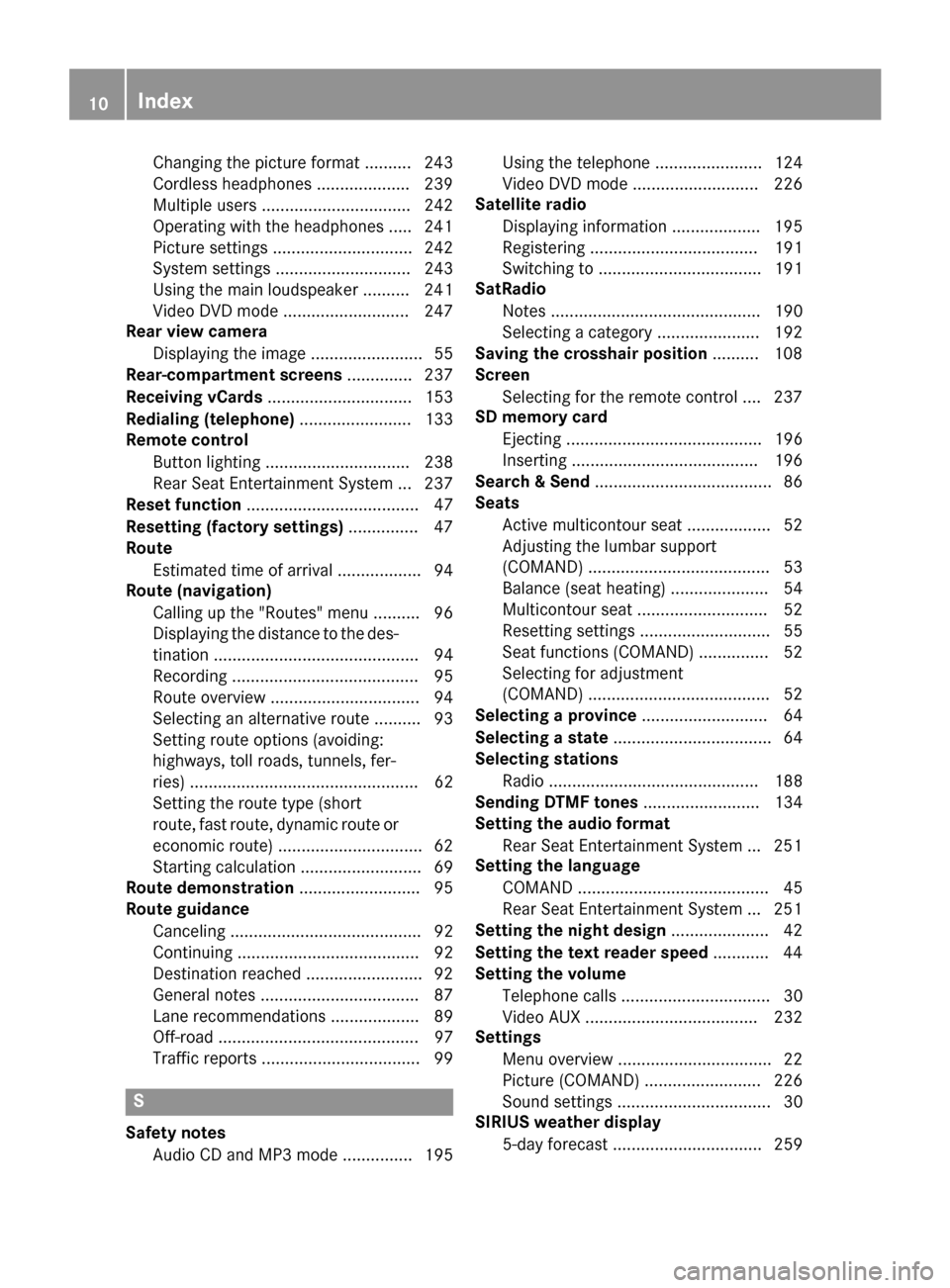
Changing the picture format .......... 243
Cordless headphones .................... 239
Multiple user
s................................ 242
Operating with the headphones ..... 241
Picture settings .............................. 242
System settings ............................. 243
Using the main loudspeaker .......... 241
Video DVD mode ........................... 247
Rear view camera
Displaying the image ........................ 55
Rear-compartment screens .............. 237
Receiving vCards ............................... 153
Redialing (telephone) ........................ 133
Remote control
Button lighting ............................... 238
Rear Seat Entertainment System ... 237
Reset function ..................................... 47
Resetting (factory settings) ............... 47
Route
Estimated time of arrival .................. 94
Route (navigation)
Calling up the "Routes" menu .......... 96
Displaying the distance to the des-tination ............................................ 94
Recording ........................................ 95
Route overview ................................ 94
Selecting an alternative route .......... 93
Setting route options (avoiding:
highways, toll roads, tunnels, fer-
ries) ................................................. 62
Setting the route type (short
route, fast route, dynamic route or
economic route) ............................... 62
Starting calculation .......................... 69
Route demonstration .......................... 95
Route guidance
Canceling ......................................... 92
Continuing ....................................... 92
Destination reached ......................... 92
General notes .................................. 87
Lane recommendations ................... 89
Off-road ........................................... 97
Traffic reports .................................. 99 S
Safety notes Audio CD and MP3 mode ............... 195 Using the telephone ....................... 124
Video DVD mode ........................... 226
Satellite radio
Displaying information ................... 195
Registering .................................... 191
Switching to ................................... 191
SatRadio
Notes ............................................. 190
Selecting a category ...................... 192
Saving the crosshair position .......... 108
Screen
Selecting for the remote control .... 237
SD memory card
Ejecting .......................................... 196
Inserting ........................................ 196
Search & Send ...................................... 86
Seats
Active multicontour seat .................. 52
Adjusting the lumbar support
(COMAND) ....................................... 53
Balance (seat heating) ..................... 54
Multicontour seat ............................ 52
Resetting settings ............................ 55
Seat functions (COMAND) ............... 52
Selecting for adjustment
(COMAND) ....................................... 52
Selecting a province ........................... 64
Selecting a state .................................. 64
Selecting stations
Radi o............................................. 188
Sending DTMF tones ......................... 134
Setting the audio format
Rear Seat Entertainment System ... 251
Setting the language
COMAND ......................................... 45
Rear Seat Entertainment System ... 251
Setting the night design ..................... 42
Setting the text reader speed ............ 44
Setting the volume
Telephone calls ................................ 30
Video AUX ..................................... 232
Settings
Menu overview ................................. 22
Picture (COMAND) ......................... 226
Sound settings ................................. 30
SIRIUS weather display
5-day forecast ................................ 259 10
Index
Page 16 of 270

Important safety notes
G
WARNING
Modifications to electronic components, their software as well as wiring can impair their
function and/or the function of other net-
worked components. In particular, systems
relevant to safety could also be affected. As a
result, these may no longer function as inten-
ded and/or jeopardize the operating safety of
the vehicle. There is an increased risk of an
accident and injury.
Never tamper with the wiring as well as elec-
tronic components or their software. You
should have all work to electrical and elec-
tronic equipment carried out at a qualified
specialist workshop.
If you make any changes to the vehicle elec-
tronics, the general operating permit is ren-
dered invalid. G
WARNING
If you operate information systems and com-
munication equipment integrated in the vehi- cle while driving, you will be distracted from
traffic conditions. You could also lose control of the vehicle. There is a risk of an accident.
Only operate the equipment when the traffic
situation permits. If you are not sure that this
is possible, park the vehicle paying attention
to traffic conditions and operate the equip-
ment when the vehicle is stationary.
You must observe the legal requirements for
the country in which you are currently driving when operating COMAND.
COMAND calculates the route to the destina-
tion without taking account of the following,
for example:
R traffic lights
R stop and yield signs
R merging lanes
R parking or stopping in a no parking/no
stopping zone R
other road and traffic rules and regulations
R narrow bridges
COMAND can give incorrect navigation com-
mands if the actual street/traffic situation
does not correspond with the digital map's
data. Digital maps do not cover all areas nor
all routes in an area. For example, a route may have been diverted or the direction of a one-
way street may have changed.
For this reason, you must always observe
road and traffic rules and regulations during
your journey. Road and traffic rules and reg-
ulations always have priority over the sys-
tem's driving recommendations.
Navigation announcements are intended to
direct you while driving without diverting your attention from the road and driving.
Please always use this feature instead of con-sulting the map display for directions. Look-
ing at the icons or map display can distract
you from traffic conditions and driving, and
increase the risk of an accident.
Bear in mind that at a speed of only 30 mph
(approximately 50 km/h) your vehicle covers
a distance of 44 feet (approximately 14 m)
per second.
This equipment complies with FCC radiation
exposure limits set forth for uncontrolled
equipment and meets the FCC radio fre-
quency (RF) Exposure Guidelines in Supple-
ment C to OET65.
This equipment has very low levels of RF
energy that is deemed to comply without
maximum permissive exposure evaluation
(MPE). But it is desirable that it should be
installed and operated with at least 8inches
(20 cm) and more between the radiator and a
person's body (excluding extremities: hands,
wrists, feet and legs.) 14
Operating safety
Page 28 of 270

Function Page
006E
Number pad
• Selects stations via the
station presets
188
• Stores stations manually 188
• Mobile phone authoriza-
tion 128
• Telephone number entry 132
• Sends DTMF tones 134
• Character entry 35
• Selects a location for the
weather forecast from the
memory 261
0090
Displays the current
track being played 201
007D
Selects stations by
entering the frequency
manually 188
007D
Selects a track 199
006F
Switches COMAND on/off 29
Adjusts the volume 29 Function Page
0070
SD memory card slot 196
0071
Calls up the system menu 42
0072
Accepts a call 132
Dials a number 132
Redial 133
Accepts a waiting call 134
0073
Switches the sound on or
off
29
Switches the microphone
on/off
134
Cancels the text message
read-aloud function
145
Switches off navigation
announcements
29
0074
Rejects a call 132
Ends an active call 135
Rejects a waiting call 134
COMAND controller
Overview 0043
COMAND controller
You can use the COMAND controller to select
the menu items in the COMAND display. You can:
R call up menus or lists
R scroll within menus or lists and
R exit menus or lists
Operation Example: operating the COMAND controller26
COMAND operating systemAt a glance
Page 40 of 270

To do so, use the special cordless head-
phones (Y page 239). Using the headphones
on the correct sides ensures an optimal
sound.
You can connect your own headphones to a
special headphones jack. You can use the
remote control to operate them. Points to remember
R You can only adjust the volume for the
headphones supplied, directly on the head-
phones.
R Only entertainment functions, i.e. audio,
TV, video and Internet, for example, may be used with SPLITVIEW.
R Different media can be used on the driver
and front-passenger sides as long as they
use different media sources. Example: if a
medium from the single DVD drive is being
played on the driver's side, then another
medium that is also played from the single
DVD drive cannot be played separately on
the front-passenger side. However, other
media can be used at the same time on the
front-passenger side, including radio,
memory card, MUSIC REGISTER, Media
Interface, USB or AUX.
R If you use the same medium on both sides,
you can both carry out the respective set-
tings.
R Internet use is only available at any one
time to the driver or the front passenger.
A corresponding message appears on the
display.
R Internet can only be used, if it is set and
connected via a telephone on the driver's
side.
R The multifunction steering wheel can only
be used for functions which relate to the
driver's side. Switching SPLITVIEW on/off
Switching on SPLITVIEW
X Select System System in the main function bar by
turning 00790052007Athe COMAND controller and
press 0098to confirm.
X Select 0044in the menu bar and confirm.
SPLITVIEW symbol 0043appears in the dis-
play and display 0044switches to Off
Off .
The front passenger sees the display of the
function last activated. If the switch-on
time was longer than 30 minutes previ-
ously, the display from the driver's side is
shown.
The front passenger can now call up the
COMAND functions with the remote con-
trol.
Switching off SPLITVIEW X Select 0044in the menu bar by turning 00790052007A
the COMAND controller and press 0098to
confirm.
SPLITVIEW symbol 0043disappears from the
display. Display 0044switches to On
On.
i If COMAND has already been switched
on, you can also use the remote control to
switch SPLITVIEW on and off. Make sure
that the SPLITVIEW symbol is set on the
remote control thumbwheel (Y page 237).
The SPLITVIEW display remains on for approx-
imately 30 minutes after the SmartKey has
been turned to position 0in the ignition lock.
After this time or after the SmartKey has been
removed, the settings on the front-passenger side are saved for approximately 30 minutes 38
SPLITVIEWAt a glance
Page 62 of 270

Your COMAND equipment
These operating instructions describe all the
standard and optional equipment for your
COMAND system, as available at the time of
going to print. Country-specific differences
are possible. Please note that your
COMAND system may not be equipped with
all the features described. Introduction
Important safety notes
G
WARNING
If you operate information systems and com-
munication equipment integrated in the vehi- cle while driving, you will be distracted from
traffic conditions. You could also lose control of the vehicle. There is a risk of an accident.
Only operate the equipment when the traffic
situation permits. If you are not sure that this
is possible, park the vehicle paying attention
to traffic conditions and operate the equip-
ment when the vehicle is stationary.
You must observe the legal requirements for
the country in which you are currently driving when operating COMAND.
COMAND calculates the route to the destina-
tion without taking account of the following,
for example:
R traffic lights
R stop and yield signs
R merging lanes
R parking or stopping in a no parking/no
stopping zone
R other road and traffic rules and regulations
R narrow bridges
COMAND can give incorrect navigation com-
mands if the actual street/traffic situation
does not correspond with the digital map's
data. Digital maps do not cover all areas nor
all routes in an area. For example, a route may have been diverted or the direction of a one-
way street may have changed.
For this reason, you must always observe
road and traffic rules and regulations during
your journey. Road and traffic rules and reg-
ulations always have priority over the sys-
tem's driving recommendations.
Navigation announcements are intended to
direct you while driving without diverting your attention from the road and driving.
Please always use this feature instead of con-sulting the map display for directions. Look-
ing at the icons or map display can distract
you from traffic conditions and driving, and
increase the risk of an accident. General notes
Operational readiness of the navigation system The navigation system must determine the
position of the vehicle before first use or
whenever operational status is restored.
Therefore, you may have to drive for a while
before precise route guidance is possible.
GPS reception Among other things, correct functioning of
the navigation system depends on GPS recep-
tion. In certain situations, GPS reception may
be impaired, there may be interference or
there may be no reception at all, e.g. in tun-
nels or parking garages.
i Using roof carriers may impair the correct
functioning of a roof antenna (phone, sat-
ellite radio, GPS).
Entry restriction On vehicles for certain countries, there is a
restriction on entering data.
The restriction is active from a vehicle speed
of above approximately 3 mph (5 km/h).As
soon as the speed falls below approximately 60
IntroductionNavigation