Page 148 of 214
Internet radio
General notes
A good Internet connection enables an effi-
cient transmission of audio data. Connecting
your mobile phone to the vehicle's exterior
antenna via the phone bracket ensures the
best possible reception.
i Bear in mind that a relatively large volume
of data can be transmitted when using
Internet radio. An average 12 8kbit per sec-
ond data transfer rate can transfer 56 MB
of data in one hour.
The data transfer rate of a station is dis-
played while receiving data. Calling up the Internet radio
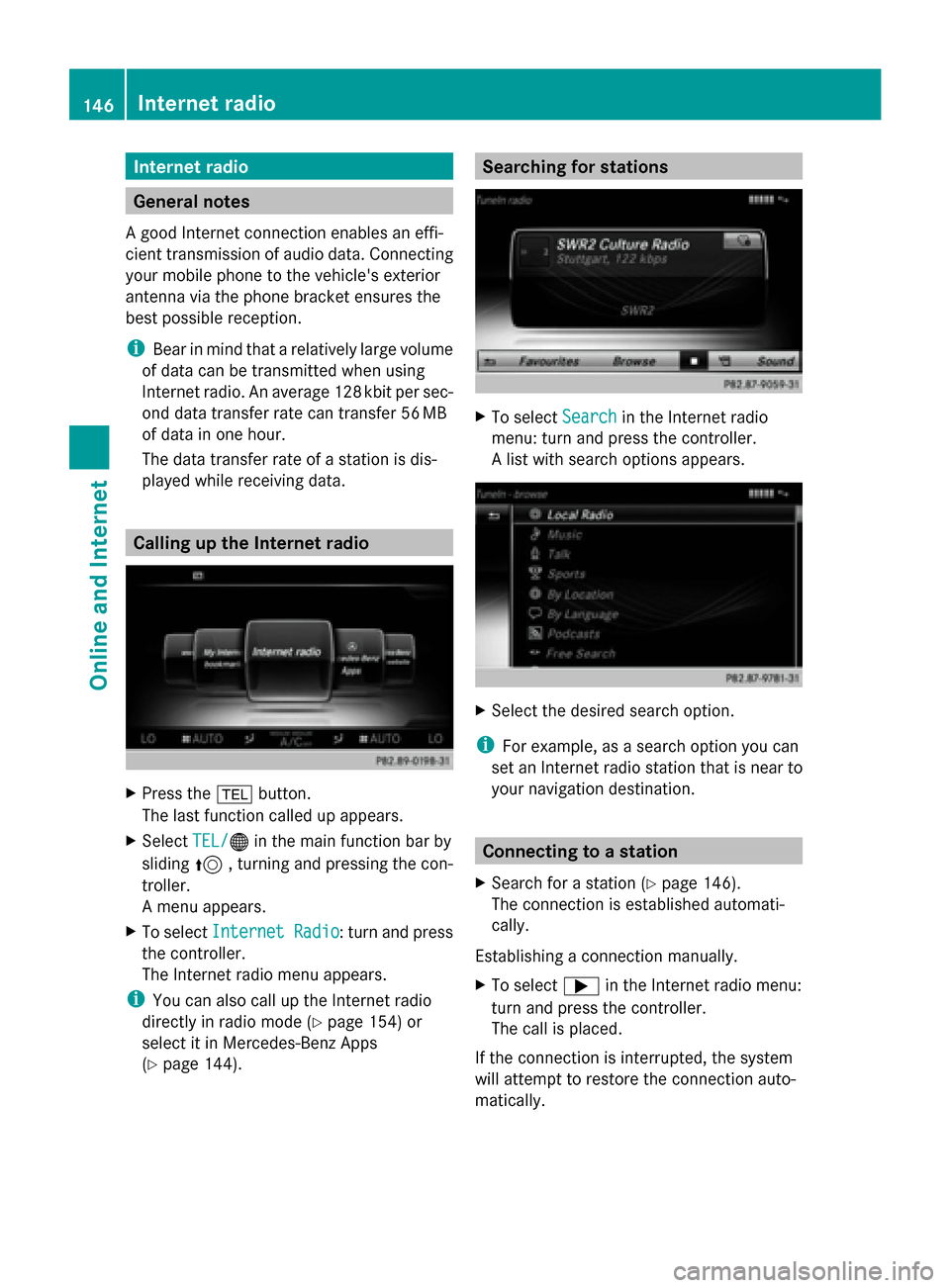
X
Press the 002Bbutton.
The last function called up appears.
X Select TEL/ TEL/00A7 in the main function bar by
sliding 5, turning and pressing the con-
troller.
A menu appears.
X To select Internet Radio
Internet Radio : turn and press
the controller.
The Internet radio menu appears.
i You can also call up the Internet radio
directly in radio mode (Y page 154) or
select it in Mercedes-Benz Apps
(Y page 144). Searching for stations
X
To select Search Searchin the Internet radio
menu: turn and press the controller.
A list with search options appears. X
Select the desired search option.
i For example, as a search option you can
set an Internet radio station that is near to
your navigation destination. Connecting to a station
X Search for a station (Y page 146).
The connection is established automati-
cally.
Establishing a connection manually.
X To select 0065in the Internet radio menu:
turn and press the controller.
The call is placed.
If the connection is interrupted, the system
will attempt to restore the connection auto-
matically. 146
Internet radioOnline and Internet
Page 182 of 214
Selecting a playback mode
X To switch MEDIA REGISTER on: press the
00FD button repeatedly until the MEDIA
REGISTER is switched on.
X Slide 00520064the controller.
The media menu bar appears.
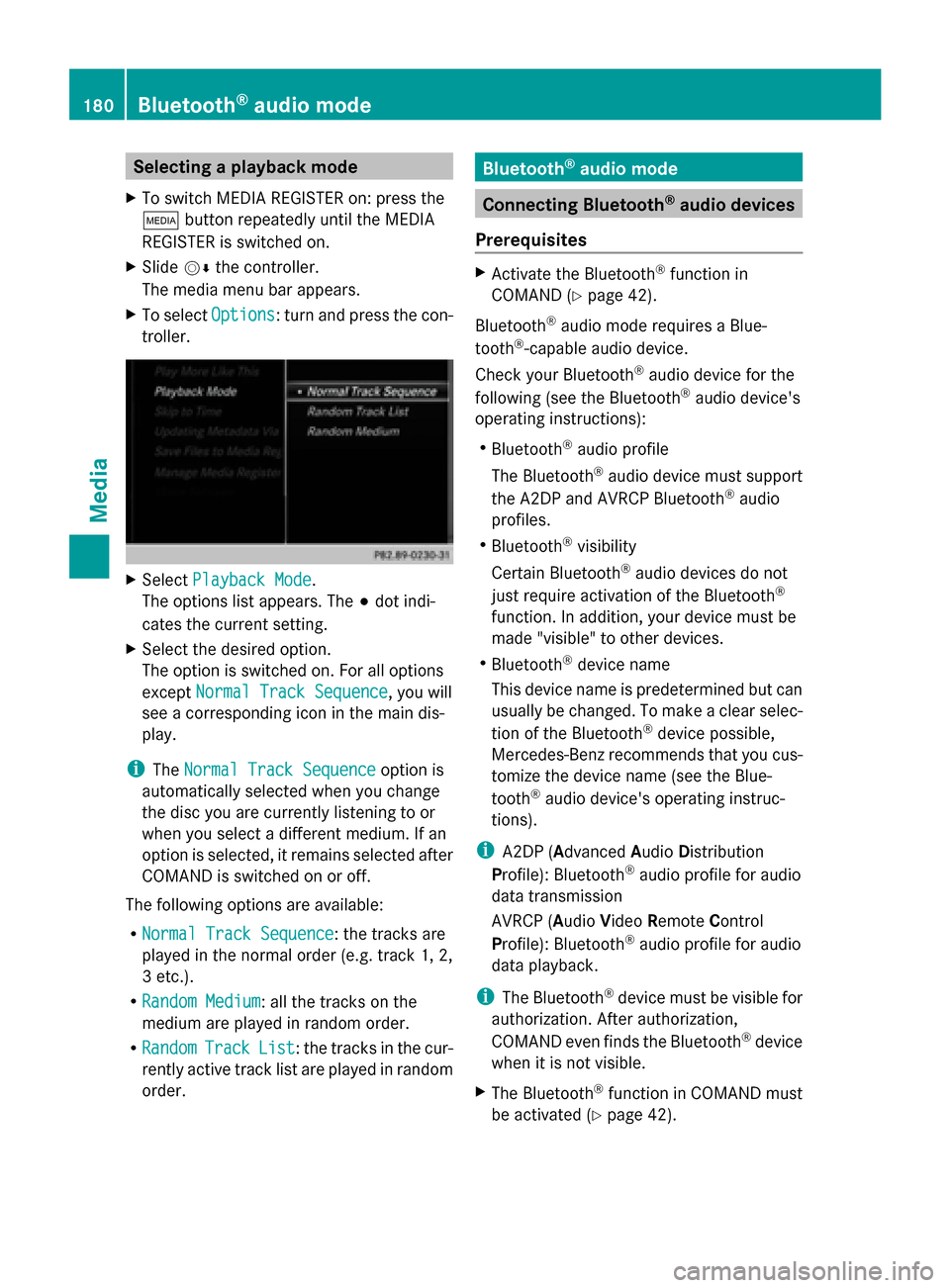
X To select Options
Options: turn and press the con-
troller. X
Select Playback Mode
Playback Mode.
The options list appears. The 003Bdot indi-
cates the current setting.
X Select the desired option.
The option is switched on. For all options
except Normal Track Sequence
Normal Track Sequence, you will
see a corresponding icon in the main dis-
play.
i The Normal Track Sequence Normal Track Sequence option is
automatically selected when you change
the disc you are currently listening to or
when you select a different medium. If an
option is selected, it remains selected after
COMAND is switched on or off.
The following options are available:
R Normal Track Sequence Normal Track Sequence: the tracks are
played in the normal order (e.g. track 1, 2,
3 etc.).
R Random Medium Random Medium: all the tracks on the
medium are played in random order.
R Random Random Track
TrackList
List: the tracks in the cur-
rently active track list are played in random
order. Bluetooth
®
audio mode Connecting Bluetooth
®
audio devices
Prerequisites X
Activate the Bluetooth ®
function in
COMAND (Y page 42).
Bluetooth ®
audio mode requires a Blue-
tooth ®
-capable audio device.
Check your Bluetooth ®
audio device for the
following (see the Bluetooth ®
audio device's
operating instructions):
R Bluetooth ®
audio profile
The Bluetooth ®
audio device must support
the A2DP and AVRCP Bluetooth ®
audio
profiles.
R Bluetooth ®
visibility
Certain Bluetooth ®
audio devices do not
just require activation of the Bluetooth ®
function. In addition, your device must be
made "visible" to other devices.
R Bluetooth ®
device name
This device name is predetermined but can
usually be changed. To make a clear selec-
tion of the Bluetooth ®
device possible,
Mercedes-Benz recommends that you cus-
tomize the device name (see the Blue-
tooth ®
audio device's operating instruc-
tions).
i A2DP (Advanced AudioDistribution
Profile): Bluetooth ®
audio profile for audio
data transmission
AVRCP (Audio VideoRemote Control
Profile): Bluetooth ®
audio profile for audio
data playback.
i The Bluetooth ®
device must be visible for
authorization. After authorization,
COMAND even finds the Bluetooth ®
device
when it is not visible.
X The Bluetooth ®
function in COMAND must
be activated (Y page 42).180
Bluetooth ®
audio modeMedia
Page 186 of 214
De-authorizing (deregistering) a Blue-
tooth ®
audio device
X To select a Bluetooth ®
audio device from
the Bluetooth ®
device list: turn the control-
ler.
X To select the symbol to the right of the
Bluetooth ®
audio device: slide 00520096and
press the controller.
X To select Deauthorize
Deauthorize : press the control-
ler.
A prompt appears asking whether you
really wish to deauthorize this device.
X To select Yes
Yes orNo No: turn and press the con-
troller.
If you select Yes
Yes , the device will be deleted
from the Bluetooth ®
device list.
If you select No
No the process is canceled.
i Before re-authorizing the Bluetooth ®
audio device, you should also delete the
device name MB Bluetooth
MB Bluetooth from your
Bluetooth ®
audio device's Bluetooth ®
list
(see the Bluetooth ®
audio device's operat-
ing instructions). Switching to Bluetooth
®
audio mode
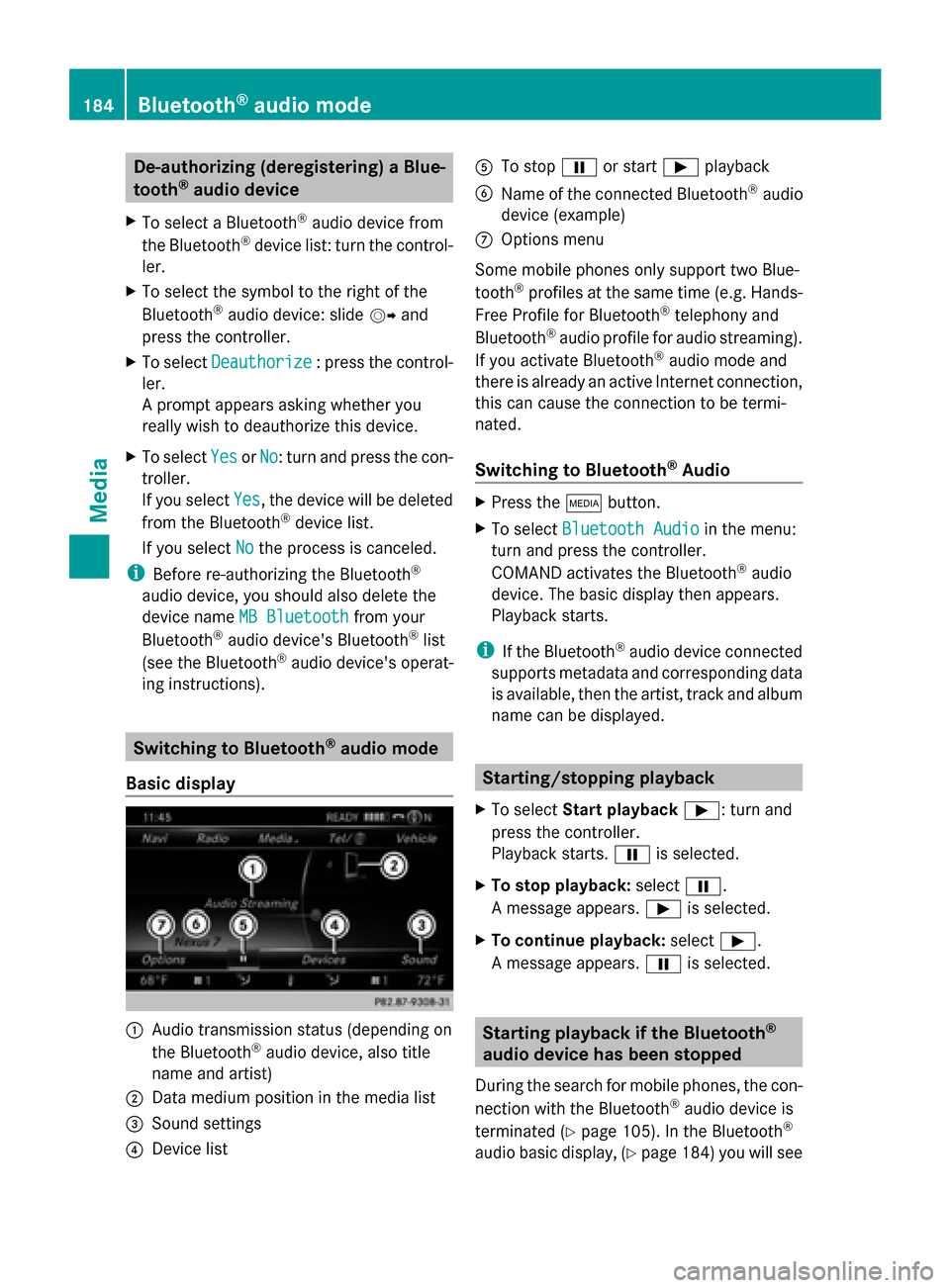
Basic display 0043
Audio transmission status (depending on
the Bluetooth ®
audio device, also title
name and artist)
0044 Data medium position in the media list
0087 Sound settings
0085 Device list 0083
To stop 00CFor start 00D0playback
0084 Name of the connected Bluetooth ®
audio
device (example)
006B Options menu
Some mobile phones only support two Blue-
tooth ®
profiles at the same time (e.g. Hands-
Free Profile for Bluetooth ®
telephony and
Bluetooth ®
audio profile for audio streaming).
If you activate Bluetooth ®
audio mode and
there is already an active Internet connection,
this can cause the connection to be termi-
nated.
Switching to Bluetooth ®
Audio X
Press the 00FDbutton.
X To select Bluetooth Audio Bluetooth Audio in the menu:
turn and press the controller.
COMAND activates the Bluetooth ®
audio
device. The basic display then appears.
Playback starts.
i If the Bluetooth ®
audio device connected
supports metadata and corresponding data
is available, then the artist, track and album
name can be displayed. Starting/stopping playback
X To select Start playback 00D0: turn and
press the controller.
Playback starts. 00CFis selected.
X To stop playback: select00CF.
A message appears. 00D0is selected.
X To continue playback: select00D0.
A message appears. 00CFis selected. Starting playback if the Bluetooth
®
audio device has been stopped
During the search for mobile phones, the con-
nection with the Bluetooth ®
audio device is
terminated (Y page 105). In the Bluetooth ®
audio basic display, (Y page 184) you will see184
Bluetooth ®
audio modeMedia