2015 LINCOLN MKT USB
[x] Cancel search: USBPage 392 of 500

Browsing Device Content
When listening to audio on a device, you can browse through other
devices without having to change sources. For example, if you are
currently listening to audio on an SD card, you can browse all the artists
that are stored on your USB device.
Press the voice icon on the steering wheel. When prompted,
you can say:
“BROWSE” within devices
“Browse”*
“Browse
“Browse
“Browse Sirius channel guide”**
“Browse SD card”
“Browse USB”
“Help”
*If you have said “Browse”, you can then say any commands in the
following chart.
**This command is only usable if you have an active subscription to
Sirius satellite radio.
“BROWSE”
“
”
“SD card”**
“Sirius channel guide”*
“USB”**
“Help”
*This command is only usable if you have an active subscription to Sirius
satellite radio.
**For more commands in SD card or USB mode, see the “SD card and
USB Port” section of this chapter.
For a complete list of “Browse” voice commands, seeUSB and SD card
voice commandsandBluetooth audio voice commandsin the
following sections.
Your voice system allows you to change audio sources with a simple
voice command. For example, if you are listening to music on a USB
MyLincoln Touch™391
2015 MKT(mkt)
Owners Guide gf, 1st Printing, October 2014
USA(fus)
Page 393 of 500

device, then want to switch to a satellite radio channel, simply press the
voice button on the steering wheel controls and say the name of the
Sirius station (such as, “the Highway”). The following voice commands
are available at the top level of the voice session no matter which
current audio source you are listening to (such as a USB device or Sirius
satellite radio).Note:This is only available when your MyFord Touch
system language is set to North American English.
“AM <530 - 1710>” “FM <87.9 – 107.9>”
“<530 - 1710>” “<87.9 – 107.9>”
“Sirius <0-223>”
*“
“Play [genre]
“Play [artist]
“Play [album]
“Play
*
*
This command is only usable if you have an active subscription to Sirius
satellite radio.
**The commands that have [ ] around the word means that the word is
optional. For example, if you say, “Play Metallica”, this is the same as the
voice command, “Play [artist]
AM and FM
Touch theAMorFMtab to listen to the radio.
To change between AM and FM presets, just touch theAMor
FMtab.
Memory Presets
Save a station by pressing and holding one of the memory preset areas.
There is a brief mute while the radio saves the station. Sound returns
when finished.
HD Radio
Touch this button to turn HD Radio on. The light on the button
illuminates when the feature is on. HD Radio allows you to receive radio
broadcasts digitally, where available, providing free, crystal-clear sound.
SeeHD Radio informationlater in this chapter.
Scan
Touch this button to go to the next strong AM or FM radio station. The
light on the button illuminates when the feature is on.
392MyLincoln Touch™
2015 MKT(mkt)
Owners Guide gf, 1st Printing, October 2014
USA(fus)
Page 406 of 500

SD Card Slot and USB Port
SD Card Slot
Note:Your SD card slot is spring-loaded. To remove the SD card, press
the card in and the system ejects it. Do not attempt to pull the card to
remove it as this could cause damage.
Note:The navigation system also uses this card slot. SeeNavigation
systemlater in this chapter for more information.
The slot is located either in the center console
or behind a small access door in the
instrument panel. To access and play music
from your card, press the lower left corner of
the touchscreen, and then selectSD Card
from the list on the left side of the screen.
SD logo is a trademark of SD-3C,
LLC.
USB Port
The ports are located either in the center
console or behind a small access door in the
instrument panel. To access and play music
from your device, press the lower left corner
of the touchscreen, and then select theUSB
tab.
This feature allows you to plug in media playing devices, memory sticks,
flash drives or thumb drives, and charge devices if they support this
feature.
In order to playback video from your iPod or iPhone, if compatible, you
must have a special combination USB/RCA composite video cable, which
you can buy from Apple. When you connect the cable to your iPod or
iPhone, plug the other end into both the RCA jacks and the USB port.
MyLincoln Touch™405
2015 MKT(mkt)
Owners Guide gf, 1st Printing, October 2014
USA(fus)
Page 407 of 500

Playing Music from Your Device
Note:The system is capable of indexing up to 30,000 songs.
Insert your device and select theSD CardorUSBtab once the system
recognizes it. You can then select from the following options:
Repeatreplays the currently playing song or album.
Shuffleplays music on the selected album or folder in random order.
Similar Musicallows you to choose music similar to what is currently
playing.
More Infodisplays information such as current track, artist name,
album and genre.
Optionsallows you to view and adjust various media settings.
•Sound Settingsallows you to adjust settings for:
•Bass
•Midrange
•Treble
•Balance and Fade
•DSP (Digital Signal Processing)
•Occupancy Mode
•Speed Compensated Volume.
Note:Your vehicle may not have all these sound settings.
•Media Player Settingsallows you to select more settings, which is
underMedia Player.SeeSettings.
•Device Informationdisplays software and firmware information
about the currently connected media device.
•Update Media Indexindexes your device each time you connect it
to make sure you have the latest voice commands available for all
media on the device.
Browseallows you to view the contents of the device. It also allows you
to search by categories, such as genre, artist or album.
If you want to view song information such as Title, Artist, File, Folder,
Album, and Genre, touch the on-screen album art.
You can also touchWhat’s Playingto hear how the system pronounces
the current band and song. This can be helpful when using voice
commands to make sure the system correctly plays your request.
406MyLincoln Touch™
2015 MKT(mkt)
Owners Guide gf, 1st Printing, October 2014
USA(fus)
Page 408 of 500
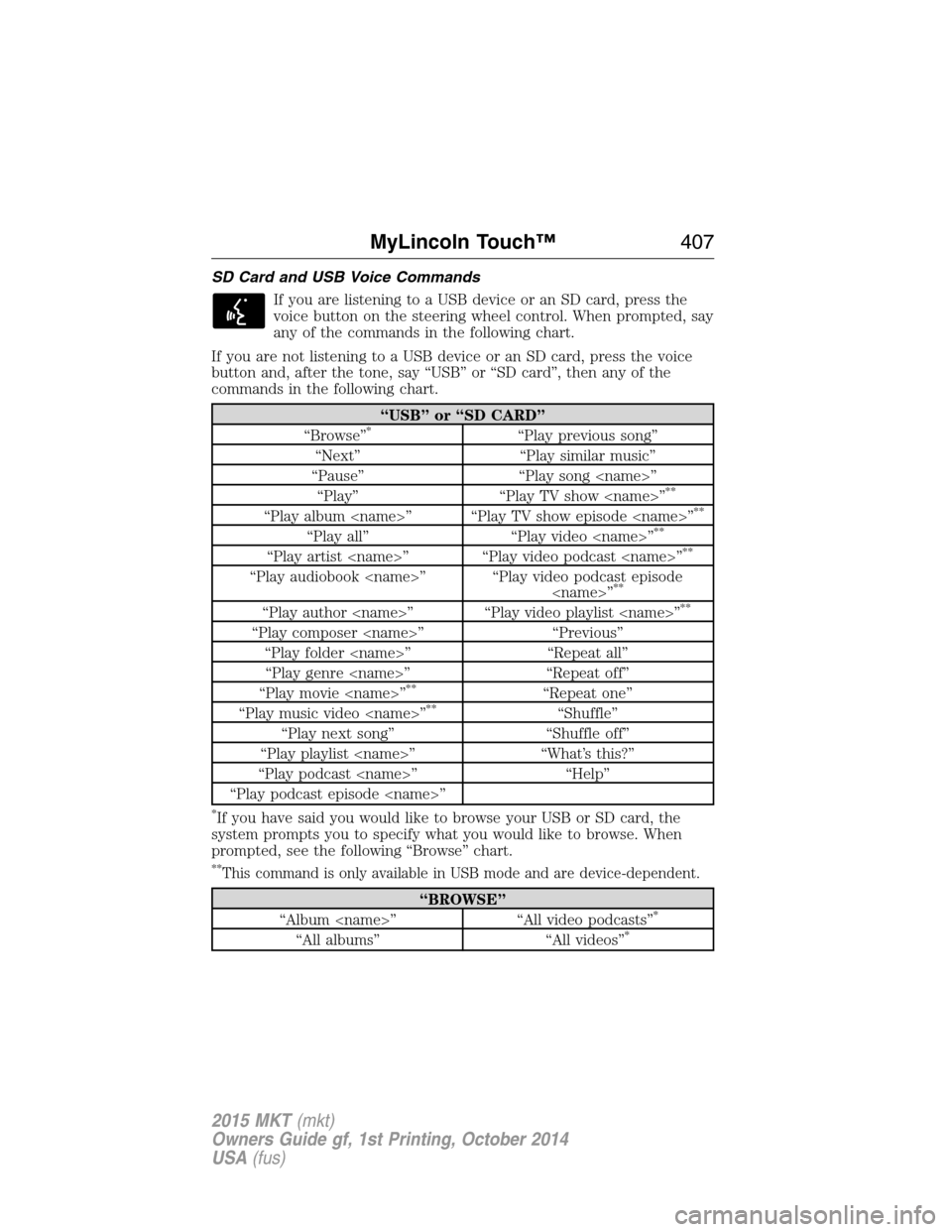
SD Card and USB Voice Commands
If you are listening to a USB device or an SD card, press the
voice button on the steering wheel control. When prompted, say
any of the commands in the following chart.
If you are not listening to a USB device or an SD card, press the voice
button and, after the tone, say “USB” or “SD card”, then any of the
commands in the following chart.
“USB” or “SD CARD”
“Browse”*“Play previous song”
“Next” “Play similar music”
“Pause” “Play song
“Play” “Play TV show
**
“Play album
“Play all” “Play video
“Play artist
“Play audiobook
“Play author
“Play composer
“Play folder
“Play genre
“Play movie
**“Repeat one”
“Play music video
“Play next song” “Shuffle off”
“Play playlist
“Play podcast
“Play podcast episode
*If you have said you would like to browse your USB or SD card, the
system prompts you to specify what you would like to browse. When
prompted, see the following “Browse” chart.
**This command is only available in USB mode and are device-dependent.
“BROWSE”
“Album
“All albums” “All videos”*
MyLincoln Touch™407
2015 MKT(mkt)
Owners Guide gf, 1st Printing, October 2014
USA(fus)
Page 409 of 500

“BROWSE”
“All artists” “Artist
“All audiobooks” “Audiobook
“All authors” “Author
“All composers” “Composer
“All folders” “Folder
“All genres” “Genre
“All movies”
*“Playlist
“All music videos”*“Podcast
“All playlists” “TV show
“All podcasts” “Video
“All songs” “Video playlist
“All TV shows”*“Video podcast
“All video playlists”*“Help”
*This command is only available in USB mode and are device-dependent.
Supported Media Players, Formats and Metadata Information
SYNC is capable of hosting nearly any digital media player, including
iPod®, Zune™, plays from device players, and most USB drives.
Supported audio formats include MP3, WMA, WAV and AAC.
It is also able to organize your indexed media from your playing device
by metadata tags. Metadata tags, which are descriptive software
identifiers embedded in the media files, provide information about the
file.
If your indexed media files contain no information embedded in these
metadata tags, SYNC may classify the empty metadata tags as
Unknown.
In order to playback video from your iPod® or iPhone®, (if compatible),
you MUST have a special combination USB/RCA composite video cable
(which you can buy from Apple®). When the cable is connected to your
iPod® or iPhone®, plug the other end into both the RCA jacks and the
USB port.
408MyLincoln Touch™
2015 MKT(mkt)
Owners Guide gf, 1st Printing, October 2014
USA(fus)
Page 411 of 500

Your A/V inputs allow you to connect an
auxiliary audio/video source (such as a
gaming systems or a personal camcorder)
by connecting RCA cords (not included)
to these input jacks. The jacks are yellow,
red and white and are located either
behind a small access door on the
instrument panel or in your center console.
You can also use the A/V inputs as an auxiliary input jack to play music
from your portable music player over your vehicle’s speakers. Plug in
your 1/8 inch (3.5 millimeter) RCA adapter into the two left A/V input
jacks (red and white).
Press the lower left corner of the touchscreen, and then selectA/V In.
To use the auxiliary input jack feature, make sure that your portable
music player is designed for use with headphones and that it is fully
charged. You also need an audio extension cable with stereo male
1/8th-inch (3.5 millimeter) connectors at one end and a RCA jack at the
other.
1. Switch off the engine, radio and portable music player. Set the
parking brake and put the transmission in positionP.
2. Attach one end of the audio extension cable to the headphone output
of your player and the other end into the adapter in one of the two
left A/V input jacks (white or red) inside the center console.
3. Press the lower left corner on the touchscreen. Select either a tuned
FM station or a CD (if there is a CD already loaded into the system).
4. Adjust the volume as desired.
5. Turn the portable music player on and adjust the volume to
12the
maximum.
6. Press the lower left corner on the touchscreen. Select the A/V In tab.
(You should hear audio from your portable music player although it
may be low.)
7. Adjust the sound on your portable music player until it reaches the
level of the FM station or CD by switching back and forth between
the controls.
In order to playback video from your iPod® or iPhone® (if compatible),
you must have a special combination USB/RCA composite video cable
(which you can buy from Apple®). When the cable is connected to your
iPod® or iPhone®, plug the other end into both the RCA jacks and the
USB port.
410MyLincoln Touch™
2015 MKT(mkt)
Owners Guide gf, 1st Printing, October 2014
USA(fus)
Page 433 of 500

Display
You can adjust the touchscreen display through the touchscreen or by
pressing the voice button on your steering wheel controls and when
prompted, say, “Display settings”.
Press the Settings icon >Display,to access and make
adjustments using the touchscreen.
•Brightness
allows you to make the screen display brighter or dimmer.
•Auto DIM, when set toOn,lets you use the Auto Dim Manual Offset
feature. When set toOff,screen brightness does not change.
•Modeallows you to set the screen to a certain brightness or have the
system automatically change based on the outside light level, or turn
the display off.
•If you selectAUTOorNIGHT,you have the options of turning the
display’s Auto Dim feature on or off and changing the Auto Dim
Manual Offset feature.
•Auto Dim Manual Offsetallows you to adjust screen dimming as the
outside lighting conditions change from day to night. This feature also
allows you to adjust screen brightness using the instrument panel
dimming control.
Edit Wallpaper
•You can have your touchscreen display the default photo or upload
your own.
Uploading Photos for Your Home Screen Wallpaper
Note:
You cannot load photos directly from your camera. You must access
the photos either from your USB mass storage device or from an SD card.
Note:Photographs with extremely large dimensions (such as 2048 x 1536)
may not be compatible and appear as a blank (black) image on the display.
Your system allows you to upload and view up to 32 photos.
To access, press the Settings icon >Display>Edit Wallpaper,and
then follow the system prompts to upload your photographs.
Only the photograph(s), which meets the following conditions, display:
•Compatible file formats are as follows: .jpg, .gif, .png, .bmp.
•Each file must be 1.5 MB or less.
•Recommended dimensions: 800 x 384.
432MyLincoln Touch™
2015 MKT(mkt)
Owners Guide gf, 1st Printing, October 2014
USA(fus)