2015 LINCOLN MKT wheel
[x] Cancel search: wheelPage 418 of 500
911 Assist
Turn on or turn off the 911 Assist feature. See911 Assistin theSYNC
Services and Applicationssection.
Phone Ringer
Select the ring tone you want to hear when you receive a call. Choose
from possible system ring tones, your currently paired phone’s ring tone,
a beep, text-to-speech or a silent notification.
Text Message Notification
Select a text message notification, if supported by your phone. Choose
from possible system alert tones, text-to-speech or silent.
Internet Data Connection
If your phone is compatible, use this screen to adjust your internet data
connection. Select to make your connection profile with the personal
area network or to turn off your connection. You can also choose to
adjust your settings or have the system always connect, never connect
when roaming or query on connect. Press?for more information.
Manage Phonebook
Touch this button to access features such as automatic phonebook
download, re-download your phonebook, add contacts from your phone
as well as delete or upload your phonebook.
Roaming Warning
Touch this button to have the system alert you when your phone is in
roaming mode.
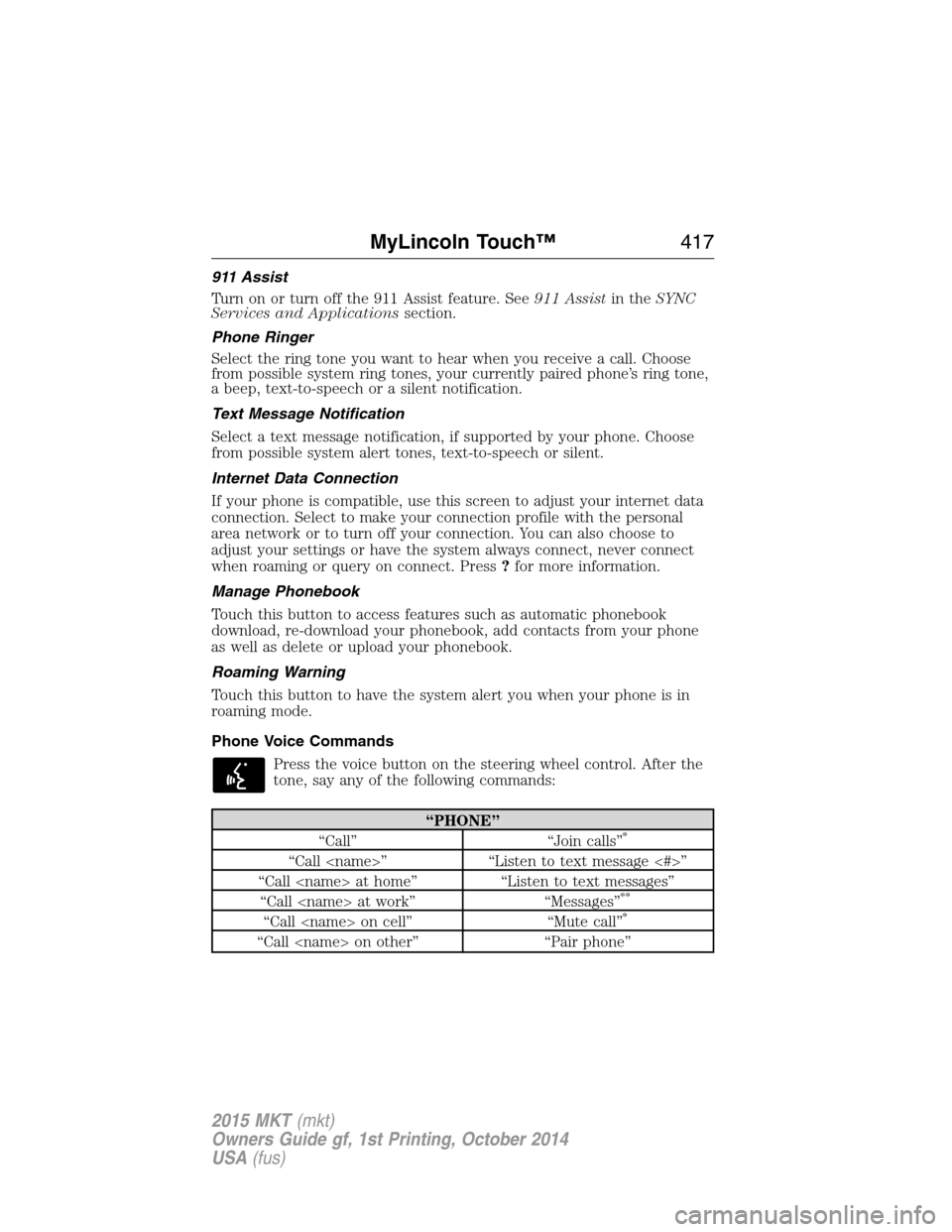
Phone Voice Commands
Press the voice button on the steering wheel control. After the
tone, say any of the following commands:
“PHONE”
“Call” “Join calls”*
“Call
“Call
“Call
**
“Call
“Call
MyLincoln Touch™417
2015 MKT(mkt)
Owners Guide gf, 1st Printing, October 2014
USA(fus)
Page 421 of 500

Note:This feature does not function properly if you have enabled caller
ID blocking on your mobile phone. Make sure your mobile phone is not
blocking caller ID before using SYNC Services.
Note:
The driver is ultimately responsible for the safe operation of the
vehicle, and therefore, must evaluate whether it is safe to follow the
suggested directions. Any navigation features are provided only as an aid.
Make your driving decisions based on your observations of local conditions
and existing traffic regulations. Do not follow the route suggestions if doing
so would result in an unsafe or illegal maneuver, if you would be placed in
an unsafe situation, or if you would be directed into an area that you
consider unsafe. Maps used by this system may be inaccurate because of
errors, changes in roads, traffic conditions or driving conditions.
Note:When you connect, the service uses GPS technology and advanced
vehicle sensors to collect your vehicle’s current location, travel direction
and speed to help provide you with the directions, traffic reports, or
business searches you request. Further, to provide the services you
request, for continuous improvement, the service may collect and record
call details and voice communications. For more information, see SYNC
Services Terms and Conditions at www.SYNCMyRide.com. If you do not
want Ford or its service providers to collect your vehicle travel
information or other information identified in the Terms and Conditions,
do not subscribe or use the service.
SYNC Services uses advanced vehicle sensors, integrated GPS technology
and comprehensive map and traffic data, to give you personalized traffic
reports, precise turn-by-turn directions, business search, news, sports,
weather and more. For a complete list of services, or to learn more,
please visit www.SYNCMyRide.com.
Connecting to SYNC Services Using Voice Commands
Press the voice button on the steering wheel controls.
1. When prompted, say “Services”. This initiates an outgoing call to
SYNC Services using your paired and connected Bluetooth-enabled
cellular phone.
2. Once you connect to the service, follow the voice prompts to request
the desired service, such as “Traffic” or “Directions”. You can also
say, “What are my choices?” to receive a list of available services
from which to choose.
3. Say, “Services” to return to the Services main menu or for help, say,
“Help”.
420MyLincoln Touch™
2015 MKT(mkt)
Owners Guide gf, 1st Printing, October 2014
USA(fus)
Page 423 of 500

If you miss a turn, SYNC automatically asks if you want the route
updated. Just say, “Yes” when prompted and the system delivers a new
route to your vehicle.
If your vehicle is equipped with Navigation, SYNC Services downloads
your requested destination to the navigation system. The navigation
system then calculates the route and provides driving instructions. See
theNavigation systemsection for more information.
Disconnecting from SYNC Services
1. Press and hold the phone button on the steering wheel.
2. Say “Good-bye” from the SYNC Services main menu.
SYNC Services quick tips
PersonalizingYou can personalize your Services feature to
provide quicker access to your most used or
favorite information. You can save address
points, such as work or home. You can also
save favorite information like sports teams,
such as Detroit Lions, or a news category. You
can learn more about personalization by
logging onto www.SYNCMyRide.com.
Push to interruptPress the voice button at any time (while
connected to SYNC Services) to interrupt a
voice prompt or an audio clip (such as a
sports report) and say your voice command.
PortableYour subscription is associated with your
Bluetooth-enabled cellular phone number, not
your VIN (Vehicle Identification Number). You
can pair and connect your phone to any
vehicle equipped with SYNC Services and
continue enjoying your personalized services.
422MyLincoln Touch™
2015 MKT(mkt)
Owners Guide gf, 1st Printing, October 2014
USA(fus)
Page 424 of 500

SYNC Services Voice Commands
When a route has been downloaded (non-navigation systems),
press the voice button on the steering wheel control. When
prompted, say any of the following commands:
“SERVICES”
“Cancel route”
“Navigation voice off”
“Navigation voice on”
“Next turn”
“Route status”
“Route summary”
“Services”
“Update route”
“Help”
Sirius Travel Link (If Equipped and If Activated)
WARNING:Driving while distracted can result in loss of vehicle
control, crash and injury. We strongly recommend that you use
extreme caution when using any device that may take your focus off
the road. Your primary responsibility is the safe operation of your
vehicle. We recommend against the use of any hand-held device while
driving and encourage the use of voice-operated systems when possible.
Make sure you are aware of all applicable local laws that may affect the
use of electronic devices while driving.
Note:In order to use Sirius Travel Link, your vehicle must be equipped
with navigation and your navigation SD card must be in the SD card slot.
Note:A paid subscription is required to access and use these features.
Go to www.siriusxm.com/travellink for more information.
Note:Visit www.siriusxm.com/traffic# and click on Coverage map and
details for a complete listing of all traffic areas covered by Sirius Travel
Link.
Note:
Neither Sirius nor Ford is responsible for any errors or inaccuracies
in the Sirius Travel Link services or its use in vehicles.
MyLincoln Touch™423
2015 MKT(mkt)
Owners Guide gf, 1st Printing, October 2014
USA(fus)
Page 426 of 500
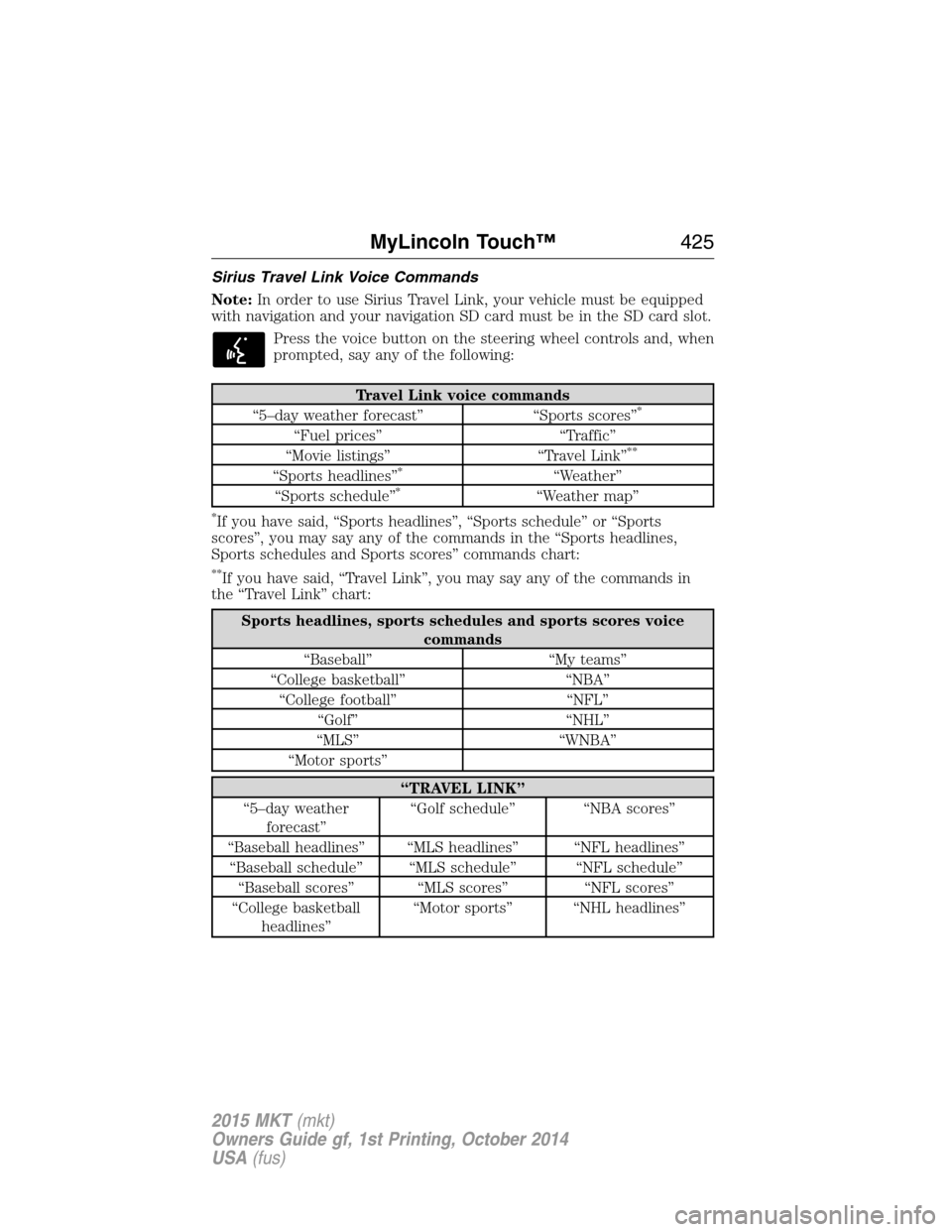
Sirius Travel Link Voice Commands
Note:In order to use Sirius Travel Link, your vehicle must be equipped
with navigation and your navigation SD card must be in the SD card slot.
Press the voice button on the steering wheel controls and, when
prompted, say any of the following:
Travel Link voice commands
“5–day weather forecast” “Sports scores”*
“Fuel prices” “Traffic”
“Movie listings” “Travel Link”**
“Sports headlines”*“Weather”
“Sports schedule”*“Weather map”
*If you have said, “Sports headlines”, “Sports schedule” or “Sports
scores”, you may say any of the commands in the “Sports headlines,
Sports schedules and Sports scores” commands chart:
**If you have said, “Travel Link”, you may say any of the commands in
the “Travel Link” chart:
Sports headlines, sports schedules and sports scores voice
commands
“Baseball” “My teams”
“College basketball” “NBA”
“College football” “NFL”
“Golf” “NHL”
“MLS” “WNBA”
“Motor sports”
“TRAVEL LINK”
“5–day weather
forecast”“Golf schedule” “NBA scores”
“Baseball headlines” “MLS headlines” “NFL headlines”
“Baseball schedule” “MLS schedule” “NFL schedule”
“Baseball scores” “MLS scores” “NFL scores”
“College basketball
headlines”“Motor sports” “NHL headlines”
MyLincoln Touch™425
2015 MKT(mkt)
Owners Guide gf, 1st Printing, October 2014
USA(fus)
Page 429 of 500

Setting 911 Assist On
If your vehicle is equipped with Navigation, touch the i
(Information) button to access these features. If your vehicle is
not equipped with Navigation, touch the corner of the
touchscreen with the green tab.
PressApps>911 Assist,>On.
You can also access 911 Assist by:
•Pressing the Settings icon >Settings>Phone>911
Assist,or
•Pressing the Settings icon >Help>911 Assist.
To Make Sure that 911 Assist Works Properly
•SYNC must be powered and working properly at the time of the
incident and throughout feature activation and use.
•The 911 Assist feature must be set on before the incident.
•You must pair and connect a Bluetooth-enabled and compatible phone
to SYNC.
•A connected Bluetooth-enabled phone must have the ability to make
and maintain an outgoing call at the time of the incident.
•A connected Bluetooth-enabled phone must have adequate network
coverage, battery power and signal strength.
•
The vehicle must have battery power and be located in the United
States, Canada or in a territory in which 911 is the emergency number.
In the Event of a Crash
Not all crashes deploy an airbag or activate the fuel pump shut-off
(which would trigger 911 Assist); however, SYNC tries to contact
emergency services if 911 Assist triggers. If a connected phone sustains
damage or loses connection to SYNC, SYNC searches for, and tries to
connect to, any available previously paired phone and tries to make the
call to 911.
Before making the call:
•SYNC provides a short window of time (about 10 seconds) to cancel
the call. If you fail to cancel the call, SYNC attempts to dial 911.
•SYNC says the following, or a similar message: “SYNC will attempt to
call 911, to cancel the call, press Cancel on your screen or press and
hold the phone button on your steering wheel.”
If you do not cancel the call, and SYNC makes a successful call, a
pre-recorded message plays for the 911 operator, and then the occupant(s)
in your vehicle is able to talk with the operator. Be prepared to provide
428MyLincoln Touch™
2015 MKT(mkt)
Owners Guide gf, 1st Printing, October 2014
USA(fus)
Page 431 of 500

Register for Vehicle Health Report and set your report preferences at
www.SYNCMyRide.com. After registering, you can request a Vehicle
Health Report (inside your vehicle). Return to your account at
www.SYNCMyRide.com to view your report. You can also choose for
SYNC to remind you automatically to run reports at specific mileage
intervals. Cellular phone airtime usage may apply when reporting.
The system allows you to check your vehicle’s overall health in the form
of a diagnostic report card. The Vehicle Health Report contains valuable
information, such as:
•Vehicle Diagnostic Information
•Scheduled maintenance
•Open Recalls and Field Service Actions
•Items noted during vehicle inspections by your authorized dealer that
still need servicing.
Making a Report
If your vehicle is equipped with Navigation, touch the i
(Information) button to access these features. If your vehicle is
not equipped with Navigation, touch the corner of the
touchscreen with the green tab.
If you want to run a report by using the touchscreen, touchApps>
Vehicle Health Report.
To run a report by voice command, press the voice button on
the steering wheel and, when prompted, say “Vehicle health
report”.
Vehicle Health Report Privacy Notice
When you create a Vehicle Health Report, Ford Motor Company may
collect your cellular phone number (to process your report request) and
diagnostic information about your vehicle. Certain versions or updates to
Vehicle Health Report may also collect more vehicle information. Ford
may use your vehicle information it collects for any purpose. If you do
not want to disclose your cellular phone number or vehicle information,
do not run the feature or set up your Vehicle Health Report profile at
www.SYNCMyRide.com. See www.SYNCMyRide.com (Vehicle Health
Report Terms and Conditions, and Privacy Statement) for more
information.
430MyLincoln Touch™
2015 MKT(mkt)
Owners Guide gf, 1st Printing, October 2014
USA(fus)
Page 433 of 500

Display
You can adjust the touchscreen display through the touchscreen or by
pressing the voice button on your steering wheel controls and when
prompted, say, “Display settings”.
Press the Settings icon >Display,to access and make
adjustments using the touchscreen.
•Brightness
allows you to make the screen display brighter or dimmer.
•Auto DIM, when set toOn,lets you use the Auto Dim Manual Offset
feature. When set toOff,screen brightness does not change.
•Modeallows you to set the screen to a certain brightness or have the
system automatically change based on the outside light level, or turn
the display off.
•If you selectAUTOorNIGHT,you have the options of turning the
display’s Auto Dim feature on or off and changing the Auto Dim
Manual Offset feature.
•Auto Dim Manual Offsetallows you to adjust screen dimming as the
outside lighting conditions change from day to night. This feature also
allows you to adjust screen brightness using the instrument panel
dimming control.
Edit Wallpaper
•You can have your touchscreen display the default photo or upload
your own.
Uploading Photos for Your Home Screen Wallpaper
Note:
You cannot load photos directly from your camera. You must access
the photos either from your USB mass storage device or from an SD card.
Note:Photographs with extremely large dimensions (such as 2048 x 1536)
may not be compatible and appear as a blank (black) image on the display.
Your system allows you to upload and view up to 32 photos.
To access, press the Settings icon >Display>Edit Wallpaper,and
then follow the system prompts to upload your photographs.
Only the photograph(s), which meets the following conditions, display:
•Compatible file formats are as follows: .jpg, .gif, .png, .bmp.
•Each file must be 1.5 MB or less.
•Recommended dimensions: 800 x 384.
432MyLincoln Touch™
2015 MKT(mkt)
Owners Guide gf, 1st Printing, October 2014
USA(fus)