2015 Hyundai Santa Fe Sport remote start
[x] Cancel search: remote startPage 19 of 785
Your vehicle at a glance
6 2
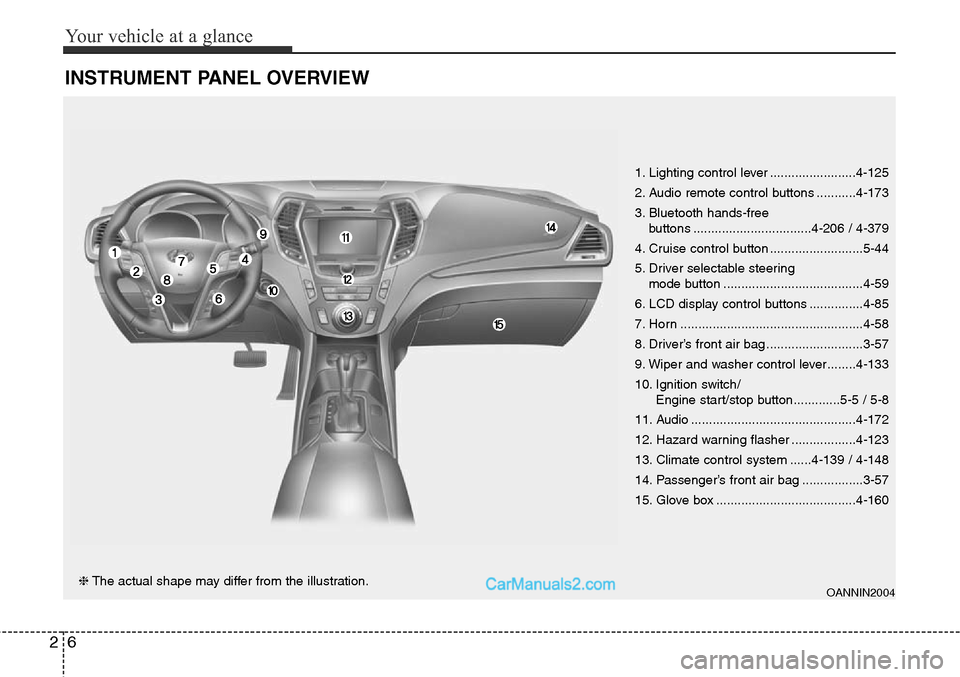
INSTRUMENT PANEL OVERVIEW
OANNIN2004❈The actual shape may differ from the illustration.1. Lighting control lever ........................4-125
2. Audio remote control buttons ...........4-173
3. Bluetooth hands-free
buttons .................................4-206 / 4-379
4. Cruise control button ..........................5-44
5. Driver selectable steering
mode button .......................................4-59
6. LCD display control buttons ...............4-85
7. Horn ...................................................4-58
8. Driver’s front air bag ...........................3-57
9. Wiper and washer control lever........4-133
10. Ignition switch/
Engine start/stop button.............5-5 / 5-8
11. Audio ..............................................4-172
12. Hazard warning flasher ..................4-123
13. Climate control system ......4-139 / 4-148
14. Passenger’s front air bag .................3-57
15. Glove box .......................................4-160
Page 298 of 785
4205
Features of your vehicle
Bluetooth®Wireless Technology
AUDIO
What is Bluetooth®Wireless
Technology
?
Bluetooth®Wireless Technology allows
devices to be connected in a short dis-
tance, including hands-free devices,
stereo headsets, wireless remote con-
trollers, etc. For more information, visit
the Bluetooth®Wireless Technology
website at www.Bluetooth.com
Before using Bluetooth®Wireless
Technologyaudio features
•
Bluetooth®Wireless Technology
audio may not be supported
depending on the compatibility of
your
Bluetooth®Wireless
Technologymobile phone.
• In order to use
Bluetooth®Wireless
Technologyaudio, you must first
pair and connect the
Bluetooth®
Wireless Technologymobile phone.
•
Bluetooth®Wireless Technology
audio can be used only when the
[Audio Streaming] of Phone is
turned .
❈Setting
Bluetooth®Wireless
Technology
Audio Streaming : Press
the key Select [Phone]
through the tune knob or key
Select [Audio Streaming] through
the TUNE knob Set
/
Starting Bluetooth®Wireless
Technology Audio
• Press the key to change the
mode in order of CD ➟ USB ➟ AUX
➟ My Music ➟ BT Audio.
• If BT Audio is selected,
Bluetooth®
Wireless Technology audio will start
playing.
❈Audio may not automatically start
playing in some mobile phones.
Using the Bluetooth®Wireless
Technology audio features
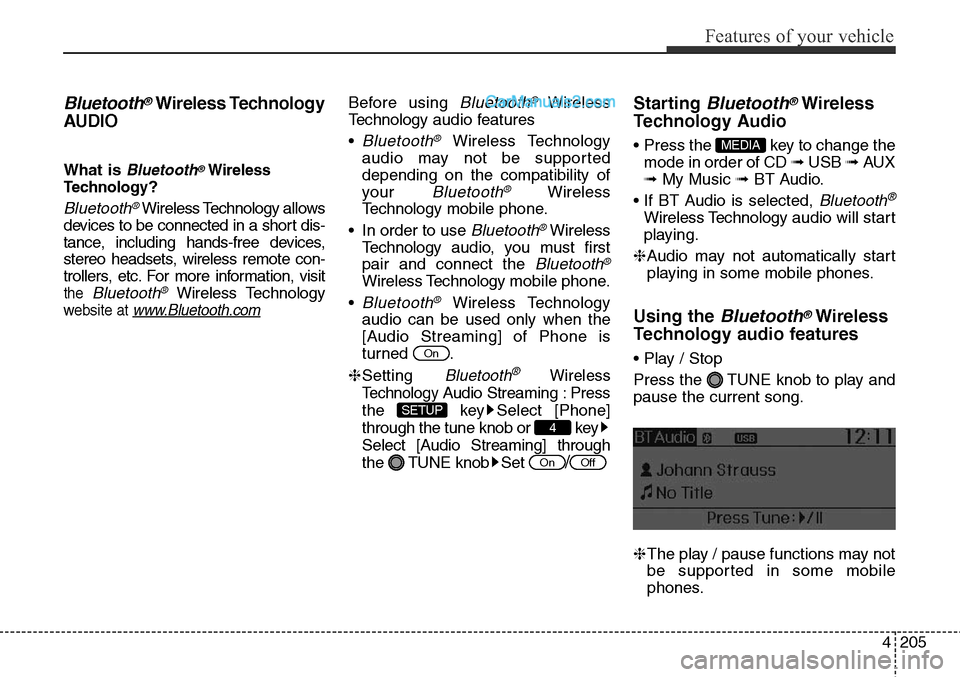
• Play / Stop
Press the TUNE knob to play and
pause the current song.
❈The play / pause functions may not
be supported in some mobile
phones.
MEDIA
OffOn
4
SETUP
On
Page 313 of 785
![Hyundai Santa Fe Sport 2015 Owners Manual Features of your vehicle
220 4
VOICE RECOGNITION
Using Voice Recognition
Starting Voice Recognition
Shortly press the key on the
steering wheel. Say a command.If prompt feedback is in [ON], then
th](/manual-img/35/16759/w960_16759-312.png "Hyundai Santa Fe Sport 2015 Owners Manual Features of your vehicle
220 4
VOICE RECOGNITION
Using Voice Recognition
Starting Voice Recognition
Shortly press the key on the
steering wheel. Say a command.If prompt feedback is in [ON], then
th")
Features of your vehicle
220 4
VOICE RECOGNITION
Using Voice Recognition
Starting Voice Recognition
Shortly press the key on the
steering wheel. Say a command.If prompt feedback is in [ON], then
the system will say “Please say a
command after the beep (BEEP)”
• If prompt feedback is in [OFF]
mode, then the system will only
say “(BEEP)”
• To change Prompt Feedback
[On]/[Off], go to [System]
[Prompt Feedback]
✽NOTICE
For proper recognition, say the com-
mand after the voice instruction and
beep tone.
Contact List Best Practices
1) Do not store single-name entries
(e.g., “Bob”, “Mom”, “Kim”, etc.).
Instead, always use full names
(including first and last names) for
all contacts (e.g., use “Jacob
Stevenson” instead of “Dad”).
2) Do not use abbreviations (i.e., use
“Lieutenant” instead of “Lt.” or
“Sergeant” instead of “Sgt.”).
3) Do not use acronyms (i.e., use
“County Finance Department”
instead of “CFD”).4) Do not use special characters
(e.g., “@”, “hyphen -”, “asterisk *”,
“ampersand &”).
5) If a name is not recognized from
the contact list, change it to a
more descriptive name (e.g., use
“Grandpa Joseph” instead of “Pa
Joe”).
Skipping Prompt Messages
While prompt message is being stat-
ed Shortly press the key on the
steering remote controller
The prompt message is immediately
ended and the beep tone will sound.
After the “beep”, say the voice com-
mand.
Re-starting Voice Recognition
While system waits for a command
Shortly press the key on the
steering remote controller
The command wait state is immedi-
ately ended and the beep tone will
sound. After the “beep”, say the voice
command.
SETUP
Page 334 of 785
![Hyundai Santa Fe Sport 2015 Owners Manual 4241
Features of your vehicle
VOICE RECOGNITION
Using Voice Recognition
Starting Voice Recognition
Shortly press the key on the
steering wheel. Say a command.If prompt feedback is in [ON], then
the](/manual-img/35/16759/w960_16759-333.png "Hyundai Santa Fe Sport 2015 Owners Manual 4241
Features of your vehicle
VOICE RECOGNITION
Using Voice Recognition
Starting Voice Recognition
Shortly press the key on the
steering wheel. Say a command.If prompt feedback is in [ON], then
the")
4241
Features of your vehicle
VOICE RECOGNITION
Using Voice Recognition
Starting Voice Recognition
Shortly press the key on the
steering wheel. Say a command.If prompt feedback is in [ON], then
the system will say “Please say a
command after the beep (BEEP)”
• If prompt feedback is in [OFF]
mode, then the system will only
say “(BEEP)”
• To change Prompt Feedback
[On]/[Off], go to [System]
[Prompt Feedback]
✽NOTICE
For proper recognition, say the com-
mand after the voice instruction and
beep tone.
Contact List Best Practices
1) Do not store single-name entries
(e.g., “Bob”, “Mom”, “Kim”, etc.).
Instead, always use full names
(including first and last names) for
all contacts (e.g., use “Jacob
Stevenson” instead of “Dad”).
2) Do not use abbreviations (i.e., use
“Lieutenant” instead of “Lt.” or
“Sergeant” instead of “Sgt.”).
3) Do not use acronyms (i.e., use
“County Finance Department”
instead of “CFD”).4) Do not use special characters
(e.g., “@”, “hyphen -”, “asterisk *”,
“ampersand &”).
5) If a name is not recognized from
the contact list, change it to a
more descriptive name (e.g., use
“Grandpa Joseph” instead of “Pa
Joe”).
Skipping Prompt Messages
While prompt message is being stat-
ed Shortly press the key on the
steering remote controller
The prompt message is immediately
ended and the beep tone will sound.
After the “beep”, say the voice com-
mand.
Re-starting Voice Recognition
While system waits for a command
Shortly press the key on the
steering remote controller
The command wait state is immedi-
ately ended and the beep will sound.
After the “beep”, say the voice com-
mand.
SETUP
Page 350 of 785
4257
Features of your vehicle
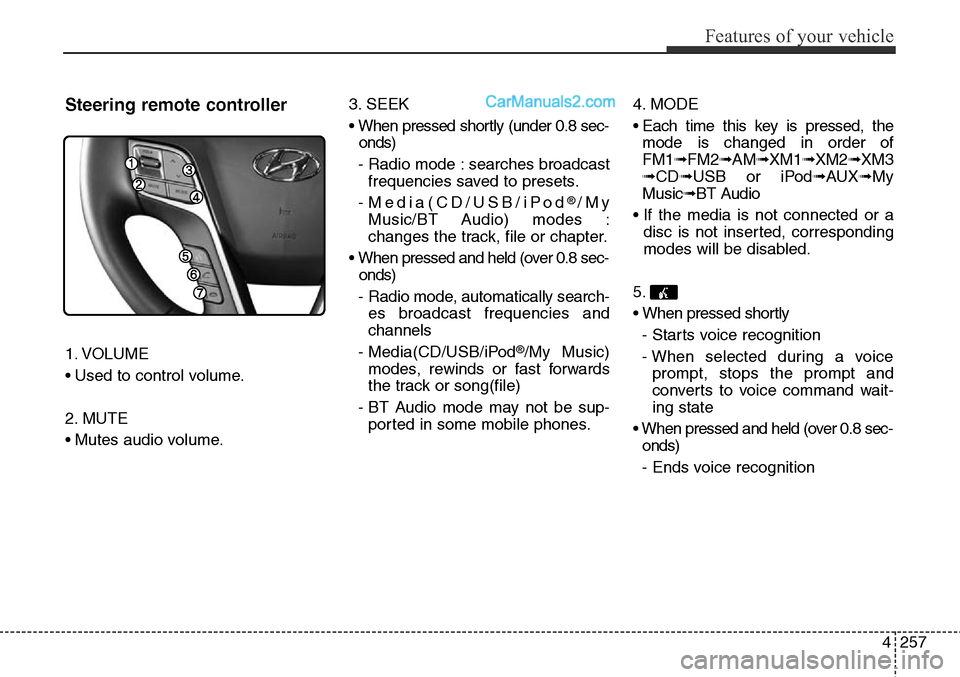
Steering remote controller
1. VOLUME
• Used to control volume.
2. MUTE
• Mutes audio volume.3. SEEK
• When pressed shortly (under 0.8 sec-
onds)
- Radio mode : searches broadcast
frequencies saved to presets.
- Media(CD/USB/iPod
®/My
Music/BT Audio) modes :
changes the track, file or chapter.
• When pressed and held (over 0.8 sec-
onds)
- Radio mode, automatically search-
es broadcast frequencies and
channels
- Media(CD/USB/iPod
®/My Music)
modes, rewinds or fast forwards
the track or song(file)
- BT Audio mode may not be sup-
ported in some mobile phones.4. MODE
• Each time this key is pressed, the
mode is changed in order of
FM1➟FM2➟AM➟XM1➟XM2➟XM3
➟CD➟USB or iPod➟AUX➟My
Music➟BT Audio
• If the media is not connected or a
disc is not inserted, corresponding
modes will be disabled.
5.
• When pressed shortly
- Starts voice recognition
- When selected during a voice
prompt, stops the prompt and
converts to voice command wait-
ing state
• When pressed and held (over 0.8 sec-
onds)
- Ends voice recognition
Page 400 of 785
![Hyundai Santa Fe Sport 2015 Owners Manual 4307
Features of your vehicle
VOICE RECOGNITION
Using Voice Recognition
Starting Voice Recognition
Shortly press the key on the
steering wheel. Say a command.If prompt feedback is in [ON], then
the](/manual-img/35/16759/w960_16759-399.png "Hyundai Santa Fe Sport 2015 Owners Manual 4307
Features of your vehicle
VOICE RECOGNITION
Using Voice Recognition
Starting Voice Recognition
Shortly press the key on the
steering wheel. Say a command.If prompt feedback is in [ON], then
the")
4307
Features of your vehicle
VOICE RECOGNITION
Using Voice Recognition
Starting Voice Recognition
Shortly press the key on the
steering wheel. Say a command.If prompt feedback is in [ON], then
the system will say “Please say a
command after the beep (BEEP)”
• If prompt feedback is in [OFF]
mode, then the system will only say
“(BEEP)”
• To change Prompt Feedback
[On]/[Off], go to [System]
[Prompt Feedback]
✽NOTICE
For proper recognition, say the com-
mand after the voice instruction and
beep tone.
Contact List Best Practices
1) Do not store single-name entries
(e.g., “Bob”, “Mom”, “Kim”, etc.).
Instead, always use full names
(including first and last names) for
all contacts (e.g., use “Jacob
Stevenson” instead of “Dad”).
2) Do not use abbreviations (i.e., use
“Lieutenant” instead of “Lt.” or
“Sergeant” instead of “Sgt.”).
3) Do not use acronyms (i.e., use
“County Finance Department”
instead of “CFD”).4) Do not use special characters
(e.g., “@”, “hyphen -”, “asterisk *”,
“ampersand &”).
5) If a name is not recognized from
the contact list, change it to a
more descriptive name (e.g., use
“Grandpa Joseph” instead of “Pa
Joe”).
Skipping Prompt Messages
While prompt message is being stat-
ed Shortly press the key on the
steering remote controller
The prompt message is immediately
ended and the beep tone will sound.
After the “beep”, say the voice com-
mand.
Re-starting Voice Recognition
While system waits for a command
Shortly press the key on the
steering remote controller
The command wait state is immedi-
ately ended and the beep tone will
sound. After the “beep”, say the voice
command.
SETUP
Page 421 of 785
Features of your vehicle
328 4
VOICE RECOGNITION
Using Voice Recognition
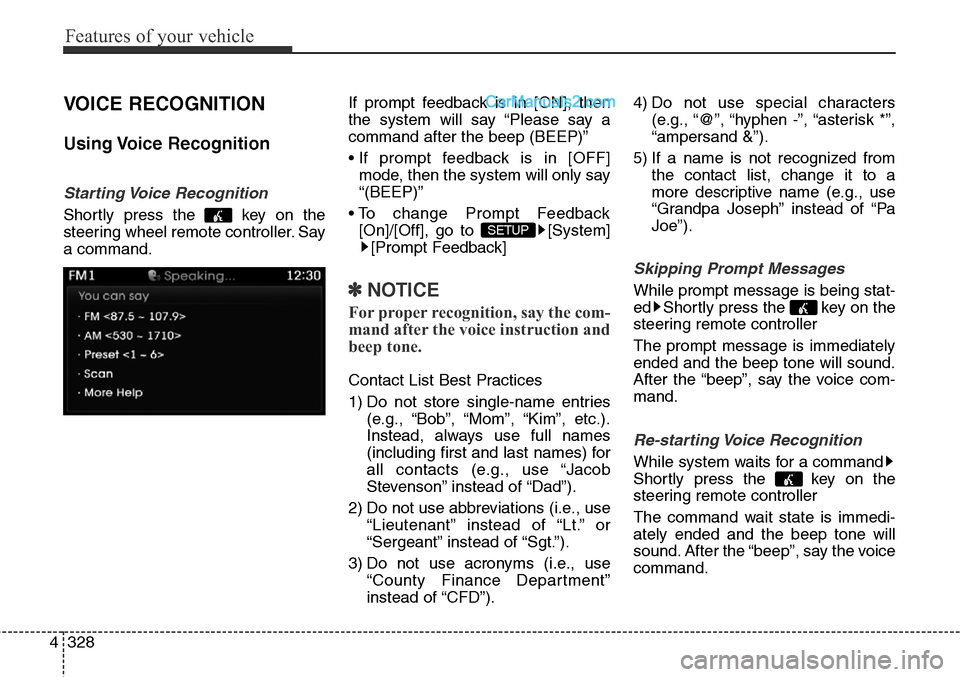
Starting Voice Recognition
Shortly press the key on the
steering wheel remote controller. Say
a command.If prompt feedback is in [ON], then
the system will say “Please say a
command after the beep (BEEP)”
• If prompt feedback is in [OFF]
mode, then the system will only say
“(BEEP)”
• To change Prompt Feedback
[On]/[Off], go to [System]
[Prompt Feedback]
✽NOTICE
For proper recognition, say the com-
mand after the voice instruction and
beep tone.
Contact List Best Practices
1) Do not store single-name entries
(e.g., “Bob”, “Mom”, “Kim”, etc.).
Instead, always use full names
(including first and last names) for
all contacts (e.g., use “Jacob
Stevenson” instead of “Dad”).
2) Do not use abbreviations (i.e., use
“Lieutenant” instead of “Lt.” or
“Sergeant” instead of “Sgt.”).
3) Do not use acronyms (i.e., use
“County Finance Department”
instead of “CFD”).4) Do not use special characters
(e.g., “@”, “hyphen -”, “asterisk *”,
“ampersand &”).
5) If a name is not recognized from
the contact list, change it to a
more descriptive name (e.g., use
“Grandpa Joseph” instead of “Pa
Joe”).
Skipping Prompt Messages
While prompt message is being stat-
ed Shortly press the key on the
steering remote controller
The prompt message is immediately
ended and the beep tone will sound.
After the “beep”, say the voice com-
mand.
Re-starting Voice Recognition
While system waits for a command
Shortly press the key on the
steering remote controller
The command wait state is immedi-
ately ended and the beep tone will
sound. After the “beep”, say the voice
command.
SETUP
Page 471 of 785
Features of your vehicle
378 4
Bluetooth®Wireless Technology
AUDIO
What is Bluetooth®Wireless
Technology
?
Bluetooth®Wireless Technology allows
devices to be connected in a short dis-
tance, including hands-free devices,
stereo headsets, wireless remote con-
trollers, etc. For more information, visit
the Bluetooth®Wireless Technology
website at www.Bluetooth.com
Before using Bluetooth®Wireless
Technologyaudio features
•
Bluetooth®Wireless Technology
audio may not be supported
depending on the compatibility of
your
Bluetooth®Wireless
Technologymobile phone.
• In order to use
Bluetooth®Wireless
Technologyaudio, you must first
pair and connect the
Bluetooth®
Wireless Technologymobile phone.
•
Bluetooth®Wireless Technology
audio can be used only when the
[Audio Streaming] of Phone is
turned .
❈Setting
Bluetooth®Wireless
Technology
Audio Streaming : Press
the key Select [Phone]
through the tune knob or key
Select [Audio Streaming] through
the TUNE knob Set
/
Starting Bluetooth®Wireless
Technology Audio
• Press the key to change the
mode in order of CD ➟ USB ➟ AUX
➟ My Music ➟ BT Audio.
• If BT Audio is selected,
Bluetooth®
Wireless Technology audio will start
playing.
❈Audio may not automatically start
playing in some mobile phones.
Using the Bluetooth®Wireless
Technology audio features
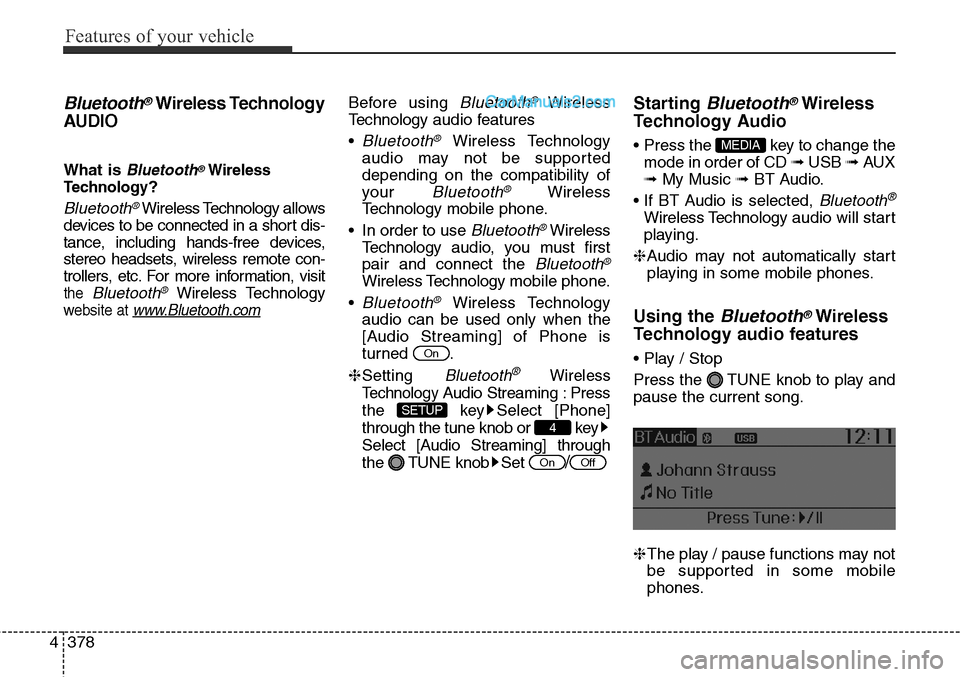
• Play / Stop
Press the TUNE knob to play and
pause the current song.
❈The play / pause functions may not
be supported in some mobile
phones.
MEDIA
OffOn
4
SETUP
On