Page 149 of 501
3-55
Convenient features of your vehicle
3
How to use the Smart Trunk
The trunk can be opened with no-
touch activation satisfying all the
conditions below.
After 15 seconds when all doors
are closed and locked
Positioned in the detecting area for
more than 3 seconds.
✽ ✽
NOTICE
• The Smart Trunk does not operate
when:
- The smart key is detected within
15 seconds after the doors are
closed and locked, and is contin-
uously detected.
- The smart key is detected within
15 seconds after the doors are
closed and locked, and within 60
inches (1.5 m) from the front
door handles. (for vehicles
equipped with Welcome Light)
- A door is not locked or closed.
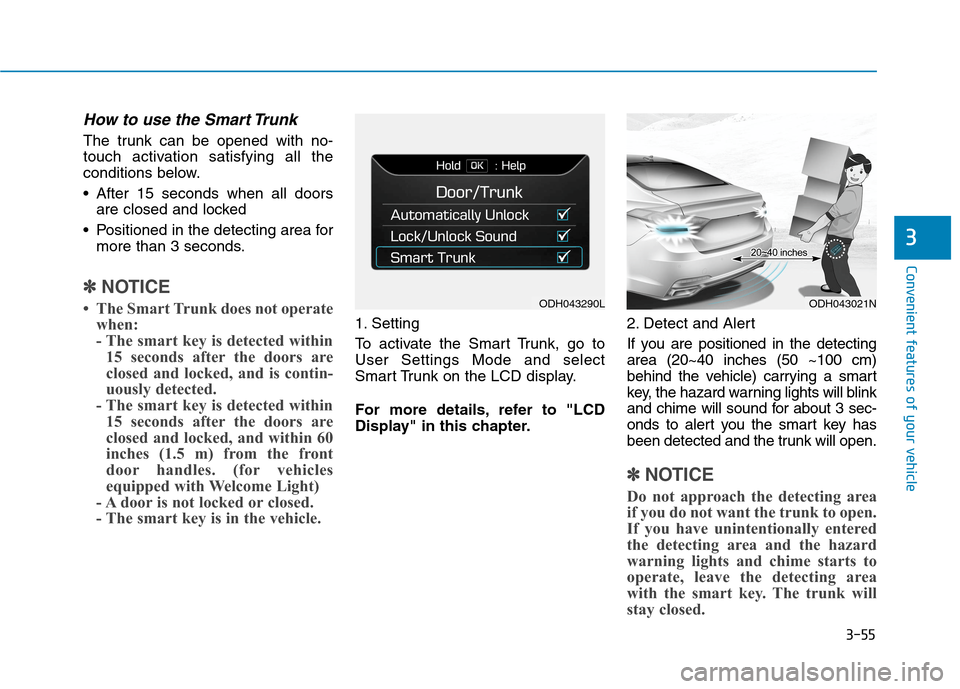
- The smart key is in the vehicle. 1. Setting
To activate the Smart Trunk, go to
User Settings Mode and select
Smart Trunk on the LCD display.
For more details, refer to "LCD
Display" in this chapter.2. Detect and Alert
If you are positioned in the detecting
area (20~40 inches (50 ~100 cm)
behind the vehicle) carrying a smart
key, the hazard warning lights will blink
and chime will sound for about 3 sec-
onds to alert you the smart key has
been detected and the trunk will open.
✽ ✽
NOTICE
Do not approach the detecting area
if you do not want the trunk to open.
If you have unintentionally entered
the detecting area and the hazard
warning lights and chime starts to
operate, leave the detecting area
with the smart key. The trunk will
stay closed.
ODH043290LODH043021N
Page 155 of 501
3-61
Convenient features of your vehicle
3
I IN
NS
ST
TR
RU
UM
ME
EN
NT
T
C
CL
LU
US
ST
TE
ER
R
1. Tachometer
2. Speedometer
3. Engine coolant temperature gauge
4. Fuel gauge
5. Warning and indicator lights
6. LCD display (including Trip computer)
ODH043051N/ODH043052N
■ ■
Type A
For more details, refer to the "Gauges"
in this chapter.
■ ■
Type B
The actual cluster in the vehicle may differ from the illustration.
Page 156 of 501
3-62
Convenient features of your vehicle
Instrument Cluster Control
Adjusting Instrument Cluster
Illumination
When the Engine Start Stop button is
in the ON position, press the illumina-
tion control button to adjust the instru-
ment panel illumination intensity and
AVN monitor illumination intensity.
When the vehicle’s parking lights or
headlights are on, the interior switch
illumination intensity is adjusted
additionally by pressing the control
button. The brightness of the instrument
panel illumination is displayed.
If the brightness reaches to the
maximum or minimum level, an
alarm will sound.
LCD Display Control
The LCD display modes can be
changed by using the control buttons
on the steering wheel.
ODH043053
ODH043228L
Page 157 of 501
3-63
Convenient features of your vehicle
3
(1) : MODE button for changing
modes
(2) ▲, ▼: MOVE switch for chang-
ing items
(3) OK : SELECT/RESET button for
setting or resetting the
selected item
(4) : BACK button for moving to
upper level menu (if equipped)
For more information on LCD
modes, refer to "LCD Display" in
the next pages of this chapter.
Gauges
Speedometer
The speedometer indicates the
speed of the vehicle and is calibrated
in miles per hour (mph) and/or kilo-
meters per hour (km/h).
Tachometer
The tachometer indicates the
approximate number of engine revo-
lutions per minute (rpm).
Use the tachometer to select the cor-
rect shift points and to prevent lug-
ging and/or over-revving the engine.
ODH043064
■Type A
■Type B
ODH043054N
Do not operate the engine with-
in the tachometer's RED ZONE.
This may cause severe engine
damage.
CAUTION
ODH043055
Page 161 of 501

3-67
Convenient features of your vehicle
3
LCD Modes
L LC
CD
D
D
DI
IS
SP
PL
LA
AY
Y
Modes SymbolExplanation
Trip Computer This mode displays driving information like the tripmeter, fuel economy, and so on.
For more details, refer to "Trip Computer" in this chapter.
Turn By Turn (TBT)
(if equipped)This mode displays the state of the navigation.
ASCC/LKAS
(if equipped)
This mode displays the state of the Advanced Smart Cruise Control (ASCC)
and Lane Keeping Assist System (LKAS).
For more details, refer to "Advanced Smart Cruise Control (ASCC)" and
Lane Keeping Assist System (LKAS) in chapter 5.
A/VThis mode displays the state of the A/V system.
Information
This mode informs of the tire pressure information, service interval (mileage or days)
and warning messages related to the advanced smart cruise control system,
pre-safe seat belt, and so on.
User SettingsOn this mode, you can change settings of the doors, lamps, and so on.
For more information on controlling the LCD modes, refer to "LCD Display Control" in the previous pages of
this chapter.
or
Page 164 of 501
3-70
Convenient features of your vehicle
Information Mode
Tire pressure information
This mode informs of tire pressure
information.
Service Interval
Service in
It calculates and displays when you
need a scheduled maintenance
service (mileage or days).
If the remaining mileage or time
reaches 900 miles (1,500 km) or 30
days, "Service in" message is dis-
played for several seconds each time
you set the Engine Start/Stop button
to the ON position.
For the setting of the service inter-
val, refer to "User Settings Mode"
of the LCD display.
Service required
If you do not have your vehicle serv-
iced according to the already
inputted service interval, "Service
required" message is displayed for
several seconds each time you set
the Engine Start/Stop button to the
ON position.
To reset the service interval to the
mileage and days you inputted before:
- Press the OK button for more than
1 secondODH063029L
ODH043277N
ODH043406N
Page 165 of 501
3-71
Convenient features of your vehicle
3
Service in OFF
If the service interval is not set,
"Service in OFF" message is dis-
played on the LCD display.
✽ ✽
NOTICE
If any of the following conditions
occurs, the mileage and days may be
incorrect.
- The battery cable is disconnected.
- The fuse switch is turned off.
- The battery is discharged.
Warning Message
If one of followings occurs, warning
messages will be displayed on the
information mode for several seconds.
- Malfunction of below systems
(ECS)
(ASCC)
(LKAS)
(TPMS)
- Low washer fluid
- Low fuel etc.
ODH043405L
Page 172 of 501
3-78
Convenient features of your vehicle
Other Features
ItemsExplanation
Fuel Economy Auto Reset
The average fuel economy will not reset automatically whenever refueling.
The average fuel economy will reset automatically when refueling.
For more details, refer to "Trip Computer" in this chapter.
Traffic Information The traffic information will not be displayed on the LCD display.
The LCD display will show traffic information.
Wiper/Lights Display The wiper/lights information will not be displayed on the LCD display.
The LCD display will shortly show the selected wiper/lights information.
Fuel Economy UnitChoose the fuel economy unit. (US gallon, UK gallon)
Temperature UnitChoose the temperature unit. (°C,°F)
Tire Pressure UnitChoose the tire pressure unit. (psi, kPa, Bar)


