2015 FORD TRANSIT light
[x] Cancel search: lightPage 296 of 461

HD Radio Reception and Station Troubleshooting
Potential reception issues
If you are listening to a multicast station and you are on
the fringe of the reception area, the station may mute due
to weak signal strength.
Reception area
If you are listening to HD1, the system switches back to
the analog broadcast until the digital broadcast is available
again. However, if you are listening to any of the possible
HD2-HD7 multicast channels, the station mutes and stays
muted unless it is able to connect to the digital signal
again.
When the system first receives a station (aside from HD2-
HD7 multicast stations), it first plays the station in the
analog version. Once the receiver verifies the station is an
HD Radio station, it shifts to the digital version. Depending
on the station quality, you may hear a slight sound change
when the station changes from analog to digital. Blending
is the shift from analog to digital sound or digital back to
analog sound.
Station blending
In order to provide the best possible
experience, use the contact form to report
any station issues found while listening to
a station broadcasting with HD Radio
technology. Independent entities own and
operate each station. These stations are
responsible for ensuring all audio streams
and data fields are accurate.
293Transit (TTH) Canada/United States of America, enUSA, Edition date: 03/2014 Audio System
Page 362 of 461

Action and Description
Message
Make the screen display brighter or dimmer.
Brightness
Allows you to turn the display off. It also allows you to set
the screen to a certain brightness or have the system auto-
matically change based on the outside light level.
Mode
If you select AUTO or NIGHT, you have the options of turning
the display's Auto Dim feature on or off and changing the
Auto Dim Manual Offset feature.
Allows you to display the default photo or upload your own.
Edit Wallpaper To make adjustments using the voice
button, press the button and when
prompted, say:
Voice command
Display settings
Uploading Photos for Your Home
Screen Wallpaper
Note: You cannot load photos directly from
your camera. You must access the photos
either from your USB mass storage device
or from an SD card. Note:
Photographs with extremely large
dimensions (such as 2048 x 1536) may not
be compatible and appear as a blank
(black) image on the display.
The system allows you to upload and view
up to 32 photos. To access, press:
To upload your photos, select: Action and Description
Message
Press the settings icon.
Settings
Display
Follow the system prompts to upload your photographs.
Edit Wallpaper
Only the photograph(s), which meets the
following conditions will display:
• Compatible file formats are as follows:
.jpg, .gif, .png, .bmp.
• Each file must be 1.5 MB or less.
• Recommended dimensions: 800 x 384. Sound
359
Transit (TTH) Canada/United States of America, enUSA, Edition date: 03/2014 MyFord Touch
™E142599 E142607 E142607
Page 373 of 461

SIRIUS station (for example, "the
Highway"). The following voice commands
are available at the top level of the voice
session no matter which current audio
source you are listening to (for example a
USB device or SIRIUS satellite radio).
Note:
This is only available when your
MyFord Touch system language is set to
North American English.
Press the voice button and when
prompted say any of the following: Voice command
<87.9-107.9>
<530-1710>
*
AM <530-1710>
FM <87.9-107.9>
**
play [album] [by [artist]]
**
play [artist]
**
play [genre]
**
play [playlist]
**
play [song | track | title | file]
Play
Play
*
Sirius <0-223>
*
Sports games
* This command is only usable if you have
an active subscription to SIRIUS satellite
radio.
** The commands that have [ ] around the
word means that the word is optional. For
example, if you say, "Play Metallica", this
is the same as the voice command, "Play
[artist]
AM/FM Radio Touch the AM or FM tab to listen
t
o the radio.
To change between AM and FM presets,
just touch the
AM or FM tab.
Memory Presets
Save a station by pressing and holding one
of the memory preset areas. There is a brief
mute while the radio saves the station.
Sound returns when finished.
HD Radio
Touch this button to turn HD Radio on. The
light on the button illuminates when the
feature is on. HD Radio allows you to
receive radio broadcasts digitally, where
available, providing free, crystal-clear
sound. See HD Radio information later in
this chapter.
Scan
Touch this button to go to the next strong
AM or FM radio station. The light on the
button illuminates when the feature is on.
370 Transit (TTH) Canada/United States of America, enUSA, Edition date: 03/2014 MyFord Touch
™E142611
Page 375 of 461

The HD logo either blinks when acquiring
a digital station, and then stays solid when
digital audio is playing, or is grey when
acquiring a digital station, and then
changes to orange when digital audio is
playing. When this logo is available, you
may also see Title and Artist fields
on-screen.
The multicast indicator appears in FM
mode (only) if the current station is
broadcasting multiple digital broadcasts.
The highlighted numbers signify available
digital channels where new or different
content is available. HD1 signifies the main
programming status and is available in
analog and digital broadcasts. Other
multicast stations (HD2 through HD7) are
only available digitally.
TAG allows you to save a song to
download later when you are on an
acquired HD Radio station and the feature
is on.
To turn the feature on and use it, select
AM or FM and the select: Action and Description
Message
Options
TAG Button When you hear a song you, select:
On
The system automatically saves the song's information and
transfers it to your portable music player (if supported) when
you connect it to the system. The system automatically
transfers the tag to your player (if already connected) and a
pop-up confirms the transfer.
TAG
When you access iTunes with your portable music player, the
tags appear to you as a reminder. The system allows you to
tag up to approximately 100 songs. For a list of devices that
support tagging, see www.SYNCMyRide.com,
www.SYNCMyRide.ca or www.syncmaroute.ca
372Transit (TTH) Canada/United States of America, enUSA, Edition date: 03/2014 MyFord Touch
™E142616
Page 376 of 461
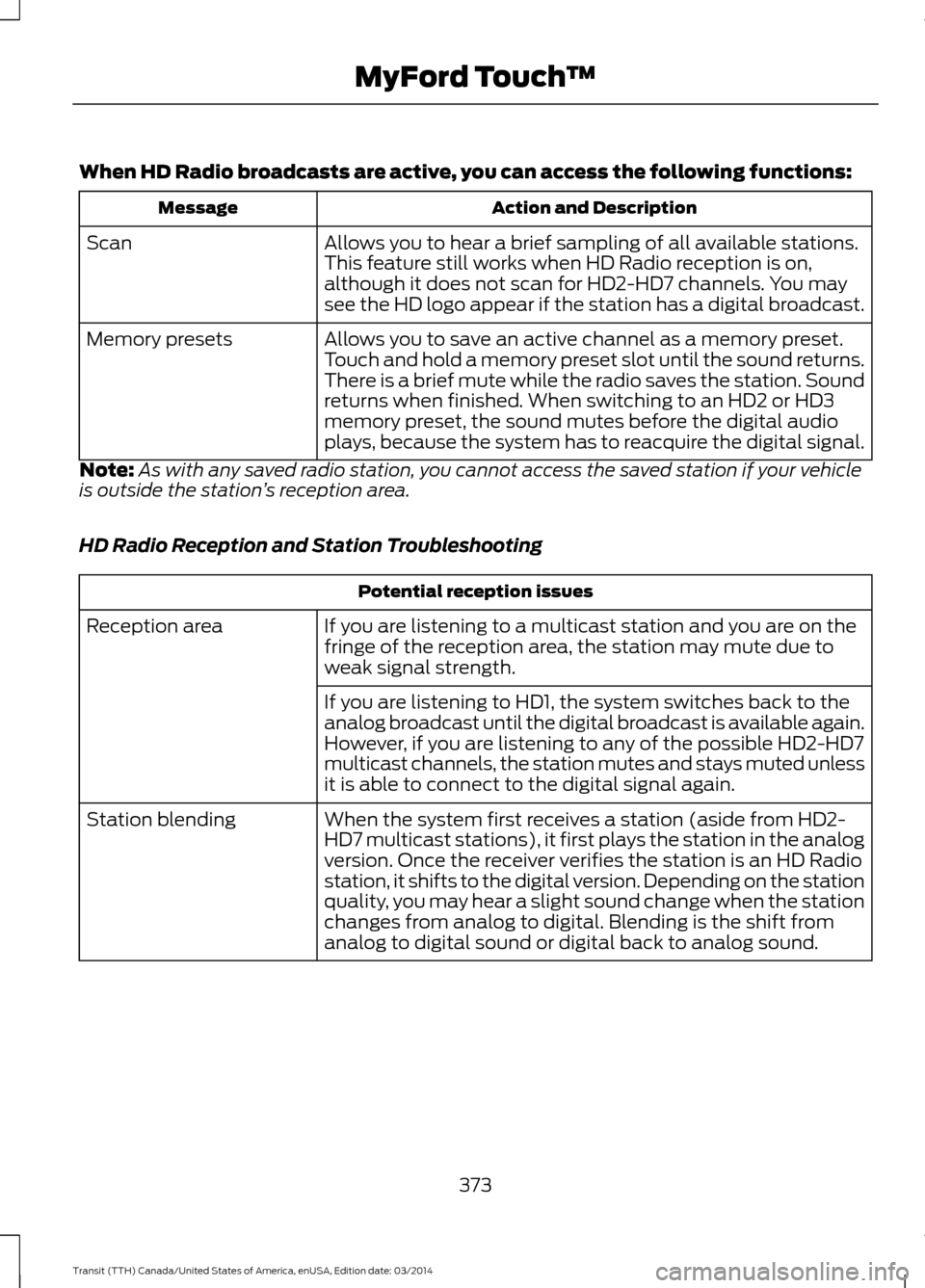
When HD Radio broadcasts are active, you can access the following functions:
Action and Description
Message
Allows you to hear a brief sampling of all available stations.
This feature still works when HD Radio reception is on,
although it does not scan for HD2-HD7 channels. You may
see the HD logo appear if the station has a digital broadcast.
Scan
Allows you to save an active channel as a memory preset.
Touch and hold a memory preset slot until the sound returns.
There is a brief mute while the radio saves the station. Sound
returns when finished. When switching to an HD2 or HD3
memory preset, the sound mutes before the digital audio
plays, because the system has to reacquire the digital signal.
Memory presets
Note: As with any saved radio station, you cannot access the saved station if your vehicle
is outside the station ’s reception area.
HD Radio Reception and Station Troubleshooting Potential reception issues
If you are listening to a multicast station and you are on the
fringe of the reception area, the station may mute due to
weak signal strength.
Reception area
If you are listening to HD1, the system switches back to the
analog broadcast until the digital broadcast is available again.
However, if you are listening to any of the possible HD2-HD7
multicast channels, the station mutes and stays muted unless
it is able to connect to the digital signal again.
When the system first receives a station (aside from HD2-
HD7 multicast stations), it first plays the station in the analog
version. Once the receiver verifies the station is an HD Radio
station, it shifts to the digital version. Depending on the station
quality, you may hear a slight sound change when the station
changes from analog to digital. Blending is the shift from
analog to digital sound or digital back to analog sound.
Station blending
373Transit (TTH) Canada/United States of America, enUSA, Edition date: 03/2014 MyFord Touch
™
Page 408 of 461
Note:
The SD card slot is spring-loaded. To
remove the SD card, just push the card in
and release it. Do not attempt to pull the
card out to remove it; this could cause
damage.
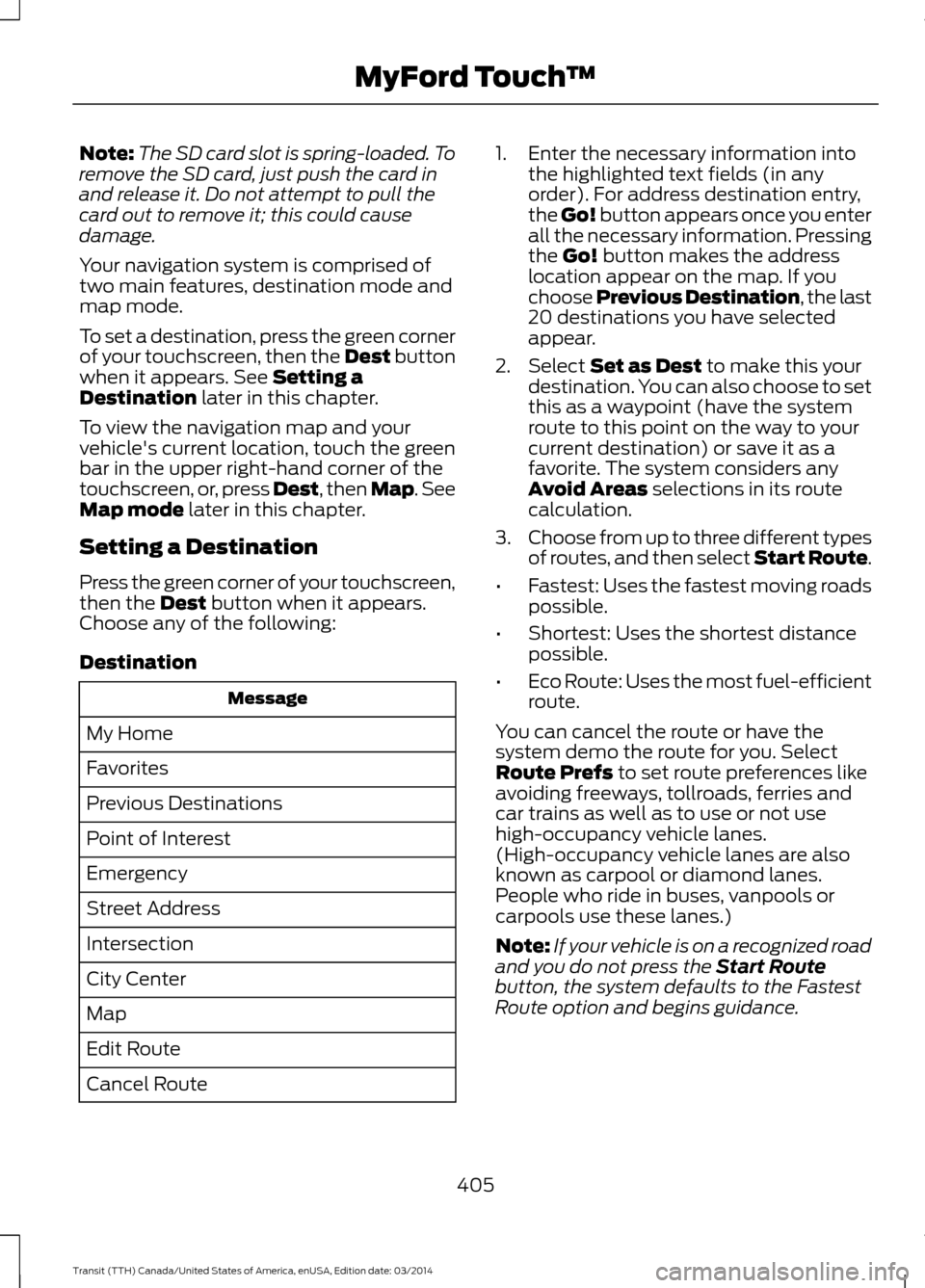
Your navigation system is comprised of
two main features, destination mode and
map mode.
To set a destination, press the green corner
of your touchscreen, then the Dest button
when it appears. See Setting a
Destination later in this chapter.
To view the navigation map and your
vehicle's current location, touch the green
bar in the upper right-hand corner of the
touchscreen, or, press Dest, then Map. See
Map mode
later in this chapter.
Setting a Destination
Press the green corner of your touchscreen,
then the
Dest button when it appears.
Choose any of the following:
Destination Message
My Home
Favorites
Previous Destinations
Point of Interest
Emergency
Street Address
Intersection
City Center
Map
Edit Route
Cancel Route 1. Enter the necessary information into
the highlighted text fields (in any
order). For address destination entry,
the Go! button appears once you enter
all the necessary information. Pressing
the
Go! button makes the address
location appear on the map. If you
choose Previous Destination, the last
20 destinations you have selected
appear.
2. Select
Set as Dest to make this your
destination. You can also choose to set
this as a waypoint (have the system
route to this point on the way to your
current destination) or save it as a
favorite. The system considers any
Avoid Areas selections in its route
calculation.
3. Choose from up to three different types
of routes, and then select Start Route.
• Fastest: Uses the fastest moving roads
possible.
• Shortest: Uses the shortest distance
possible.
• Eco Route: Uses the most fuel-efficient
route.
You can cancel the route or have the
system demo the route for you. Select
Route Prefs to set route preferences like
avoiding freeways, tollroads, ferries and
car trains as well as to use or not use
high-occupancy vehicle lanes.
(High-occupancy vehicle lanes are also
known as carpool or diamond lanes.
People who ride in buses, vanpools or
carpools use these lanes.)
Note: If your vehicle is on a recognized road
and you do not press the
Start Route
button, the system defaults to the Fastest
Route option and begins guidance.
405 Transit (TTH) Canada/United States of America, enUSA, Edition date: 03/2014 MyFord Touch
™
Page 412 of 461

Press Add to program an entry. Once you
make a selection, the system tries to avoid
the area(s) if possible for all routes. To
delete a selection, choose the listing on
the screen. When the screen changes to
Avoid Areas Edit
, you can press Delete
at the bottom right of the screen.
Map Mode
Press the green bar in the upper right area
of the touchscreen to view map mode. Map
mode shows advanced viewing comprised
of both 2D city maps as well as 3D
landmarks (when available).
2D city maps show detailed outlines of
buildings, visible land use and land
elements and detailed railway
infrastructure for the most essential cities
around the globe. These maps also contain
features, such as town blocks, building
footprints and railways.
3D landmarks appear as clear, visible
objects that are typically recognizable and
have a certain tourist value. The 3D
landmarks appear in 3D map mode only.
Coverage varies and improves with
updated map releases. Change the appearance of the map display
by repeatedly pressing the arrow button in
the upper left corner of the screen. It
toggles between three different map
modes: Heading up, North up and 3D. Heading up (2D map)
always
shows the direction of forward
travel to be upward on the screen.
This view is available for map
scales up to 2.5 miles (4 kilometers). The
system remembers this setting for larger
map scales, but shows the map in North
up only. If the scale returns below this level,
the system restores Heading up. North up (2D map) always shows
the northern direction to be
upward on the screen.
3D map mode
provides an
elevated perspective of the map.
This viewing angle can be adjusted
and the map can be rotated 180
degrees by touching the map twice, and
then dragging your finger along the shaded
bar with arrows at the bottom of the map.
View
switches between full map, street
list and exit view in route guidance.
Menu
displays a pop-up box that allows
direct access to navigation settings,
View/Edit Route, SIRIUS Travel Link,
Guidance Mute and Cancel Route. Press the speaker button on the
map to mute route guidance.
When the light on the button
illuminates, the feature is on. The speaker
button appears on the map only when
route guidance is active. Re-center the map by pressing
this icon whenever you scroll the
map away from your vehicle
’s
current location.
Auto Zoom
Press the green bar to access map mode,
then select the + or - zoom button to bring
up the zoom level and Auto buttons on the
touchscreen. When you press Auto, Auto
Zoom turns on and Auto displays in the
bottom left corner of the screen in the map
409 Transit (TTH) Canada/United States of America, enUSA, Edition date: 03/2014 MyFord Touch
™E174016 E142642 E142643 E142644 E174017 E146188
Page 417 of 461

For a complete listing of the accessories
that are available for your vehicle, contact
an authorized dealer or visit our online
store at www.accessories.ford.com
(United States only).
Ford Motor Company will repair or replace
any properly authorized dealer-installed
Ford Genuine Accessory found to be
defective in factory-supplied materials or
workmanship during the warranty period,
as well as any component damaged by the
defective accessories. Ford Motor
Company will warrant your accessory
through the warranty that provides the
greatest benefit:
•
24 months, unlimited miles
• The remainder of your new vehicle
limited warranty
Contact an authorized dealer for details
and a copy of the warranty.
Exterior Style
• Side window deflectors
• Splash guards
• Wheels
Interior Style
• All-weather floor mats
• Interior ambient lighting
• Cargo organizers
• Rear seat entertainment*
• Premium carpeted floor mats
Lifestyle
• Ash cup and smokers packages
• Roof racks and carriers*
• Hitch and towing accessories
Peace of Mind
• Remote start
• Vehicle security system •
Wheel locks
• Bumper-mounted parking sensor*
• Keyless entry keypad
*The Ford Licensed Accessory
manufacturer designs, develops and
therefore warrants Ford Licensed
Accessories, and does not design or test
these accessories to Ford Motor Company
engineering requirements. Contact an
authorized Ford dealer for the
manufacturer's limited warranty details,
and request a copy of the Ford Licensed
Accessories product limited warranty from
the accessory manufacturer.
For maximum vehicle performance, keep
the following information in mind when
adding accessories or equipment to your
vehicle:
• When adding accessories, equipment,
passengers and luggage to your
vehicle, do not exceed the total weight
capacity of the vehicle or of the front
or rear axle (GVWR or GAWR as
indicated on the Safety Compliance
Certification label). Ask an authorized
dealer for specific weight information.
• The Federal Communications
Commission (FCC) and Canadian
Radio Telecommunications
Commission (CRTC) regulate the use
of mobile communications systems
that are equipped with radio
transmitters, for example, two-way
radios, telephones and theft alarms.
Any such equipment installed in your
vehicle should comply with Federal
Communications Commission (FCC)
and Canadian Radio
Telecommunications Commission
(CRTC) regulations and should be
installed only by an authorized dealer.
414 Transit (TTH) Canada/United States of America, enUSA, Edition date: 03/2014 Accessories