2015 FORD SUPER DUTY reset
[x] Cancel search: resetPage 321 of 470
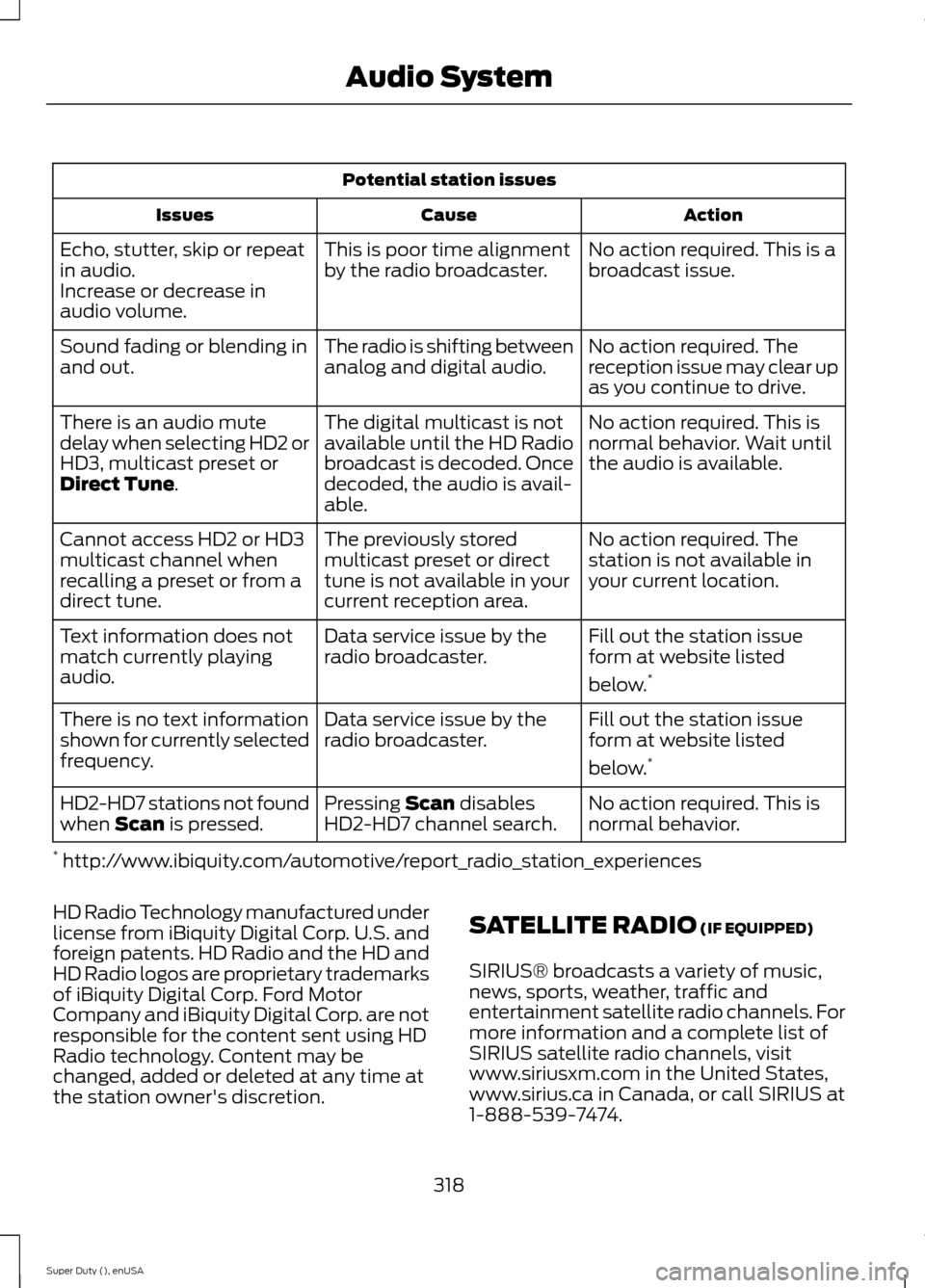
Potential station issues
ActionCauseIssues
No action required. This is abroadcast issue.This is poor time alignmentby the radio broadcaster.Echo, stutter, skip or repeatin audio.Increase or decrease inaudio volume.
No action required. Thereception issue may clear upas you continue to drive.
The radio is shifting betweenanalog and digital audio.Sound fading or blending inand out.
No action required. This isnormal behavior. Wait untilthe audio is available.
The digital multicast is notavailable until the HD Radiobroadcast is decoded. Oncedecoded, the audio is avail-able.
There is an audio mutedelay when selecting HD2 orHD3, multicast preset orDirect Tune.
No action required. Thestation is not available inyour current location.
The previously storedmulticast preset or directtune is not available in yourcurrent reception area.
Cannot access HD2 or HD3multicast channel whenrecalling a preset or from adirect tune.
Fill out the station issueform at website listed
below.*
Data service issue by theradio broadcaster.Text information does notmatch currently playingaudio.
Fill out the station issueform at website listed
below.*
Data service issue by theradio broadcaster.There is no text informationshown for currently selectedfrequency.
No action required. This isnormal behavior.Pressing Scan disablesHD2-HD7 channel search.HD2-HD7 stations not foundwhen Scan is pressed.
* http://www.ibiquity.com/automotive/report_radio_station_experiences
HD Radio Technology manufactured underlicense from iBiquity Digital Corp. U.S. andforeign patents. HD Radio and the HD andHD Radio logos are proprietary trademarksof iBiquity Digital Corp. Ford MotorCompany and iBiquity Digital Corp. are notresponsible for the content sent using HDRadio technology. Content may bechanged, added or deleted at any time atthe station owner's discretion.
SATELLITE RADIO (IF EQUIPPED)
SIRIUS® broadcasts a variety of music,news, sports, weather, traffic andentertainment satellite radio channels. Formore information and a complete list ofSIRIUS satellite radio channels, visitwww.siriusxm.com in the United States,www.sirius.ca in Canada, or call SIRIUS at1-888-539-7474.
318Super Duty (), enUSAAudio System
Page 323 of 470
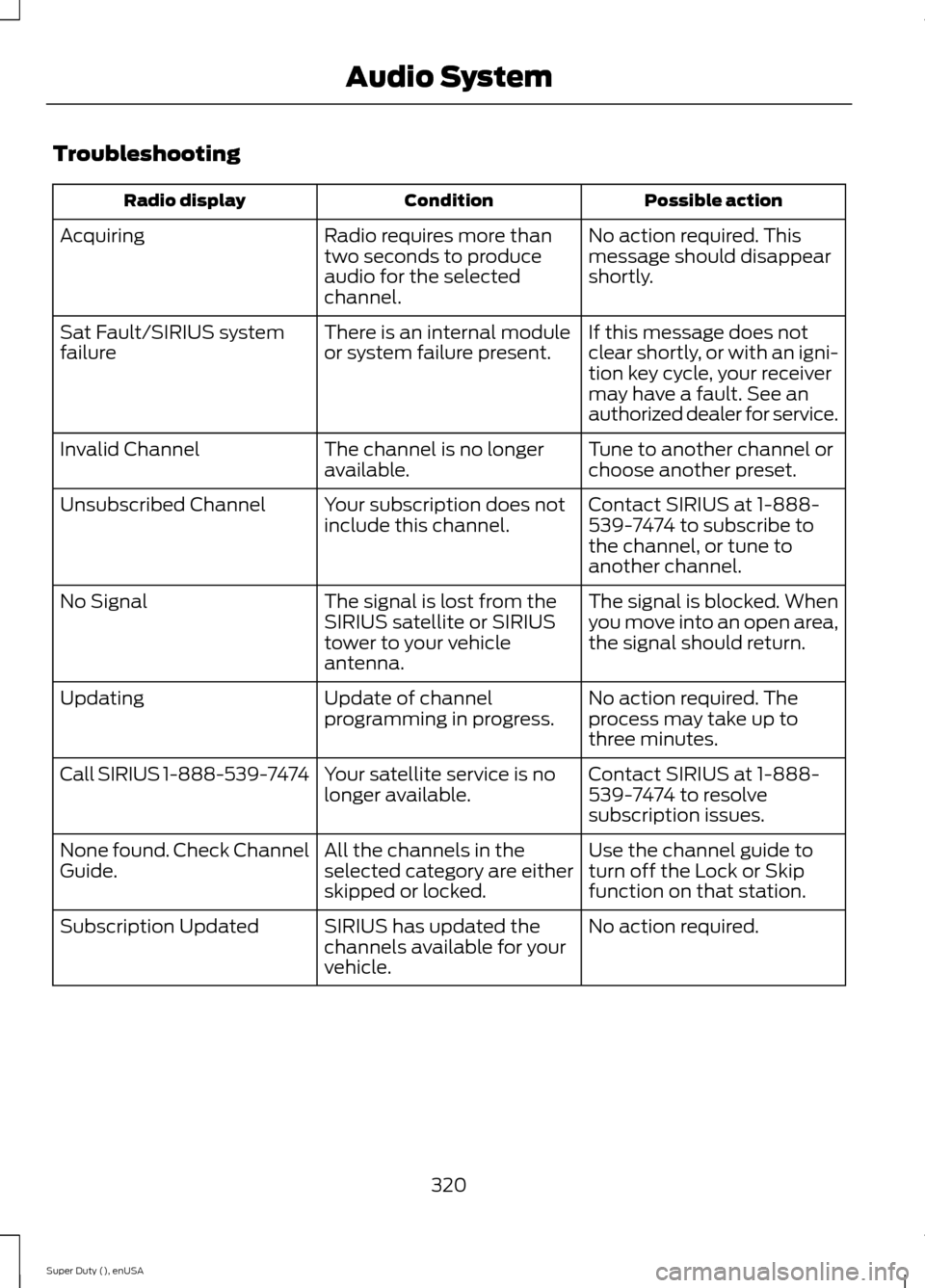
Troubleshooting
Possible actionConditionRadio display
No action required. Thismessage should disappearshortly.
Radio requires more thantwo seconds to produceaudio for the selectedchannel.
Acquiring
If this message does notclear shortly, or with an igni-tion key cycle, your receivermay have a fault. See anauthorized dealer for service.
There is an internal moduleor system failure present.Sat Fault/SIRIUS systemfailure
Tune to another channel orchoose another preset.The channel is no longeravailable.Invalid Channel
Contact SIRIUS at 1-888-539-7474 to subscribe tothe channel, or tune toanother channel.
Your subscription does notinclude this channel.Unsubscribed Channel
The signal is blocked. Whenyou move into an open area,the signal should return.
The signal is lost from theSIRIUS satellite or SIRIUStower to your vehicleantenna.
No Signal
No action required. Theprocess may take up tothree minutes.
Update of channelprogramming in progress.Updating
Contact SIRIUS at 1-888-539-7474 to resolvesubscription issues.
Your satellite service is nolonger available.Call SIRIUS 1-888-539-7474
Use the channel guide toturn off the Lock or Skipfunction on that station.
All the channels in theselected category are eitherskipped or locked.
None found. Check ChannelGuide.
No action required.SIRIUS has updated thechannels available for yourvehicle.
Subscription Updated
320Super Duty (), enUSAAudio System
Page 327 of 470
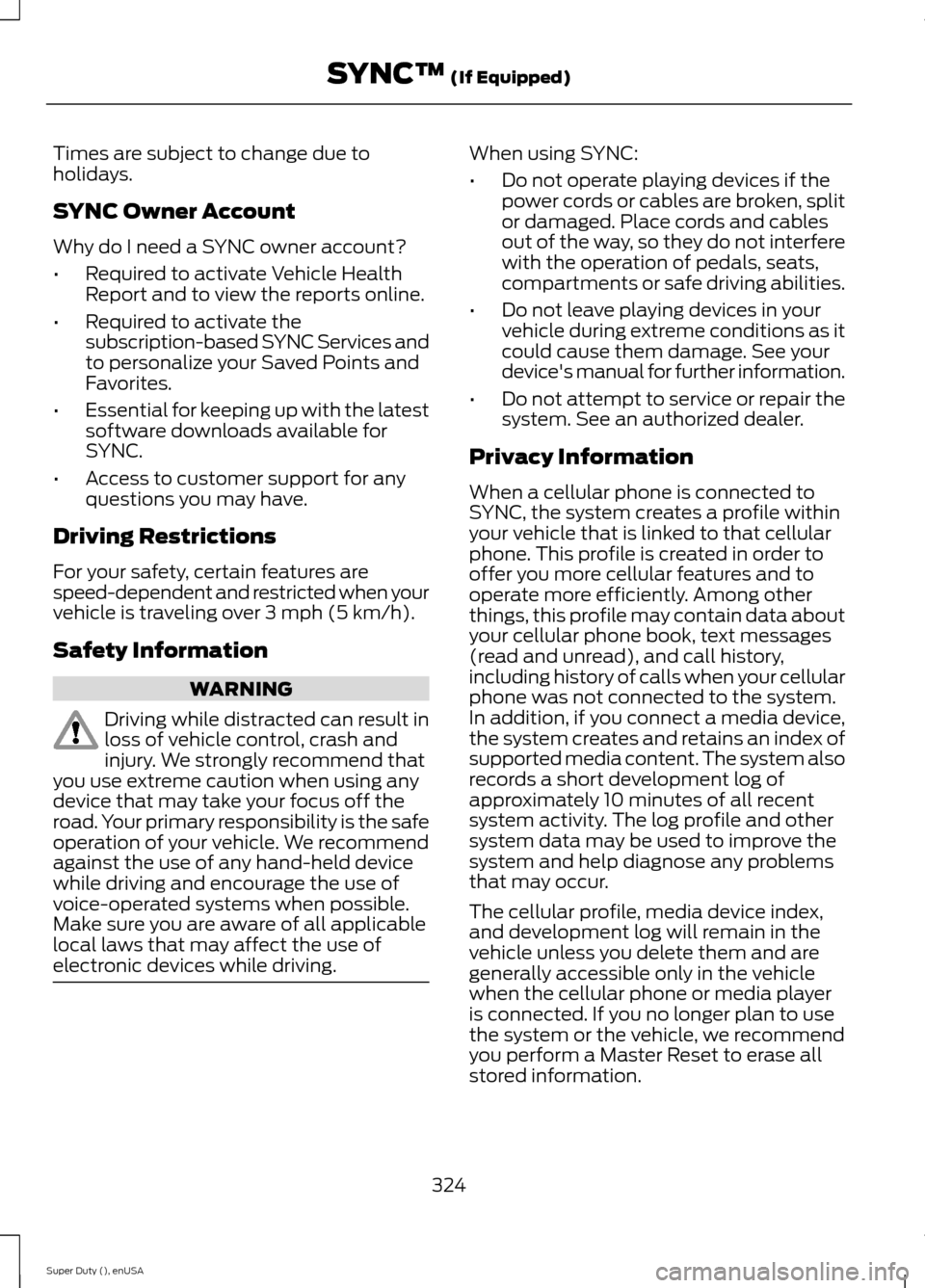
Times are subject to change due toholidays.
SYNC Owner Account
Why do I need a SYNC owner account?
•Required to activate Vehicle HealthReport and to view the reports online.
•Required to activate thesubscription-based SYNC Services andto personalize your Saved Points andFavorites.
•Essential for keeping up with the latestsoftware downloads available forSYNC.
•Access to customer support for anyquestions you may have.
Driving Restrictions
For your safety, certain features arespeed-dependent and restricted when yourvehicle is traveling over 3 mph (5 km/h).
Safety Information
WARNING
Driving while distracted can result inloss of vehicle control, crash andinjury. We strongly recommend thatyou use extreme caution when using anydevice that may take your focus off theroad. Your primary responsibility is the safeoperation of your vehicle. We recommendagainst the use of any hand-held devicewhile driving and encourage the use ofvoice-operated systems when possible.Make sure you are aware of all applicablelocal laws that may affect the use ofelectronic devices while driving.
When using SYNC:
•Do not operate playing devices if thepower cords or cables are broken, splitor damaged. Place cords and cablesout of the way, so they do not interferewith the operation of pedals, seats,compartments or safe driving abilities.
•Do not leave playing devices in yourvehicle during extreme conditions as itcould cause them damage. See yourdevice's manual for further information.
•Do not attempt to service or repair thesystem. See an authorized dealer.
Privacy Information
When a cellular phone is connected toSYNC, the system creates a profile withinyour vehicle that is linked to that cellularphone. This profile is created in order tooffer you more cellular features and tooperate more efficiently. Among otherthings, this profile may contain data aboutyour cellular phone book, text messages(read and unread), and call history,including history of calls when your cellularphone was not connected to the system.In addition, if you connect a media device,the system creates and retains an index ofsupported media content. The system alsorecords a short development log ofapproximately 10 minutes of all recentsystem activity. The log profile and othersystem data may be used to improve thesystem and help diagnose any problemsthat may occur.
The cellular profile, media device index,and development log will remain in thevehicle unless you delete them and aregenerally accessible only in the vehiclewhen the cellular phone or media playeris connected. If you no longer plan to usethe system or the vehicle, we recommendyou perform a Master Reset to erase allstored information.
324Super Duty (), enUSASYNC™ (If Equipped)
Page 335 of 470
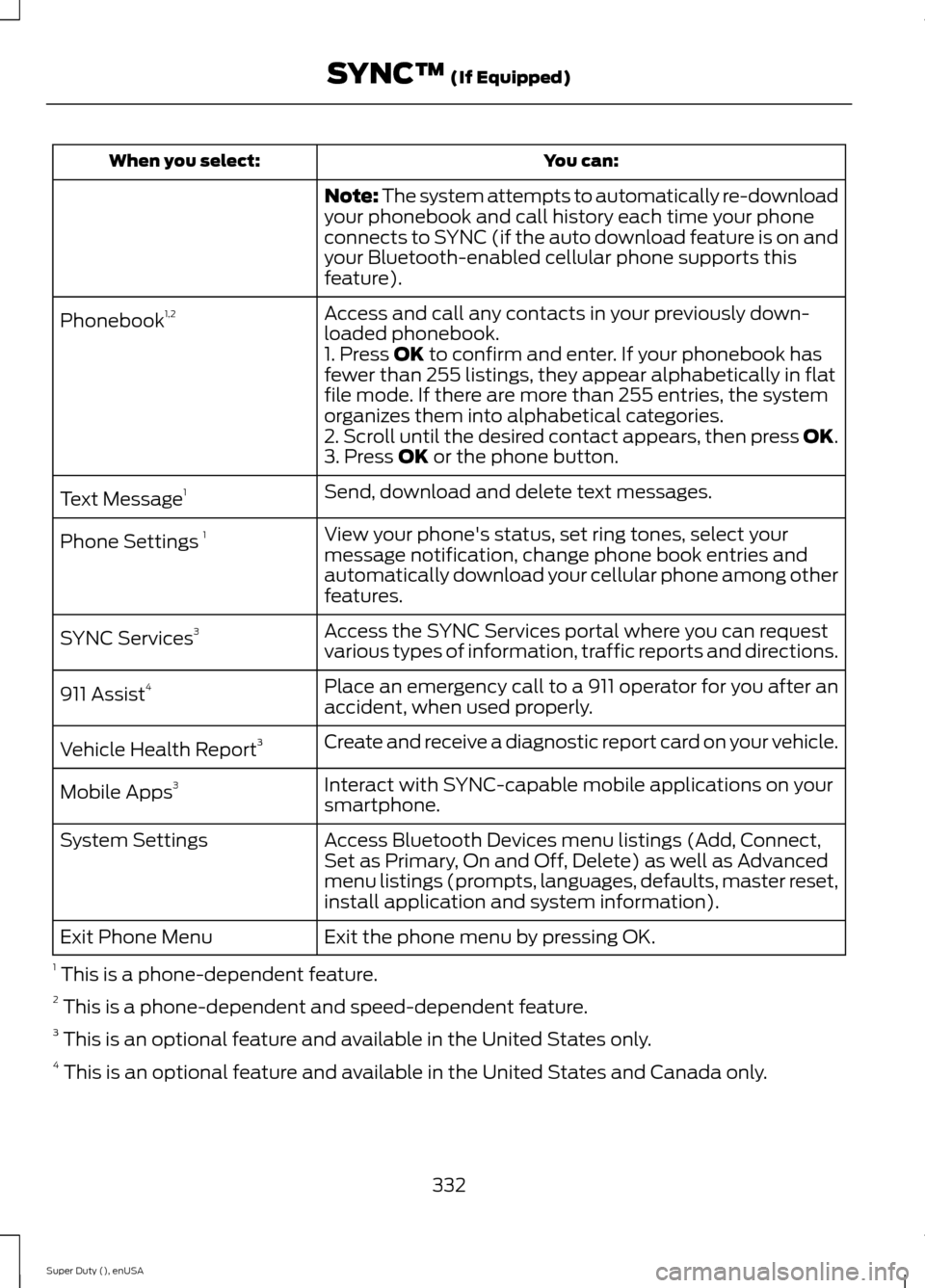
You can:When you select:
Note: The system attempts to automatically re-downloadyour phonebook and call history each time your phoneconnects to SYNC (if the auto download feature is on andyour Bluetooth-enabled cellular phone supports thisfeature).
Access and call any contacts in your previously down-loaded phonebook.Phonebook1,2
1. Press OK to confirm and enter. If your phonebook hasfewer than 255 listings, they appear alphabetically in flatfile mode. If there are more than 255 entries, the systemorganizes them into alphabetical categories.2. Scroll until the desired contact appears, then press OK.3. Press OK or the phone button.
Send, download and delete text messages.Text Message1
View your phone's status, set ring tones, select yourmessage notification, change phone book entries andautomatically download your cellular phone among otherfeatures.
Phone Settings 1
Access the SYNC Services portal where you can requestvarious types of information, traffic reports and directions.SYNC Services3
Place an emergency call to a 911 operator for you after anaccident, when used properly.911 Assist4
Create and receive a diagnostic report card on your vehicle.Vehicle Health Report3
Interact with SYNC-capable mobile applications on yoursmartphone.Mobile Apps3
Access Bluetooth Devices menu listings (Add, Connect,Set as Primary, On and Off, Delete) as well as Advancedmenu listings (prompts, languages, defaults, master reset,install application and system information).
System Settings
Exit the phone menu by pressing OK.Exit Phone Menu
1 This is a phone-dependent feature.2 This is a phone-dependent and speed-dependent feature.3 This is an optional feature and available in the United States only.4 This is an optional feature and available in the United States and Canada only.
332Super Duty (), enUSASYNC™ (If Equipped)
Page 340 of 470
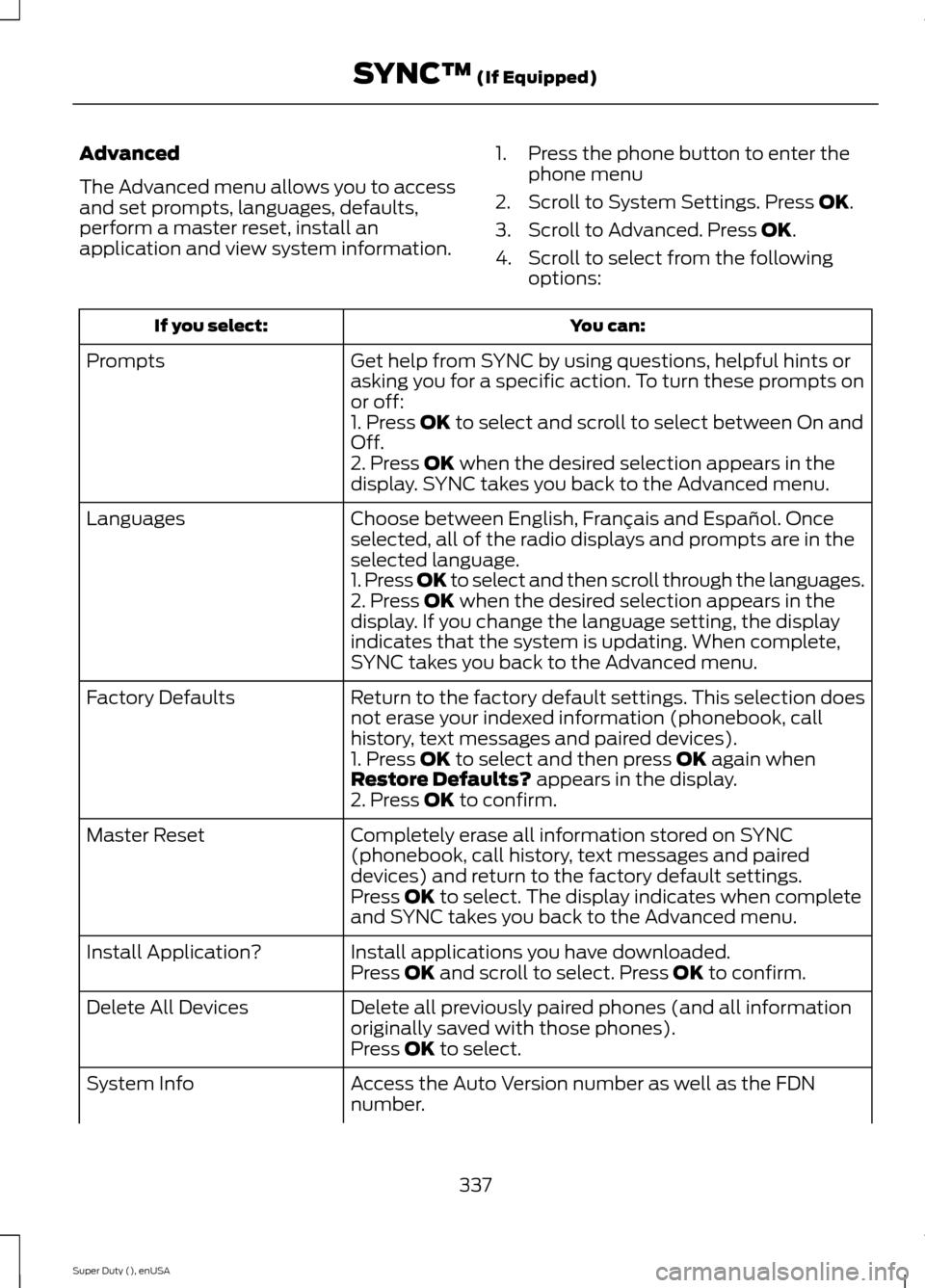
Advanced
The Advanced menu allows you to accessand set prompts, languages, defaults,perform a master reset, install anapplication and view system information.
1.Press the phone button to enter thephone menu
2.Scroll to System Settings. Press OK.
3.Scroll to Advanced. Press OK.
4.Scroll to select from the followingoptions:
You can:If you select:
Get help from SYNC by using questions, helpful hints orasking you for a specific action. To turn these prompts onor off:
Prompts
1. Press OK to select and scroll to select between On andOff.2. Press OK when the desired selection appears in thedisplay. SYNC takes you back to the Advanced menu.
Choose between English, Français and Español. Onceselected, all of the radio displays and prompts are in theselected language.
Languages
1. Press OK to select and then scroll through the languages.2. Press OK when the desired selection appears in thedisplay. If you change the language setting, the displayindicates that the system is updating. When complete,SYNC takes you back to the Advanced menu.
Return to the factory default settings. This selection doesnot erase your indexed information (phonebook, callhistory, text messages and paired devices).
Factory Defaults
1. Press OK to select and then press OK again whenRestore Defaults? appears in the display.2. Press OK to confirm.
Completely erase all information stored on SYNC(phonebook, call history, text messages and paireddevices) and return to the factory default settings.
Master Reset
Press OK to select. The display indicates when completeand SYNC takes you back to the Advanced menu.
Install applications you have downloaded.Install Application?Press OK and scroll to select. Press OK to confirm.
Delete all previously paired phones (and all informationoriginally saved with those phones).Delete All Devices
Press OK to select.
Access the Auto Version number as well as the FDNnumber.System Info
337Super Duty (), enUSASYNC™ (If Equipped)
Page 352 of 470
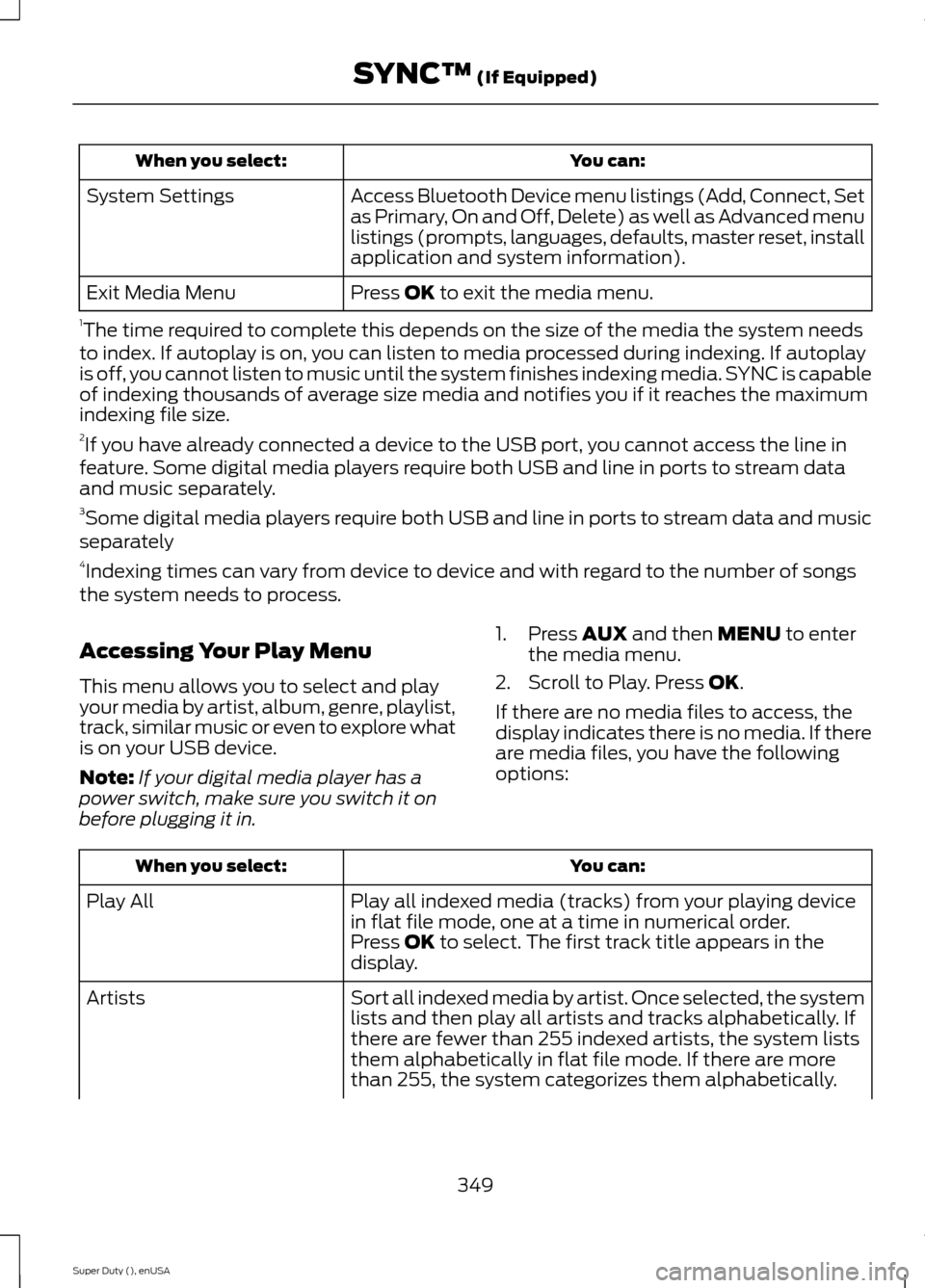
You can:When you select:
Access Bluetooth Device menu listings (Add, Connect, Setas Primary, On and Off, Delete) as well as Advanced menulistings (prompts, languages, defaults, master reset, installapplication and system information).
System Settings
Press OK to exit the media menu.Exit Media Menu
1The time required to complete this depends on the size of the media the system needsto index. If autoplay is on, you can listen to media processed during indexing. If autoplayis off, you cannot listen to music until the system finishes indexing media. SYNC is capableof indexing thousands of average size media and notifies you if it reaches the maximumindexing file size.2If you have already connected a device to the USB port, you cannot access the line infeature. Some digital media players require both USB and line in ports to stream dataand music separately.3Some digital media players require both USB and line in ports to stream data and musicseparately4Indexing times can vary from device to device and with regard to the number of songsthe system needs to process.
Accessing Your Play Menu
This menu allows you to select and playyour media by artist, album, genre, playlist,track, similar music or even to explore whatis on your USB device.
Note:If your digital media player has apower switch, make sure you switch it onbefore plugging it in.
1.Press AUX and then MENU to enterthe media menu.
2.Scroll to Play. Press OK.
If there are no media files to access, thedisplay indicates there is no media. If thereare media files, you have the followingoptions:
You can:When you select:
Play all indexed media (tracks) from your playing devicein flat file mode, one at a time in numerical order.Play All
Press OK to select. The first track title appears in thedisplay.
Sort all indexed media by artist. Once selected, the systemlists and then play all artists and tracks alphabetically. Ifthere are fewer than 255 indexed artists, the system liststhem alphabetically in flat file mode. If there are morethan 255, the system categorizes them alphabetically.
Artists
349Super Duty (), enUSASYNC™ (If Equipped)
Page 355 of 470
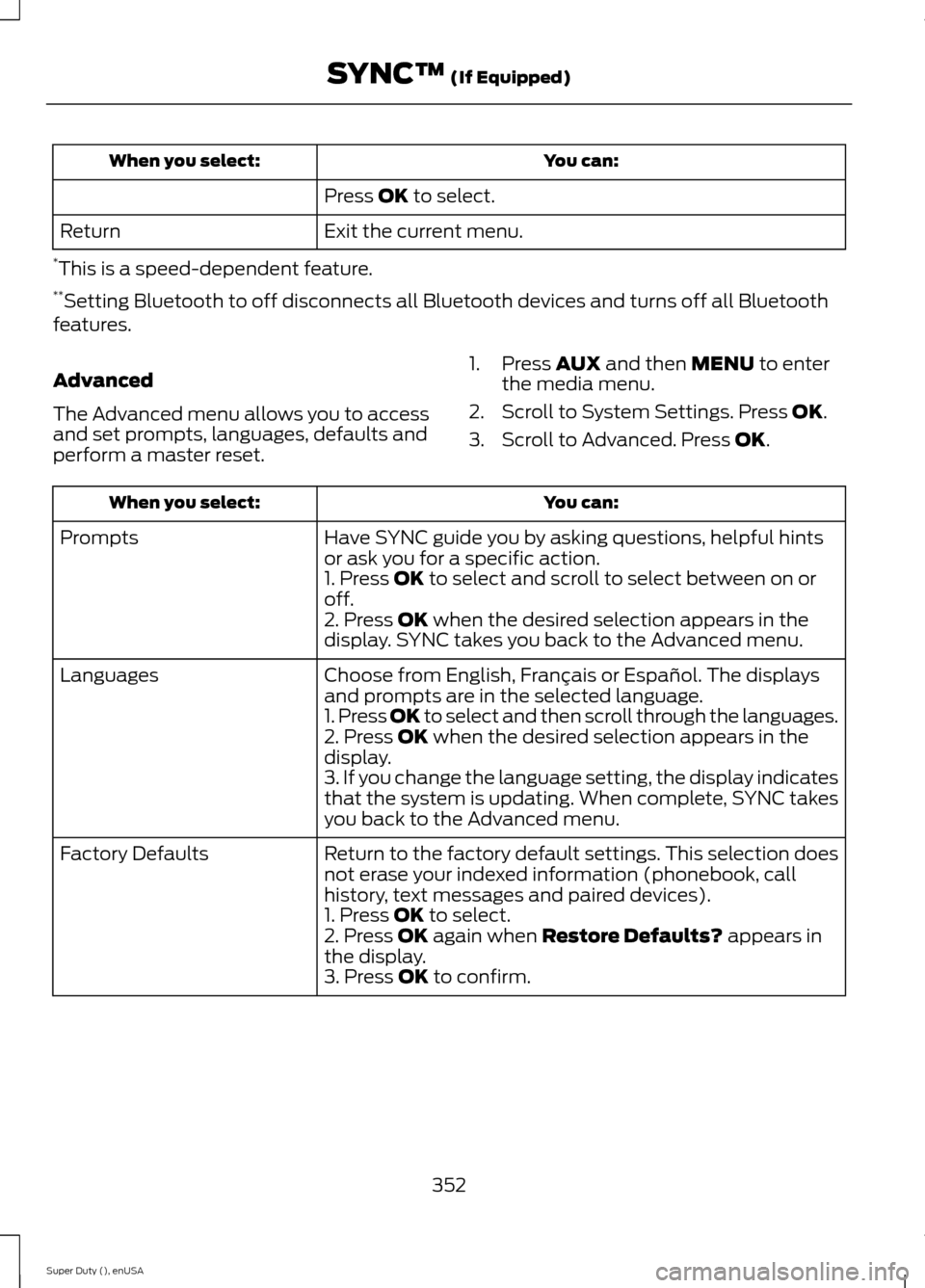
You can:When you select:
Press OK to select.
Exit the current menu.Return
*This is a speed-dependent feature.**Setting Bluetooth to off disconnects all Bluetooth devices and turns off all Bluetoothfeatures.
Advanced
The Advanced menu allows you to accessand set prompts, languages, defaults andperform a master reset.
1.Press AUX and then MENU to enterthe media menu.
2.Scroll to System Settings. Press OK.
3.Scroll to Advanced. Press OK.
You can:When you select:
Have SYNC guide you by asking questions, helpful hintsor ask you for a specific action.Prompts
1. Press OK to select and scroll to select between on oroff.2. Press OK when the desired selection appears in thedisplay. SYNC takes you back to the Advanced menu.
Choose from English, Français or Español. The displaysand prompts are in the selected language.Languages
1. Press OK to select and then scroll through the languages.2. Press OK when the desired selection appears in thedisplay.3. If you change the language setting, the display indicatesthat the system is updating. When complete, SYNC takesyou back to the Advanced menu.
Return to the factory default settings. This selection doesnot erase your indexed information (phonebook, callhistory, text messages and paired devices).
Factory Defaults
1. Press OK to select.2. Press OK again when Restore Defaults? appears inthe display.3. Press OK to confirm.
352Super Duty (), enUSASYNC™ (If Equipped)
Page 356 of 470
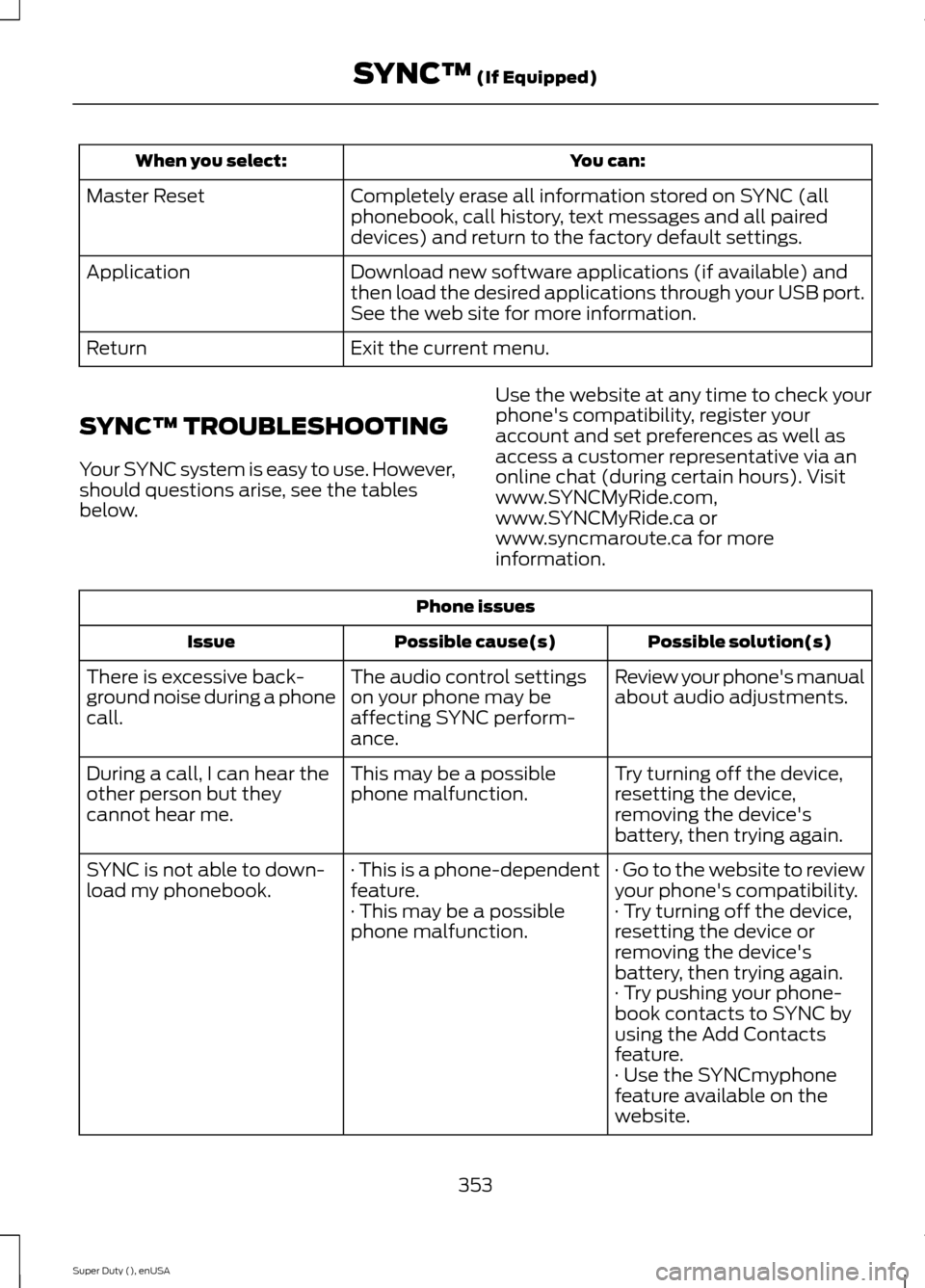
You can:When you select:
Completely erase all information stored on SYNC (allphonebook, call history, text messages and all paireddevices) and return to the factory default settings.
Master Reset
Download new software applications (if available) andthen load the desired applications through your USB port.See the web site for more information.
Application
Exit the current menu.Return
SYNC™ TROUBLESHOOTING
Your SYNC system is easy to use. However,should questions arise, see the tablesbelow.
Use the website at any time to check yourphone's compatibility, register youraccount and set preferences as well asaccess a customer representative via anonline chat (during certain hours). Visitwww.SYNCMyRide.com,www.SYNCMyRide.ca orwww.syncmaroute.ca for moreinformation.
Phone issues
Possible solution(s)Possible cause(s)Issue
Review your phone's manualabout audio adjustments.The audio control settingson your phone may beaffecting SYNC perform-ance.
There is excessive back-ground noise during a phonecall.
Try turning off the device,resetting the device,removing the device'sbattery, then trying again.
This may be a possiblephone malfunction.During a call, I can hear theother person but theycannot hear me.
· Go to the website to reviewyour phone's compatibility.· This is a phone-dependentfeature.SYNC is not able to down-load my phonebook.· Try turning off the device,resetting the device orremoving the device'sbattery, then trying again.
· This may be a possiblephone malfunction.
· Try pushing your phone-book contacts to SYNC byusing the Add Contactsfeature.· Use the SYNCmyphonefeature available on thewebsite.
353Super Duty (), enUSASYNC™ (If Equipped)