2015 FORD MUSTANG See manual
[x] Cancel search: See manualPage 310 of 441
Phonebook preferences
Pair additional phones to the system.
Add
1. Select the option to add to start the pairing process.
2. When a message to begin pairing appears in the audio
display, search for SYNC on your phone. See your phone's
manual if necessary.
3. When prompted on your phone's display, enter the six-
digit PIN provided by the system in the radio display. The
display indicates when the pairing is successful.
4. When the option to set the phone as primary appears,
select either yes or no.
5. Depending on the functionality of your phone, the
system may prompt you with questions (such as if you
want to download your phonebook). Select either yes or
no to confirm your responses.
Select the delete option and confirm when the system
asks to delete the selected device. After deleting a phone
from the list, you have to repeat the pairing process to pair
it again.
Delete
The system attempts to connect with the primary cellular
phone each time you switch on the ignition. When you
select a cellular phone as primary, it appears first in the
list, marked with an asterisk. Set a previously paired phone
as master by selecting the master option and confirming
it as the primary.
Master
Connect a previously connected phone. You can only have
one phone connected at a time to use the phone's func-
tionality. When you connect another phone, the previous
phone disconnects from the telephone services. The
system allows you to use different Bluetooth devices for
the cellular phone functionality and the Bluetooth audio
music playback feature at the same time.
Conn.
Disconnects the selected cellular phone. Select this option
and confirm when asked. After disconnecting a phone,
you can reconnect it again without repeating the full pairing
process.
Discon.
System Settings
1. Press the MENU button. 2. Select the SYNC settings option, and
then press the
OK button.
3. Scroll to select from the following options:
307
Mustang (), enUSA, First Printing SYNC™
(If Equipped)
Page 320 of 441
Note:
Standard data rates apply. Ford is
not responsible for any additional charges
you may receive from your service provider,
when your vehicle sends or receives data
through the connected device. This includes
any additional charges incurred due to
driving in areas when roaming out of a home
network.
App Status
You can view the current status of an app
in the settings menu.
There are three possible statuses:
• Update Needed: The system has
detected a new app requiring
authorization or a general permissions
update is required.
• Up-To-Date
: No update is required.
• Updating
: The system is trying to
receive an update.
If an update is required and you want to
request this update manually, for example
when in a Wi-Fi hotspot, select
Request
Update in the settings menu.
You can disable automatic updates by
selecting
Disable Updates in the settings
menu. Doing so also disables the use of
Mobile Apps on SYNC.
USING SYNC™ WITH YOUR
MEDIA PLAYER
You can access and play music from your
digital music player over your vehicle's
speaker system using the system's media
menu or voice commands. You can also
sort and play your music by specific
categories, such as artist and album.
Note: The system is capable of indexing up
to 15,000 songs. SYNC is capable of hosting nearly any
digital media player including: iPod, Zune,
plays from device players, and most USB
drives. SYNC also supports audio formats,
such as MP3, WMA, WAV and ACC.
Connecting Your Digital Media
Player to the USB Port
Note:
If your digital media player has a
power switch, make sure you switch it on
before plugging it in.
Using Voice Commands
1. Plug the device into your vehicle's USB
port.
2. Press the voice button and when prompted, say "USB" or "iPod".
3. You can now play music by saying any of the appropriate voice commands.
See the media voice commands.
Using the System Menu
1. Plug the device into your vehicle's USB
port.
2. Press the
AUX button until an
"initializing" message appears in the
display. Depending on how many
media files are on your connected
device, an indexing message may
appear in the display. When indexing
is complete, the screen returns to the
playback menu.
You can browse the files on the USB device
in categories. Choose from the following:
• Play all
• Playlists
• Songs
• Artists
• Albums
• Genres
• Browse USB
• Reset USB
317
Mustang (), enUSA, First Printing SYNC™
(If Equipped)
Page 327 of 441
CD Voice Commands
If you are listening to a CD, press
the voice button, and then any
of the commands in the
following table. If you are not listening to
a CD, press the voice button and, after the
tone, say, "CD", and then any of the
following voice commands: "CD"
"Pause" "Play"
"Play next track"
"Play previous track" "Play track <1-512>"
"Repeat" *
"Repeat folder" "Repeat off"
"Repeat track" "CD"
"Shuffle" *
"Shuffle CD"
"Shuffle folder" "Shuffle off"
* You need to indicate to the system which
track or folder to repeat or shuffle when
using these commands.
SYNC™ TROUBLESHOOTING
Your SYNC system is easy to use. However,
should questions arise, see the tables
below.
Use the website at any time to check your
phone's compatibility, register your
account and set preferences as well as
access a customer representative via an
online chat (during certain hours). Visit
www.SYNCMyRide.com,
www.SYNCMyRide.ca or
www.syncmaroute.ca for more
information. Phone issues
Possible solution(s)
Possible cause(s)
Issue
Review your phone's manual
about audio adjustments.
The audio control settings
on your phone may be
affecting SYNC perform-
ance.
There is excessive back-
ground noise during a phone
call.
Try turning off the device,
resetting the device,
removing the device's
battery, then trying again.
This may be a possible
phone malfunction.
During a call, I can hear the
other person but they
cannot hear me.
Go to the website to review
your phone's compatibility.
This is a phone-dependent
feature.
SYNC is not able to down-
load my phonebook.
324
Mustang (), enUSA, First Printing SYNC™ (If Equipped)E142599
Page 340 of 441
Safety Information
WARNING
Driving while distracted can result in
loss of vehicle control, crash and
injury. We strongly recommend that
you use extreme caution when using any
device that may take your focus off the
road. Your primary responsibility is the safe
operation of your vehicle. We recommend
against the use of any hand-held device
while driving and encourage the use of
voice-operated systems when possible.
Make sure you are aware of all applicable
local laws that may affect the use of
electronic devices while driving. •
Do not attempt to service or repair the
system. See an authorized dealer.
• Do not operate playing devices if the
power cords or cables are broken, split
or damaged. Place cords and cables
out of the way, so they do not interfere
with the operation of pedals, seats,
compartments or safe driving abilities. •
Do not leave playing devices in your
vehicle during extreme conditions as it
could cause them damage. See your
device's user guide for further
information.
• For your safety, some SYNC functions
are speed-dependent. Their use is
limited to when your vehicle is traveling
at speeds under 3 mph (5 km/h).
Make sure that you review your device's
manual before using it with SYNC.
Speed-restricted Features
Some features of this system may be too
difficult to use while your vehicle is moving
so they are restricted from use unless your
vehicle is stationary.
• Screens crowded with information,
such as Point of Interest reviews and
ratings, SIRIUS Travel Link sports
scores, movie times or ski conditions.
• Any action that requires you to use a
keyboard is restricted, such as entering
a navigation destination or editing
information.
• All lists are limited so the user can view
fewer entries (such as phone contacts
or recent phone call entries).
See the following chart for more specific
examples. Restricted features
Pairing a Bluetooth phone
Cellular Phone
Adding phonebook contacts or uploading phonebook
contacts (from a USB)
List entries are limited for phone contacts and recent
phone call entries
Editing the keypad code
System Functionality
Enabling Valet Mode
337
Mustang (), enUSA, First Printing MyFord Touch
™ (If Equipped)
Page 357 of 441
Direct Tune
Touch this button to manually enter the
desired station number. Touch Enter when
you are done.
HD Radio
™ Information (If Available)
Note: HD Radio broadcasts are not
available in all markets.
HD Radio technology is the digital
evolution of analog AM/FM radio. Your
system has a special receiver that allows
it to receive digital broadcasts (where
available) in addition to the analog
broadcasts, it already receives. Digital
broadcasts provide a better sound quality
than analog broadcasts with free,
crystal-clear audio and no static or
distortion. For more information, and a
guide to available stations and
programming, please visit
www.hdradio.com.
When HD Radio is on and you tune to a
station broadcasting HD Radio technology,
you may notice the following indicators on
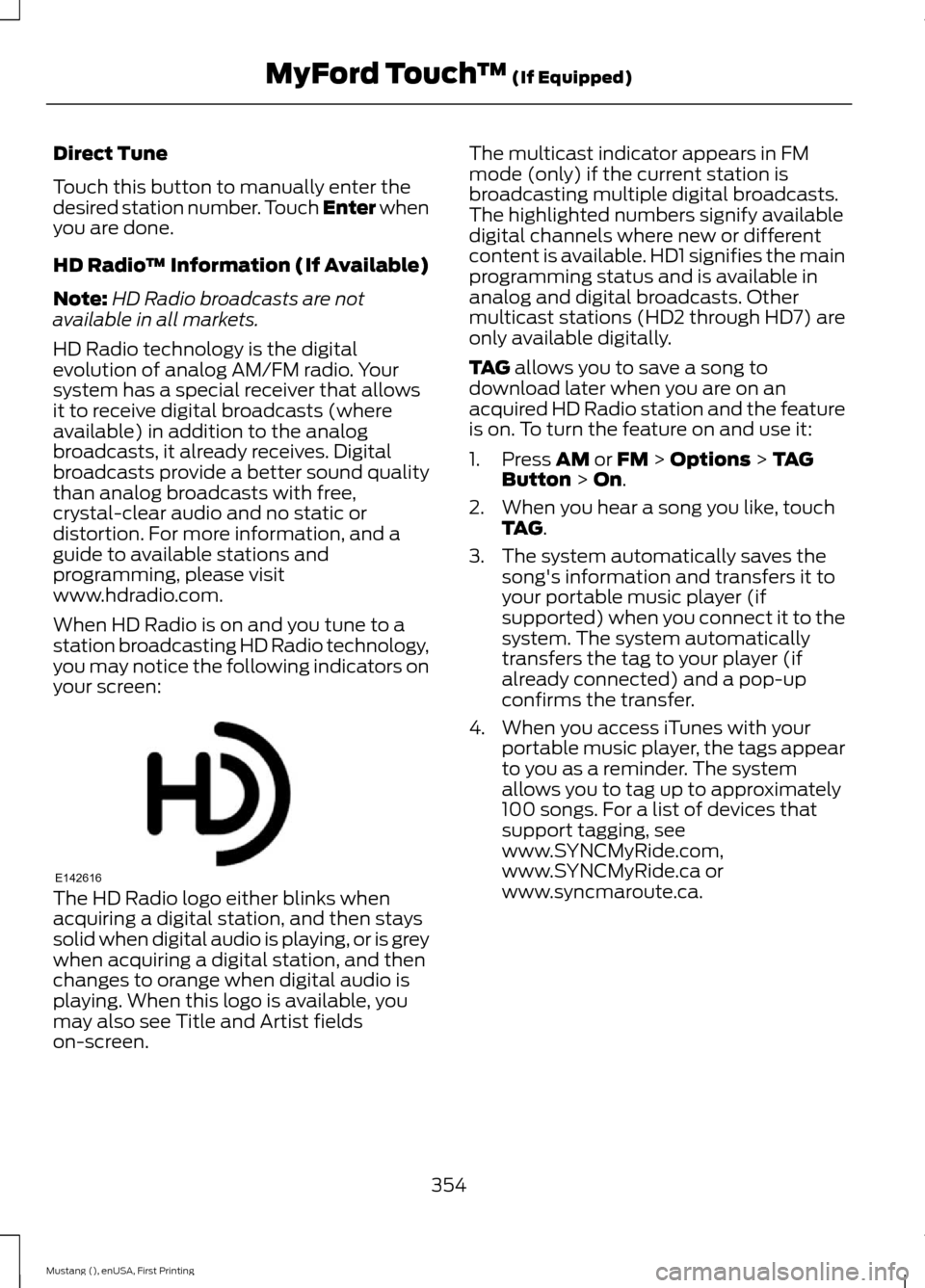
your screen: The HD Radio logo either blinks when
acquiring a digital station, and then stays
solid when digital audio is playing, or is grey
when acquiring a digital station, and then
changes to orange when digital audio is
playing. When this logo is available, you
may also see Title and Artist fields
on-screen. The multicast indicator appears in FM
mode (only) if the current station is
broadcasting multiple digital broadcasts.
The highlighted numbers signify available
digital channels where new or different
content is available. HD1 signifies the main
programming status and is available in
analog and digital broadcasts. Other
multicast stations (HD2 through HD7) are
only available digitally.
TAG allows you to save a song to
download later when you are on an
acquired HD Radio station and the feature
is on. To turn the feature on and use it:
1. Press
AM or FM > Options > TAG
Button > On.
2. When you hear a song you like, touch TAG
.
3. The system automatically saves the song's information and transfers it to
your portable music player (if
supported) when you connect it to the
system. The system automatically
transfers the tag to your player (if
already connected) and a pop-up
confirms the transfer.
4. When you access iTunes with your portable music player, the tags appear
to you as a reminder. The system
allows you to tag up to approximately
100 songs. For a list of devices that
support tagging, see
www.SYNCMyRide.com,
www.SYNCMyRide.ca or
www.syncmaroute.ca.
354
Mustang (), enUSA, First Printing MyFord Touch
™
(If Equipped)E142616
Page 362 of 441
Tune to the channel, to Cancel the alert or
to Disable Alerts. If you are listening to a
sporting event, you can save your favorite
teams so that the system can alert you
when they are playing on a satellite radio
channel.
Note:
Sirius does not support the Alert
feature on all channels. Ford Motor
Company shall not be responsible for Alert
feature variation.
Electronic Serial Number (ESN)
Sirius requires this number when
communicating with you about your
account.
Direct Tune
Touch this button to manually enter the
desired satellite channel number. Touch
Enter when you are done.
Browse
Touch this button to view a list of all
available stations. Scroll to see more
categories. Touch the station you want to
listen to.
Touch
Skip if you want to skip this
channel.
Touch
Lock if you do not want anyone to
listen to this channel.
Touch
Title or Artist to see song and
artists on other stations.
Sirius Satellite Radio Information
Note: Sirius reserves the unrestricted right
to change, rearrange, add or delete
programming including canceling, moving
or adding particular channels, and its prices,
at any time, with or without notice to you.
Ford Motor Company shall not be
responsible for any such programming
changes. Sirius satellite radio is a subscription-based
satellite radio service that broadcasts a
variety of music, sports, news, weather,
traffic and entertainment programming.
Your factory-installed Sirius satellite radio
system includes hardware and a limited
subscription term that begins on the date
of sale or lease of your vehicle. See an
authorized dealer for availability.
For more information on extended
subscription terms (a service fee is
required), the online media player and a
list of Sirius satellite radio channels, and
other features, please visit
www.siriusxm.com in the United States,
www.sirius.ca in Canada, or call Sirius at
1-888-539-7474.
Note:
This receiver includes the eCos
real-time operating system. eCos is
published under the eCos License.
Satellite Radio Electronic Serial Number
(ESN)
You need your ESN to activate, modify or
track your satellite radio account. The ESN
is on the System Information Screen (SR
ESN:XXXXXXXXXXXX). To access your
ESN, touch the bottom left corner of the
touchscreen. Touch
SIRIUS > Options.
359
Mustang (), enUSA, First Printing MyFord Touch
™
(If Equipped)E142593
Page 372 of 441
Phonebook
C
History
D
Messaging
E
Settings
F
Hands-free calling is one of the main
features of SYNC. Once you pair your
phone, you can access many options using
the touchscreen or voice commands. While
the system supports a variety of features,
many are dependent on your cellular
phone ’s functionality.
At a minimum, most cellular phones with
Bluetooth wireless technology support the
following functions:
• Answering an incoming call.
• Ending a call.
• Using privacy mode.
• Dialing a number.
• Redialing.
• Call waiting notification.
• Caller ID.
Other features, such as text messaging
using Bluetooth and automatic phonebook
download, are phone-dependent features.
To check your phone ’s compatibility, see
your phone ’s user manual and visit
www.SYNCMyRide.com,
www.SYNCMyRide.ca or
www.syncmaroute.ca. Pairing Your Phone for the First
Time WARNING
Driving while distracted can result in
loss of vehicle control, crash and
injury. We strongly recommend that
you use extreme caution when using any
device that may take your focus off the
road. Your primary responsibility is the safe
operation of your vehicle. We recommend
against the use of any handheld device
while driving and encourage the use of
voice-operated systems when possible.
Make sure you are aware of all applicable
local laws that may affect the use of
electronic devices while driving. The first thing you must do to use the
phone features of SYNC is to pair your
Bluetooth-enabled cellular phone with
SYNC. This allows you to use your phone
in a hands-free manner.
Note:
Put the transmission in park (P).
Switch on your vehicle ignition and the radio.
1. Touch Add Phone in the upper left
corner of the touchscreen. Find SYNC
appears on the screen, and instructs
you to begin the pairing process from
your device.
2. Make sure that Bluetooth is set to
On
and that your cellular phone is in the
proper mode. See your phone ’s manual
if necessary.
Note: Select
SYNC, and a six-digit PIN
appears on your device.
369
Mustang (), enUSA, First Printing MyFord Touch
™
(If Equipped)
Page 373 of 441
3. If prompted to enter a PIN on your
device, it does not support Secure
Simple Pairing. To pair, enter the PIN
displayed on the touchscreen. Skip the
next step.
4. When prompted on your phone ’s
display, confirm that the PIN provided
by SYNC matches the PIN displayed
on your cellular phone.
5. The display indicates when the pairing
is successful.
SYNC may prompt you with more phone
options. For more information on your
phone's capability, see your phone's
manual and visit the website.
Pairing Subsequent Phones
Note: Put the transmission in park (P).
Switch on your vehicle ignition and the radio.
1. Press the Phone corner of the
touchscreen > Settings > BT Devices
>
Add Device.
2. Make sure that Bluetooth is set to
On
and that your cellular phone is in the
proper mode. See your phone ’s manual
if necessary.
Note: Select
SYNC, and a six-digit PIN
appears on your device.
3. If prompted to enter a PIN on your device, it does not support Secure
Simple Pairing. To pair, enter the PIN
displayed on the touchscreen. Skip the
next step.
4. When prompted on your phone ’s
display, confirm that the PIN provided
by SYNC matches the PIN displayed
on your cellular phone.
5. The display indicates when the pairing
is successful.
SYNC may prompt you with more phone
options. For more information on your
phone's capability, see your phone's
manual and visit the website. Making Calls Press the voice button on your
steering wheel controls. When
prompted, say, "Call
or say "Dial", then the desired number. To end the call or exit phone
mode, press and hold the phone
button.
Receiving Calls
During an incoming call, an audible tone
sounds. Call information appears in the
display if it is available. Accept the call by pressing
Accept
on the touchscreen or
by pressing the phone button on
your steering wheel controls.
Reject the call by pressing
Reject on the
touchscreen or by pressing and holding the
phone button on your steering wheel
controls.
Ignore the call by doing nothing. SYNC logs
it as a missed call.
Phone Menu Options
Press the top left corner on your
touchscreen to select from the following
options:
Phone
Touch this button to access the on-screen
numerical pad to enter a number and place
a call. During an active call, you can also
choose to:
• Mute the call.
• Put the call on hold.
• Turn on the privacy feature.
• Join two calls.
• End the call.
370
Mustang (), enUSA, First Printing MyFord Touch
™
(If Equipped)E142599 E165966 E165966