2015 FORD FOCUS USB port
[x] Cancel search: USB portPage 327 of 453
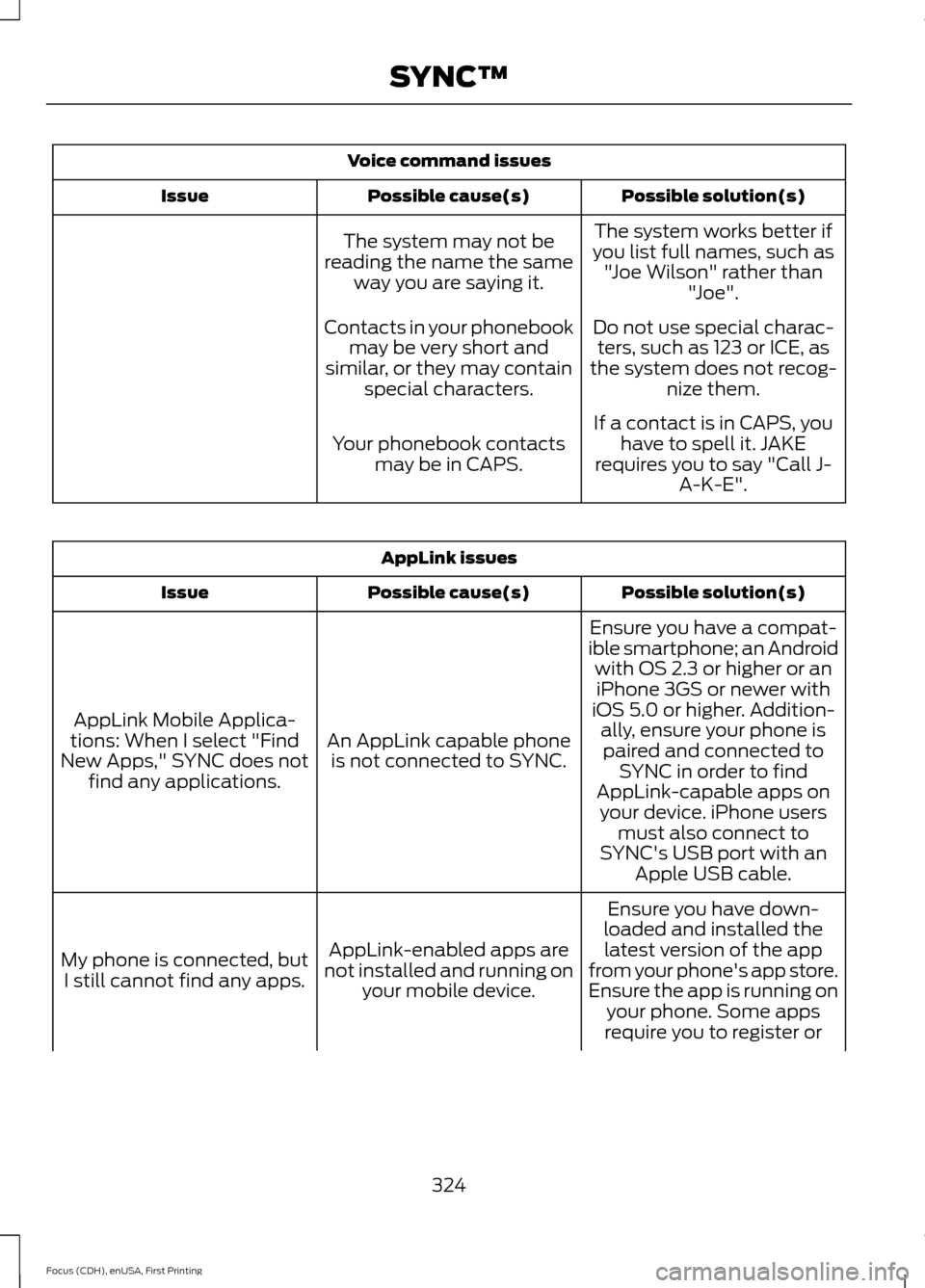
Voice command issues
Possible solution(s)
Possible cause(s)
Issue
The system works better if
you list full names, such as "Joe Wilson" rather than "Joe".
The system may not be
reading the name the same way you are saying it.
Do not use special charac-ters, such as 123 or ICE, as
the system does not recog- nize them.
Contacts in your phonebook
may be very short and
similar, or they may contain special characters.
If a contact is in CAPS, youhave to spell it. JAKE
requires you to say "Call J- A-K-E".
Your phonebook contacts
may be in CAPS. AppLink issues
Possible solution(s)
Possible cause(s)
Issue
Ensure you have a compat-
ible smartphone; an Android with OS 2.3 or higher or aniPhone 3GS or newer with
iOS 5.0 or higher. Addition- ally, ensure your phone is
An AppLink capable phone
is not connected to SYNC.
AppLink Mobile Applica-
tions: When I select "Find
New Apps," SYNC does not find any applications. paired and connected to
SYNC in order to find
AppLink-capable apps on your device. iPhone users must also connect to
SYNC's USB port with an Apple USB cable.
Ensure you have down-
loaded and installed the latest version of the app
from your phone's app store.
Ensure the app is running on your phone. Some apps
AppLink-enabled apps are
not installed and running on your mobile device.
My phone is connected, but
I still cannot find any apps.
require you to register or
324
Focus (CDH), enUSA, First Printing SYNC™
Page 329 of 453
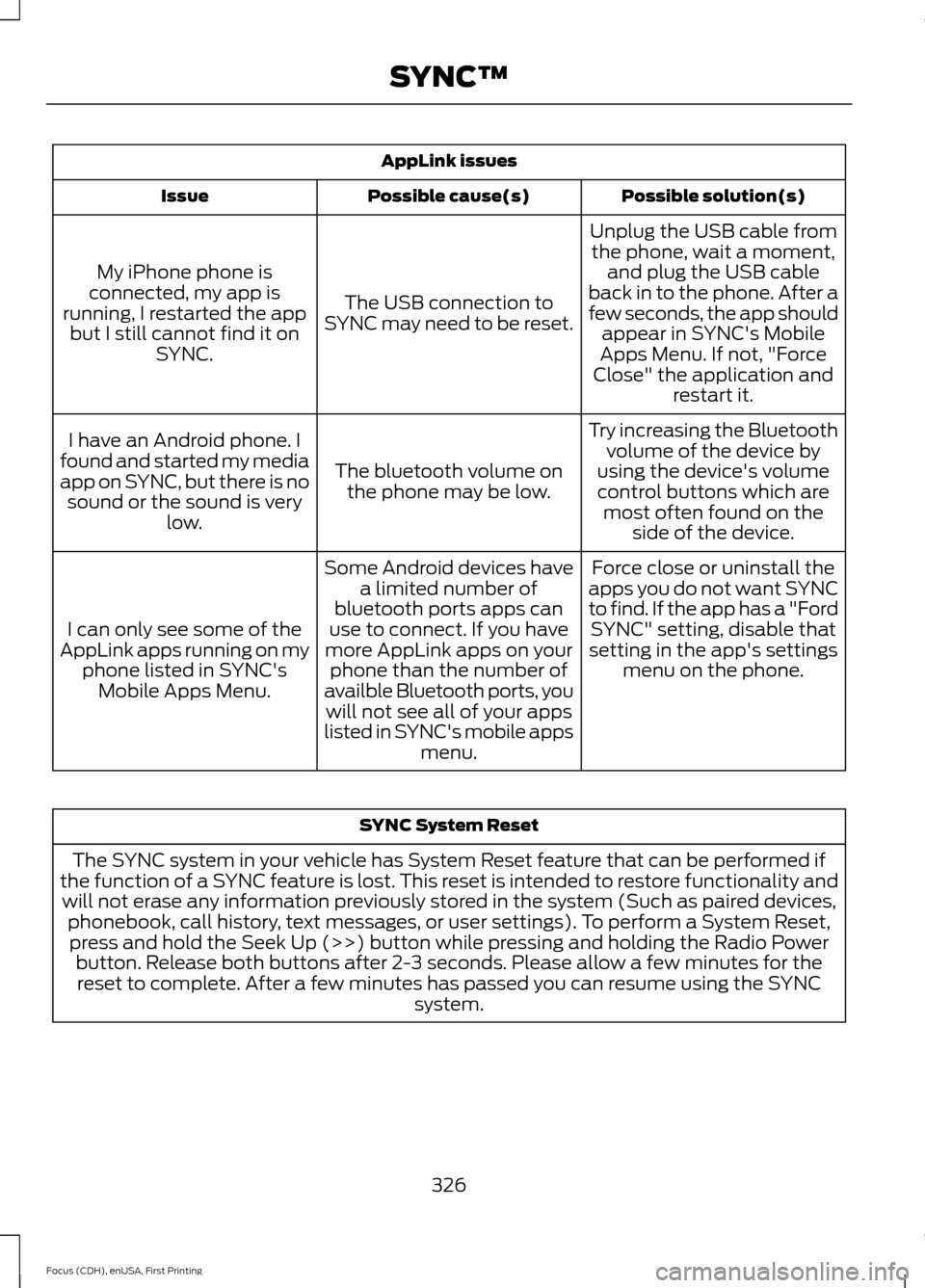
AppLink issues
Possible solution(s)
Possible cause(s)
Issue
Unplug the USB cable fromthe phone, wait a moment, and plug the USB cable
back in to the phone. After a
few seconds, the app should appear in SYNC's Mobile
Apps Menu. If not, "Force
Close" the application and restart it.
The USB connection to
SYNC may need to be reset.
My iPhone phone is
connected, my app is
running, I restarted the app but I still cannot find it on SYNC.
Try increasing the Bluetoothvolume of the device by
using the device's volume control buttons which are most often found on the side of the device.
The bluetooth volume on
the phone may be low.
I have an Android phone. I
found and started my media
app on SYNC, but there is no sound or the sound is very low.
Force close or uninstall the
apps you do not want SYNC
to find. If the app has a "Ford SYNC" setting, disable that
setting in the app's settings menu on the phone.
Some Android devices have
a limited number of
bluetooth ports apps can
use to connect. If you have
more AppLink apps on your phone than the number of
availble Bluetooth ports, you will not see all of your apps
listed in SYNC's mobile apps menu.
I can only see some of the
AppLink apps running on my phone listed in SYNC'sMobile Apps Menu. SYNC System Reset
The SYNC system in your vehicle has System Reset feature that can be performed if
the function of a SYNC feature is lost. This reset is intended to restore functionality and will not erase any information previously stored in the system (Such as paired devices, phonebook, call history, text messages, or user settings). To perform a System Reset,press and hold the Seek Up (>>) button while pressing and holding the Radio Power button. Release both buttons after 2-3 seconds. Please allow a few minutes for thereset to complete. After a few minutes has passed you can resume using the SYNC system.
326
Focus (CDH), enUSA, First Printing SYNC™
Page 347 of 453
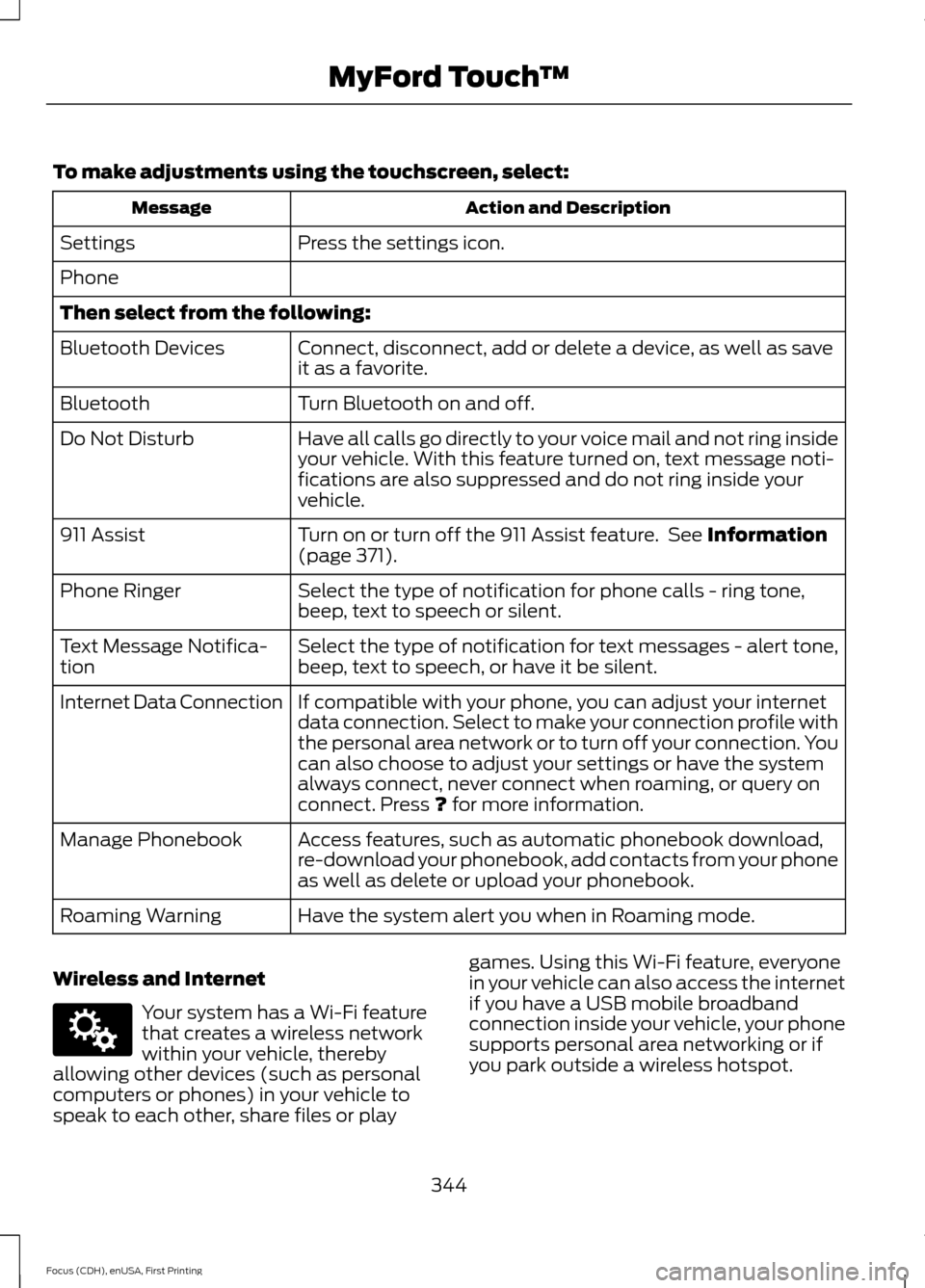
To make adjustments using the touchscreen, select:
Action and Description
Message
Press the settings icon.
Settings
Phone
Then select from the following:
Connect, disconnect, add or delete a device, as well as save
it as a favorite.
Bluetooth Devices
Turn Bluetooth on and off.
Bluetooth
Have all calls go directly to your voice mail and not ring inside
your vehicle. With this feature turned on, text message noti-
fications are also suppressed and do not ring inside your
vehicle.
Do Not Disturb
Turn on or turn off the 911 Assist feature. See Information
(page 371).
911 Assist
Select the type of notification for phone calls - ring tone,
beep, text to speech or silent.
Phone Ringer
Select the type of notification for text messages - alert tone,
beep, text to speech, or have it be silent.
Text Message Notifica-
tion
If compatible with your phone, you can adjust your internet
data connection. Select to make your connection profile with
the personal area network or to turn off your connection. You
can also choose to adjust your settings or have the system
always connect, never connect when roaming, or query on
connect. Press
? for more information.
Internet Data Connection
Access features, such as automatic phonebook download,
re-download your phonebook, add contacts from your phone
as well as delete or upload your phonebook.
Manage Phonebook
Have the system alert you when in Roaming mode.
Roaming Warning
Wireless and Internet Your system has a Wi-Fi feature
that creates a wireless network
within your vehicle, thereby
allowing other devices (such as personal
computers or phones) in your vehicle to
speak to each other, share files or play games. Using this Wi-Fi feature, everyone
in your vehicle can also access the internet
if you have a USB mobile broadband
connection inside your vehicle, your phone
supports personal area networking or if
you park outside a wireless hotspot.
344
Focus (CDH), enUSA, First Printing MyFord Touch
™E142607
Page 362 of 453
CD Voice Commands
If you are listening to a CD, press
the voice button on the steering
wheel controls. When prompted,
say any of the following commands.
If you are not listening to a CD, press
the voice button and, after the tone,
say: Voice command
CD Player
When listening to a CD you can say
many commands. Following are a few
examples of what you can say. Voice command
Play
Pause
Next Track
Previous Track
Help
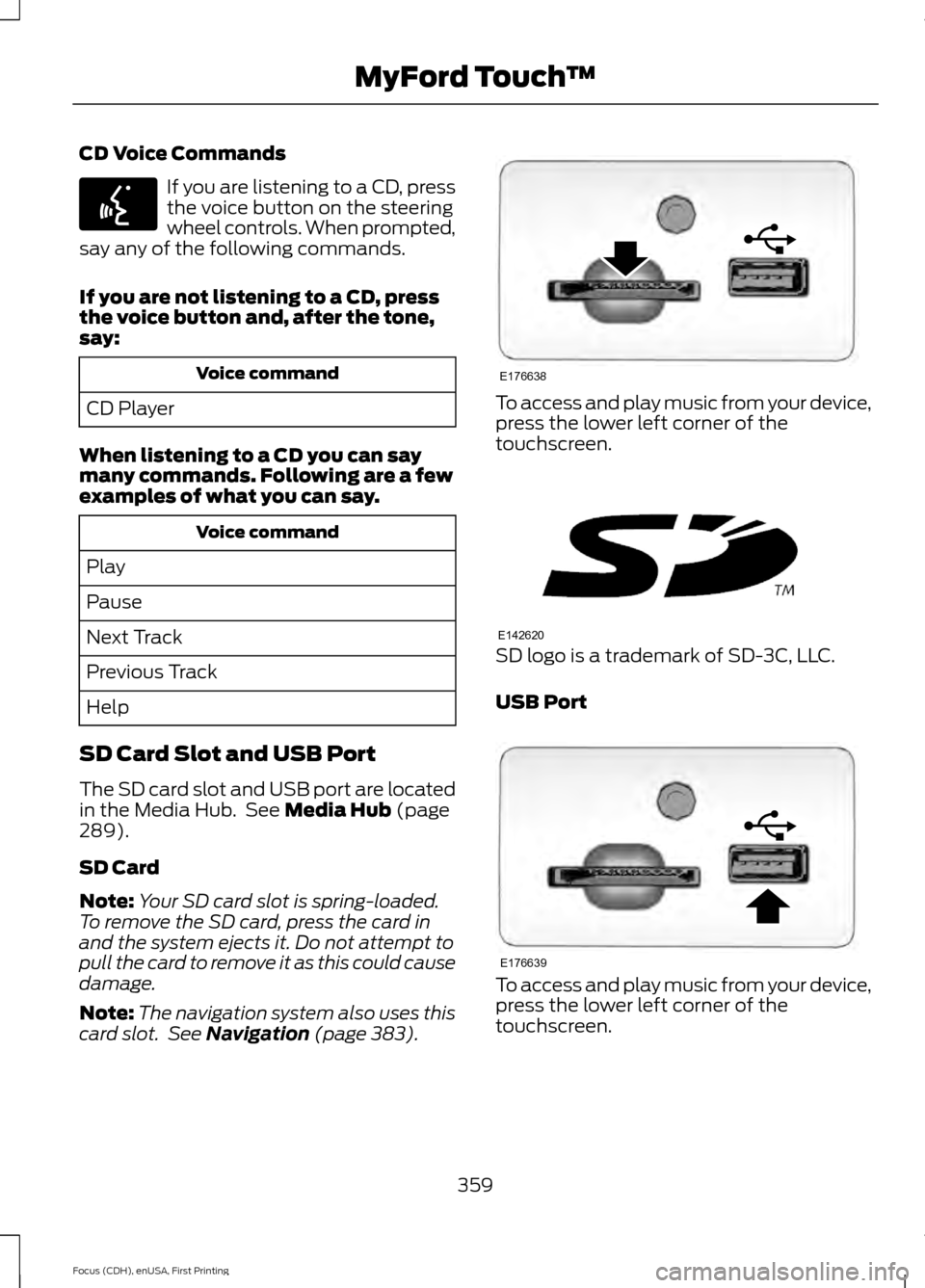
SD Card Slot and USB Port
The SD card slot and USB port are located
in the Media Hub. See Media Hub (page
289).
SD Card
Note: Your SD card slot is spring-loaded.
To remove the SD card, press the card in
and the system ejects it. Do not attempt to
pull the card to remove it as this could cause
damage.
Note: The navigation system also uses this
card slot. See
Navigation (page 383). To access and play music from your device,
press the lower left corner of the
touchscreen.
SD logo is a trademark of SD-3C, LLC.
USB Port
To access and play music from your device,
press the lower left corner of the
touchscreen.
359
Focus (CDH), enUSA, First Printing MyFord Touch
™E142599 E176638 E142620 E176639
Page 363 of 453
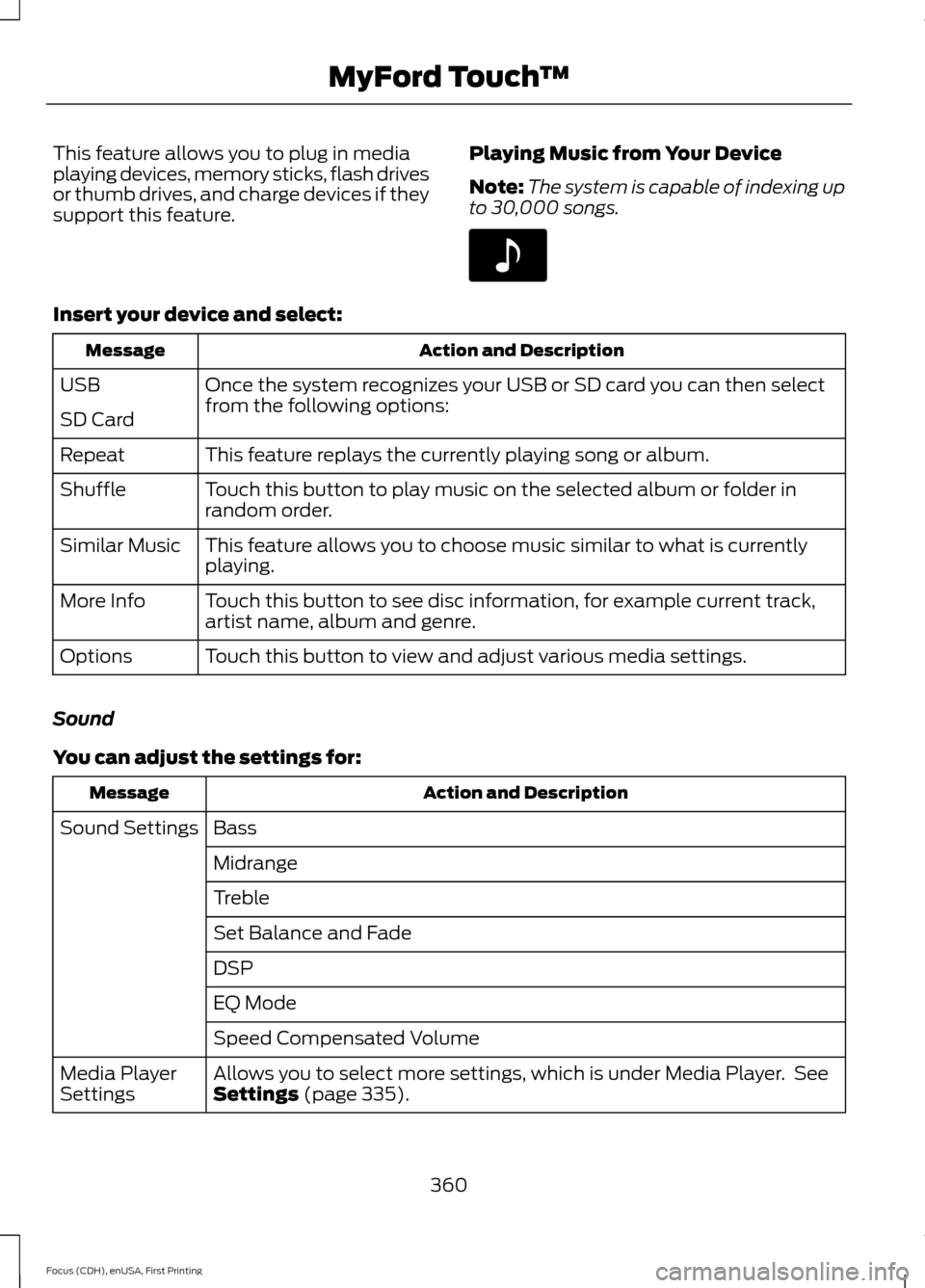
This feature allows you to plug in media
playing devices, memory sticks, flash drives
or thumb drives, and charge devices if they
support this feature.
Playing Music from Your Device
Note:
The system is capable of indexing up
to 30,000 songs. Insert your device and select:
Action and Description
Message
Once the system recognizes your USB or SD card you can then select
from the following options:
USB
SD Card
This feature replays the currently playing song or album.
Repeat
Touch this button to play music on the selected album or folder in
random order.
Shuffle
This feature allows you to choose music similar to what is currently
playing.
Similar Music
Touch this button to see disc information, for example current track,
artist name, album and genre.
More Info
Touch this button to view and adjust various media settings.
Options
Sound
You can adjust the settings for: Action and Description
Message
Bass
Sound Settings
Midrange
Treble
Set Balance and Fade
DSP
EQ Mode
Speed Compensated Volume
Allows you to select more settings, which is under Media Player. See
Settings (page 335).
Media Player
Settings
360
Focus (CDH), enUSA, First Printing MyFord Touch
™E142611
Page 365 of 453
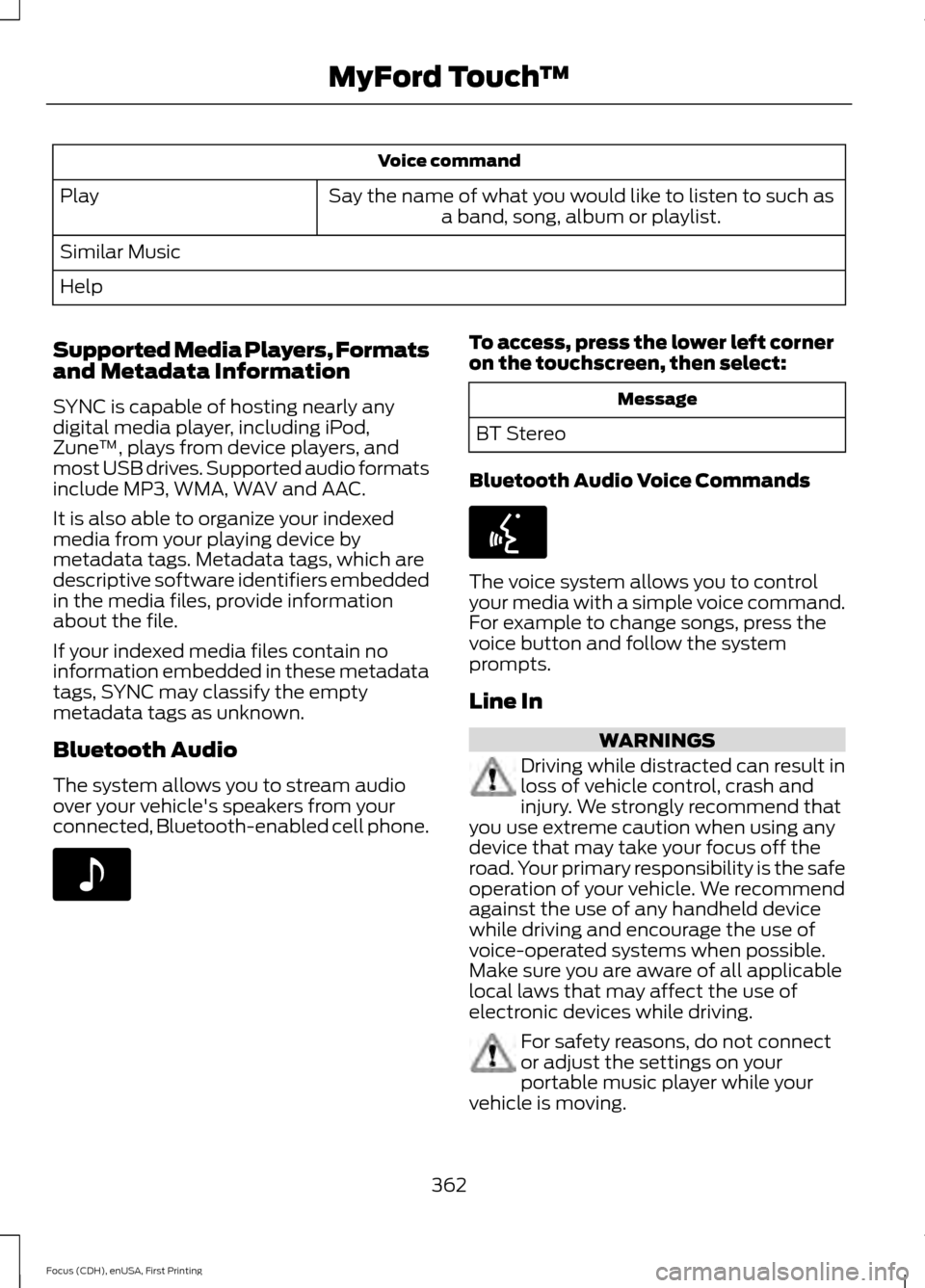
Voice command
Say the name of what you would like to listen to such as a band, song, album or playlist.
Play
Similar Music
Help
Supported Media Players, Formats
and Metadata Information
SYNC is capable of hosting nearly any
digital media player, including iPod,
Zune ™, plays from device players, and
most USB drives. Supported audio formats
include MP3, WMA, WAV and AAC.
It is also able to organize your indexed
media from your playing device by
metadata tags. Metadata tags, which are
descriptive software identifiers embedded
in the media files, provide information
about the file.
If your indexed media files contain no
information embedded in these metadata
tags, SYNC may classify the empty
metadata tags as unknown.
Bluetooth Audio
The system allows you to stream audio
over your vehicle's speakers from your
connected, Bluetooth-enabled cell phone. To access, press the lower left corner
on the touchscreen, then select:
Message
BT Stereo
Bluetooth Audio Voice Commands The voice system allows you to control
your media with a simple voice command.
For example to change songs, press the
voice button and follow the system
prompts.
Line In
WARNINGS
Driving while distracted can result in
loss of vehicle control, crash and
injury. We strongly recommend that
you use extreme caution when using any
device that may take your focus off the
road. Your primary responsibility is the safe
operation of your vehicle. We recommend
against the use of any handheld device
while driving and encourage the use of
voice-operated systems when possible.
Make sure you are aware of all applicable
local laws that may affect the use of
electronic devices while driving. For safety reasons, do not connect
or adjust the settings on your
portable music player while your
vehicle is moving.
362
Focus (CDH), enUSA, First Printing MyFord Touch
™E142611 E142599
Page 398 of 453
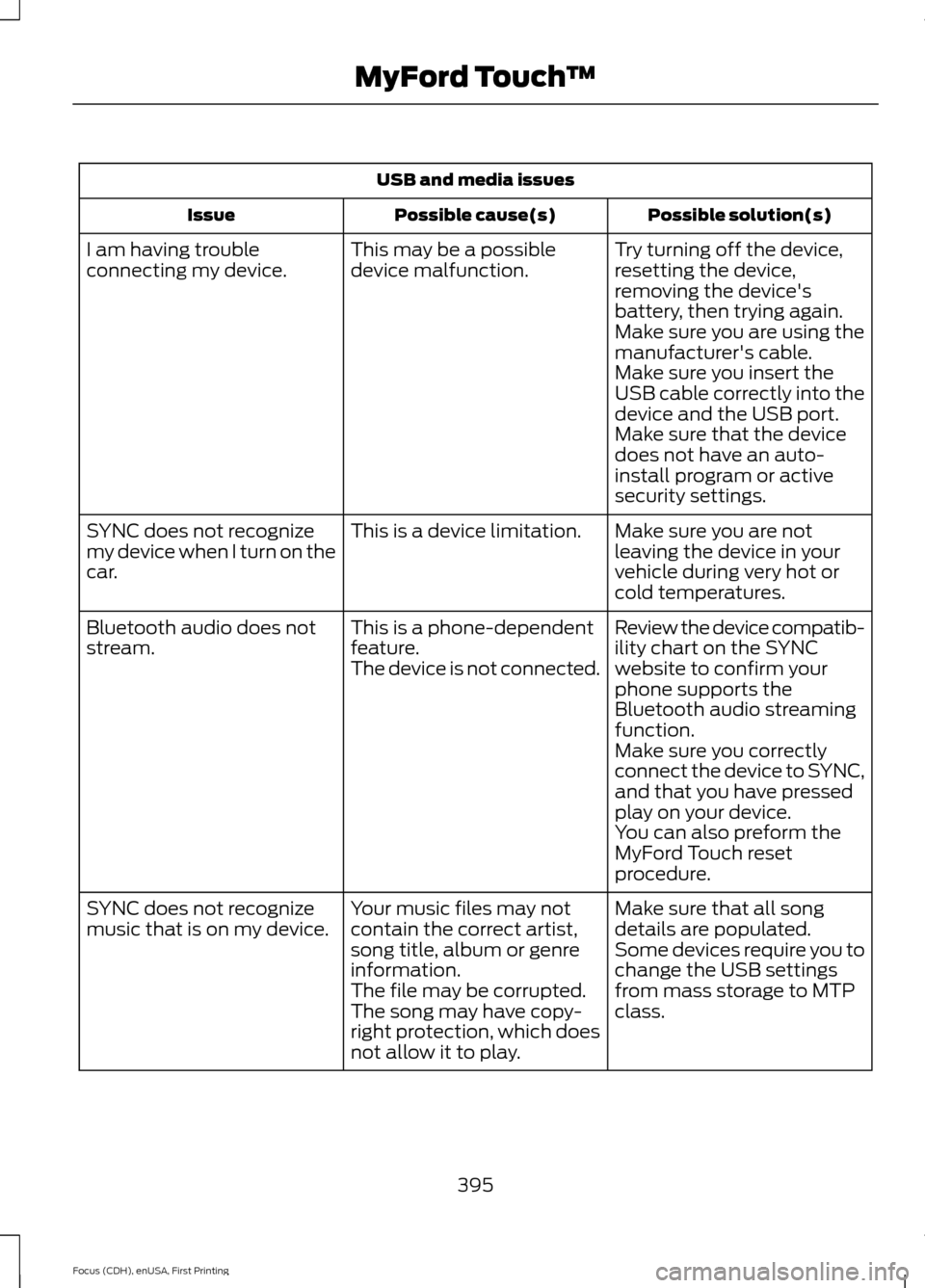
USB and media issues
Possible solution(s)
Possible cause(s)
Issue
Try turning off the device,
resetting the device,
removing the device's
battery, then trying again.
This may be a possible
device malfunction.
I am having trouble
connecting my device.
Make sure you are using the
manufacturer's cable.
Make sure you insert the
USB cable correctly into the
device and the USB port.
Make sure that the device
does not have an auto-
install program or active
security settings.
Make sure you are not
leaving the device in your
vehicle during very hot or
cold temperatures.
This is a device limitation.
SYNC does not recognize
my device when I turn on the
car.
Review the device compatib-
ility chart on the SYNC
website to confirm your
phone supports the
Bluetooth audio streaming
function.
This is a phone-dependent
feature.
The device is not connected.
Bluetooth audio does not
stream.
Make sure you correctly
connect the device to SYNC,
and that you have pressed
play on your device.
You can also preform the
MyFord Touch reset
procedure.
Make sure that all song
details are populated.
Your music files may not
contain the correct artist,
song title, album or genre
information.
SYNC does not recognize
music that is on my device.
Some devices require you to
change the USB settings
from mass storage to MTP
class.
The file may be corrupted.
The song may have copy-
right protection, which does
not allow it to play.
395
Focus (CDH), enUSA, First Printing MyFord Touch
™
Page 446 of 453
Daytime Running Lamps..............................81
Type 1 - Conventional
(Non-Configurable)........................................ 81
Type 2 - Configurable.......................................... 81
Digital Radio..................................................283
HD Radio Reception and Station
Troubleshooting............................................ 284
Direction Indicators.......................................83
Driver and Passenger Airbags....................42 Children and Airbags........................................... 42
Proper Driver and Front Passenger Seating Adjustment........................................................ 42
Driver Knee Airbag
.........................................46
Driving Aids.....................................................163
Driving at High Speed................................259
Driving Hints...................................................186
Driving Through Water...............................186
DRL See: Daytime Running Lamps.......................... 81
E
Eco Mode
..........................................................171
Resetting Eco Mode........................................... 172
Type 1....................................................................... 172
Type 2 and 3.......................................................... 172
Economical Driving
......................................186
Emission Control System..........................138 On-Board Diagnostics (OBD-II)................... 139
Readiness for Inspection/Maintenance (I/M) Testing................................................... 139
End User License Agreement..................401 SYNC End User License Agreement
(EULA).............................................................. 401
Engine Block Heater
....................................128
Using the Engine Block Heater...................... 129
Engine Coolant Check
.................................214
Adding Engine Coolant..................................... 214
Checking the Engine Coolant......................... 214
Recycled Engine Coolant................................. 215
Severe Climates.................................................. 215
Engine Immobilizer See: Passive Anti-Theft System...................... 71
Engine Oil Check...........................................213 Adding Engine Oil................................................ 213
Engine Oil Dipstick - 1.0L EcoBoost™..................................................213 Engine Oil Dipstick - 2.0L Duratec-HE
(MI4)
...............................................................213
Engine Specifications - 1.0L EcoBoost™..................................................261
Drivebelt Routing................................................ 261
Engine Specifications - 2.0L Duratec-HE (MI4)..............................................................261
Drivebelt Routing............................................... 262
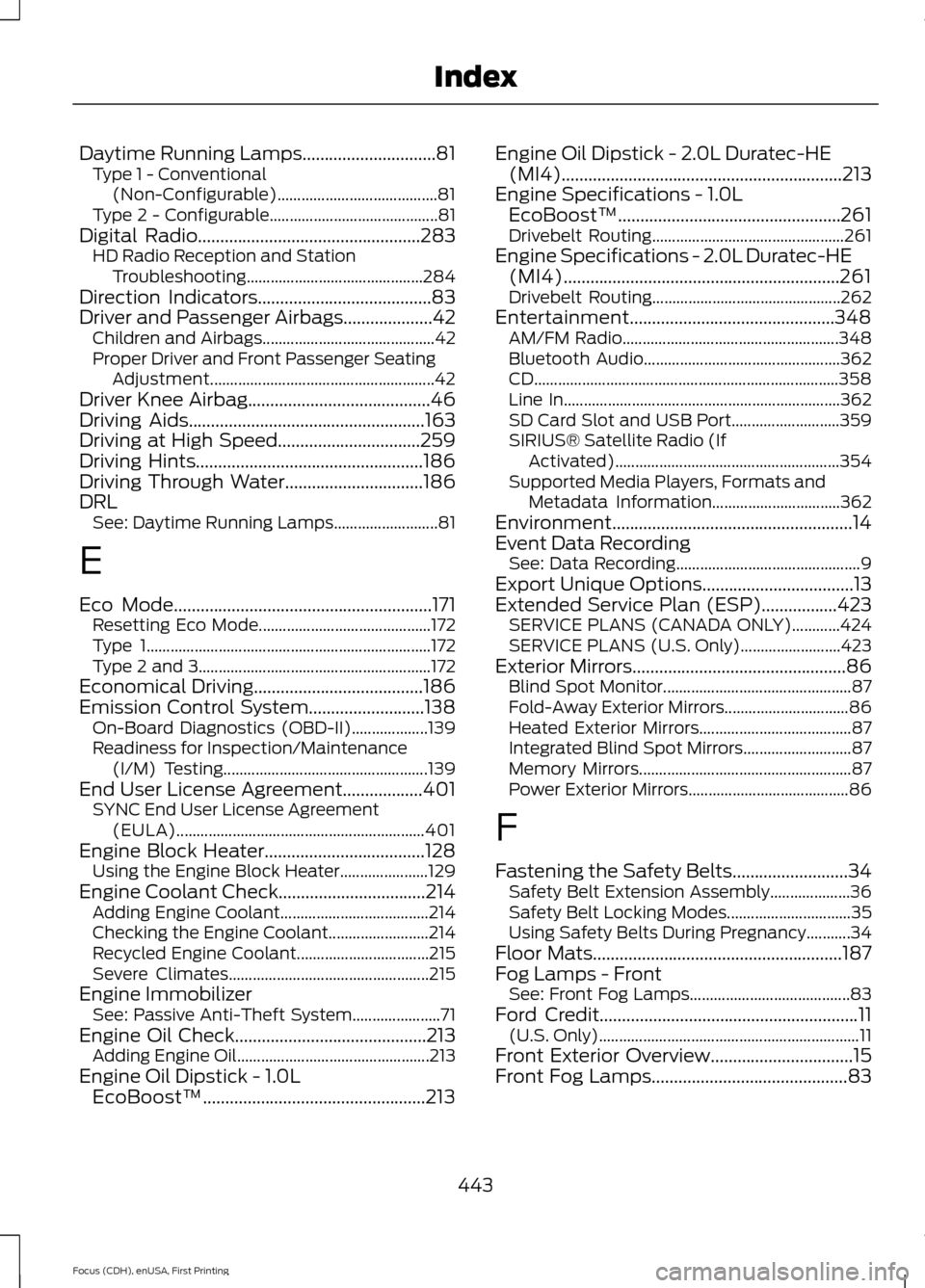
Entertainment..............................................348 AM/FM Radio...................................................... 348
Bluetooth Audio................................................. 362
CD........................................................................\
.... 358
Line In..................................................................... 362
SD Card Slot and USB Port........................... 359
SIRIUS® Satellite Radio (If Activated)........................................................ 354
Supported Media Players, Formats and Metadata Information................................ 362
Environment......................................................14
Event Data Recording See: Data Recording.............................................. 9
Export Unique Options..................................13
Extended Service Plan (ESP).................423 SERVICE PLANS (CANADA ONLY)............424
SERVICE PLANS (U.S. Only)......................... 423
Exterior Mirrors................................................86 Blind Spot Monitor............................................... 87
Fold-Away Exterior Mirrors............................... 86
Heated Exterior Mirrors...................................... 87
Integrated Blind Spot Mirrors........................... 87
Memory Mirrors..................................................... 87
Power Exterior Mirrors........................................ 86
F
Fastening the Safety Belts
..........................34
Safety Belt Extension Assembly.................... 36
Safety Belt Locking Modes............................... 35
Using Safety Belts During Pregnancy...........34
Floor Mats........................................................187
Fog Lamps - Front See: Front Fog Lamps........................................ 83
Ford Credit
..........................................................11
(U.S. Only)................................................................. 11
Front Exterior Overview................................15
Front Fog Lamps............................................83
443
Focus (CDH), enUSA, First Printing Index