2015 FORD FOCUS clock
[x] Cancel search: clockPage 261 of 453
WARNINGS
Never get underneath a vehicle that
is supported only by a jack. If the
vehicle slips off the jack, you or
someone else could be seriously injured. Do not attempt to change a tire on
the side of the vehicle close to
moving traffic. Pull far enough off the
road to avoid the danger of being hit when
operating the jack or changing the wheel. Always use the jack provided as
original equipment with your vehicle.
If using a jack other than the one
provided as original equipment with your
vehicle, make sure the jack capacity is
adequate for the vehicle weight, including
any vehicle cargo or modifications. Note:
Passengers should not remain in the
vehicle when the vehicle is being jacked.
1. Park on a level surface, set the parking
brake and activate the hazard flashers.
2. Place the transmission in park (P) (automatic transmission) or neutral
(N) (manual transmission) and turn
the engine off.
3. Remove the carpeted wheel cover.
4. Remove the spare tire bolt securing the
spare tire by turning it
counterclockwise.
5. Remove the spare tire from the spare tire compartment
6. Remove the retaining bolt securing the
jack by turning it counterclockwise.
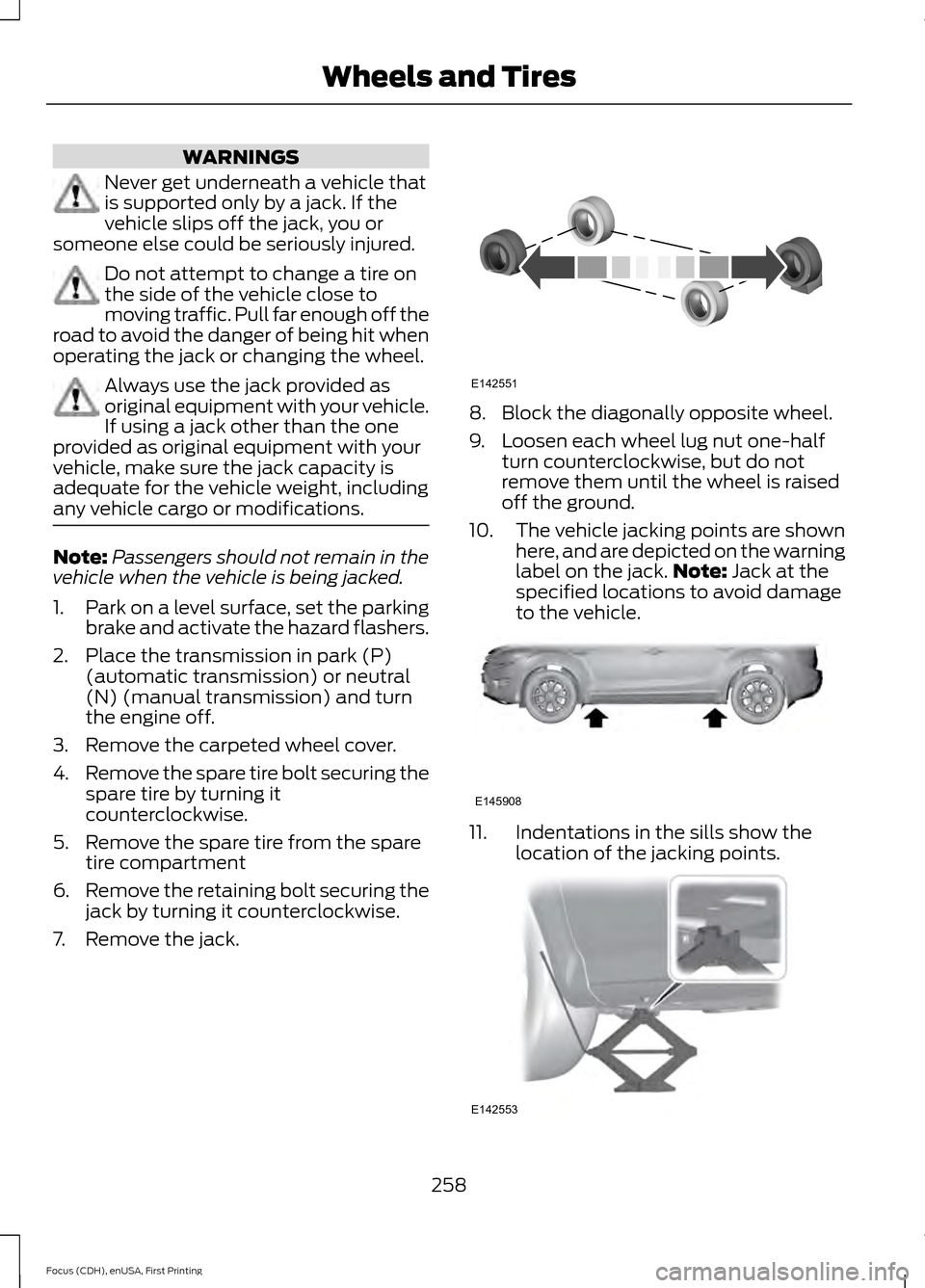
7. Remove the jack. 8. Block the diagonally opposite wheel.
9. Loosen each wheel lug nut one-half
turn counterclockwise, but do not
remove them until the wheel is raised
off the ground.
10. The vehicle jacking points are shown
here, and are depicted on the warning
label on the jack. Note: Jack at the
specified locations to avoid damage
to the vehicle. 11. Indentations in the sills show the
location of the jacking points. 258
Focus (CDH), enUSA, First Printing Wheels and TiresE142551 E145908 E142553
Page 262 of 453
12. Remove the lug nuts with the lug
wrench.
13. Replace the flat tire with the spare tire, making sure the valve stem is
facing outward. Reinstall the lug nuts
until the wheel is snug against the
hub. Do not fully tighten the lug nuts
until the wheel has been lowered.
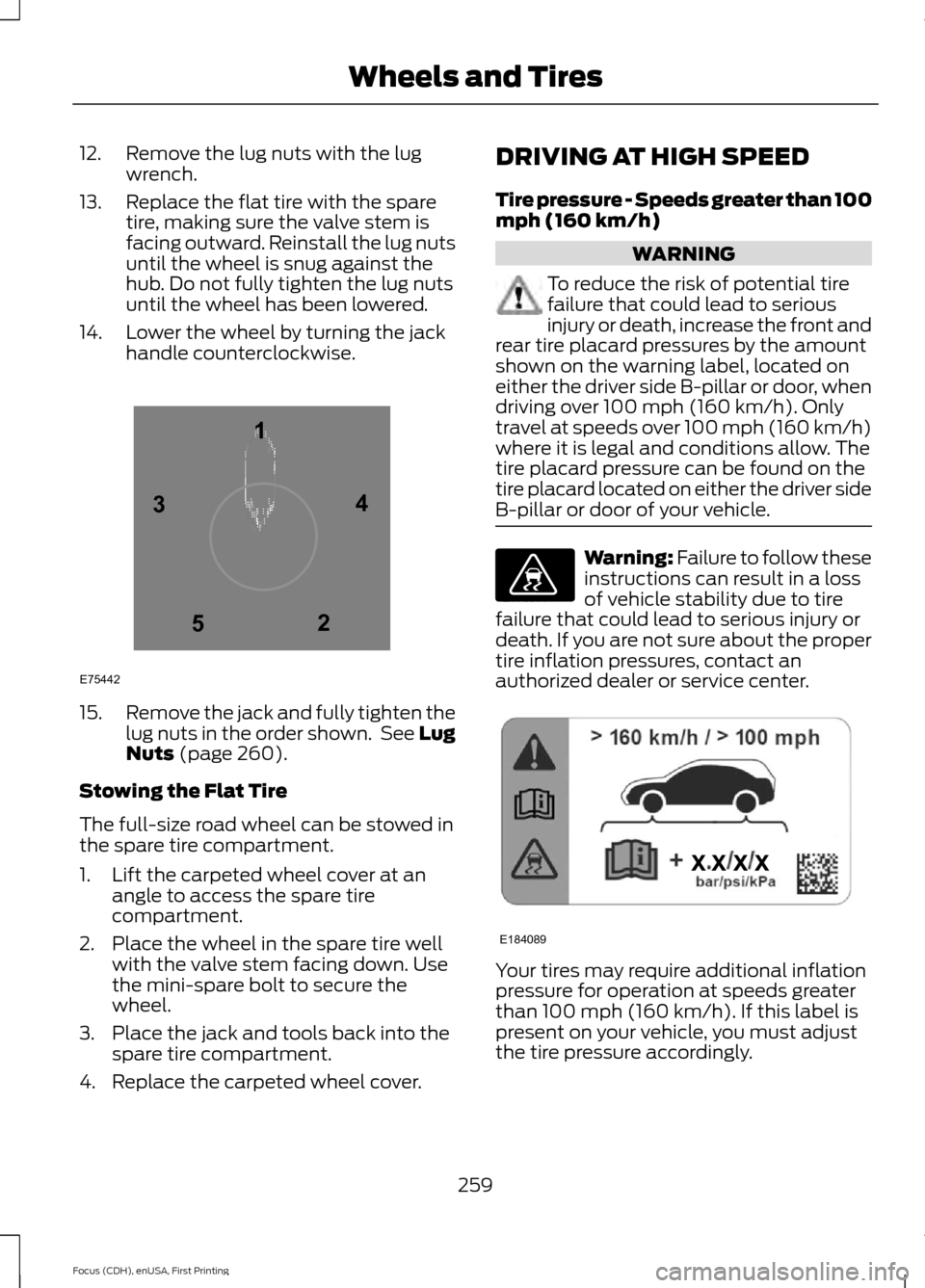
14. Lower the wheel by turning the jack handle counterclockwise. 15.
Remove the jack and fully tighten the
lug nuts in the order shown. See Lug
Nuts (page 260).
Stowing the Flat Tire
The full-size road wheel can be stowed in
the spare tire compartment.
1. Lift the carpeted wheel cover at an angle to access the spare tire
compartment.
2. Place the wheel in the spare tire well with the valve stem facing down. Use
the mini-spare bolt to secure the
wheel.
3. Place the jack and tools back into the spare tire compartment.
4. Replace the carpeted wheel cover. DRIVING AT HIGH SPEED
Tire pressure - Speeds greater than 100
mph (160 km/h) WARNING
To reduce the risk of potential tire
failure that could lead to serious
injury or death, increase the front and
rear tire placard pressures by the amount
shown on the warning label, located on
either the driver side B-pillar or door, when
driving over
100 mph (160 km/h). Only
travel at speeds over 100 mph (160 km/h)
where it is legal and conditions allow. The
tire placard pressure can be found on the
tire placard located on either the driver side
B-pillar or door of your vehicle. Warning: Failure to follow these
instructions can result in a loss
of vehicle stability due to tire
failure that could lead to serious injury or
death. If you are not sure about the proper
tire inflation pressures, contact an
authorized dealer or service center. Your tires may require additional inflation
pressure for operation at speeds greater
than
100 mph (160 km/h). If this label is
present on your vehicle, you must adjust
the tire pressure accordingly.
259
Focus (CDH), enUSA, First Printing Wheels and Tires12
3
4
5
E75442 E176077 E184089
Page 279 of 453

TUNE and Play or Pause: Turn to search the frequency band in individual
increments. Press to either play or pause a track when listening to a CD.
F
PHONE:
Press this button to access the phone features of the SYNC system.
See Using SYNC™ With Your Phone (page 294).
G
MENU:
Press this button to access different audio system features. See Menu
Structure later in this chapter.
H
Clock:
Press this button to access the clock setting. Use the center arrow
controls to change the hours and minutes. You can also set the clock by pressing
the
MENU button and scrolling to Clock Settings.
I
Seek and Fast Forward:
In radio mode, select a frequency band and press
this button. The system stops at the first station up the band. Press and hold
the button to move quickly through the frequency band and advance to next
strong radio station after the button is released. In CD mode, press this button
to select the next track. Press and hold the button to move quickly forward
through the current track.
J
OK and Arrow buttons: Press the OK button to confirm menu selections. Use
the arrow buttons to navigate within menus.
K
Seek and Reverse:
In radio mode, select a frequency band and press this
button. The system stops at the first station down the band. Press and hold
the button to move quickly through the frequency band and advance to next
strong radio station after the button is released. In CD mode, press this button
to select the previous track. Press and hold the button to move quickly backward
through the current track.
L
SOUND:
Press this button to access settings for Treble, Midrange, Bass, Fade
and Balance. Use the up and down arrow buttons to select the various settings.
When you make your selection, press the left and right arrow buttons to change
the settings. Press
OK to set or press MENU to exit. Sound settings can be set
for each audio source independently.
M
RADIO:
Press this button to listen to the radio or change radio frequency bands.
N
MEDIA:
Press this button to change the active media source. To change the
SYNC-Media device (such as switching from a device plugged into the USB
port to a Bluetooth audio device), press
MENU and scroll to Select Source.
O
276
Focus (CDH), enUSA, First Printing Audio System
Page 281 of 453

VOL and Power: Press this button to switch the system off and on. Turn it to
adjust the volume.
A
Function buttons:
Select different functions of the audio system depending
on which mode you are in (such as Radio mode or CD mode).
B
CD slot:
Insert a CD.
C
Eject:
Press this button to eject a CD.
D
Number block:
In radio mode, store your favorite radio stations. To store a
radio station, tune to the station, then press and hold a preset button until sound
returns. In CD mode, select a track. In phone mode, enter a phone number. The
clock button (when not in phone mode) allows you to set the clock. Use the
center arrow controls to change the hours and minutes.
E
278
Focus (CDH), enUSA, First Printing Audio SystemE184902
Page 282 of 453

TUNE and Play or Pause: Turn to search the frequency band in individual
increments. Press to either play or pause a track when listening to a CD.
F
CLOCK:
When not in Phone mode, press this button to access the clock setting.
Use the center arrow controls to change the hours and minutes. You can also
set the clock by pressing the
MENU button and scrolling to Clock Settings.
G
PHONE:
Press this button to access the phone features of the SYNC system.
See Using SYNC™ With Your Phone (page 294).
H
MENU:
Press this button to access different audio system features. See Menu
Structure later in this section.
I
SOUND:
Press this button to access settings for Treble, Midrange, Bass, Fade
and Balance. Use the up and down arrow buttons to select the various settings.
When you make your selection, press the left and right arrow buttons to change
the settings. Press
OK to set or press MENU to exit. Sound settings can be set
for each audio source independently.
J
Seek and Fast Forward:
In radio mode, select a frequency band and press
this button. The system stops at the first station up the band. Press and hold
the button to move quickly through the frequency band and advance to next
strong radio station after the button is released. In CD mode, press this button
to select the next track. Press and hold the button to move quickly forward
through the current track.
K
OK and Arrow buttons: Press the OK button to confirm menu selections. Use
the arrow buttons to navigate within menus.
L
Seek and Reverse:
In radio mode, select a frequency band and press this
button. The system stops at the first station down the band. Press and hold
the button to move quickly through the frequency band and advance to next
strong radio station after the button is released. In CD mode, press this button
to select the previous track. Press and hold the button to move quickly backward
through the current track.
M
SIRIUS:
Press this button to listen to Sirius satellite radio.
N
RADIO:
Press this button to listen to the radio or change radio frequency bands.
O
MEDIA:
Press this button to change the active media source. To change the
SYNC-Media device (such as switching from a device plugged into the USB
port to a Bluetooth audio device), press
MENU and scroll to Select Source.
P
279
Focus (CDH), enUSA, First Printing Audio System
Page 286 of 453
CD Settings
Select to scan all disc selections.
Scan All
Select to scan all music in the current MP3 folder.
Scan Folder
Select to bring soft and loud passages together for a more
consistent listening level.
CD Compression Clock Settings
Select to set the time.
Set Time
Select to set the calendar date.
Set Date
Select to view clock time in a 12-hour mode or 24-hour
mode.
24h Mode Display Settings
Select to change display brightness.
Dimming
Select to display the language in English, French or
Spanish.
Language
Select to display the outside temperature in Fahrenheit
or Celsius.
Temp. Setting
DIGITAL RADIO
Note: HD Radio broadcasts are not
available in all markets.
HD Radio technology is the digital
evolution of analog AM/FM radio. Your
system has a special receiver that allows
it to receive digital broadcasts (where
available) in addition to the analog
broadcasts, it already receives. Digital
broadcasts provide a better sound quality than analog broadcasts with free,
crystal-clear audio and no static or
distortion. For more information, and a
guide to available stations and
programming, please visit
www.hdradio.com.
When HD Radio is on and you tune to a
station broadcasting HD Radio technology,
you may notice the HD Radio logo on your
screen. When this logo is available, you
may also see Title and Artist fields
on-screen.
283
Focus (CDH), enUSA, First Printing Audio System
Page 331 of 453
This system uses a four-corner strategy to
provide quick access to several vehicle
features and settings. The touchscreen
provides easy interaction with your cell
phone, entertainment, information and
system settings. The corners display active
modes within the menus, for example; your
cell phone's status.
Note:
Some features are not available while
your vehicle is moving.
Note: You can access the entertainment
features for 30 minutes after you switch the
ignition off, and no doors are opened.
PHONE
Press to select any of the following: Message
Phone
Quick Dial
Phonebook
History
Messaging
Settings
NAVIGATION
Press to select any of the following: Message
My Home
Favorites
Previous Destinations
Point of Interest
Emergency
Street Address
Intersection Message
City Center
Map
Edit Route
Cancel Route
CLIMATE
Press the corresponding icons to control
the following options:
• Driver Settings
• Recirculated Air
• Auto
• Dual
• Passenger Settings
• A/C
• Defrost
SETTINGS Press to select any of the following:
Message
Clock
Display
Sound
Vehicle
Settings
Help
HOME Press to access the home
screen.
328
Focus (CDH), enUSA, First Printing MyFord Touch
™E142607 E142613
Page 338 of 453
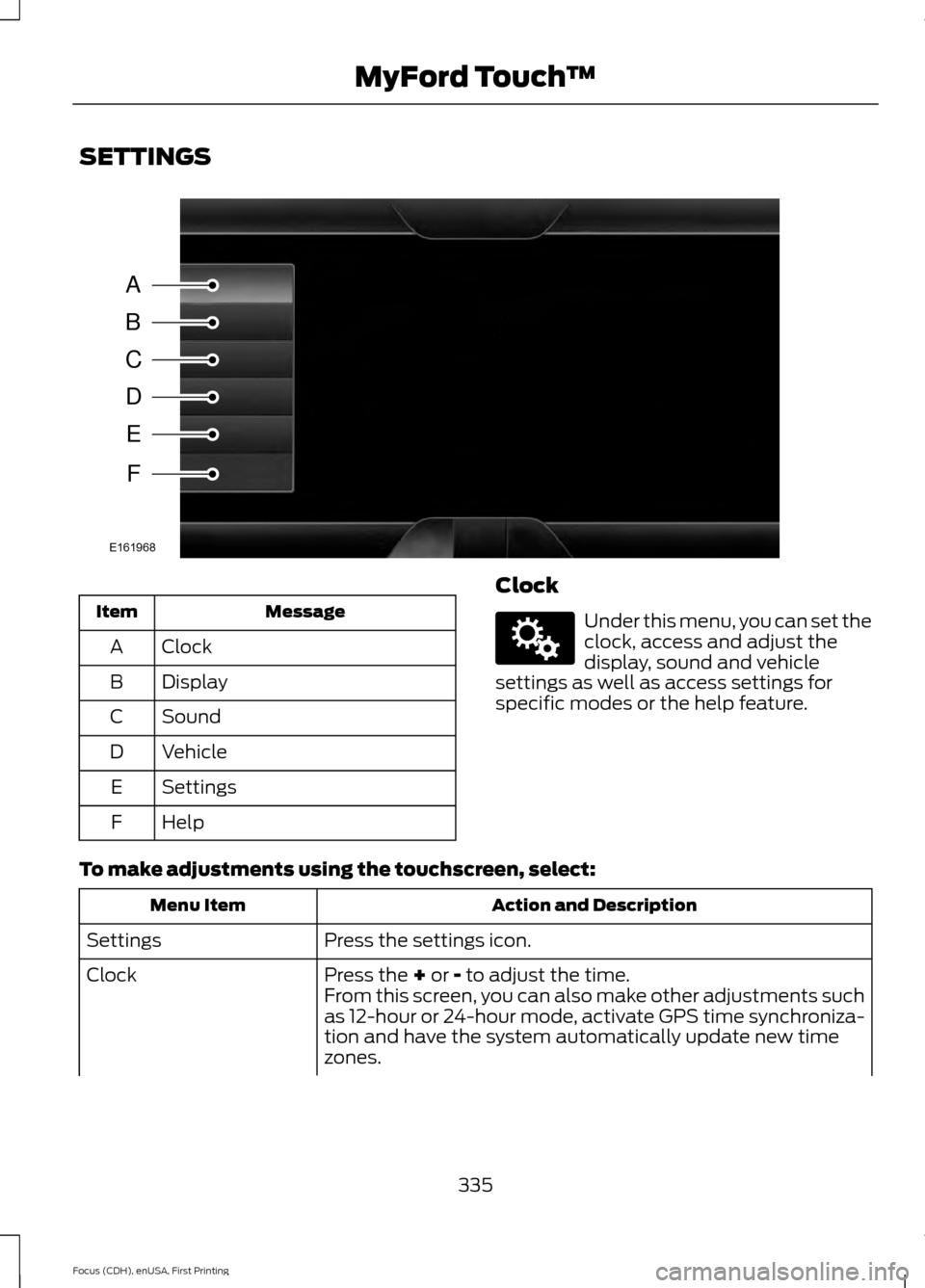
SETTINGS
Message
Item
Clock
A
Display
B
Sound
C
Vehicle
D
Settings
E
Help
F Clock Under this menu, you can set the
clock, access and adjust the
display, sound and vehicle
settings as well as access settings for
specific modes or the help feature.
To make adjustments using the touchscreen, select: Action and Description
Menu Item
Press the settings icon.
Settings
Press the + or - to adjust the time.
Clock
From this screen, you can also make other adjustments such
as 12-hour or 24-hour mode, activate GPS time synchroniza-
tion and have the system automatically update new time
zones.
335
Focus (CDH), enUSA, First Printing MyFord Touch
™A
B
C
D
E
F
E161968 E142607