Page 340 of 453
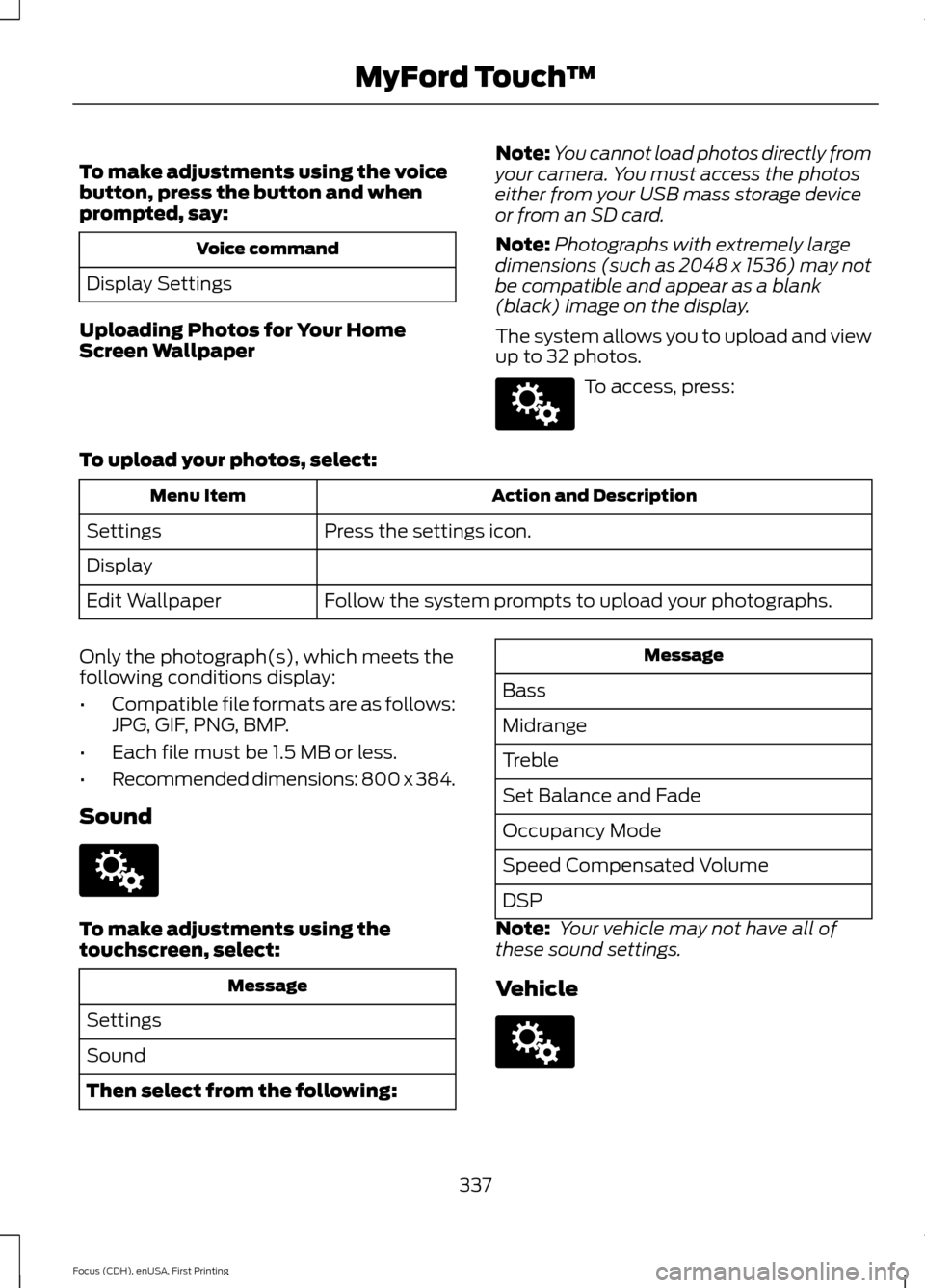
To make adjustments using the voice
button, press the button and when
prompted, say:
Voice command
Display Settings
Uploading Photos for Your Home
Screen Wallpaper Note:
You cannot load photos directly from
your camera. You must access the photos
either from your USB mass storage device
or from an SD card.
Note: Photographs with extremely large
dimensions (such as 2048 x 1536) may not
be compatible and appear as a blank
(black) image on the display.
The system allows you to upload and view
up to 32 photos. To access, press:
To upload your photos, select: Action and Description
Menu Item
Press the settings icon.
Settings
Display
Follow the system prompts to upload your photographs.
Edit Wallpaper
Only the photograph(s), which meets the
following conditions display:
• Compatible file formats are as follows:
JPG, GIF, PNG, BMP.
• Each file must be 1.5 MB or less.
• Recommended dimensions: 800 x 384.
Sound To make adjustments using the
touchscreen, select:
Message
Settings
Sound
Then select from the following: Message
Bass
Midrange
Treble
Set Balance and Fade
Occupancy Mode
Speed Compensated Volume
DSP
Note: Your vehicle may not have all of
these sound settings.
Vehicle 337
Focus (CDH), enUSA, First Printing MyFord Touch
™E142607 E142607 E142607
Page 343 of 453
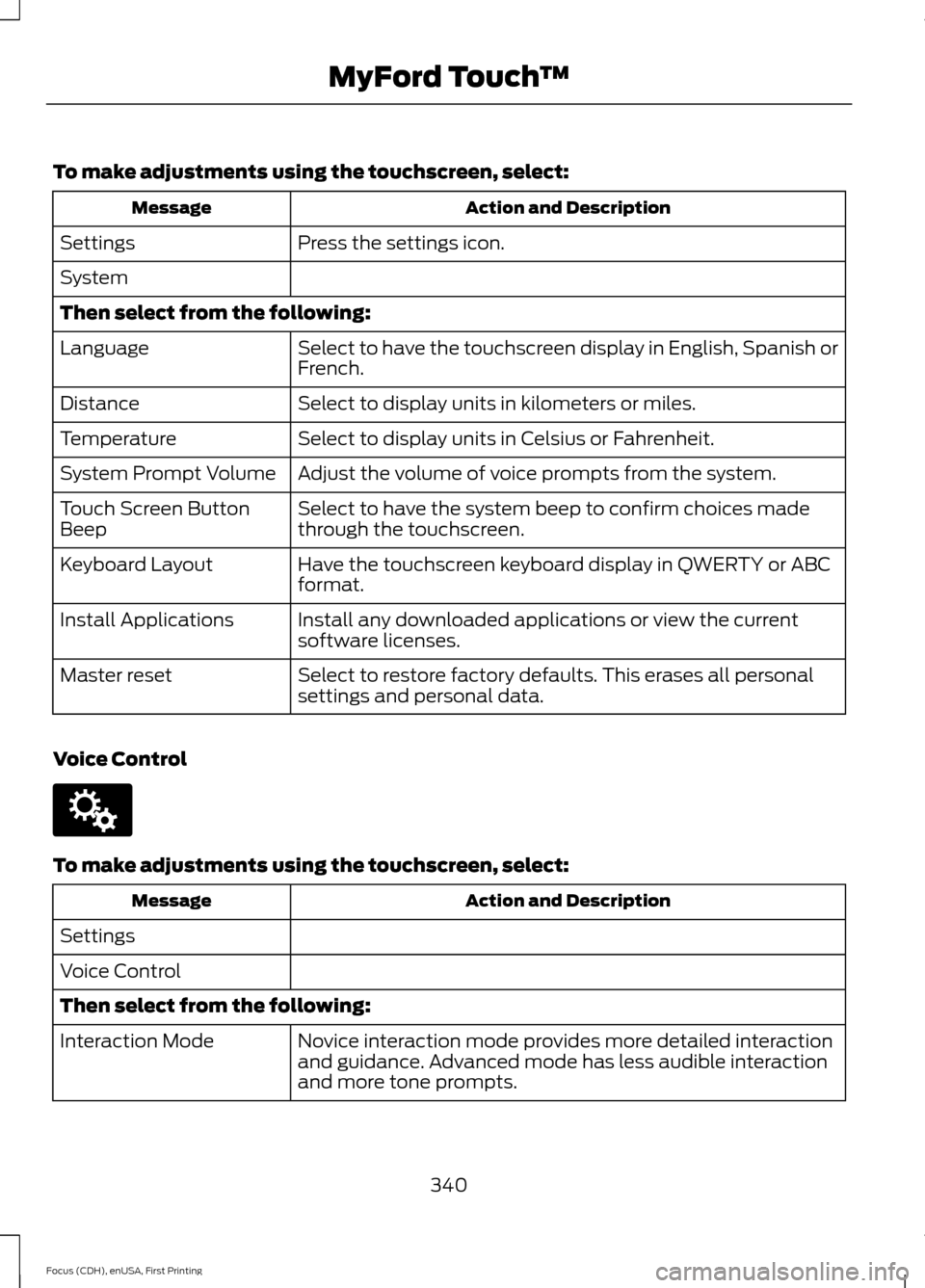
To make adjustments using the touchscreen, select:
Action and Description
Message
Press the settings icon.
Settings
System
Then select from the following:
Select to have the touchscreen display in English, Spanish or
French.
Language
Select to display units in kilometers or miles.
Distance
Select to display units in Celsius or Fahrenheit.
Temperature
Adjust the volume of voice prompts from the system.
System Prompt Volume
Select to have the system beep to confirm choices made
through the touchscreen.
Touch Screen Button
Beep
Have the touchscreen keyboard display in QWERTY or ABC
format.
Keyboard Layout
Install any downloaded applications or view the current
software licenses.
Install Applications
Select to restore factory defaults. This erases all personal
settings and personal data.
Master reset
Voice Control To make adjustments using the touchscreen, select:
Action and Description
Message
Settings
Voice Control
Then select from the following: Novice interaction mode provides more detailed interaction
and guidance. Advanced mode has less audible interaction
and more tone prompts.
Interaction Mode
340
Focus (CDH), enUSA, First Printing MyFord Touch
™E142607
Page 345 of 453
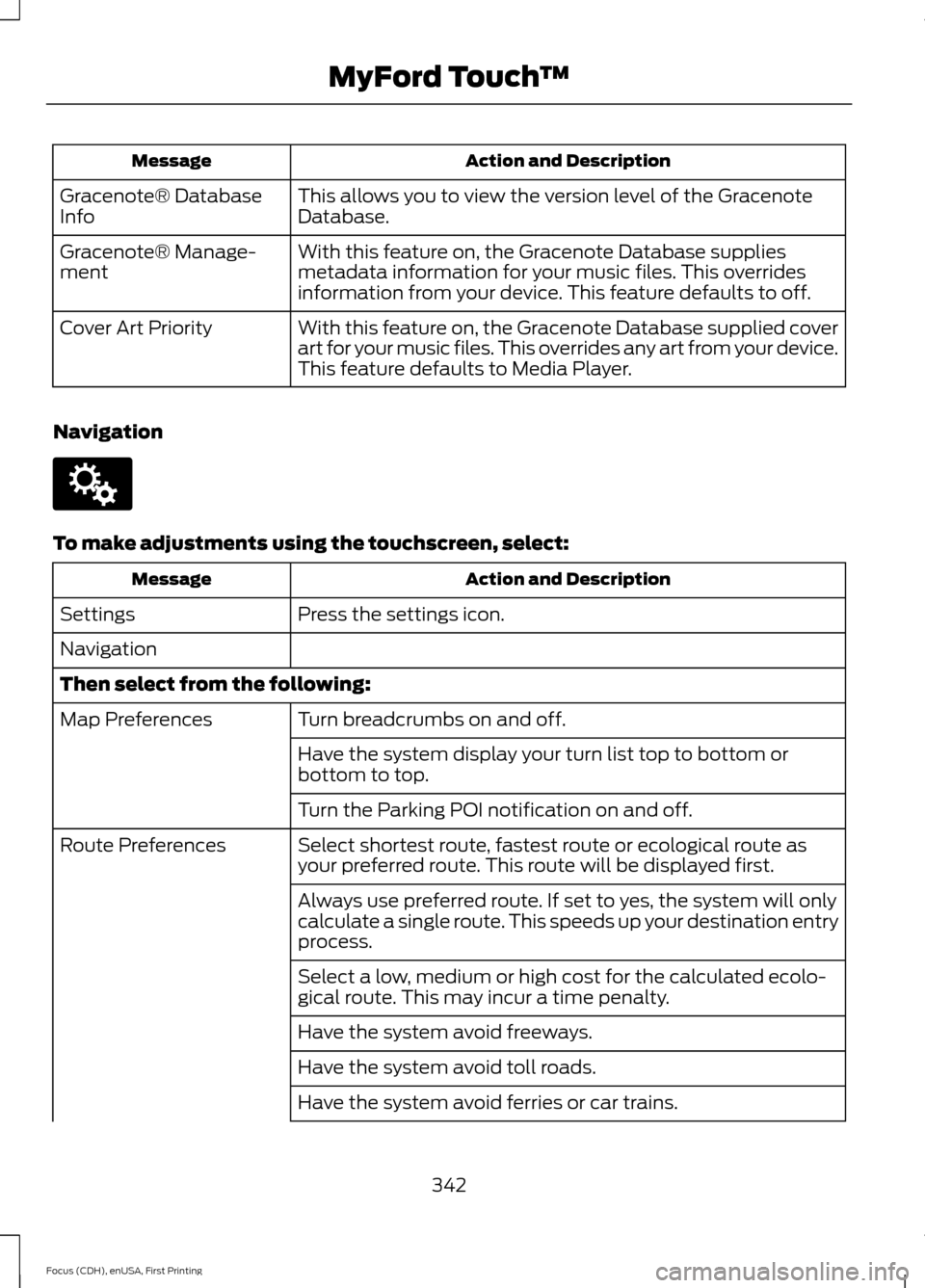
Action and Description
Message
This allows you to view the version level of the Gracenote
Database.
Gracenote® Database
Info
With this feature on, the Gracenote Database supplies
metadata information for your music files. This overrides
information from your device. This feature defaults to off.
Gracenote® Manage-
ment
With this feature on, the Gracenote Database supplied cover
art for your music files. This overrides any art from your device.
This feature defaults to Media Player.
Cover Art Priority
Navigation To make adjustments using the touchscreen, select:
Action and Description
Message
Press the settings icon.
Settings
Navigation
Then select from the following:
Turn breadcrumbs on and off.
Map Preferences
Have the system display your turn list top to bottom or
bottom to top.
Turn the Parking POI notification on and off.
Select shortest route, fastest route or ecological route as
your preferred route. This route will be displayed first.
Route Preferences
Always use preferred route. If set to yes, the system will only
calculate a single route. This speeds up your destination entry
process.
Select a low, medium or high cost for the calculated ecolo-
gical route. This may incur a time penalty.
Have the system avoid freeways.
Have the system avoid toll roads.
Have the system avoid ferries or car trains.
342
Focus (CDH), enUSA, First Printing MyFord Touch
™E142607
Page 346 of 453
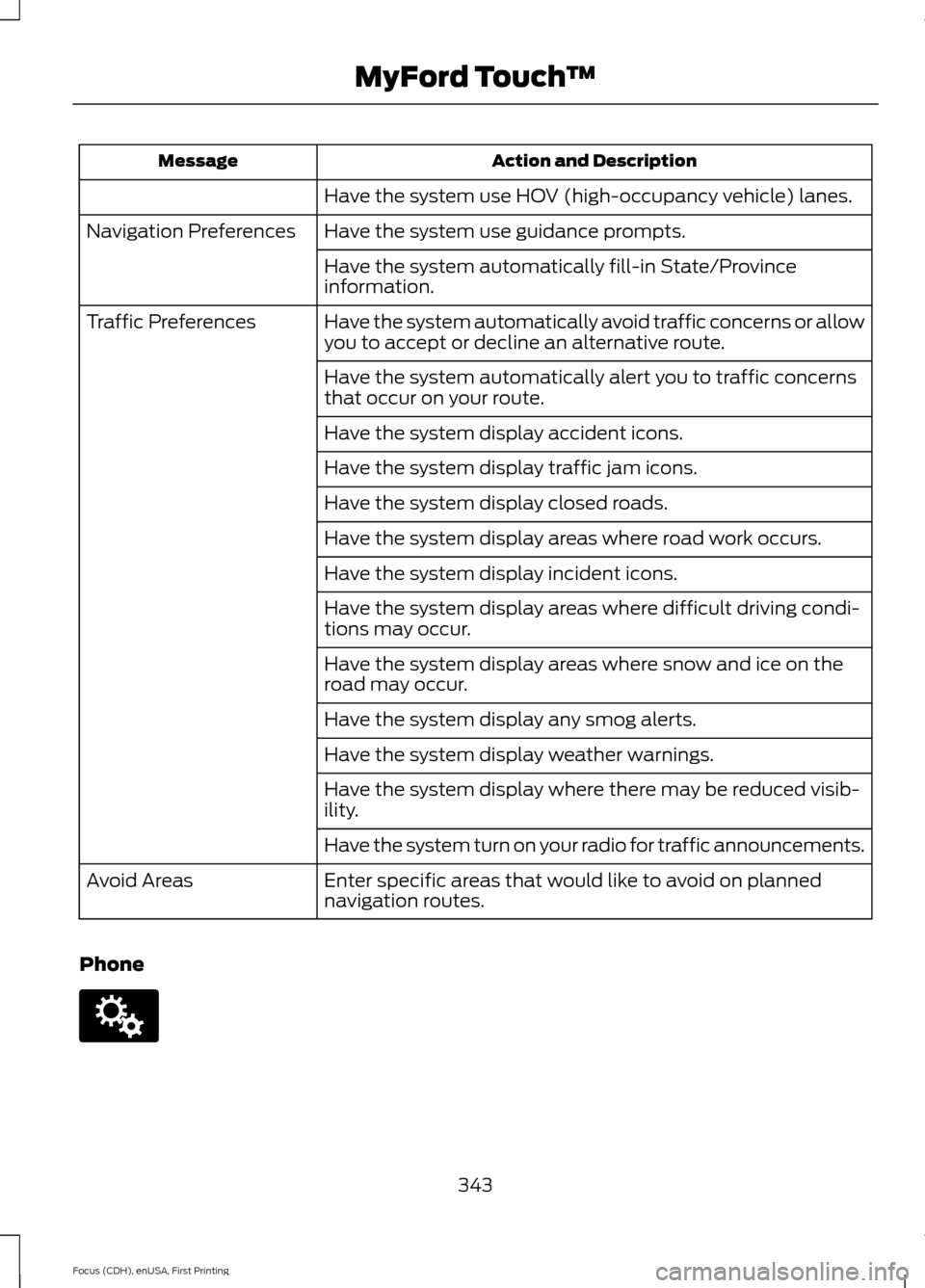
Action and Description
Message
Have the system use HOV (high-occupancy vehicle) lanes.
Have the system use guidance prompts.
Navigation Preferences
Have the system automatically fill-in State/Province
information.
Have the system automatically avoid traffic concerns or allow
you to accept or decline an alternative route.
Traffic Preferences
Have the system automatically alert you to traffic concerns
that occur on your route.
Have the system display accident icons.
Have the system display traffic jam icons.
Have the system display closed roads.
Have the system display areas where road work occurs.
Have the system display incident icons.
Have the system display areas where difficult driving condi-
tions may occur.
Have the system display areas where snow and ice on the
road may occur.
Have the system display any smog alerts.
Have the system display weather warnings.
Have the system display where there may be reduced visib-
ility.
Have the system turn on your radio for traffic announcements.
Enter specific areas that would like to avoid on planned
navigation routes.
Avoid Areas
Phone 343
Focus (CDH), enUSA, First Printing MyFord Touch
™E142607
Page 348 of 453
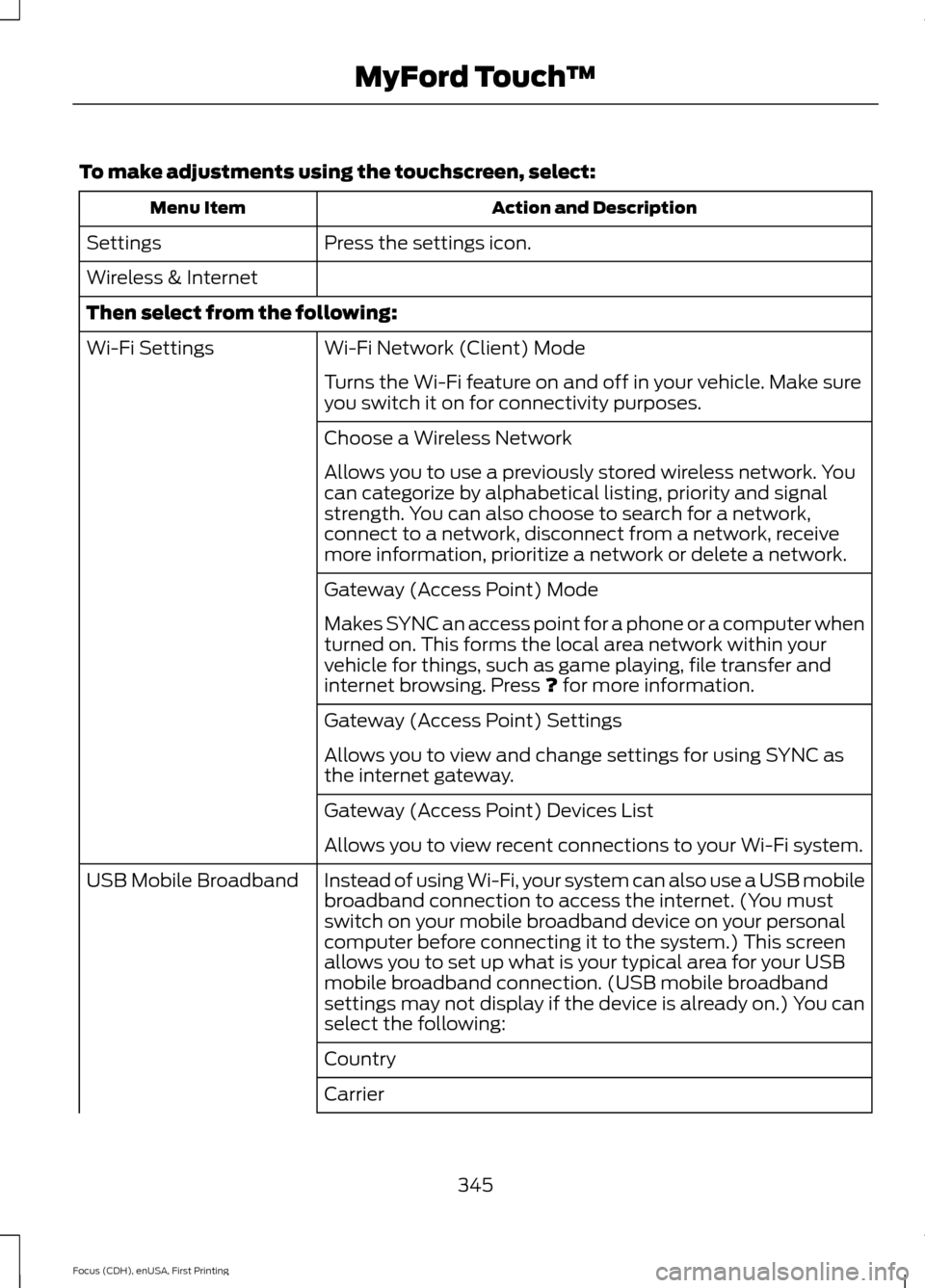
To make adjustments using the touchscreen, select:
Action and Description
Menu Item
Press the settings icon.
Settings
Wireless & Internet
Then select from the following:
Wi-Fi Network (Client) Mode
Wi-Fi Settings
Turns the Wi-Fi feature on and off in your vehicle. Make sure
you switch it on for connectivity purposes.
Choose a Wireless Network
Allows you to use a previously stored wireless network. You
can categorize by alphabetical listing, priority and signal
strength. You can also choose to search for a network,
connect to a network, disconnect from a network, receive
more information, prioritize a network or delete a network.
Gateway (Access Point) Mode
Makes SYNC an access point for a phone or a computer when
turned on. This forms the local area network within your
vehicle for things, such as game playing, file transfer and
internet browsing. Press ? for more information.
Gateway (Access Point) Settings
Allows you to view and change settings for using SYNC as
the internet gateway.
Gateway (Access Point) Devices List
Allows you to view recent connections to your Wi-Fi system.
Instead of using Wi-Fi, your system can also use a USB mobile
broadband connection to access the internet. (You must
switch on your mobile broadband device on your personal
computer before connecting it to the system.) This screen
allows you to set up what is your typical area for your USB
mobile broadband connection. (USB mobile broadband
settings may not display if the device is already on.) You can
select the following:
USB Mobile Broadband
Country
Carrier345
Focus (CDH), enUSA, First Printing MyFord Touch
™
Page 352 of 453
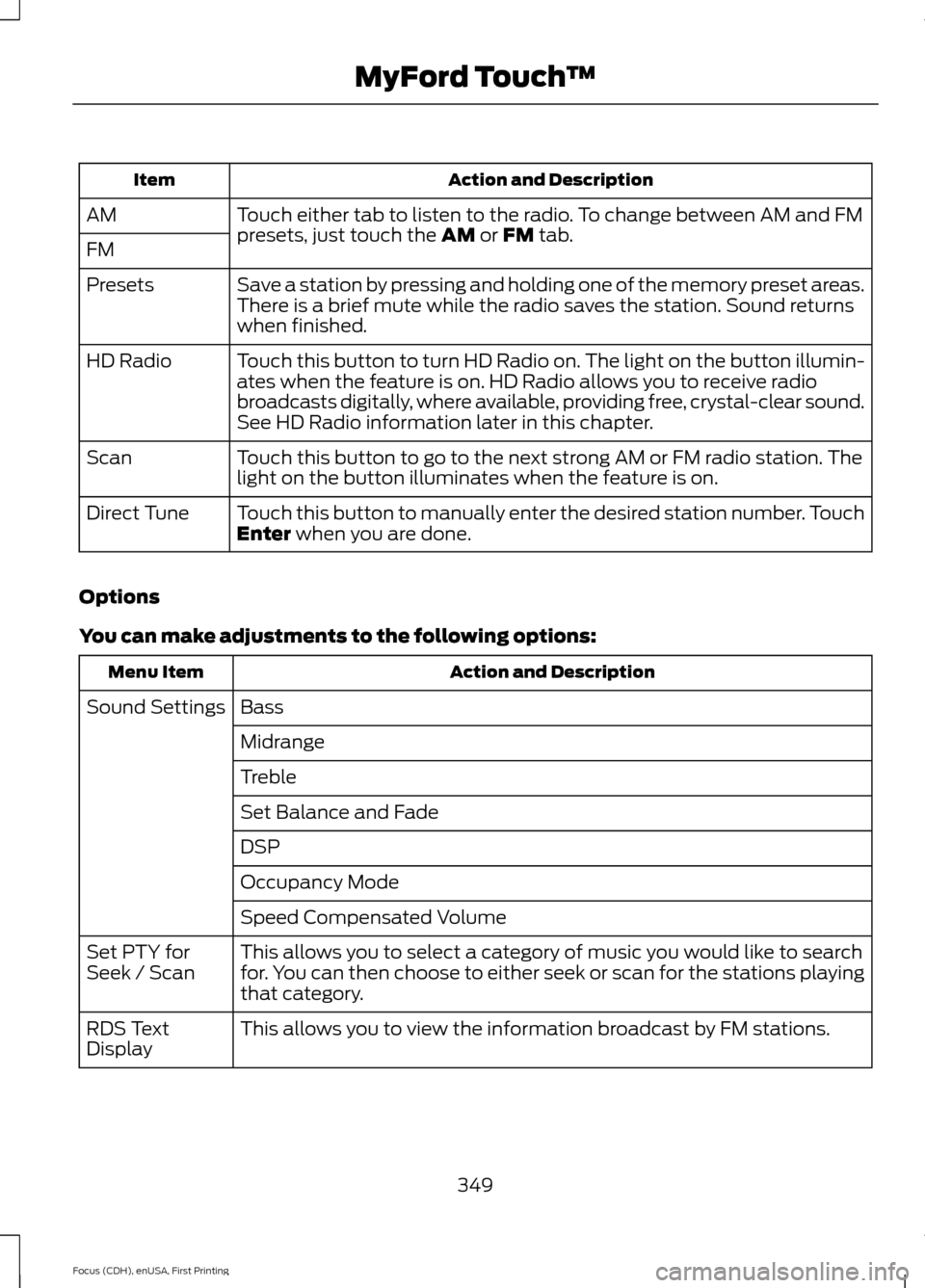
Action and Description
Item
Touch either tab to listen to the radio. To change between AM and FM
presets, just touch the AM or FM tab.
AM
FM
Save a station by pressing and holding one of the memory preset areas.
There is a brief mute while the radio saves the station. Sound returns
when finished.
Presets
Touch this button to turn HD Radio on. The light on the button illumin-
ates when the feature is on. HD Radio allows you to receive radio
broadcasts digitally, where available, providing free, crystal-clear sound.
See HD Radio information later in this chapter.
HD Radio
Touch this button to go to the next strong AM or FM radio station. The
light on the button illuminates when the feature is on.
Scan
Touch this button to manually enter the desired station number. Touch
Enter
when you are done.
Direct Tune
Options
You can make adjustments to the following options: Action and Description
Menu Item
Bass
Sound Settings
Midrange
Treble
Set Balance and Fade
DSP
Occupancy Mode
Speed Compensated Volume
This allows you to select a category of music you would like to search
for. You can then choose to either seek or scan for the stations playing
that category.
Set PTY for
Seek / Scan
This allows you to view the information broadcast by FM stations.
RDS Text
Display
349
Focus (CDH), enUSA, First Printing MyFord Touch
™
Page 359 of 453
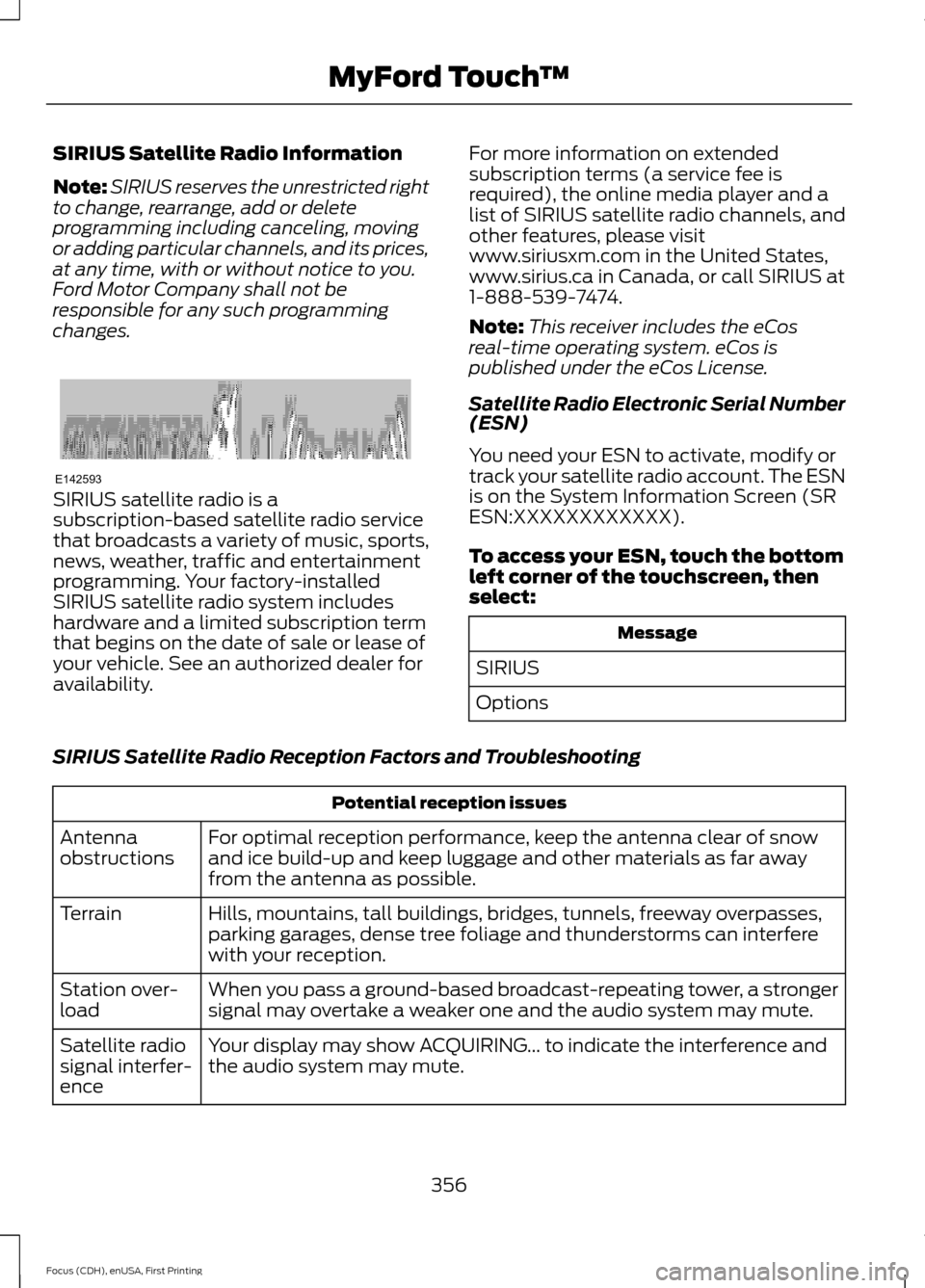
SIRIUS Satellite Radio Information
Note:
SIRIUS reserves the unrestricted right
to change, rearrange, add or delete
programming including canceling, moving
or adding particular channels, and its prices,
at any time, with or without notice to you.
Ford Motor Company shall not be
responsible for any such programming
changes. SIRIUS satellite radio is a
subscription-based satellite radio service
that broadcasts a variety of music, sports,
news, weather, traffic and entertainment
programming. Your factory-installed
SIRIUS satellite radio system includes
hardware and a limited subscription term
that begins on the date of sale or lease of
your vehicle. See an authorized dealer for
availability.
For more information on extended
subscription terms (a service fee is
required), the online media player and a
list of SIRIUS satellite radio channels, and
other features, please visit
www.siriusxm.com in the United States,
www.sirius.ca in Canada, or call SIRIUS at
1-888-539-7474.
Note:
This receiver includes the eCos
real-time operating system. eCos is
published under the eCos License.
Satellite Radio Electronic Serial Number
(ESN)
You need your ESN to activate, modify or
track your satellite radio account. The ESN
is on the System Information Screen (SR
ESN:XXXXXXXXXXXX).
To access your ESN, touch the bottom
left corner of the touchscreen, then
select: Message
SIRIUS
Options
SIRIUS Satellite Radio Reception Factors and Troubleshooting Potential reception issues
For optimal reception performance, keep the antenna clear of snow
and ice build-up and keep luggage and other materials as far away
from the antenna as possible.
Antenna
obstructions
Hills, mountains, tall buildings, bridges, tunnels, freeway overpasses,
parking garages, dense tree foliage and thunderstorms can interfere
with your reception.
Terrain
When you pass a ground-based broadcast-repeating tower, a stronger
signal may overtake a weaker one and the audio system may mute.
Station over-
load
Your display may show ACQUIRING... to indicate the interference and
the audio system may mute.
Satellite radio
signal interfer-
ence
356
Focus (CDH), enUSA, First Printing MyFord Touch
™E142593
Page 364 of 453
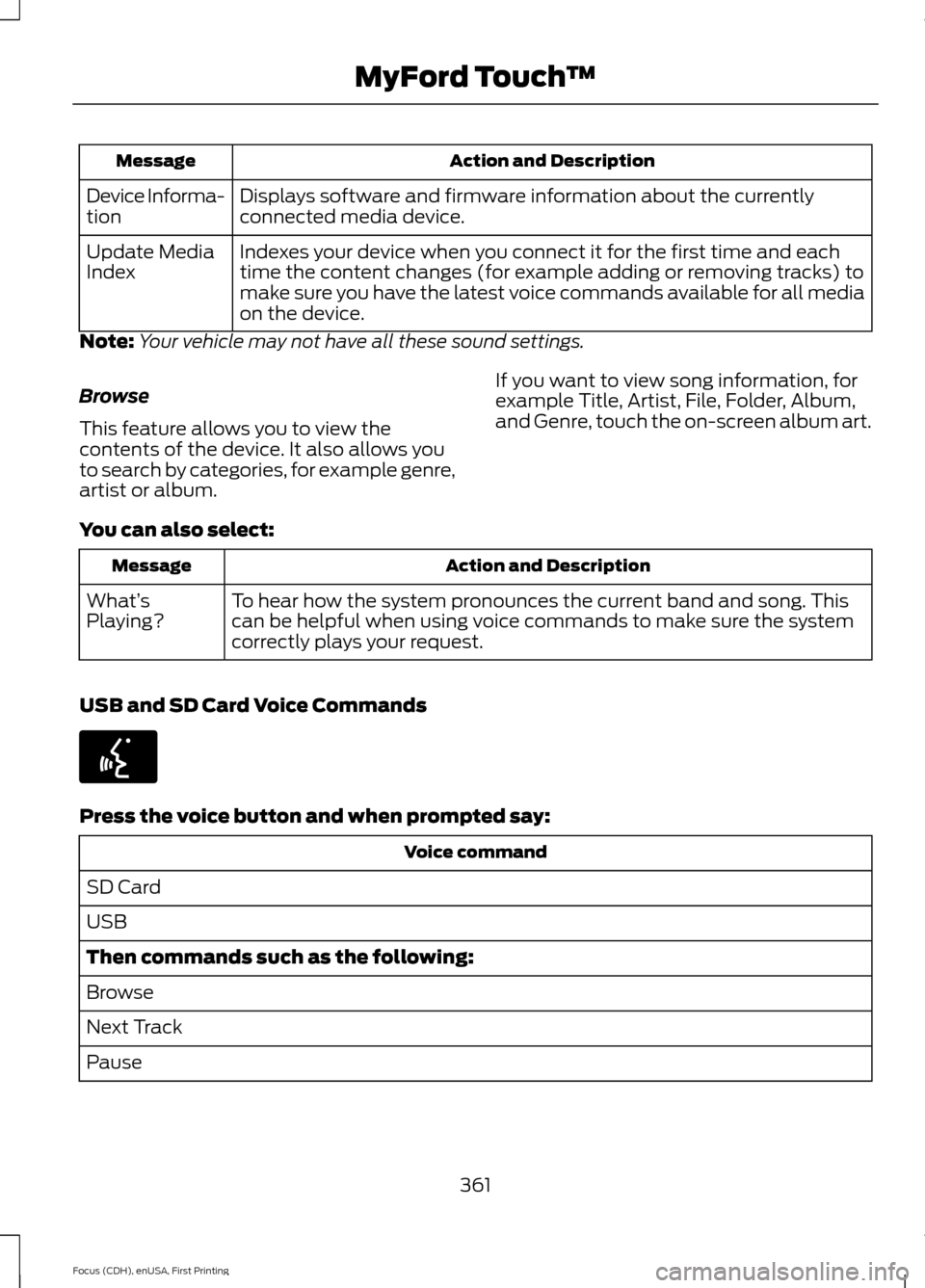
Action and Description
Message
Displays software and firmware information about the currently
connected media device.
Device Informa-
tion
Indexes your device when you connect it for the first time and each
time the content changes (for example adding or removing tracks) to
make sure you have the latest voice commands available for all media
on the device.
Update Media
Index
Note: Your vehicle may not have all these sound settings.
Browse
This feature allows you to view the
contents of the device. It also allows you
to search by categories, for example genre,
artist or album. If you want to view song information, for
example Title, Artist, File, Folder, Album,
and Genre, touch the on-screen album art.
You can also select: Action and Description
Message
To hear how the system pronounces the current band and song. This
can be helpful when using voice commands to make sure the system
correctly plays your request.
What’
s
Playing?
USB and SD Card Voice Commands Press the voice button and when prompted say:
Voice command
SD Card
USB
Then commands such as the following:
Browse
Next Track
Pause
361
Focus (CDH), enUSA, First Printing MyFord Touch
™E142599