Page 319 of 453
Description and Action
Display
2. Scroll to select the desired genre, and then press the
OK button.
Browse all supported media files on your media player
connected to the USB port. You can only view media files
that are compatible with SYNC. (Other files are not
visible.)
Browse USB
1. Press the
OK button to select.
2. Scroll to browse indexed media files on the device, and
then press the
OK button.
Resets the USB index. After the new indexing is complete,
you can choose what to play from the USB song library.
Reset USB
* You can use the buttons at the bottom of the audio display to jump to a certain
alphabetical category quickly. You can also use the letters on the audio system's numeric
keypad to jump in the list.
Using Voice Commands
You can access and view your USB songs
using voice commands.
Plug the device into your vehicle's USB
port.
Press the voice button and when
prompted, say any of the following
commands: Accessing and Viewing USB Media
(browse | search | show) all (album |
albums)
(browse | search | show) all (artist |
artists)
(browse | search | show) all (genre |
genres)
(browse | search | show) all (playlist |
playlists)
(browse | search | show) all (song | songs
| title | titles | file | files | track | tracks)
Browse album Accessing and Viewing USB Media
Browse artist
Browse genre
Browse playlist
USB 2
(If Equipped)
Your vehicle may come equipped with an
additional USB port. If so, USB 1 is located
at the front of the vehicle at the bottom of
the instrument panel. USB 2 is located
inside the storage compartment of the
vehicle's center console.
You can plug in an additional USB device
into the second USB port.
Note: SYNC only supports one connected
iOS (Apple) devices at a time (whichever
one you plug in first). When you connect a
second iOS device, the systems charges it,
but does not support playback from it.
316
Focus (CDH), enUSA, First Printing SYNC™
Page 320 of 453
Line In Audio
To access the Line In audio source,
start a voice session and say:
Voice Command
((line | AV | audio video) in | AUX | audio
video)
Bluetooth Devices and System
Settings
You can access these menus using the
audio display. See Using SYNC™ With
Your Phone (page 294).
Voice Commands for Audio
Sources
Your voice system allows you to change
audio sources with a simple voice
command. Press the voice button and when
prompted say:
Voice Command
Audio
Below are a few examples of voice
commands you can use.
[tune [to]] AM
[tune [to]] AM1
AM autoset
AM2
Bluetooth (audio | stereo)
(disc | CD [player]) play
[tune [to]] FM
[tune [to]] FM1 Voice Command
FM autoset
FM2
((line | AV | audio video) in | AUX | audio
video)
Radio *
SAT <1-3>
*
Sirius
(USB [stick] | iPod | MP3 [player])
((who's | who is) this | who plays this |
(what's | what is) playing [now] | (what
| which) (song | track | artist) is this |
(who's | who is) playing | (what's | what
is) this)
help
* If equipped.
Radio Voice Commands If you are listening to the radio,
press the voice button, and then
say any of the commands in the
following table.
If you are not listening to the radio,
press the voice button and, after the
tone, say: Voice Command
Radio
You can then say any of the following
commands.
[tune [to]] AM
[tune [to]] AM1
AM autoset
317
Focus (CDH), enUSA, First Printing SYNC™E142599 E142599
Page 331 of 453
This system uses a four-corner strategy to
provide quick access to several vehicle
features and settings. The touchscreen
provides easy interaction with your cell
phone, entertainment, information and
system settings. The corners display active
modes within the menus, for example; your
cell phone's status.
Note:
Some features are not available while
your vehicle is moving.
Note: You can access the entertainment
features for 30 minutes after you switch the
ignition off, and no doors are opened.
PHONE
Press to select any of the following: Message
Phone
Quick Dial
Phonebook
History
Messaging
Settings
NAVIGATION
Press to select any of the following: Message
My Home
Favorites
Previous Destinations
Point of Interest
Emergency
Street Address
Intersection Message
City Center
Map
Edit Route
Cancel Route
CLIMATE
Press the corresponding icons to control
the following options:
• Driver Settings
• Recirculated Air
• Auto
• Dual
• Passenger Settings
• A/C
• Defrost
SETTINGS Press to select any of the following:
Message
Clock
Display
Sound
Vehicle
Settings
Help
HOME Press to access the home
screen.
328
Focus (CDH), enUSA, First Printing MyFord Touch
™E142607 E142613
Page 332 of 453
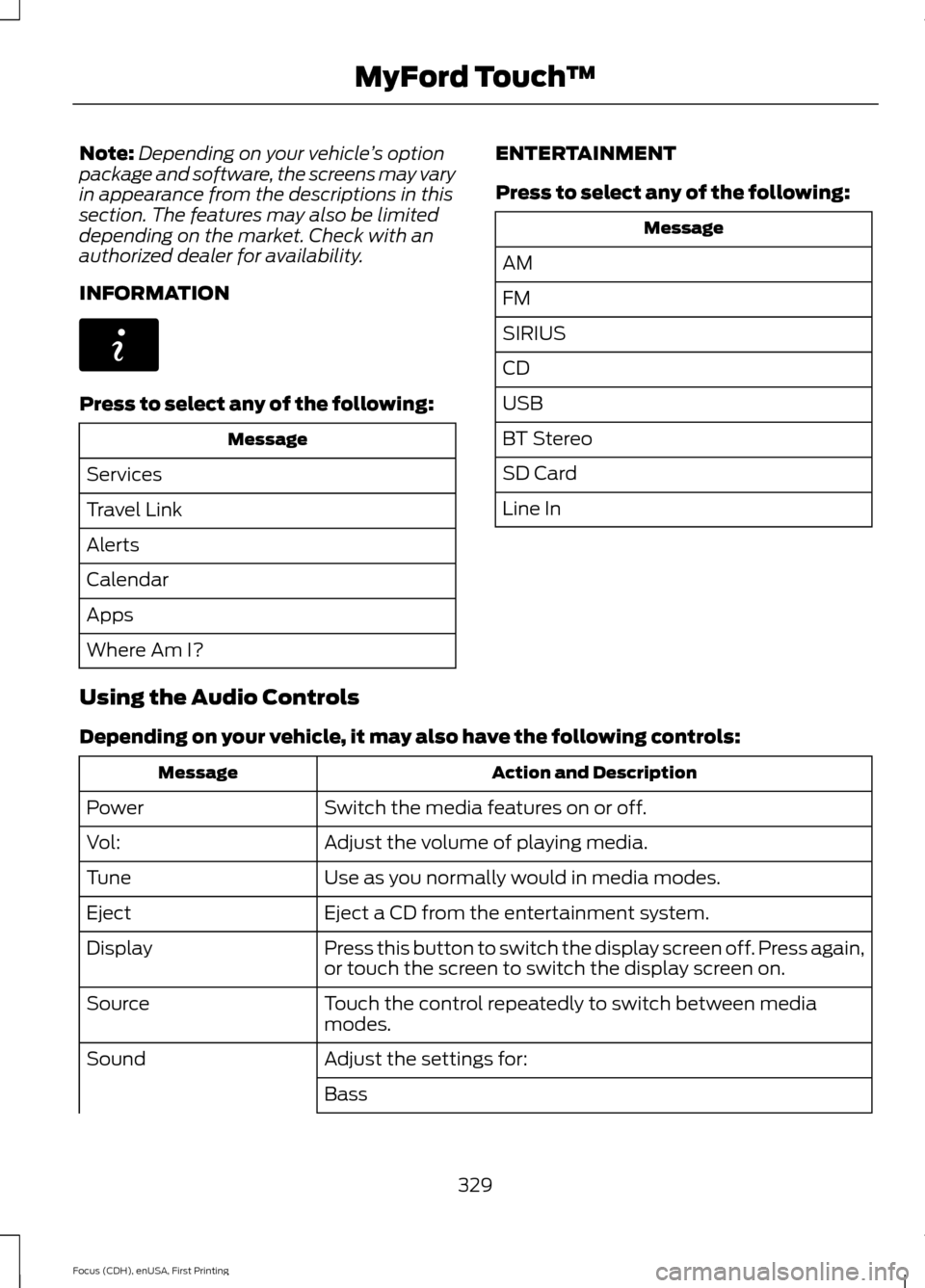
Note:
Depending on your vehicle ’s option
package and software, the screens may vary
in appearance from the descriptions in this
section. The features may also be limited
depending on the market. Check with an
authorized dealer for availability.
INFORMATION Press to select any of the following:
Message
Services
Travel Link
Alerts
Calendar
Apps
Where Am I? ENTERTAINMENT
Press to select any of the following: Message
AM
FM
SIRIUS
CD
USB
BT Stereo
SD Card
Line In
Using the Audio Controls
Depending on your vehicle, it may also have the following controls: Action and Description
Message
Switch the media features on or off.
Power
Adjust the volume of playing media.
Vol:
Use as you normally would in media modes.
Tune
Eject a CD from the entertainment system.
Eject
Press this button to switch the display screen off. Press again,
or touch the screen to switch the display screen on.
Display
Touch the control repeatedly to switch between media
modes.
Source
Adjust the settings for:
Sound
Bass
329
Focus (CDH), enUSA, First Printing MyFord Touch
™E142608
Page 333 of 453
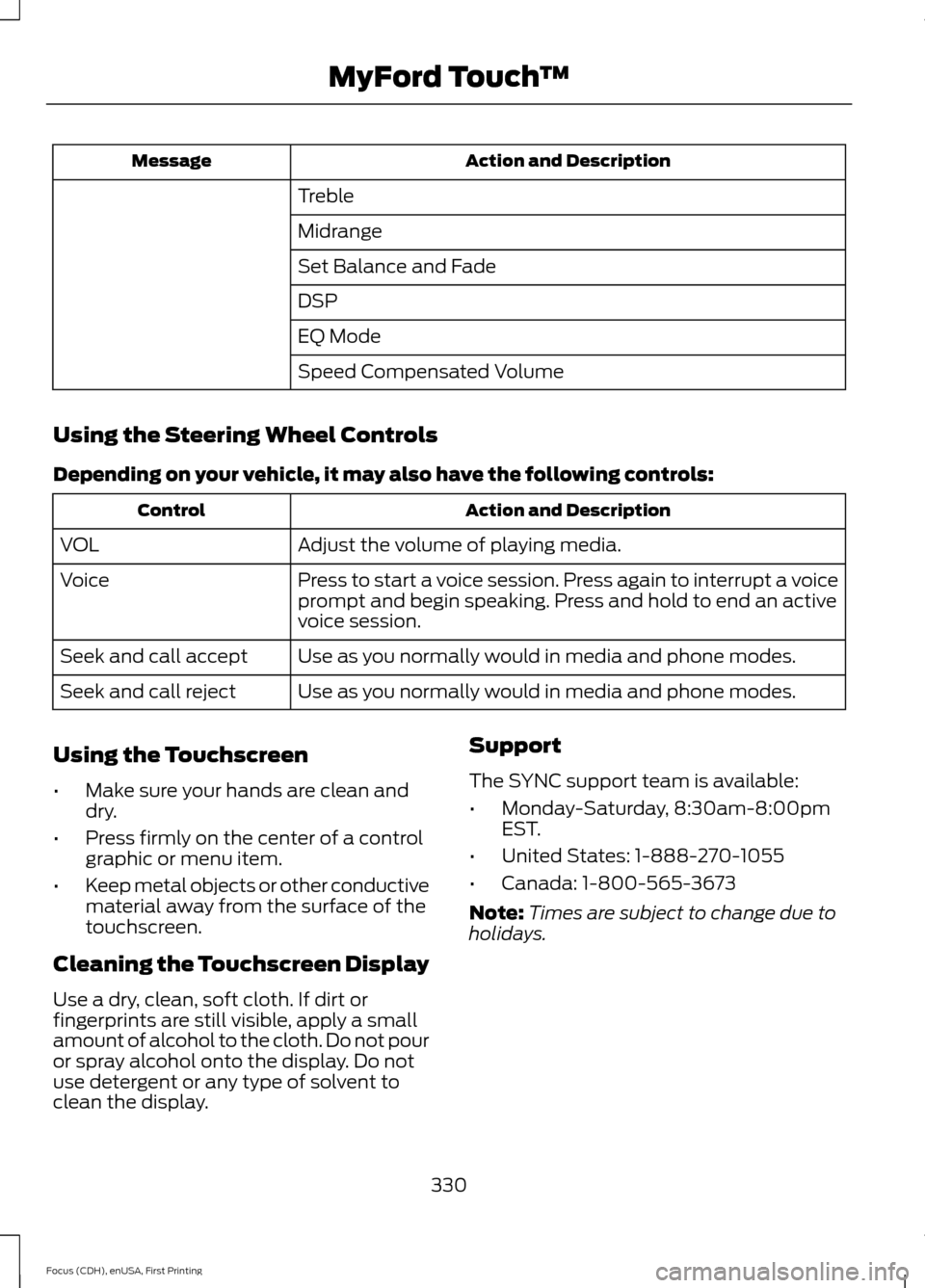
Action and Description
Message
Treble
Midrange
Set Balance and Fade
DSP
EQ Mode
Speed Compensated Volume
Using the Steering Wheel Controls
Depending on your vehicle, it may also have the following controls: Action and Description
Control
Adjust the volume of playing media.
VOL
Press to start a voice session. Press again to interrupt a voice
prompt and begin speaking. Press and hold to end an active
voice session.
Voice
Use as you normally would in media and phone modes.
Seek and call accept
Use as you normally would in media and phone modes.
Seek and call reject
Using the Touchscreen
• Make sure your hands are clean and
dry.
• Press firmly on the center of a control
graphic or menu item.
• Keep metal objects or other conductive
material away from the surface of the
touchscreen.
Cleaning the Touchscreen Display
Use a dry, clean, soft cloth. If dirt or
fingerprints are still visible, apply a small
amount of alcohol to the cloth. Do not pour
or spray alcohol onto the display. Do not
use detergent or any type of solvent to
clean the display. Support
The SYNC support team is available:
•
Monday-Saturday, 8:30am-8:00pm
EST.
• United States: 1-888-270-1055
• Canada: 1-800-565-3673
Note: Times are subject to change due to
holidays.
330
Focus (CDH), enUSA, First Printing MyFord Touch
™
Page 337 of 453
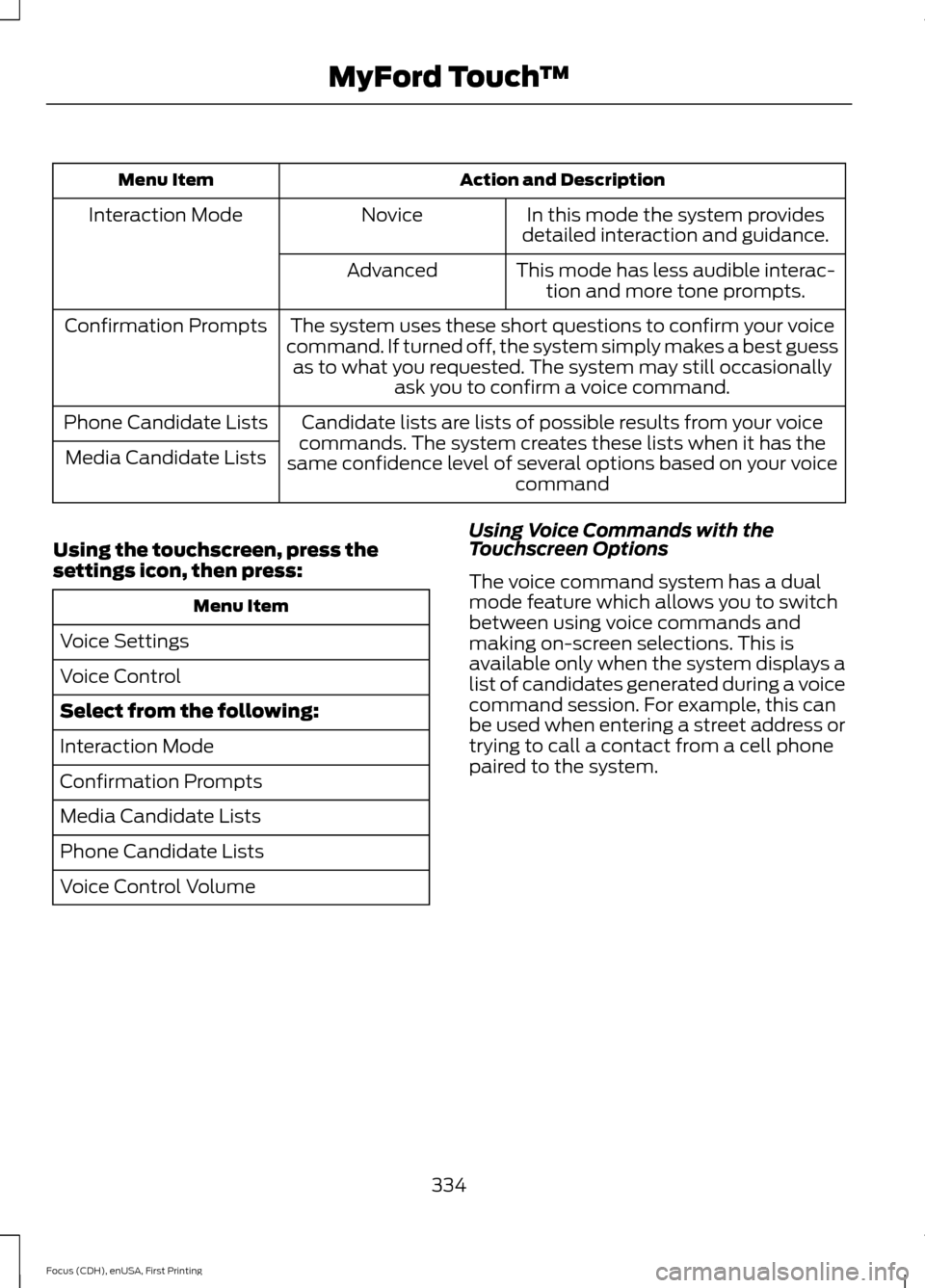
Action and Description
Menu Item
In this mode the system provides
detailed interaction and guidance.
Novice
Interaction Mode
This mode has less audible interac-tion and more tone prompts.
Advanced
The system uses these short questions to confirm your voice
command. If turned off, the system simply makes a best guess as to what you requested. The system may still occasionally ask you to confirm a voice command.
Confirmation Prompts
Candidate lists are lists of possible results from your voice
commands. The system creates these lists when it has the
same confidence level of several options based on your voice command
Phone Candidate Lists
Media Candidate Lists
Using the touchscreen, press the
settings icon, then press: Menu Item
Voice Settings
Voice Control
Select from the following:
Interaction Mode
Confirmation Prompts
Media Candidate Lists
Phone Candidate Lists
Voice Control Volume Using Voice Commands with the
Touchscreen Options
The voice command system has a dual
mode feature which allows you to switch
between using voice commands and
making on-screen selections. This is
available only when the system displays a
list of candidates generated during a voice
command session. For example, this can
be used when entering a street address or
trying to call a contact from a cell phone
paired to the system.
334
Focus (CDH), enUSA, First Printing MyFord Touch
™
Page 338 of 453
SETTINGS
Message
Item
Clock
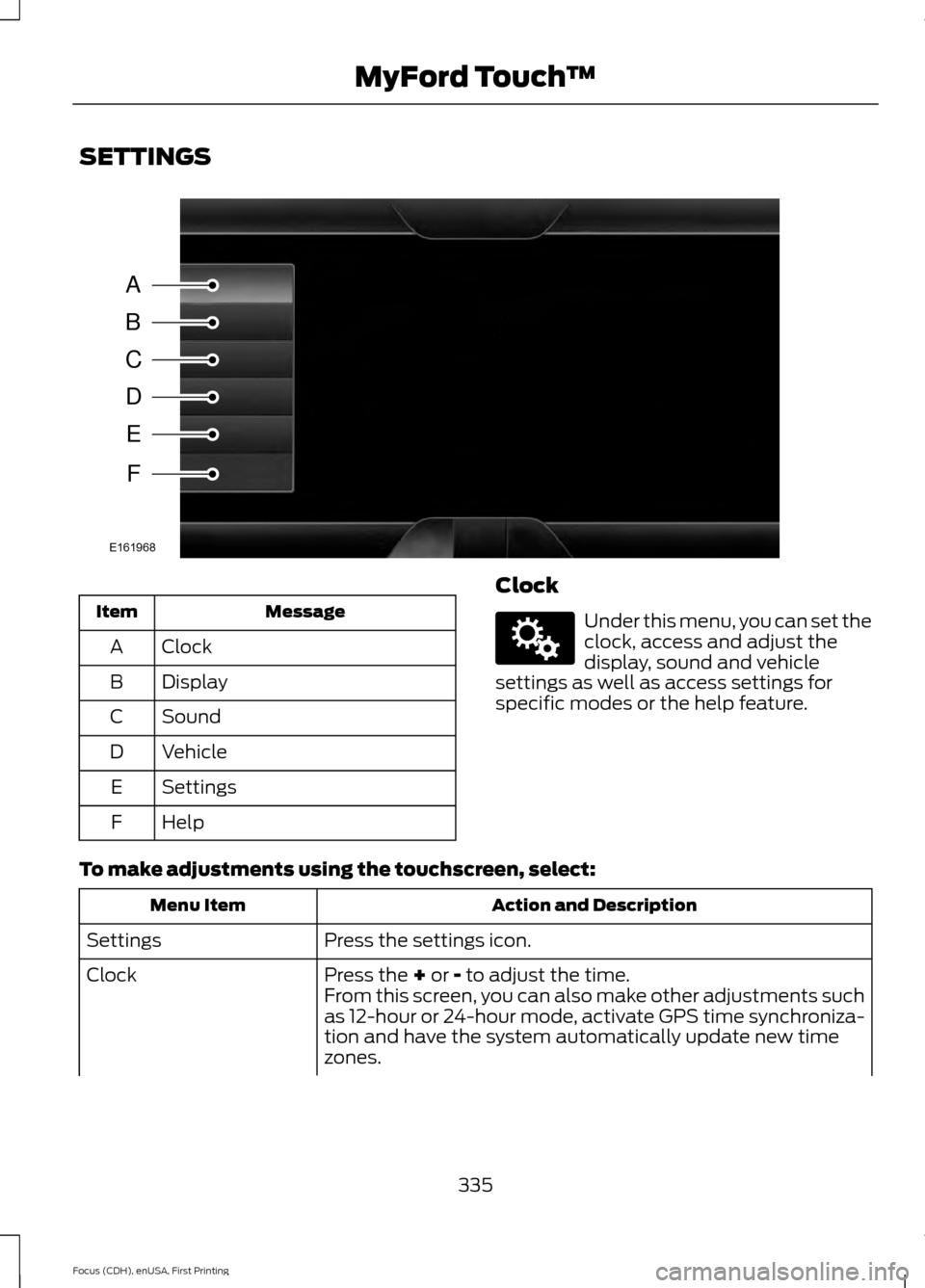
A
Display
B
Sound
C
Vehicle
D
Settings
E
Help
F Clock Under this menu, you can set the
clock, access and adjust the
display, sound and vehicle
settings as well as access settings for
specific modes or the help feature.
To make adjustments using the touchscreen, select: Action and Description
Menu Item
Press the settings icon.
Settings
Press the + or - to adjust the time.
Clock
From this screen, you can also make other adjustments such
as 12-hour or 24-hour mode, activate GPS time synchroniza-
tion and have the system automatically update new time
zones.
335
Focus (CDH), enUSA, First Printing MyFord Touch
™A
B
C
D
E
F
E161968 E142607
Page 339 of 453
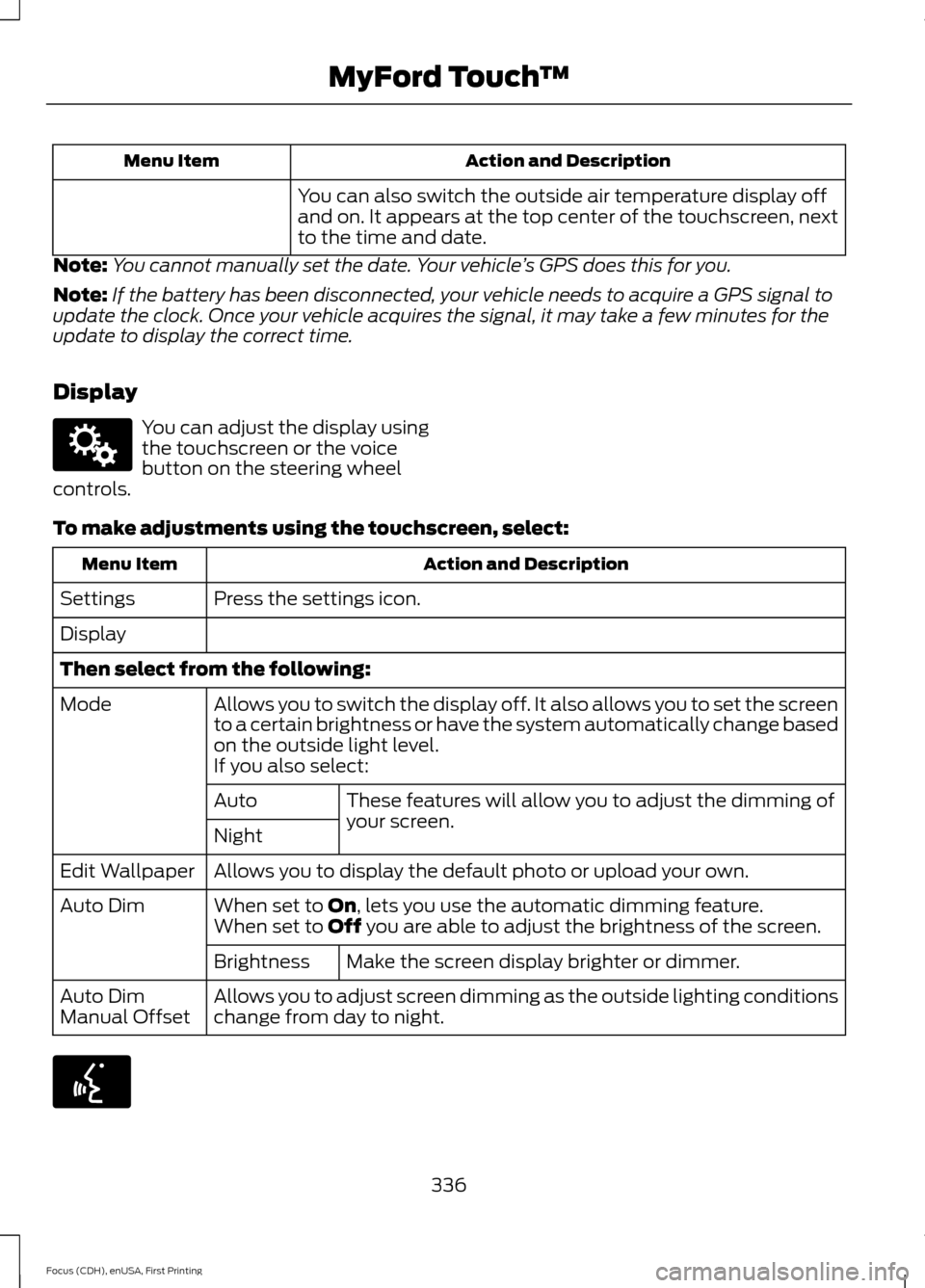
Action and Description
Menu Item
You can also switch the outside air temperature display off
and on. It appears at the top center of the touchscreen, next
to the time and date.
Note: You cannot manually set the date. Your vehicle ’s GPS does this for you.
Note: If the battery has been disconnected, your vehicle needs to acquire a GPS signal to
update the clock. Once your vehicle acquires the signal, it may take a few minutes for the
update to display the correct time.
Display You can adjust the display using
the touchscreen or the voice
button on the steering wheel
controls.
To make adjustments using the touchscreen, select: Action and Description
Menu Item
Press the settings icon.
Settings
Display
Then select from the following:
Allows you to switch the display off. It also allows you to set the screen
to a certain brightness or have the system automatically change based
on the outside light level.
Mode
If you also select:These features will allow you to adjust the dimming of
your screen.
Auto
Night
Allows you to display the default photo or upload your own.
Edit Wallpaper
When set to On, lets you use the automatic dimming feature.
Auto Dim
When set to Off you are able to adjust the brightness of the screen.
Make the screen display brighter or dimmer.
Brightness
Allows you to adjust screen dimming as the outside lighting conditions
change from day to night.
Auto Dim
Manual Offset 336
Focus (CDH), enUSA, First Printing MyFord Touch
™E142607 E142599