2015 FORD FIESTA ECO mode
[x] Cancel search: ECO modePage 260 of 423

TUNE -: In radio mode, press this button to manually search backward through
the radio frequency band. In SIRIUS mode, press this button to find the previous
available satellite radio station.
H
Seek down
In radio mode, press this button to go to the next station down the
radio frequency band. Press to go to the previous track on a CD. In SIRIUS mode,
press this button to select the previous channel. If a specific category is selected
(for example Jazz, Rock or News), use this button to find the previous channel
in the selected category.
I
SOURCE:
Press the button to access different audio modes, for example AM,
FM, Satellite radio and A/V input.
J
DIGITAL RADIO
Note: HD Radio broadcasts are not
available in all markets.
HD Radio technology is the digital
evolution of analog AM/FM radio. Your
system has a special receiver that allows
it to receive digital broadcasts (where
available) in addition to the analog
broadcasts, it already receives. Digital
broadcasts provide a better sound quality
than analog broadcasts with free,
crystal-clear audio and no static or
distortion. For more information, and a
guide to available stations and
programming, please visit
www.hdradio.com.
When HD Radio is on and you tune to a
station broadcasting HD Radio technology,
you may notice the HD Radio logo on your
screen. When this logo is available, you
may also see Title and Artist fields
on-screen. The multicast indicator appears in FM
mode (only) if the current station is
broadcasting multiple digital broadcasts.
The highlighted numbers signify available
digital channels where new or different
content is available. HD1 signifies the main
programming status and is available in
analog and digital broadcasts. Other
multicast stations (HD2 through HD7) are
only available digitally.
When HD Radio broadcasts are active, you
can access the following functions:
When HD Radio broadcasts are active, you
can access the following functions:
•
Scan
allows you to hear a brief
sampling of all available stations. This
feature still works when HD Radio
reception is on, although it does not
scan for HD2-HD7 channels. You may
see the HD logo appear if the station
has a digital broadcast.
• Memory presets
allow you to save an
active channel as a memory preset.
Touch and hold a memory preset slot
until the sound returns. There is a brief
mute while the radio saves the station.
Sound returns when finished. When
switching to an HD2 or HD3 memory
preset, the sound mutes before the
digital audio plays, because the system
has to reacquire the digital signal.
257
Fiesta (CCT), enUSA, Second Printing Audio System
Page 263 of 423

Note:
This receiver includes the eCos
real-time operating system. eCos is
published under the eCos License.
Satellite Radio Reception Factors Potential satellite radio reception issues
For optimal reception performance, keep the antenna
clear of snow and ice build-up and keep luggage and other
material as far away from the antenna as possible.
Antenna obstructions
Hills, mountains, tall buildings, bridges, tunnels, freeway
overpasses, parking garages, dense tree foliage and
thunderstorms can interfere with your reception.
Terrain
When you pass a ground-based broadcast-repeating
tower, a stronger signal may overtake a weaker one and
the audio system may mute.
Station overload
Your display may show ACQUIRING . . . to indicate the
interference and the audio system may mute.
Satellite radio signal interfer-
ence
SIRIUS® Satellite Radio Service
Note: SIRIUS reserves the unrestricted right
to change, rearrange, add or delete
programming including canceling, moving
or adding particular channels, and its prices,
at any time, with or without notice to you.
Ford Motor Company shall not be
responsible for any such programming
changes. SIRIUS satellite radio is a
subscription-based satellite radio service
that broadcasts a variety of music, sports,
news, weather, traffic and entertainment
programming. Your factory-installed
SIRIUS satellite radio system includes
hardware and a limited subscription term,
which begins on the date of sale or lease
of your vehicle. See an authorized dealer
for availability.
For more information on extended
subscription terms (a service fee is
required), the online media player and a
complete list of SIRIUS satellite radio
channels, and other features, please visit
www.siriusxm.com in the United States,
www.sirius.ca in Canada, or call SIRIUS at
1-888-539-7474.
Satellite Radio Electronic Serial
Number (ESN)
You need your ESN to activate, modify or
track your satellite radio account. When in
satellite radio mode, press Options.
260
Fiesta (CCT), enUSA, Second Printing Audio SystemE142593
Page 270 of 423

If you want the system to carry out the following
Voice command
Adjust the level of voice interaction and feedback.
voice settings
Hear a list of voice commands available in the current mode.
[main menu] help
You can say any of the voice commands that appear within open and close brackets that
are separated by |. For example, where (cancel | stop | exit) appears you say; cancel or
stop or exit.
You must say any of the voice commands that appear outside of open and close brackets.
For example, where mobile (apps | applications) appears, you must say mobile followed
by either apps or applications.
You do not need to say words that appear within square brackets. For example, for where
(USB [stick] | iPOD | MP3 [player]) appears, you can say USB or USB stick.
Note: Mobile Applications, Services and Vehicle health report, is only available in the United
States of America.
System Interaction and Feedback
The system provides feedback through
audible tones, prompts, questions and
spoken confirmations depending on the
situation and the chosen level of
interaction (voice settings). You can
customize the voice recognition system to
provide more or less instruction and
feedback.
The default setting is to a higher level of
interaction in order to help you learn to use
the system. You can change these settings
at any time. Adjusting the Interaction Level Initiate a voice session by
pressing the voice button on the
steering wheel controls. See
Voice Control (page 62).
A tone sounds and the following
message appears in the information
display. Message
Listen
When prompted say the following: If you want the system to carry out the following
Voice command
voice settings
Followed by either of the following: Provide more detailed interaction and guidance.
interaction mode novice
Provide less audible interaction and more tone prompts.
interaction mode
advanced
The system defaults to the standard interaction mode.
267
Fiesta (CCT), enUSA, Second Printing SYNC™E142599
Page 271 of 423

Confirmation prompts are short questions
the system asks when it is not sure of your
request or when there are multiple possible
responses to your request. For example,
the system may ask "Phone, is that
correct?". If turned off, the system simply
makes a best guess as to what you
requested and may ask you to confirm
settings.If you want the system to carry out the following
Voice command
Make a best guess from the command; you may still occa-
sionally be asked to confirm settings.
confirmation prompts off
Clarify your voice command with a short question.
confirmation prompts on
The system creates candidate lists when
it has the same confidence level of several
options based on your voice command.
When turned on, it may prompt you with
as many as four possibilities for
clarification. For example, say "Say 1 after the tone to
call John Doe at home. Say 2 after the tone
to call Johnny Doe on mobile. Say 3 after
the tone to call Jane Doe at home." You
could also say "Say 1 after the tone to play
John Doe, Say 2 after the tone to play
Johnny Doe."If you want the system to carry out the following
Voice command
Make a best guess from the media candidate list. You may
still occasionally be asked questions.
media candidate lists off
Clarify your voice command for media candidates.
media candidate lists on
Make a best guess from the phone candidate list. You may
still occasionally be asked questions.
phone candidate lists off
Clarify your voice command for phone candidates
phone candidate lists on
USING SYNC™ WITH YOUR
PHONE
Hands-free calling is one of the main
features of SYNC. While the system
supports a variety of features, many are
dependent on your cellular phone's
functionality. At a minimum, most cellular
phones with Bluetooth wireless technology
support the following functions:
• Answering an incoming call.
• Ending a call. •
Using privacy mode.
• Dialing a number.
• Redialing.
• Call waiting notification.
• Caller ID.
Other features, such as text messaging
using Bluetooth and automatic phonebook
download, are phone-dependent features.
To check your phone's compatibility, see
your phone's manual and visit
www.SYNCMyRide.com,
www.SYNCMyRide.ca or
www.syncmaroute.ca.
268
Fiesta (CCT), enUSA, Second Printing SYNC™
Page 272 of 423

Pairing a Phone for the First Time
Note:
SYNC can support downloading up
to approximately 1000 entries per
Bluetooth-enabled cellular phone.
Note: Make sure to switch on the ignition
and the radio. Put the transmission in
position P.
Note: To scroll through the menus, press
the up and down arrows on your audio
system.
Wirelessly pairing your phone with SYNC
allows you to make and receive hands-free
calls.
1. Press the phone button. When the display indicates there is no phone
paired, press
OK.
2. When
Find SYNC appears in the
display, press OK.
3. Put your phone into Bluetooth discovery mode. See your device's
manual if necessary.
4. When prompted on your phone's display, enter the six-digit PIN provided
by SYNC in the radio display. The
display indicates when the pairing is
successful.
Depending on your phone's capability and
your market, the system may prompt you
with questions, such as setting the current
phone as the primary phone (the phone
SYNC automatically tries to connect with
first upon vehicle start-up) and
downloading your phonebook.
Pairing Subsequent Phones
Note: Make sure to switch on the ignition
and the radio. Put the transmission in
position
P.
Note: To scroll through the menus, press
the up and down arrows on your audio
system. 1.
Press the phone button, and then scroll
to System Settings. Press
OK.
2. Scroll to Bluetooth Devices. Press
OK.
3. Scroll to Add Bluetooth Device. Press OK
.
4. When
Find SYNC appears in the
display, press OK.
5. Put your phone into Bluetooth discovery mode. See your phone's
manual if necessary.
6. When prompted on your phone's display, enter the six-digit PIN provided
by SYNC in the radio display. The
display indicates when the pairing is
successful.
The system then prompts with questions,
such as if you would like to set the current
phone as the primary phone (the phone
SYNC automatically tries to connect with
first upon vehicle start-up) and download
your phone book.
Phone Voice Commands
Press the voice icon and say "Phone". Say
any of the following: "PHONE"
"Call
"Call
"Call
"Call
"Call
"Call
"Call history incoming" 2
"Call history missed" 2
269
Fiesta (CCT), enUSA, Second Printing SYNC™
Page 273 of 423

"PHONE"
"Call history outgoing" 2
"Connections" 2
"Dial" 1,3
"Go to privacy" "Hold""Join"
"Menu" 2,4
"Phone book
"Phone book
"Phone book
"Phone book
"Phone book
"Phone book
1 This command does not require you to
say "Phone" first.
2 This command is not available until
phone information is completely
downloaded using Bluetooth.
3 See Dial table below.
4 See
Menu table below.
Phone book commands:
When you ask
SYNC to access things such as a
phonebook name or number, the
requested information appears in the
display to view. Press the phone button
and say, "Call" to call the contact. "DIAL"
"411 (four-one-one)", "911" (nine-one- one)
"700" (seven hundred) "800" (eight hundred) "900" (nine hundred) "Pound" (#)
"Number <0-9>" "Asterisk" (*)
"Clear" (deletes all entered digits) "Delete" (deletes one digit) "Plus""Star"
Note: To exit dial mode, press and hold the
phone button or press
MENU to go to the
phone menu. "MENU"
"(Phone) connections"
"(Phone) settings (message) notification off"
"(Phone) settings (message) notification on"
"(Phone) settings (set) phone ringer" "(Phone) settings (set) ringer 1"
"(Phone) settings (set) ringer 2"
"(Phone) settings (set) ringer 3"
"(Phone) settings (set) ringer off" "Battery"
"Phone name"
270
Fiesta (CCT), enUSA, Second Printing SYNC™
Page 276 of 423

You can:
When you select:
Note: The system attempts to automatically re-download
your phonebook and call history each time your phone
connects to SYNC (if the auto download feature is on and
your Bluetooth-enabled cellular phone supports this
feature).
Access and call any contacts in your previously down-
loaded phonebook.
Phonebook
1,2
1. Press OK to confirm and enter. If your phonebook has
fewer than 255 listings, they appear alphabetically in flat
file mode. If there are more than 255 entries, the system
organizes them into alphabetical categories.
2. Scroll until the desired contact appears, then press OK.
3. Press
OK or the phone button.
Send, download and delete text messages.
Text Message 1
View your phone's status, set ring tones, select your
message notification, change phone book entries and
automatically download your cellular phone among other
features.
Phone Settings
1
Access the SYNC Services portal where you can request
various types of information, traffic reports and directions.
SYNC Services
3
Place an emergency call to a 911 operator for you after an
accident, when used properly.
911 Assist
4
Create and receive a diagnostic report card on your vehicle.
Vehicle Health Report 3
Interact with SYNC-capable mobile applications on your
smartphone.
Mobile Apps
3
Access Bluetooth Devices menu listings (Add, Connect,
Set as Primary, On and Off, Delete) as well as Advanced
menu listings (prompts, languages, defaults, master reset,
install application and system information).
System Settings
Exit the phone menu by pressing OK.
Exit Phone Menu
1 This is a phone-dependent feature.
2 This is a phone-dependent and speed-dependent feature.
3 This is an optional feature and available in the United States only.
4 This is an optional feature and available in the United States and Canada only.
273
Fiesta (CCT), enUSA, Second Printing SYNC™
Page 285 of 423
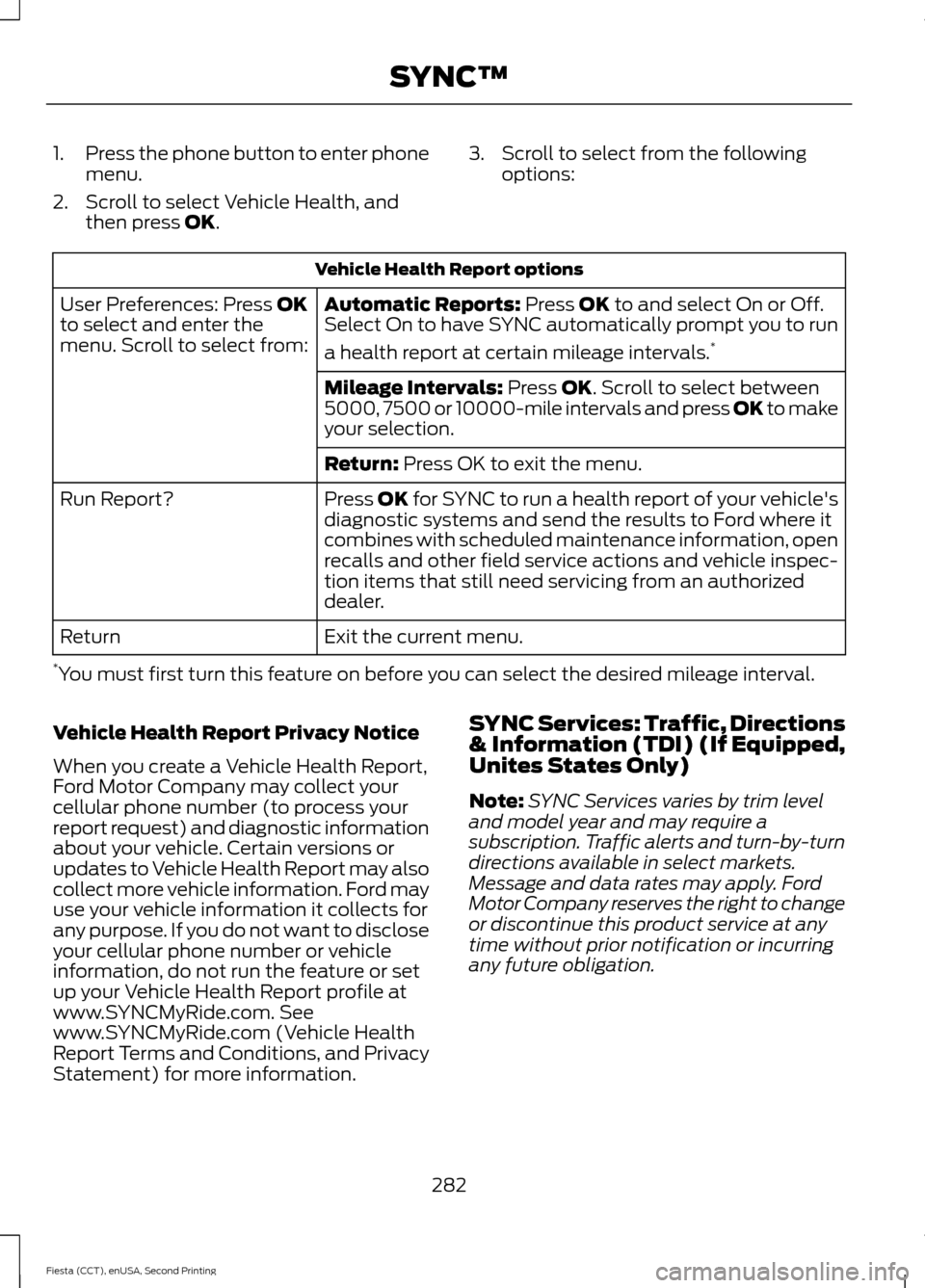
1.
Press the phone button to enter phone
menu.
2. Scroll to select Vehicle Health, and then press OK. 3. Scroll to select from the following
options: Vehicle Health Report options
Automatic Reports:
Press OK to and select On or Off.
Select On to have SYNC automatically prompt you to run
a health report at certain mileage intervals. *
User Preferences: Press OK
to select and enter the
menu. Scroll to select from:
Mileage Intervals:
Press OK. Scroll to select between
5000, 7500 or 10000-mile intervals and press OK to make
your selection.
Return:
Press OK to exit the menu.
Press OK for SYNC to run a health report of your vehicle's
diagnostic systems and send the results to Ford where it
combines with scheduled maintenance information, open
recalls and other field service actions and vehicle inspec-
tion items that still need servicing from an authorized
dealer.
Run Report?
Exit the current menu.
Return
* You must first turn this feature on before you can select the desired mileage interval.
Vehicle Health Report Privacy Notice
When you create a Vehicle Health Report,
Ford Motor Company may collect your
cellular phone number (to process your
report request) and diagnostic information
about your vehicle. Certain versions or
updates to Vehicle Health Report may also
collect more vehicle information. Ford may
use your vehicle information it collects for
any purpose. If you do not want to disclose
your cellular phone number or vehicle
information, do not run the feature or set
up your Vehicle Health Report profile at
www.SYNCMyRide.com. See
www.SYNCMyRide.com (Vehicle Health
Report Terms and Conditions, and Privacy
Statement) for more information. SYNC Services: Traffic, Directions
& Information (TDI) (If Equipped,
Unites States Only)
Note:
SYNC Services varies by trim level
and model year and may require a
subscription. Traffic alerts and turn-by-turn
directions available in select markets.
Message and data rates may apply. Ford
Motor Company reserves the right to change
or discontinue this product service at any
time without prior notification or incurring
any future obligation.
282
Fiesta (CCT), enUSA, Second Printing SYNC™