Page 316 of 423

Using the touchscreen, press:
Message
Settings
Help
Voice Command List
Using the steering wheel control, press
the voice button and when prompted
say one of the following: Voice Commands
Audio list of commands
Bluetooth audio list of commands
Browse list of commands
CD list of commands
List of commands *
Navigation list of commands
Phone list of commands
Radio list of commands
SD card list of commands
*
Sirius satellite list of commands
*
Travel link list of commands
USB list of commands
Voice instructions list of commands
Voice settings list of commands
voice settings help
* These voice commands are only available
when your vehicle is fitted with a
navigation system, and the navigation
system SD card is in the SD card slot. Voice Command Settings
These allow you to customize the level of
system interaction, help and feedback. The
system defaults to standard interaction
that uses candidate lists and confirmation
prompts as these provide the highest level
of guidance and feedback.
•
Interaction Mode: Novice mode
provides detailed interaction and
guidance. Advanced mode has less
audible interaction and more tone
prompts.
• Confirmation Prompts:
The system
uses these short questions to confirm
your voice command. If turned off, the
system simply makes a best guess as
to what you requested. The system
may still occasionally ask you to
confirm a voice command.
• Phone and Media Candidate Lists:
Candidate lists are lists of possible
results from your voice commands. The
system creates these lists when it has
the same confidence level of several
options based on your voice command.
Using the touchscreen, press the
settings icon, then press: Message
Voice settings
Voice Control
Select from the following:
Interaction Mode
Confirmation Prompts
Media Candidate Lists
Phone Candidate Lists
Voice Control Volume
313
Fiesta (CCT), enUSA, Second Printing MyFord Touch
™
(If Equipped)
Page 317 of 423
Using the steering wheel control, press
the voice button and when prompted
say one of the following:
Voice command
interaction mode novice
interaction mode advanced
confirmation prompts on
confirmation prompts off
phone candidate lists on
phone candidate lists off Voice command
media candidate lists on
media candidate lists off
voice settings help
Using Voice Commands with the
Touchscreen Options
The voice command system has a dual
mode feature which allows you to switch
between using voice commands and
making on-screen selections. This is
available only when the system displays a
list of candidates generated during a voice
command session. For example, when
entering a street address or trying to call a
contact from a cell phone paired to the
system.
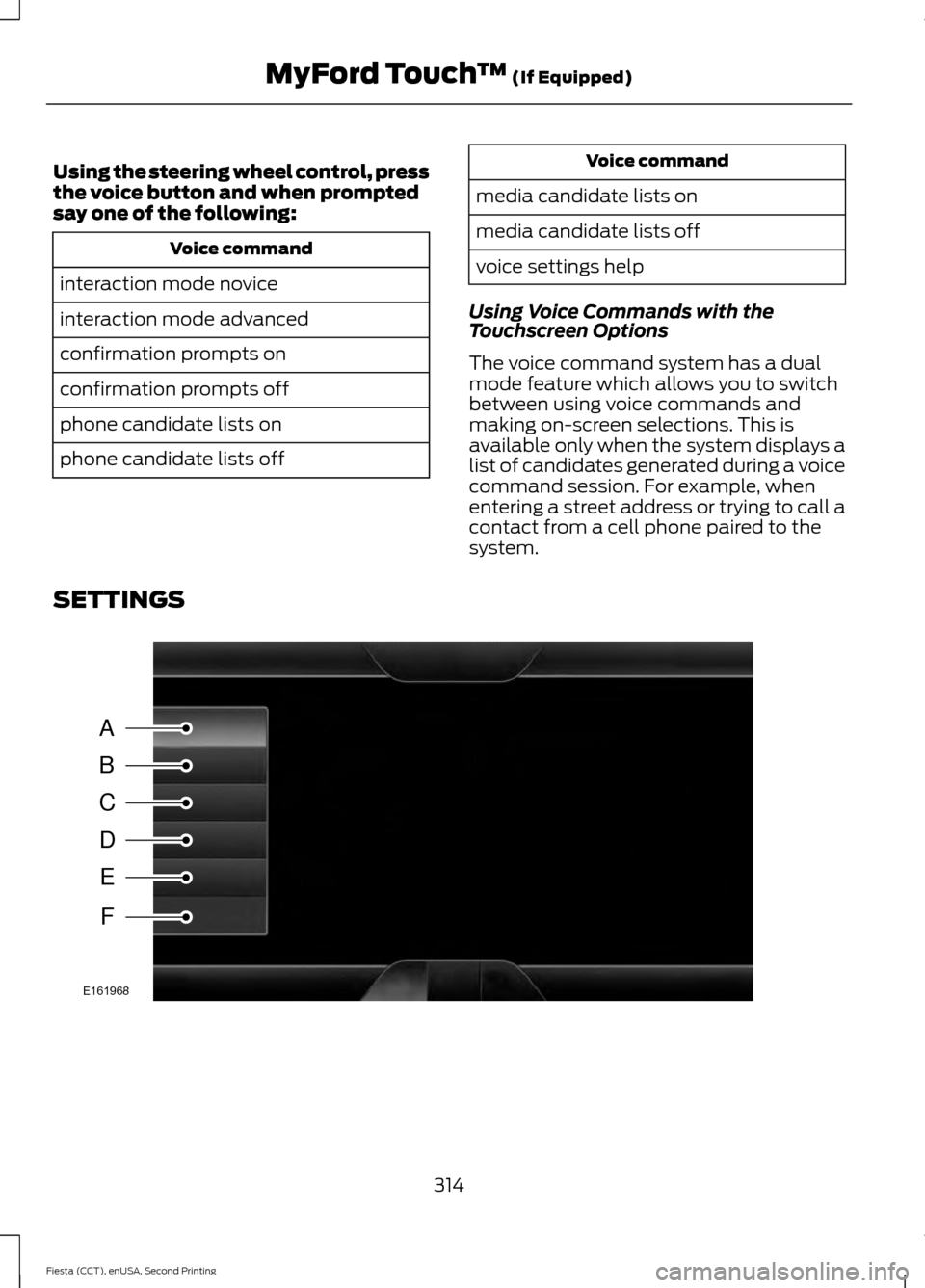
SETTINGS 314
Fiesta (CCT), enUSA, Second Printing MyFord Touch
™ (If Equipped)A
B
C
D
E
F
E161968
Page 318 of 423

Message
Item
Clock
A
Display
B
Sound
C
Vehicle
D
Settings
E
Help
F Clock
Under this menu, you can set the clock,
access and adjust the display, sound and
vehicle settings as well as access settings
for specific modes or the help feature.To make adjustments using the touchscreen, select:
Action and Description
Message
Press the settings icon.
Settings
Press the + or - to adjust the time.
Clock
From this screen, you can also make other adjustments such
as 12-hour or 24-hour mode, activate GPS time synchroniza-
tion and have the system automatically update new time
zones.
You can also turn the outside air temperature display off and
on. It appears at the top center of the touchscreen, next to
the time and date.
Note: You cannot manually set the date. Your vehicle ’s GPS does this for you.
Note: If the battery has been disconnected, your vehicle needs to acquire a GPS signal to
update the clock. Once your vehicle acquires the signal, it may take a few minutes for the
update to display the correct time.
Display You can adjust the display using the
touchscreen or the voice button on the
steering wheel controls.
To make adjustments using the touchscreen, select: Action and Description
Message
Press the settings icon.
Settings
Display
Then select from the following:
315
Fiesta (CCT), enUSA, Second Printing MyFord Touch
™
(If Equipped)E142607 E142607
Page 319 of 423

Action and Description
Message
Make the screen display brighter or dimmer.
Brightness
Allows you to turn the display off. It also allows you to set
the screen to a certain brightness or have the system auto-
matically change based on the outside light level.
Mode
If you select AUTO or NIGHT, you have the options of turning
the display's Auto Dim feature on or off and changing the
Auto Dim Manual Offset feature.
Allows you to display the default photo or upload your own.
Edit Wallpaper To make adjustments using the voice
button, press the button and when
prompted, say:
Voice command
display [settings | mode]
Uploading Photos for Your Home
Screen Wallpaper
Note: You cannot load photos directly from
your camera. You must access the photos
either from your USB mass storage device
or from an SD card. Note:
Photographs with extremely large
dimensions (such as 2048 x 1536) may not
be compatible and appear as a blank
(black) image on the display.
The system allows you to upload and view
up to 32 photos. To access, press:
To upload your photos, select: Action and Description
Message
Press the settings icon.
Settings
Display
Follow the system prompts to upload your photographs.
Edit Wallpaper
Only the photograph(s), which meets the
following conditions will display:
• Compatible file formats are as follows:
.jpg, .gif, .png, .bmp.
• Each file must be 1.5 MB or less.
• Recommended dimensions: 800 x 384. Sound
316
Fiesta (CCT), enUSA, Second Printing MyFord Touch
™
(If Equipped)E142599 E142607 E142607
Page 320 of 423
To make adjustments using the
touchscreen, select:
Message
Settings
Sound
Then select from the following:
Bass
Midrange
Treble
Set Balance and Fade
Occupancy Mode
Speed Compensated Volume
DSP
Note: Your vehicle may not have all of
these sound settings. Vehicle To make adjustments using the
touchscreen, select:
Message
Settings
Vehicle
Then select from the following:
Vehicle Health Report
Camera Settings
Enable Valet Mode
Vehicle Health Report
To make adjustments using the touchscreen, select: Action and Description
Message
Press the settings icon.
Settings
Vehicle
Vehicle Health Report
Turn on and off and set the mileage interval at which you
would like to receive the reports. Press the ? for more
information on these selections.
Automatic Reminders
To run the vehicle health report immediately.
Run Vehicle Health
Report Now
You can find more information on Vehicle Health Report in this chapter.
317
Fiesta (CCT), enUSA, Second Printing MyFord Touch
™
(If Equipped)E142607
Page 321 of 423
Camera Settings
This menu allows you to access settings
for your rear view camera.
To make adjustments using the touchscreen, select:
Action and Description
Message
Press the settings icon.
Settings
Vehicle
Camera Settings
Then select from the following:
Enhanced Park Aids
Rear Camera Delay
You can find more information on the rear view camera system in another chapter. See
Parking Aids (page 135).
Enable Valet Mode
Valet mode allows you to lock the system.
No information is accessible until the
system is unlocked with the correct PIN. Note:
If the system locks, and you need to
reset the PIN, enter 3681 and the system
unlocks. To make adjustments using the touchscreen, select:
Action and Description
Message
Press the settings icon.
Settings
Vehicle
Then enter a four digit PIN twice, as prompted.
Enable Valet Mode
After you press Continue the system locks until you enter the
PIN again.
Continue
Settings
Access and adjust system settings, voice
features, as well as phone, navigation and
wireless settings. System
318
Fiesta (CCT), enUSA, Second Printing MyFord Touch
™
(If Equipped)E142607 E142607 E142607
Page 322 of 423

To make adjustments using the touchscreen, select:
Action and Description
Message
Press the settings icon.
Settings
System
Then select from the following:
Select to have the touchscreen display in English, Spanish or
French.
Language
Select to display units in kilometers or miles.
Distance
Select to display units in Celsius or Fahrenheit.
Temperature
Adjust the volume of voice prompts from the system.
System Prompt Volume
Select to have the system beep to confirm choices made
through the touchscreen.
Touch Screen Button
Beep
Have the touchscreen keyboard display in QWERTY or ABC
format.
Keyboard Layout
Install any downloaded applications or view the current
software licenses.
Install Applications
Select to restore factory defaults. This erases all personal
settings and personal data.
Master Reset
Voice Control To make adjustments using the touchscreen, select:
Action and Description
Message
Settings
Voice Settings
Then select from the following: Standard interaction mode provides more detailed interaction
and guidance. Advanced mode has less audible interaction
and more tone prompts.
Interaction Mode
319
Fiesta (CCT), enUSA, Second Printing MyFord Touch
™ (If Equipped)E142607
Page 326 of 423
Action and Description
Message
Connect, disconnect, add or delete a device, as well as save
it as a favorite.
Bluetooth Devices
Turn Bluetooth on and off.
Bluetooth
Have all calls go directly to your voice mail and not ring inside
your vehicle. With this feature turned on, text message noti-
fications are also suppressed and do not ring inside your
vehicle.
Do Not Disturb
Turn on or turn off the 911 Assist feature. See Information
(page 352).
911 Assist
Select the type of notification for phone calls - ring tone,
beep, text to speech or silent.
Phone Ringer
Select the type of notification for text messages - alert tone,
beep, text to speech, or have it be silent.
Text Message Notifica-
tion
If compatible with your phone, you can adjust your internet
data connection. Select to make your connection profile with
the personal area network or to turn off your connection. You
can also choose to adjust your settings or have the system
always connect, never connect when roaming, or query on
connect. Press
? for more information.
Internet Data Connection
Access features, such as automatic phonebook download,
re-download your phonebook, add contacts from your phone
as well as delete or upload your phonebook.
Manage Phonebook
Have the system alert you when in Roaming mode.
Roaming Warning
Wireless & Internet
Your system has a Wi-Fi feature that
creates a wireless network within your
vehicle, thereby allowing other devices
(such as personal computers or phones)
in your vehicle to speak to each other,
share files or play games. Using this Wi-Fi feature, everyone in your vehicle can also
gain access the internet if you have a USB
mobile broadband connection inside your
vehicle, your phone supports personal area
networking and if you park outside a
wireless hotspot.
323
Fiesta (CCT), enUSA, Second Printing MyFord Touch
™
(If Equipped)E142607