2015 FORD FIESTA change time
[x] Cancel search: change timePage 270 of 423

If you want the system to carry out the following
Voice command
Adjust the level of voice interaction and feedback.
voice settings
Hear a list of voice commands available in the current mode.
[main menu] help
You can say any of the voice commands that appear within open and close brackets that
are separated by |. For example, where (cancel | stop | exit) appears you say; cancel or
stop or exit.
You must say any of the voice commands that appear outside of open and close brackets.
For example, where mobile (apps | applications) appears, you must say mobile followed
by either apps or applications.
You do not need to say words that appear within square brackets. For example, for where
(USB [stick] | iPOD | MP3 [player]) appears, you can say USB or USB stick.
Note: Mobile Applications, Services and Vehicle health report, is only available in the United
States of America.
System Interaction and Feedback
The system provides feedback through
audible tones, prompts, questions and
spoken confirmations depending on the
situation and the chosen level of
interaction (voice settings). You can
customize the voice recognition system to
provide more or less instruction and
feedback.
The default setting is to a higher level of
interaction in order to help you learn to use
the system. You can change these settings
at any time. Adjusting the Interaction Level Initiate a voice session by
pressing the voice button on the
steering wheel controls. See
Voice Control (page 62).
A tone sounds and the following
message appears in the information
display. Message
Listen
When prompted say the following: If you want the system to carry out the following
Voice command
voice settings
Followed by either of the following: Provide more detailed interaction and guidance.
interaction mode novice
Provide less audible interaction and more tone prompts.
interaction mode
advanced
The system defaults to the standard interaction mode.
267
Fiesta (CCT), enUSA, Second Printing SYNC™E142599
Page 276 of 423

You can:
When you select:
Note: The system attempts to automatically re-download
your phonebook and call history each time your phone
connects to SYNC (if the auto download feature is on and
your Bluetooth-enabled cellular phone supports this
feature).
Access and call any contacts in your previously down-
loaded phonebook.
Phonebook
1,2
1. Press OK to confirm and enter. If your phonebook has
fewer than 255 listings, they appear alphabetically in flat
file mode. If there are more than 255 entries, the system
organizes them into alphabetical categories.
2. Scroll until the desired contact appears, then press OK.
3. Press
OK or the phone button.
Send, download and delete text messages.
Text Message 1
View your phone's status, set ring tones, select your
message notification, change phone book entries and
automatically download your cellular phone among other
features.
Phone Settings
1
Access the SYNC Services portal where you can request
various types of information, traffic reports and directions.
SYNC Services
3
Place an emergency call to a 911 operator for you after an
accident, when used properly.
911 Assist
4
Create and receive a diagnostic report card on your vehicle.
Vehicle Health Report 3
Interact with SYNC-capable mobile applications on your
smartphone.
Mobile Apps
3
Access Bluetooth Devices menu listings (Add, Connect,
Set as Primary, On and Off, Delete) as well as Advanced
menu listings (prompts, languages, defaults, master reset,
install application and system information).
System Settings
Exit the phone menu by pressing OK.
Exit Phone Menu
1 This is a phone-dependent feature.
2 This is a phone-dependent and speed-dependent feature.
3 This is an optional feature and available in the United States only.
4 This is an optional feature and available in the United States and Canada only.
273
Fiesta (CCT), enUSA, Second Printing SYNC™
Page 279 of 423
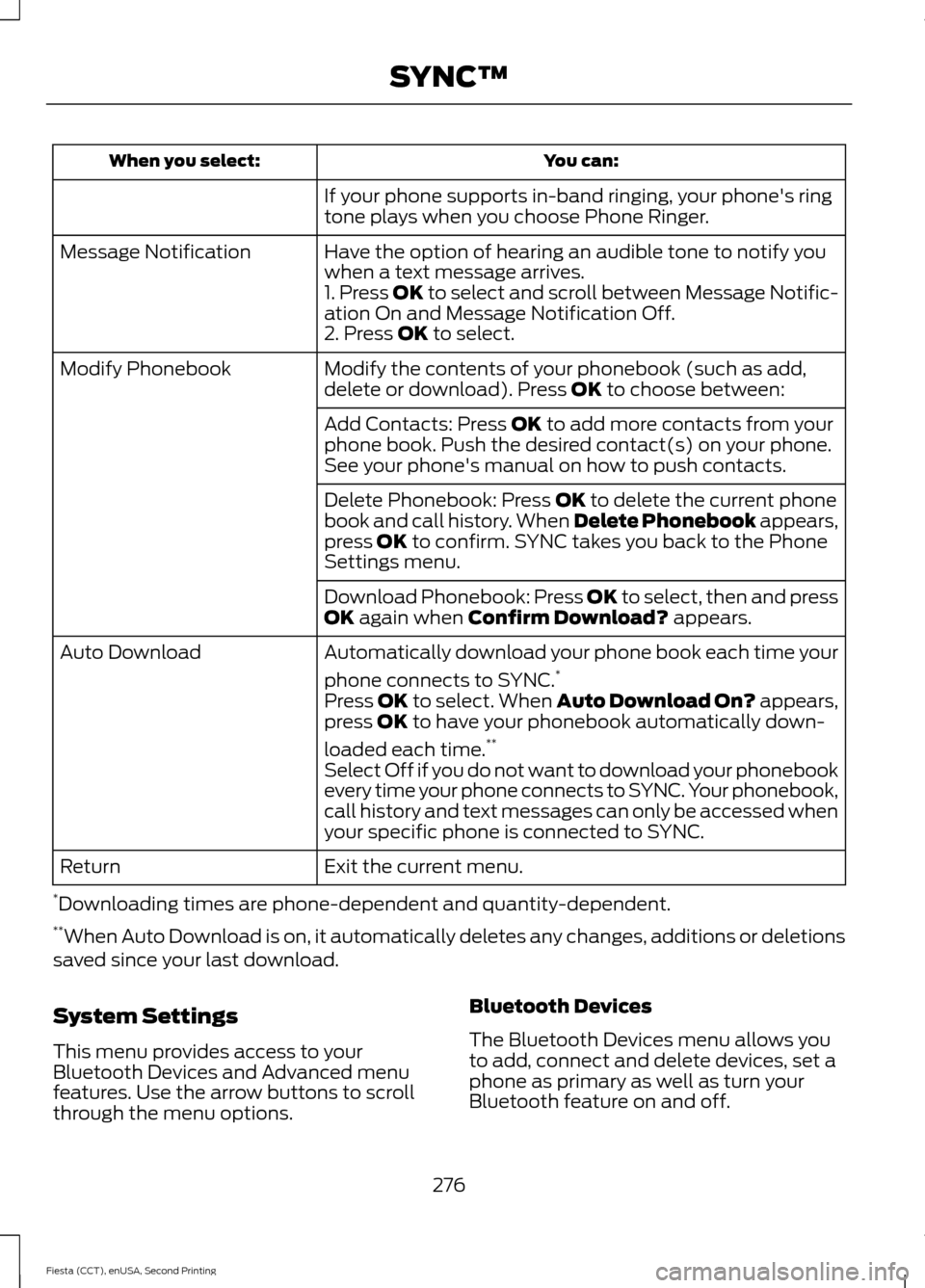
You can:
When you select:
If your phone supports in-band ringing, your phone's ring
tone plays when you choose Phone Ringer.
Have the option of hearing an audible tone to notify you
when a text message arrives.
Message Notification
1. Press OK to select and scroll between Message Notific-
ation On and Message Notification Off.
2. Press OK to select.
Modify the contents of your phonebook (such as add,
delete or download). Press
OK to choose between:
Modify Phonebook
Add Contacts: Press
OK to add more contacts from your
phone book. Push the desired contact(s) on your phone.
See your phone's manual on how to push contacts.
Delete Phonebook: Press
OK to delete the current phone
book and call history. When Delete Phonebook appears,
press
OK to confirm. SYNC takes you back to the Phone
Settings menu.
Download Phonebook: Press OK to select, then and press
OK
again when Confirm Download? appears.
Automatically download your phone book each time your
phone connects to SYNC. *
Auto Download
Press
OK to select. When Auto Download On? appears,
press OK to have your phonebook automatically down-
loaded each time. **
Select Off if you do not want to download your phonebook
every time your phone connects to SYNC. Your phonebook,
call history and text messages can only be accessed when
your specific phone is connected to SYNC.
Exit the current menu.
Return
* Downloading times are phone-dependent and quantity-dependent.
** When Auto Download is on, it automatically deletes any changes, additions or deletions
saved since your last download.
System Settings
This menu provides access to your
Bluetooth Devices and Advanced menu
features. Use the arrow buttons to scroll
through the menu options. Bluetooth Devices
The Bluetooth Devices menu allows you
to add, connect and delete devices, set a
phone as primary as well as turn your
Bluetooth feature on and off.
276
Fiesta (CCT), enUSA, Second Printing SYNC™
Page 282 of 423
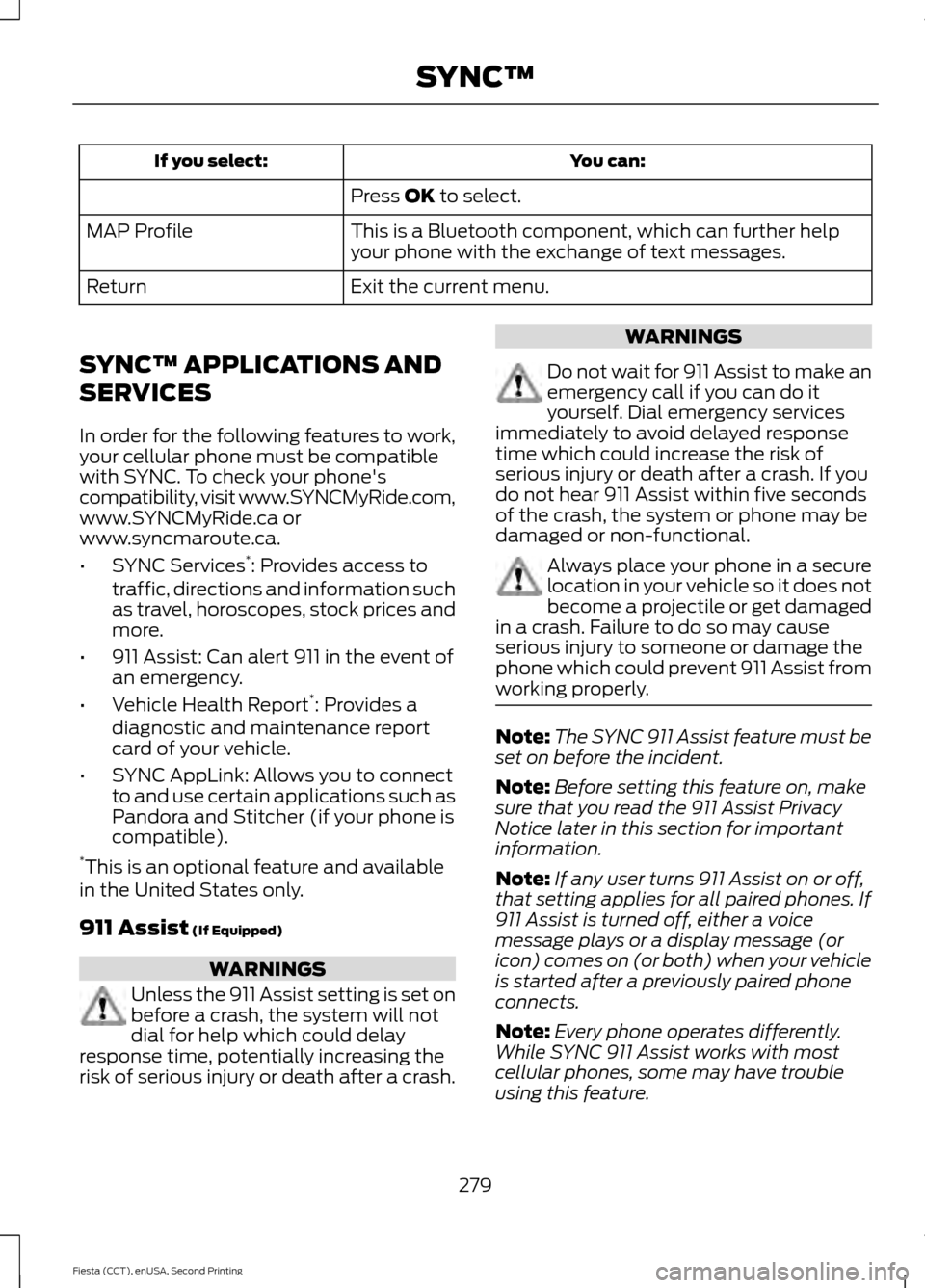
You can:
If you select:
Press OK to select.
This is a Bluetooth component, which can further help
your phone with the exchange of text messages.
MAP Profile
Exit the current menu.
Return
SYNC™ APPLICATIONS AND
SERVICES
In order for the following features to work,
your cellular phone must be compatible
with SYNC. To check your phone's
compatibility, visit www.SYNCMyRide.com,
www.SYNCMyRide.ca or
www.syncmaroute.ca.
• SYNC Services *
: Provides access to
traffic, directions and information such
as travel, horoscopes, stock prices and
more.
• 911 Assist: Can alert 911 in the event of
an emergency.
• Vehicle Health Report *
: Provides a
diagnostic and maintenance report
card of your vehicle.
• SYNC AppLink: Allows you to connect
to and use certain applications such as
Pandora and Stitcher (if your phone is
compatible).
* This is an optional feature and available
in the United States only.
911 Assist
(If Equipped) WARNINGS
Unless the 911 Assist setting is set on
before a crash, the system will not
dial for help which could delay
response time, potentially increasing the
risk of serious injury or death after a crash. WARNINGS
Do not wait for 911 Assist to make an
emergency call if you can do it
yourself. Dial emergency services
immediately to avoid delayed response
time which could increase the risk of
serious injury or death after a crash. If you
do not hear 911 Assist within five seconds
of the crash, the system or phone may be
damaged or non-functional. Always place your phone in a secure
location in your vehicle so it does not
become a projectile or get damaged
in a crash. Failure to do so may cause
serious injury to someone or damage the
phone which could prevent 911 Assist from
working properly. Note:
The SYNC 911 Assist feature must be
set on before the incident.
Note: Before setting this feature on, make
sure that you read the 911 Assist Privacy
Notice later in this section for important
information.
Note: If any user turns 911 Assist on or off,
that setting applies for all paired phones. If
911 Assist is turned off, either a voice
message plays or a display message (or
icon) comes on (or both) when your vehicle
is started after a previously paired phone
connects.
Note: Every phone operates differently.
While SYNC 911 Assist works with most
cellular phones, some may have trouble
using this feature.
279
Fiesta (CCT), enUSA, Second Printing SYNC™
Page 285 of 423
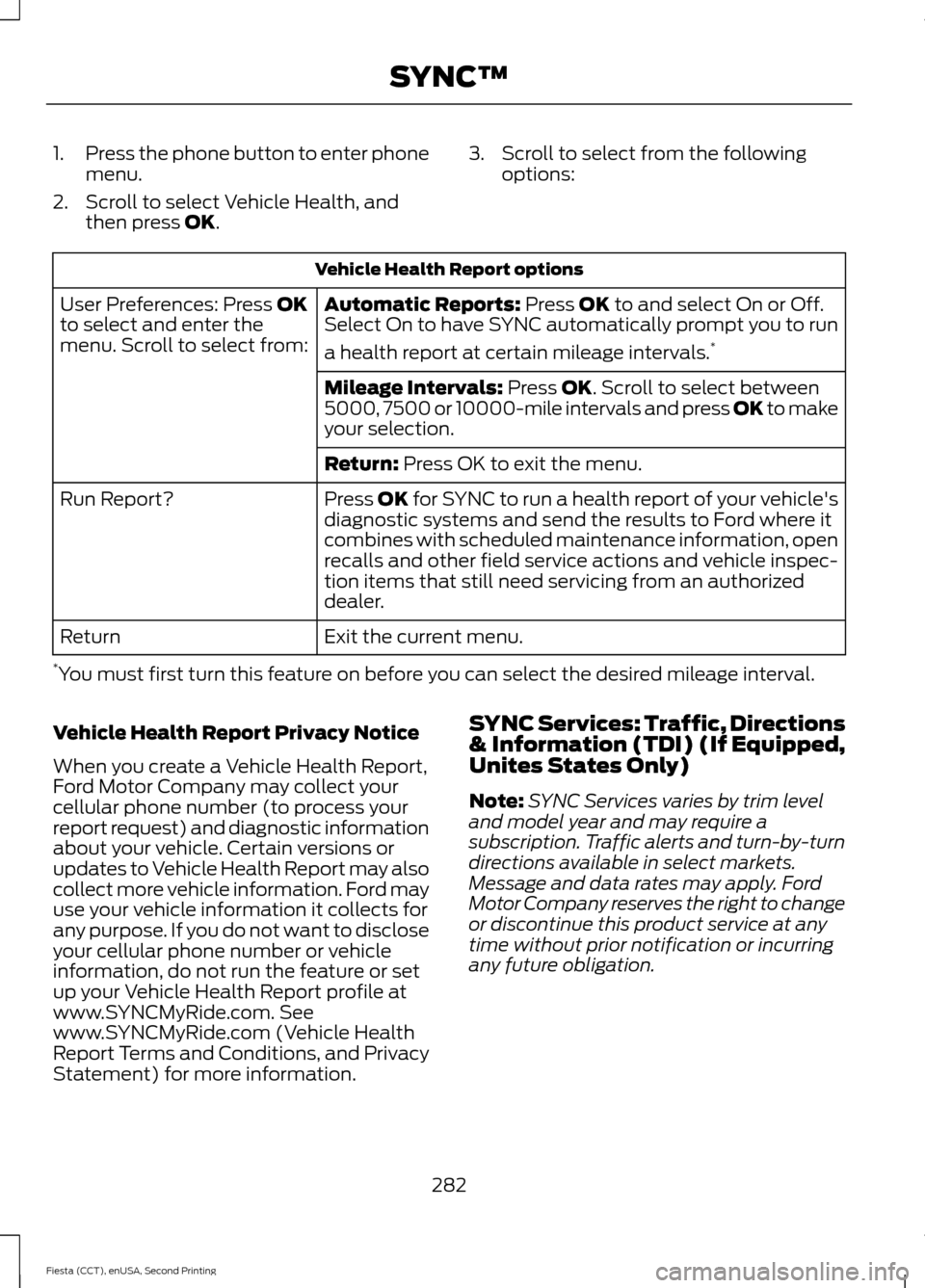
1.
Press the phone button to enter phone
menu.
2. Scroll to select Vehicle Health, and then press OK. 3. Scroll to select from the following
options: Vehicle Health Report options
Automatic Reports:
Press OK to and select On or Off.
Select On to have SYNC automatically prompt you to run
a health report at certain mileage intervals. *
User Preferences: Press OK
to select and enter the
menu. Scroll to select from:
Mileage Intervals:
Press OK. Scroll to select between
5000, 7500 or 10000-mile intervals and press OK to make
your selection.
Return:
Press OK to exit the menu.
Press OK for SYNC to run a health report of your vehicle's
diagnostic systems and send the results to Ford where it
combines with scheduled maintenance information, open
recalls and other field service actions and vehicle inspec-
tion items that still need servicing from an authorized
dealer.
Run Report?
Exit the current menu.
Return
* You must first turn this feature on before you can select the desired mileage interval.
Vehicle Health Report Privacy Notice
When you create a Vehicle Health Report,
Ford Motor Company may collect your
cellular phone number (to process your
report request) and diagnostic information
about your vehicle. Certain versions or
updates to Vehicle Health Report may also
collect more vehicle information. Ford may
use your vehicle information it collects for
any purpose. If you do not want to disclose
your cellular phone number or vehicle
information, do not run the feature or set
up your Vehicle Health Report profile at
www.SYNCMyRide.com. See
www.SYNCMyRide.com (Vehicle Health
Report Terms and Conditions, and Privacy
Statement) for more information. SYNC Services: Traffic, Directions
& Information (TDI) (If Equipped,
Unites States Only)
Note:
SYNC Services varies by trim level
and model year and may require a
subscription. Traffic alerts and turn-by-turn
directions available in select markets.
Message and data rates may apply. Ford
Motor Company reserves the right to change
or discontinue this product service at any
time without prior notification or incurring
any future obligation.
282
Fiesta (CCT), enUSA, Second Printing SYNC™
Page 299 of 423

Action and Description
Message
1. Press the OK button and scroll through the available
languages.
2. Press the OK button when the desired language appears
in the display.
3. If you change the language setting, the display indicates that the system is updating. When complete, SYNC takes
you back to the Advanced menu.
Return to the factory default settings. This selection does
not erase your indexed information, for example phonebook,
call history, text messages and paired devices.
Factory Defaults
1. Press the
OK button.
2. Press the
OK button. When restore defaults appears in
the display, press the OK button again to confirm.
Completely erase all information stored on SYNC. All
phonebook, call history, text messages and all paired devices
will be deleted and the system will return to the factory
default settings.
Master reset
Download available software applications through the USB
port.
Install Applications
Exit the current menu.
Return
SYNC™ TROUBLESHOOTING
Your SYNC system is easy to use. However,
should questions arise, see the tables
below. Use the website at any time to check your
phone's compatibility, register your
account and set preferences as well as
access a customer representative via an
online chat (during certain hours). Visit
www.SYNCMyRide.com,
www.SYNCMyRide.ca or
www.syncmaroute.ca for more
information.
296
Fiesta (CCT), enUSA, Second Printing SYNC™
Page 312 of 423
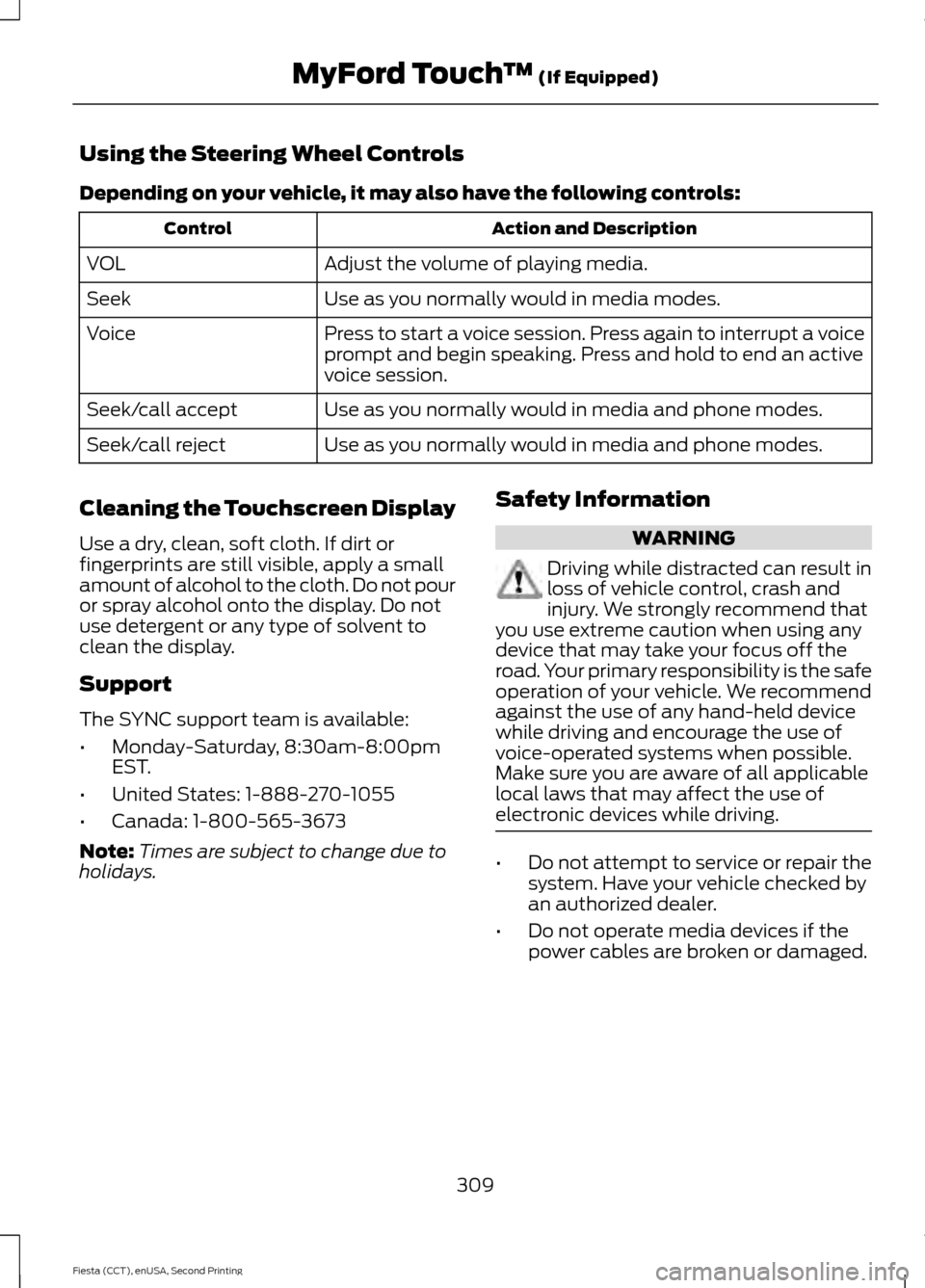
Using the Steering Wheel Controls
Depending on your vehicle, it may also have the following controls:
Action and Description
Control
Adjust the volume of playing media.
VOL
Use as you normally would in media modes.
Seek
Press to start a voice session. Press again to interrupt a voice
prompt and begin speaking. Press and hold to end an active
voice session.
Voice
Use as you normally would in media and phone modes.
Seek/call accept
Use as you normally would in media and phone modes.
Seek/call reject
Cleaning the Touchscreen Display
Use a dry, clean, soft cloth. If dirt or
fingerprints are still visible, apply a small
amount of alcohol to the cloth. Do not pour
or spray alcohol onto the display. Do not
use detergent or any type of solvent to
clean the display.
Support
The SYNC support team is available:
• Monday-Saturday, 8:30am-8:00pm
EST.
• United States: 1-888-270-1055
• Canada: 1-800-565-3673
Note: Times are subject to change due to
holidays. Safety Information WARNING
Driving while distracted can result in
loss of vehicle control, crash and
injury. We strongly recommend that
you use extreme caution when using any
device that may take your focus off the
road. Your primary responsibility is the safe
operation of your vehicle. We recommend
against the use of any hand-held device
while driving and encourage the use of
voice-operated systems when possible.
Make sure you are aware of all applicable
local laws that may affect the use of
electronic devices while driving. •
Do not attempt to service or repair the
system. Have your vehicle checked by
an authorized dealer.
• Do not operate media devices if the
power cables are broken or damaged.
309
Fiesta (CCT), enUSA, Second Printing MyFord Touch
™ (If Equipped)
Page 336 of 423
HD Radio Technology manufactured under
license from iBiquity Digital Corp. U.S. and
foreign patents. HD Radio and the HD and
HD Radio logos are proprietary trademarks
of iBiquity Digital Corp. Ford Motor
Company and iBiquity Digital Corp. are not
responsible for the content sent using HD
Radio technology. Content may be
changed, added or deleted at any time at
the station owner's discretion.
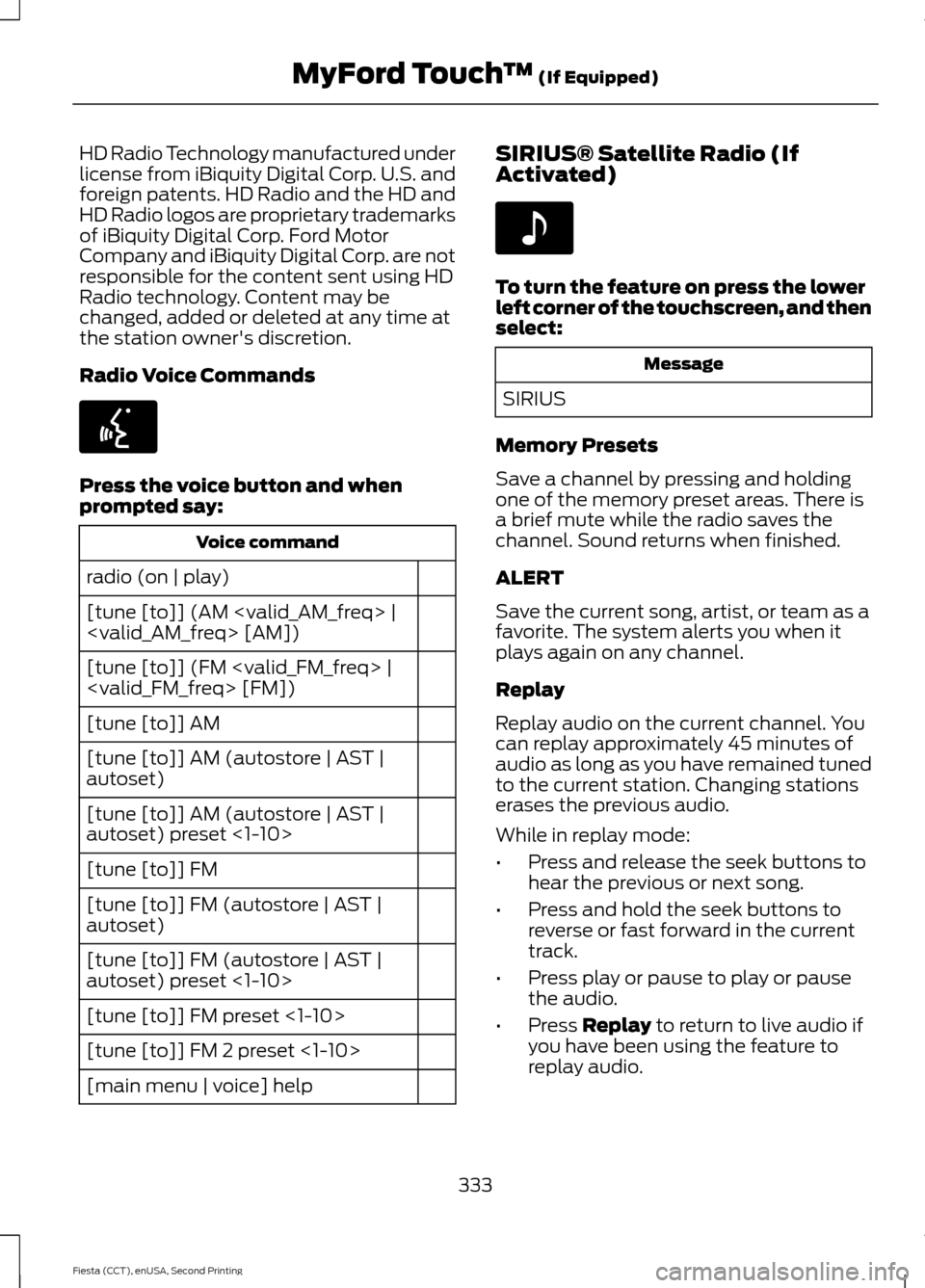
Radio Voice Commands
Press the voice button and when
prompted say:
Voice command
radio (on | play)
[tune [to]] (AM
[tune [to]] (FM
[tune [to]] AM
[tune [to]] AM (autostore | AST |
autoset)
[tune [to]] AM (autostore | AST |
autoset) preset <1-10>
[tune [to]] FM
[tune [to]] FM (autostore | AST |
autoset)
[tune [to]] FM (autostore | AST |
autoset) preset <1-10>
[tune [to]] FM preset <1-10>
[tune [to]] FM 2 preset <1-10>
[main menu | voice] help SIRIUS® Satellite Radio (If
Activated) To turn the feature on press the lower
left corner of the touchscreen, and then
select:
Message
SIRIUS
Memory Presets
Save a channel by pressing and holding
one of the memory preset areas. There is
a brief mute while the radio saves the
channel. Sound returns when finished.
ALERT
Save the current song, artist, or team as a
favorite. The system alerts you when it
plays again on any channel.
Replay
Replay audio on the current channel. You
can replay approximately 45 minutes of
audio as long as you have remained tuned
to the current station. Changing stations
erases the previous audio.
While in replay mode:
• Press and release the seek buttons to
hear the previous or next song.
• Press and hold the seek buttons to
reverse or fast forward in the current
track.
• Press play or pause to play or pause
the audio.
• Press Replay to return to live audio if
you have been using the feature to
replay audio.
333
Fiesta (CCT), enUSA, Second Printing MyFord Touch
™
(If Equipped)E142599 E142611