2015 FORD FIESTA buttons
[x] Cancel search: buttonsPage 109 of 423
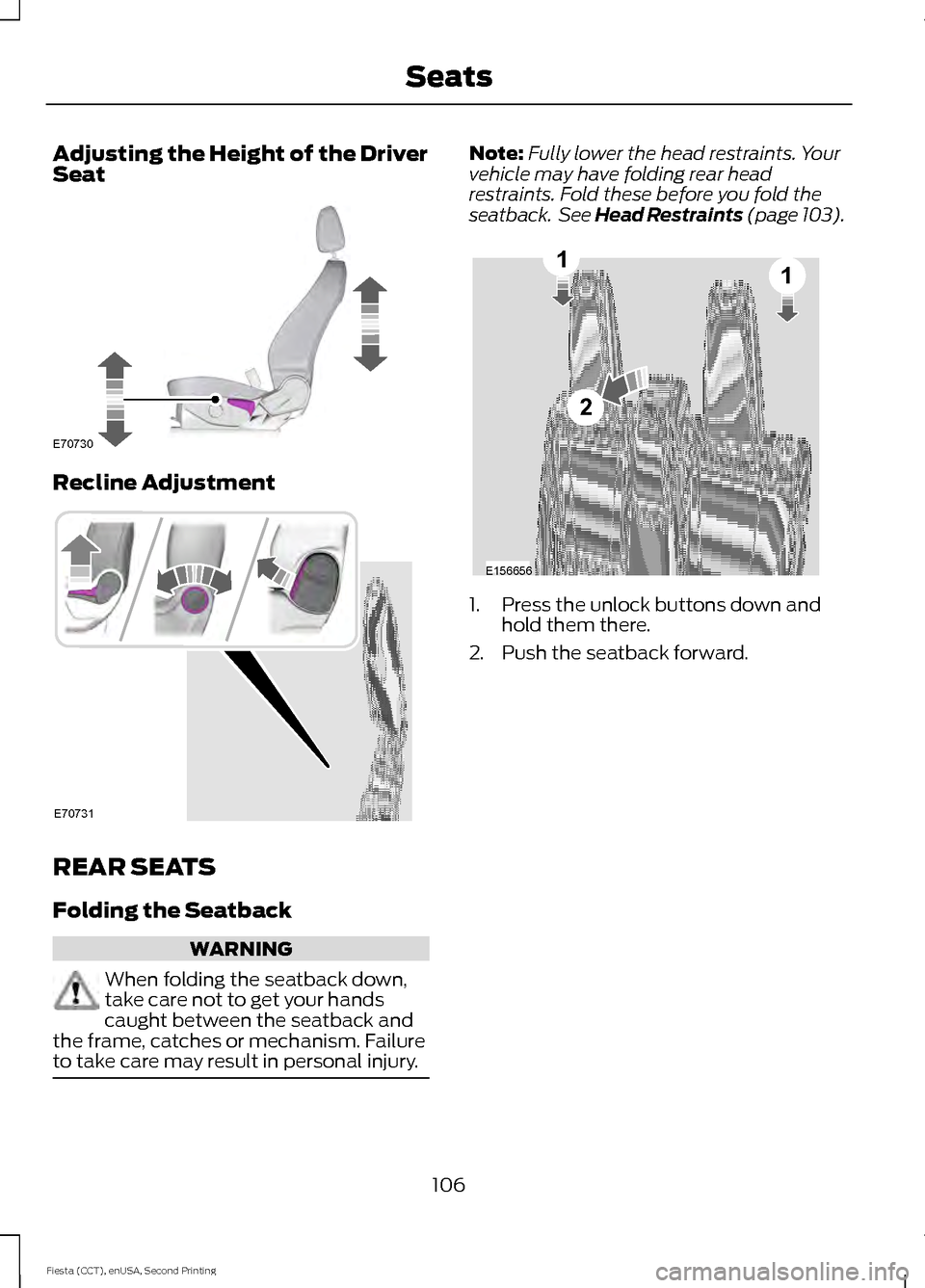
Adjusting the Height of the Driver
Seat
Recline Adjustment
REAR SEATS
Folding the Seatback
WARNING
When folding the seatback down,
take care not to get your hands
caught between the seatback and
the frame, catches or mechanism. Failure
to take care may result in personal injury. Note:
Fully lower the head restraints. Your
vehicle may have folding rear head
restraints. Fold these before you fold the
seatback. See Head Restraints (page 103). 1. Press the unlock buttons down and
hold them there.
2. Push the seatback forward.
106
Fiesta (CCT), enUSA, Second Printing SeatsE70730 E70731 E156656
2
11
Page 129 of 423

With the transmission selector lever in R,
power is transmitted to the drive wheels
to allow your vehicle to move backward.
You cannot start the engine with the
transmission selector lever in this position.
Note: Always come to a complete stop
before shifting the transmission selector
lever out of reverse.
N (Neutral)
With the transmission selector lever in
N,
power is not transmitted to the drive
wheels and the transmission is not locked,
it is possible your vehicle will move if the
brakes are not applied. You can start the
engine with the transmission selector lever
in this position.
D (Drive)
With the transmission selector lever in
D,
your vehicle will shift automatically
through the forward gears. You cannot
start the engine with the transmission
selector lever in this position.
The transmission will select the
appropriate gear for optimum vehicle
performance and economy based on
ambient temperature, road gradient,
vehicle load, speed and your driving style.
When you use Drive mode it provides a
downshift function. See Downshift in this
section.
Note: A shift will occur only when your
vehicle and engine speeds are appropriate.
Sport Mode and Manual Shifting
Sport Mode
With the transmission selector lever in
S,
gears are selected quicker and at higher
engine speeds. You cannot start the engine
with the transmission selector lever in this
position. Sport mode will remain on until you either
shift manually up or down the gears using
the
+ or - buttons on the side of the
transmission selector lever or you move
the transmission selector lever to drive.
When you use Sport mode it provides a
downshift function. See Downshift in this
section.
Manual Shifting WARNING
Do not permanently hold the
+ or -
buttons in. This may damage the
transmission and may lead to an
accident or injury. Press the
+ button to shift up and the -
button to shift down.
Gears may be skipped by pressing the + or
-
buttons repeatedly at short intervals.
We recommend you upshift according to
the following guide to achieve the best fuel
economy for your vehicle. Recommended
Speed
Shift From
15 mph (24 km/h)
1 - 2
25 mph (40 km/h)
2 - 3
40 mph (64 km/h)
3 - 4
45 mph (72 km/h)
4 - 5
50 mph (80 km/h)
5 - 6
Manual mode also provides a downshift
function. See
Downshift in this section.
Note: The transmission will automatically
upshift if the engine speed is too high or
downshift if the engine speed is too low.
126
Fiesta (CCT), enUSA, Second Printing Transmission
Page 250 of 423

Eject: Press the button to eject a CD.
A
Cursor arrows:
Press a button to scroll through on-screen choices.
B
CD slot:
Where you insert a CD.
C
OK:
Press the button to confirm on-screen selections.
D
Clock:
Press to set the time. Use the H and M buttons outside the audio display
to adjust the hours and minutes. Press OK to finish. (The clock can also be set
by pressing MENU, then scrolling to the clock settings menu.)
E
Tune:
Press the button to manual tune on AM and FM wavebands.
F
Numeric keypad:
Press the button to recall a previously stored station. To
store a favorite station press and hold until the sound returns.
G
Seek up: Press the button to go to the next station up the radio frequency band
or the next track on a CD.
H
On, Off and Volume:
Press the button to switch the audio system on or off.
Turn the dial to adjust the volume.
I
247
Fiesta (CCT), enUSA, Second Printing Audio SystemE156613
ED
OF
G
K
L
M
N
JHI
C
A
B
Page 251 of 423

Seek down: Press the button to go to the next station down the radio frequency
band or the previous track on a CD.
J
MENU: Press the button to access different audio system features.
K
INFO:
Press the button to access radio or CD information.
L
SOUND:
Press the button to adjust the sound settings for bass, treble, middle,
balance and fade.
M
MEDIA:
Press the button to access the AUX and SYNC features, it will also
cancel the menu or list browsing.
N
RADIO:
Press the button to select different radio bands, it will also cancel the
menu or list browsing.
O
Sound Button
This will allow you to adjust the sound
settings (for example bass, middle and
treble).
1. Press the
SOUND button.
2. Use the up and down arrow buttons to
select the required setting.
3. Use the left and right arrow buttons to
make the necessary adjustment. The
display indicates the level selected.
4. Press the
OK button to confirm the
new settings.
Waveband Button
Press the
RADIO button to select from the
wavebands available.
You can use the selector to return to radio
reception when you have been listening to
another source.
Alternatively, press the left arrow button
to display the available wavebands. Scroll
to the required waveband and press
OK. Station Tuning Control
Seek Tuning
Select a waveband and briefly press one
of the seek buttons. The unit will stop at
the first station it finds in the direction you
have chosen.
Manual Tuning
1. Press the
MENU button.
2. Select RADIO mode and then Manual.
3. Use the left and right arrow buttons to
tune down or up the waveband in small
increments or press and hold to
increment quickly, until you find a
station you want to listen to.
4. Press
OK to continue listening to a
station.
Scan Tuning
Scan allows you to listen to a few seconds
of each station detected.
1. Press the
MENU button.
2. Select
RADIO mode and then Scan.
3. Use the seek buttons to scan up or down the selected waveband.
4. Press
OK to continue listening to a
station.
248
Fiesta (CCT), enUSA, Second Printing Audio System
Page 252 of 423

Station Preset Buttons
This feature allows you to store your
favorite stations, they can be recalled by
selecting the appropriate waveband and
pressing one of the preset buttons.
1. Select a waveband.
2. Tune to the station required.
3. Press and hold one of the preset
buttons. A progress bar and message
will appear. When the progress bar
completes the station has been stored.
The audio unit will also mute
momentarily as confirmation.
You can repeat this on each waveband and
for each preset button.
Note: When you drive to another part of the
country, stations that broadcast on
alternative frequencies and are stored on
preset buttons, may be updated with the
correct frequency and station name for that
area.
Autostore Control
Note: This will store up to a maximum of
the six strongest signals available, either
from the AM or the FM waveband and
overwrite the previously stored stations. You
can also store stations manually in the same
way as other wavebands.
• Press and hold the RADIO button.
• When the search is complete, sound is
restored and the strongest signals are
stored on the autostore presets.
Automatic Volume Control
When available, automatic volume control
adjusts the volume level to compensate
for engine noise and road speed noise.
1. Press the
MENU button and select
Audio Settings.
2. Select
Spd. Comp. Vol. 3. Use the left or right arrow button to
adjust the setting.
4. Press the
OK button to confirm your
selection.
5. Press the
MENU button to return.
Alternative Frequencies
The majority of programs that broadcast
on the FM waveband have a program
identification code that can be recognized
by audio units.
When your vehicle moves from one
transmission area to another with the
alternative frequencies tuning switched
on, this function will search for the
strongest station signal.
Under certain conditions, alternative
frequencies tuning may temporarily disrupt
normal reception.
When selected, the unit continually
evaluates signal strength and if a better
signal becomes available, the unit will
switch to that alternative. It mutes while
it checks a list of alternative frequencies
and if necessary, it will search once across
the selected waveband for a genuine
alternative frequency.
It will restore radio reception when it finds
one or if one is not found, the unit will
return to the original stored frequency.
When selected, AF
will be shown in the
display.
1. Press the
MENU button.
2. Select
Audio Settings.
3. Scroll to
Alternat. freq. or Alt.
Frequency and turn on or off with the
OK button.
4. Press the
MENU button to return.
249
Fiesta (CCT), enUSA, Second Printing Audio System
Page 255 of 423

Descriptions for function buttons
1-4
A
Function buttons 1 to 4 are context
dependent, and change according to the
current unit mode. The description for the
current function displays in the screen.
Sound Button
This will allow you to adjust the sound
settings (for example bass, middle and
treble).
1. Press the SOUND button.
2. Use the up and down arrow buttons to
select the required setting.
3. Use the left and right arrow buttons to
make the necessary adjustment. The
display indicates the level selected.
4. Press the
OK button to confirm the
new settings.
Waveband Button
Press the
RADIO button to select from the
wavebands available. You can use the selector to return to radio
reception when you have been listening to
another source.
Alternatively, press the left arrow button
to display the available wavebands. Scroll
to the required waveband and press
OK.
Station Tuning Control
Seek Tuning
Select a waveband and briefly press one
of the seek buttons. The unit will stop at
the first station it finds in the direction you
have chosen.
Manual Tuning
1. Press
function button 2.
2. Use the left and right arrow buttons to
tune down or up the waveband in small
increments or press and hold to
increment quickly, until you find a
station you want to listen to.
3. Press
OK to continue listening to a
station.
Scan Tuning
Scan allows you to listen to a few seconds
of each station detected.
1. Press
function button 3.
2. Use the seek buttons to scan up or down the selected waveband.
3. Press
function button 3 again or OK
to continue listening to a station.
Station Preset Buttons
This feature allows you to store your
favorite stations, they can be recalled by
selecting the appropriate waveband and
pressing one of the preset buttons.
1. Select a waveband.
2. Tune to the station required.
252
Fiesta (CCT), enUSA, Second Printing Audio SystemE104157A
1
2 34
Page 256 of 423

3. Press and hold one of the preset
buttons. A progress bar and message
will appear. When the progress bar
completes the station has been stored.
The audio unit will also mute
momentarily as confirmation.
You can repeat this on each waveband and
for each preset button.
Note: When you drive to another part of the
country, stations that broadcast on
alternative frequencies, and are stored on
preset buttons, may be updated with the
correct frequency and station name for that
area.
Autostore Control
Note: This will store up to a maximum of
the 10 strongest signals available, either
from the AM or the FM waveband, and
overwrite the previously stored stations. You
can also store stations manually in the same
way as other wavebands.
• Press and hold the RADIO button.
• When the search is complete, sound is
restored and the strongest signals are
stored on the autostore presets.
Automatic Volume Control
When available, automatic volume control
adjusts the volume level to compensate
for engine noise and road speed noise.
1. Press the
MENU button and
selectAudio Settings.
2. Select
Spd. Comp. Vol.
3. Use the left or right arrow button to adjust the setting.
4. Press the
OK button to confirm your
selection.
5. Press the
MENU button to return. Alternative Frequencies
The majority of programs that broadcast
on the FM waveband have a program
identification code, it can be recognized by
audio units.
When your vehicle moves from one
transmission area to another with the
alternative frequencies tuning switched
on, this function will search for the
strongest station signal.
Under certain conditions, alternative
frequencies tuning may temporarily disrupt
normal reception.
When selected, the unit continually
evaluates signal strength and, if a better
signal becomes available, the unit will
switch to that alternative. It mutes while
it checks a list of alternative frequencies
and if necessary, it will search once across
the selected waveband for a genuine
alternative frequency.
It will restore radio reception when it finds
one or if one is not found, the unit will
return to the original stored frequency.
When selected,
AF
will be shown in the
display.
1. Press the
MENU button.
2. Select
Audio Settings.
3. Scroll to
Alternat. freq. or Alt.
Frequency. and turn on or off with the
OK button.
4. Press the
MENU button to return.
253
Fiesta (CCT), enUSA, Second Printing Audio System
Page 257 of 423
AUDIO UNIT - VEHICLES WITH:
TOUCHSCREEN DISPLAY
WARNING
Driving while distracted can result in
loss of vehicle control, crash and
injury. We strongly recommend that
you use extreme caution when using any
device that may take your focus off the
road. Your primary responsibility is the safe
operation of your vehicle. We recommend
against the use of any hand-held device
while driving and encourage the use of
voice-operated systems when possible.
Make sure you are aware of all applicable
local laws that may affect the use of
electronic devices while driving. Note:
MyFord Touch controls most of the
audio features. See MyFord Touch ™ (page
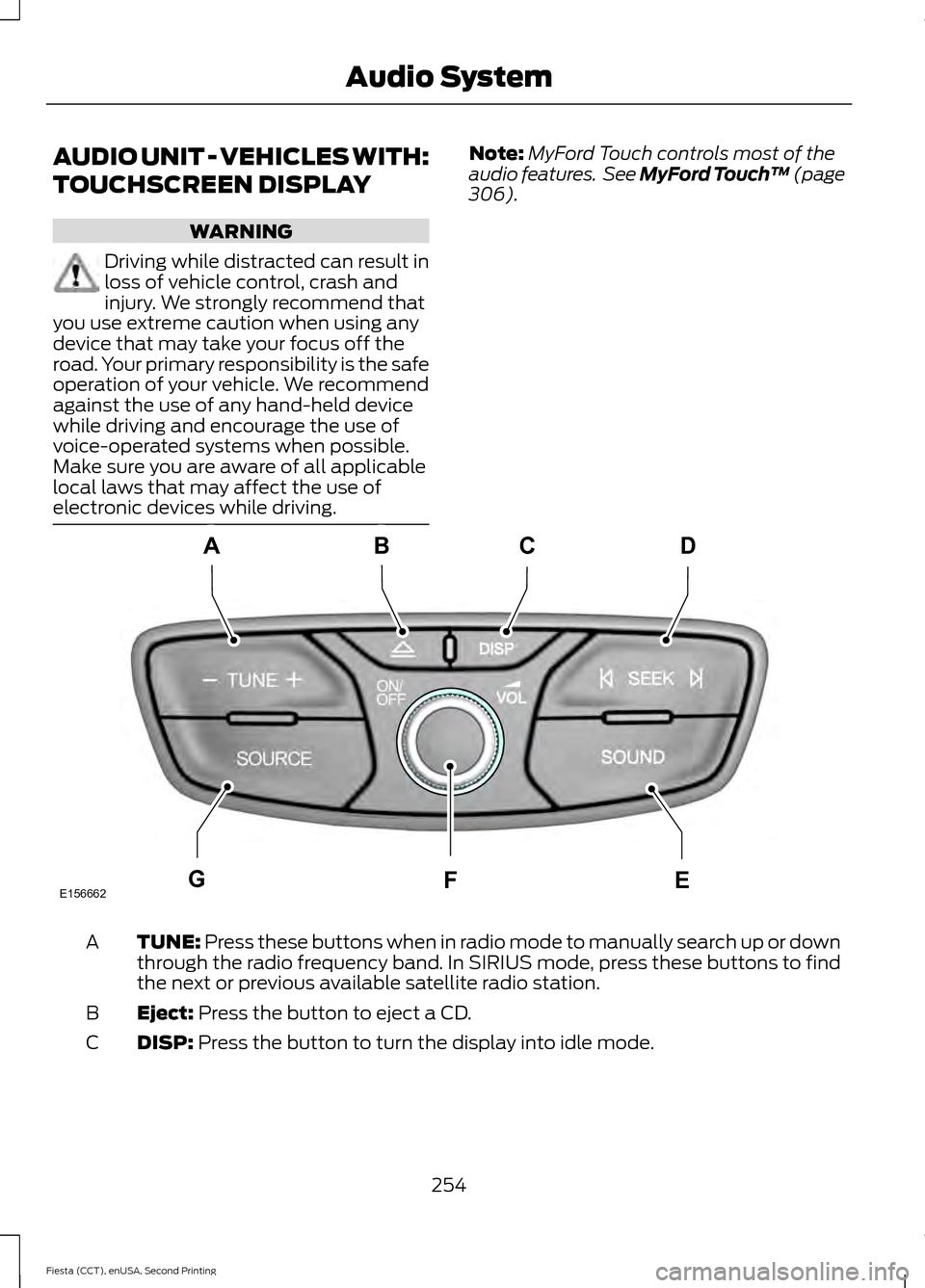
306). TUNE:
Press these buttons when in radio mode to manually search up or down
through the radio frequency band. In SIRIUS mode, press these buttons to find
the next or previous available satellite radio station.
A
Eject:
Press the button to eject a CD.
B
DISP:
Press the button to turn the display into idle mode.
C
254
Fiesta (CCT), enUSA, Second Printing Audio SystemE156662
CD
GEF
B
A