2015 FORD FIESTA buttons
[x] Cancel search: buttonsPage 258 of 423
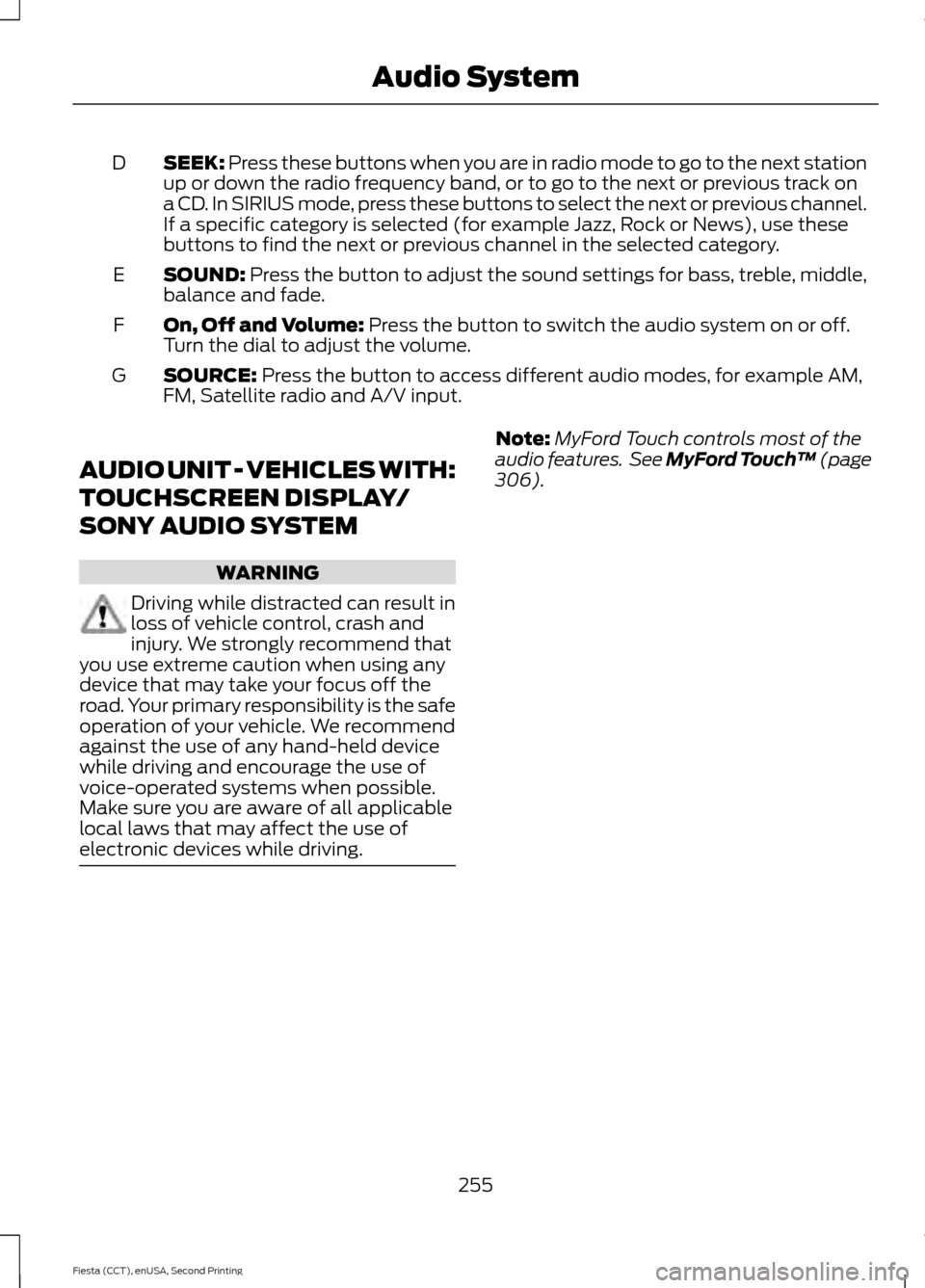
SEEK: Press these buttons when you are in radio mode to go to the next station
up or down the radio frequency band, or to go to the next or previous track on
a CD. In SIRIUS mode, press these buttons to select the next or previous channel.
If a specific category is selected (for example Jazz, Rock or News), use these
buttons to find the next or previous channel in the selected category.
D
SOUND:
Press the button to adjust the sound settings for bass, treble, middle,
balance and fade.
E
On, Off and Volume:
Press the button to switch the audio system on or off.
Turn the dial to adjust the volume.
F
SOURCE:
Press the button to access different audio modes, for example AM,
FM, Satellite radio and A/V input.
G
AUDIO UNIT - VEHICLES WITH:
TOUCHSCREEN DISPLAY/
SONY AUDIO SYSTEM WARNING
Driving while distracted can result in
loss of vehicle control, crash and
injury. We strongly recommend that
you use extreme caution when using any
device that may take your focus off the
road. Your primary responsibility is the safe
operation of your vehicle. We recommend
against the use of any hand-held device
while driving and encourage the use of
voice-operated systems when possible.
Make sure you are aware of all applicable
local laws that may affect the use of
electronic devices while driving. Note:
MyFord Touch controls most of the
audio features. See MyFord Touch ™ (page
306
).
255
Fiesta (CCT), enUSA, Second Printing Audio System
Page 274 of 423
"MENU"
"Signal"
"Text message inbox"
Words in ( ) are optional and do not have
to be spoken for the system to understand
the command.
Making Calls
Press the voice icon and when prompted
say:
1. Say "Call
2. When the system confirms the number,
say, "Dial" again to initiate the call.
To erase the last spoken digit, say, "Delete"
or press the left arrow button. To erase all
spoken digits, say "Clear" or press and hold
the left arrow button.
To end the call, press and hold the phone
button. Receiving Calls
When receiving a call, you can:
•
Answer the call by pressing the phone
button.
• Reject the call by pressing and holding
the phone button.
• Ignore the call by doing nothing.
Phone Options during an Active
Call
During an active call, you have more menu
features that become available, such as
putting a call on hold or joining calls. Use
the arrow buttons to scroll through the
menu options.
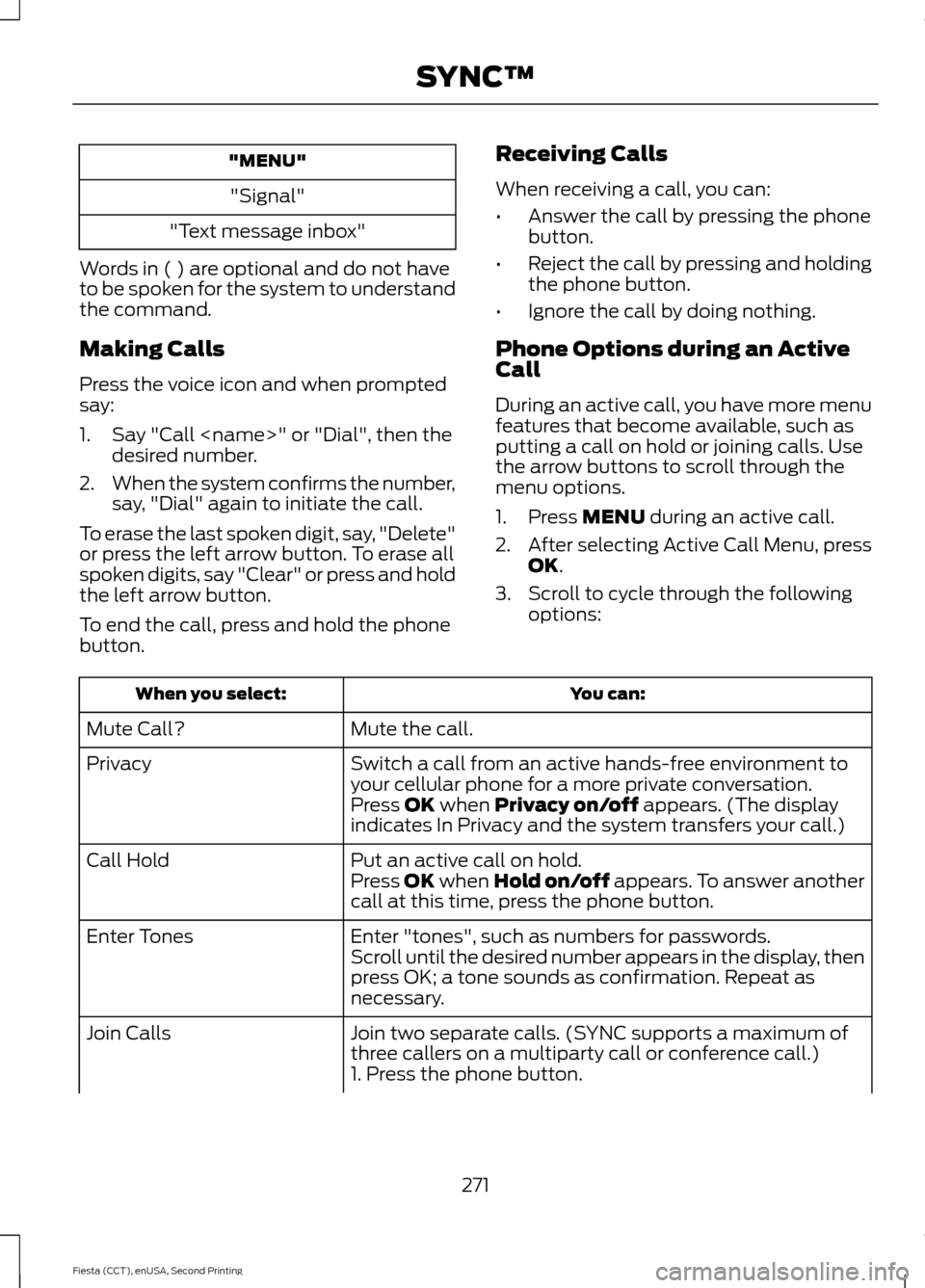
1. Press MENU during an active call.
2. After selecting Active Call Menu, press
OK
.
3. Scroll to cycle through the following options: You can:
When you select:
Mute the call.
Mute Call?
Switch a call from an active hands-free environment to
your cellular phone for a more private conversation.
Privacy
Press
OK when Privacy on/off appears. (The display
indicates In Privacy and the system transfers your call.)
Put an active call on hold.
Call Hold
Press OK when Hold on/off appears. To answer another
call at this time, press the phone button.
Enter "tones", such as numbers for passwords.
Enter Tones
Scroll until the desired number appears in the display, then
press OK; a tone sounds as confirmation. Repeat as
necessary.
Join two separate calls. (SYNC supports a maximum of
three callers on a multiparty call or conference call.)
Join Calls
1. Press the phone button.
271
Fiesta (CCT), enUSA, Second Printing SYNC™
Page 279 of 423
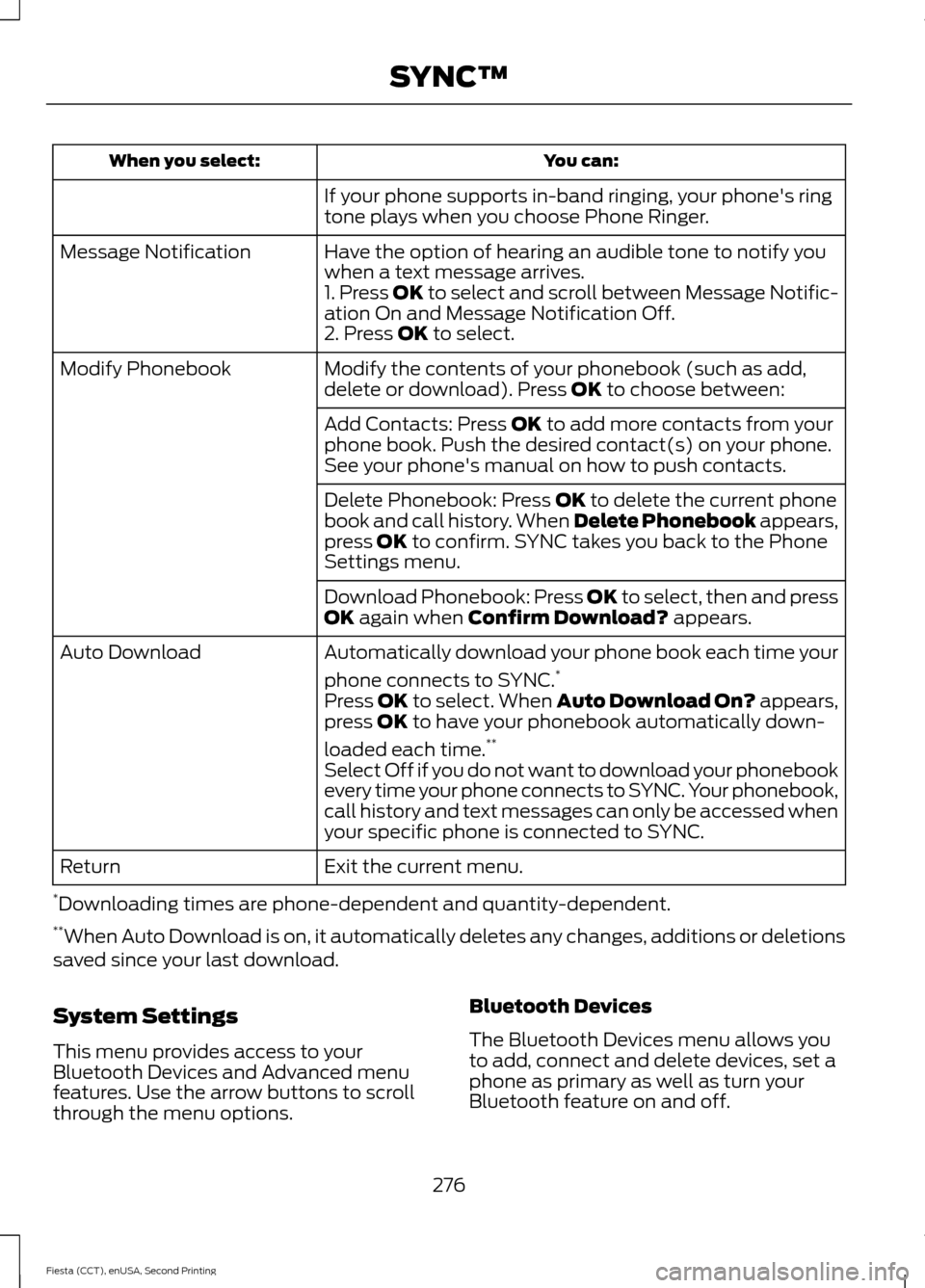
You can:
When you select:
If your phone supports in-band ringing, your phone's ring
tone plays when you choose Phone Ringer.
Have the option of hearing an audible tone to notify you
when a text message arrives.
Message Notification
1. Press OK to select and scroll between Message Notific-
ation On and Message Notification Off.
2. Press OK to select.
Modify the contents of your phonebook (such as add,
delete or download). Press
OK to choose between:
Modify Phonebook
Add Contacts: Press
OK to add more contacts from your
phone book. Push the desired contact(s) on your phone.
See your phone's manual on how to push contacts.
Delete Phonebook: Press
OK to delete the current phone
book and call history. When Delete Phonebook appears,
press
OK to confirm. SYNC takes you back to the Phone
Settings menu.
Download Phonebook: Press OK to select, then and press
OK
again when Confirm Download? appears.
Automatically download your phone book each time your
phone connects to SYNC. *
Auto Download
Press
OK to select. When Auto Download On? appears,
press OK to have your phonebook automatically down-
loaded each time. **
Select Off if you do not want to download your phonebook
every time your phone connects to SYNC. Your phonebook,
call history and text messages can only be accessed when
your specific phone is connected to SYNC.
Exit the current menu.
Return
* Downloading times are phone-dependent and quantity-dependent.
** When Auto Download is on, it automatically deletes any changes, additions or deletions
saved since your last download.
System Settings
This menu provides access to your
Bluetooth Devices and Advanced menu
features. Use the arrow buttons to scroll
through the menu options. Bluetooth Devices
The Bluetooth Devices menu allows you
to add, connect and delete devices, set a
phone as primary as well as turn your
Bluetooth feature on and off.
276
Fiesta (CCT), enUSA, Second Printing SYNC™
Page 308 of 423
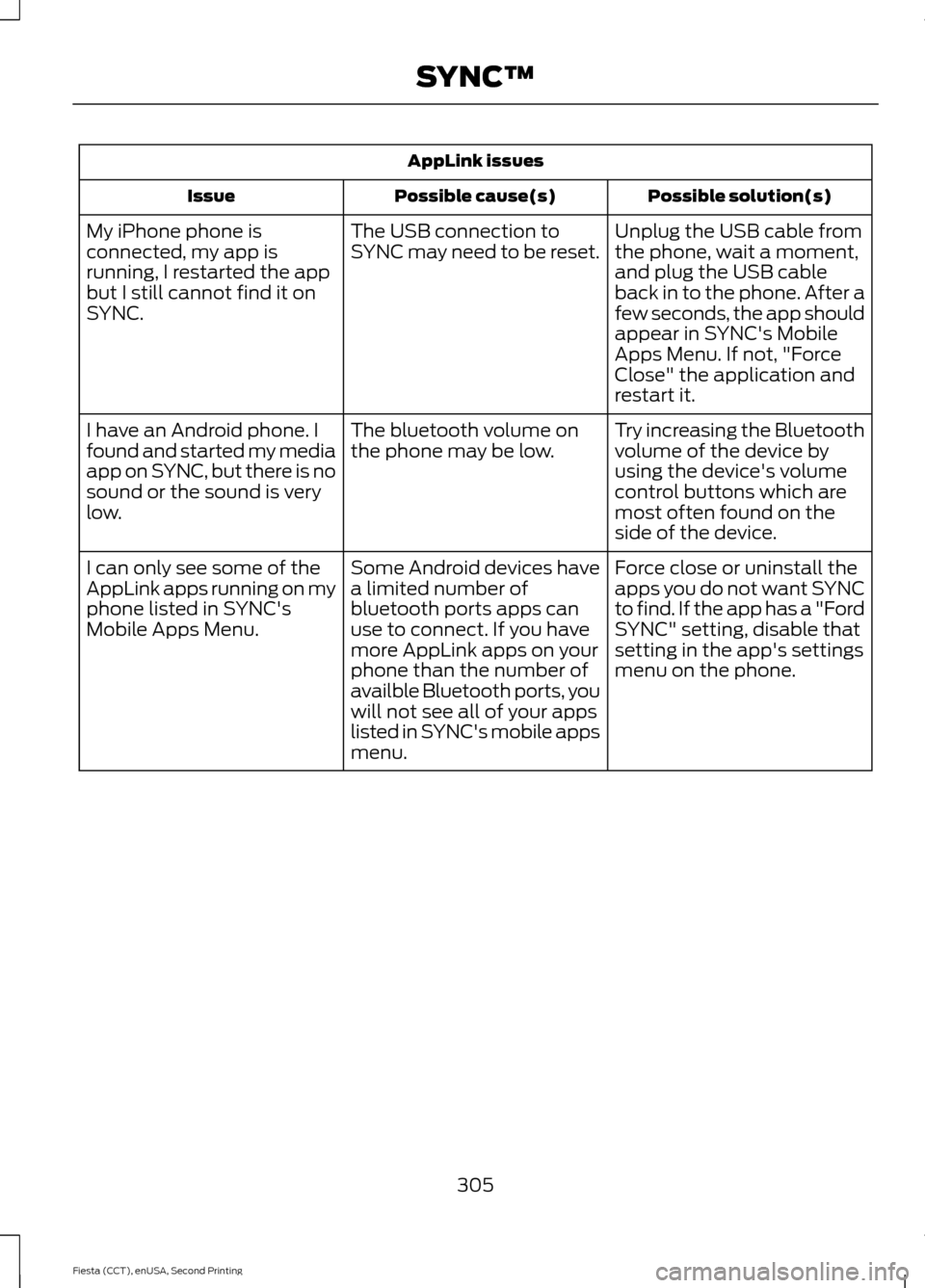
AppLink issues
Possible solution(s)
Possible cause(s)
Issue
Unplug the USB cable from
the phone, wait a moment,
and plug the USB cable
back in to the phone. After a
few seconds, the app should
appear in SYNC's Mobile
Apps Menu. If not, "Force
Close" the application and
restart it.
The USB connection to
SYNC may need to be reset.
My iPhone phone is
connected, my app is
running, I restarted the app
but I still cannot find it on
SYNC.
Try increasing the Bluetooth
volume of the device by
using the device's volume
control buttons which are
most often found on the
side of the device.
The bluetooth volume on
the phone may be low.
I have an Android phone. I
found and started my media
app on SYNC, but there is no
sound or the sound is very
low.
Force close or uninstall the
apps you do not want SYNC
to find. If the app has a "Ford
SYNC" setting, disable that
setting in the app's settings
menu on the phone.
Some Android devices have
a limited number of
bluetooth ports apps can
use to connect. If you have
more AppLink apps on your
phone than the number of
availble Bluetooth ports, you
will not see all of your apps
listed in SYNC's mobile apps
menu.
I can only see some of the
AppLink apps running on my
phone listed in SYNC's
Mobile Apps Menu.
305
Fiesta (CCT), enUSA, Second Printing SYNC™
Page 329 of 423
Action and Description
Message
Sirius satellite radio ESN
Gracenote® Database Information and Library version
View the licenses for any software and applications installed
on your system.
Software Licenses
Certain features are not accessible when your vehicle is
moving.
Driving Restrictions
Turn on and turn off the 911 Assist feature. See Information
(page 352).
911 Assist
In Case of Emergency (ICE) Quick Dial: allows you to save
up to two numbers as ICE contacts for quick access if there
is an emergency. Select
Edit to access your phonebook and
then select the desired contacts. The numbers then appear
as options on this screen for the ICE 1 and ICE 2 buttons. The
ICE contacts you select appear at the end of the 911 Assist
call process.
View categorized lists of voice commands.
Voice Command List
You can also access Help using the voice
commands. The system provides
allowable voice commands for the current
mode. Press the voice button and when
prompted say:
Voice command
Help
326
Fiesta (CCT), enUSA, Second Printing MyFord Touch
™
(If Equipped)E142599
Page 330 of 423
ENTERTAINMENT
Message and Description
Message
AMA
FMB
SIRIUS
C
CDD
USBE
Touch this button to scroll down
for more options, for example
SD Card and A/V In
F
These buttons change with the
media mode you are in.
G
Radio memory presets.
H
Note: Some features may not be available
in your area. Contact an authorized dealer
for more information.
You can access these options using the
touchscreen or voice commands. Browsing Device Content
When listening to audio on a device, you
can browse through other devices without
having to change sources. For example, if
you are currently listening to audio on an
SD card, you can browse all the artists that
are stored on your USB device.
Browse Within Devices
Press the voice button and when
prompted say one of the following: Voice command
(browse | show | search) *
(browse | show | search)
games
*
(browse | show | search) (Sirius
[(channel | station) (guide | list)]| All
Sirius Channels)
(browse | show | search) (SD card
[<1-9>] | memory card
327
Fiesta (CCT), enUSA, Second Printing MyFord Touch
™ (If Equipped)A
B
C
D
E
F
G
H
E161892 E142599
Page 336 of 423
HD Radio Technology manufactured under
license from iBiquity Digital Corp. U.S. and
foreign patents. HD Radio and the HD and
HD Radio logos are proprietary trademarks
of iBiquity Digital Corp. Ford Motor
Company and iBiquity Digital Corp. are not
responsible for the content sent using HD
Radio technology. Content may be
changed, added or deleted at any time at
the station owner's discretion.
Radio Voice Commands
Press the voice button and when
prompted say:
Voice command
radio (on | play)
[tune [to]] (AM
[tune [to]] (FM
[tune [to]] AM
[tune [to]] AM (autostore | AST |
autoset)
[tune [to]] AM (autostore | AST |
autoset) preset <1-10>
[tune [to]] FM
[tune [to]] FM (autostore | AST |
autoset)
[tune [to]] FM (autostore | AST |
autoset) preset <1-10>
[tune [to]] FM preset <1-10>
[tune [to]] FM 2 preset <1-10>
[main menu | voice] help SIRIUS® Satellite Radio (If
Activated) To turn the feature on press the lower
left corner of the touchscreen, and then
select:
Message
SIRIUS
Memory Presets
Save a channel by pressing and holding
one of the memory preset areas. There is
a brief mute while the radio saves the
channel. Sound returns when finished.
ALERT
Save the current song, artist, or team as a
favorite. The system alerts you when it
plays again on any channel.
Replay
Replay audio on the current channel. You
can replay approximately 45 minutes of
audio as long as you have remained tuned
to the current station. Changing stations
erases the previous audio.
While in replay mode:
• Press and release the seek buttons to
hear the previous or next song.
• Press and hold the seek buttons to
reverse or fast forward in the current
track.
• Press play or pause to play or pause
the audio.
• Press Replay to return to live audio if
you have been using the feature to
replay audio.
333
Fiesta (CCT), enUSA, Second Printing MyFord Touch
™
(If Equipped)E142599 E142611
Page 359 of 423

Services
Voice command
Cancel route
Navigation voice off
Navigation voice on
Route status
Route summary
Update route
Help
Sirius Travel Link (If Equipped) WARNING
Driving while distracted can result in
loss of vehicle control, crash and
injury. We strongly recommend that
you use extreme caution when using any
device that may take your focus off the
road. Your primary responsibility is the safe
operation of your vehicle. We recommend
against the use of any handheld device
while driving and encourage the use of
voice-operated systems when possible.
Make sure you are aware of all applicable
local laws that may affect the use of
electronic devices while driving. Note:
In order to use Sirius Travel Link, your
vehicle must be equipped with navigation
and your navigation SD card must be in the
SD card slot.
Note: A paid subscription is required to
access and use these features. Go to
www.siriusxm.com/travellink for more
information.
Note: Visit www.siriusxm.com/traffic and
click on Coverage map and details for a
complete listing of all traffic areas covered
by Sirius Travel Link. Note:
Neither Sirius nor Ford is responsible
for any errors or inaccuracies in the Sirius
Travel Link services or its use in vehicles.
When you subscribe to Sirius Travel Link,
it can help you locate the best gas prices,
find movie listings, get current traffic alerts,
view the current weather map, get
accurate ski conditions and see scores to
current sports games. If your vehicle is equipped with
Navigation, touch the I
(Information) button to access
these features. If your vehicle is not
equipped with Navigation, touch the corner
of the touchscreen with the green tab.
Traffic On Route and Traffic Nearby
Touch these buttons to identify traffic
incidents on your route, nearby your
vehicle ’s current location or near any of
your favorite places, if programmed.
Fuel Prices
Touch this button to view fuel prices at
stations close to your vehicle ’s location or
on an active navigation route.
Movie Listings
Touch this button to view nearby movie
theaters and their show times, if available.
Weather
Touch this button to view the nearby
weather, current weather, or the five day
forecast for the chosen area. Select
Map
to see the weather map, which can show
storms, radar information, charts and
winds. Select Area to select from a listing
of weather locations.
356
Fiesta (CCT), enUSA, Second Printing MyFord Touch
™
(If Equipped)E142608