2015 FORD EXPLORER language
[x] Cancel search: languagePage 451 of 596
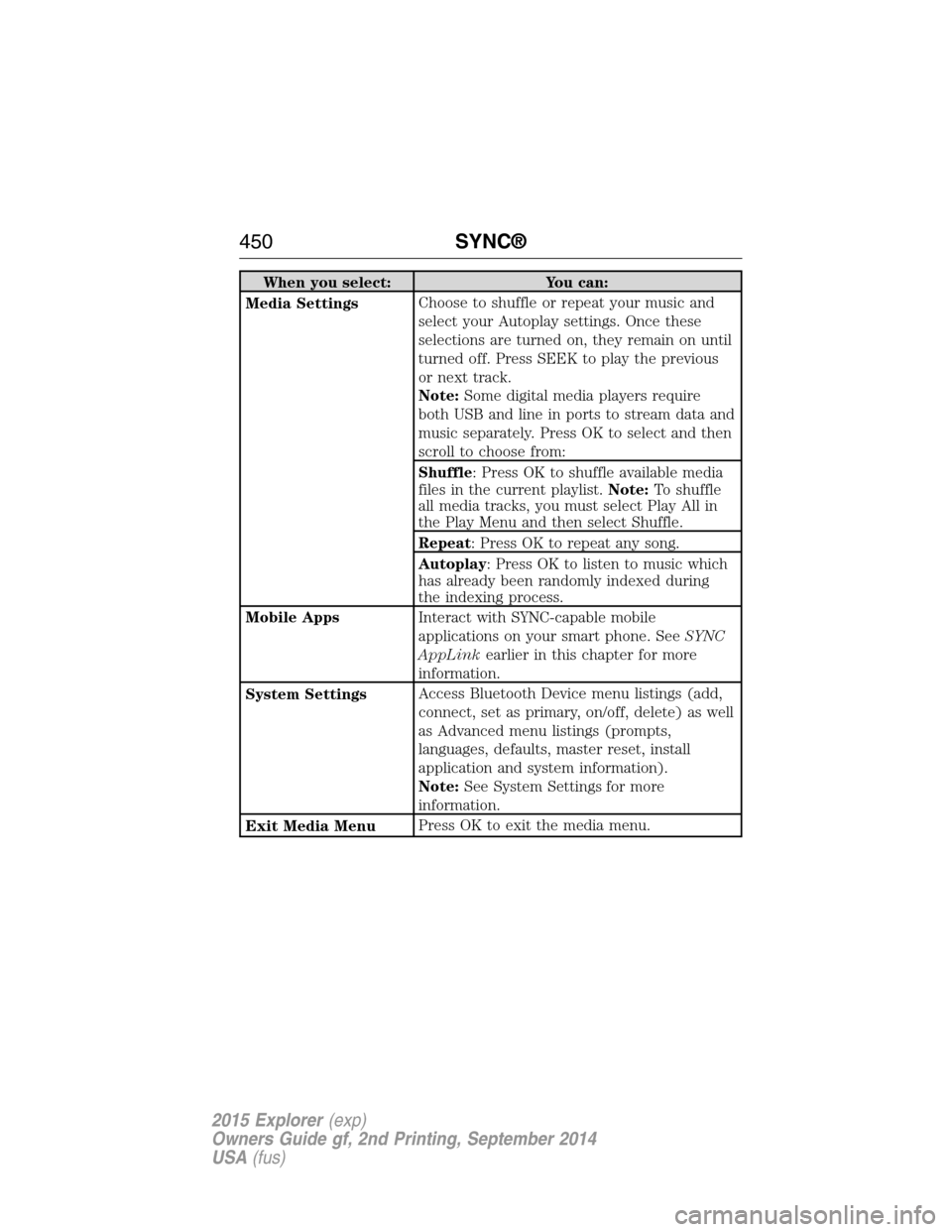
When you select: You can:
Media SettingsChoose to shuffle or repeat your music and
select your Autoplay settings. Once these
selections are turned on, they remain on until
turned off. Press SEEK to play the previous
or next track.
Note:Some digital media players require
both USB and line in ports to stream data and
music separately. Press OK to select and then
scroll to choose from:
Shuffle: Press OK to shuffle available media
files in the current playlist.Note:To shuffle
all media tracks, you must select Play All in
the Play Menu and then select Shuffle.
Repeat: Press OK to repeat any song.
Autoplay: Press OK to listen to music which
has already been randomly indexed during
the indexing process.
Mobile AppsInteract with SYNC-capable mobile
applications on your smart phone. SeeSYNC
AppLinkearlier in this chapter for more
information.
System SettingsAccess Bluetooth Device menu listings (add,
connect, set as primary, on/off, delete) as well
as Advanced menu listings (prompts,
languages, defaults, master reset, install
application and system information).
Note:See System Settings for more
information.
Exit Media MenuPress OK to exit the media menu.
450SYNC®
2015 Explorer(exp)
Owners Guide gf, 2nd Printing, September 2014
USA(fus)
Page 454 of 596
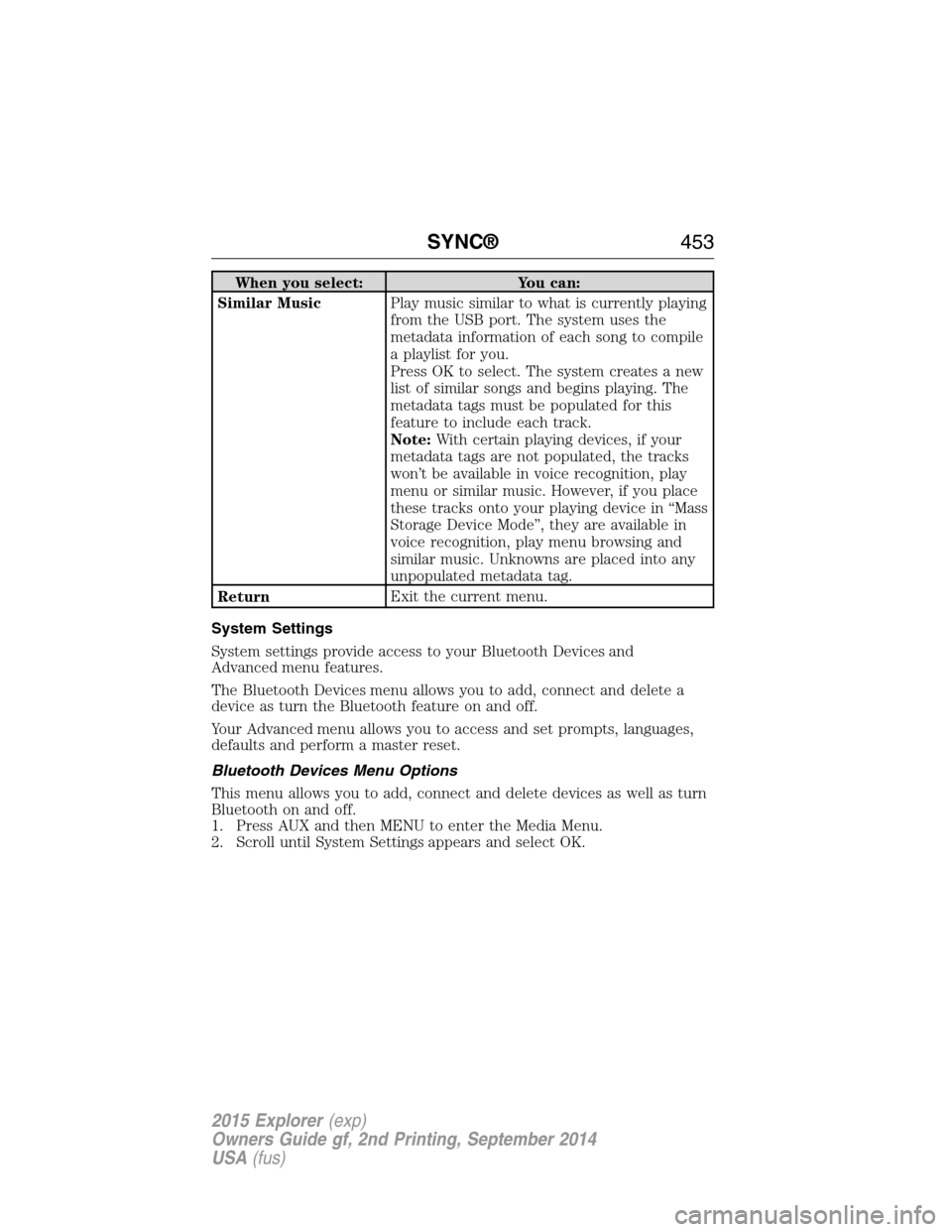
When you select: You can:
Similar MusicPlay music similar to what is currently playing
from the USB port. The system uses the
metadata information of each song to compile
a playlist for you.
Press OK to select. The system creates a new
list of similar songs and begins playing. The
metadata tags must be populated for this
feature to include each track.
Note:With certain playing devices, if your
metadata tags are not populated, the tracks
won’t be available in voice recognition, play
menu or similar music. However, if you place
these tracks onto your playing device in “Mass
Storage Device Mode”, they are available in
voice recognition, play menu browsing and
similar music. Unknowns are placed into any
unpopulated metadata tag.
ReturnExit the current menu.
System Settings
System settings provide access to your Bluetooth Devices and
Advanced menu features.
The Bluetooth Devices menu allows you to add, connect and delete a
device as turn the Bluetooth feature on and off.
Your Advanced menu allows you to access and set prompts, languages,
defaults and perform a master reset.
Bluetooth Devices Menu Options
This menu allows you to add, connect and delete devices as well as turn
Bluetooth on and off.
1. Press AUX and then MENU to enter the Media Menu.
2. Scroll until System Settings appears and select OK.
SYNC®453
2015 Explorer(exp)
Owners Guide gf, 2nd Printing, September 2014
USA(fus)
Page 455 of 596
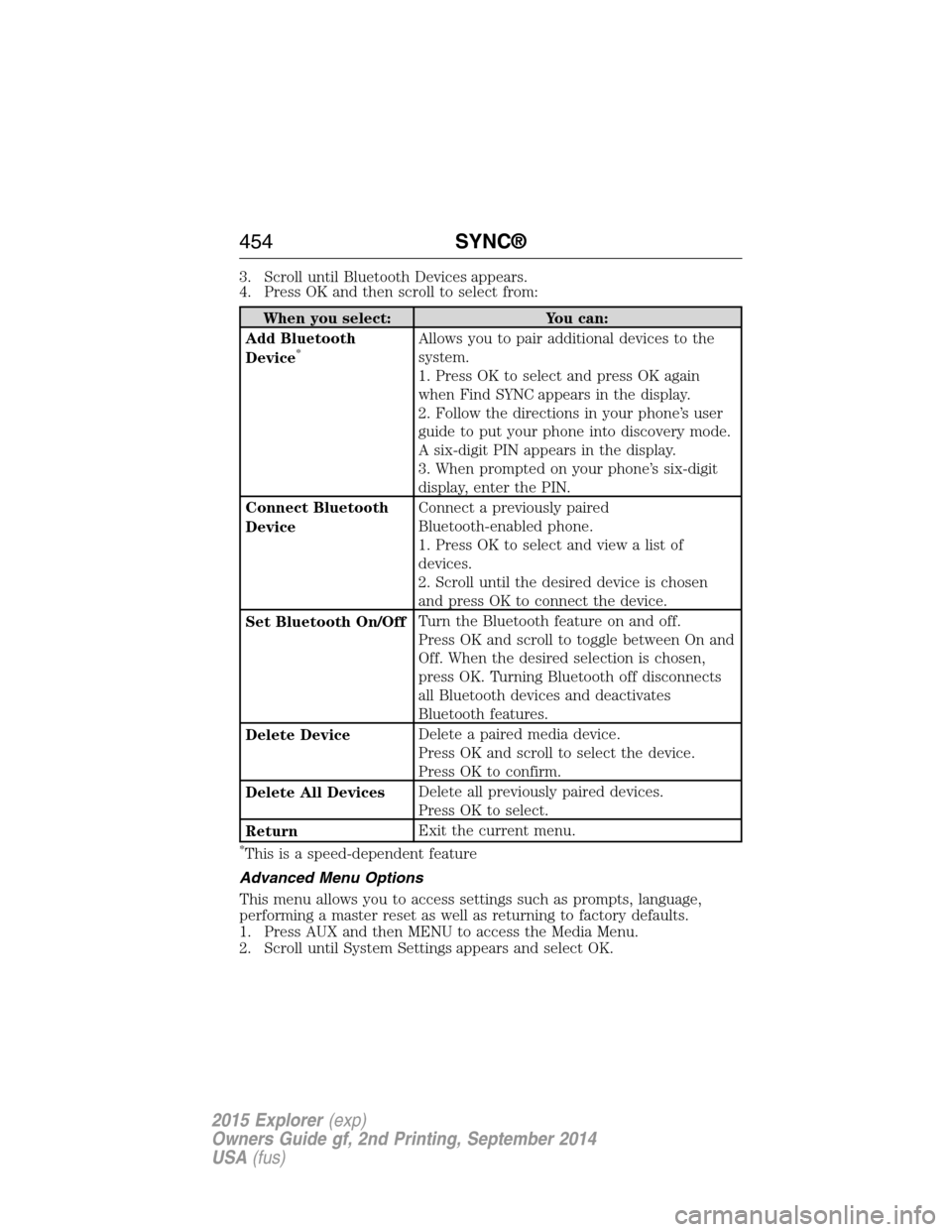
3. Scroll until Bluetooth Devices appears.
4. Press OK and then scroll to select from:
When you select: You can:
Add Bluetooth
Device
*Allows you to pair additional devices to the
system.
1. Press OK to select and press OK again
when Find SYNC appears in the display.
2. Follow the directions in your phone’s user
guide to put your phone into discovery mode.
A six-digit PIN appears in the display.
3. When prompted on your phone’s six-digit
display, enter the PIN.
Connect Bluetooth
DeviceConnect a previously paired
Bluetooth-enabled phone.
1. Press OK to select and view a list of
devices.
2. Scroll until the desired device is chosen
and press OK to connect the device.
Set Bluetooth On/OffTurn the Bluetooth feature on and off.
Press OK and scroll to toggle between On and
Off. When the desired selection is chosen,
press OK. Turning Bluetooth off disconnects
all Bluetooth devices and deactivates
Bluetooth features.
Delete DeviceDelete a paired media device.
Press OK and scroll to select the device.
Press OK to confirm.
Delete All DevicesDelete all previously paired devices.
Press OK to select.
ReturnExit the current menu.
*This is a speed-dependent feature
Advanced Menu Options
This menu allows you to access settings such as prompts, language,
performing a master reset as well as returning to factory defaults.
1. Press AUX and then MENU to access the Media Menu.
2. Scroll until System Settings appears and select OK.
454SYNC®
2015 Explorer(exp)
Owners Guide gf, 2nd Printing, September 2014
USA(fus)
Page 456 of 596
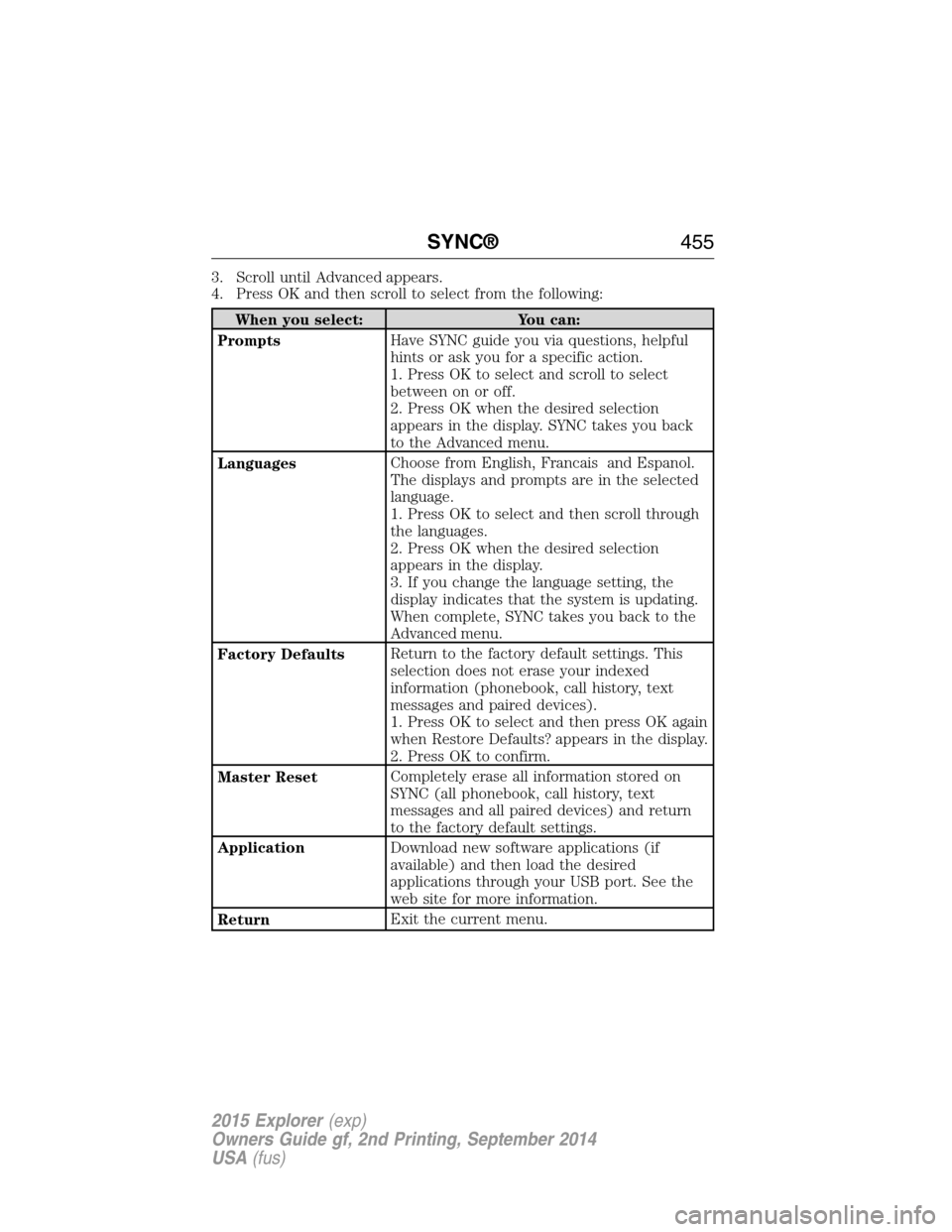
3. Scroll until Advanced appears.
4. Press OK and then scroll to select from the following:
When you select: You can:
PromptsHave SYNC guide you via questions, helpful
hints or ask you for a specific action.
1. Press OK to select and scroll to select
between on or off.
2. Press OK when the desired selection
appears in the display. SYNC takes you back
to the Advanced menu.
LanguagesChoose from English, Francais and Espanol.
The displays and prompts are in the selected
language.
1. Press OK to select and then scroll through
the languages.
2. Press OK when the desired selection
appears in the display.
3. If you change the language setting, the
display indicates that the system is updating.
When complete, SYNC takes you back to the
Advanced menu.
Factory DefaultsReturn to the factory default settings. This
selection does not erase your indexed
information (phonebook, call history, text
messages and paired devices).
1. Press OK to select and then press OK again
when Restore Defaults? appears in the display.
2. Press OK to confirm.
Master ResetCompletely erase all information stored on
SYNC (all phonebook, call history, text
messages and all paired devices) and return
to the factory default settings.
ApplicationDownload new software applications (if
available) and then load the desired
applications through your USB port. See the
web site for more information.
ReturnExit the current menu.
SYNC®455
2015 Explorer(exp)
Owners Guide gf, 2nd Printing, September 2014
USA(fus)
Page 481 of 596
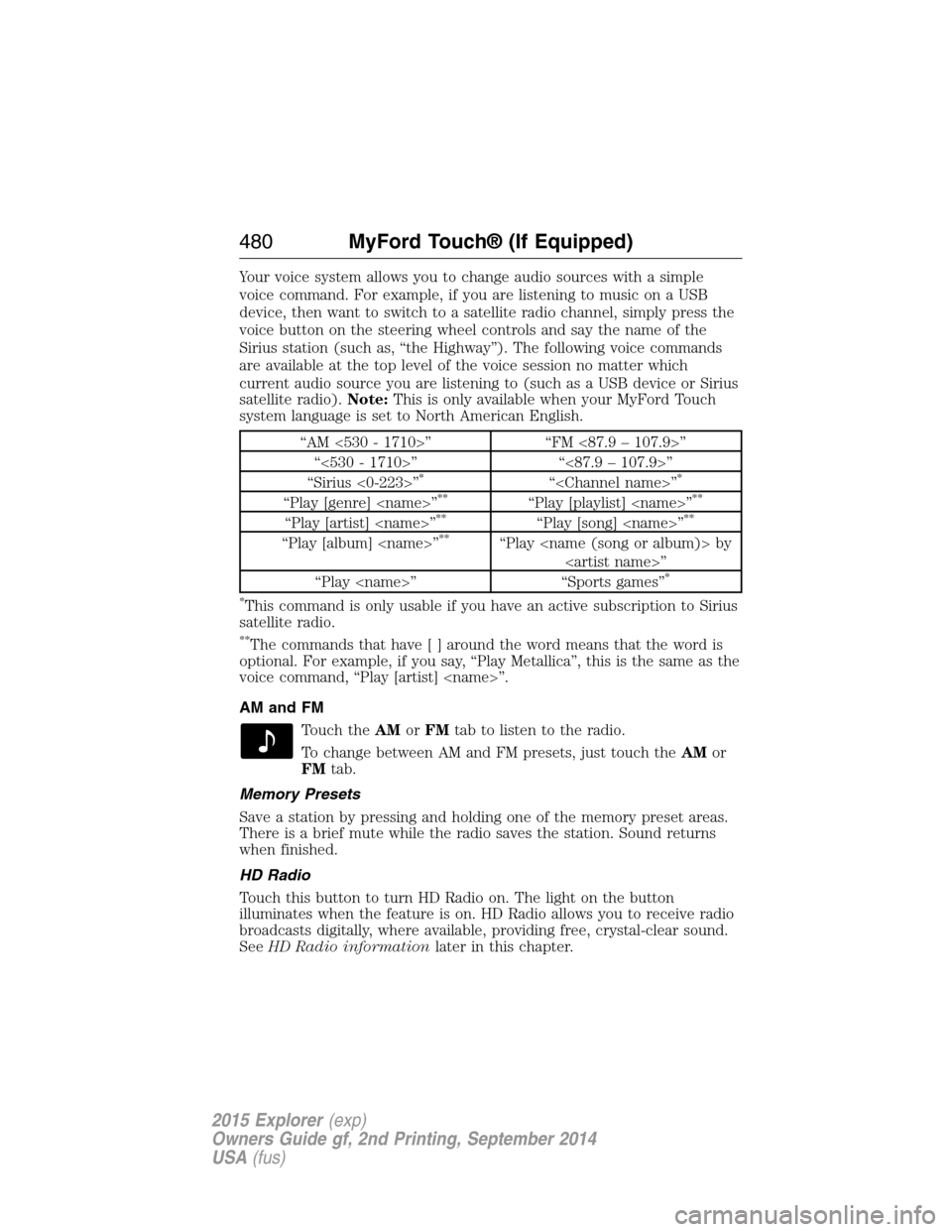
Your voice system allows you to change audio sources with a simple
voice command. For example, if you are listening to music on a USB
device, then want to switch to a satellite radio channel, simply press the
voice button on the steering wheel controls and say the name of the
Sirius station (such as, “the Highway”). The following voice commands
are available at the top level of the voice session no matter which
current audio source you are listening to (such as a USB device or Sirius
satellite radio).Note:This is only available when your MyFord Touch
system language is set to North American English.
“AM <530 - 1710>” “FM <87.9 – 107.9>”
“<530 - 1710>” “<87.9 – 107.9>”
“Sirius <0-223>”
*“
“Play [genre]
“Play [artist]
“Play [album]
“Play
*
*
This command is only usable if you have an active subscription to Sirius
satellite radio.
**The commands that have [ ] around the word means that the word is
optional. For example, if you say, “Play Metallica”, this is the same as the
voice command, “Play [artist]
AM and FM
Touch theAMorFMtab to listen to the radio.
To change between AM and FM presets, just touch theAMor
FMtab.
Memory Presets
Save a station by pressing and holding one of the memory preset areas.
There is a brief mute while the radio saves the station. Sound returns
when finished.
HD Radio
Touch this button to turn HD Radio on. The light on the button
illuminates when the feature is on. HD Radio allows you to receive radio
broadcasts digitally, where available, providing free, crystal-clear sound.
SeeHD Radio informationlater in this chapter.
480MyFord Touch® (If Equipped)
2015 Explorer(exp)
Owners Guide gf, 2nd Printing, September 2014
USA(fus)
Page 522 of 596
Door Keypad Code
To change the keypad code for your keyless entry keypad system:
1. Press the Settings icon >Vehicle>Door Keypad Code.
2. Enter your current factory code, then, when prompted, enter your
new code.
Camera Settings
This menu allows you to access settings for your rear view camera.
Press the Settings icon >Vehicle>Camera Settings,then select from
the following settings:
•Enhanced Park Aids.
•Rear Camera Delay.
Enable Valet Mode
Valet mode allows you to lock the system. No information is accessible
until the system is unlocked with the correct PIN.
1. Press the Settings icon >Vehicle>Enable Valet Mode.
2. Enter a four-digit pin twice, as prompted.
After you press Continue, the system locks until you enter the PIN again.
Note:If the system locks, and you need to reset the PIN, enter 3681 and
the system unlocks.
Settings
Access and adjust system settings, voice features, as well as phone,
navigation and wireless settings.
System
Press the Settings icon >Settings>System,then select from
the following:
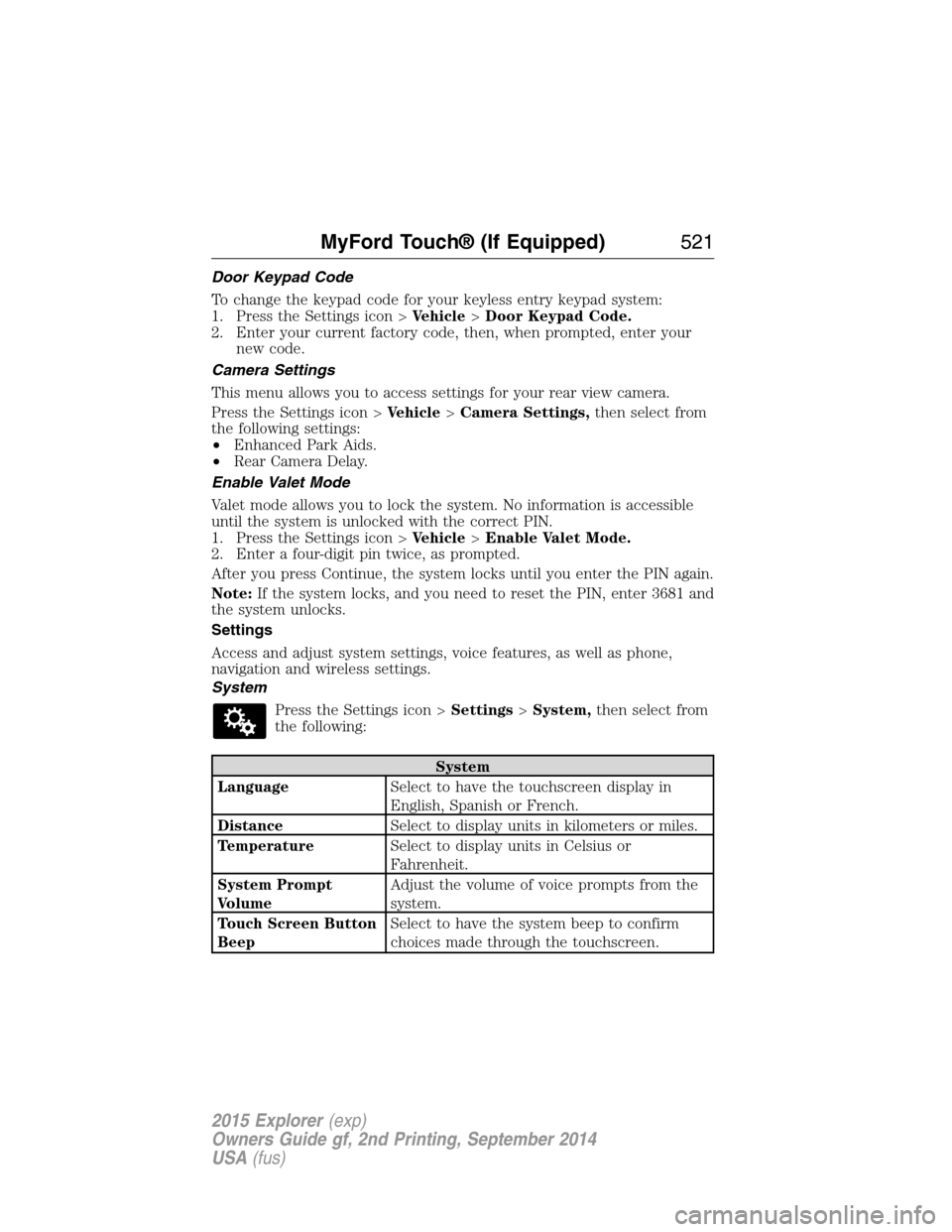
System
LanguageSelect to have the touchscreen display in
English, Spanish or French.
DistanceSelect to display units in kilometers or miles.
TemperatureSelect to display units in Celsius or
Fahrenheit.
System Prompt
VolumeAdjust the volume of voice prompts from the
system.
Touch Screen Button
BeepSelect to have the system beep to confirm
choices made through the touchscreen.
MyFord Touch® (If Equipped)521
2015 Explorer(exp)
Owners Guide gf, 2nd Printing, September 2014
USA(fus)
Page 589 of 596
911 Assist™ ......................436, 513
A
ABS (see Brakes) .....................220
Accessing and using your USB
port ............................................493
Accessing call history/phone
book during active call .............425
Accessing your calendar ..........513
Accessing your media menu
features ......................................448
Accessing your phone menu
features ......................................427
Accessory delay ........................108
Active call menu options .........425
Active Park Assist .....................230
Adaptive Cruise Control ...........240
Adding (pairing) a phone ........500
Advanced menu options ...434, 454
Advanced menu options
(prompts, languages, defaults,
master reset, installing
applications) ..............................434
Airbag supplemental restraint
system ..........................................52
and child safety seats ..............53
description ................................52
disposal ......................................61
driver airbag ..............................52
passenger airbag .......................52
side airbag ...........................52, 57
Air cleaner filter .......331–332, 391
Air conditioning ........................144
manual heating and air
conditioning system ...............144
Air filter .....................................332Air filter, cabin ..........................153
All Wheel Drive (AWD),
driving off road .........................212
Ambient mood/lighting .............520
Ambulance packages ..................16
AM/FM .......................................480
Antifreeze
(see Engine coolant) ................316
Anti-lock brake system
(see Brakes) ..............................220
Anti-theft system ..................85, 88
arming the system ..............85, 88
disarming a triggered system ..88
AppLink™ .................................444
Audio system
Single CD ................401, 406–407
Audio system
(see Radio) ................401, 406–407
Automatic transmission ............205
fluid, adding ............................322
fluid, checking ........................322
fluid, refill capacities ..............386
fluid, specification ..................386
Selectshift (SST) ....................208
Auxiliary Input Jack .................489
Auxiliary input jack (Line in) ..414
Auxiliary powerpoint ................182
A/V inputs ..........................416, 497
Axle
lubricant specifications ..........386
refill capacities ........................386
B
Battery .......................................327
acid, treating emergencies .....327
jumping a disabled battery ....289
588Index
2015 Explorer(exp)
Owners Guide gf, 2nd Printing, September 2014
USA(fus)