2015 FORD EXPEDITION phone
[x] Cancel search: phonePage 440 of 564
Using the Touchscreen
To turn a feature on and off, just touch the graphic with your finger. To
get the best performance from the touch-sensitive controls:
•Make sure your hands are clean and dry.
•Press firmly on the center of a control graphic or menu item.
•Keep metal and other conductive material away from the surface of
the touchscreen.
Using Your Audio and Climate Controls
Depending on your vehicle and option package, you may also have these
controls on your bezel:
•Power:Switch the media or climate features off and on.
•VOL:Control the volume of playing media.
•SeekandTune:Use as you normally would in media modes.
•PRESETS:Press and hold a numbered button to store a radio or
Sirius station. Press to recall the stored station.
•Eject:Eject a CD from the entertainment system.
•Climate control:Control the temperature, fan speed and settings of
the climate control system.
•
MEDIA:Touch repeatedly to see all available media sources. If not on
an audio screen, the media change appears in the lower left status bar.
Using Your Steering Wheel Controls
Depending on your vehicle and option package, you can use your
steering wheel controls to interact with the touchscreen system.
•VOL:Control the volume of audio output.
•VOICE:Press to start a voice session. Press again and hold to end a
voice session.
•SEEKandPHONE SEND:
•While in radio mode, press to seek between presets or press and
hold to seek between stations.
•While in USB or CD mode, press to seek between stations or press
and hold to fast seek.
•
While in phone mode, press to answer a call or switch between calls.
•SEEKandPHONE END:
•While in radio mode, press to seek between presets or press and
hold to seek between stations.
•While in USB or CD mode, press to seek between stations or press
and hold to fast seek.
•
While in phone mode, press to end a call or reject an incoming call.
See theSteering Wheelchapter for more information.
MyFord Touch® (If Equipped)439
2015 Expedition(exd)
Owners Guide gf, 1st Printing, July 2014
USA(fus)
Page 442 of 564
Speed-restricted Features
Some features of this system may be too difficult to use while your
vehicle is moving so they are restricted from use unless your vehicle is
stationary.
•Screens that are too crowded with information, such as Point of
Interest reviews and ratings, Sirius Travel Link sports scores, movie
times and ski conditions.
•Any action that requires you to use a keyboard is restricted, such as
entering a navigation destination or editing information.
•All lists are limited so the user can view fewer entries (such as phone
contacts or recent phone call entries).
See the following chart for more specific examples:
Restricted Features
Cellular Phone Pairing a Bluetooth phone
Adding phonebook contacts or uploading
phonebook contacts (from a USB)
List entries are limited for phone contacts and
recent phone call entries
System Functionality Editing the keypad code
Enabling Valet Mode
Editing settings while the rear view camera or
Active Park Assist are active
Wi-Fi and Wireless Editing wireless settings
Editing the list of wireless networks
Videos, Photos and
GraphicsPlaying video
Editing the screen’s wallpaper or adding new
wallpaper
Text Messages Composing text messages
Viewing received text messages
Editing preset text messages
Navigation Using the keyboard to enter a destination
Demo navigation route
Adding or Editing Address Book entries or
Avoid Areas
MyFord Touch® (If Equipped)441
2015 Expedition(exd)
Owners Guide gf, 1st Printing, July 2014
USA(fus)
Page 443 of 564
Privacy Information
When a cellular phone is connected to SYNC, the system creates a
profile within your vehicle that is linked to that cellular phone. This
profile is created in order to offer you more cellular features and to
operate more efficiently. Among other things, this profile may contain
data about your cellular phone book, text messages (read and unread),
and call history, including history of calls when your cell phone was not
connected to the system. In addition, if you connect a media device, the
system creates and retains an index of supported media content. The
system also records a short development log of approximately
10 minutes of all recent system activity. The log profile and other system
data may be used to improve the system and help diagnose any problems
that may occur.
The cellular profile, media device index, and development log remain in
the vehicle unless you delete them and are generally accessible only in
the vehicle when the cellular phone or media player is connected. If you
no longer plan to use the system or the vehicle, we recommend you
perform a Master Reset to erase all stored information.
System data cannot be accessed without special equipment and access to
the vehicle’s SYNC module. Ford Motor Company and Ford of Canada do
not access the system data for any purpose other than as described
absent consent, a court order, or where required by law enforcement,
other government authorities, or other third parties acting with lawful
authority. Other parties may seek to access the information
independently of Ford Motor Company and Ford of Canada. For further
privacy information, see the sections on 911 Assist, Vehicle Health
Report, and Traffic, Directions and Information.
ACCESSING AND ADJUSTING MODES THROUGH YOUR RIGHT
VEHICLE INFORMATION DISPLAY (IF EQUIPPED)
The display is located on the right side of your instrument cluster. You
can use your steering wheel controls to view and make minor
adjustments to active modes without taking your hands off the wheel.
For example:
•In Entertainment mode, you can view what is now playing, change
the audio source (such as AM, FM and CD) and scroll through
memory presets.
•In Phone mode, you can accept or reject an incoming call, or make a
call by choosing from select menus within the Phone menu.
•If your vehicle is equipped with Navigation, you can view the current
route or cancel a route.
442MyFord Touch® (If Equipped)
2015 Expedition(exd)
Owners Guide gf, 1st Printing, July 2014
USA(fus)
Page 446 of 564
Accessing a List of Available Commands
•If you use the touchscreen, press the Settings icon >Help>Voice
Command List.
•If you use the steering wheel control, press the voice icon. After the
tone, speak your command clearly.
Voice command list
“Audio list of commands”
“Bluetooth audio list of commands”
“Browse list of commands”
“CD list of commands”
“Climate control list of commands”
“List of commands”
“Navigation list of commands”
*
“Phone list of commands”
“Radio list of commands”
“SD card list of commands”
“Sirius satellite list of commands”
**
“Travel link list of commands”*
“USB list of commands”
“Voice instructions list of commands”
“Voice settings list of commands”
“Help”
*This command is only available when your vehicle is equipped with the
navigation system, and the navigation system SD card is in the card slot.
**This command is only available when you have an active Sirius satellite
radio subscription.
Voice Settings
Voice settings allow you to customize the level of system interaction,
help and feedback. The system defaults to standard interaction that uses
candidate lists and confirmation prompts as these provide the highest
level of guidance and feedback.
Interaction Mode:Novice mode provides detailed interaction and
guidance while the advanced mode has less audible interaction and more
tone prompts.
MyFord Touch® (If Equipped)445
2015 Expedition(exd)
Owners Guide gf, 1st Printing, July 2014
USA(fus)
Page 447 of 564
Confirmation Prompts:The system uses these short questions to
confirm your voice request. If turned off, the system simply makes a best
guess as to what you requested. The system may still occasionally ask
you to confirm settings.
Phone/Media Candidate Lists:Candidate lists are lists of possible
results from your voice commands. The system creates these lists when
it has the same confidence level of several options based on your voice
command.
To access these settings using the touchscreen:
1. Press the Settings icon >Settings>Voice Control.
2. Select from:
•Interaction Mode
•Confirmation Prompts
•Media Candidate Lists
•Phone Candidate Lists
•Voice Control Volume.
To access these settings using voice commands:
Press the voice icon. Wait for the prompt “Please say a
command”. Another tone sounds to let you know the system is
listening.
Voice settings using voice commands
“Interaction Mode Novice”
“Interaction Mode Advanced”
“Confirmation Prompts On”
“Confirmation Prompts Off”
“Phone Candidate Lists On”
“Phone Candidate Lists Off”
“Media Candidate Lists On”
“Media Candidate Lists Off”
“Help”
Using Voice Commands with the Touchscreen Options
Your voice system has a dual mode feature which allows you to switch
between using voice commands and making on-screen selections. This is
available only when the system displays a list of candidates generated
during a voice session. For example, when entering in a street address or
trying to call a contact from the phone you paired to the system.
446MyFord Touch® (If Equipped)
2015 Expedition(exd)
Owners Guide gf, 1st Printing, July 2014
USA(fus)
Page 466 of 564
If your indexed media files contain no information embedded in these
metadata tags, SYNC may classify the empty metadata tags as
Unknown.
In order to playback video from your iPod® or iPhone®, (if compatible),
you MUST have a special combination USB/RCA composite video cable
(which you can buy from Apple®). When the cable is connected to your
iPod® or iPhone®, plug the other end into both the RCA jacks and the
USB port.
Bluetooth Audio
Your system allows you to stream audio over your vehicle’s speakers from
your connected, Bluetooth-enabled cellular phone.
To access, press the lower left corner on the touchscreen, then
select theBT Stereotab.
Bluetooth Audio Voice Commands
If you are listening to a Bluetooth audio device, press the voice
button on the steering wheel control. When prompted, say
“Next song”, “Pause”, “Play” or “Previous song”.
If you are not listening to a Bluetooth audio device, press the voice
button and, after the tone, say “Bluetooth Audio”, then “Next song”,
“Pause”, “Play” or “Previous song”.
Line In (Auxiliary Input Jack)
WARNING:Driving while distracted can result in loss of vehicle
control, crash and injury. We strongly recommend that you use
extreme caution when using any device that may take your focus off
the road. Your primary responsibility is the safe operation of your
vehicle. We recommend against the use of any hand-held device while
driving and encourage the use of voice-operated systems when possible.
Make sure you are aware of all applicable local laws that may affect the
use of electronic devices while driving.
WARNING:For safety reasons, do not connect or adjust the
settings on your portable music player while your vehicle is
moving.
MyFord Touch® (If Equipped)465
2015 Expedition(exd)
Owners Guide gf, 1st Printing, July 2014
USA(fus)
Page 467 of 564
WARNING:Store the portable music player in a secure location,
such as the center console or the glove box, when your vehicle is
in motion. Hard objects may become projectiles in a crash or sudden
stop, which may increase the risk of serious injury. The audio extension
cable must be long enough to allow the portable music player to be
safely stored while your vehicle is moving.
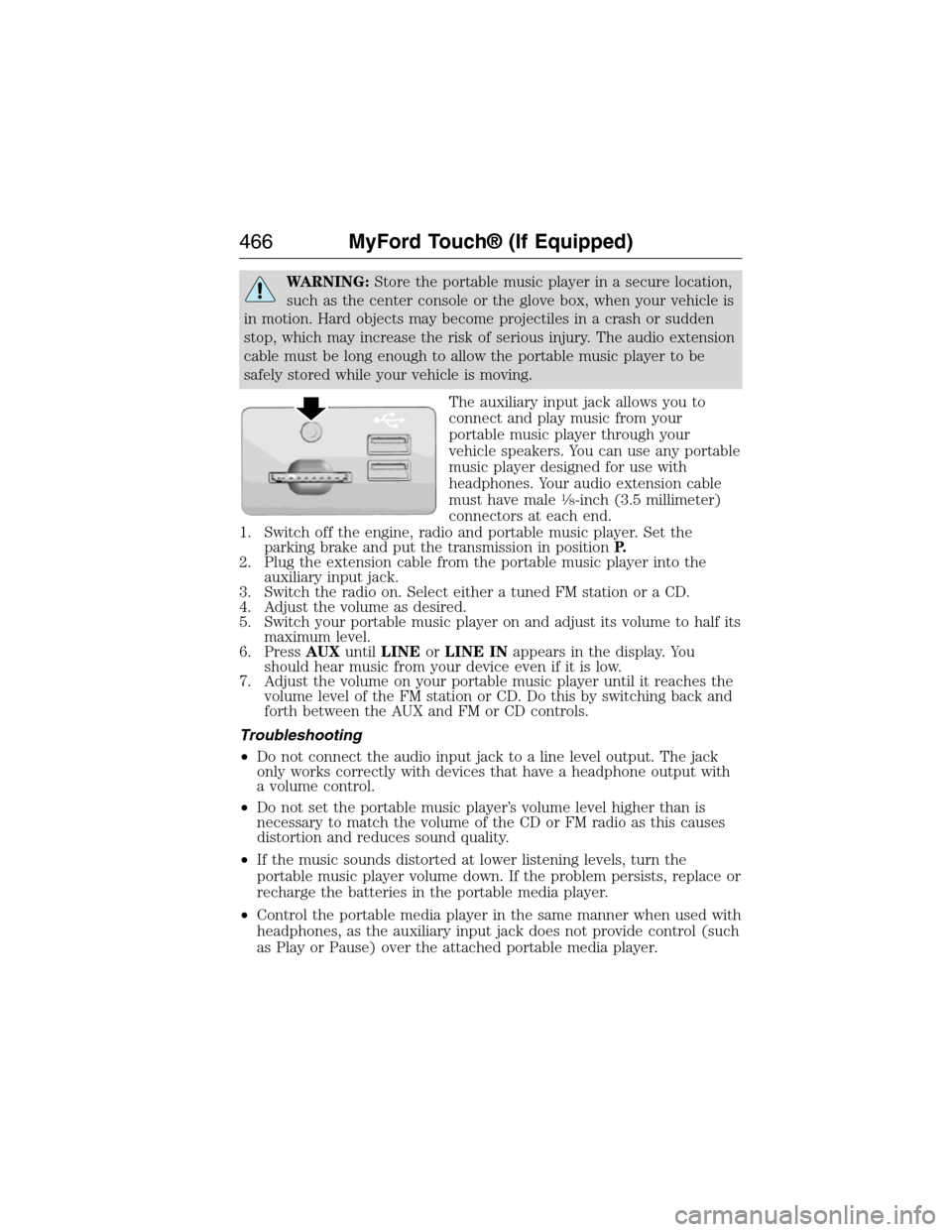
The auxiliary input jack allows you to
connect and play music from your
portable music player through your
vehicle speakers. You can use any portable
music player designed for use with
headphones. Your audio extension cable
must have male
18-inch (3.5 millimeter)
connectors at each end.
1. Switch off the engine, radio and portable music player. Set the
parking brake and put the transmission in positionP.
2. Plug the extension cable from the portable music player into the
auxiliary input jack.
3. Switch the radio on. Select either a tuned FM station or a CD.
4. Adjust the volume as desired.
5. Switch your portable music player on and adjust its volume to half its
maximum level.
6. PressAUXuntilLINEorLINE INappears in the display. You
should hear music from your device even if it is low.
7. Adjust the volume on your portable music player until it reaches the
volume level of the FM station or CD. Do this by switching back and
forth between the AUX and FM or CD controls.
Troubleshooting
•Do not connect the audio input jack to a line level output. The jack
only works correctly with devices that have a headphone output with
a volume control.
•Do not set the portable music player’s volume level higher than is
necessary to match the volume of the CD or FM radio as this causes
distortion and reduces sound quality.
•If the music sounds distorted at lower listening levels, turn the
portable music player volume down. If the problem persists, replace or
recharge the batteries in the portable media player.
•Control the portable media player in the same manner when used with
headphones, as the auxiliary input jack does not provide control (such
as Play or Pause) over the attached portable media player.
466MyFord Touch® (If Equipped)
2015 Expedition(exd)
Owners Guide gf, 1st Printing, July 2014
USA(fus)
Page 468 of 564
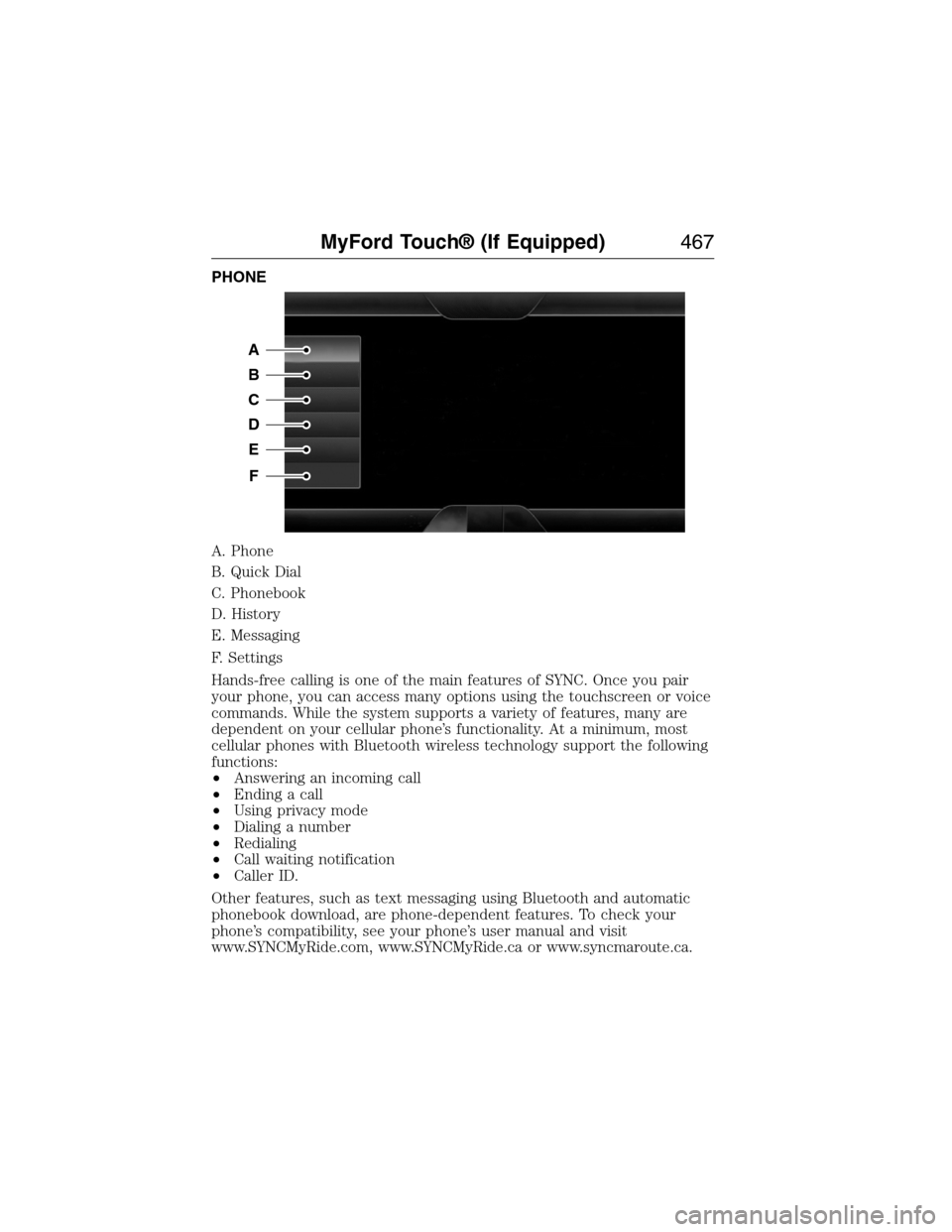
PHONE
A. Phone
B. Quick Dial
C. Phonebook
D. History
E. Messaging
F. Settings
Hands-free calling is one of the main features of SYNC. Once you pair
your phone, you can access many options using the touchscreen or voice
commands. While the system supports a variety of features, many are
dependent on your cellular phone’s functionality. At a minimum, most
cellular phones with Bluetooth wireless technology support the following
functions:
•Answering an incoming call
•Ending a call
•Using privacy mode
•Dialing a number
•Redialing
•Call waiting notification
•Caller ID.
Other features, such as text messaging using Bluetooth and automatic
phonebook download, are phone-dependent features. To check your
phone’s compatibility, see your phone’s user manual and visit
www.SYNCMyRide.com, www.SYNCMyRide.ca or www.syncmaroute.ca.
A
B
C
D
E
F
MyFord Touch® (If Equipped)467
2015 Expedition(exd)
Owners Guide gf, 1st Printing, July 2014
USA(fus)