2015 FORD EXPEDITION ECU
[x] Cancel search: ECUPage 429 of 564
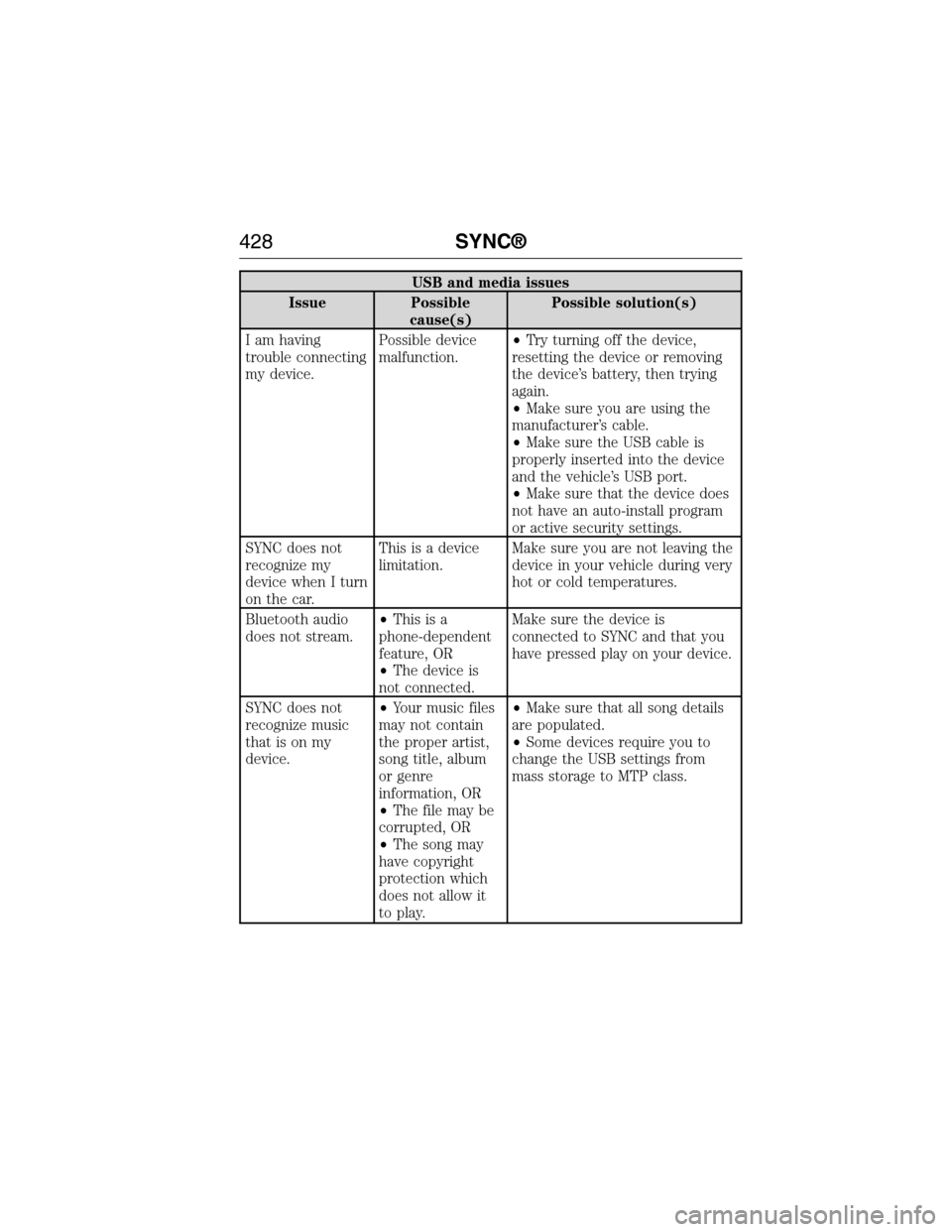
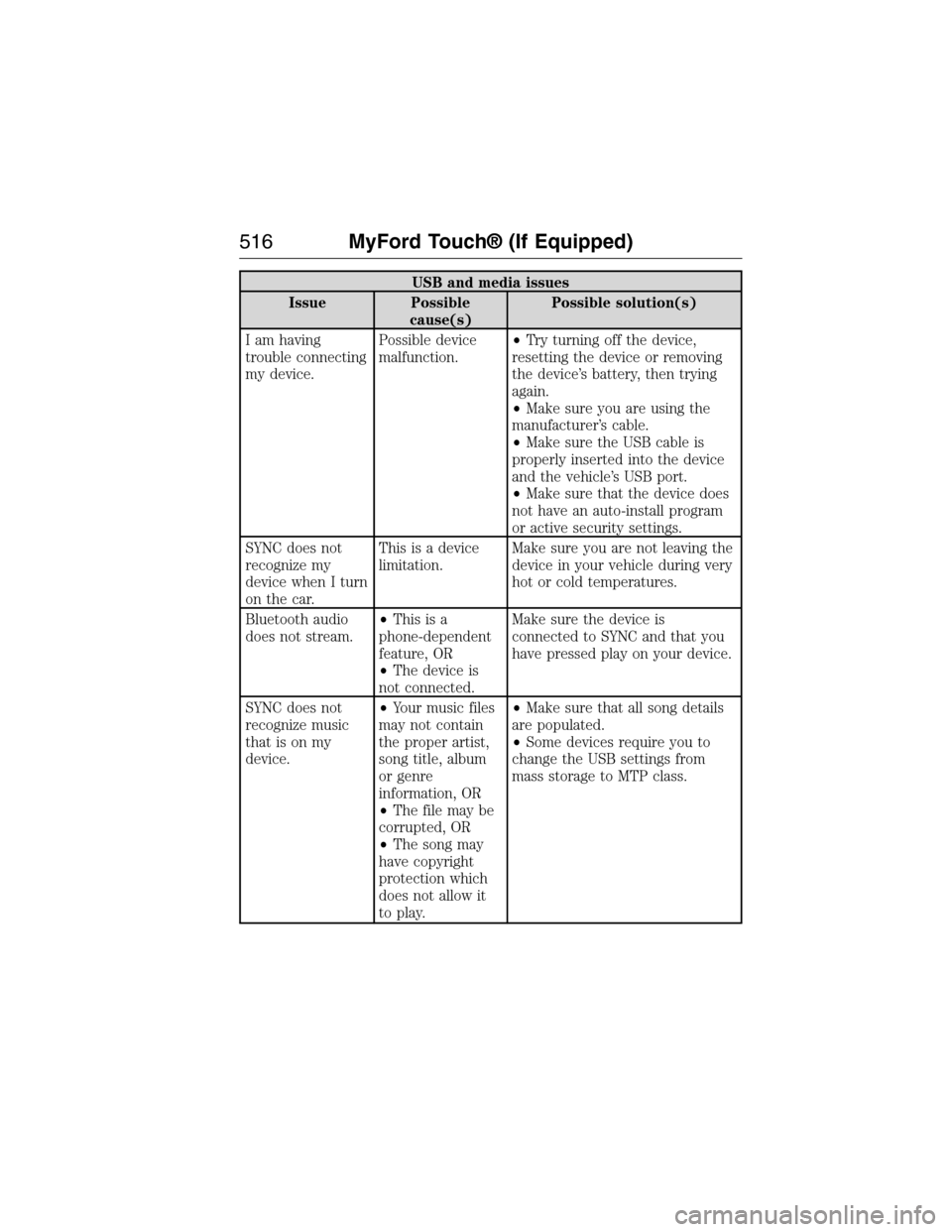
USB and media issues
Issue Possible
cause(s)Possible solution(s)
I am having
trouble connecting
my device.Possible device
malfunction.•Try turning off the device,
resetting the device or removing
the device’s battery, then trying
again.
•Make sure you are using the
manufacturer’s cable.
•Make sure the USB cable is
properly inserted into the device
and the vehicle’s USB port.
•Make sure that the device does
not have an auto-install program
or active security settings.
SYNC does not
recognize my
device when I turn
on the car.This is a device
limitation.Make sure you are not leaving the
device in your vehicle during very
hot or cold temperatures.
Bluetooth audio
does not stream.•Thisisa
phone-dependent
feature, OR
•The device is
not connected.Make sure the device is
connected to SYNC and that you
have pressed play on your device.
SYNC does not
recognize music
that is on my
device.•Your music files
may not contain
the proper artist,
song title, album
or genre
information, OR
•The file may be
corrupted, OR
•The song may
have copyright
protection which
does not allow it
to play.•Make sure that all song details
are populated.
•Some devices require you to
change the USB settings from
mass storage to MTP class.
428SYNC®
2015 Expedition(exd)
Owners Guide gf, 1st Printing, July 2014
USA(fus)
Page 467 of 564
WARNING:Store the portable music player in a secure location,
such as the center console or the glove box, when your vehicle is
in motion. Hard objects may become projectiles in a crash or sudden
stop, which may increase the risk of serious injury. The audio extension
cable must be long enough to allow the portable music player to be
safely stored while your vehicle is moving.
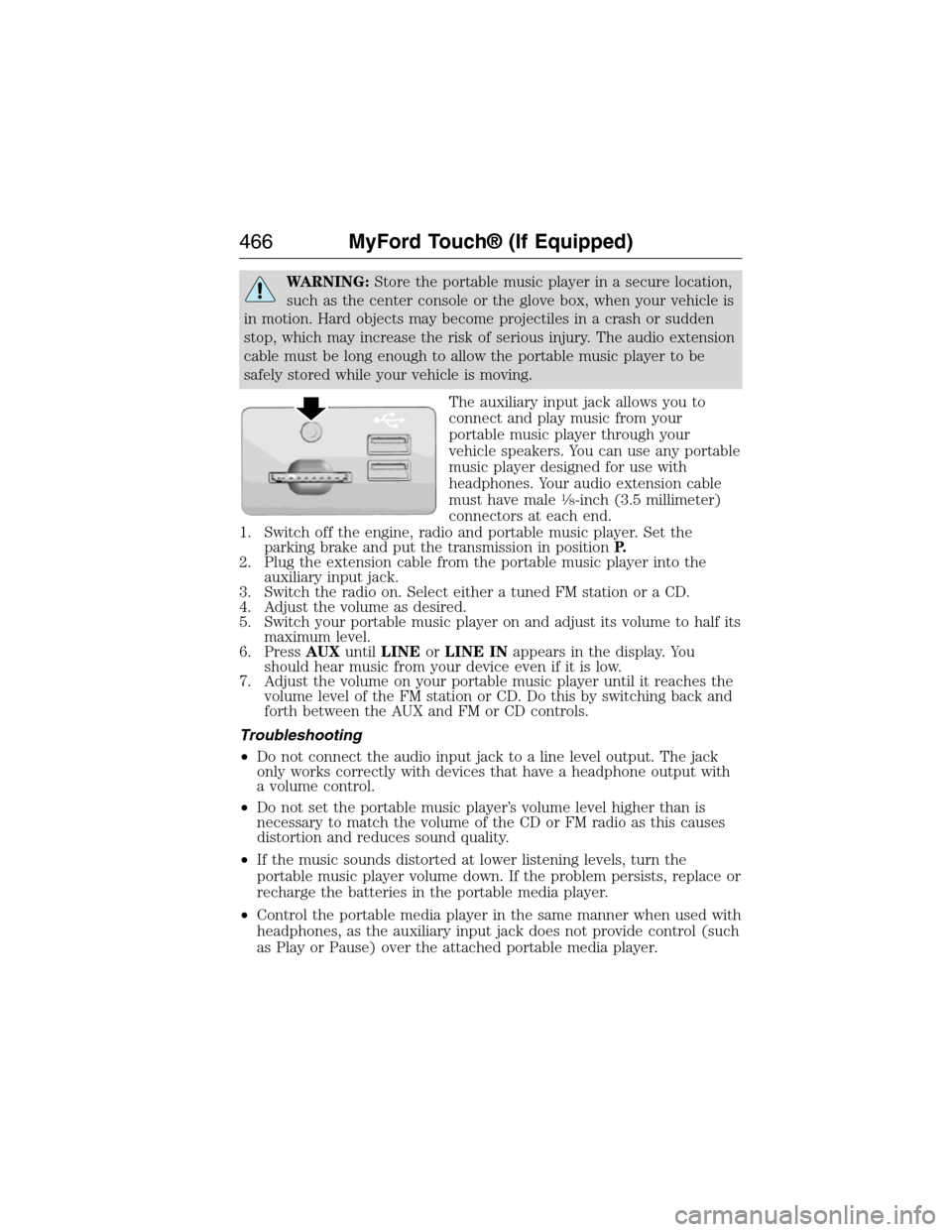
The auxiliary input jack allows you to
connect and play music from your
portable music player through your
vehicle speakers. You can use any portable
music player designed for use with
headphones. Your audio extension cable
must have male
18-inch (3.5 millimeter)
connectors at each end.
1. Switch off the engine, radio and portable music player. Set the
parking brake and put the transmission in positionP.
2. Plug the extension cable from the portable music player into the
auxiliary input jack.
3. Switch the radio on. Select either a tuned FM station or a CD.
4. Adjust the volume as desired.
5. Switch your portable music player on and adjust its volume to half its
maximum level.
6. PressAUXuntilLINEorLINE INappears in the display. You
should hear music from your device even if it is low.
7. Adjust the volume on your portable music player until it reaches the
volume level of the FM station or CD. Do this by switching back and
forth between the AUX and FM or CD controls.
Troubleshooting
•Do not connect the audio input jack to a line level output. The jack
only works correctly with devices that have a headphone output with
a volume control.
•Do not set the portable music player’s volume level higher than is
necessary to match the volume of the CD or FM radio as this causes
distortion and reduces sound quality.
•If the music sounds distorted at lower listening levels, turn the
portable music player volume down. If the problem persists, replace or
recharge the batteries in the portable media player.
•Control the portable media player in the same manner when used with
headphones, as the auxiliary input jack does not provide control (such
as Play or Pause) over the attached portable media player.
466MyFord Touch® (If Equipped)
2015 Expedition(exd)
Owners Guide gf, 1st Printing, July 2014
USA(fus)
Page 469 of 564
Pairing Your Phone for the First Time
WARNING:Driving while distracted can result in loss of vehicle
control, crash and injury. We strongly recommend that you use
extreme caution when using any device that may take your focus off
the road. Your primary responsibility is the safe operation of your
vehicle. We recommend against the use of any hand-held device while
driving and encourage the use of voice-operated systems when possible.
Make sure you are aware of all applicable local laws that may affect the
use of electronic devices while driving.
The first thing you must do to use the phone features of SYNC is to pair
your Bluetooth-enabled cellular phone with SYNC. This allows you to use
your phone in a hands-free manner.
Note:Put the transmission in positionP.Turn on your vehicle ignition
and the radio.
1. TouchAdd Phonein the upper left corner of the touchscreen.Find
SYNCappears on the screen and instructs you to begin the pairing
process from your device.
2. Make sure that Bluetooth is set toOnand that your cellular phone is
in the proper mode. See your phone’s manual if necessary.
•SelectSYNC,and a six-digit PIN appears on your device.
3. If you are prompted to enter a PIN on your device, it does not
support Secure Simple Pairing. To pair, enter the PIN displayed on
the touchscreen. Skip the next step.
4. When prompted on your phone’s display, confirm that the PIN
provided by SYNC matches the PIN displayed on your cellular phone.
5. The display indicates when the pairing is successful.
SYNC may prompt you with more phone options. For more information on
your phone’s capability, see your phone’s manual and visit the website.
Pairing Subsequent Phones
Note:Put the transmission in positionP.Turn on your vehicle ignition
and the radio.
1. Press thePhonecorner of the touchscreen >Settings>BT
Devices>Add Device.
2. Make sure that Bluetooth is set toOnand that your cellular phone is
in the proper mode. See your phone’s manual if necessary.
•SelectSYNC,and a six-digit PIN appears on your device.
3. If you are prompted to enter a PIN on your device, it does not
support Secure Simple Pairing. To pair, enter the PIN displayed on
the touchscreen. Skip the next step.
468MyFord Touch® (If Equipped)
2015 Expedition(exd)
Owners Guide gf, 1st Printing, July 2014
USA(fus)
Page 483 of 564
911 Assist® (If Equipped)
WARNING:Unless the 911 Assist setting is set on before a
crash, the system will not dial for help, which could delay
response time, potentially increasing the risk of serious injury or death
after a crash.
WARNING:Do not wait for 911 Assist to make an emergency
call if you can do it yourself. Dial emergency services
immediately to avoid delayed response time, which could increase the
risk of serious injury or death after a crash. If you do not hear 911
Assist within five seconds of the crash, the system or phone may be
damaged or non-functional.
WARNING:Always place your phone in a secure location in your
vehicle so it does not become a projectile or damaged in a crash.
Failure to do so may cause serious injury to someone or damage the
phone, which could prevent 911 Assist from working properly.
Note:The SYNC 911 Assist feature must be set on prior to the incident.
Note:Before setting this feature on, make sure that you read the 911
Assist privacy notice later in this section for important information.
Note:If any user turns 911 Assist on or off, that setting applies for all
paired phones. If 911 Assist is turned off, either a voice message plays or
a display message (or icon) comes on (or both) when your vehicle is
started after a previously paired phone connects.
Note:Every phone operates differently. While SYNC 911 Assist works
with most cellular phones, some may have trouble using this feature.
If a crash deploys an airbag (excludes knee airbags and rear inflatable
safety belts [if equipped]) or activates the fuel pump shut-off, your
SYNC-equipped vehicle may be able to contact emergency services by
dialing 911 through a paired and connected Bluetooth-enabled phone.
You can learn more about the 911 Assist feature, visit
www.SYNCMyRide.com, www.SYNCMyRide.ca or www.syncmaroute.ca.
•For information on airbag deployment, see theSupplementary
Restraints Systemchapter.
•For information on the fuel pump shut-off, see theRoadside
Emergencieschapter.
482MyFord Touch® (If Equipped)
2015 Expedition(exd)
Owners Guide gf, 1st Printing, July 2014
USA(fus)
Page 516 of 564
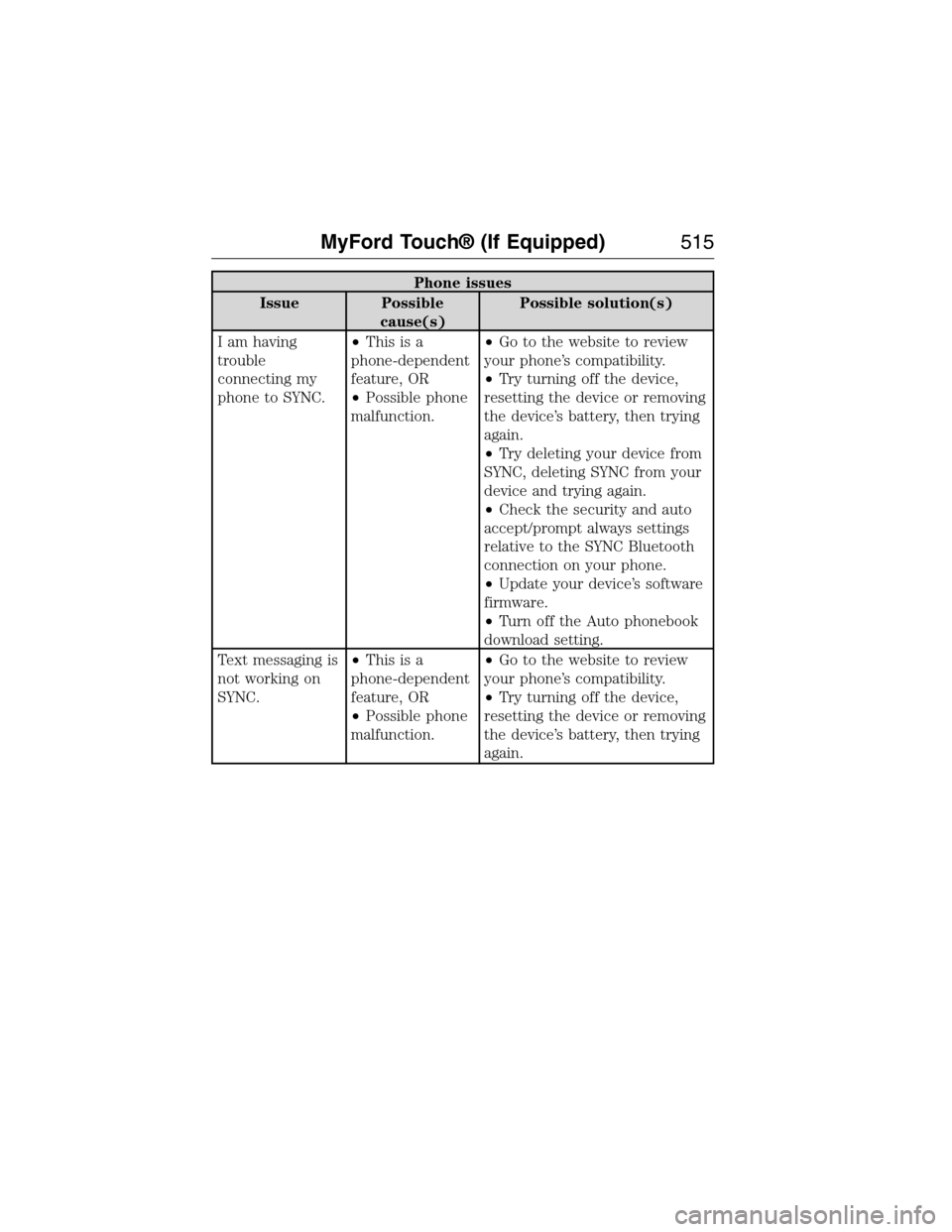
Phone issues
Issue Possible
cause(s)Possible solution(s)
I am having
trouble
connecting my
phone to SYNC.•Thisisa
phone-dependent
feature, OR
•Possible phone
malfunction.•Go to the website to review
your phone’s compatibility.
•Try turning off the device,
resetting the device or removing
the device’s battery, then trying
again.
•Try deleting your device from
SYNC, deleting SYNC from your
device and trying again.
•Check the security and auto
accept/prompt always settings
relative to the SYNC Bluetooth
connection on your phone.
•Update your device’s software
firmware.
•Turn off the Auto phonebook
download setting.
Text messaging is
not working on
SYNC.•Thisisa
phone-dependent
feature, OR
•Possible phone
malfunction.•Go to the website to review
your phone’s compatibility.
•Try turning off the device,
resetting the device or removing
the device’s battery, then trying
again.
MyFord Touch® (If Equipped)515
2015 Expedition(exd)
Owners Guide gf, 1st Printing, July 2014
USA(fus)
Page 517 of 564
USB and media issues
Issue Possible
cause(s)Possible solution(s)
I am having
trouble connecting
my device.Possible device
malfunction.•Try turning off the device,
resetting the device or removing
the device’s battery, then trying
again.
•Make sure you are using the
manufacturer’s cable.
•Make sure the USB cable is
properly inserted into the device
and the vehicle’s USB port.
•Make sure that the device does
not have an auto-install program
or active security settings.
SYNC does not
recognize my
device when I turn
on the car.This is a device
limitation.Make sure you are not leaving the
device in your vehicle during very
hot or cold temperatures.
Bluetooth audio
does not stream.•Thisisa
phone-dependent
feature, OR
•The device is
not connected.Make sure the device is
connected to SYNC and that you
have pressed play on your device.
SYNC does not
recognize music
that is on my
device.•Your music files
may not contain
the proper artist,
song title, album
or genre
information, OR
•The file may be
corrupted, OR
•The song may
have copyright
protection which
does not allow it
to play.•Make sure that all song details
are populated.
•Some devices require you to
change the USB settings from
mass storage to MTP class.
516MyFord Touch® (If Equipped)
2015 Expedition(exd)
Owners Guide gf, 1st Printing, July 2014
USA(fus)
Page 522 of 564
DESCRIPTION OF OTHER RIGHTS AND LIMITATIONS:
•Speech Recognition:If the SOFTWARE includes speech recognition
component(s), you should understand that speech recognition is an
inherently statistical process and that recognition errors are inherent
in the process. Neither FORD MOTOR COMPANY nor its suppliers
shall be liable for any damages arising out of errors in the speech
recognition process.
•Limitations on Reverse Engineering, Decompilation and
Disassembly:You may not reverse engineer, decompile, or
disassemble nor permit others to reverse engineer, decompile or
disassemble the SOFTWARE, except and only to the extent that such
activity is expressly permitted by applicable law notwithstanding this
limitation.
•Limitations on Distributing, Copying, Modifying and Creating
Derivative Works:You may not distribute, copy, make modifications
to or create derivative works based on the SOFTWARE, except and
only to the extent that such activity is expressly permitted by
applicable law notwithstanding this limitation.
•Single EULA:The end user documentation for the DEVICE and
related systems and services may contain multiple EULAs, such as
multiple translations and/or multiple media versions (e.g., in the user
documentation and in the software). Even if you receive multiple
EULAs, you are licensed to use only one (1) copy of the SOFTWARE.
•SOFTWARE Transfer:You may permanently transfer your rights
under this EULA only as part of a sale or transfer of the DEVICE,
provided you retain no copies, you transfer all of the SOFTWARE
(including all component parts, the media and printed materials, any
upgrades, and, if applicable, the Certificate(s) of Authenticity), and
the recipient agrees to the terms of this EULA. If the SOFTWARE is
an upgrade, any transfer must include all prior versions of the
SOFTWARE.
•Termination:Without prejudice to any other rights, FORD MOTOR
COMPANY or MS may terminate this EULA if you fail to comply with
the terms and conditions of this EULA.
•Security Updates/Digital Rights Management:Content owners use
the WMDRM technology included in your DEVICE to protect their
intellectual property, included copyrighted content. Portions of the
SOFTWARE on your DEVICE use WMDRM software to access
WMDRM-protected content. If the WMDRM software fails to protect
the content, content owners may ask Microsoft to revoke the
Appendices521
2015 Expedition(exd)
Owners Guide gf, 1st Printing, July 2014
USA(fus)
Page 529 of 564
otherwise require your undivided attention, and you therefore agree to
comply with the following when using the Telenav Software: (a) observe
all traffic laws and otherwise drive safely; (b) use your own personal
judgment while driving. If you feel that a route suggested by the Telenav
Software instructs you to perform an unsafe or illegal maneuver, places
you in an unsafe situation, or directs you into an area that you consider
to be unsafe, do not follow such instructions; (c) do not input
destinations, or otherwise manipulate the Telenav Software, unless your
vehicle is stationary and parked; (d) do not use the Telenav Software for
any illegal, unauthorized, unintended, unsafe, hazardous, or unlawful
purposes, or in any manner inconsistent with this Agreement; (e)
arrange all GPS and wireless devices and cables necessary for use of the
Telenav Software in a secure manner in your vehicle so that they will not
interfere with your driving and will not prevent the operation of any
safety device (such as an airbag).
You agree to indemnify and hold Telenav harmless against all claims
resulting from any dangerous or otherwise inappropriate use of the
Telenav Software in any moving vehicle, including as a result of your
failure to comply with the directions above.
2.Account Information
You agree: (a) when registering the Telenav Software, to provide Telenav
with true, accurate, current, and complete information about yourself,
and (b) to inform Telenav promptly of any changes to such information,
and to keep it true, accurate, current and complete.
3.Software License
Subject to your compliance with the terms of this Agreement, Telenav
hereby grants to you a personal, non-exclusive, non-transferable license
(except as expressly permitted below in connection with your permanent
transfer of the Telenav Software license), without the right to sublicense,
to use the Telenav Software (in object code form only) in order to access
and use the Telenav Software. This license shall terminate upon any
termination or expiration of this Agreement. You agree that you will use
the Telenav Software only for your personal business or leisure purposes,
and not to provide commercial navigation services to other parties.
3.1 License limitations
You agree not to do any of the following: (a) reverse engineer,
decompile, disassemble, translate, modify, alter or otherwise change the
Telenav Software or any part thereof; (b) attempt to derive the source
code, audio library or structure of the Telenav Software without the prior
express written consent of Telenav; (c) remove from the Telenav
Software, or alter, any of Telenav’s or its suppliers’ trademarks, trade
528Appendices
2015 Expedition(exd)
Owners Guide gf, 1st Printing, July 2014
USA(fus)