2015 FORD EXPEDITION buttons
[x] Cancel search: buttonsPage 198 of 564
Understanding your SelectShift Automatic® transmission
This vehicle may be equipped with a SelectShift Automatic™
transmission (SST) gearshift lever. The SST is an automatic transmission
with the ability for the driver to change gears up or down (without a
clutch) as desired. The SST feature has two modes: PRS and M mode.
M (Manual)
Moving the gearshift lever from drive position D (Drive) to M (Manual)
gives you the ability to manually change gears. The current gear will be
displayed in the instrument cluster.
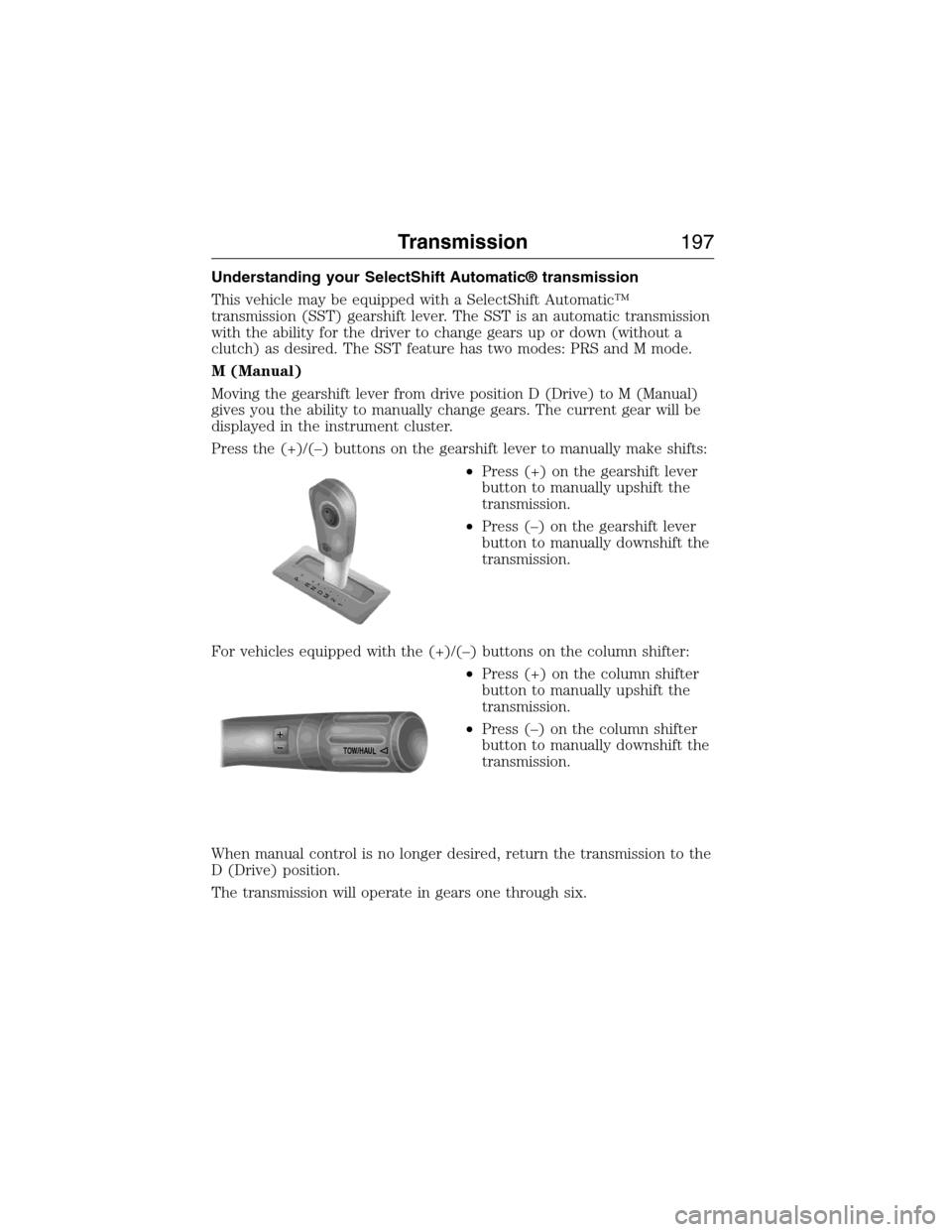
Press the (+)/(–) buttons on the gearshift lever to manually make shifts:
•Press (+) on the gearshift lever
button to manually upshift the
transmission.
•Press (–) on the gearshift lever
button to manually downshift the
transmission.
For vehicles equipped with the (+)/(–) buttons on the column shifter:
•Press (+) on the column shifter
button to manually upshift the
transmission.
•Press (–) on the column shifter
button to manually downshift the
transmission.
When manual control is no longer desired, return the transmission to the
D (Drive) position.
The transmission will operate in gears one through six.
T
/H
T
/H
PR
N
D
M
2
1
+
- +
-
TOW/H
AUL
Transmission197
2015 Expedition(exd)
Owners Guide gf, 1st Printing, July 2014
USA(fus)
Page 256 of 564
The rating for the tow vehicle’s braking system operation is at the
gross vehicle weight rating, not the gross combined weight rating.
Separate functioning brake systems are required for safe control
of towed vehicles and trailers weighing more than 1500 pounds
(680 kilograms) when loaded.
Integrated Trailer Brake Controller (If Equipped)
WARNING:The Ford TBC has been verified to be compatible
with trailers having electric-actuated drum brakes (one to four
axles) and some electric-over-hydraulic (EOH) brakes. It will not
activate hydraulic surge-style trailer brakes. It is the responsibility of
the customer to ensure that the trailer brakes are adjusted
appropriately, functioning normally and all electric connections are
properly made. Failure to do so may result in loss of vehicle control,
crash or serious injury.
When used properly, the trailer brake controller assists in smooth and
effective trailer braking by powering the trailer’s electric or
electric-over-hydraulic brakes with a proportional output based on the
towing vehicle’s brake pressure.
Ford has tested the trailer brake controller to be compatible with several
major brands of electric-over-hydraulic trailer brakes. Contact an
authorized dealer for information on which brands you can use.
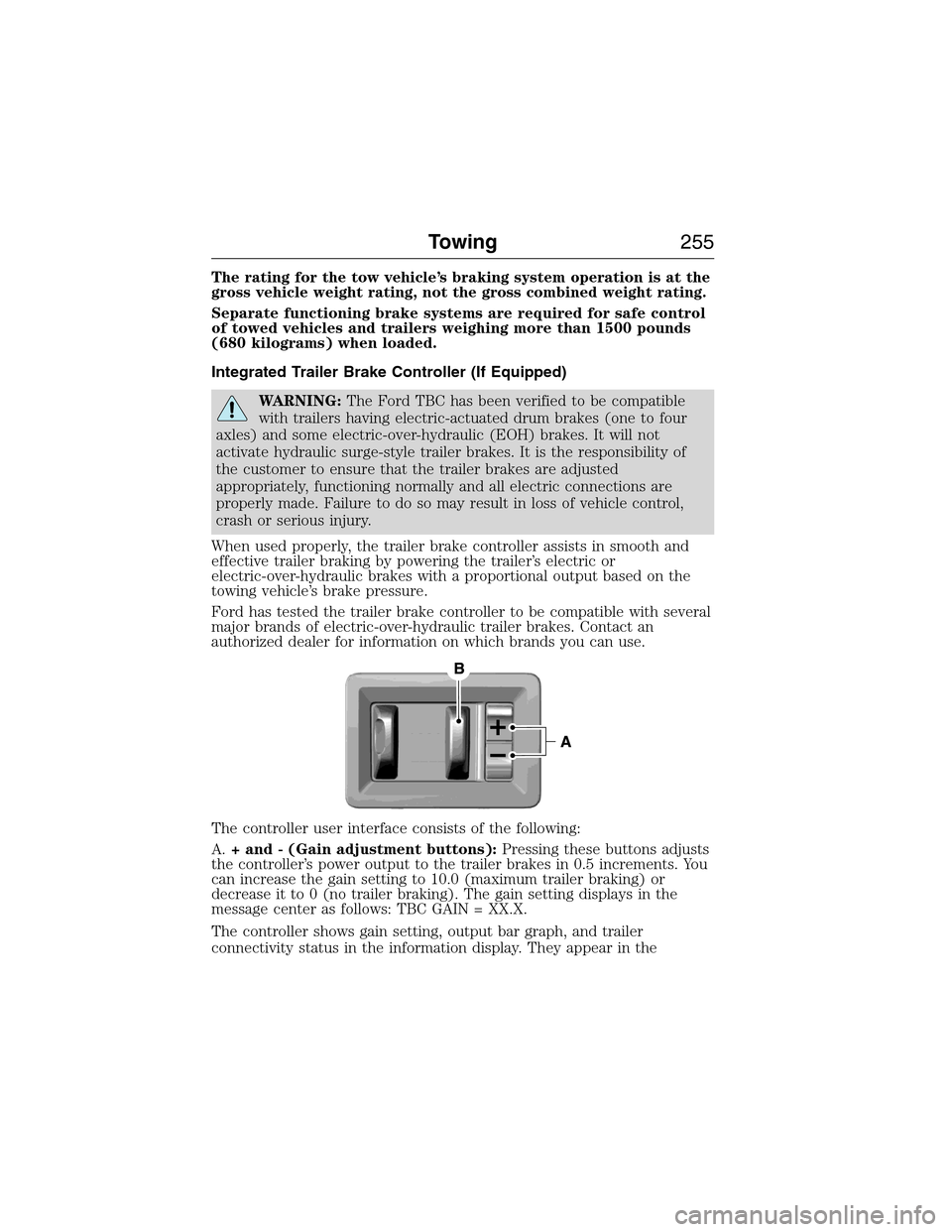
The controller user interface consists of the following:
A.+ and - (Gain adjustment buttons):Pressing these buttons adjusts
the controller’s power output to the trailer brakes in 0.5 increments. You
can increase the gain setting to 10.0 (maximum trailer braking) or
decrease it to 0 (no trailer braking). The gain setting displays in the
message center as follows: TBC GAIN = XX.X.
The controller shows gain setting, output bar graph, and trailer
connectivity status in the information display. They appear in the
Towing255
2015 Expedition(exd)
Owners Guide gf, 1st Printing, July 2014
USA(fus)
Page 258 of 564
Procedure for Adjusting Gain
Note:Only perform this procedure in a traffic-free environment at
speeds of approximately 20–25 mph (30–40 km/h).
The gain setting sets the trailer brake controller for the specific towing
condition. You should change the setting as towing conditions change.
Changes to towing conditions include trailer load, vehicle load, road
conditions and weather.
The gain should be set to provide the maximum trailer braking assistance
while making sure the trailer wheels do not lock when using the brakes.
Locked trailer wheels may lead to trailer instability.
1. Make sure the trailer brakes are in good working condition,
functioning normally and properly adjusted. See your trailer dealer if
necessary.
2. Hook up the trailer and make the electrical connections according to
the trailer manufacturer’s instructions.
3. When you plug in a trailer with electric or electric-over-hydraulic
brakes,TRAILER CONNECTEDappears in the information display.
4. Use the gain adjustment (+ and -) buttons to increase or decrease
the gain setting to the desired starting point. A gain setting of 6.0 is a
good starting point for heavier loads.
5. In a traffic-free environment, tow the trailer on a dry, level surface at
a speed of 20–25 mph (30–40 km/h) and squeeze the manual control
lever completely.
6. If the trailer wheels lock up, indicated by squealing tires, reduce the
gain setting. If the trailer wheels turn freely, increase the gain setting.
Repeat Steps 5 and 6 until the gain setting is at a point just below
trailer wheel lock-up. If towing a heavier trailer, trailer wheel lock-up
may not be attainable even with the maximum gain setting of 10.
Explanation of Information Display Warning Messages
Note:An authorized dealer can diagnose the trailer brake controller to
determine exactly which trailer fault has occurred. However, your Ford
warranty doesnotcover this diagnosis if the fault is with the trailer.
TRAILER BRAKE MODULE FAULT:Displays in response to faults
sensed by the trailer brake controller, accompanied by a single chime. If
this message appears, contact an authorized dealer as soon as possible
for diagnosis and repair. The controller may still function, but
performance may be degraded.
WIRING FAULT ON TRAILER:Displays when there is a short circuit
on the electric brake output wire. If theWIRING FAULT ON TRAILER
message displays, accompanied by a single chime, with no trailer
Towing257
2015 Expedition(exd)
Owners Guide gf, 1st Printing, July 2014
USA(fus)
Page 372 of 564
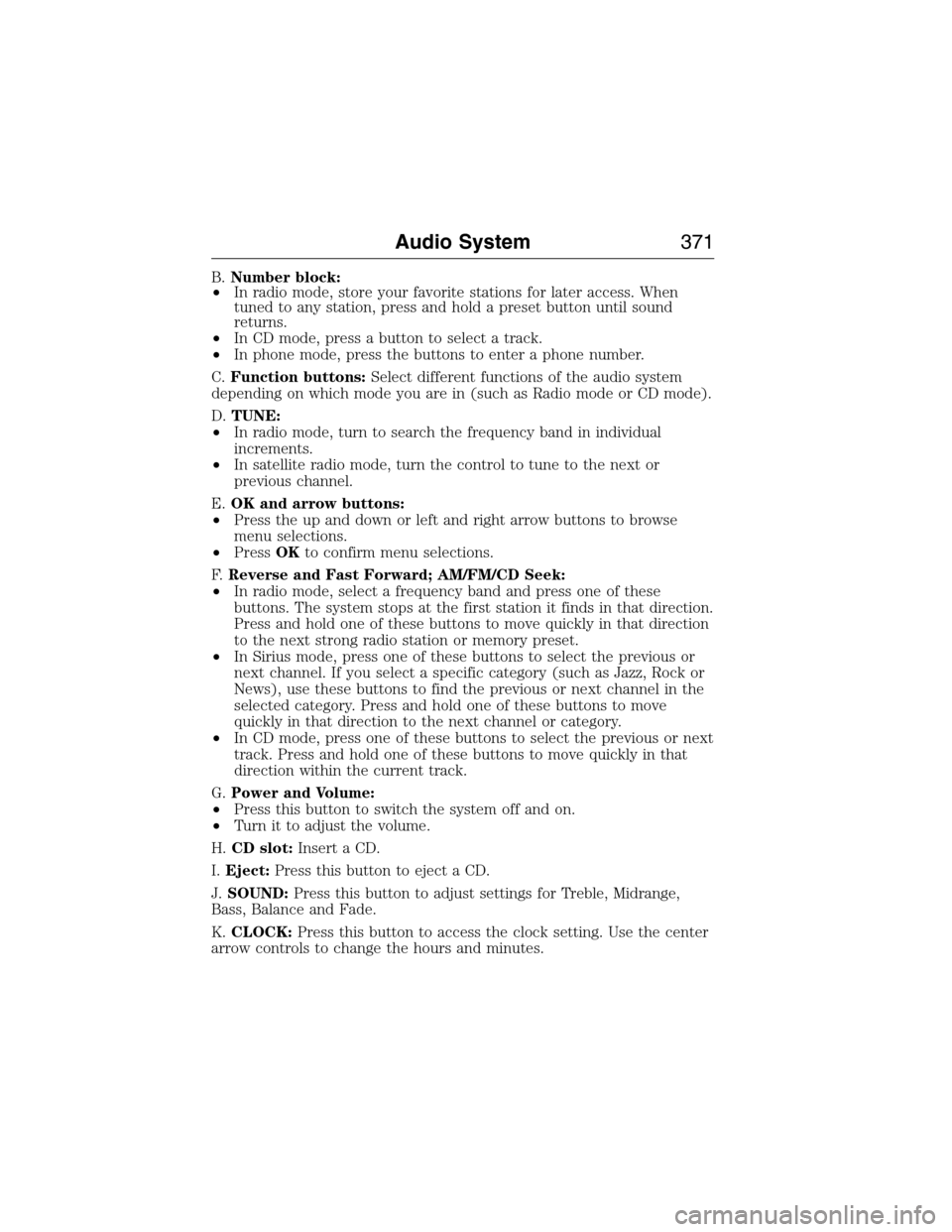
B.Number block:
•In radio mode, store your favorite stations for later access. When
tuned to any station, press and hold a preset button until sound
returns.
•In CD mode, press a button to select a track.
•In phone mode, press the buttons to enter a phone number.
C.Function buttons:Select different functions of the audio system
depending on which mode you are in (such as Radio mode or CD mode).
D.TUNE:
•In radio mode, turn to search the frequency band in individual
increments.
•In satellite radio mode, turn the control to tune to the next or
previous channel.
E.OK and arrow buttons:
•Press the up and down or left and right arrow buttons to browse
menu selections.
•PressOKto confirm menu selections.
F.Reverse and Fast Forward; AM/FM/CD Seek:
•In radio mode, select a frequency band and press one of these
buttons. The system stops at the first station it finds in that direction.
Press and hold one of these buttons to move quickly in that direction
to the next strong radio station or memory preset.
•In Sirius mode, press one of these buttons to select the previous or
next channel. If you select a specific category (such as Jazz, Rock or
News), use these buttons to find the previous or next channel in the
selected category. Press and hold one of these buttons to move
quickly in that direction to the next channel or category.
•In CD mode, press one of these buttons to select the previous or next
track. Press and hold one of these buttons to move quickly in that
direction within the current track.
G.Power and Volume:
•Press this button to switch the system off and on.
•Turn it to adjust the volume.
H.CD slot:Insert a CD.
I.Eject:Press this button to eject a CD.
J.SOUND:Press this button to adjust settings for Treble, Midrange,
Bass, Balance and Fade.
K.CLOCK:Press this button to access the clock setting. Use the center
arrow controls to change the hours and minutes.
Audio System371
2015 Expedition(exd)
Owners Guide gf, 1st Printing, July 2014
USA(fus)
Page 373 of 564
L.PHONE:Press this button to access the phone features of the SYNC
system. See theSYNCchapter for more information.
M.MENU:Press this button to access different audio system features.
SeeMenu structurelater in this section.
N.MUTE:orSIRIUS:Press this button to mute the playing audio, or if
equipped, listen to Sirius satellite radio.
O.AUX:Press this button to access your auxiliary input jack or switch
between devices you plug into the input jack or USB port. SeeAuxiliary
input jacklater in this chapter.
P.RADIO:Press this button to listen to the radio or change radio
frequency bands. Press the function buttons below the radio screen to
select different radio functions.
Q.CD:Press this button to listen to a CD. Press the function buttons
below the radio screen to select on-screen options of Repeat or Shuffle.
Menu Structure
Note:Depending on your system, some options may appear slightly
different.
PressMENU.
Press the up and down arrow buttons to scroll through the options.
Press the right arrow to enter a menu. Press the left arrow to exit a
menu.
PressOKto confirm a selection.
Radio Settings
ScanSelect for a brief sampling of all available
channels.
Set CategorySelect to have the system search by certain
music categories (such as Rock, Pop or
Country).
RBDS/RDS TextSelect to view additional broadcast data, if
available. This feature defaults to off. RBDS
must be on for you to set a category.
372Audio System
2015 Expedition(exd)
Owners Guide gf, 1st Printing, July 2014
USA(fus)
Page 376 of 564
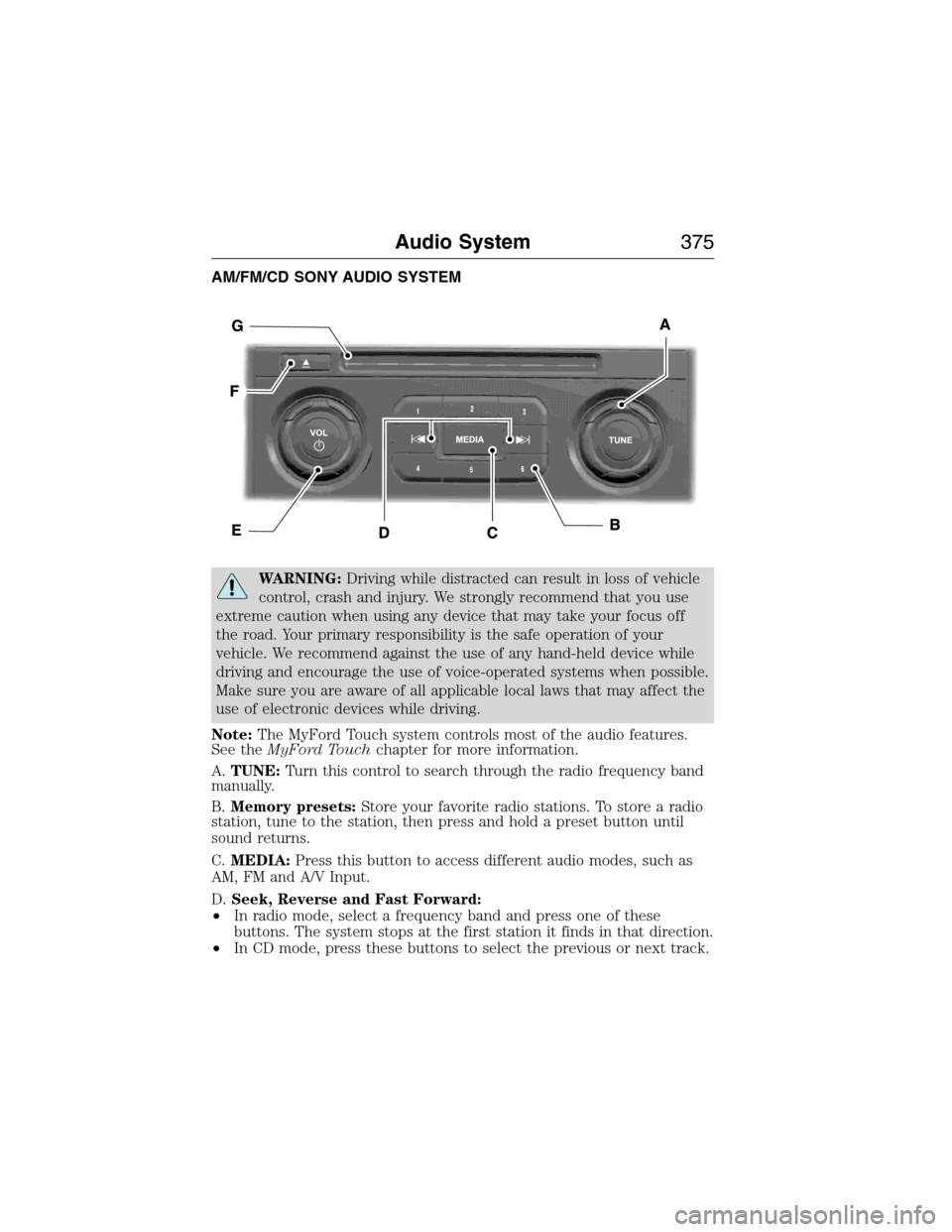
AM/FM/CD SONY AUDIO SYSTEM
WARNING:Driving while distracted can result in loss of vehicle
control, crash and injury. We strongly recommend that you use
extreme caution when using any device that may take your focus off
the road. Your primary responsibility is the safe operation of your
vehicle. We recommend against the use of any hand-held device while
driving and encourage the use of voice-operated systems when possible.
Make sure you are aware of all applicable local laws that may affect the
use of electronic devices while driving.
Note:The MyFord Touch system controls most of the audio features.
See theMyFord Touchchapter for more information.
A.TUNE:Turn this control to search through the radio frequency band
manually.
B.Memory presets:Store your favorite radio stations. To store a radio
station, tune to the station, then press and hold a preset button until
sound returns.
C.MEDIA:Press this button to access different audio modes, such as
AM, FM and A/V Input.
D.Seek, Reverse and Fast Forward:
•In radio mode, select a frequency band and press one of these
buttons. The system stops at the first station it finds in that direction.
•In CD mode, press these buttons to select the previous or next track.
Audio System375
2015 Expedition(exd)
Owners Guide gf, 1st Printing, July 2014
USA(fus)
Page 395 of 564
“DIAL”
“411” (four-one-one), “911” (nine-one-one)
“700 (seven hundred)” (seven hundred)
“800 (eight hundred)” (eight hundred)
“900 (nine hundred)” (nine hundred)
“#” (pound)
“
“Asterisk” (*)
“Clear” (deletes all entered digits)
“Delete” (deletes one digit)
“Plus”
“Star”
Note:To exit dial mode, press and hold the phone button or press
MENU to go to the PHONE menu.
Making Calls
Press the voice icon and when prompted say:
1. Say “Call
2. When the system confirms the number, say “Dial” again to initiate the
call.
To erase the last spoken digit, say “Delete” or press the left arrow
button. To erase all spoken digits, say “Clear” or press and hold the left
arrow button.
To end the call, press and hold the phone button.
Receiving Calls
When receiving a call, you can:
•Answer the call by pressing the phone button.
•Reject the call by pressing and holding the phone button.
•Ignore the call by doing nothing.
Phone Options during an Active Call
During an active call, you have additional menu features which become
available such as putting a call on hold, joining calls, etc. Use the arrow
buttons to scroll through the menu options.
394SYNC®
2015 Expedition(exd)
Owners Guide gf, 1st Printing, July 2014
USA(fus)
Page 403 of 564
System Settings
System Settings provide access to your Bluetooth Devices and
Advanced menu features. Use the arrow buttons to scroll through the
menu options.
The Bluetooth Devices menu allows you to add, connect, delete and set a
phone as primary as well as turn your Bluetooth feature on and off.
The Advanced menu allows you to access and set prompts, languages,
defaults, perform a master reset, install an application and view system
information.
Bluetooth Devices Menu Options
This menu allows you to add, connect, delete, set a phone as primary,
and turn Bluetooth on or off.
1. Press the phone button to enter the Phone Menu.
2. Scroll until System Settings appears and press OK.
3. Scroll until Bluetooth Devices appears and select OK.
4. Scroll to select from the following options:
If you select: You can:
Add Bluetooth
Device
*SeeUsing SYNC with your phoneearlier in
this chapter for pairing instructions.
Connect Bluetooth
DeviceConnect a previously paired
Bluetooth-enabled phone.
1. Press OK to select and view a list of
previously paired phones.
2. Scroll until the desired device is chosen,
then press OK to connect the phone.
Note:Only one device can be connected at a
time. When another phone is connected, the
previous one is disconnected.
Set Primary PhoneSet a previously paired phone as your primary
phone.
Press OK to select and scroll to select the
desired phone. Press OK to confirm.
Note:SYNC attempts to connect with the
primary phone at every ignition cycle. When a
phone is selected as primary, it appears first
in the list and is marked with an asterisk (*).
402SYNC®
2015 Expedition(exd)
Owners Guide gf, 1st Printing, July 2014
USA(fus)