2015 FIAT 500X AUX
[x] Cancel search: AUXPage 199 of 240

SWITCHING THE SYSTEM
ON/OFFThe system is switched on/off by
pressing the
button/knob.
Turn the button/knob clockwise to
increase the radio volume or
anticlockwise to decrease it.
RADIO (TUNER) MODEThe system features the following
tuners: AM, FM.Radio mode selectionPress the RADIO button on the front
panel to activate radio mode.Selecting a frequency
bandThe different tuning modes can be
selected by pressing the RADIO button
on the front panel.Indications on displayAfter the desired radio station is
selected on the display, the following
information is shown (INFO mode
activated):
In the upper part: the preset station, the
time and the other active radio settings
are highlighted.
In the central part: the name of the
current station, the frequency and the
radio text information (if any) are
highlighted.
FM station listPress the BROWSE ENTER button/
knob to display the complete list of the
FM stations that can be received.AM/FM radio station
storageThe preset stations are available in all
system modes and are selected by
touching one of the presetting buttons
1-2-3-4-5-6on the front panel.
If you are tuned to a radio station that
you wish to store, hold down the button
on the display which corresponds to
the desired preset until an acoustic
confirmation signal is emitted.AM/FM radio station
selectionTo search for the desired radio station
press the
or
button or use
the wheel of the steering wheel controls
, or turn the "BROWSE ENTER"
knob.
Previous/next radio
station searchPress briefly the
or
button or
use the wheel of the steering wheel
controls
: when the button is
released the previous or next
radio station is displayed.
Previous/next radio
station fast searchHold down the
or
button to
start the fast search: when the button is
released, the first tunable radio is
played.
MEDIA MODEInteraction modes for AUX, USB/iPod
operation.Track change
(next/previous)Briefly press the
button or turn the
BROWSE ENTER button/knob
clockwise to play the next track.
Briefly press thebutton or turn the
BROWSE ENTER button/knob
anticlockwise to return to the beginning
of the selected track or to the beginning
of the previous track (if this has been
played for less than 3 seconds).
Fast forward/rewind
through tracksHold down the
button to fast
forward the selected track.
Hold down thebutton to fast
rewind the track.
197
15-12-2014 8:23 Pagina 197
Page 200 of 240

Track selection
(browse)Use this function to scroll through and
select the tracks on the active device.
The choices available depend on the
device connected.
For example, on an USB/iPod device
you can also scroll through the list
of artists, genres and albums available
depending on the information present
on the tracks using the BROWSE
ENTER button/knob.
Within each alphabetical list, theA-B-C
button on the front panel allows the
user to skip to the desired letter in the
list.
NOTE This button might be disabled for
someApple® devices.
NOTE The BROWSE ENTER button
does not allow any operation on an
AUX device.
Press the BROWSE ENTER button to
activate this function on the source
being played.
Turn the BROWSE ENTER button/knob
to select the desired category and
then press the button/knob to confirm
the selection.
Press the
button to cancel the
function.
Audio source selectionPress theMEDIAbutton to select the
desired audio source among those
available: AUX or USB/iPod.Track information
displayPress theINFObutton to select the
information displayed while playing
(Artist, Album, Genre, Name, Folder,
File name).
Press the
button to exit the screen.
ShufflePress the
button to play the tracks
on USB/iPod in a random order.
Press again to deactivate the function.
RepeatTo listen to the track again, press the
button.
Press again to deactivate the function.
AUX SUPPORTTo activate AUX mode, insert an
appropriate device in the AUX socket
on the vehicle.
Adjust the volume using the
button/
knob on the front panel or using the
volume adjustment control on the
connected device.
For the "Audio source selection"
function, see the "Media mode"
chapter.
IMPORTANTThe functions of the device connected
with the AUX socket are directly
managed by the device itself: it is not
possible to change track/folder/playlist
or control playing start/end/pause
with the controls on the front panel or
on the steering wheel.
Do not leave the cable of your portable
player connected to the AUX socket
after disconnection, to avoid possible
hiss from the speakers.USB/iPod SOURCETo activate the USB/iPod mode insert
the corresponding device (USB or iPod)
in the USB port present on the vehicle.153
F1B0006C
198
MULTIMEDIA
15-12-2014 8:23 Pagina 198
Page 201 of 240
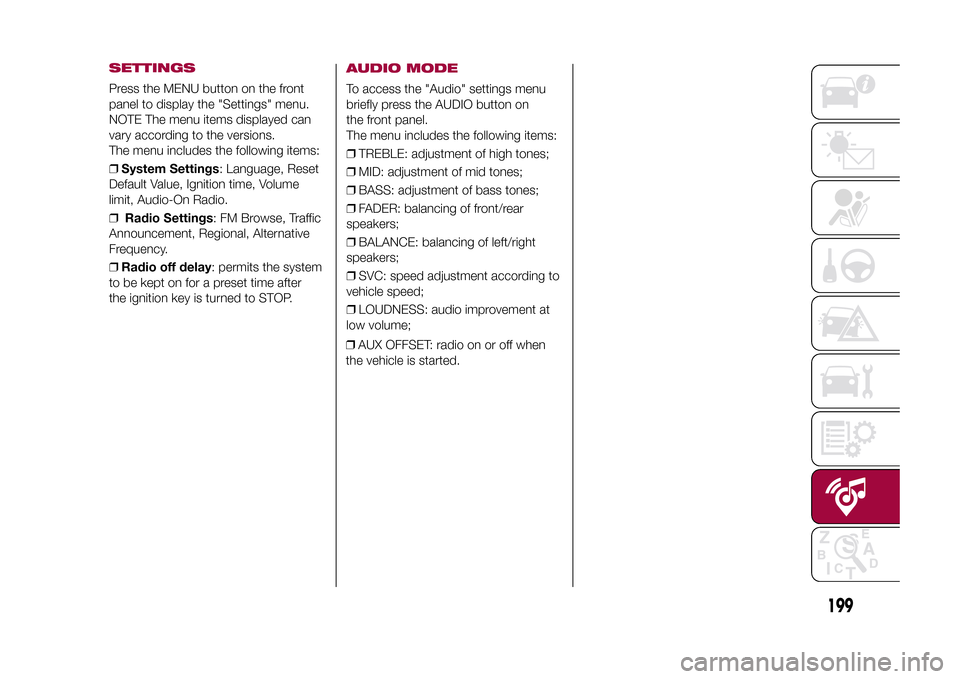
SETTINGSPress the MENU button on the front
panel to display the "Settings" menu.
NOTE The menu items displayed can
vary according to the versions.
The menu includes the following items:
❒System Settings: Language, Reset
Default Value, Ignition time, Volume
limit, Audio-On Radio.
❒Radio Settings: FM Browse, Traffic
Announcement, Regional, Alternative
Frequency.
❒Radio off delay: permits the system
to be kept on for a preset time after
the ignition key is turned to STOP.
AUDIO MODETo access the "Audio" settings menu
briefly press the AUDIO button on
the front panel.
The menu includes the following items:
❒TREBLE: adjustment of high tones;
❒MID: adjustment of mid tones;
❒BASS: adjustment of bass tones;
❒FADER: balancing of front/rear
speakers;
❒BALANCE: balancing of left/right
speakers;
❒SVC: speed adjustment according to
vehicle speed;
❒LOUDNESS: audio improvement at
low volume;
❒AUX OFFSET: radio on or off when
the vehicle is started.
199
15-12-2014 8:23 Pagina 199
Page 203 of 240
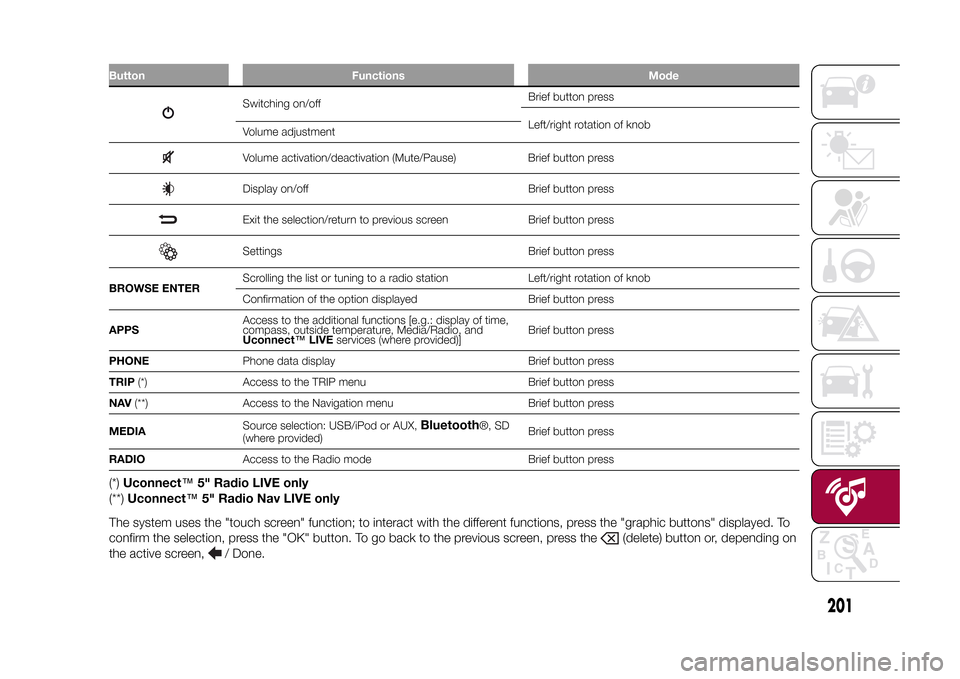
Button Functions Mode
Switching on/offBrief button press
Left/right rotation of knob
Volume adjustmentVolume activation/deactivation (Mute/Pause) Brief button pressDisplay on/off Brief button pressExit the selection/return to previous screen Brief button pressSettings Brief button press
BROWSE ENTERScrolling the list or tuning to a radio station Left/right rotation of knob
Confirmation of the option displayed Brief button press
APPSAccess to the additional functions [e.g.: display of time,
compass, outside temperature, Media/Radio, and
Uconnect™LIVEservices (where provided)]Brief button press
PHONEPhone data display Brief button press
TRIP(*) Access to the TRIP menu Brief button press
NAV(**) Access to the Navigation menu Brief button press
MEDIASource selection: USB/iPod or AUX,
Bluetooth
®, SD
(where provided)Brief button press
RADIOAccess to the Radio mode Brief button press
(*)Uconnect™5" Radio LIVE only
(**)Uconnect™5" Radio Nav LIVE only
The system uses the "touch screen" function; to interact with the different functions, press the "graphic buttons" displayed. To
confirm the selection, press the "OK" button. To go back to the previous screen, press the
(delete) button or, depending on
the active screen,
/ Done.
.
201
15-12-2014 8:23 Pagina 201
Page 205 of 240
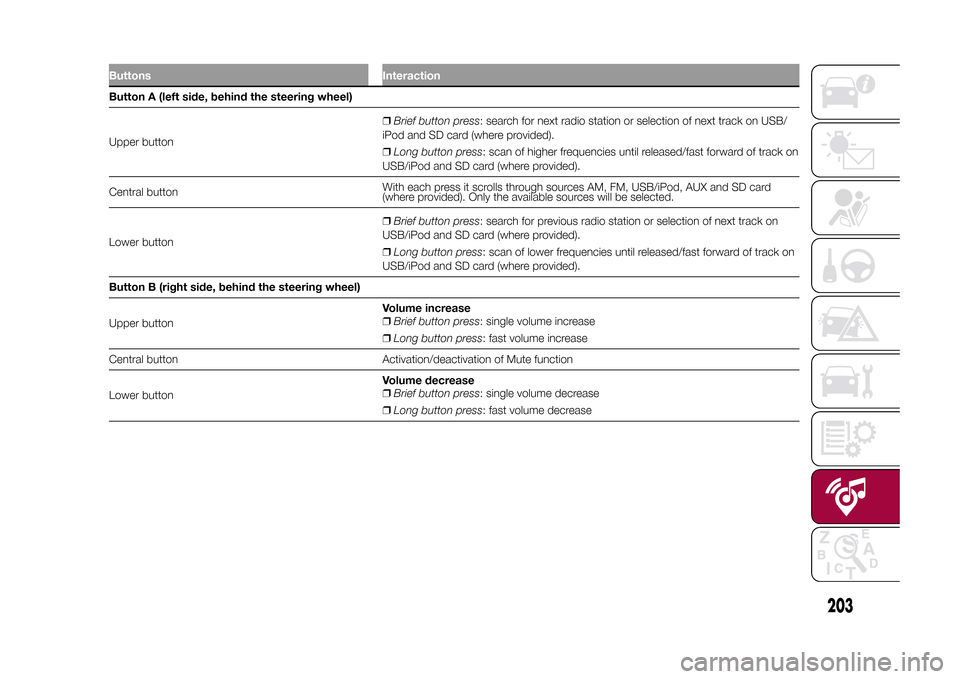
Buttons InteractionButton A (left side, behind the steering wheel)
Upper button❒Brief button press: search for next radio station or selection of next track on USB/
iPod and SD card (where provided).
❒Long button press: scan of higher frequencies until released/fast forward of track on
USB/iPod and SD card (where provided).
Central buttonWith each press it scrolls through sources AM, FM, USB/iPod, AUX and SD card
(where provided). Only the available sources will be selected.
Lower button❒Brief button press: search for previous radio station or selection of next track on
USB/iPod and SD card (where provided).
❒Long button press: scan of lower frequencies until released/fast forward of track on
USB/iPod and SD card (where provided).
Button B (right side, behind the steering wheel)
Upper buttonVolume increase
❒Brief button press: single volume increase
❒Long button press: fast volume increase
Central button Activation/deactivation of Mute function
Lower buttonVolume decrease
❒Brief button press: single volume decrease
❒Long button press: fast volume decrease
203
15-12-2014 8:23 Pagina 203
Page 206 of 240

SWITCHING THE SYSTEM
ON/OFFThe system is switched on/off by
pressing the
(ON/OFF) button/knob.
Turn the button/knob clockwise to
increase the radio volume or
anticlockwise to decrease it.
USB/iPOD SOURCEThe vehicle is equipped with USB port
and AUX socket. Some versions are
equipped with an SD-SDHC reader
able to read/manage cards with SPI
technology.
Some versions are also equipped with
another USB port, located in the front
armrest compartment.RADIO MODEAfter the desired radio station is
selected, the following information is
shown on the display:
At the top: the list of radio stations
stored (preset) is displayed; the station
being listened to is highlighted.
In the middle: the name of the radio
station being listened to and the
buttons to select the previous or the
next radio station are displayed.
At the bottom: display of the following
buttons:
❒"Browse": list of the radio stations
available;❒"AM/FM", "AM/DAB", "FM/DAB":
selection of the desired frequency band
(button reconfigurable according to
the band selected: AM, FM or DAB);
❒"Tune" : manual radio station tuning
(not available for DAB radios);
❒"Info": additional information on the
source being listened to;
❒"Audio": access to the "Audio
settings" screen.
Audio menuThe following adjustments can be
carried out using the "Audio" menu:
❒"Equaliser" (where provided);
❒"Balance/Fader" (left/right and
front/rear sound balance adjustment);
❒"Speed/Volume" (speed-dependent
automatic volume control);
❒"Loudness" (where provided);
❒"Radio Auto-On";
❒"Radio Off Delay".
To exit the "Audio" menu, press the
/Done button.
MEDIA MODE
Audio source selectionPress the "choose source" button to
select the desired audio source among
those available: AUX, USB / iPod, SD
(where provided) orBluetooth®.
Note: Applications used on portable
devices may be not compatible with the
Uconnect™system.Track selection
(Browse)With Media mode active, briefly press
the
/
buttons to play the
previous/next track or keep the
/
buttons pressed to fast rewind/
forward the track.
Note: For languages not supported by
the system which feature special
characters (e.g. Greek), the keyboard is
not available. In these cases this
function will be limited.
Bluetooth® SOURCE
Pairing a Bluetooth®
audio deviceTo pair aBluetooth® audio device,
proceed as follows:
❒activate theBluetooth® function on
the device;
❒Press the MEDIA button on the front
panel;
❒if the "Media" source is active, press
the "Source" button;
204
MULTIMEDIA
15-12-2014 8:23 Pagina 204
Page 217 of 240

Button Functions Mode1-
Switching on Brief button press
Switching off Brief button press
Volume adjustment Left/right rotation of knob
2-Volume activation/deactivation (Mute/Pause) Brief button press
3-Display on/off Brief button press
4-Settings Brief button press
5-Exit the selection/return to previous screen Brief button press
6 - BROWSE ENTERScrolling the list or tuning to a radio station Left/right rotation of knob
Confirmation of the option displayed Brief button press
7 - APPSAccess to the additional functions (display of Time,
Compass, Outside temperature, Media Player and
UConnect™LIVEservices, where provided)Brief button press
8 - PHONEPhone data display Brief button press
9-NAVAccess to the Navigation menu Brief button press
10 - MEDIASource selection: USB/iPod or AUX,
Bluetooth
® and
SD (where provided)Brief button press
11 - RADIOAccess to the Radio mode Brief button press
.
215
15-12-2014 8:23 Pagina 215
Page 219 of 240
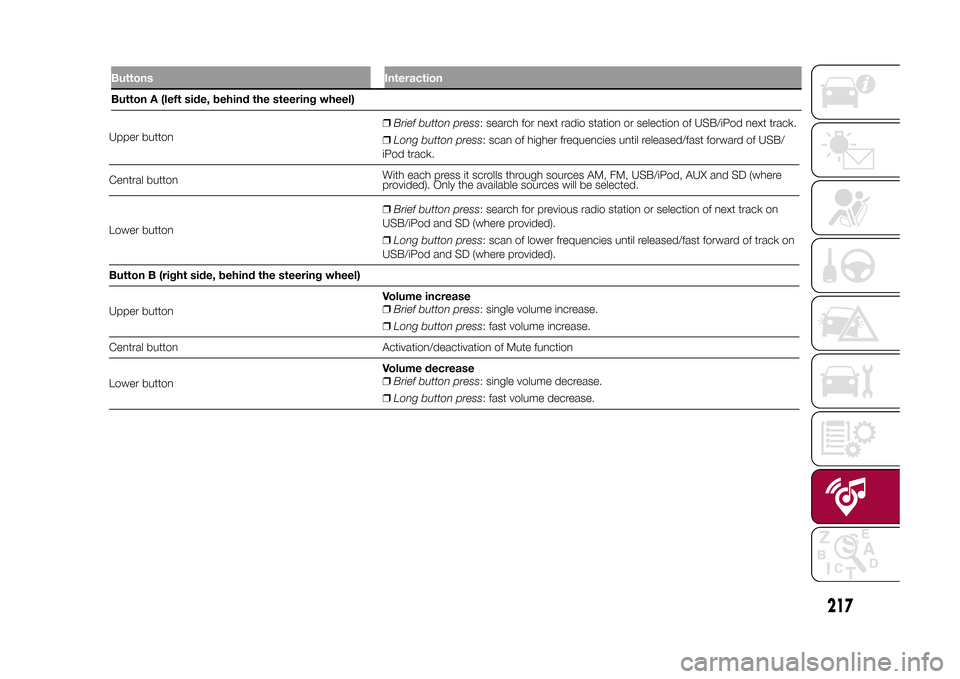
Upper button❒Brief button press: search for next radio station or selection of USB/iPod next track.
❒Long button press: scan of higher frequencies until released/fast forward of USB/
iPod track.
Central buttonWith each press it scrolls through sources AM, FM, USB/iPod, AUX and SD (where
provided). Only the available sources will be selected.
Lower button❒Brief button press: search for previous radio station or selection of next track on
USB/iPod and SD (where provided).
❒Long button press: scan of lower frequencies until released/fast forward of track on
USB/iPod and SD (where provided).
Button B (right side, behind the steering wheel)
Upper buttonVolume increase
❒Brief button press: single volume increase.
❒Long button press: fast volume increase.
Central button Activation/deactivation of Mute function
Lower buttonVolume decrease
❒Brief button press: single volume decrease.
❒Long button press: fast volume decrease.
217
15-12-2014 8:23 Pagina 217
Buttons InteractionButton A (left side, behind the steering wheel)