Page 182 of 400

time with GPS” button on the touchscreen until a check-
mark appears next to the setting, showing that setting has
been selected. Press the back arrow button on the touch-
screen to return to the previous menu.
•Set Time Hours
This feature will allow you to adjust the hours. The “Sync
time with GPS” button on the touchscreen must be
unchecked. To make your selection, press the “+” or “–”
buttons on the touchscreen to adjust the hours up or
down. Press the back arrow button on the touchscreen to
return to the previous menu.
•Set Time Minutes
This feature will allow you to adjust the minutes. The
“Sync time with GPS” button on the touchscreen must be
unchecked. To make your selection, press the “+” or “–”
buttons on the touchscreen to adjust the minutes up or
down. Press the back arrow button on the touchscreen to
return to the previous menu.
•Time Format
This feature will allow you to select the time format
display setting. Press the “Time Format” button on the
touchscreen until a check-mark appears next to the
“12hrs” or “24hrs” setting, showing that setting has been
selected. Press the back arrow button on the touchscreen
to return to the previous menu.
•Show Time In Status Bar — If Equipped
This feature will allow you to turn on or shut off the
digital clock in the status bar. To change the Show Time
Status setting press the “Show Time in Status Bar” button
on the touchscreen until a check-mark appears next to
setting, indicating that the setting has been selected. Press
the back arrow button on the touchscreen to return to the
previous menu.
180 UNDERSTANDING YOUR INSTRUMENT PANEL
Page 187 of 400

Entry (RKE) transmitter lock or unlock buttons. To make
your selection, press the “Passive Entry” button on the
touchscreen, until a check-mark appears next to setting,
showing that setting has been selected. Press the back
arrow button on the touchscreen to return to the previous
menu, or push the back button on the faceplate. Refer to
“Keyless Enter-N-Go™” in “Things To Know Before
Starting Your Vehicle”.
Engine Off Options
After pressing the Engine Off Options button on the
touchscreen the following settings will be available.
•Engine Off Power Delay
When this feature is selected, the power window
switches, radio, Uconnect® phone system (if equipped),
DVD video system (if equipped), power sunroof (if
equipped), and power outlets will remain active for up to
10 minutes after the ignition is cycled to OFF. Opening
either front door will cancel this feature. To change the
“Engine Off Power Delay” status, press the 0 seconds, 45
seconds, 5 minutes or 10 minutes button on the touch-
screen. Then press the back arrow/Done button on the
touchscreen.
•Headlight Off Delay
When this feature is selected, the driver can choose to
have the headlights remain on for 0, 30, 60, or 90 seconds
when exiting the vehicle. To change the “Headlight Off
Delay” status, press the#Up#or#Down#arrow button on
the touchscreen to select your desired time interval. Press
the back arrow/Done button on the touchscreen to return
to the previous menu.
4
UNDERSTANDING YOUR INSTRUMENT PANEL 185
Page 188 of 400
Audio
After pressing the Audio button on the touchscreen the
following settings will be available.
•Balance/Fade
This feature allows you to adjust the Balance and Fade
settings. Press and drag the speaker icon, use the arrows
to adjust, or tap the ‘C’ icon to readjust to the center.
•Equalizer
This feature allows you to adjust the Bass, Mid and Treble
settings. Adjust the settings with the “+” and “–” setting
buttons on the touchscreen or by selecting any point on
the scale between the “+” and “–” buttons on the
touchscreen. Then press the arrow back button on the
touchscreen.
NOTE:Bass/Mid/Treble allow you to simply slide your
finger up or down to change the setting as well as press
directly on the desired setting.
•Speed Adjusted Volume
This feature increases or decreases volume relative to
vehicle speed. To change the Speed Adjusted Volume
press the “Off,” “1,” “2,” or “3” button on the touch-
screen. Then press the arrow back button on the touch-
screen.
•Surround Sound
This feature provides simulated surround sound mode.
To make your selection, press the Surround Sound button
on the touchscreen, select “On” or “Off” followed by
pressing the arrow back button on the touchscreen.
•Loudness
Loudness improves sound quality at lower volumes. To
make your selection, press the “Loudness” button on the
touchscreen, then choose “Yes” or “No.” The button will
highlight indicating that the setting has been selected.
Press the back arrow/Done button on the touchscreen
186 UNDERSTANDING YOUR INSTRUMENT PANEL
Page 191 of 400

Clear Personal Data
After pressing the “Clear Personal Data Settings” button
on the touchscreen the following settings will be avail-
able:
•Clear Personal Data
When this feature is selected it will remove personal data
including Bluetooth® devices and presets. To remove
personal information, press the “Clear Personal Data”
button and a pop-up will appear asking#Are you sure
you want to clear all personal data?” select “OK” to
Clear, or “Cancel” to exit. Once the data has been cleared,
a pop up appears stating#Personal data cleared.”
System Information
After pressing the “System Information” button on the
touchscreen the following settings will be available:
•System Information
When System Information is selected, a System Informa-
tion screen will appear displaying the system software
version.
SRT Performance Pages
To access the SRT Performance Pages, press the “SRT &
Apps” button on the touchscreen then select the “SRT
Performance Pages” App from the list. Press the UP or
DOWN buttons on the touchscreen to cycle through the
list.
4
UNDERSTANDING YOUR INSTRUMENT PANEL 189
Page 197 of 400

The right hand control is a rocker type switch with a
push-button in the center. Pushing the top of the switch
will increase the volume, and pushing the bottom of the
switch will decrease the volume.
The button located in the center of the right hand control
will switch modes to Radio or other valid audio source.
The left hand control is a rocker type switch with a
push-button in the center. The function of the left hand
control is different depending on which mode you are in.
The following describes the left hand control operation in
each mode.
Radio Operation
Pushing the top of the switch will SEEK up for the next
listenable station and pushing the bottom of the switch
will SEEK down for the next listenable station.
The button located in the center of the left hand control
will tune to the next pre-set station that you have
programmed in the radio pre-set buttons.
RADIO ANTENNA
The am/fm radio antenna is located in the windshield.
Remote Sound System Controls (Back View Of Steering
Wheel)
4
UNDERSTANDING YOUR INSTRUMENT PANEL 195
Page 199 of 400
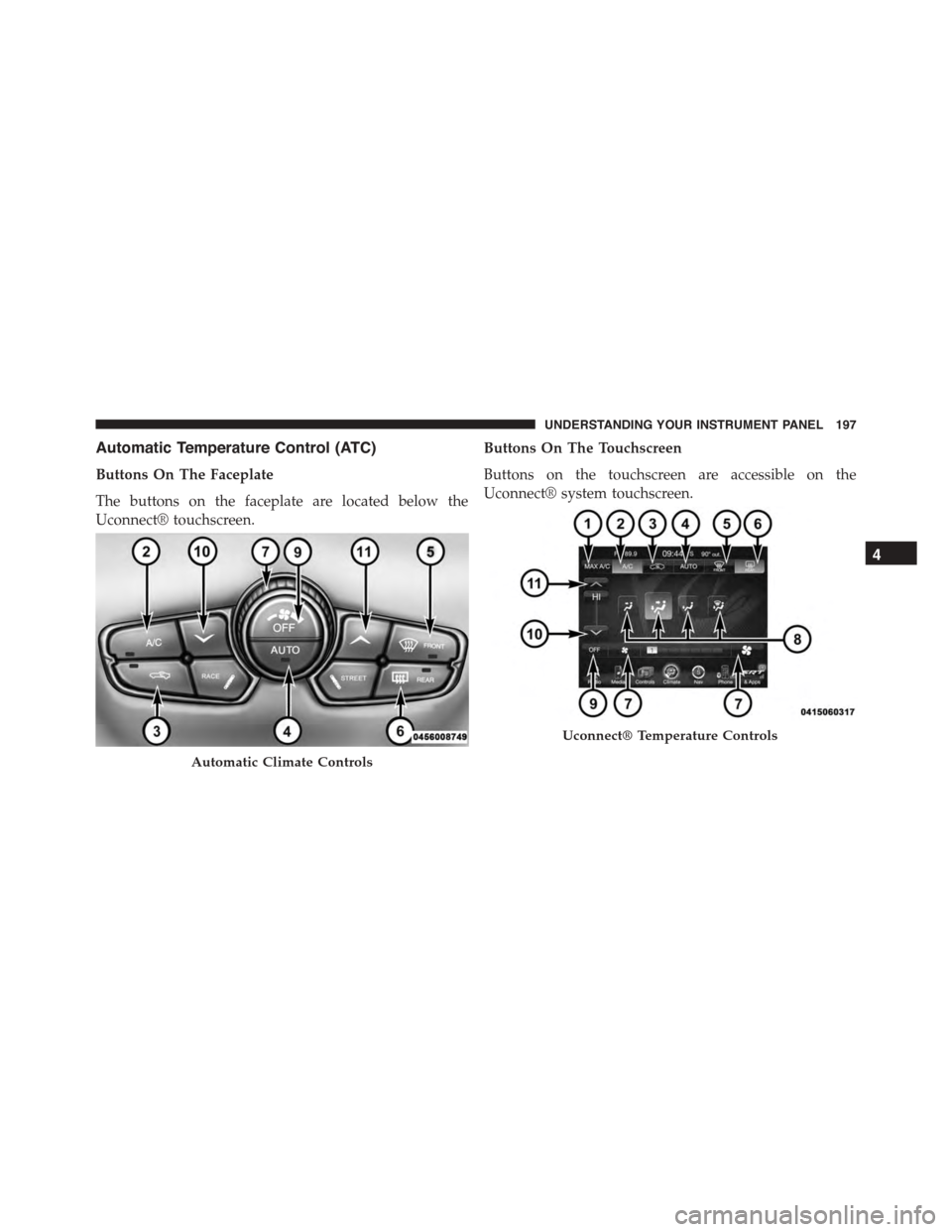
Automatic Temperature Control (ATC)
Buttons On The Faceplate
The buttons on the faceplate are located below the
Uconnect® touchscreen.
Buttons On The Touchscreen
Buttons on the touchscreen are accessible on the
Uconnect® system touchscreen.
Automatic Climate Controls
Uconnect® Temperature Controls
4
UNDERSTANDING YOUR INSTRUMENT PANEL 197
Page 200 of 400

Button Descriptions (Applies To Both Buttons On The
Faceplate And Buttons On The Touchscreen)
1. MAX A/C Button
Press and release to change the current setting, the
indicator illuminates when MAX A/C is ON. Performing
this function again will cause the MAX A/C operation to
switch into manual mode and the MAX A/C indicator
will turn off.
2. A/C Button
Press and release to change the current setting, the
indicator illuminates when A/C is ON. Performing this
function again will cause the A/C operation to switch
into manual mode and the A/C indicator will turn off.
3. Recirculation Button
Press and release to change the current setting, the
indicator illuminates when ON.
4. AUTO Temperature Control
Controls airflow temperature, distribution, volume, and
the amount of air recirculation automatically. Press and
release to select. Refer to “Automatic Operation” for
more information. Performing this function will cause
the ATC to switch between manual mode and automatic
modes.
5. Front Defrost Button
Press and release to change the current airflow setting to
Defrost mode. The indicator illuminates when this fea-
ture is ON. Performing this function will cause the ATC
to switch into manual mode. The blower speed may
increase when Defrost mode is selected. If the front
defrost mode is turned off the climate system will return
the previous setting.
198 UNDERSTANDING YOUR INSTRUMENT PANEL
Page 201 of 400

6. Rear Defrost Button
Press and release this button to turn on the rear window
defroster and the heated outside mirrors (if equipped).
An indicator will illuminate when the rear window
defroster is on. The rear window defroster automatically
turns off after 10 minutes.
CAUTION!
Failure to follow these cautions can cause damage to
the heating elements:
•Use care when washing the inside of the rear
window. Do not use abrasive window cleaners on
the interior surface of the window. Use a soft cloth
and a mild washing solution, wiping parallel to the
heating elements. Labels can be peeled off after
soaking with warm water.
(Continued)
CAUTION!(Continued)
•Do not use scrapers, sharp instruments, or abrasive
window cleaners on the interior surface of the
window.
•Keep all objects a safe distance from the window.
7. Blower Control
Blower control is used to regulate the amount of air
forced through the climate system. There are seven
blower speeds available. Adjusting the blower will cause
automatic mode to switch to manual operation. The
speeds can be selected using either the buttons on the
faceplate or the buttons on the touchscreen as follows:
Button On The Faceplate
The blower speed increases as you turn the control
clockwise from the lowest blower setting. The blower
speed decreases as you turn the knob counterclockwise.
4
UNDERSTANDING YOUR INSTRUMENT PANEL 199