Page 385 of 703
Bluetooth® Streaming Audio (BTSA)
Music can be streamed from your cellular phone to the
Uconnect® phone system.
Refer to the Uconnect® Radio Supplement for further
information on Bluetooth® connectivity.
Controlling BTSA Using Radio Buttons
To enter BTSA mode, push either “AUX” button on the
radio or push the VR button and say “Bluetooth Stream-
ing Audio.”
Play Mode
When switched to BTSA mode, some audio devices can
start playing music over the vehicle’s audio system, but
some devices require the music to be initiated on the
device first, then it will get streamed to the Uconnect®
phone system. Seven devices can be paired to the
Uconnect® phone system, but just one can be selected
and played.
Selecting A Different Audio Device
1. Push the PHONE button to begin.
2. After the#Ready#prompt and following the beep, say
#Setup#, then say#Select Audio Devices.#
3. Say the name of the audio device or ask the
Uconnect® phone system to list the audio devices.
Next Track
Use the SEEK UP button, or push the VR button on the
radio and say “Next Track,” to jump to the next music
track on your cellular phone.
Previous Track
Use the SEEK DOWN button, or push the VR button on
the radio and say “Previous Track,” to jump to the
previous music track on your cellular phone.
4
UNDERSTANDING YOUR INSTRUMENT PANEL 383
Page 387 of 703
•Your vehicle may be equipped with either a standard
DVD player or a Blu-ray™ Disc Player. If equipped
with a Blu-ray™ Disc Player, the icon will be present
on the Player.
•Turn on the Player (if equipped on Dual Screen Sys-
tem) by pushing the Power button, located on the far
left, or by pressing the button on the Remote Control.
•When the Video Screen(s) are open and a DVD/Blu-
ray™ Disc is inserted into the VES™ player, the
screen(s) turn(s) on automatically, the headphone
transmitters turn on and playback begins.
•For Dual Video Screen System, Channel 1 on the
Remote Control and Headphones refers to Screen 1
(second row) and Channel 2 on the Remote Control
and Headphones refers to Screen 2 (third row). Refer to
the Dual Video Screen section for more information.
•The system can be controlled by the front seat occu-
pants using either the touchscreen radio, the DVD or
Blu-ray™ Disc Player, or by the rear seat occupants
using the remote control.
Blu-ray™ Disc Player
Play A Blu-ray™ Disc
To view a Blu-ray™ disc, insert the disc into the Blu-
ray™ VES™ disc Player. Playback will begin automati-
cally after the Blu-ray™ is recognized by the disc drive. If
playback does not begin automatically after the disc is
inserted into the Blu-ray™ Player press the play button.
If playback does not begin automatically after the disc is
inserted into Blu-ray™ VES™ disc Player follow these
steps:
Using The Touchscreen Radio
•Push the MENU button on the faceplate, then press the
Rear VES™ button on the touchscreen. If a chapter list
4
UNDERSTANDING YOUR INSTRUMENT PANEL 385
Page 390 of 703
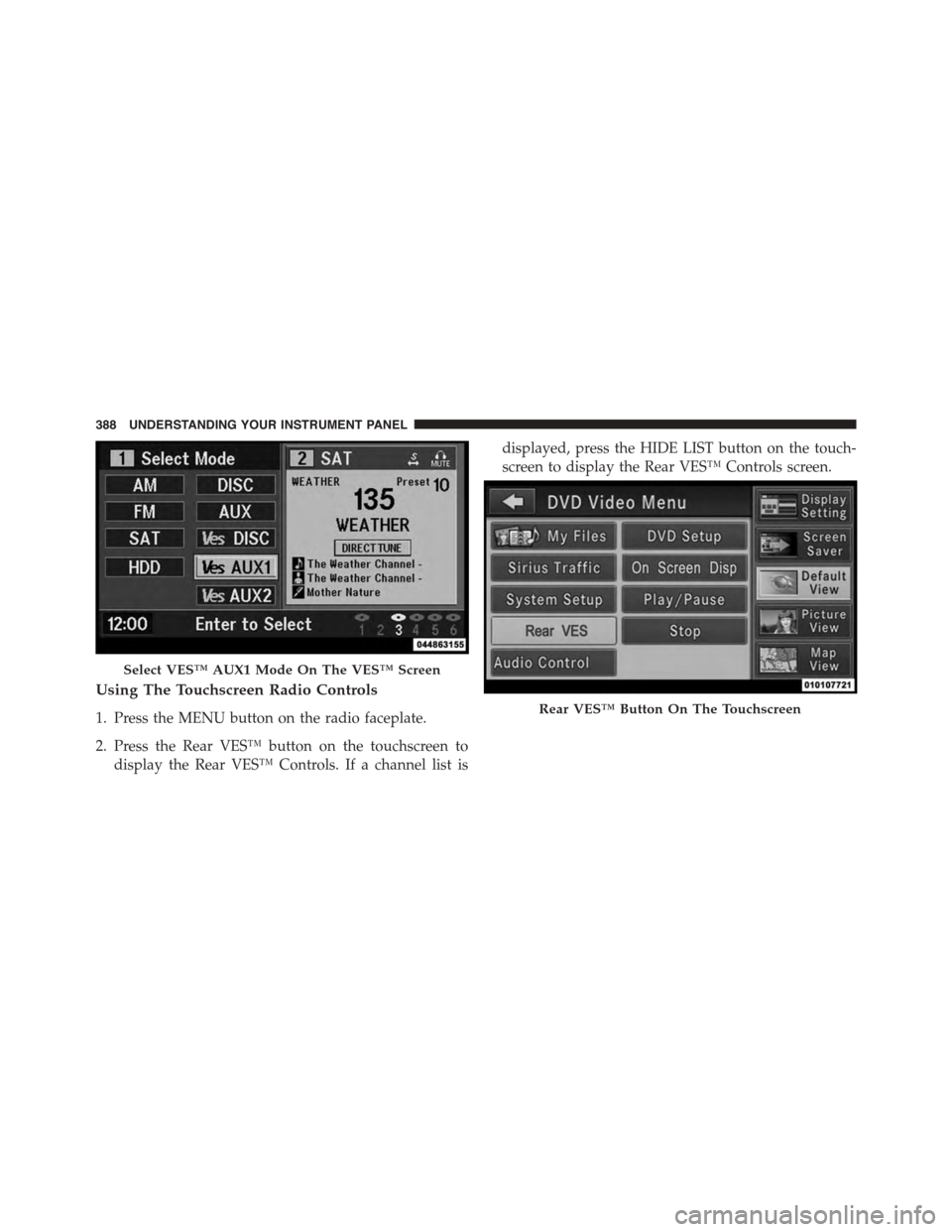
Using The Touchscreen Radio Controls
1. Press the MENU button on the radio faceplate.
2. Press the Rear VES™ button on the touchscreen to
display the Rear VES™ Controls. If a channel list is
displayed, press the HIDE LIST button on the touch-
screen to display the Rear VES™ Controls screen.
Select VES™ AUX1 Mode On The VES™ Screen
Rear VES™ Button On The Touchscreen
388 UNDERSTANDING YOUR INSTRUMENT PANEL
Page 392 of 703

Using The Touchscreen Radio Controls
1. Push the MENU button on the radio faceplate.
2. Press the Rear VES™ button on the touchscreen to
display the Rear VES™ Controls. If a channel list is
displayed, press the HIDE LIST button on the touch-
screen to display the Rear VES™ Controls screen.
3. To listen to an audio source on Channel 2 while a
video is playing on Channel 1, press the 2 button on
the touchscreen and choose an audio source. To exit
press the back arrow button at the top left of the left
screen.
Dual Video Screen
NOTE:Typically there are two different ways to operate
the features of the Video Entertainment System (VES™).
•The Remote Control
•The Touchscreen Radio (If Equipped)
Play A DVD Using The Touchscreen Radio
NOTE:Headunit DVD player does not play Blu-ray™
Discs.
1. Press the OPEN/CLOSE or LOAD button on the radio
faceplate (Touchscreen).
2. Insert the DVD with the label facing up. The radio
automatically selects the appropriate mode after the
disc is recognized and displays the menu screen or
starts playing the first track.
3. To watch a DVD on Screen 1 for second row passen-
gers, ensure the Remote Control and Headphone
switch is on Channel 1.
4. To watch a DVD on Screen 2 for third row passengers,
ensure the Remote Control and Headphone switch is
on Channel 2.
390 UNDERSTANDING YOUR INSTRUMENT PANEL
Page 394 of 703
Using The Touchscreen Radio Controls
1. Press the MENU button on the radio faceplate.
2. Press the Rear VES™ button on the touchscreen to
display the Rear VES™ Controls. If a channel list is
displayed, press the HIDE LIST button on the touch-
screen to display the Rear VES™ Controls screen.
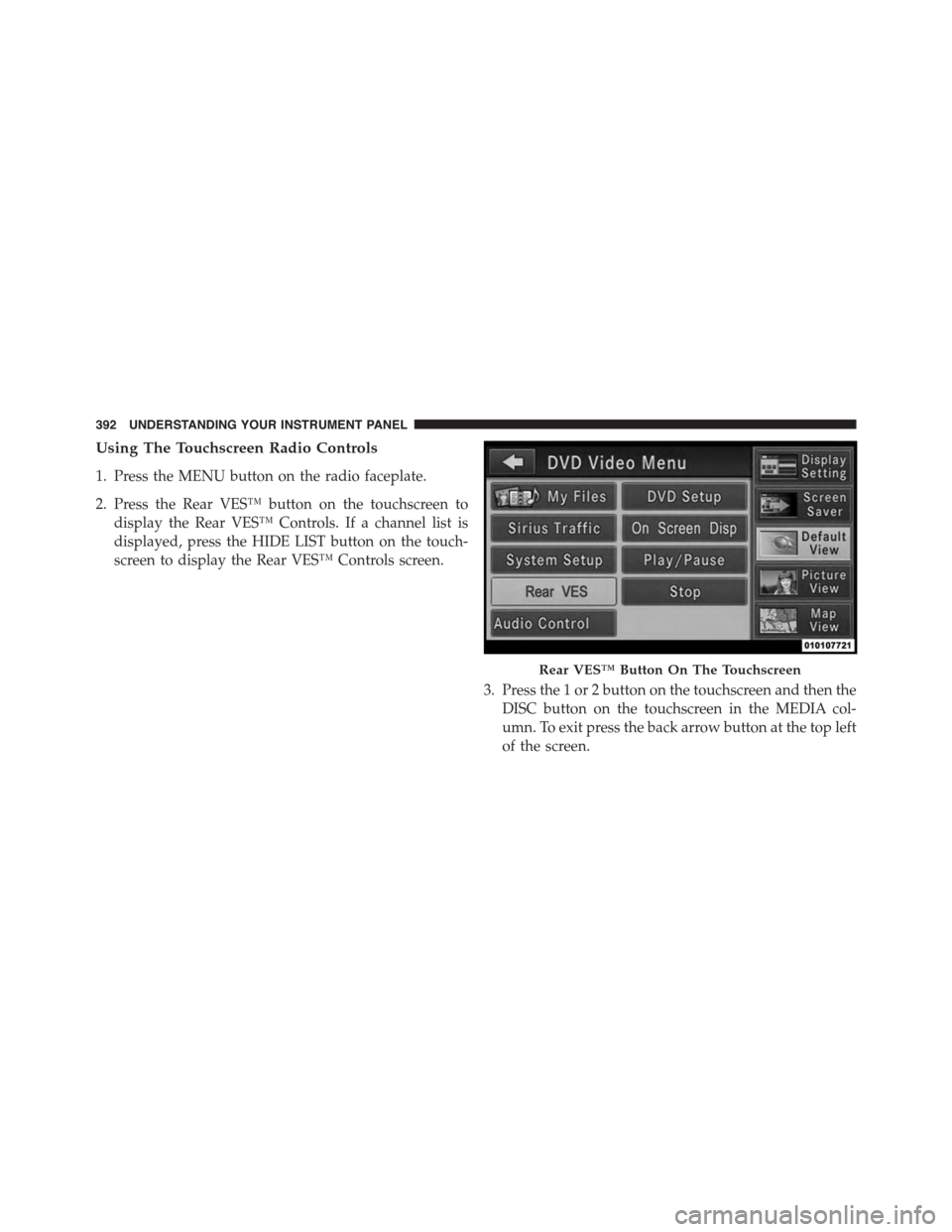
3. Press the 1 or 2 button on the touchscreen and then the
DISC button on the touchscreen in the MEDIA col-
umn. To exit press the back arrow button at the top left
of the screen.
Rear VES™ Button On The Touchscreen
392 UNDERSTANDING YOUR INSTRUMENT PANEL
Page 395 of 703

NOTE:
•To view a DVD on the radio press the RADIO/MEDIA
button on the radio faceplate, then press the DISC tab
button on the touchscreen and then the VIEW VIDEO
button on the touchscreen.
•Viewing a DVD on the Touchscreen radio screen is not
available in all states/provinces. If available, the ve-
hicle must be stopped and the shift lever must be in the
PARK position for vehicles with an automatic trans-
mission. In vehicles with a manual transmission the
parking brake must be engaged.
•Pressing the screen on a Touchscreen radio while a
DVD is playing brings up basic remote control func-
tions for DVD play such as scene selection, Play, Pause,
FF, RW, and Stop. Pressing the X in the upper corner
will turn off the remote control screen functions.
Play A DVD Using The VES™ Player — If
Equipped
1. Insert the DVD with the label facing up. The VES™
player automatically selects the appropriate mode
after the disc is recognized and starts playing the
DVD.
NOTE:The VES™ player has basic DVD control func-
tion such as Menu, Play, Pause, FF, RW and Stop.
2. To watch a DVD on Screen 1 for second row passen-
gers, ensure the Remote Control and Headphone
switch is on Channel 1.
3. To watch a DVD on Screen 2 for third row passengers,
ensure the Remote Control and Headphone switch is
on Channel 2.
4
UNDERSTANDING YOUR INSTRUMENT PANEL 393
Page 397 of 703
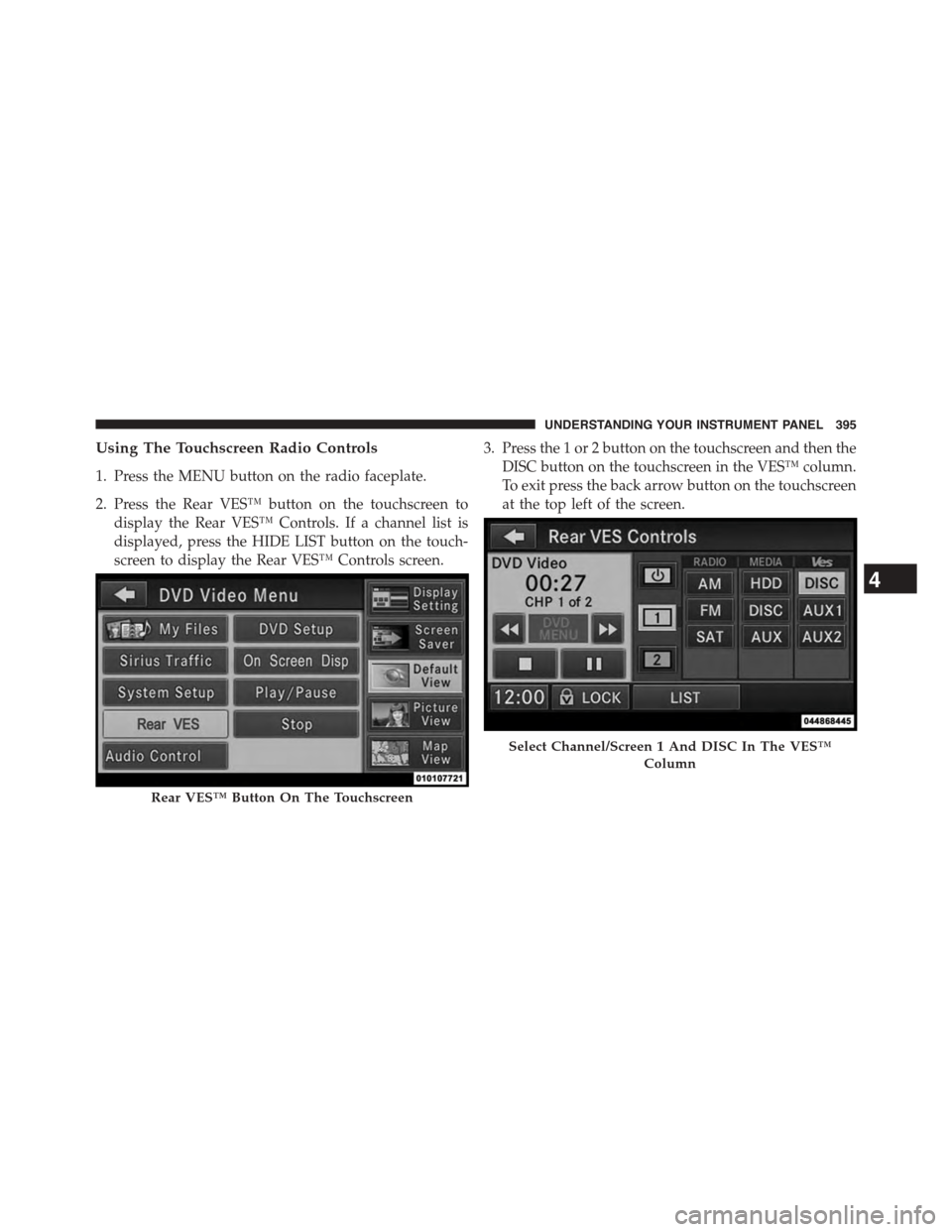
Using The Touchscreen Radio Controls
1. Press the MENU button on the radio faceplate.
2. Press the Rear VES™ button on the touchscreen to
display the Rear VES™ Controls. If a channel list is
displayed, press the HIDE LIST button on the touch-
screen to display the Rear VES™ Controls screen.
3. Press the 1 or 2 button on the touchscreen and then the
DISC button on the touchscreen in the VES™ column.
To exit press the back arrow button on the touchscreen
at the top left of the screen.
Rear VES™ Button On The Touchscreen
Select Channel/Screen 1 And DISC In The VES™
Column
4
UNDERSTANDING YOUR INSTRUMENT PANEL 395
Page 398 of 703

NOTE:
•To view a DVD on the radio press the RADIO/MEDIA
button on the radio faceplate, then press the DISC tab
button on the touchscreen and then the VIEW VIDEO
button on the touchscreen.
•Viewing a DVD on the Touchscreen radio screen is not
available in all states/provinces. If available, the ve-
hicle must be stopped and the shift lever must be in the
PARK position for vehicles with an automatic trans-
mission. In vehicles with a manual transmission the
parking brake must be engaged.
Play A Blu-ray™ Disc Using The Blu-ray™ Player
— If Equipped
1. Insert the Blu-ray™ Disc with the label facing up. The
Blu-ray™ Player automatically selects the appropriate
mode after the disc is recognized and starts playing
the Blu-ray™ Disc.
NOTE:The Blu-ray™ Player has basic control functions
such as Menu, Play, Pause, FF, RW and Stop.
2. To watch a Blu-ray™ Disc on Screen 1 for second row
passengers, ensure the Remote Control and Head-
phone switch is on Channel 1.
3. To watch a Blu-ray™ Disc on Screen 2 for third row
passengers, ensure the Remote Control and Head-
phone switch is on Channel 2.
Using The Remote Control
1. Press the SOURCE button on the Blu-ray™ Player
Remote Control.
2. While looking at Screen 1 or 2, highlight Blu-ray™ by
either pressing Up/Down/Left/Right buttons or by
repeatedly pressing the SOURCE button, then press
OK on the Remote Control.
396 UNDERSTANDING YOUR INSTRUMENT PANEL