Page 399 of 703
NOTE:
•Channel/Screen 1 select mode information is shown
on the left side of the screen.
•Channel/Screen 2 select mode information is shown
on the right side of the screen.
•The VES™ will retain the last setting when turned off.
Using The Touchscreen Radio Controls
1. Press the MENU button on the radio faceplate.
2. Press the Rear VES™ button on the touchscreen to
display the Rear VES™ Controls. If a channel list is
displayed, press the HIDE LIST button on the touch-
screen to display the Rear VES™ Controls screen.
3. Press the 1 or 2 button on the touchscreen and then the
VES™ Disc button on the touchscreen in the VES™
column. To exit press the back arrow button at the top
left of the screen.
NOTE:
•To view a Blu-ray™ Disc on the radio, press the
RADIO/MEDIA button on the radio faceplate, then
press the VES™ Disc tab button on the touchscreen
and then the VIEW VIDEO button on the touchscreen.
•Viewing a Blu-ray™ Disc on the Touchscreen radio
screen is not available in all states/provinces. If avail-
able, the vehicle must be stopped and the shift lever
must be in the PARK position for vehicles with an
automatic transmission. In vehicles with a manual
transmission the parking brake must be engaged.
Listen To An Audio Source While A Video Is
Playing
Ensure the Remote Control and Headphone switch are on
the same channel. If watching a video on Screen 1
4
UNDERSTANDING YOUR INSTRUMENT PANEL 397
Page 400 of 703
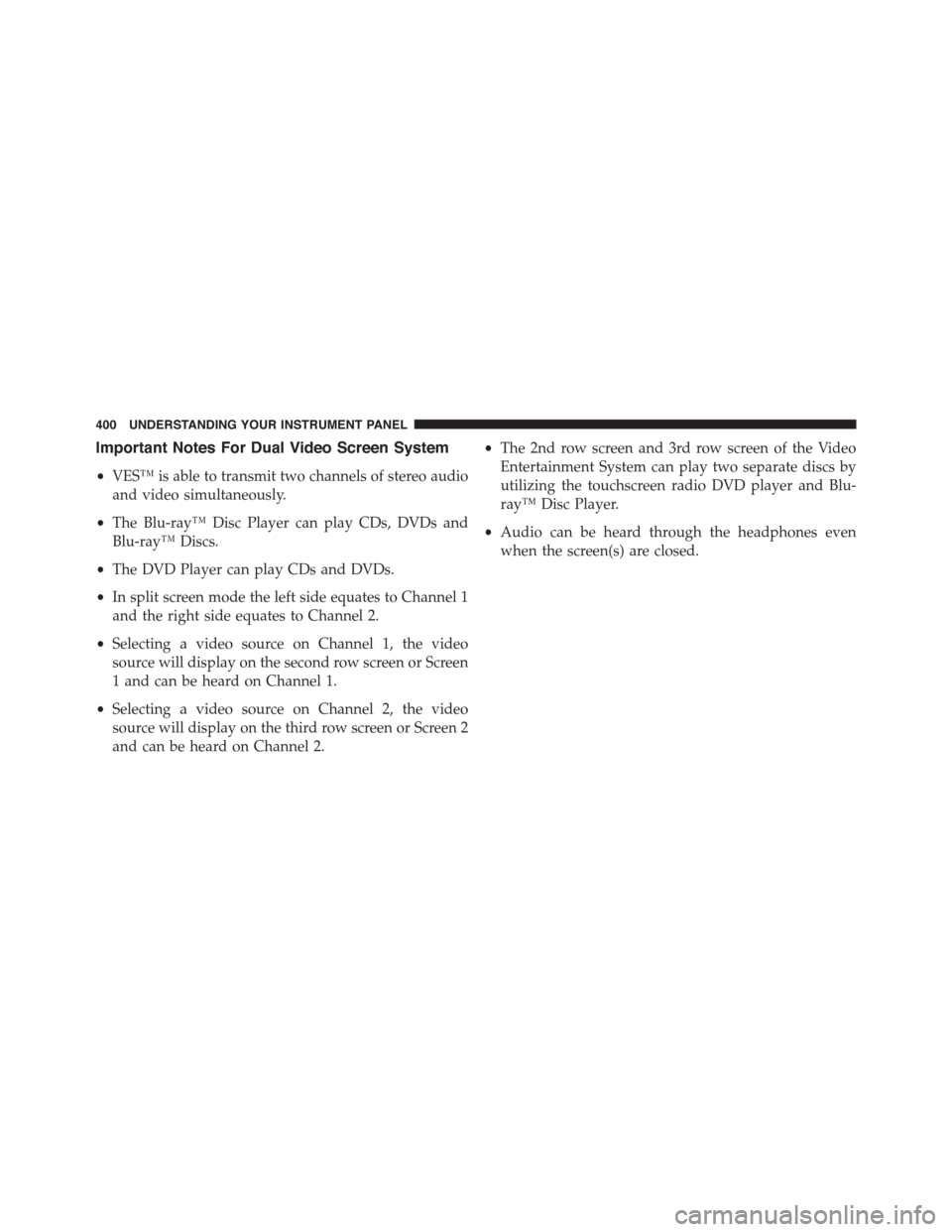
(second row), then Channel 2 could be used for audio. If
watching a video on Screen 2 (third row), then Channel 1
could be used for audio.
Using The Remote Control
1. Press the SOURCE button on the Remote Control and
the Select Mode Screen will display, unless a video is
playing then only a small banner will appear on the
bottom of the screen.
2. While looking at the video screen, either press Up/
Down/Left/Right on the Remote Control to highlight
the desired audio source or repeatedly press the
SOURCE button on the remote until the desired audio
source appears on the screen.Using The Touchscreen Radio Controls
1. Press the MENU button on the radio faceplate.
2. Press the Rear VES™ button on the touchscreen to
display the Rear VES™ Controls. If a channel list is
Select FM Mode On The VES Screen
398 UNDERSTANDING YOUR INSTRUMENT PANEL
Page 402 of 703
Important Notes For Dual Video Screen System
•VES™ is able to transmit two channels of stereo audio
and video simultaneously.
•The Blu-ray™ Disc Player can play CDs, DVDs and
Blu-ray™ Discs.
•The DVD Player can play CDs and DVDs.
•In split screen mode the left side equates to Channel 1
and the right side equates to Channel 2.
•Selecting a video source on Channel 1, the video
source will display on the second row screen or Screen
1 and can be heard on Channel 1.
•Selecting a video source on Channel 2, the video
source will display on the third row screen or Screen 2
and can be heard on Channel 2.
•The 2nd row screen and 3rd row screen of the Video
Entertainment System can play two separate discs by
utilizing the touchscreen radio DVD player and Blu-
ray™ Disc Player.
•Audio can be heard through the headphones even
when the screen(s) are closed.
400 UNDERSTANDING YOUR INSTRUMENT PANEL
Page 408 of 703
Locking The Remote Control
All remote control functionality can be disabled as a
parental control feature.
•To disable the Remote Control from making any
changes, press the Video Lock button on the DVD
player (if equipped). If the vehicle is not equipped
with a DVD player, follow the radio’s instructions to
turn Video Lock on. The radio and the video screen(s)
indicate when Video Lock is active.
•Pressing the Video Lock again or turning the ignition
OFF turns Video Lock OFF and allows remote control
operation of the VES™.
Replacing The Remote Control Batteries
The remote control requires two AAA batteries for op-
eration. To replace the batteries:
•Locate the battery compartment on the back of the
remote, then slide the battery cover downward.
•Replace the batteries, making sure to orient them
according to the polarity diagram shown.
•Replace the battery compartment cover.
406 UNDERSTANDING YOUR INSTRUMENT PANEL
Page 413 of 703
TECHNOLOGY IS NOT LIABLE FOR ANY INJURIES
OR DAMAGES TO PERSONS OR PROPERTY RESULT-
ING FROM THE USE OF, OR ANY FAILURE OR DE-
FECT IN, THE PRODUCT, NOR IS UNWIRED LIABLE
FOR ANY GENERAL, SPECIAL, DIRECT, INDIRECT,
INCIDENTAL, CONSEQUENTIAL, EXEMPLARY, PU-
NITIVE OR OTHER DAMAGES OF ANY KIND OR
NATURE WHATSOEVER. Some states and jurisdictions
may not allow the exclusion or limitation of incidental or
consequential damages, so the above limitation may not
apply to you. This warranty gives you specific legal
rights. You may also have other rights, which vary from
jurisdiction to jurisdiction.
What Will Unwired® Do?Unwired®, at its option, will
repair or replace any defective Product. Unwired® re-
serves the right to replace any discontinued Product with
a comparable model. THIS WARRANTY IS THE SOLE
WARRANTY FOR THIS PRODUCT, SETS FORTH YOUR
EXCLUSIVE REMEDY REGARDING DEFECTIVE
PRODUCTS, AND IS IN LIEU OF ALL OTHER WAR-
RANTIES (EXPRESS OR IMPLIED), INCLUDING ANY
WARRANTY OR MERCHANTABILITY OR FITNESS
FOR A PARTICULAR PURPOSE.
If you have any questions or comments regarding your
Unwired® wireless headphones, please phone 1-888-293-
3332 or email [email protected].
You may register your Unwired® wireless headphones
online atwww.unwiredtechnology.com or by phone at
1-888-293-3332.
System Information
Shared Modes
This allows the VES™ to output radio sources to the
headphones and the radio to output VES™ sources to the
vehicle speakers. When the radio and VES™ channel 1 or
2 are in the same (shared) mode, a VES™ icon will be
4
UNDERSTANDING YOUR INSTRUMENT PANEL 411
Page 414 of 703

visible on the radio’s display for that channel, and the
shared icon will be visible on the VES™ screen. When in
shared mode, the same audio source is heard in the
shared headphone channel 1 or channel 2.
If the radio functions (FM, AM, or SAT) are in the shared
mode with the VES™, only the radio is able to control the
radio functions. In this case, VES™ can share the radio
mode, but not change stations until the radio mode is
changed to a mode that is different from the VES™
selected radio mode. When shared, the radio has priority
over the VES™ or all radio modes (FM, AM, and SAT).
The VES™ has the ability to switch tuner (AM/FM),
SEEK, SCAN, TUNE, and recall presets in radio modes as
long as it is not in shared mode.
When in shared disc mode both the radio and the VES™
have control of the video functions. The VES™ has the
ability to control the following video modes:
1. CD: Ability to Fast Forward, Rewind, Scan, and Track
Up/Down.
2. CD Changer (in radio): Ability to Disk Up/Down and
program all listed CD controls (Fast Forward, Rewind,
Scan, and Track Up/Down).
The VES™ can even control radio modes or video modes
while the radio is turned off. The VES™ can access the
radio modes or disc modes by navigating to those modes
on the VES™ and activating a radio mode or disc mode.
412 UNDERSTANDING YOUR INSTRUMENT PANEL
Page 423 of 703
supported. For both formats, the recommended
sample rate is either 44.1 kHz or 48 kHz.
•To change the current file, use the DVD player ’s$
button to advance to the next file, or the#button to
return to the start of the current or previous file.
•To change the current directory, use the remote con-
trol’s PROG UP and Down buttons or Rewind/skip
back and fast fwd/skip forward.
Disc Errors
If the DVD player is unable to read the disc, a#Disc Error#
message is displayed on the Radio display and the disc is
automatically ejected. A dirty, damaged, or incompatible
disc format are all potential causes for a#Disc Error#
message.
If a disc has a damaged track which results in audible or
visible errors that persists for 2.0 seconds, the DVD
player will attempt to continue playing the disc by
skipping forward 1.0 to 3.0 seconds at a time. If the end
of the disc is reached, the DVD player will return to the
beginning of the disc and attempt to play the start of the
first track.
The DVD player may shut down during extremely hot
conditions, such as when the vehicle’s interior tempera-
ture is above 120° F (49° C). The Blu-ray™ Player may
shut down when the vehicle’s interior temperature ex-
ceeds 140° F (60° C). When this occurs, the DVD/Blu-
ray™ Player will display#High Temp#and will shut off
the display until a safe temperature is reached. This
shutdown is necessary to protect the optics of the DVD/
Blu-ray™ Player.
The Blu-ray™ player may require additional reading
time during extremely cold weather conditions. When
this occurs, allow the vehicles interior temperature to
warm, then insert disc into player.
4
UNDERSTANDING YOUR INSTRUMENT PANEL 421
Page 424 of 703
Display
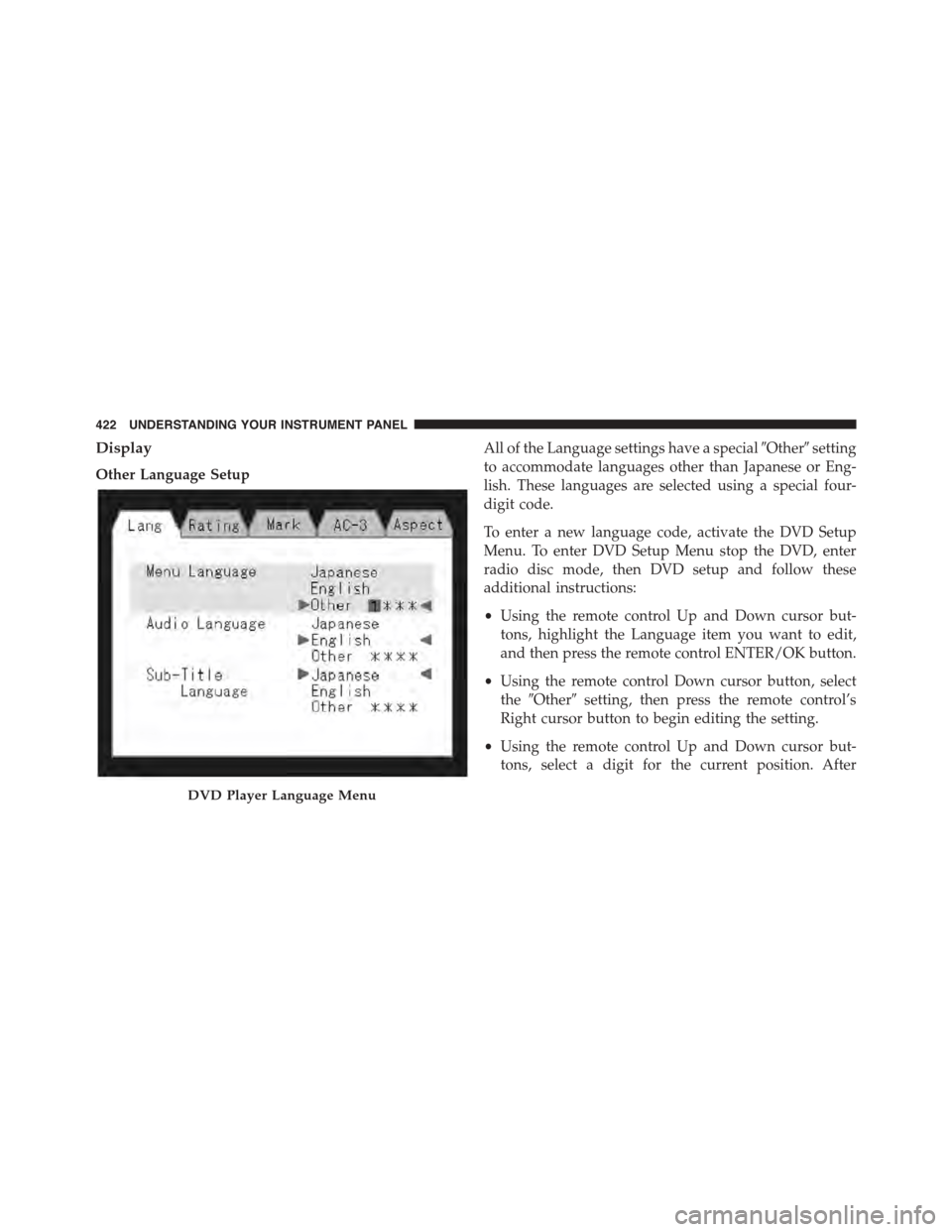
Other Language Setup
All of the Language settings have a special#Other#setting
to accommodate languages other than Japanese or Eng-
lish. These languages are selected using a special four-
digit code.
To enter a new language code, activate the DVD Setup
Menu. To enter DVD Setup Menu stop the DVD, enter
radio disc mode, then DVD setup and follow these
additional instructions:
•Using the remote control Up and Down cursor but-
tons, highlight the Language item you want to edit,
and then press the remote control ENTER/OK button.
•Using the remote control Down cursor button, select
the#Other#setting, then press the remote control’s
Right cursor button to begin editing the setting.
•Using the remote control Up and Down cursor but-
tons, select a digit for the current position. After
DVD Player Language Menu
422 UNDERSTANDING YOUR INSTRUMENT PANEL