Page 325 of 429
Connecting To A Particular Mobile Phone Or
Audio Device After Pairing
Uconnect® Phone will automatically connect to the high-
est priority paired phone and/or Audio Device within
range. If you need to choose a particular phone or Audio
Device follow these steps:
1. Press the “Settings” button on the touchscreen.
2. Press the “Paired Phones” or “Paired Audio Sources”
button on the touchscreen.
3. Press to select the particular Phone or the particular
Audio Device.
4. Press the “X” to exit out of the Settings screen.
Disconnecting A Phone Or Audio Device
1. Press the “Settings” button on the touchscreen.
2. Press the “Paired Phones” or “Paired Audio Devices”
button on the touchscreen.
3. Press the “Settings” button located to the right of the
device name.
4. The options pop-up will be displayed.
5. Press the “Disconnect Device” button on the touch-
screen.
6. Press the “X” to exit out of the Settings screen.
Deleting A Phone Or Audio Device
1. Press the “Settings” button on the touchscreen.
2. Press the “Pair Phones” or “Paired Audio Devices”
button on the touchscreen.
324 Uconnect® 8.4AN — If Equipped
Page 409 of 429
Uconnect® VOICE RECOGNITION
Introducing Uconnect®
Start using Uconnect® Voice Recognition with these
helpful quick tips. It provides the key Voice Commands
and tips you need to know to control your Uconnect®
8.4A or 8.4AN systems.
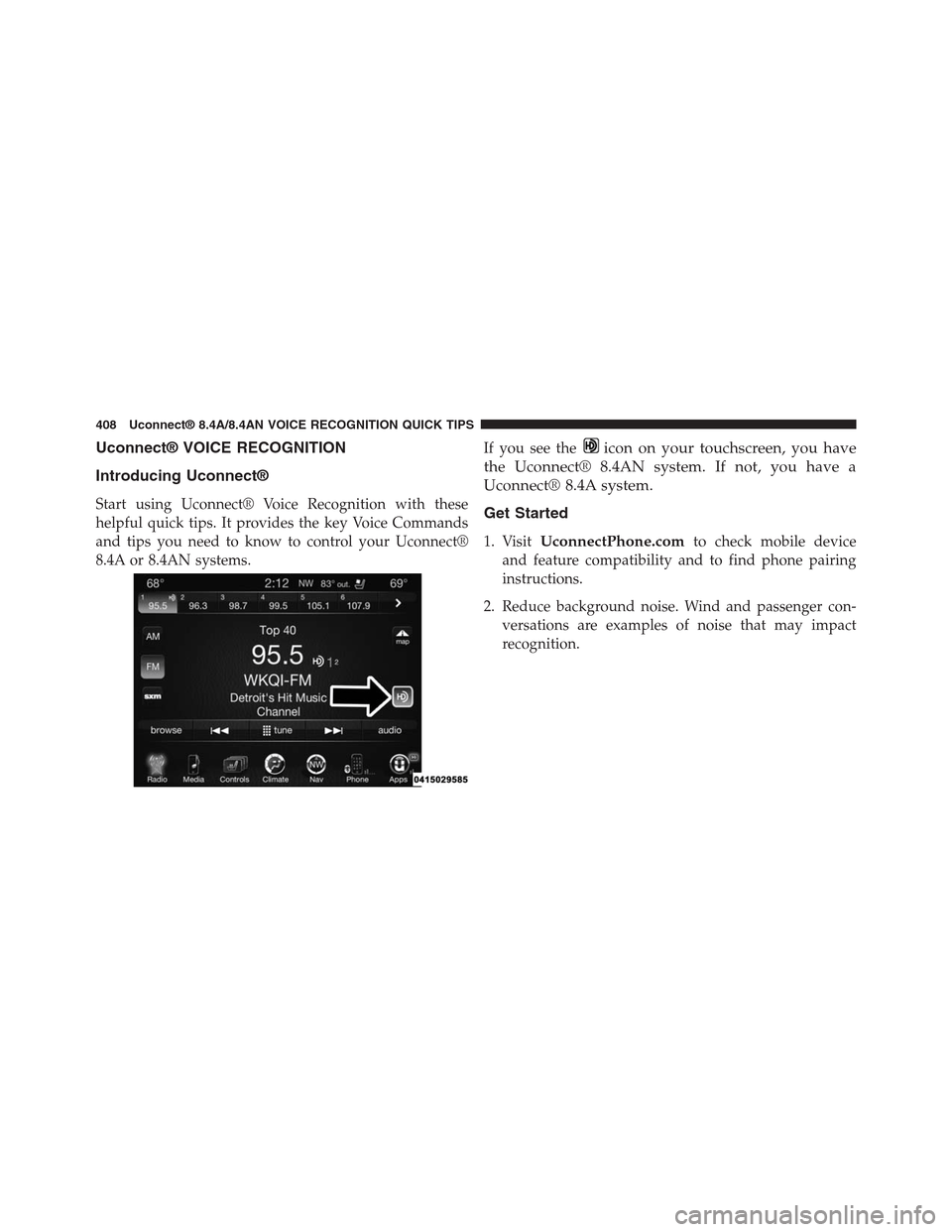
If you see theicon on your touchscreen, you have
the Uconnect® 8.4AN system. If not, you have a
Uconnect® 8.4A system.
Get Started
1. VisitUconnectPhone.comto check mobile device
and feature compatibility and to find phone pairing
instructions.
2. Reduce background noise. Wind and passenger con-
versations are examples of noise that may impact
recognition.
408 Uconnect® 8.4A/8.4AN VOICE RECOGNITION QUICK TIPS
Page 416 of 429
Phone
Making and answering hands-free phone calls is easy
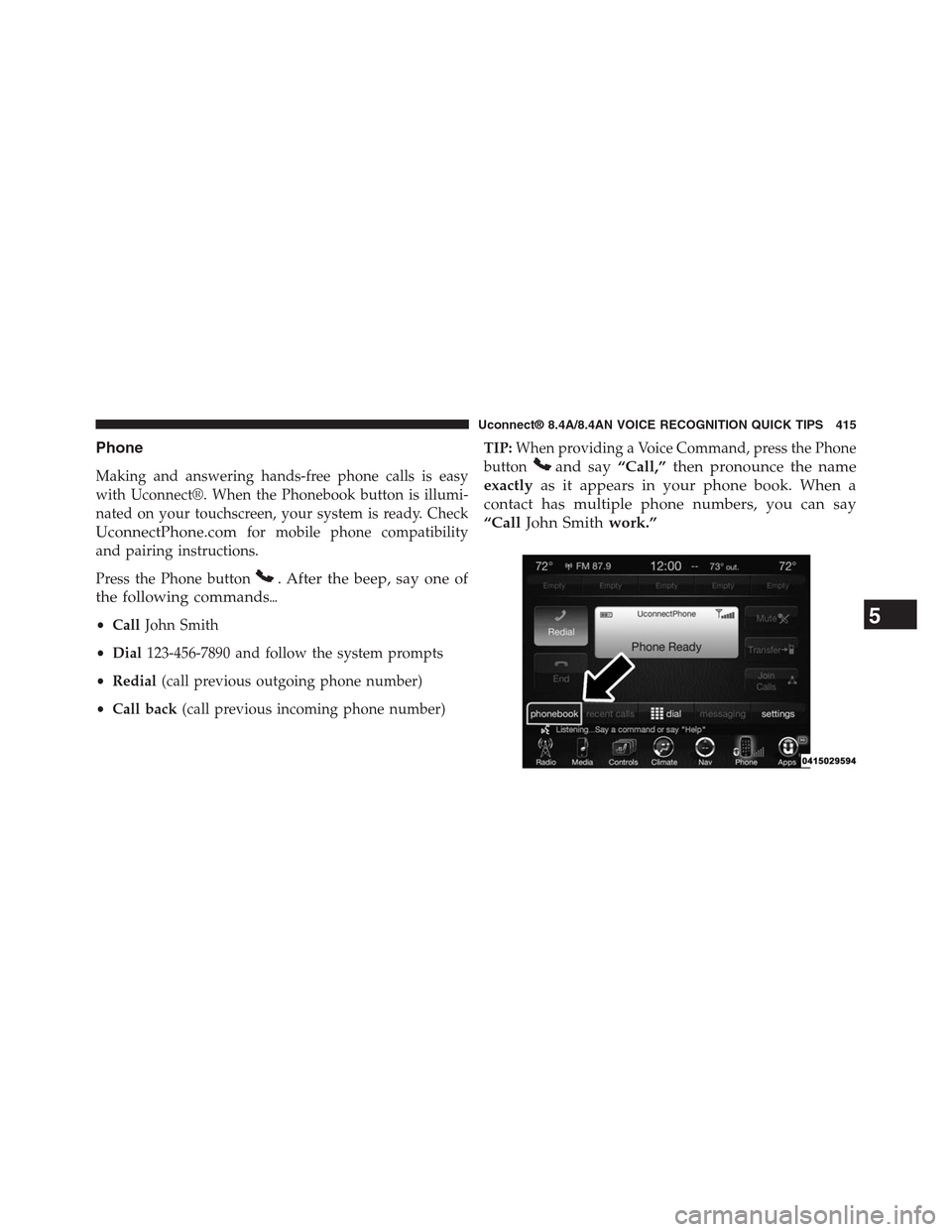
with Uconnect®. When the Phonebook button is illumi-
nated on your touchscreen, your system is ready. Check
UconnectPhone.comfor mobile phone compatibility
and pairing instructions.
Press the Phone button. After the beep, say one of
the following commands%
•CallJohn Smith
•Dial123-456-7890 and follow the system prompts
•Redial(call previous outgoing phone number)
•Call back(call previous incoming phone number)
TIP:When providing a Voice Command, press the Phone
buttonand say“Call,”then pronounce the name
exactlyas it appears in your phone book. When a
contact has multiple phone numbers, you can say
“CallJohn Smithwork.”
5
Uconnect® 8.4A/8.4AN VOICE RECOGNITION QUICK TIPS 415
Page:
< prev 1-8 9-16 17-24