Page 364 of 494
03
362
C4-2_en_Chap13c_RD5_ed01-2015
C4-2_en_Chap13c_RD5_ed01-2015
"Multimedia": Media parameters, Radio parameters. "Trip computer":
Warning log.
For a detailed global view of the
menus
available, refer to "Screen
menu
map" section.
"Bluetooth connection
":
Connections
management,
Search
for a device.
"Telephone": Call, Directory
management,
T
elephone
management,
Hang up.
MAIN MENU
"Personalisation-configuration
": Define the
vehicle parameters, Choice of language,
Display
configuration, Choice of units, Date
and
time adjustment.
Screen C
Screen A
Page 365 of 494
04
363
C4-2_en_Chap13c_RD5_ed01-2015
C4-2_en_Chap13c_RD5_ed01-2015
AUDIO
Press SOURCE or SRC several times in succession and select radio.
Press BAND
to select a waveband. Press LIST
to display the list of stations
received in alphabetical order.
A
press changes to the next or previous
letter
(e.g.
A,
B, D, F, G, J, K, ...).
Radio
Select the desired radio station and
confirm by pressing OK .
Selecting a station
A
long press on
LIST builds or updates
the
list of stations; audio reception is cut
momentarily
.
The
exterior
environment
(hills,
buildings,
tunnel,
car
park,
below
ground...)
may
prevent
reception,
even
in
RDS
station
tracking
mode.
This
phenomenon
is
normal
in
the
propagation
of
radio
waves
and
is
in
no
way
indicative
of
a
fault
with
the
audio
system.
Page 366 of 494

04
364
C4-2_en_Chap13c_RD5_ed01-2015
C4-2_en_Chap13c_RD5_ed01-2015
RDS, if displayed, enables you to continue listening to the same station by automatic retuning to alternative frequencies. However, in certain conditions,
coverage of an RDS station may not be assured throughout
the
country as radio stations do not cover 100 % of the territory.
This explains
the loss of reception of the station during a journey.
AUDIO
RDS
Receiving TA messages
The TA (Traffic Announcement) function gives priority to T A alert messages.
T o operate, this function needs good reception of a
radio
station transmitting this type of message. When a traffic
report
is transmitted, the current audio source (Radio, CD,
USB,
...) is interrupted automatically to play the
T
A
message.
Normal
playback of the audio source resumes at the end of the
transmission
of the message.
Press TA INFO to activate or deactivate
the
reception of traffic messages.
When the radio is displayed on the
screen, press OK to display the
contextual
menu.
Select "RDS" and confirm to save.
"RDS" is displayed in the screen.
Make a long press on
T
A INFO
to
display the list of categories.
Receiving INFO messages
The INFO
function gives priority to T A alert messages. T o be active,
this function needs good reception of a radio station that
transmits
this
type
of
message.
When
a
message
is
transmitted,
the
current
audio
source
(Radio,
CD,
USB,
...)
is
interrupted
automatically
to
receive
the
INFO
message.
Normal
play
resumes
at
the
end
of
the
message
transmission.
Select
or deselect categories to activate
or deactivate the reception of the
corresponding
messages.
Page 367 of 494
04
365
C4-2_en_Chap13c_RD5_ed01-2015
C4-2_en_Chap13c_RD5_ed01-2015
AUDIO
Radio text is information transmitted by the radio station related to the current programme or song.
With the radio displayed on the screen,
press
OK to display the contextual
menu.
Select "
RadioText (TXT) display" and
confirm
OK to save.
Display RADIO TEXT
Screen C Screen A
Select "MEDIA" and confirm.
Then select "TEXT INFO " and press
7
or 8 to select "ON" or "OFF " and
confirm
to save the modifications.
Page 368 of 494
04
C4-2_en_Chap13c_RD5_ed01-2015
C4-2_en_Chap13c_RD5_ed01-2015
AUDIO
366Display options:
if active but not available, the display will
be struck out.
Preset stations, buttons 1 to 6.
Short press: select the preset radio
station.
Long
press: preset a radio station.
Display the name of the multiplex
service
being used.
Represents the signal strength for
the
band being listened to.If the "DAB" station being listened
to is not available on "FM", "
dab
FM" is struck out.
Display of RadioText (TXT) for the
current
radio station.Display the name of the current
station.
Page 369 of 494

04
367
C4-2_en_Chap13c_RD5_ed01-2015
C4-2_en_Chap13c_RD5_ed01-2015
AUDIO
Change band (FM1, FM2, DAB, ...)
DAB (Digital Audio Broadcasting)
Digital radio
Digital radio provides a superior audio quality and also additional categories of traffic announcements (TA INFO).
The
different "multiplex services" offer a choice of radio stations in
alphabetical
order.
Change
of station within the same "multiplex service".
Start
a search for the next "multiplex service".
Digital radio - DAB / FM tracking
"DAB" does not have 100% coverage of the country.
When the digital signal is weak, "DAB / FM auto tracking" allows you
to
continue listening to the same station, by automatically switching
to
the corresponding analogue "FM" station (if it exists).
Long
press:
select
the
desired
categories
of
announcements
from
T
ransport,
News,
Entertainment
and
Flash
special
(availability
according
to
the
station).
When the radio station is displayed in the screen, press on " OK" to
display
the
contextual
menu.
(Frequency
hopping
(RDS),
DAB / FM
auto
tracking,
RadioText
(TXT)
display,
Information
on
the
station, ...) Press the "Menu"
button.
Select "Multimedia"
and confirm.
Select "DAB / FM auto tracking"
and confirm
If
"DAB / FM auto tracking" is on, there will be a difference of a few
seconds
in the programme when the system changes to analogue
"FM"
radio, with sometimes a variation in volume.
When
the strength of the digital signal is good again, the system
automatically
switches back to "DAB"
If
the "DAB" station you are listening to is not available on "FM"
("
DAB/FM" option barred), or if "DAB / FM auto tracking" is not on,
the
sound will be cut when the digital signal is too weak.
Page 386 of 494
06
384
C4-2_en_Chap13c_RD5_ed01-2015
C4-2_en_Chap13c_RD5_ed01-2015
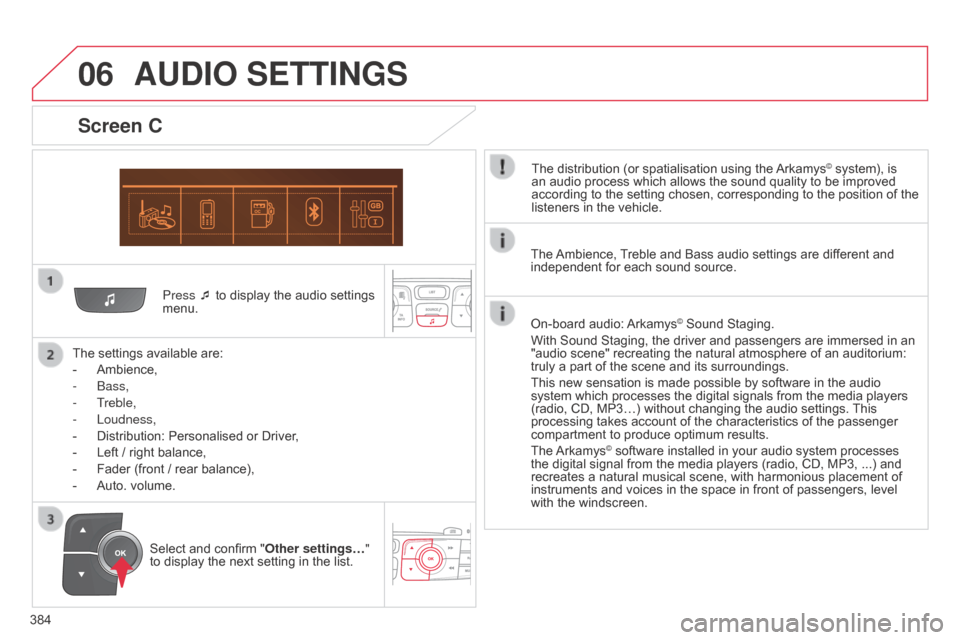
Press ¯ to display the audio settings menu.
The
settings
available are:
-
Ambience,
-
b
ass,
-
Treble,
-
Loudness,
-
Distribution:
Personalised or Driver,
-
Left
/
right
balance,
-
Fader
(front / rear balance),
-
Auto.
volume.
Screen C
The distribution (or spatialisation using the Arkamys© system), is an
audio
process
which
allows
the
sound
quality
to
be improved
according
to
the
setting
chosen,
corresponding
to
the position of the
listeners
in
the
vehicle.
AUDIO SETTINGS
Select and confirm " Other settings… "
to display the next setting in the list. The
Ambience,
T
reble and Bass audio settings are different and
independent
for each sound source.
On-board audio:
Arkamys© Sound Staging.
With
Sound
Staging,
the
driver and passengers are immersed in an
"audio
scene"
recreating
the natural atmosphere of an auditorium:
truly
a
part
of
the
scene
and its surroundings.
This
new
sensation
is
made possible by software in the audio
system
which
processes
the digital signals from the media players
(radio,
CD,
MP3…)
without changing the audio settings.
This
processing
takes
account
of the characteristics of the passenger
compartment
to
produce
optimum results.
The
Arkamys© software installed in your audio system processes the
digital
signal from the media players (radio, CD, MP3, ...) and
recreates
a
natural musical scene, with harmonious placement of
instruments
and voices in the space in front of passengers, level
with
the
windscreen.
Page 387 of 494
07
385
C4-2_en_Chap13c_RD5_ed01-2015
C4-2_en_Chap13c_RD5_ed01-2015
Screen A
RDS optionsFrançais
Portuguès
Cestina
Read mode
Diagnostics Infotext Italiano
English Portuguès-brasil
Hrvatski
Radiotext Nederlands
Español Deutsch
Magyar
MAIN FUNCTION
Option A1
o
ption a 11
Option A
Option B...1
2
3
1
RADIO LANGUAGES
MEDIA
TRIP COMPUTER DATE AND TIME
VEHICLE PARAM*
SCREEN MENU MAP(S)
* Depending on vehicle equipment.
2
2
2
2
2
2
1
1
1
1
1
1
2
2
2
2
2
2
2
2
2
2
Normal
Random
Random all3
3
3


