2015 Citroen C4 radio
[x] Cancel search: radioPage 307 of 494

04
305
C4-2_en_Chap13b_SMEGplus_ed01-2015
C4-2_en_Chap13b_SMEGplus_ed01-2015
RADIO
If "DAB / FM auto tracking" is activated, there is a difference of a few seconds when the system switches to "FM" analogue radio with
sometimes
a variation in volume.
When
the digital signal is restored, the system automatically
changes
back to "DAB".
Select
change
of
source.
Press on Media
to
display
the
primary
page.
Select "DAB Radio".
Select "List"
in
the
primary
page.
or
Select "Radio list"
in
the
secondary
page.
Select
the
radio
station
from
the
list
offered.
Digital
radio
provides
higher
quality
reception
and
also
the
graphical
display
of
current
information
on
the
radio
station
being
listened
to.
Select
"List"
in
the
primary
page.
The
range
of
multiplexes
available
is
displayed
in
alphabetical
order
.
Press Media to display the primary page then
press
on the secondary page.
Select "Settings".
Select "RADIO".
Select "Digital/FM auto tracking " then
"Confirm". "DAB" does not cover 100% of the territory.
When the digital radio signal is weak, "DAB / FM auto tracking"
allows
you to continue listening to the same station, by
automatically
switching to the corresponding "FM" analogue
station
(if there is one).
If the "DAB" station being listened to is not available on "FM" ("DAB/
FM"
option greyed out), or "DAB / FM auto tracking" is not activated,
the
sound will cut out while the digital signal is too weak.
Digital radio - DAB / FM auto tracking
DAB (Digital Audio Broadcasting)
Digital radio
Page 308 of 494

04
306
C4-2_en_Chap13b_SMEGplus_ed01-2015
C4-2_en_Chap13b_SMEGplus_ed01-2015
CD, MP3 CD, USB player, auxiliary input
Insert the CD in the player, insert the USB memory stick in the USB player or connect the
USB
peripheral to the USB port using a suitable
cable
(not supplied)
The
system builds playlists (in temporary
memory),
an operation which can take from
a
few seconds to several minutes at the first
connection.
Reduce
the number of non-music files and the
number
of folders to reduce the waiting time.
The
playlists are updated every time the ignition
is
switched off or connection of a USB memory
stick.
However, the system memorises these
lists
and if they are not modified, the loading
time
will be shorter. Selection of source
The
steering mounted
SRC
(source) button can be used to go to the
next
media source, available if the source is active.
Press OK
to confirm the selection.
"CD / CD MP3"
"USB, iPod"
"Bluetooth (streaming)"
"Auxiliary"
"Radio" Select
change of source then choose the
source. Press on
Media to display the primary page.
MUSIC
Page 329 of 494
05
327
C4-2_en_Chap13b_SMEGplus_ed01-2015
C4-2_en_Chap13b_SMEGplus_ed01-2015
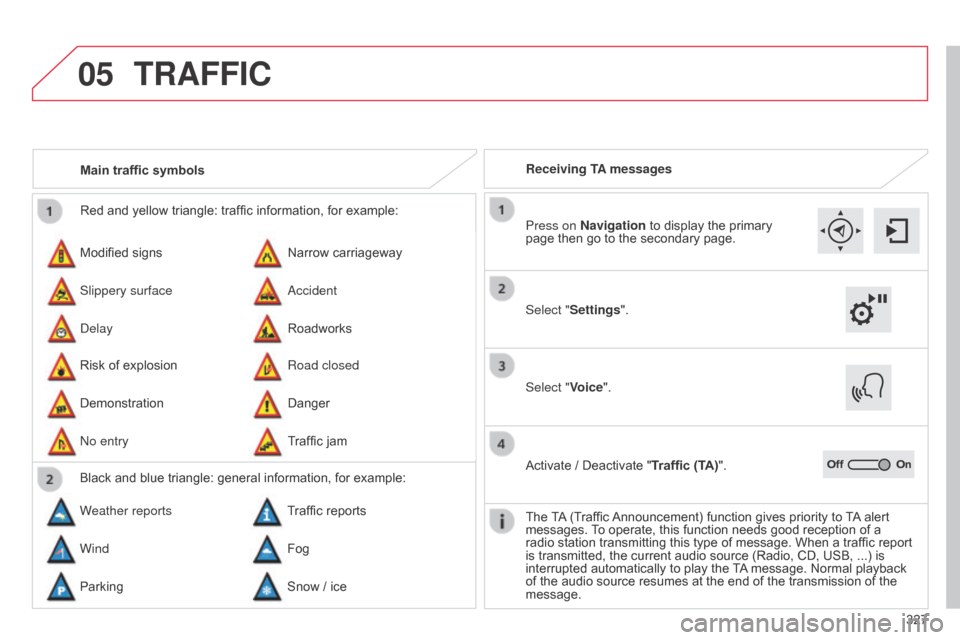
Red and yellow triangle: traffic information, for example:
Modified signs
Risk
of explosion Narrow
carriageway
Road closed
Slippery surface
Demonstration
a
ccident
Danger
d
elay
n
o entry Roadworks
Traffic
jam
Main traffic symbols
Black and blue triangle: general information, for example:
Weather reports Traffic
reports
Wind Fog
Parking Snow
/ iceReceiving TA messages
TRAFFIC
Select "Settings". Press on Navigation
to display the primary
page
then go to the secondary page.
Select "Voice".
Activate
/ Deactivate "Traffic (TA)".
The
T
A
(Traffic
Announcement)
function gives priority to
T
A
alert
messages.
T
o operate, this function needs good reception of a
radio
station transmitting this type of message. When a traffic report
is
transmitted, the current audio source (Radio, CD, USB, ...) is
interrupted
automatically to play the
T
A
message. Normal playback
of
the audio source resumes at the end of the transmission of the
message.
Page 340 of 494

06
C4-2_en_Chap13b_SMEGplus_ed01-2015
C4-2_en_Chap13b_SMEGplus_ed01-2015
338
CONFIGURATION
- "Ambience" (choice of 6 musical ambiences)
- "Bass "
-
"Treble"
-
"Loudness" (Activate/Deactivate)
-
"Balance" ("Driver", "All passengers", "Front only ")
-
"Audio setting on touch screen "
-
"Volume linked to vehicle speed: "
(Activate/Deactivate)
The
audio
settings
( Ambience, Bass , Treble and Loudness)
are
dif
ferent
and
independent
for
each
sound
source.
The
settings
for
distribution
and
balance
are
common
to
all
sources.
The
distribution
(or
spatialisation
using
the
Arkamys© system) of
sound
is
an
audio
process
that
allows
the
audio
quality to be
adapted
to
the
number
of
listeners
in
the
vehicle.
Available
only
with
the
6-speaker
configuration. On-board
audio:
Arkamys© Sound Staging.
With
Sound
Staging,
the
driver and passengers are immersed in an
"audio
scene"
recreating
the natural atmosphere of an auditorium:
truly
a
part
of
the
scene
and its surroundings.
This
new
sensation
is
made possible by software in the audio
system
which
processes
the digital signals from the media players
(radio,
CD,
MP3…)
without changing the audio settings.
This
processing
takes
account
of the characteristics of the passenger
compartment
to
produce
optimum results.
The
Arkamys© software installed in your audio system processes the
digital
signal from the media players (radio, CD, MP3, ...) and
recreates
a
natural musical scene, with harmonious placement of
instruments
and voices in the space in front of passengers, level with
the
windscreen.
Audio settings
Select "Audio settings ".
Press on Configuration
to display the primary
page.
Select "
Ambience" or "Balance" or "Sound
effects " or "Ringtones" or "Voice".
Page 357 of 494

C4-2_en_Chap13b_SMEGplus_ed01-2015
C4-2_en_Chap13b_SMEGplus_ed01-2015
FREqUENTLY ASKED q UESTIONS
355
q
UESTION
ANSWER SOLUTION
Some
characters
in
the
media
information
are
not
displayed correctly while
playing.
The
audio
system
does
not
display
some
types
of
characters.
Use
standard
characters
to
name
tracks
and
folders.
Playing
of
streaming
files
does
not
start.
The
peripheral
device
connected
does
not
support
automatic
play. Start
the
playback
from
the
device.
The
names
of
tracks
and
the
track
length
are
not
displayed on the screen
when
streaming
audio.
The
Bluetooth
profile
does
not
allow
the
transfer
of
this
information.
Radio
The
quality
of
reception
of the radio station
listened
to
gradually
deteriorates or the stored
stations do not function
(no
sound,
87.5 Mhz
is
displayed...).
The
vehicle
is
too
far
from
the
transmitter
used
by
the
station
listened
to
or
there
is
no
transmitter
in
the
geographical
area
through
which
the
vehicle
is
travelling.
Activate
the
"RDS"
function
by
means
of
the
short-cut
menu
to
enable
the
system
to
check
whether
there
is
a
more
powerful
transmitter
in
the
geographical
area.
The
environment
(hills,
buildings,
tunnels,
basement
car
parks...)
block
reception,
including
in
RDS
mode.
This
phenomenon
is
normal
and
does
not
indicate
a
fault
with
the
audio
system.
The
aerial
is
absent
or
has
been
damaged
(for
example
when
going
through
a
car
wash
or
into
an
underground
car
park).
Have
the
aerial
checked
by
a
CITROËN
dealer.
I
cannot
find
some
radio
stations in the list of
stations
received.
The
station
is
not
received
or
its
name
has
changed
in
the
list.
Some
radio
stations
send
other
information
in
place
of
their
name
(the
title
of
the
song
for
example).
The
system
interprets
this
information
as
the
name
of
the
station.
The
name
of
the
radio
station
changes.
Page 358 of 494

C4-2_en_Chap13b_SMEGplus_ed01-2015
C4-2_en_Chap13b_SMEGplus_ed01-2015
FREqUENTLY ASKED q UESTIONS
356
q
UESTION
ANSWER SOLUTION
Settings, configuration
In changing the setting
of treble and bass the
equalizer
setting is
deselected.
The
selection of an equalizer setting imposes the balance settings.
Modifying one without the other is not possible.
Modify the balance or equalizer settings to obtain
the
desired musical ambience.
In changing the equalizer
setting,
treble and bass
return
to zero.
When changing the
balance
settings, the
distribution
setting is
deselected.
The
selection of a distribution setting imposes the balance settings.
Modifying one without the other is not possible.
Modify the balance or distribution settings to
obtain
the desired musical ambience.
When changing an
distribution
setting,
the
balance setting is
deselected.
There is a dif
ference in
sound quality between
the dif
ferent audio
sources (radio, CD...).
For optimum sound quality, the audio settings for Volume, Bass,
T
reble,
Equalizer
and Loudness can be adapted to the different sound sources,
which
may result in audible differences when changing source (radio,
CD...).
Check
that the audio settings for (Volume, Bass,
T
reble, Equalizer, Loudness) are adapted to
the
sources listened to. It is advisable to set the
AUDIO
functions (Bass,
T
reble, Fr-Re balance,
Le-Ri
balance) to the middle position, select the
"None",
musical ambience and set the loudness
correction
to the "Active" position in CD mode or
to
the "Inactive" position in radio mode.
Page 362 of 494

01
360
C4-2_en_Chap13c_RD5_ed01-2015
C4-2_en_Chap13c_RD5_ed01-2015
Automatic search up / down for radio frequencies.
Select previous / next CD, USB,
streaming
track.
Navigation
in a list.
d
isplay the list of stations
received,
CD/MP3
tracks
or
folders.
Long
press:
managing
the
classification
of
MP3/WMA
files
/
update
the
list
of
stations
received.
a
bandon the current
operation.
Up
one level (menu or
folder).
On
/
Off. Selection
of FM / DAB /
AM*
wavebands.
Select
preset
radio
station.
Long
press:
store
a
station.
Select screen display
between
modes:
Full
screen:
Audio
(or
telephone
if
call
in
progress)
/
In
a
window:
Audio
(or
telephone
if
call
in
progress)
-
T
ime
or
T
rip
computer
.
Long
press:
black
screen
(DARK).
Audio
settings:
audio
ambiences,
treble,
bass, loudness, distribution,
left/right
balance,
front/rear
fader
,
automatic
volume. Access
to main menu.
TA
(Traffic
Announcement)
function
On
/
Off.
Long
press:
access to type of
information. Select
source:
Radio,
CD,
AUX,
USB,
Streaming.
Accept
an
incoming
call. Confirmation
or display of
contextual
menu.
Manual
step
by
step
search
up
/
down
for
radio
frequencies.
Select
previous
/
next
MP3
folder.
Select
previous
/
next
folder
/
genre
/
artist
/
playlist
in
the
USB
device.
Navigation
in
a
list.
Volume
adjustment.
FIRST STEPS
* Depending on model.
Page 363 of 494

361
C4-2_en_Chap13c_RD5_ed01-2015
C4-2_en_Chap13c_RD5_ed01-2015
STEERING MOUNTED CONTROLS
- Short press: Change
multimedia source.
Accept
an incoming call.
Call
in progress: access to the telephone menu (End call, Secret
mode,
Hands-free mode).
-
Long
press:
Reject
an incoming call.
End
a call in progress.
No
call in progress: access to the telephone menu (Call, Contacts,
call
log, Voice mail).
-
Rotation. Radio:
automatic search for the previous / next station.
Media:
previous / next track.
-
Press:
confirmation.
-
Short
press:
Radio:
display the list of stations.
Media:
display the list of tracks.
-
Long
press: update the list of stations received.
-
Increase
volume.
-
Decrease
volume.
-
Short
press:
mute:
change
multimedia
source.
-
Long
press:
mute
/
restore
sound.
-
Rotation: Radio:
automatic
search
for
the
previous
/
next
station.
Media:
previous
/
next
track.
-
Press:
confirmation.
-
Short
press:
Radio:
display
the
list
of
stations.
Media:
display
the
list
of
tracks.
-
Long
press:
update
the
list
of
stations
received.
-
Increase
volume.
-
Decrease
volume.
Audio system Audio / Bluetooth telephone system
02