2015 CHEVROLET MALIBU steering
[x] Cancel search: steeringPage 128 of 399
Black plate (21,1)Chevrolet Malibu Owner Manual (GMNA-Localizing-U.S./Canada/Mexico-
7575972) - 2015 - crc - 4/1/14
Instruments and Controls 5-21
Information Displays
Center Stack Display
Infotainment and vehicle
personalization information displays
in the center stack screen. See:
.The navigation system manual
andInfotainment on page 7-1.
.Vehicle Personalization on
page 5-31.
The center stack controls only need
a light touch to operate and work
best with bare hands. The controls
will work with most gloves although
they may take longer to respond.
Use the finger pad rather than the
finger tip to minimize response time.
If the controls are not responding,
remove the gloves.
Driver Information
Center (DIC)
The DIC displays information about
the vehicle. It also displays warning
messages if a system problem is detected. See
Vehicle Messages on
page 5-24. All messages appear in
the DIC display in the center of the
instrument cluster.
The vehicle may also have features
that can be customized through the
controls on the radio. See Vehicle
Personalization on page 5-31.
DIC Operation and Displays
The DIC has different displays,
which can be accessed by using the
DIC buttons on the turn signal lever
to the left of the steering wheel. The
DIC displays trip, fuel, vehicle
system information, and warning
messages if a system problem is
detected.
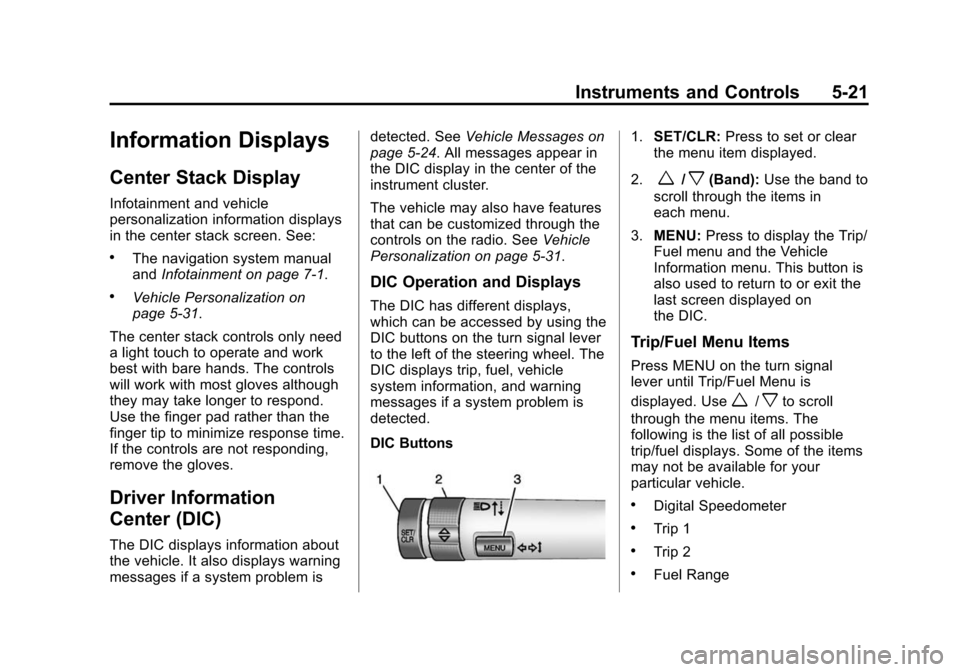
DIC Buttons
1. SET/CLR: Press to set or clear
the menu item displayed.
2.
w/x(Band): Use the band to
scroll through the items in
each menu.
3. MENU: Press to display the Trip/
Fuel menu and the Vehicle
Information menu. This button is
also used to return to or exit the
last screen displayed on
the DIC.
Trip/Fuel Menu Items
Press MENU on the turn signal
lever until Trip/Fuel Menu is
displayed. Use
w/xto scroll
through the menu items. The
following is the list of all possible
trip/fuel displays. Some of the items
may not be available for your
particular vehicle.
.Digital Speedometer
.Trip 1
.Trip 2
.Fuel Range
Page 136 of 399
Black plate (29,1)Chevrolet Malibu Owner Manual (GMNA-Localizing-U.S./Canada/Mexico-
7575972) - 2015 - crc - 4/1/14
Instruments and Controls 5-29
message may also activate during
heavy rain or due to road spray. The
vehicle does not need service.
Ride Control System
Messages
SERVICE TRACTION
CONTROL
This message displays when there
is a problem with the Traction
Control System (TCS). When this
message is displayed, the system
will not limit wheel spin. Adjust your
driving accordingly. See your dealer
for service.
SERVICE STABILITRAK
This message displays if there is a
problem with the StabiliTrak system.
If this message appears, try to reset
the system. Stop; turn off the engine
for at least 15 seconds; then start
the engine again. If this message
still comes on, it means there is a
problem. See your dealer for
service. The vehicle is safe to drive;however, you do not have the
benefit of StabiliTrak, so reduce
your speed and drive accordingly.
Security Messages
THEFT ATTEMPTED
This message displays if the vehicle
detects a tamper condition.
Service Vehicle Messages
SERVICE AC SYSTEM
This message displays if there is a
problem with the air conditioning
system. Take the vehicle to your
dealer for service.
SERVICE POWER STEERING
This message displays if there is a
problem with the power steering
system. Take the vehicle to your
dealer for service.
SERVICE VEHICLE SOON
This message displays if there is a
problem with the vehicle. Take the
vehicle to your dealer for service.
Tire Messages
SERVICE TIRE MONITOR
SYSTEM
This message displays if there is a
problem with the Tire Pressure
Monitor System (TPMS). See
Tire
Pressure Monitor Operation on
page 10-51.
TIRE LEARNING ACTIVE
This message displays when the
system is learning new tires. See
Tire Pressure Monitor Operation on
page 10-51.
TIRE PRESSURE LOW ADD
AIR TO TIRE
On vehicles with the Tire Pressure
Monitor System (TPMS), this
message displays when the
pressure in one or more of the
vehicle's tires is low.
The low tire pressure warning light
will also come on. See Tire
Pressure Light on page 5-18.
Page 150 of 399
Black plate (1,1)Chevrolet Malibu Owner Manual (GMNA-Localizing-U.S./Canada/Mexico-
7575972) - 2015 - crc - 4/1/14
Lighting 6-1
Lighting
Exterior Lighting
Exterior Lamp Controls . . . . . . . . 6-1
Exterior Lamps OffReminder . . . . . . . . . . . . . . . . . . . . 6-2
Headlamp High/Low-Beam Changer . . . . . . . . . . . . . . . . . . . . . 6-2
Flash-to-Pass . . . . . . . . . . . . . . . . . 6-2
Daytime Running Lamps (DRL) . . . . . . . . . . . . . . . . 6-2
Automatic Headlamp System . . . . . . . . . . . . . . . . . . . . . . 6-3
Hazard Warning Flashers . . . . . 6-3
Turn and Lane-Change Signals . . . . . . . . . . . . . . . . . . . . . . 6-4
Fog Lamps . . . . . . . . . . . . . . . . . . . . 6-4
Interior Lighting
Instrument Panel Illumination Control . . . . . . . . . . . . . . . . . . . . . . 6-5
Courtesy Lamps . . . . . . . . . . . . . . 6-5
Dome Lamps . . . . . . . . . . . . . . . . . 6-5
Reading Lamps . . . . . . . . . . . . . . . 6-5
Lighting Features
Entry Lighting . . . . . . . . . . . . . . . . . 6-6
Exit Lighting . . . . . . . . . . . . . . . . . . . 6-6
Battery Load Management . . . . 6-7
Exterior Lighting
Exterior Lamp Controls
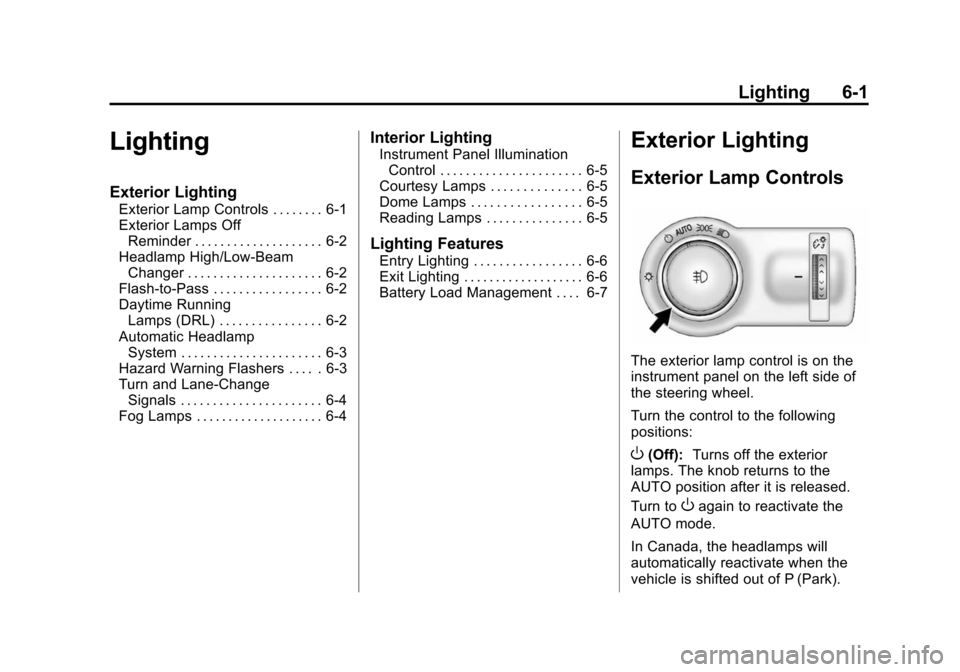
The exterior lamp control is on the
instrument panel on the left side of
the steering wheel.
Turn the control to the following
positions:
O(Off): Turns off the exterior
lamps. The knob returns to the
AUTO position after it is released.
Turn to
Oagain to reactivate the
AUTO mode.
In Canada, the headlamps will
automatically reactivate when the
vehicle is shifted out of P (Park).
Page 154 of 399
Black plate (5,1)Chevrolet Malibu Owner Manual (GMNA-Localizing-U.S./Canada/Mexico-
7575972) - 2015 - crc - 4/1/14
Lighting 6-5
Interior Lighting
Instrument Panel
Illumination Control
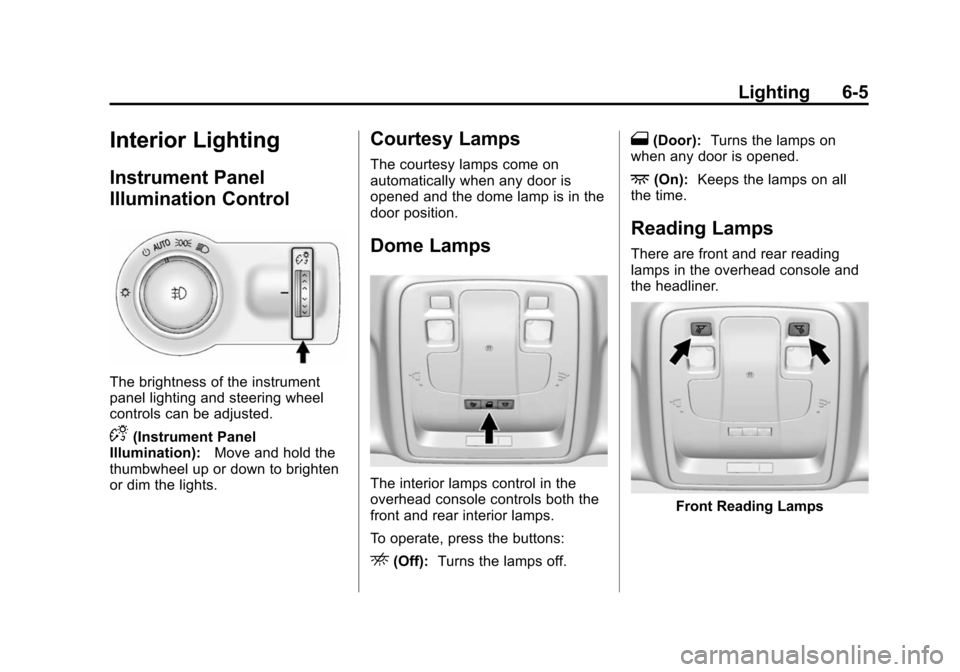
The brightness of the instrument
panel lighting and steering wheel
controls can be adjusted.
D(Instrument Panel
Illumination): Move and hold the
thumbwheel up or down to brighten
or dim the lights.
Courtesy Lamps
The courtesy lamps come on
automatically when any door is
opened and the dome lamp is in the
door position.
Dome Lamps
The interior lamps control in the
overhead console controls both the
front and rear interior lamps.
To operate, press the buttons:
E(Off): Turns the lamps off.
1(Door): Turns the lamps on
when any door is opened.
+(On): Keeps the lamps on all
the time.
Reading Lamps
There are front and rear reading
lamps in the overhead console and
the headliner.
Front Reading Lamps
Page 158 of 399
Black plate (1,1)Chevrolet Malibu Owner Manual (GMNA-Localizing-U.S./Canada/Mexico-
7575972) - 2015 - crc - 4/1/14
Infotainment System 7-1
Infotainment
System
Introduction
Infotainment . . . . . . . . . . . . . . . . . . . 7-1
Theft-Deterrent Feature . . . . . . . 7-2
Overview . . . . . . . . . . . . . . . . . . . . . . 7-2
Operation . . . . . . . . . . . . . . . . . . . . . 7-4
Radio
AM-FM Radio . . . . . . . . . . . . . . . . . 7-8
Satellite Radio . . . . . . . . . . . . . . . 7-10
Radio Reception . . . . . . . . . . . . . 7-11
Backglass Antenna . . . . . . . . . . 7-12
Multi-Band Antenna . . . . . . . . . . 7-12
Audio Players
CD Player . . . . . . . . . . . . . . . . . . . 7-13
Auxiliary Devices . . . . . . . . . . . . 7-14
Phone
Bluetooth (Overview) . . . . . . . . 7-19
Bluetooth (InfotainmentControls) . . . . . . . . . . . . . . . . . . . 7-21
Bluetooth (Voice Recognition) . . . . . . . . . . . . . . . 7-24
Introduction
Infotainment
Base radio information is included in
this manual. See the infotainment
manual for information on other
available infotainment systems.
Read the following pages to
become familiar with these features.
{Warning
Taking your eyes off the road for
too long or too often while using
any infotainment feature can
cause a crash. You or others
could be injured or killed. Do not
give extended attention to
infotainment tasks while driving.
Limit your glances at the vehicle
displays and focus your attention
on driving. Use voice commands
whenever possible. The infotainment system has built-in
features intended to help avoid
distraction by disabling some
functions when driving. These
functions may gray out when they
are unavailable. Many infotainment
features are also available through
the instrument cluster and steering
wheel controls.
Before driving:
.Become familiar with the
operation, faceplate buttons, and
screen buttons.
.Set up the audio by presetting
favorite stations, setting the
tone, and adjusting the
speakers.
.Set up phone numbers in
advance so they can be called
easily by pressing a single
button or by using a single voice
command if equipped with
Bluetooth phone capability.
See Defensive Driving on page 9-3.
Page 161 of 399
Black plate (4,1)Chevrolet Malibu Owner Manual (GMNA-Localizing-U.S./Canada/Mexico-
7575972) - 2015 - crc - 4/1/14
7-4 Infotainment System
14. TONE
.Press to access the Tone
Settings menu to adjust
bass, midrange, and
treble. SeeOperation on
page 7-4.
15. INFO
.Radio: Shows available
information about the
current station.
.CD: Shows available
information about the
current track.
Configuration Setup Menu
Press the CONFIG button to display
the Configuration menu. The
Configuration menu is used for
changing the settings for the audio,
phone, vehicle configuration, and
time features.
Turn the TUNE/MENU knob to scroll
through the available setup features.
Once the desired feature displays,
press the TUNE/MENU knob or press the desired feature on the
screen, to display more options
within that feature.
Languages
To change the display language,
see
Vehicle Personalization on
page 5-31.
The vehicle supports English,
French, and Spanish. The default
language is English.
Operation
Controls
The infotainment system is operated
by using the pushbuttons,
multifunction knobs, menus shown
on the display, and steering wheel
controls, if equipped.
Turning the System On or Off
VOL/O(Volume/Power): Press to
turn the system on and off. Automatic Switch-Off
If the infotainment system has been
turned on after the ignition is turned
off, the system will turn off
automatically after 10 minutes.
Volume Control
VOL/O(Volume/Power):
Turn to
adjust the volume.
v/>(Phone): For vehicles with
OnStar, press and hold
v/>to
mute the infotainment system. Press
and hold
v/>again, or turn the
VOL/
Oknob to cancel mute.
For vehicles without OnStar
®, pressv/>to mute the infotainment
system. Press
v/>again, or turn
the VOL/
Oknob to cancel mute.
Menu System
Controls
The TUNE/MENU knob and the
BACK
/button are used to
navigate the menu system.
Page 177 of 399
Black plate (20,1)Chevrolet Malibu Owner Manual (GMNA-Localizing-U.S./Canada/Mexico-
7575972) - 2015 - crc - 4/1/14
7-20 Infotainment System
.Pair cell phone(s) to the vehicle.
The system may not work with
all cell phones. See“Pairing”in
this section.
.If the cell phone has voice
dialing capability, learn to use
that feature to access the
address book or contact list. See
“Voice Pass-Thru” in this
section.
.See “Storing and Deleting Phone
Numbers” in this section.
{Warning
When using a cell phone, it can
be distracting to look too long or
too often at the screen of the
phone or the infotainment system.
Taking your eyes off the road too
long or too often could cause a
crash resulting in injury or death.
Focus your attention on driving.
Vehicles with a Bluetooth system
can use a Bluetooth-capable cell
phone with a Hands-Free Profile to make and receive phone calls. The
infotainment system and voice
recognition are used to control the
system. The system can be used
while in ON/RUN or ACC/
ACCESSORY. The range of the
Bluetooth system can be up to 9.1 m
(30 ft). Not all phones support all
functions and not all phones work
with the Bluetooth system. See
www.gm.com/bluetooth for more
information about compatible
phones.
Bluetooth Controls
Use the buttons on the infotainment
system and the steering wheel to
operate the Bluetooth system.
Steering Wheel Controls
b/g(Push to Talk):
Press to
answer incoming calls, confirm
system information, and start voice
recognition.
$/i(Mute/End Call): Press to
end a call, reject a call, or cancel an
operation. Infotainment System Controls
To navigate the menu system using
the infotainment controls, see
Overview on page 7-2.
v/>(Phone/Mute):
Press to
enter the Phone main menu.
Voice Recognition
The voice recognition system uses
commands to control the system
and dial phone numbers.
Noise: The system may not
recognize voice commands if there
is too much background noise.
When to Speak: A tone sounds to
indicate that the system is ready for
a voice command. Wait for the tone
and then speak.
How to Speak: Speak clearly in a
calm and natural voice.
Audio System
When using the Bluetooth system,
sound comes through the vehicle's
front audio system speakers and
overrides the audio system. Use the
Page 181 of 399
Black plate (24,1)Chevrolet Malibu Owner Manual (GMNA-Localizing-U.S./Canada/Mexico-
7575972) - 2015 - crc - 4/1/14
7-24 Infotainment System
2. Select Switch Call fromthe menu.
Conference Calling
If equipped, conference calling and
three-way calling must be supported
on the Bluetooth phone and enabled
by the wireless service carrier
to work.
To start a conference while in a
current call:
1. Turn or press the TUNE/
MENU knob.
2. Select Enter Number.
3. Enter the character sequence then select Call.
4. After the call has been placed, turn or press the TUNE/MENU
knob and choose Merge Calls.
5. To add more callers to the conference call, repeat Steps 1
−4. The number of callers that
can be added is limited by your
wireless service carrier.
Ending a Call
Turn or press the TUNE/MENU
knob and select Hang Up.
Muting a Call
To Mute a Call
Turn or press the TUNE/MENU
knob and select Mute Call.
To Cancel Mute
Turn or press the TUNE/MENU
knob and select Mute Call.
Dual Tone Multi-Frequency
(DTMF) Tones
The in-vehicle Bluetooth system can
send numbers during a call. This is
used when calling a menu-driven
phone system.
1. Turn or press the TUNE/MENUknob and select Enter Number.
2. Enter the character sequence.
Bluetooth (Voice
Recognition)
Using Voice Recognition
To use voice recognition if
equipped, press the
b/gbutton on
the steering wheel. Use the
commands below for the various
voice features. For additional
information, say "Help" while you
are in a voice recognition menu.
Pairing
A Bluetooth-enabled cell phone
must be paired to the Bluetooth
system and then connected to the
vehicle before it can be used. See
your cell phone manufacturer's user
guide for Bluetooth functions before
pairing the cell phone. If a Bluetooth
phone is not connected, calls will be
made using OnStar Hands-Free
Calling, if available. See OnStar
Overview on page 14-1.