2015 AUDI S3 SEDAN steering wheel
[x] Cancel search: steering wheelPage 101 of 282

M N
0 > co ,...., \!) 1.1'1
1.1'1
1.1'1
,....,
Switching adaptive cruise control on
"'Pull the lever toward yo u into posit ion (!)
¢fig. 84. ACC: sta ndb y appears in the instru
ment cluster disp lay .
Saving the speed and activating regulation
"'T o save the current speed, press the !SETI
¢ fig. 84 button . T he stored speed is s hown in
the tachomete r LED line @and appears briefly
in the information line @¢
fig. 85.
"' To activate the reg ulation while stationary, you
must press the brake pedal.
Sw itching adaptiv e cruise c ontrol off
"' Push the lever away from you into position @
u nt il it clicks into place. The message
ACC : off
appears .
The stored speed in the L ED line is erased.
@ Indicato r light s
II-adaptive cruise contro l is switched o n. Ob
jects ahead are not detected. The stored speed is
maintained.
• -An object ahead was detected . The adaptive
cruise control system regu lates the speed and
d istance to the object ahead and brakes/acceler
ates automatica lly.
f:i -adaptive cru ise contro l is switched o n. An
object ahead was detected. Yo ur vehicle remains
stopped and w ill not start dr iving automatica lly.
• -The automatic brak ing is no t eno ugh to
maintain a sufficient distance to an object ahead .
You must intervene ¢
page 102, Request for
driver intervention.
© Instrument clu ster display
If adaptive cruise control is not shown in the in
strument cluster display, yo u can call i t up using
the mu ltifunc tion steering wheel buttons
¢page 28.
Based on the g raphics in the display, you can de
termine if the system is ma inta ining a distance to
a vehicle ahead and what that dis tance to this ve
h icle is:
No vehi cle -No object ahead was detected .
Ass is t
White vehicle -An object ahead was de tected .
Re d vehi cle -Request fo r the d river to take action
¢page 102.
Both arrows on the scale© indicate the d istance
to the object ahead. No arrow appears when the
vehicle is on an open road and the re is no object
ahead. If a n object is detected ahead, the a rrow
moves on the sca le.
T he green zone on the sca le indicates the store
distance. For i nformat ion on changing the dis
t a nce, refer to ¢
page 101. If the distance se
l ected is ex ceeded or not reached, the arrow
moves into the red zone on the scale .
_& WARNING
-Using adaptive cruise contro l incorrectly can
cause collisions, other accidents and serious in ju ries.
- If you press the
ISETI button when driving at
speeds be low 20 mph (30 km/h), the vehi
cle acce lerates automatically up to 20 mph
(30 km/h), which is the mi nimum speed
that can be set.
{!) Tips
- If you switch the ignit ion or the adaptive
cruise contro l system off, the set speed is
erased for safety reason.
- The Electronic Stabilization Control (ESC) and Anti-Slip Regulat ion (ASR) both sw itch
on when the adaptive cruise contro l is
switched on . ESC and ASR ca nnot be switch
e d off when adaptive c ruise cont ro l is
sw itched on.
- With the adaptive c ruise control activated
the ESC sport mode cannot be activated .
99
Page 108 of 282
Ass is t
- Switch the pre sense off when you are load
ing the vehicle onto a vehicle carrier, train,
sh ip or other type of transportation. Th is
can prevent undesired warnings from the pre sense system.
Driver messages
Applies to veh icles: w ith Audi p re se nse or Audi adaptive
cruise control
Audi pr e se nse cu rrently un ava ilable. No sens or
v is ion
This message appea rs if the sensor view is ob
s tructed, for example by leaves, snow, heavy
spray or dirt . Clean the sensor¢
page 97, fig. 81.
Audi pre sense : off
This message appears when the ESC is switched
to sport mode, for example¢
page 124.
Audi p re sen se: sys tem fault!
This message appears when the pre sense func
tion is affected. For example, this cou ld be
caused by a faulty sensor.
If the message stays on, d rive to an au thorized
Aud i dea ler or authorized Audi Service Faci lity to
have the malfunction corrected.
Audi active lane assist
Description
Applies to vehicles : with Audi active lane assist
Active lane ass ist detects lane marker lines with
in the limits of the system using a came ra in the
windshie ld. If you are app roach ing a detected
lane marker line and it appears like ly that you
will leave the lane, the system will warn you with
corrective steering . You can override this steering
at any time. If you pass over a line, the steering
wheel will v ibrate light ly. In order for this warn
ing vibrat ion to occur, it must first be switched
on in the MMI. Active lane assist is operable
when the lane marker line is detected on at least one side of the veh icle.
l) T hi s function is not ava ilable in all cou ntri es.
106
The system will not warn you befo re crossing a
l ane marker line if you have activated the turn
s ignal. In this case, it assumes that you are
changing lanes intentionally.
The system is des igned for driving on express
ways and highways and therefore on ly activates
at speeds above approx imately 40 mph (65 km/
h).
A WARNING
-
- The system warns the driver that the vehicle
is leaving the lane using corrective steering .
The driver is always responsible for keeping
the vehicle within the lane.
- The system can help you keep the vehicle in
the lane, but it does not drive by itself.
Al
ways keep you r hands on the steering
wheel.
- Corrective steer ing may not occur in certa in
situa tions, su ch as during heavy braking.
- There may be cases where the camera does
not recognize all lane ma rker lines. Correc
tive stee ring can only take p lace on the side
of the vehicle where lane marker line5 are
detec ted.
- Othe r road structures or obje cts cou ld possi
b ly be identified un intent ionally as lane
marker l ines . As a result, corrective steering
may be unexpected or may not occur .
- The camera view can be restricted, for ex
ample by vehicles driving ahead or by rain,
snow, heavy spray light shining into the
camera or by d irt on the window. This can
result in active lane ass ist not detecting the
lane marker lines or detecting them incor
rectly.
- In certain situat ions where visibility is low,
the vehicle may switch from "early" to "late"
corrective steering
l l.
- Under certain co nditions such as ruts in the
road, an inclined roadway or crosswinds, the
corrective steering a lone may not be enough
to keep the vehicle in the midd le of the lane.
~
Page 109 of 282
....,
N
0 > co
rl I.O
"'
"'
"'
rl
-For safety reasons, act ive lane assist must
not be used when there are poor road and/
or weather conditions such as slippery
roads, fog, gravel, heavy rain, snow and the
potent ial for hydroplaning. Us ing active lane
assist under these conditions may increase
the risk of a crash.
Switching on and off
A ppl ies to vehicles: with Audi ac tive lane assis t
•
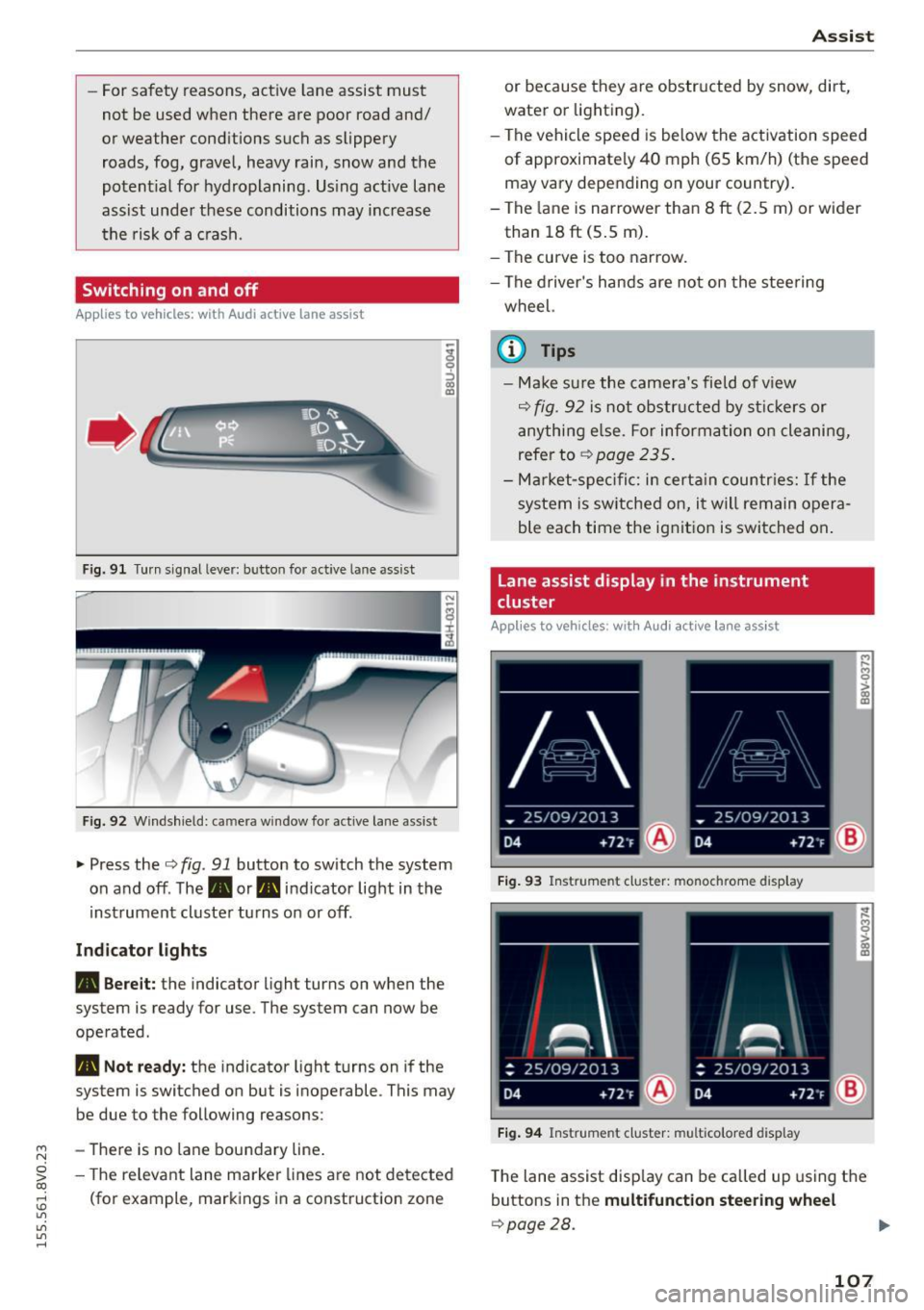
Fig. 91 Turn s ignal lever: but ton for active lane assist
Fig. 92 W indsh ield: camera w indow fo r active lane assist
~ Press the Q fig. 91 button to switch the system
on and off. The. or. indicator light in the
inst rument cluster turns on or off.
Ind icat or light s
• Bere it:
the indicator light turns on when the
system is ready for use. The system can now be
operated .
• Not read y: the indicator light turns on if the
system is switched on but is inoperable . This may
be due to the following reasons:
- There is no lane boundary line .
- The re levant lane marke r lines a re not detected
(for example, markings in a construction zone
A ssi st
or because they a re obstr ucted by snow, dirt,
water or lighting).
- The vehicle speed is be low the activation speed
of approximately 40 mph (65 km/h) (the speed
may vary depending on your country) .
- The la ne is nar rower than 8
ft (2.5 m) or wider
than 18
ft (5 .5 m).
- The curve is too narrow.
- The driver's hands are not on the stee ring
wheel.
a) Tips
- Make sure the came ra's field of v iew
Q fig. 92 is not obstr ucted by st ic kers or
anything e lse. For informa tion o n cleaning,
refer to
~ page 235.
-Ma rket -s pe ci fic: i n certa in countr ies: If the
system is sw itched on, i t will remain opera
ble each time the ignit ion is switched on .
Lane assist display in the instrument
cluster
App lies to vehicles: wit h Audi a ctive la ne ass ist
F ig . 93 Instrument cluster: monochrome display
Fi g. 94 Instrument cluster: multicolored display
M
~ > a,
a,
T he lane assist disp lay can be called up us ing the
buttons in the
multifunct ion steering wheel
Q page28.
107
Page 110 of 282
Assist Monochrome display
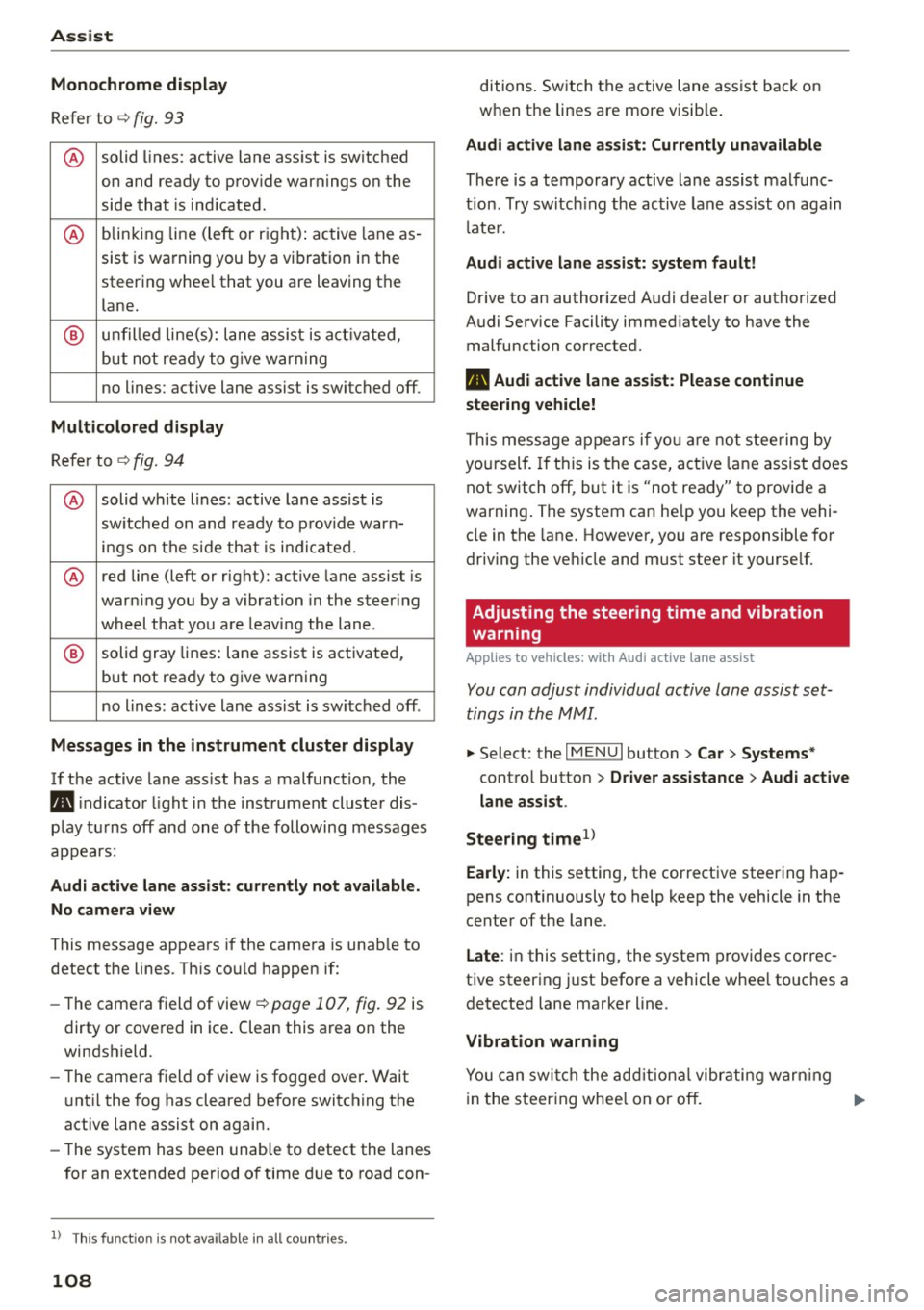
Refer to¢ fig. 93
® solid lines: active lane ass ist is switched
on and ready to provide warnings on the
side that is ind icated.
® blinking line (left or r ight): active lane as -
sist is warning you by a vibration in the
steering whee l that you are leaving the
lane.
® unfilled line(s): lane assist is activated,
but not ready to give warn ing
no lines: active lane assist is switched off .
Multicolored display
Refer to¢ fig. 94
® solid white lines: active lane assist is
switched on and ready to provide warn-
ings on the side that is indic ated.
® red line (left or rig ht): active lane assist is
warn ing you by a v ibration in the steer ing
wheel that you are leaving the lane .
® solid gray lines: lane assist is activated,
but not ready to give warning
no lines: active lane assist is switched off .
Messages in the instrument cluster display
If the active lane ass ist has a malfunction, the
ra, indicator light in the inst rument cluste r dis
play turns off and one of the following messages
appears:
Audi active lane assist: currently not available.
No camera view
This message appears if the camera is unab le to
detect the lines . Th is could happen if:
- The camera field of view ¢
page 107, fig. 92 is
dirty or cove red in ice . Clean this area on the
windshield.
- The came ra f ield of view is fogged over. Wait
u nt il the fog has cleared before switching the
active lane assist on again.
- The system has been unable to detect the lanes
for an extended period of time due to road con-
l) Thi s fun ctio n is not available in all cou ntri es.
108
ditions. Switch the active lane assist back on
when the lines are more visib le.
Audi active lane assist: Currently unavailable
There is a temporary active lane assist malfunc
tion . Try switching the active lane assist on again
l ate r.
Audi active lane assist: system fault!
Drive to an authorized A udi dealer or authorized
Audi Service Facility immed iate ly to have the
malfunction corrected.
ra, Audi active lane assist: Please continue
steering vehicle!
This message appears if you are not steering by
you rself. If this is the case, active lane assist does
not switch off, but it is "not ready" to provide a
warning. The system can he lp you keep the vehi
cle in the lane. However, you are responsible for
driving the veh icle and must steer it yourse lf.
Adjusting the steering time and vibration
warning
Applies to vehicles: with Audi active lane assist
You can adjust individual active lane assist set
tings in the MMI.
.,. Select: the I MENU I button> Car > Systems *
control button > Driver assistance > Audi active
lane assist .
Steering time
1>
Early: in this setting, the corrective steering hap
pens continuously to help keep the vehicle in the
center of the lane.
Late : in this setting, the system provides correc
tive steering just before a vehicle whee l touches a
detected lane marker line .
Vibration warning
You can switch the additional vibrating warning
i n the steer ing whee l on or off.
II>
Page 114 of 282

Assist Driver messages
Appl ies to vehicles: with Audi side assist
If the side assist switches off automatically, a
message appears in the instrument cluster dis
p la y.
@j Audi side assist: currently unavailable.
No sensor vision
The radar sensors' vision is affected. Do not cover
the area in front of the sensors with bike wheels,
stickers, dirt or other objects. Clean the area in
front of the sensors, if necessary
r:!> page 110,
fig. 98.
@j Audi side assist: currently unavailable
Side assist cannot be switched on temporarily be
cause there is a ma lfunction (for examp le, the
battery charge level may be too low).
@j Audi side assist: System fault!
The system cannot guarantee that it will detect
veh icles correctly and it is switched off. The sen
sors have been displaced or are faulty. Have the
system checked by an authorized Audi dealer or
authorized Audi Service Facility soon.
Audi drive select (drive
settings)
Introduction
Applies to vehicles: with Audi drive select
Audi drive select makes it possible to experience
different types of vehicle settings in one vehicle.
The driver can select from three
Comfort, Auto
and Dynamic modes using the ~.7l.'i button in the
center console or the MMI to switch between a
sporty and a comfortable driving mode, for ex
ample . In the
individual* mode, the settings can
be adjusted to your personal preferences . This
makes it possib le to combine settings such as a
sporty engine tun ing with light steering .
.,&. WARNING
Using Audi drive select incorrect ly can lead to
collisions, other accidents and serious inju
ries.
112
· Description
Applies to vehicles: with Audi drive se lect
The vehicle setup in each mode depends on the
vehicle's features. However , the eng ine and steer
ing are always affected.
Engine and automatic transmission
Depending on the mode, the engine and auto
matic transmission* respond more qu ickly or in a
more balanced manner to accelerator peda l
movements .
Adaptive dampers (Audi magnetic ride)*
The adaptive dampers use sensors to record in
format ion regarding steer ing movements, brak
ing and acce lerat ion operations by the driver,
road surface, dr iv ing speed, and load. With Audi
drive select you can adjust the adaptive dampers
sporty (dynamic), comfortable (comfort) or bal
anced (auto).
Steering
T he steer ing adapts in terms of steer ing ass is
tance. There a re diffe rent modes
Q page 113.
Indirect steering that moves easily as in comfort
mode is especia lly suited to long drives on a high
way. The dynamic mode provides sporty, direct
steering .
For vehicles with progressive steering* the steer
ing performance is more agi le .
Cornering light*
The cornering light adjusts when driv ing on
curves at speeds between 6 mph (10 km/h) and
68 mph (110 km/h). The pivoting action and the
lig hting are also adapted to the mode.
Adaptive cruise control*
The behavior when accelerating can be adjusted
from comfortable to sporty, depending on the
Audi drive select mode. Adaptive cruise control
also responds to the driving behavior of the vehi
cle ahead in a more conservative or sporty man
ner.
Page 121 of 282
....,
N
0 > co
rl I.O
"'
"'
"'
rl
Switching on/off
Applies to vehicles: with parking system plus w it h rearv iew
camera
Switching on
• Shift into reverse, or
• Press the
P~A button in the center console
¢page 117, fig. 102. A short confirmation
tone sounds and the LED in the button turns
on.
Switching between the rearview camera and
optical display
• Press the Graphic control button ®
r::!.>page 119, fig . 108 to see the optica l display.
• Press the
Rear view contro l button to see the
rearview camera image.
Switching off
• Drive faster than 6 mph (10 km/h), or
• Press the
P,qA button, or
• switch the ign ition off.
@ Tips
The v isual display in the left pa rt of the dis
play should he lp you detect the critical veh icle
areas.
Cross parking
Appl ies to vehicles : with parking system plus with rearview
camera
This view may be used when parking in a garage
or in a parking space.
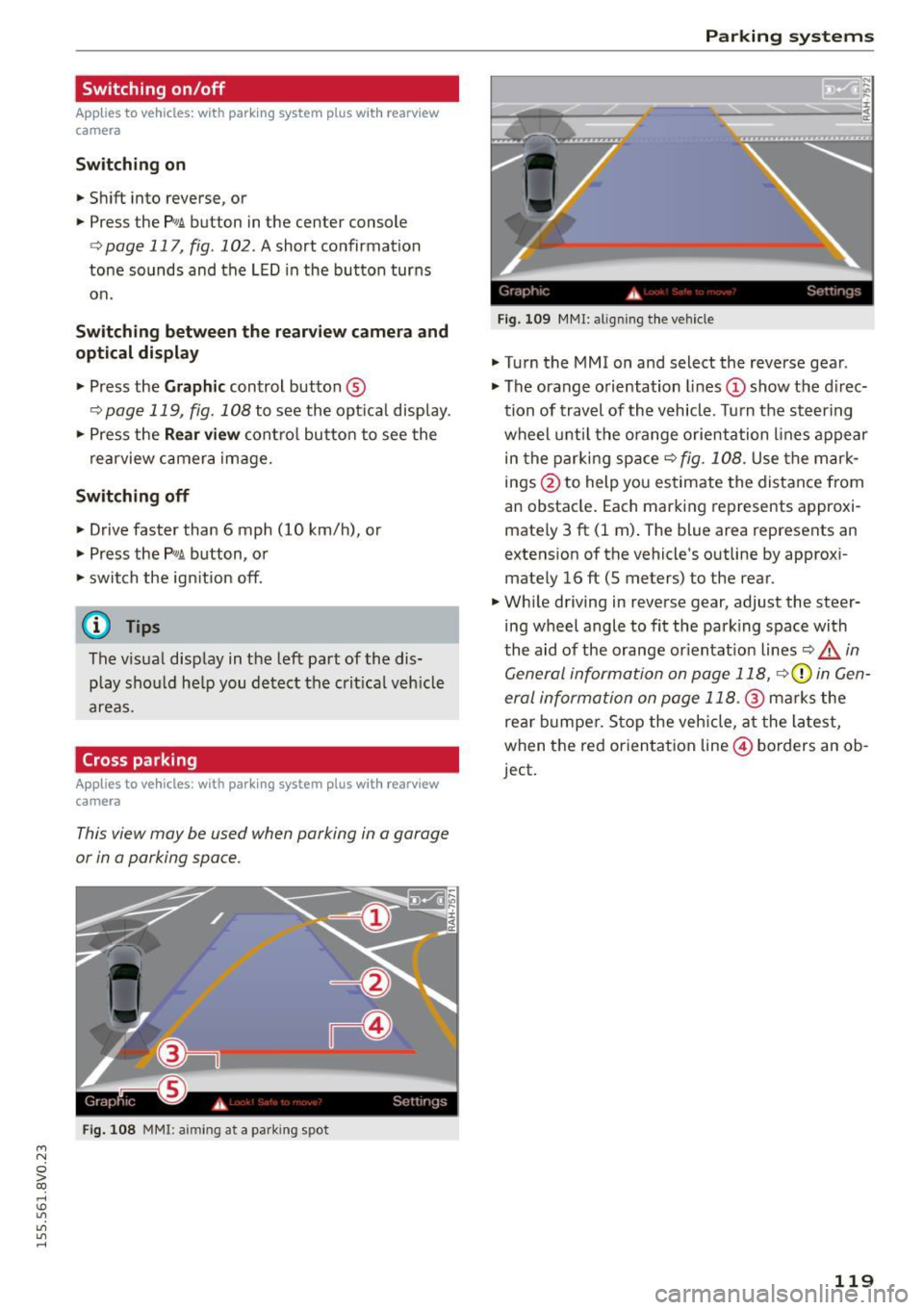
Fi g. 108 MMI: aiming at a park ing spot
Parking systems
Gr,11;t I( i._ S,·T .. 1',lJ',
Fig. 109 MMI : aligning t he veh icle
• Turn the MM I on and select the reverse gear .
• The orange orientation lines
(D show the direc
tion of travel of the vehicle . Turn the steering
wheel unt il the orange orientation lines appear
in the parking space¢
fig. 108. Use the mark
in gs @ to help you estimate the distance from
an obstacle . Each marking represents approxi
mately 3 ft (1 m) . The blue area represents an
extens ion of the vehicle 's outline by approxi
mate ly 16 ft (5 meters) to the rear.
• Wh ile driving in reverse gear, adjust the steer
ing wheel angle to fit the park ing space with
the aid of the orange or ientat ion lines
Q A in
General information on page 118,
r::!.>0 in Gen
eral information on page 118.@
marks the
rea r bumper . S top the vehicle, at the latest,
when the red orienta tion line © borders an ob
ject.
119
Page 122 of 282

Parking systems
Parallel parking
Applies to veh icles: w ith pa rk in g system p lus w it h rearv iew
camera
This view may be used when parallel parking
along the side of a street .
Fig. 110 MMI: blue surface aligned wit h parking spot
Fig. 111 MMI: contact of the blue curved line with the curb
Park ing on the right is described here. It is iden
tical when parking on the left .
If there is an obstacle next to the park ing space
(such as a wall), refer to "Information for parking
next to obstacles" ¢
page 120 .
.,. Turn on the right turn signal.
.,. Position your vehicle next to a parked vehicle in
front of the desired parking space. The distance
to this veh icle should be approximately 3 ft (1
m) .
.,. Turn the MMI on and select the reverse gear .
The park ing system is turned on and the
cross
parking indicator is displayed.
.,. Press the control button on the MMI-controls
to select
(D ¢ fig. 110. The parallel parking in
dicator is displayed .
.,. Back up and al ign your vehicle so the blue area
@ borders on the rear end of the vehicle behind
you or on the parking space line¢.&.
in Gener-
120
al information on page 118, ¢(Din General in
formation on page 118 .
The blue area repre
sents an extension of the vehicle's outline by
approximately 16
ft (5 meters) to the rear. The
long side of the blue area should be on the
curb . The entire b lue area must fit into the
parking space .
.,. With the vehicle stopped, turn the steering
wheel to the right as far as it will go .
.,. Back into the parking space until the blue curve
¢
fig. 111 touches the curb¢.&. in General in
formation on page 118, ¢(Din General infor
mation on page 118.
Stop the vehicle .
.,. With the vehicle stopped, turn the steering
wheel to the left as far as it will go .
.,. Continue to back into the parking space until
the vehicle is parked parallel to the curb¢.&.
in General information on page 118, ¢CI) in
General information on page 118 .@
marks
the rear bumper. Stop the vehicle, at the latest,
when the red orientat ion line @ borders an ob
ject. Keep an eye on the front of your vehicle
while doing this.
Parking next to obstacles
If there is an obstacle (such as a wall) next to the
parking space, position the veh icle so there is
more space on that side. Position the long side of
the blue surface so that there is suff icient space
from the obstacle. The surface must not be
touching . You will also need to start turning the
steering wheel much earlier. The blue curve
¢ fig. 111 must not touch the obstacle and
should have sufficient room .
(D Note
Keep enough distance from the curb to avo id
damage to the rims.
¢j) Tips
The left or right orientation lines and surfaces
will be disp layed, depending on the turn sig
nal being used.
Page 125 of 282
M N
0 > co ,...., \!) 1.1"1
1.1"1
1.1"1
,....,
shared, please see your contract with the
wireless telecommunications provider and the
"About Aud i connect" tab in your vehicle's
MMI: ! MENUI button> Audi connect > About
Audi connect .
Electronic stabilization
control (ESC)
Description
The E lectronic Stabilization Contro l (ESC) reinfor
ces driver safety. It reduces the risk of slipping
and improves driving stability. ESC detects criti
cal s ituations such as the vehicle oversteering
and understeering or the wheels a re spinning.
The vehicle is stabilized by applying the brakes or
reducing engine torque. Once the ESC is activat
ed, the indicator light
DJ blinks in the instru
ment cluster.
The fol low ing systems a re integrated in the ESC:
Anti-lock braking system (ABS)
ABS prevents the wheels from locking when brak
i ng. The vehicle can still be steered even during
hard braking . Apply steady pressure to the brake
pedal. Do not pump the pedal. A pulsing in the
brake pedal ind icates that the system is acting to
stabilize the vehicle .
Brake assist system
The brake assist system can decrease braking d is
tance . It increases braking power when the driver
presses the brake pedal quickly in emergency s it
uations. You must press and hold the brake pedal
unti l the dangerous sit uation is ove r. In vehicles
with adaptive cruise control *, the brake assist
system is more sensit ive if the distance detected
to the vehicle ahead is too small.
Anti-slip regulation (ASR)
ASR reduces engine power when the drive whee ls
begin spinning and adapts the force to the road
conditions. This makes it easier to start, acceler
ate and drive up inclines.
Intelligent Technology
Electronic differential lock (EDL)
The EDL brakes whee ls that are spinning and
trans fers the drive power to the other drive wheel
or whee ls if the vehicle is equipped with all wheel
drive*). This function is not available at higher
speeds.
In extreme cases, EDL automatically switches off
to keep the brake on the braked wheel from over
heating. The vehicle is still working correct ly. EDL
will switch on again automatically when condi
tions have returned to normal.
Steering recommendation
The ESC helps to stabilize the vehicle by changing
the steering torque .
Selective wheel torque control
Selective wheel torque control is used when dr iv
i ng on curves. The front wheel on the inside of
the curve o r both wheels on the inside of the
curve are braked selectively as needed . This al
lows more precise driving in curves .
Automatic post-collision braking system
The "Automat ic post -collision braking system"
can help to reduce the ris k of sliding and of other
collisions after an accident. If the airbag control
module detects a collision above a certain vehicle
speed, the vehicle is braked by the ESC.
T he vehicle does not brake automatically if:
- the driver presses the accelerator pedal, or
- the braking force generated by the pressed
brake pedal is greater than the brak ing force
that would be initiated by the system, or
- the ESC, the brake system or the vehicle electr i
cal system are not funct ion ing .
A WARNING
-The ESC and its integrated systems cannot
overcome the limits posed by natural phys i
cal laws. This is especially important on slip
pery or wet roads .
If the systems begin act
ing to stabilize your vehicle, you should im-
mediately a lter your speed to match the ..,.
123