2015 AUDI Q5 mmi
[x] Cancel search: mmiPage 115 of 302

Audi adapt ive crui se cont rol and bra king gu ard
Audi braking guard
Description
Applies to vehicles: with Audi adaptive cruise co ntrol
F ig. 126 Instrument cluste r: app roac h warn ing
Braking guard uses a radar sensor. It also func
tions within the limits of the system when adap tive cruise control is switched off .
What can bra king gu ard do ?
When detected in time, the system can assess
situations when a vehicle ahead brakes suddenly
or if your own veh icle is traveling at a high speed
and approaching a vehicle up ahead that is mov
ing more slowly . Braking guard does not react if it
cannot detect the s ituation.
The system advises you of various situations:
- The
di sta nce wa rning is given if you are too
close to the vehicle ahead for a long time.
If the
vehicle ahead brakes sharply, you will not be
able to avoid a collision. The indicator light .
in the d isplay comes o n.
- The
app roach warning is g iven when a detected
vehicle up ahead in your lane is moving much
more slowly than you are or if it brakes sharply .
When this warning is g iven, it may only be pos
s ible to avoid a co llision by swerving or braki ng
sharp ly. The indicator light . and indicator in
t h e d isplay w ill warn yo u about the danger
¢ fig. 126. You wi ll also hear an acoust ic signa l.
If you do not react fast enough or do not react at
all to the situation, braking guard will intervene by bra king and the message
Br aking guard : A cti-
~ vat ed will appear. co ~ co
rl I.O
"' N "' 11
This is not ava ilable in som e count ries. rl
- If a collision is imminent, the system wi ll first
provide an
a cute war ning by brief ly and sharply
app ly ing the brakes.
- If you do not react to the acute warning, brak
ing guard can brake within the limits of the sys
tem. This reduces the veh icle speed in the event
of a collision.
- At speeds under 20 mph (30 km/h), the system
can initiate a comp lete deceleration shortly be
fore a collisionl).
- If the braking guard senses that you are not
braking hard enough when a collision is immi
nent, it can increase the braking force.
Which function s can b e cont roll ed ?
You can switch braking guard and the distance/
approach warning on or off in the radio/MMI*
¢ page 114, Settings in the radio/MM!*.
A WARNING
-
Lack of attention can cause collisions, other
accidents and serious personal injuries. The b raking guard is an ass ist system and cannot
p revent a coll is ion by itself. The dr iver must
a lways intervene. The driver is always respon
s ib le for b ra ki ng at the corre ct time.
- Always pay close attent ion to traffic, even
when the b rak ing guard is switched on. Be
ready to intervene and be ready to take com
p lete control whenever necessary . Always
keep the safe a nd legal distance between
your vehicle and vehicles up ahead.
- Braking guard works within limits and will not respond outside the system limits, for
examp le when approaching a stopped vehi
cle or stationary obstacle (end of a traffic
jam or vehicle that has broken down in traf f ic).
- Always remember that the radar sensor for
the braking guard works on ly w ithin defined
detection and range limits that may prevent
the prope r detection of other vehicles.
- The radar sensor's funct ion and range can
be reduced by ra in, snow and heavy spray.
Moving vehicles up ahead may not be
,.
113
Page 116 of 302

Audi adaptive cru ise control and b ra king guard
promptly detected or may not be detected
at all.
- Reflective surfaces including cras h barriers
or tunnel entrances may impair the function
of the radar sensor.
(D Tips
- You can cance l the braking that is initiated
by the system by braking yourself, by accel
erating noticeably or by swerving.
- Braking g uard error messages ¢page
114 .
-Keep in mind that braking guard can brake
unexpected ly . Always sec ure any cargo or
objects that you are transporting to red uce
the risk of damage or injury.
Settings in the radio/MMI*
Applies to veh icles: with Audi adaptive cruise control
.,. Se lect : I CAR I funct ion button > Audi brak ing
guard .
Or
.,. Select :
~ I C~ A~ R~ I funct ion button > Car sy stem s*
control button > Drive r ass is t> Audi braking
guard .
Syst em -
Sw itch braking guard On and Off . When
you switch the ign ition on, the message
Braking
guard : Off
appears if the system is switched off.
Earl y warning -The dis tance and appro ach war n
ing s in the display can be sw itched
On/ Off.
(D Tips
-Your settings are automat ica lly stored and
assigned to the remote control key being used at the times the sett ings are made
¢ page
36 .
-If you restrict the ESC, the b raking guard al
so switches itself off¢ page
192 .
-Switch brak ing guard off when you are load
i ng the veh icle onto a vehicle carr ier, tra in ,
sh ip or other type of transpo rtation . Th is
can prevent undesired wa rnings from the
braking guard system.
Messages
Applies to vehicles: w ith Aud i adaptive cruise control
B raking guard: Off
114
This driver message appears if the system is
turned off via the radio/MM I *. Otherwise, if th e
system is turned off, the information appears ev
ery time short ly after the s tart of the tr ip .
The driver message a lso appears if the system is
not available due to a malfunction or if the ESC is
not switched on ¢ page
192 . If th is is the case,
the system w ill not provide warn ings about a
poss ible collis ion.
B raking gu ard: Ac tivat ed
This dr iver message appears if sharp b rake pres
sure was applied due to an a cute warn ing.
•••
Th ree white dots appear if a sett ing cannot be se
l ected w ith the operating lever . For example, th is
happens if you want to raise/lower the speed
even though there was no prev ious ly saved
speed .
ACC: Sensor block ed
This messag e appears if th e sensor v iew is ob
structed, for examp le by leaves, snow, heavy
spray or d i rt . Cle an the sensor ¢ page
10 7,
fig. 116 .
ACC: Una vailable
The driver message appears if, for example, the
brake temperature is too h igh. The adaptive
cru ise control is temporarily unavailable. A chime
sounds as a r emind er.
ACC: Not avail able
The driver message appears if there is a malfunc
tion. The adaptive cruise cont ro l tu rns off . A
c hi me so unds as a rem inder. Have the system
che cked by an a utho riz ed Aud i dealer o r auth o r
i zed Audi Serv ice Facility.
Shift lev er po sition!
T he driver message appears if the selector lever
i s sh ifted to the N pos it ion . The adaptive cru ise
control is not ava ilable while in this posit io n .
Stab ilizat ion control (ESC )
This message appears if the Elect ronic Stabiliza
tion Contro l (ESC) is taking act ion to stabilize the .,..
Page 120 of 302

Audi side a ssist
- Improper reliance on the side assist system
can cause collisions and serious personal in
jury:
- Never rely only on side assist when chang
ing lanes.
- Always check rear view mirrors to make sure that it is safe to change lanes.
- Side assist cannot detect a ll vehicles under
all conditions -danger of accident!
- Please note that side assist indicates there
are approaching vehicles, o r vehicles in your
blind spot, only after your vehicle has
reached a dr iv ing speed of at least 19 mph
(30 km/h).
- In certa in situations, the system may not
func tion or its funct ion may be lim ited. For
example:
- if vehicles are approaching or be ing left
behind very qu ickly. The display may not
turn on in time .
- in poor weather condit ions such as heavy
ra in, snow or heavy m ist .
- on very wide lanes, in tight curves or if
there is a rise in the road surface . Vehicles
in the adjacent lane may not be detected
because they ar e outside of the sensor
range.
(D Note
The sensors can be displaced by impacts or damage to the bumpe r, wheel housing and
unde rbody. This ca n affect the system. Have
your author ized A udi dealer or authori zed
Audi Service Facility c hec k their fu nction.
(D Tips
- If the window g lass in the d river's doo r or
front passenger's door has been tinted, the
display in the exterio r mirror may be misin
terpreted.
- F or De clarat ion of Compliance to United
Sta tes FCC and Indus try Canada regula tions
q poge 284 .
118
Activating and deactivating
App lies to vehicles: wit h Aud i side assist
Fig. 131 Driver 's door : S ide assist button
.,. Press the button q A in General information
on page 117
to sw itch the system on/off . The
LED in the button tu rns on when side assist is
sw itched on .
Adjusting the display brightness
Applies to vehicles: with A udi side ass ist
The signal brightness can be set in the radio or
MMI*.
.,. Select: I CAR I function button > Audi s ide as sist .
Or
.,. Select: I CAR I function button > Car sy ste m s*
cont ro l button > Driv er a ssi st> Audi sid e as
s is t.
The display br ightness adjusts au tomatically to
the b rightness of the surroundings, both in the
i nforma tion and in the wa rni ng stage. I n ve ry
dark or very b rig ht s urround ings, the display is al
ready set to the m inimum or maximum level by
the automatic adjustme nt. In such cases, yo u
may notice no change when ad justing the bright
ness, or the change may on ly be noticeable once
the surroundings change.
Adjust the brightness to a level where the d isp lay
in the information stage will not disrupt yo ur
view forward . If yo u change the brightness, the
display in the exterior mirror will briefly show the brightness level in the information stage. The
brightness of the warning stage is linked to the
brightness in the information stage and is adjust
ed along with the information stage adjustment .
liJI,
Page 123 of 302

M N
co ~ co
rl I.O
"' N
"' rl
Selecting the driving mode
Applies to vehicles: with Audi drive select
You con choose between Comfort, Auto, Dynam
ic
and Individual* modes .
«>
~ 9
c:=====::::;: ~ a,
drive I I r.,. select _ - ~
Fig. 132 Center console: Contro l for drive select
Fig. 133 MMI": Audi drive select
.. To set the mode, press the r:i.r., button
c>fig. 132 multiple times until the desired
mode is displayed in the instrument cluster. Or
Adjusting the Individual mode
Applies to vehicles: with Audi drive select and M MI
Audi drive select
.. In the MMI*, select: ICARI function button>
Comfort , Auto, Dynamic or Individual* .
In veh ides without M MI*, the r~~, button is found
und ernea th the selector lever .
You can change the driving mode when the vehi cle is stationary or while driving . If traffic per
mits, after changing modes, briefly take your
foot off the accelerator pedal so that the recently
selected mode is also activated for th e engine
and transmission.
Comfort -provides a comfort-oriented vehicle
setup and is suited for long drives on highways.
Auto -provides an overall comfortable yet dy
namic driving feel and is suited for every day use.
Dynamic -gives the driver a sporty driving feel
and is suited to a spo rty driving style .
Individual* -c> page 121.
A WARNING
-Pay attention to traffic when operating drive
select to prevent potential risk of an accident.
You can personally specify the vehicle setup in the MMI" .
.. Select: I CARI function button > Set individual
control button. Once you select the menu, you
will automatically drive in the
individual mode.
The equipment in your vehicle will determine
which settings you can adjust . The following ta-
Systems Comfort
Engine/transmission
balanced
Steering comfortable
Dynamic steering * comfortable/indirect
Adaptive dampers* comfortable ble
provides an overview of the characteristics of
each driving mode.
Auto Dynamic
balanced sporty
balanced sporty
balanced/direct sporty/direct
balanced sporty
121
Page 132 of 302

Parkin g sys tem
Rearview camera cover age area
The MM I disp lay shows the area cove red by the
rearview camera
c::> fig . 143 (D. Objects that are
not in the area covered @are not shown on the
MMI disp lay.
We recommend that yo u practice par king with
the rearview camera in a traffic-free location o r
parking lot to become familiar with the system,
the orientation lines, and their f unction . When
doing this, there should be good light and weath
er cond itions.
I n the MMI disp lay, objects or vehicles appear
closer o r further away if:
- yo u are driving in reverse gear from a level su r
face onto an incl ine, or a downward slope,
- you are driving in reverse gear toward protrud
ing obje cts,
- the ve hicl e i s ca rrying too much load in the
rear.
The accuracy of the or ientat ion lines and blue
surfac es dimin ishes if:
- the rearv iew camera does not provide a reliab le
image, for examp le, in poor visibility cond itions
or if the lens is d irty,
- the image on the screen is not visible due to
su n g la re and reflect ion .
Caring for the rearview camera lens
The rearview camera is located above the rear li
cense plate bracket. For the parking system to
operate, the lens
c::> fig. 144 must be kept clean:
- Dampen the lens with a house ho ld alcoho l-
based glass cleaner, and then wipe the lens
clean with a dry cloth
c::> Q) .
-Remove snow with a hand brush and ice pref
erably with a de- ic ing spray
c::> Q).
A WARNING
-The parking system ca nnot rep lace the driv
er's attenti on . T he d rive r alone is responsi
ble fo r parki ng a nd s imilar dr iv ing ma neu
vers.
- Senso rs have b lind spots in which objects
cannot be detected . Pay special atte ntion to
130
sma ll children and an imals beca use the sen
sors cannot always detect them.
- Always keep your eyes on the vehicle 's s ur
round ings, using the rearview mirror as
wel l.
- Do not allow yourself to be distracted from
traffic by the rearview camera pict ures.
- If the position and t he installation angle of
the camera has changed, for e xamp le, after
a rear end collision, do not continue to use
the system for safety reaso ns. Have it
checked by a qualified dealersh ip.
(D Note
- Low obstacles a lready s ignaled by a warn ing
can disappear from the system's detection
range as they are approached and w ill n ot
cont in ue to be signaled. Objects such as
bar rier cha ins, trailer draw ba rs, thi n pa int
ed vert ica l poles or fences may not be de
t e cted by the system, posi ng ris k of dam
a ge.
- N ever use wa rm o r hot wate r to remove
s now or ice from the rea rv iew came ra lens ·
t h is could cause the lens to crac k!
- Whe n cleani ng the len s, neve r use produ cts
th at ar e abra s ive.
Page 133 of 302

M N
co ~ co
rl I.O
"' N
"' rl
Switching on and off
Applies to vehicles: with Audi parking system p lus w ith rear
view came ra
The reorview camera switches on automatically
together with the acoustic and visual park assist
when you put the vehicle in reverse.
Fig. 145 Center console: Parking system switch
Fig. 1 46 MMI display: visual dista nce display
Switching on
.. Switch the MMI on and select reverse gea r.
.. To use the front parking system, press the
switch
P' "A in the center console c::> fig . 145. A
sho rt confirmat ion tone sou nds a nd the indica
tor light in the switc h lights up.
Switching betwe en th e re arview camera and
v is ual display
.. Press the Gr aphic control button c::> page 132,
fig. 147
® to see the visual d isplay .
.. Press the
Rear view cont ro l button to see the
rearview camera image
c::> fig . 146 .
Switching off
.. Drive faster than 6 mph ( 10 km/h), or
.. press the sw itch P
11JA or
.. swi tch off the ignit ion.
Par king system
Segm ents in th e vi sual display
T he red segmen ts in front of and behind the vehi
cle
c::> fig. 146 help you to determine the distance
between you and an obstacle. As your vehicle
comes closer to the obstacle, the segments move
closer to the vehicle. The collision area has been
reached when the next to last segment is dis
played. Do not continue dr iv ing farther ¢.&.
in
General Information on page 130!
A WARNING
--The MM I display cannot show, or cannot ad-
equate ly show, certa in objects (such as
smal l posts or grating), reces ses in the
ground a nd protr uding p arts on ano ther car.
- Only use t he rearview came ra to ass ist you if
it shows a good, clear picture. For examp le,
the image may be affected by the su n shin
ing into the lens, dirt on the lens or if there
is a defect.
- Use the rearv iew camera only with the rear
lid completely closed. Make sure any objects
you may have mounted on the rear lid do
not block the rearview camera.
(D Tips
-The sensors m ust be kept clean and free o f
snow and ice for t he park assist to operate.
- The visua l display is shown in the ill ustra
tion of the rearview camera. This disp lay
shows whe re the sensors have detected an
obstacle.
- Yo u can change the volume and pitch of the
signa ls as well as the display ¢
page 134.
-Please fo llow the instruc tions for tow ing a
trailer ¢
page 134.
-What appears in the disp lay is time -delayed .
131
Page 134 of 302

Parking syste m
Reverse Parking
App lies to veh icles: w ith Audi park ing system p lus w ith rear
view ca mera
Parking mode 1 can be used when parking in a
garage or into a parking space.
Fig. 147 MMI display: aiming at a parking spot
Fig. 148 MMI d isplay: align ing the vehicle
.,. Switch the MMI on and select reverse gear .
.,. Turn the steering wheel until the orange orien
tation lines
(D appear in the parking spot
c::> fig. 147. Use the markings @to help you es
t imate the d istance from an obsta cle. Each
mar king represents 3
ft (1 meter). The bl ue
area represents an extension o f the ve hicle's
outline by approximately 16
ft (5 meters) to
the rear .
.,. While driving in reverse gear, adjust the steer
ing wheel angle to fit the parking space with
the aid of the orange orientation lines
c::>@. @
marks the rear bumper. Stop the vehicle when
the red or ientat ion line @ borders an object
c::>,&. .
.&_ WARNING
- T he re arview camera does not show the en
t i re area behind the vehicle
c::> page 129,
132
fig. 143 . Watch out especially for small chil
dren and anima ls. The rearview camera can
not always detect them, posing risk of an
accident!
- Please note that objects not touching the
ground can appear to be further away than
they really are (for example, the bumper of
a parked veh icle, a trai ler hitch, or the rear
of a truck). In this case, you should not use
the help lines to help with parking, which
poses dange r of an accident!
(D Note
In the MMI display, the direction of travel of
the veh icle rear is represented depend ing on
the steer ing whee l ang le. The vehicle front
swings o ut more than the vehicle rear. Main
tain plenty o f distance so that yo ur outside
mirror or a corner of your vehicle does not co l
li de with any obstacles. This can damage to
your vehicle.
Page 135 of 302
M N
co ~ co
rl I.O
"'
Parallel Parking
Applies to vehicles: with Audi parking system p lus w ith rear
view came ra
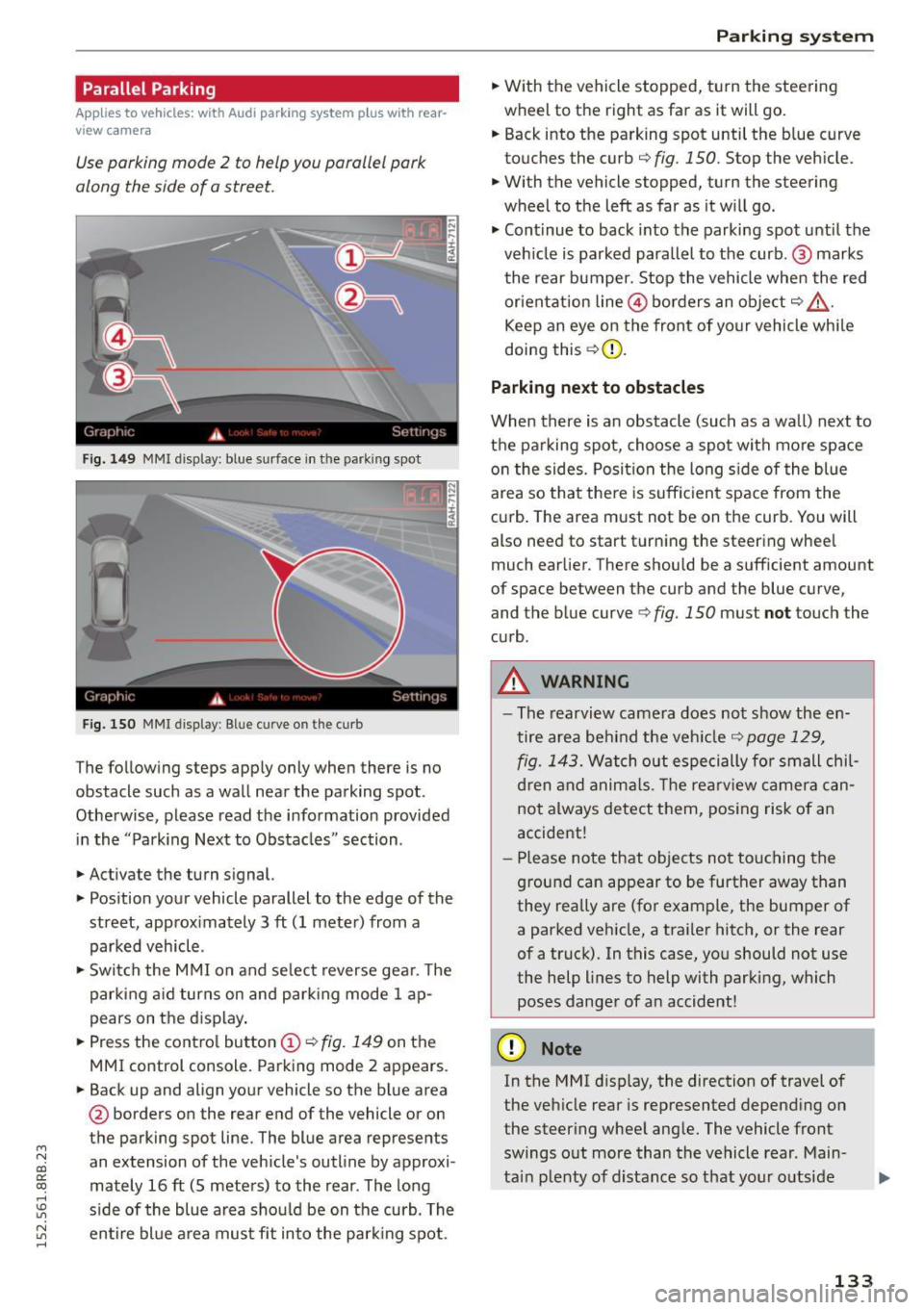
Use parking mode 2 to help you parallel pork
along the side of o street.
Fig. 149 MMI disp lay: blue surface in th e parking spot
Fig. 150 MMI display: Blue curve on th e curb
The follow ing steps app ly only when there is no
obstacle such as a wall near the parking spot.
Othe rwise, please read the informat ion provided
in the "Parking Next to Obstacles" section .
.,. Activate the turn s ignal.
.,. Position your vehicle parallel to the edge of the
street, approx imately 3 ft (1 meter) from a
parked vehicle .
.,. Swi tch the M MI on and se lect reverse gea r. T he
park ing a id turns on and park ing mode 1 ap
pears on the d isplay .
.,. Press the contro l button (!)¢
fig. 149 on the
MMI control console. Parking mode 2 appears.
.,. Back up and align your vehicle so the b lue area
@ borders on the rear end of the vehicle or on
the parking spot line. The blue area represents
an extension of the vehicle's outline by approxi
mately 16 ft (S meters) to the rear . The long
s ide of the blue area should be on the curb. The
~ entire bl ue a rea mus t fit into the par king spot .
Parking system
.,. With the vehicle stopped, t urn the steering
wheel to the right as far as it will go.
... Back into the parking spot until the b lue curve
to uches the curb
q fig. 150. Stop the vehicle.
.,. With the vehicle stopped, turn the steering
wheel to th e left as far as it w ill go .
.,. Cont inue to back into the parking spot until the
veh icle is parked para llel to the curb .@ marks
the rear bumper. Stop the vehicle when the red
or ientation line@ borders an obje ct
q .&, .
Keep an eye on the front of yo ur vehicle whi le
doing this ¢(D.
Parking next to obstacles
When there is an obstacle (such as a wall) next to
t h e pa rking spot, choose a spot with mo re space
o n the sides. Posi tion the long s ide of the blue
area so tha t the re is suff icient space from the
cu rb . T he area m ust not be on the curb. You will
also need to start t urn ing the steering wheel
much earlier. There should be a sufficient amount
of space between the curb and the blue curve
'
and the blue curve 9 fig. 150 must not touch the
c u rb .
A WARNING
-The rearvi ew camera does no t show the en
tire area be hind the veh icle
q page 129,
fig. 1 43.
Watch out especi ally for small chil
d ren and anima ls. The rearv iew camer a ca n
not always detect t hem, posing risk of a n
accident!
- Pl ease no te that objects no t to uch ing the
g round can appear to be further away than
they really are (for example, the bumper of
a parked vehicle, a traile r hitc h, or the rear
of a truck). In this case, you should not use
the help lines to help with parking, which
poses danger of an accident!
(D Note
In the MMI d isplay, the direction of travel of
the veh icle rear is represented depend ing on
the steer ing whee l ang le. The vehicle front
swings o ut more than the vehicle rear . Main
ta in plenty of d istance so that your o utside
133