2015.75 VAUXHALL VIVA phone
[x] Cancel search: phonePage 38 of 222
Vauxhall Viva Owner Manual (GMK-Localizing-EU RHD-9231169) - 2016 -
CRC - 5/7/15
Seats and Restraints 37
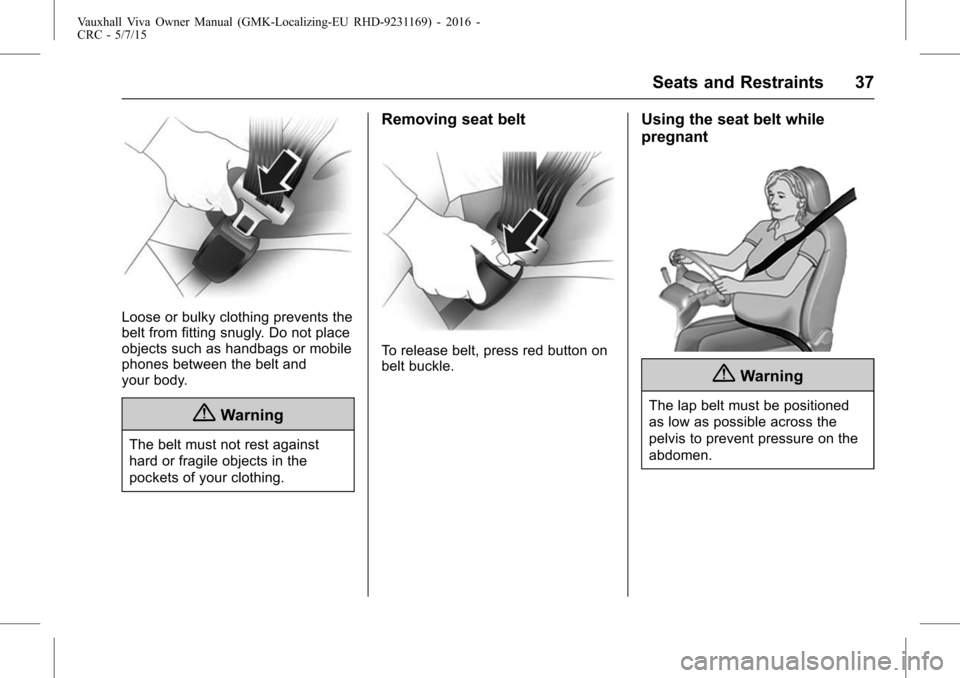
Loose or bulky clothing prevents the
belt from fitting snugly. Do not place
objects such as handbags or mobile
phones between the belt and
your body.
{Warning
The belt must not rest against
hard or fragile objects in the
pockets of your clothing.
Removing seat belt
To release belt, press red button on
belt buckle.
Using the seat belt while
pregnant
{Warning
The lap belt must be positioned
as low as possible across the
pelvis to prevent pressure on the
abdomen.
Page 61 of 222

Vauxhall Viva Owner Manual (GMK-Localizing-EU RHD-9231169) - 2016 -
CRC - 5/7/15
60 Instruments and Controls
Controls
Steering Wheel
Adjustment
Unlock lever, adjust steering wheel,
then engage lever and ensure it is
fully locked.
Do not adjust steering wheel unless
vehicle is stationary and steering
wheel lock has been released.
Steering Wheel Controls
The Infotainment system, the cruise
control and a connected mobile
phone can be operated via the
controls on the steering wheel.
Further information is available in
the Infotainment system manual.
Cruise control
0Cruise
Control 0152.
Heated Steering Wheel
Activate heating by pressingA.
Activation is indicated by the LED in
the button.
Page 93 of 222

Vauxhall Viva Owner Manual (GMK-Localizing-EU RHD-9231169) - 2016 -
CRC - 5/7/15
92 Infotainment System
Infotainment
System
Introduction
Introduction . . . . . . . . . . . . . . . . . . . . 92
Theft-Deterrent Feature . . . . . . . . 92
Overview . . . . . . . . . . . . . . . . . . . . . . 93
Operation . . . . . . . . . . . . . . . . . . . . . . 99
Radio
AM-FM Radio . . . . . . . . . . . . . . . . 102
Radio Data System (RDS) . . . . 106
Audio Players
Auxiliary Devices . . . . . . . . . . . . . 108
Personalisation
Personalisation . . . . . . . . . . . . . . . 115
Phone
Bluetooth ((Type A/B only)) . . . 116
OnStar System
OnStar System . . . . . . . . . . . . . . . 125
Introduction
General
The Infotainment system provides
Infotainment in your car, using the
latest technology.
The radio can be easily used by
registering up to 24 AM-FM radio or
DAB stations with the−(preset)
buttons 1 ~ 4 per every six pages.
The USB player can play connected
USB storage devices or iPod
products.
The function of the Bluetooth phone
connection allows for the use of
wireless hands-free phone calls, as
well as a phone music player.
Connect a portable music player to
the exterior sound input and enjoy
the rich sound of the Infotainment
system.
The digital sound processor
provides a number of preset
equaliser modes for sound
optimisation.
Specifications
‐ Maximum output power : 25 W x
4 channels
‐ Speaker impedance : 4 ohms
The system can be easily adjusted
using the carefully designed
adjusting device, smart display, and
multifunctional menu dial regulator.
. The "Overview " section
provides a simple overview of
the Infotainment system
functions and a summary of all
regulatory devices.
. The "Operation " section
explains the basic controls for
the Infotainment system.
Theft-Deterrent Feature
The Infotainment system is
equipped with an electronic security
system for the purpose of theft
deterrence.
The Infotainment system therefore
functions only in your vehicle and is
worthless to a thief.
Page 95 of 222

Vauxhall Viva Owner Manual (GMK-Localizing-EU RHD-9231169) - 2016 -
CRC - 5/7/15
94 Infotainment System
1.P(power) button with
VOLUME dial
. When power is off, press to
turn power on.
. When power is on, press
and hold to turn power off.
. When power is on, press
shortly to turn the mute
function on or off.
. Turn to control volume.
2. RADIO Select Radio mode. Each time
the button is pressed, the
system switches between AM
RADIO →FM RADIO →DAB
→ AM RADIO →….
3. MEDIA Press the button to change the
mode in the order of USB/iPod
→AUX →Bluetooth music →
USB/iPod →…. 4. Display
Display for Play, Reception,
Menu state and information.
5.
g/d(seek)
. In Radio or DAB mode:
When pressed shortly,
automatically seeks station
with superior reception.
When pressed and held,
continuously changes the
station until the button is
released. When releasing,
the system stops on the
current frequency displayed
or seeks the next station.
. In USB/iPod/Bluetooth
audio playback:
When pressed shortly,
move to the previous or
next file.
When pressed and held,
rewind or fast forward
the file. 6. PHONE
Press this button to enter the
phone application mode.
7. BACK Cancel input content or return
to the previous menu.
8. MENU button with TUNE dial .Turn dial to search the
station/file on the list screen
or move/change setup
content or setup values.
. Press the button to display
the currently functioning
menu or select/practice
setup content and setup
values.
Page 103 of 222

Vauxhall Viva Owner Manual (GMK-Localizing-EU RHD-9231169) - 2016 -
CRC - 5/7/15
102 Infotainment System
USB/iPod/Bluetooth music or
exterior sound (AUX) input play
Press MEDIA to select the audio
player functions.
Each time MEDIA is pressed, the
system switches between USB/iPod
→AUX →Bluetooth music →USB/
iPod →…
Press MENU to open the menu with
options for the relevant function or
the menu of the relevant device. Bluetooth hands-free phone
devicePress PHONE to enter the
Bluetooth hands-free phone
function.
Radio
AM-FM Radio
Listening to radio or DAB
station
Selecting the radio mode
Press RADIO repeatedly to switch
between AM RADIO
→FM RADIO
→ DAB →AM RADIO →….
. The previously chosen
broadcasting station will be
received.
Page 109 of 222

Vauxhall Viva Owner Manual (GMK-Localizing-EU RHD-9231169) - 2016 -
CRC - 5/7/15
108 Infotainment System
Blocking out traffic
announcements
If a traffic alert comes in while
listening to an audio source, the
system will display the Traffic Alert
Pop-up.
The pop-up will display with a
Dismiss option highlighted by
default for the alert.
.If a Traffic Alert pop-up is
displayed, the Traffic Alert
pop-up can also be dismissed by
SRC on the SWC.
. If a Traffic Alert pop-up is
displayed when an external
device is connected, the system
does not read the device.
. If a Traffic Alert pop-up is
displayed while a call comes in
or is initiated, the call is received
or made.
. If the above phone event is
ended, the system will cancel
the TA event, and then go back
to the latest radio mode.
Audio Players
Auxiliary Devices
USB player
Cautions for using USB devices
.Operation cannot be guaranteed
if the HDD built-in USB mass
storage device or CF or SD
memory card is connected by
using a USB adaptor. Use a
USB or flash memory type
storage device.
. Take caution to avoid static
electricity discharge when
connecting or disconnecting the
USB. If connection and
disconnection are repeated
many times in a short time, this
may cause a problem in using
the device.
. Operation is not guaranteed if
the connecting terminal of the
USB device is not metal. .
Connection with i-Stick Type
USB storage devices may be
faulty due to vehicle vibration, so
their operation cannot be
guaranteed.
. Be careful not to touch the USB
connecting terminal with an
object or any part of your body.
. The USB storage device can
only be recognised when it is
formatted in FAT16/32 file
format. Only devices with an
allocated unit size of 512 byte/
sector or 2,048 byte/sector can
be used. NTFS and other file
systems cannot be recognized.
. According to the type and
capacity of the USB storage
device and the type of the stored
file, the time it takes to recognise
the files may differ. This is not a
problem with the product in this
case, so please wait for the files
to be processed.
. Files in some USB storage
devices may not be recognised
due to compatibility problems,
and connections with a memory
reader or a USB hub are not
Page 113 of 222

Vauxhall Viva Owner Manual (GMK-Localizing-EU RHD-9231169) - 2016 -
CRC - 5/7/15
112 Infotainment System
.Folder View: Enter the Folder
View mode, and move to the
previous or next folder.
. Shuffle: Turn the shuffle feature
on or off.
Browsing/indexing device
. Browsing is not supported until
indexing is completed for the
connected device.
. If the browse function is selected
during the indexing process, a
pop-up “Feature not supported
during Indexing Use folder
view to browse contents ”will
display.
. When a single device with
greater than 6,000 songs is
connected, a pop-up “Media
indexing memory full Use
folder view or remove other
device ”will display.
Remove USB
Remove the USB device from the
USB connection terminal.
If the USB device is removed, the
system will display the No
Connection message for each source on the display screen and
keep the current status until the
device is reconnected.
Using the Media transfer protocol
(MTP) menu
Charge Only: Select the charge
option for the MTP device. The MTP
device will be charged, and the
system will show the pop-up
message, when it is connected.
.
The default setting is
Charge Only.
. When the Charge Only option is
selected in the Media Transfer
Protocol (MTP) Setting Menu,
the audio source is not changed
and the connected device is only
charged.
. If you change to USB mode
while charging the device, a
Charge message with charging
activity indicator is shown on the
display screen. In this case, the
system will not start indexing the
files on the device.
. Charging may not be supported
by some MTP devices. Scan Music Folder Only: Select
the Music Folder Scan option for the
MTP device.
The system can display the Artist
Name/Song Name/Elapsed Time
regarding the current song and
access the playlist on the MTP
device.
Scan All Folder: Select the All
Folder scan option for the MTP
device.
.
The device indexing time takes
longer than the setting of Scan
Music Folder Only. It depends on
the smartphone and the files/
folders on the smartphone.
. With some phones featuring
Media Transfer Protocol (MTP),
music search can take a
long time.
. If the phone screen is locked,
you cannot search for music. To
access music on the phone,
unlock the phone screen.
Page 114 of 222

Vauxhall Viva Owner Manual (GMK-Localizing-EU RHD-9231169) - 2016 -
CRC - 5/7/15
Infotainment System 113
iPod player
Connecting iPod player
Connect the iPod device in which
the music files are stored to the
USB connection terminal.
Some iPod/iPhone product models
may not be supported.
Only connect the iPod to this
product with connection cables
supported by iPod products. Other
connection cables cannot be used.
.In some cases, the iPod product
may be damaged, if the ignition
is turned off when it is connected
to the product.
When the iPod product is not
being used, keep it separately
from this product with the car
ignition turned off.
. Once the product finishes
reading the information on the
iPod device, it will play
automatically.
. If a non-readable iPod device is
connected, then the relevant
error message will appear and
the product will automatically switch to the previously used
function or the FM radio
function.
If the iPod device to be played is
already connected, repeatedly press
MEDIA to select the iPod player.
. It will automatically play from the
previously played point.
. The playback functions and the
information display items of the
iPod player used with this
product may be different from
the iPod in terms of play order,
method, and the information
displayed.
Afterwards, the functions to play the
iPod are operated similarly to USB
playback.
Ending iPod playback
To end playback, press RADIO or
MEDIA to select other functions.
Using the iPod menu
While playing the file, press MENU
to enter the Menu iPod.