Page 221 of 612
221
5Audio system
COROLLA_TMMMS_TMMC_U (OM12F00U)5-17. Connecting Bluetooth
®
(Multimedia system)
Preparations to
use wireless
communication ................ 320
Registering a Bluetooth
®
audio player for
the first time .................... 324
Registering a Bluetooth
®
phone for the
first time .......................... 325
Registering a Bluetooth
®
device.............................. 326
Connecting a Bluetooth
®
device.............................. 329
Displaying a Bluetooth
®
device details .................. 332
Detailed Bluetooth
®
system settings ............... 334
5-18. Bluetooth
® Audio
(Multimedia system)
Listening to Bluetooth
®
Audio ............................... 3365-19. Bluetooth
® phone
(Multimedia system)
Using a Bluetooth
®
Phone ............................. 338
Making a call ..................... 341
Receiving a call ................. 344
Speaking on the phone ..... 345
Bluetooth
® phone
message function ............ 349
Using the steering
wheel switches ................ 354
Bluetooth
® phone
settings ........................... 355
Contact/Call History
Settings ........................... 357
What to do if...
(Troubleshooting) ............ 367
5-20. Bluetooth
®
(Multimedia system)
Bluetooth
®......................... 371
5-21. Using the voice
command system
(Multimedia system)
Voice command
system ............................ 376
Page 228 of 612
228
COROLLA_TMMMS_TMMC_U (OM12F00U)
5-2. Using the audio system
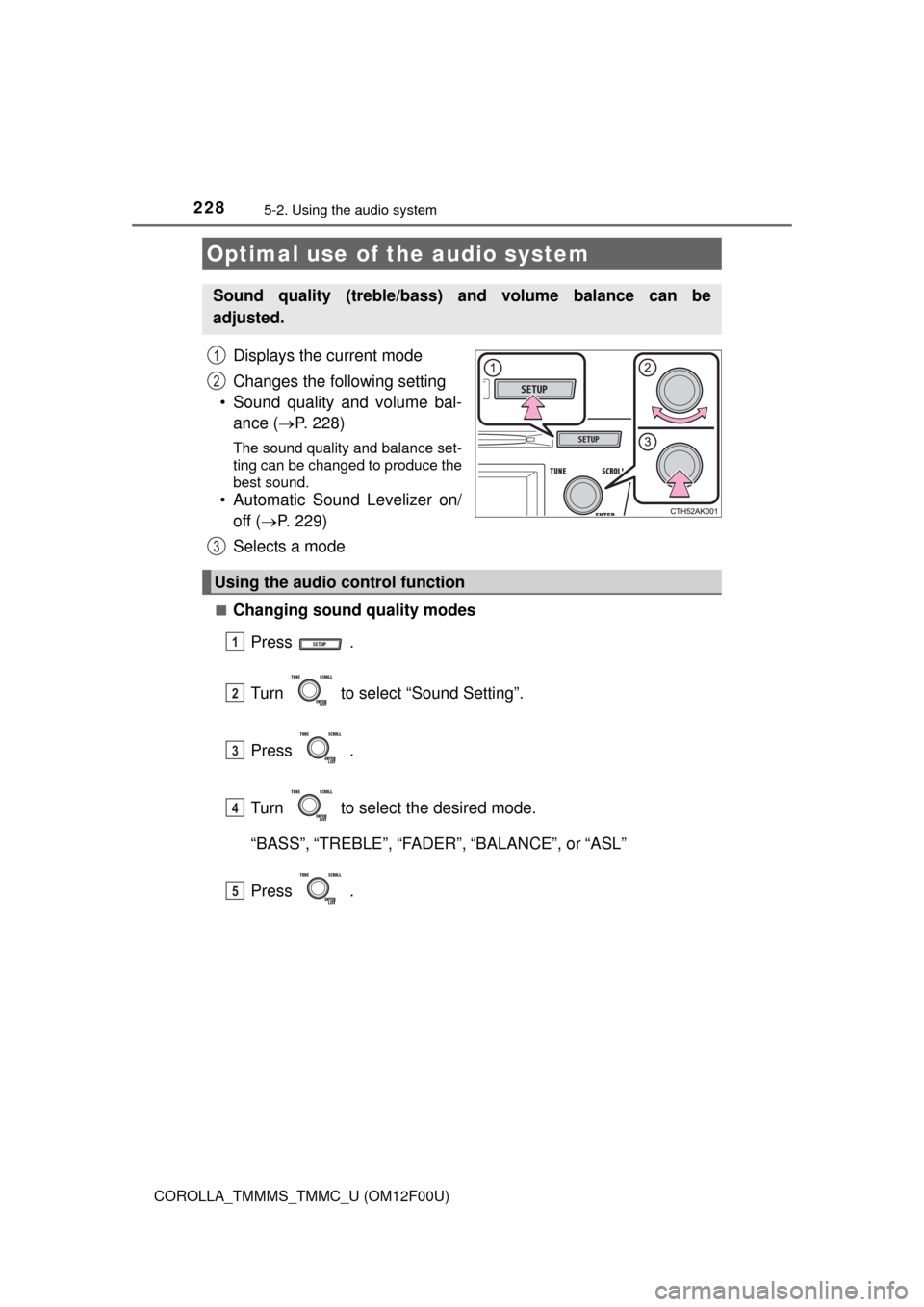
Displays the current mode
Changes the following setting
• Sound quality and volume bal-
ance (P. 228)
The sound quality and balance set-
ting can be changed to produce the
best sound.
• Automatic Sound Levelizer on/
off (P. 229)
Selects a mode
■Changing sound quality modes
Press .
Turn to select “Sound Setting”.
Press .
Turn to select the desired mode.
“BASS”,“TREBLE”,“FADER”,“BALANCE”, or“ASL”
Press .
Optimal use of the audio system
Sound quality (treble/bass) and volume balance can be
adjusted.
1
2
3
Using the audio control function
1
2
3
4
5
Page 229 of 612
2295-2. Using the audio system
5
Interior features
COROLLA_TMMMS_TMMC_U (OM12F00U)■
Adjusting sound quality
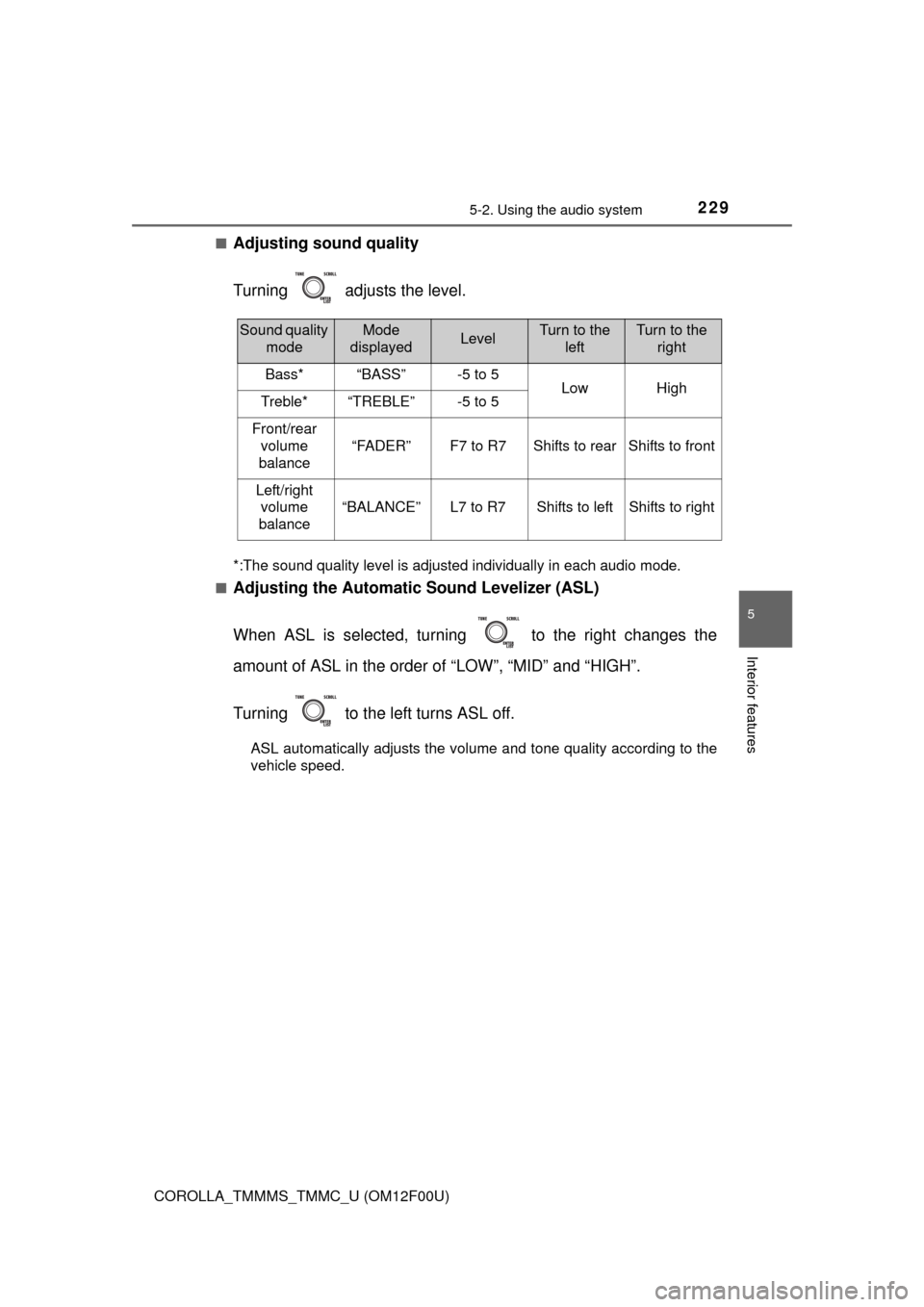
Turning adjusts the level.
*:The sound quality level is adjusted individually in each audio mode.
■
Adjusting the Automatic Sound Levelizer (ASL)
When ASL is selected, turning to the right changes the
amount of ASL in the order of “LOW”, “MID” and “HIGH”.
Turning to the left turns ASL off.
ASL automatically adjusts the volume and tone quality according to the
vehicle speed.
Sound quality
modeMode
displayedLevelTurn to the
leftTurn to the
right
Bass*“BASS”-5 to 5LowHighTreble*“TREBLE”-5 to 5
Front/rear
volume
balance
“FADER”F7 to R7Shifts to rearShifts to front
Left/right
volume
balance
“BALANCE”L7 to R7Shifts to leftShifts to right
Page 232 of 612
232
COROLLA_TMMMS_TMMC_U (OM12F00U)
5-4. Playing audio CDs and MP3/WMA discs
Insert a disc.
Press and remove the disc.
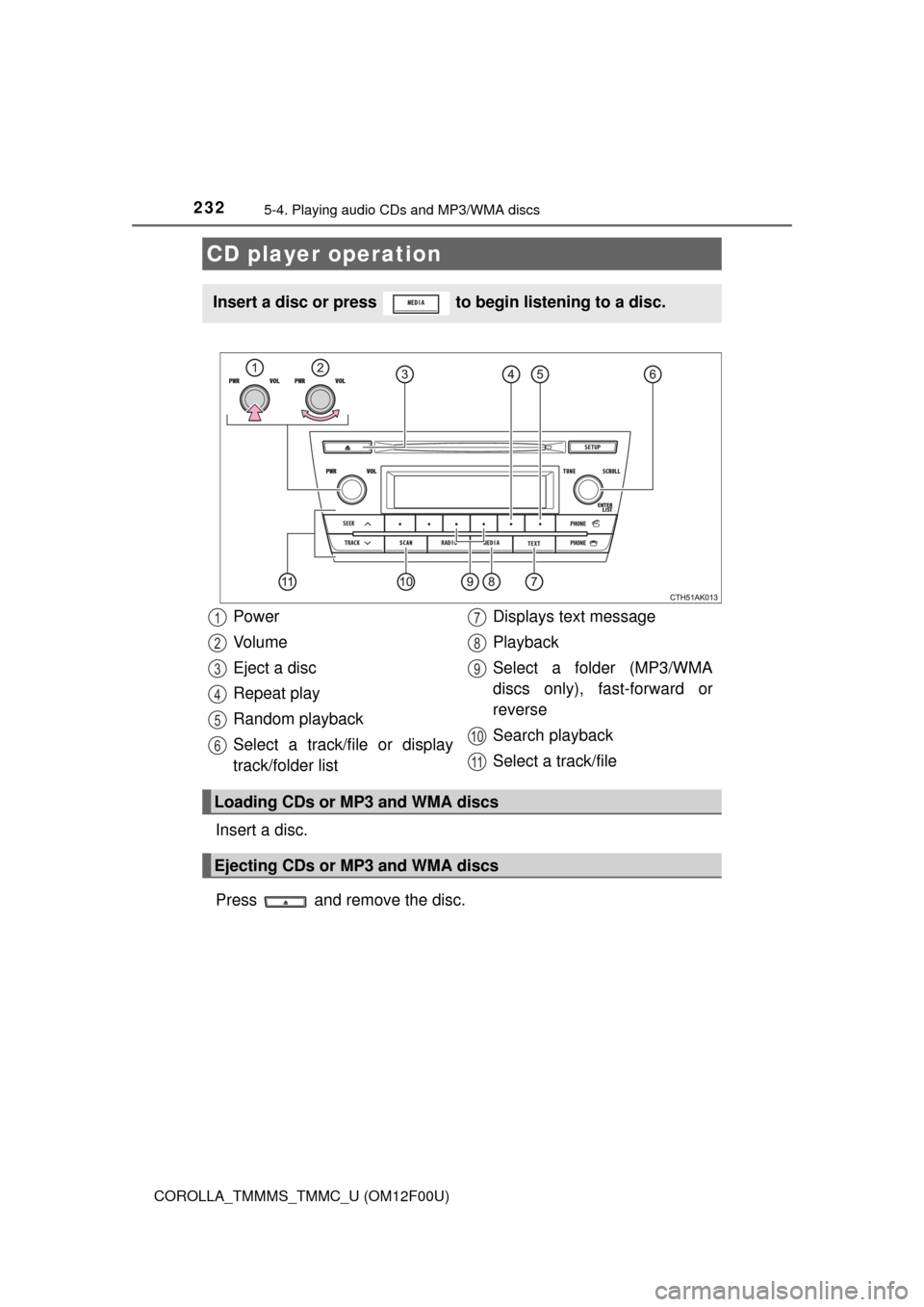
CD player operation
Insert a disc or press to begin listening to a disc.
Power
Vo l u m e
Eject a disc
Repeat play
Random playback
Select a track/file or display
track/folder listDisplays text message
Playback
Select a folder (MP3/WMA
discs only), fast-forward or
reverse
Search playback
Select a track/file
Loading CDs or MP3 and WMA discs
Ejecting CDs or MP3 and WMA discs
1
2
3
4
5
6
7
8
9
10
11
Page 233 of 612
2335-4. Playing audio CDs and MP3/WMA discs
5
Interior features
COROLLA_TMMMS_TMMC_U (OM12F00U)■
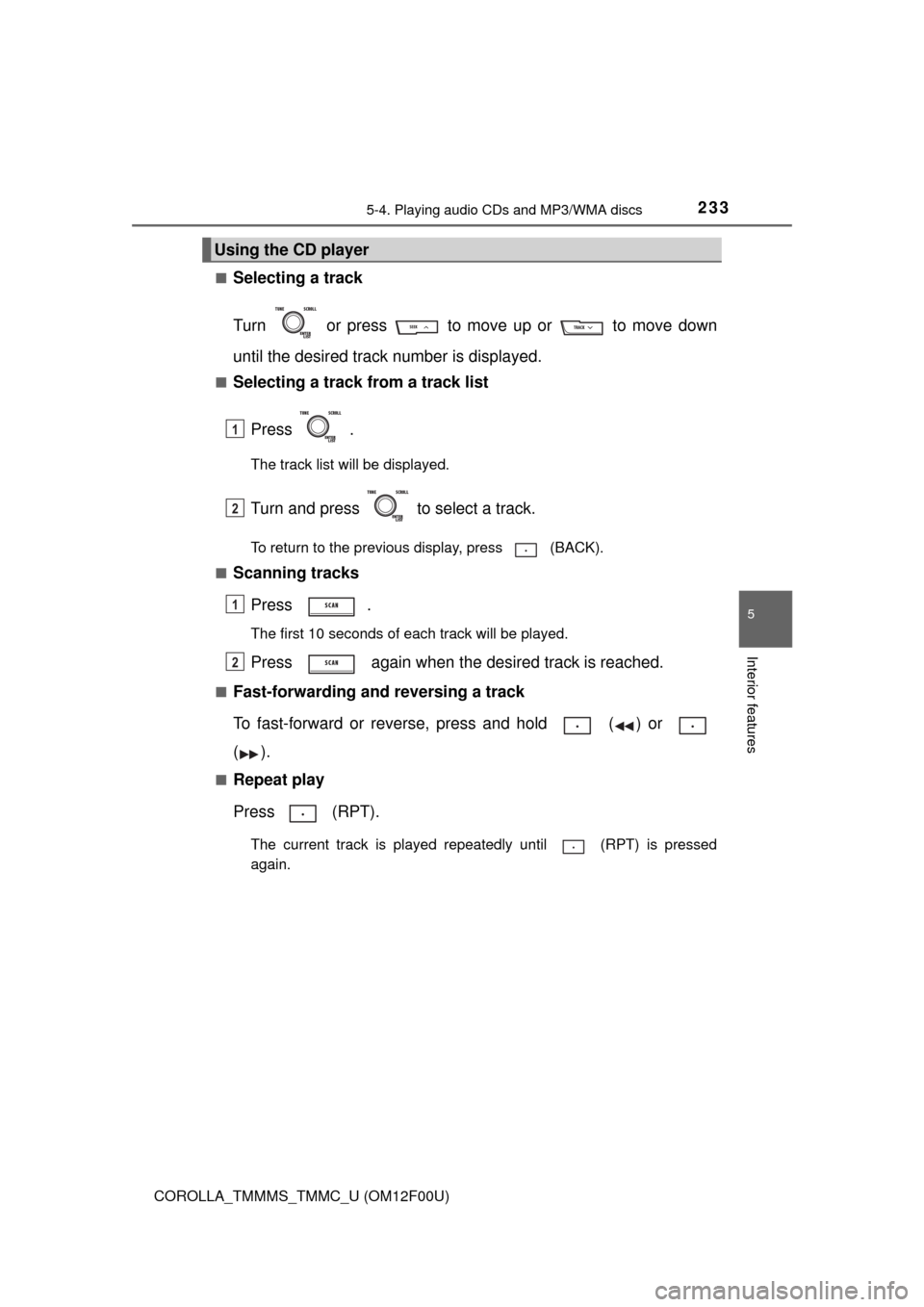
Selecting a track
Turn or press to move up or to move down
until the desired track number is displayed.
■Selecting a track from a track list
Press .
The track list will be displayed.
Turn and press to select a track.
To return to the previous display, press (BACK).
■
Scanning tracks
Press .
The first 10 seconds of each track will be played.
Press again when the desired track is reached.
■Fast-forwarding and reversing a track
To fast-forward or reverse, press and hold ( ) or
().
■Repeat play
Press (RPT).
The current track is played repeatedly until (RPT) is pressed
again.
Using the CD player
1
2
1
2
Page 234 of 612
2345-4. Playing audio CDs and MP3/WMA discs
COROLLA_TMMMS_TMMC_U (OM12F00U)■
Random playback
Press (RDM).
Tracks are played in a random order until (RDM) is pressed
again.
■
Switching the display
Press to display or hide the CD title.
If there is additional text, is displayed.
Press and hold to display the remaining text.
■
Selecting a folder
To select the desired folder, press ( ) or ( ).
■Selecting a folder and file from a folder list
Press .
The folder list will be displayed.
Turn and press to select a folder and a file.
To return to the previous display, press (BACK).
■
Returning to the first folder
Press and hold ( ) until you hear a beep.
■Scanning files
Press .
The first 10 seconds of all files in the folder will be played.
When the desired file is reached, press again.
Playing back MP3 and WMA discs
1
2
1
2
Page 235 of 612
2355-4. Playing audio CDs and MP3/WMA discs
5
Interior features
COROLLA_TMMMS_TMMC_U (OM12F00U)■
Scanning folders
Press and hold until you hear a beep.
The first 10 seconds of the first file in each folder will be played.
When the desired folder is reached, press again.
■Selecting a file
Turn or press or to select the desired file.
■Fast-forwarding and reversing a file
To fast-forward or reverse, press and hold ( ) or
().
■Repeat play
Pressing (RPT) changes the repeat play mode in the follow-
ing order:
File repeat Folder repeat
* Off.
*: Available except when RDM (random playback) is selected
■
Random playback
Pressing (RDM) changes the random playback mode in the
following order:
Folder random Disc random Off.
■Switching the display
Press to display or hide the album title.
If there is additional text, is displayed.
Press and hold to display the remaining text.
1
2
Page 236 of 612
2365-4. Playing audio CDs and MP3/WMA discs
COROLLA_TMMMS_TMMC_U (OM12F00U)
■Display
Depending on the contents recorded, the characters may not be displayed
properly or may not be displayed at all.
■Error messages
If an error message is displayed, refer to the following table and take the
appropriate measures. If the problem is not rectified, take the vehicle to your
Toyota dealer.
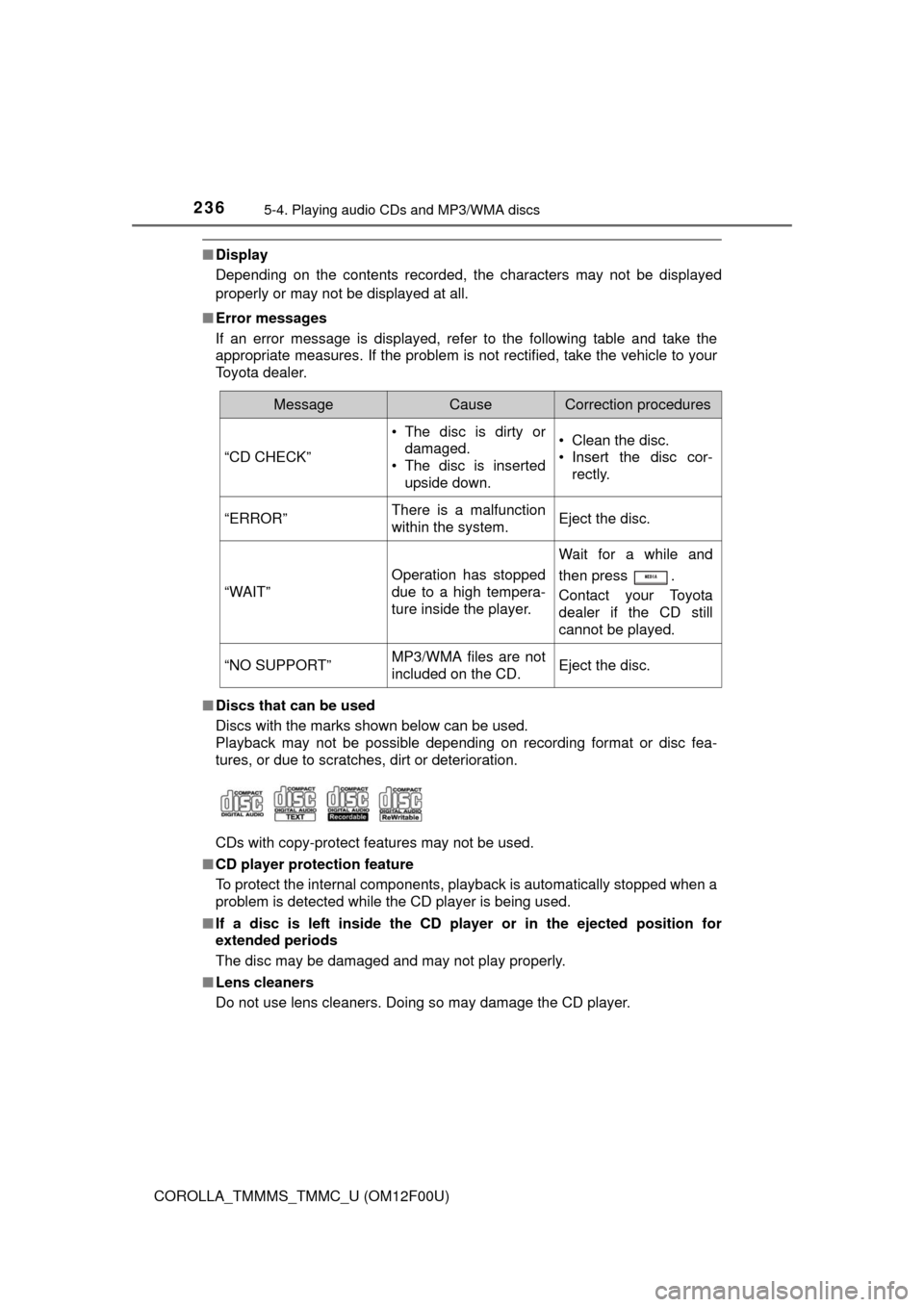
■Discs that can be used
Discs with the marks shown below can be used.
Playback may not be possible depending on recording format or disc fea-
tures, or due to scratches, dirt or deterioration.
CDs with copy-protect features may not be used.
■CD player protection feature
To protect the internal components, playback is automatically stopped when a
problem is detected while the CD player is being used.
■If a disc is left inside the CD player or in the ejected position for
extended periods
The disc may be damaged and may not play properly.
■Lens cleaners
Do not use lens cleaners. Doing so may damage the CD player.
MessageCauseCorrection procedures
“CD CHECK”
• The disc is dirty or
damaged.
• The disc is inserted
upside down.• Clean the disc.
• Insert the disc cor-
rectly.
“ERROR”There is a malfunction
within the system.Eject the disc.
“WAIT”
Operation has stopped
due to a high tempera-
ture inside the player.
Wait for a while and
then press .
Contact your Toyota
dealer if the CD still
cannot be played.
“NO SUPPORT”MP3/WMA files are not
included on the CD.Eject the disc.