Page 267 of 620
267
3-2. Using the audio system
3
Interior features
Setup menu
Display “Setup” screenPress the “SETUP” button to display the “Setup” screen. Select to adjust the settings
for operation sounds, screen
animation, etc. (P. 268)
Select to set the voice set-
tings. ( P. 273)
Select to adjust the settings
for contrast and brightness of
the screen. ( P. 271)
Select to adjust the settings
for registering, removing, con-
necting and disconnecting
Bluetooth
® devices. ( P. 314)
Select to adjust the settings
for phone sound, phonebook,
etc. ( P. 337)
Select to set radio and exter-
nal media settings. ( P. 270)
Select to turn the screen off.
Select to set the vehicle cus-
tomization. ( P. 581)
You can adjust the audio system to your desired settings.
Page 268 of 620
268
3-2. Using the audio system
General settings
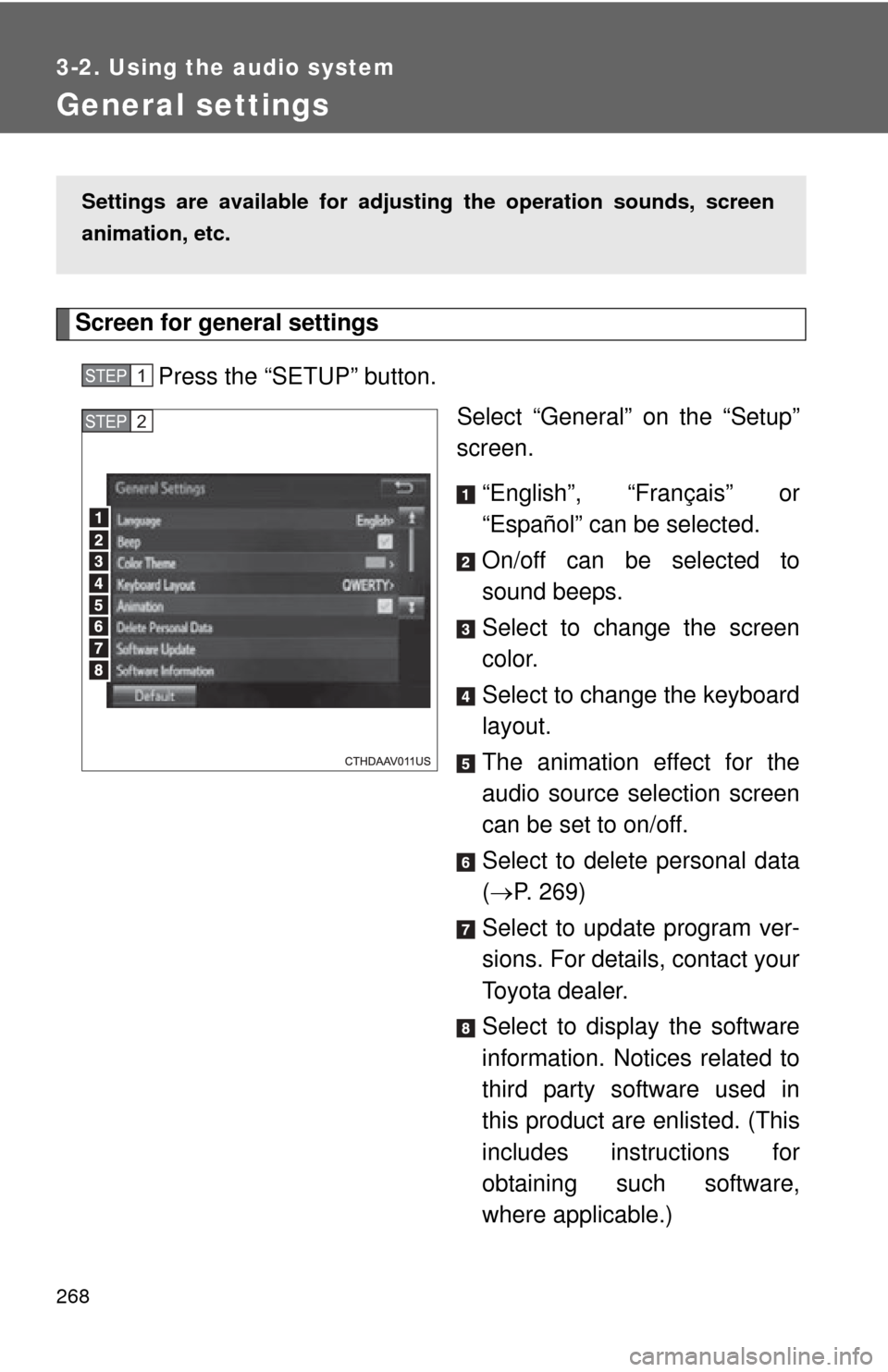
Screen for general settingsPress the “SETUP” button. Select “General” on the “Setup”
screen.
“English”, “Français” or
“Español” can be selected.
On/off can be selected to
sound beeps.
Select to change the screen
color.
Select to change the keyboard
layout.
The animation effect for the
audio source selection screen
can be set to on/off.
Select to delete personal data
( P. 269)
Select to update program ver-
sions. For details, contact your
Toyota dealer.
Select to display the software
information. Notices related to
third party software used in
this product are enlisted. (This
includes instructions for
obtaining such software,
where applicable.)
Settings are available for adjusting the operation sounds, screen
animation, etc.
STEP1
STEP2
Page 269 of 620
269
3-2. Using the audio system
3
Interior features
Delete personal data
Select “Delete Personal Data” on the “General Settings”
screen.
Select “Delete”.
Check carefully beforehand, as data cannot be retrieved once
deleted.
A confirmation screen will be displayed. Select “Yes”.
The following personal data will be deleted or changed to its
default settings.
• General settings
• Audio settings
• Phone settings
■
To return to the default volume settings
Select “Default”, and then “Yes”.
STEP1
STEP2
STEP3
Page 270 of 620
270
3-2. Using the audio system
Audio settings
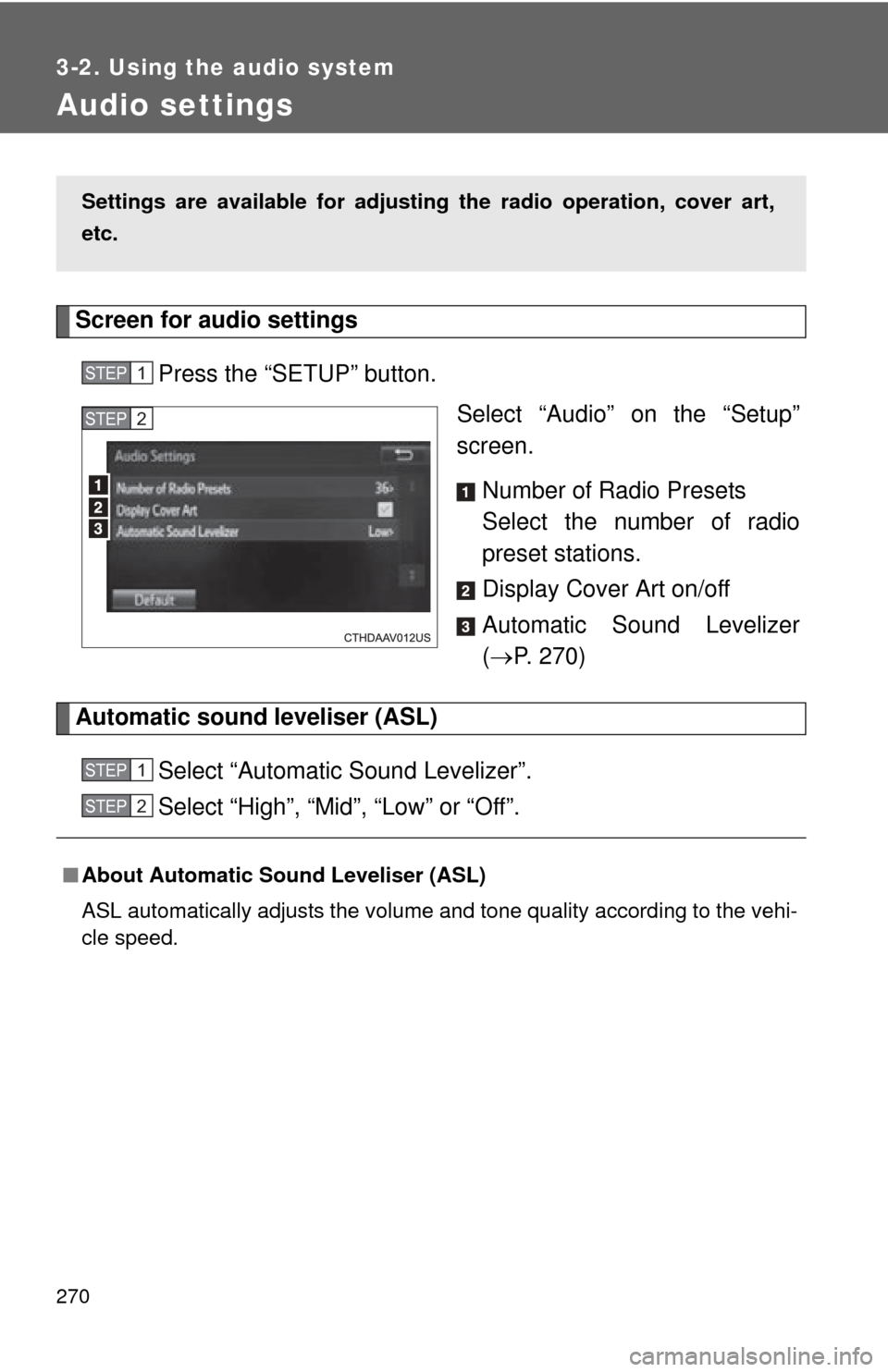
Screen for audio settingsPress the “SETUP” button. Select “Audio” on the “Setup”
screen.
Number of Radio Presets
Select the number of radio
preset stations.
Display Cover Art on/off
Automatic Sound Levelizer
( P. 270)
Automatic sound leveliser (ASL)
Select “Automatic Sound Levelizer”.
Select “High”, “Mid”, “Low” or “Off”.
Settings are available for adjusting the radio operation, cover art,
etc.
STEP1
STEP2
■About Automatic Sound Leveliser (ASL)
ASL automatically adjusts the volume and tone quality according to the vehi-
cle speed.
STEP1
STEP2
Page 271 of 620
271
3-2. Using the audio system
3
Interior features
Display settings
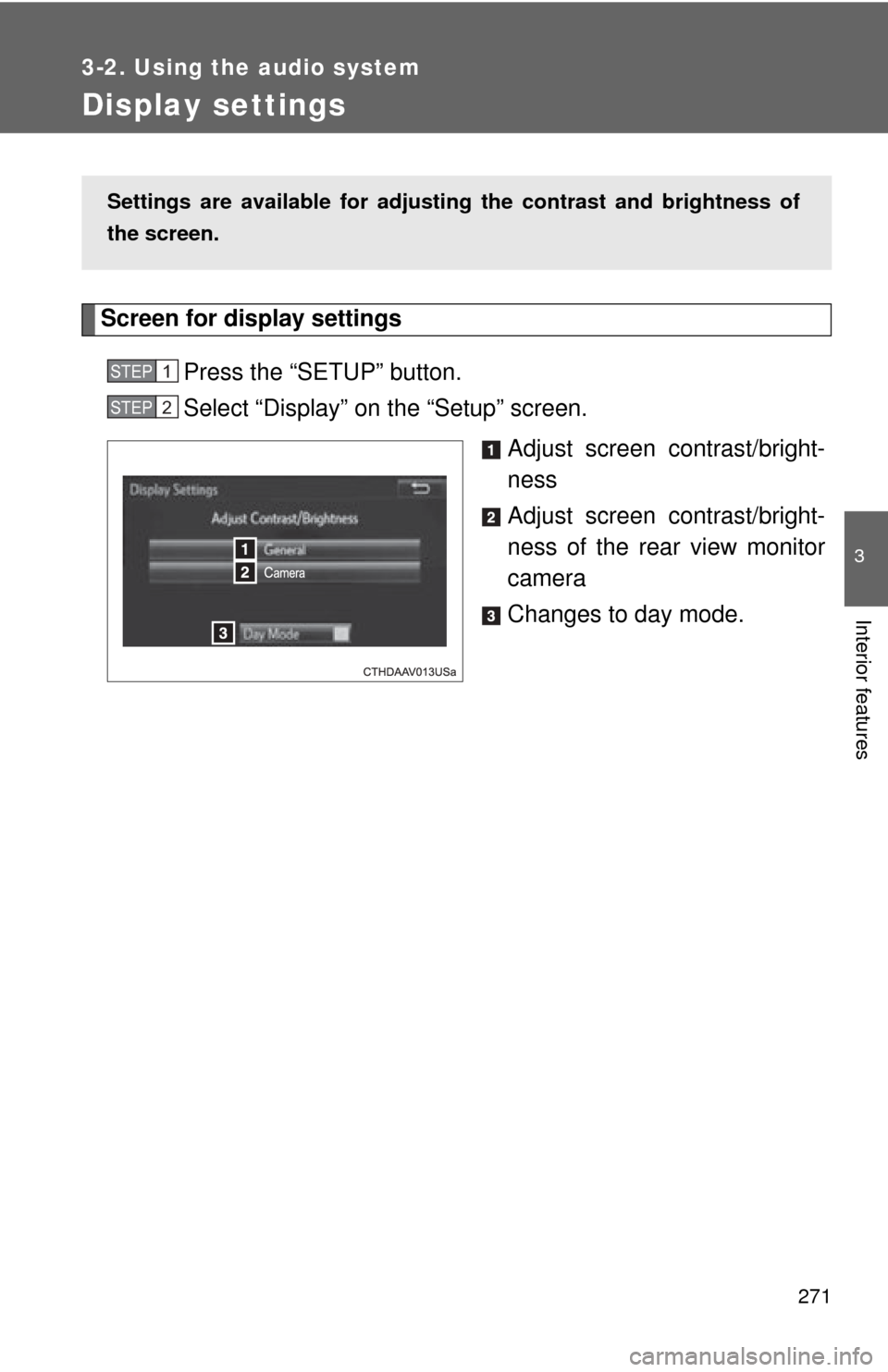
Screen for display settingsPress the “SETUP” button.
Select “Display” on the “Setup” screen. Adjust screen contrast/bright-
ness
Adjust screen contrast/bright-
ness of the rear view monitor
camera
Changes to day mode.
Settings are available for adjusti ng the contrast and brightness of
the screen.
STEP1
STEP2
Page 272 of 620
272 3-2. Using the audio system
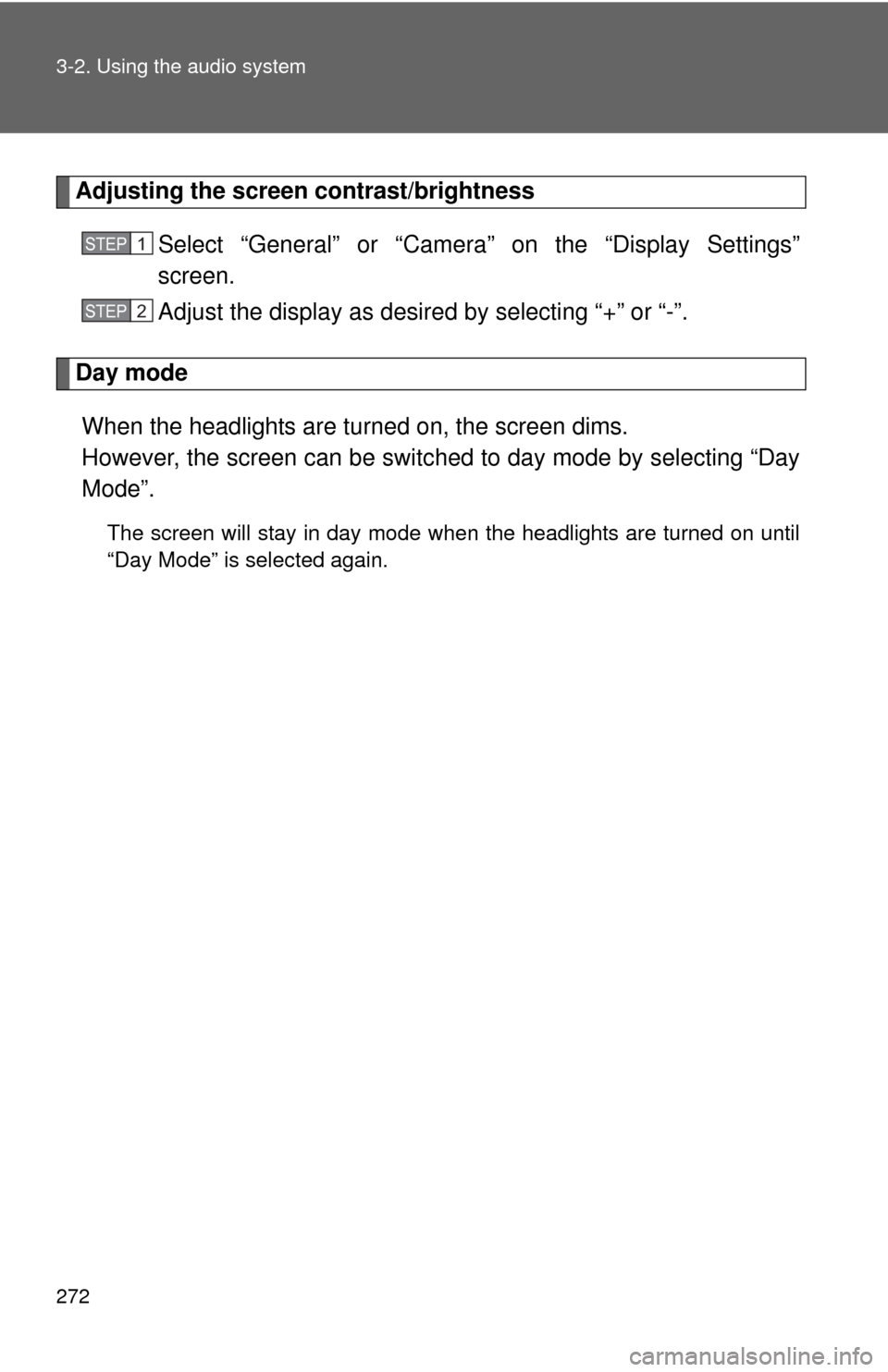
Adjusting the screen contrast/brightnessSelect “General” or “Camera” on the “Display Settings”
screen.
Adjust the display as desired by selecting “+” or “-”.
Day modeWhen the headlights are turned on, the screen dims.
However, the screen can be switc hed to day mode by selecting “Day
Mode”.
The screen will stay in day mode when the headlights are turned on until
“Day Mode” is selected again.
STEP1
STEP2
Page 273 of 620
273
3-2. Using the audio system
3
Interior features
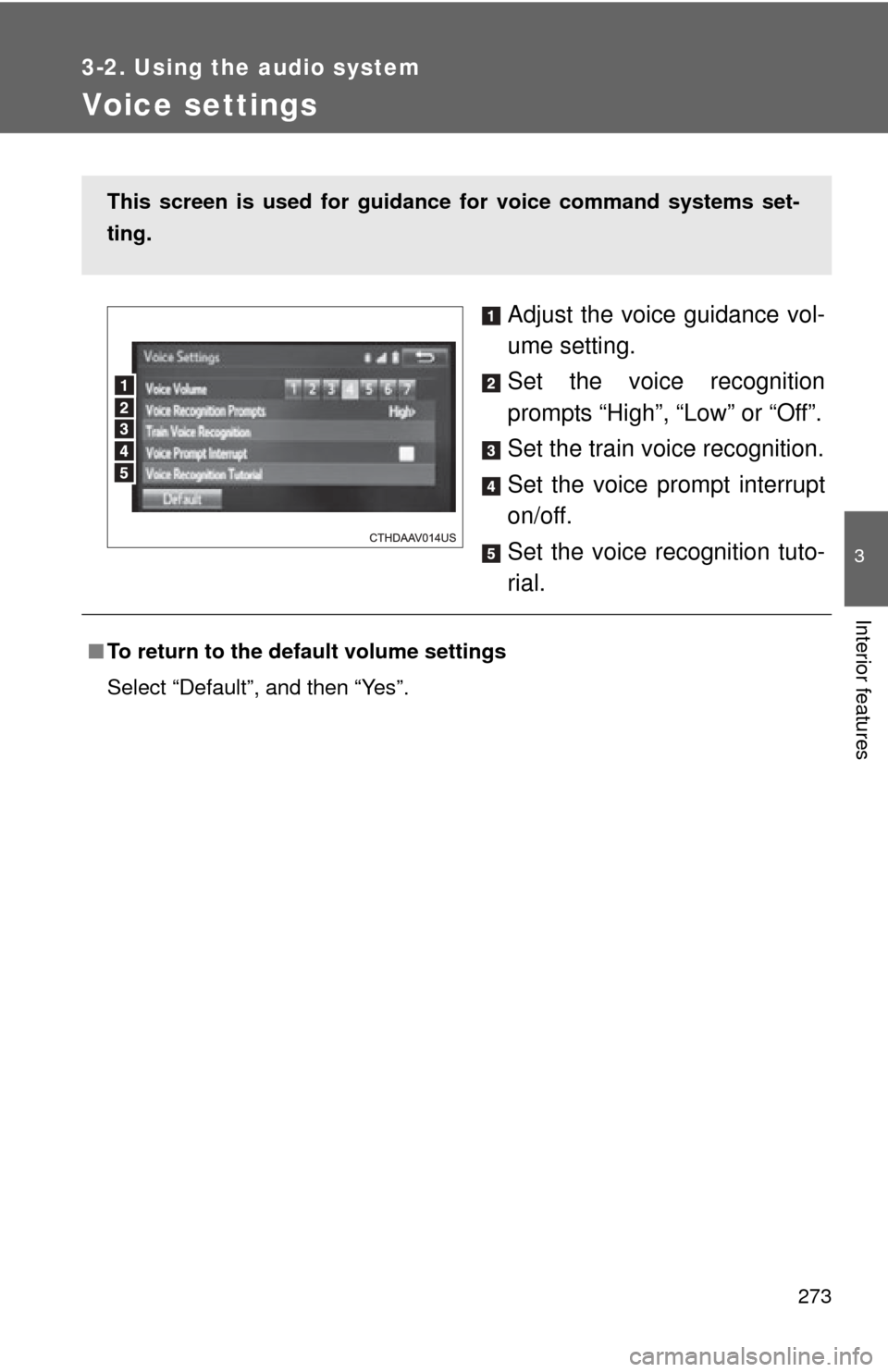
Voice settings
Adjust the voice guidance vol-
ume setting.
Set the voice recognition
prompts “High”, “Low” or “Off”.
Set the train voice recognition.
Set the voice prompt interrupt
on/off.
Set the voice recognition tuto-
rial.
This screen is used for guidance for voice command systems set-
ting.
■ To return to the default volume settings
Select “Default”, and then “Yes”.
Page 274 of 620
274
3-2. Using the audio system
Selecting the audio source
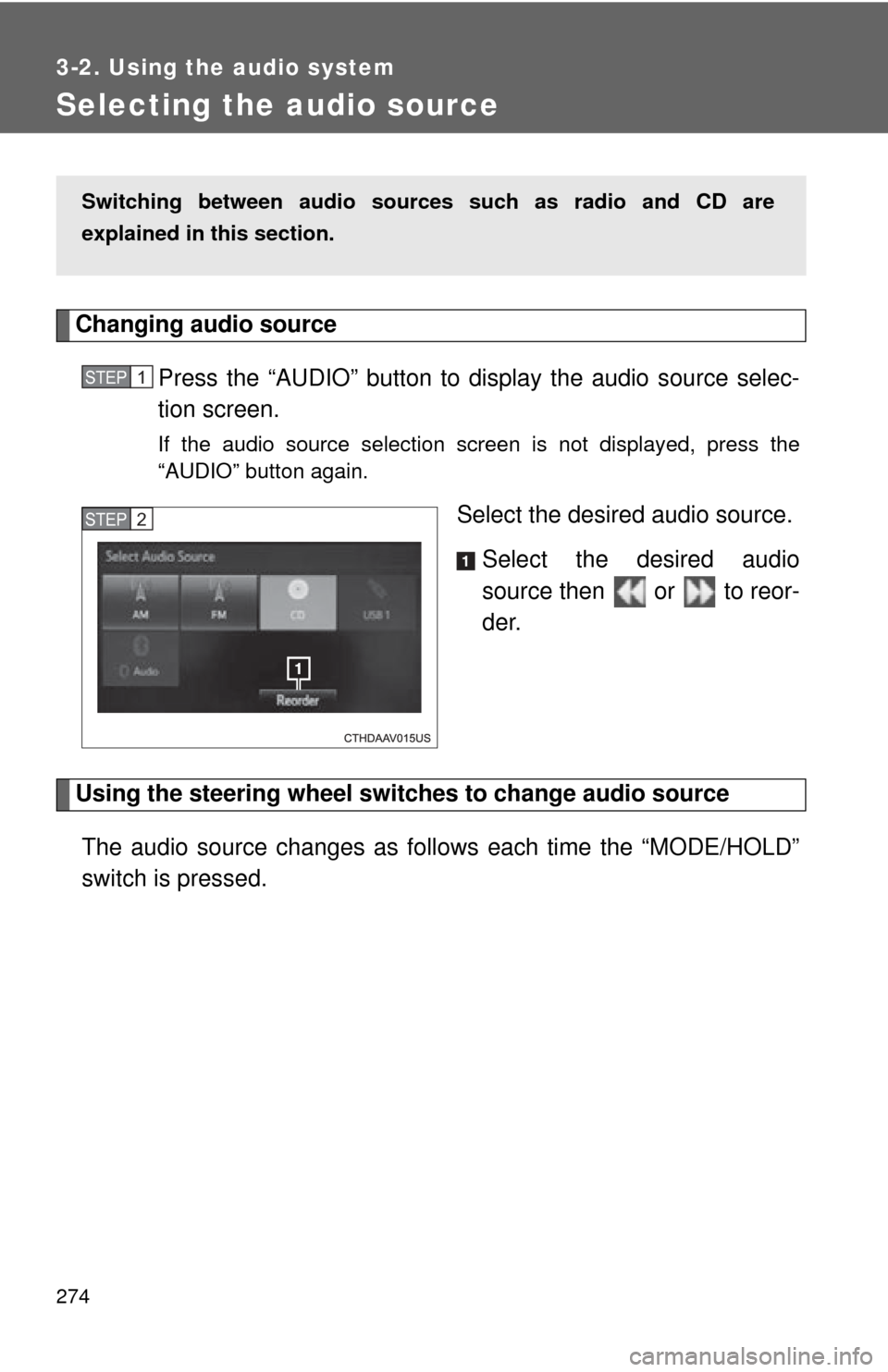
Changing audio source Press the “AUDIO” button to display the audio source selec-
tion screen.
If the audio source selection screen is not displayed, press the
“AUDIO” button again.
Select the desired audio source.Select the desired audio
source then or to reor-
der.
Using the steering wheel switch es to change audio source
The audio source changes as follows each time the “MODE/HOLD”
switch is pressed.
Switching between audio sources such as radio and CD are
explained in this section.
STEP1
STEP2