Page 301 of 620
301
3-2. Using the audio system
3
Interior features
CAUTION
●
CAUTION: Radio Frequency Radiation Exposure
This equipment complies with FCC radiation exposure limits set forth for
uncontrolled equipment and meets the FCC radio frequency (RF) Expo-
sure Guidelines in Supplement C to OET65. This equipment has very low
levels of RF energy that it deemed to comply without maximum permissive
exposure evaluation (MPE). But it is desirable that it should be installed
and operated with at least 20cm and more between the radiator and per-
son's body (excluding extremities: hands, wrists, feet and ankles).
• Co-location: This transmitter must not be co-located or operated in
conjunction with any other antenna or transmitter.
• This device complies with part 15 of the FCC Rules. Operation is sub- ject to the following two conditions: (1) This device may not cause
harmful interference, and (2) this device must accept any interference
received, including interference that may cause undesired operation.
● FCC WARNING:
Changes or modifications not expressly approved by the party responsible
for compliance could void the user's authority to operate the equipment.\
● IC: 2024B-FT0049B
• This device complies with Industry Canada licence-exempt RSS stan-
dard(s). Operation is subject to the following two conditions: (1) this
device may not cause interference, and (2) this device must accept any
interference, including interference that may cause undesired opera-
tion of the device.
● CAUTION: Radio Frequency Radiation Exposure
This equipment complies with IC radiation exposure limits set forth for
uncontrolled equipment and meets RS S-102 of the IC radio frequency
(RF) Exposure rules.
This equipment has very low levels of RF energy that it deemed to comply
without maximum permissive exposure evaluation (MPE).
But it is desirable that it should be installed and operated with at least
20cm and more between the radiator and person's body (excluding
extremities: hands, wrists, feet and ankles).
Page 306 of 620

306
3-2. Using the audio system
Registering a Bluetooth® device
How to register a Bluetooth® device
Display the “Bluetooth* Setup” screen. ( P. 303)
*:Bluetooth is a registered trademark of Bluetooth SIG, Inc.
Select “Add”.
When this screen is displayed,
search for the device name dis-
played on this screen on the
screen of your Bluetooth
®
device.
For details about operating the
Bluetooth® device, see the man-
ual that comes with it.
To cancel the registration, select
“Cancel”.
Register the Bluetooth® device using your Bluetooth® device.
A PIN-code is not required for SSP (Secure Simple Pairing) compat-
ible Bluetooth® devices. Depending on the type of Bluetooth® device
being connected, a message confirming registration may be dis-
played on the Bluetooth
® device’s screen. Respond and operate the
Bluetooth® device according to the confirmation message.
Bluetooth® compatible phones (HFP) and portable audio players
(AVP) can be registered simultane ously. You can register up to 5
Bluetooth
® devices.
STEP1
STEP2
STEP3
STEP1STEP4
Page 332 of 620
332 3-2. Using the audio system
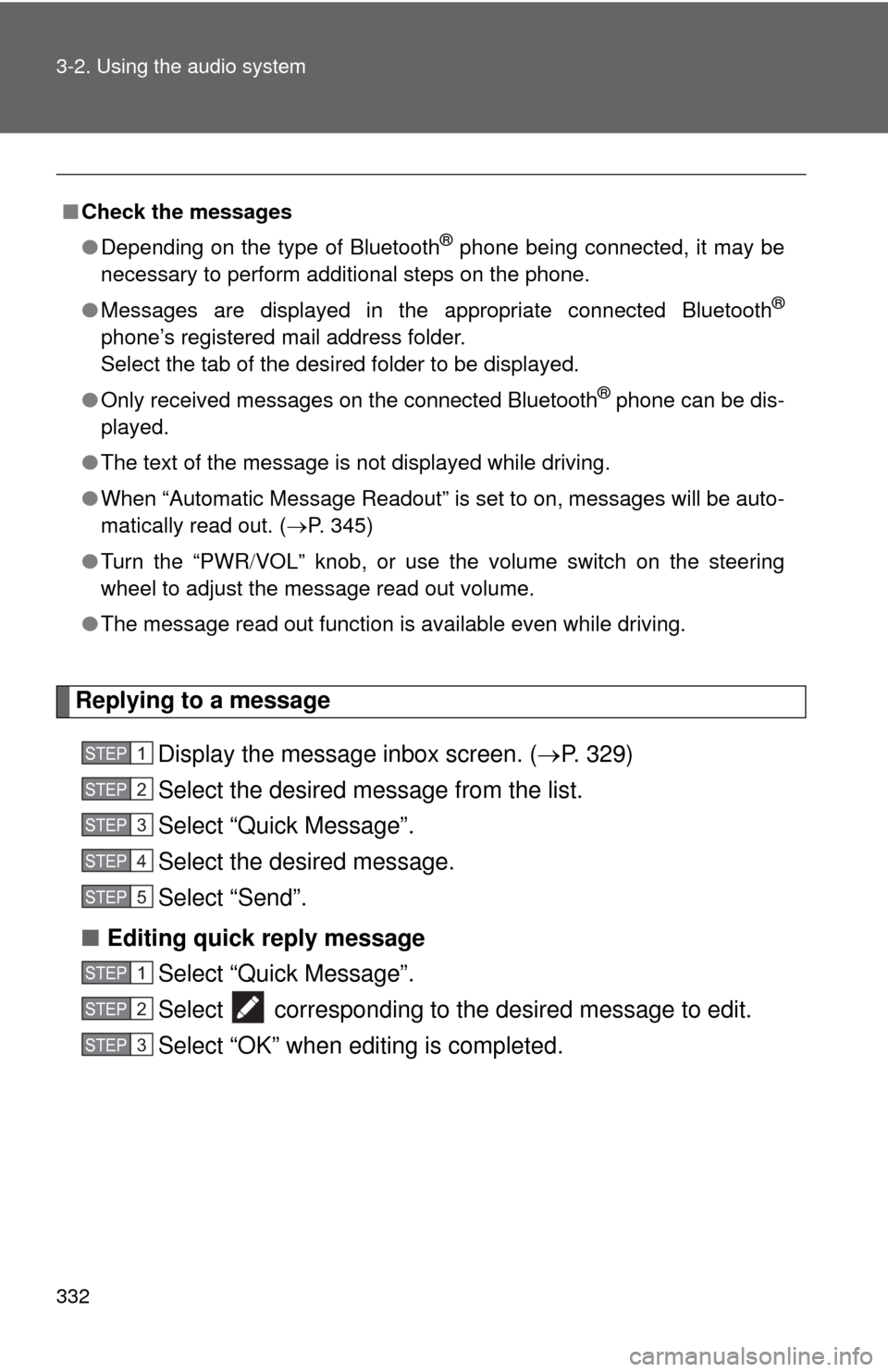
Replying to a messageDisplay the message inbox screen. ( P. 329)
Select the desired message from the list.
Select “Quick Message”.
Select the desired message.
Select “Send”.
■ Editing quick reply message
Select “Quick Message”.
Select corresponding to the desired message to edit.
Select “OK” when editing is completed.
■Check the messages
●Depending on the type of Bluetooth
® phone being connected, it may be
necessary to perform additional steps on the phone.
● Messages are displayed in the appropriate connected Bluetooth
®
phone’s registered mail address folder.
Select the tab of the desired folder to be displayed.
● Only received messages on the connected Bluetooth
® phone can be dis-
played.
● The text of the message is not displayed while driving.
● When “Automatic Message Readout” is set to on, messages will be auto-
matically read out. ( P. 345)
● Turn the “PWR VOL” knob, or use the volume switch on the steering
wheel to adjust the message read out volume.
● The message read out function is available even while driving.
STEP1
STEP2
STEP3
STEP4
STEP5
STEP1
STEP2
STEP3
Page 333 of 620
333
3-2. Using the audio system
3
Interior features
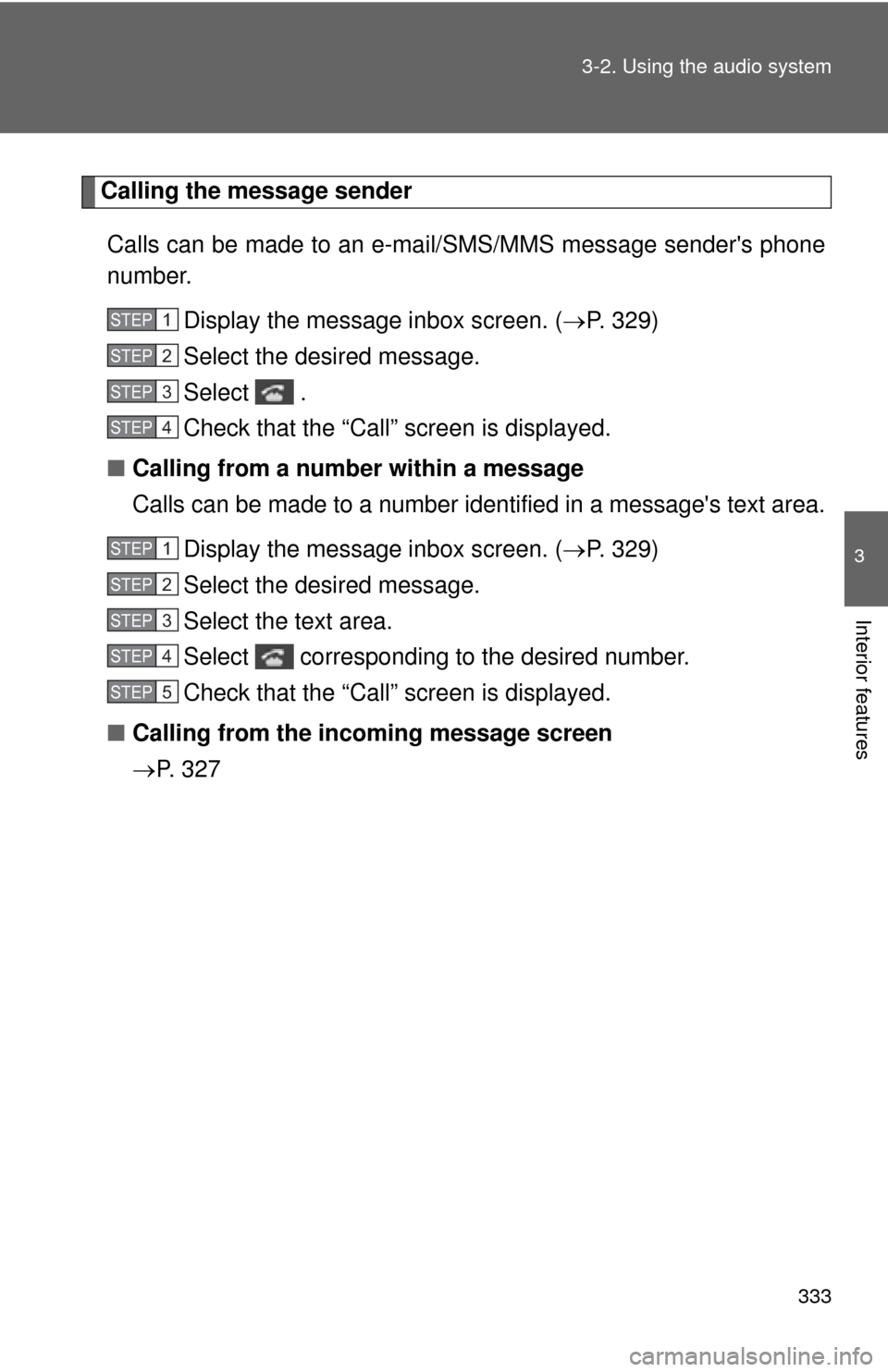
Calling the message sender
Calls can be made to an e-mail/SMS/MMS message sender's phone
number. Display the message inbox screen. ( P. 329)
Select the desired message.
Select .
Check that the “Call” screen is displayed.
■ Calling from a number within a message
Calls can be made to a number identified in a message's text area.
Display the message inbox screen. ( P. 329)
Select the desired message.
Select the text area.
Select corresponding to the desired number.
Check that the “Call” screen is displayed.
■ Calling from the incoming message screen
P. 3 2 7
STEP1
STEP2
STEP3
STEP4
STEP1
STEP2
STEP3
STEP4
STEP5
Page 341 of 620
341
3-2. Using the audio system
3
Interior features
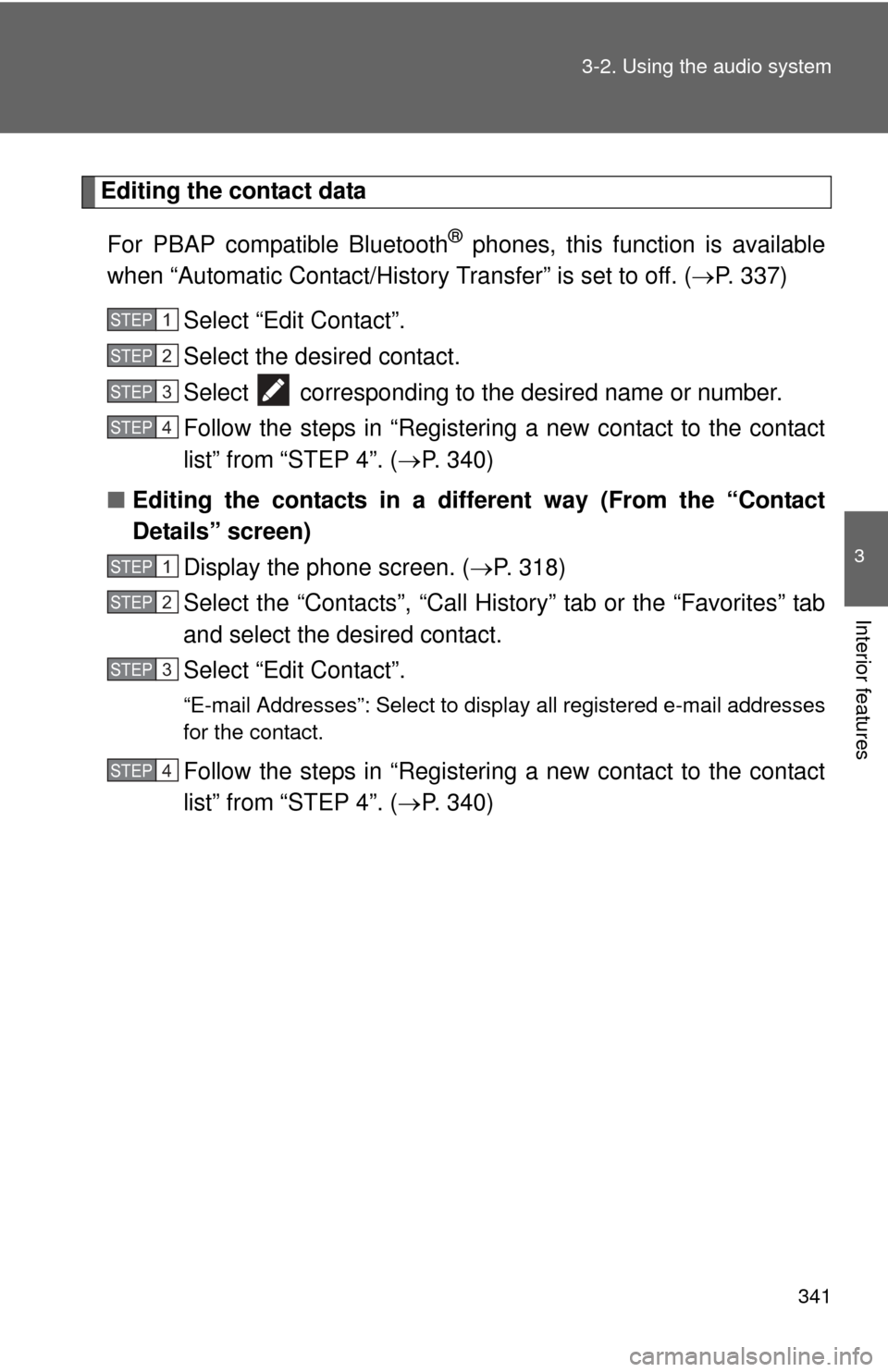
Editing the contact data
For PBAP compatible Bluetooth
® phones, this function is available
when “Automatic Contact/History Transfer” is set to off. ( P. 337)
Select “Edit Contact”.
Select the desired contact.
Select corresponding to the desired name or number.
Follow the steps in “Registering a new contact to the contact
list” from “STEP 4”. ( P. 340)
■ Editing the contacts in a different way (From the “Contact
Details” screen)
Display the phone screen. ( P. 318)
Select the “Contacts”, “Call Hist ory” tab or the “Favorites” tab
and select the desired contact.
Select “Edit Contact”.
“E-mail Addresses”: Select to di splay all registered e-mail addresses
for the contact.
Follow the steps in “Registering a new contact to the contact
list” from “STEP 4”. ( P. 340)
STEP1
STEP2
STEP3
STEP4
STEP1
STEP2
STEP3
STEP4
Page 353 of 620
353
3-2. Using the audio system
3
Interior features
■
Bluetooth® antenna
The antenna is built into the display.
If the portable audio player is behind the seat or in the glove box or console
box, or is touching or covered by metal objects, the connection status may
deteriorate.
If the cellular phone is behind the seat or in the console box, or touching or
covered by metal objects, the connection status may deteriorate.
■ Battery charge/signal status
●This display may not correspond exactly with the portable audio player or
cellular phone itself.
● This system does not have a charging function.
● The portable audio player or cellular phone battery will be depleted
quickly when the device is connected to Bluetooth
®.
■ When using the Bluetooth
® audio and hands-free system at the same
time
The following problems may occur.
● The Bluetooth
® audio connection may be interrupted.
● Noise may be heard during Bluetooth
® audio playback.
■ About the contact in this system
The following data is stored for every registered cellular phone. When
another phone is connecting, you cannot read the registered data.
●Contact data
● Call history
● Favorite
● Message
When removing a Bluetooth
® phone from the system, the above-mentioned
data is also deleted.
Page 357 of 620
357
3-2. Using the audio system
3
Interior features
Voice command system
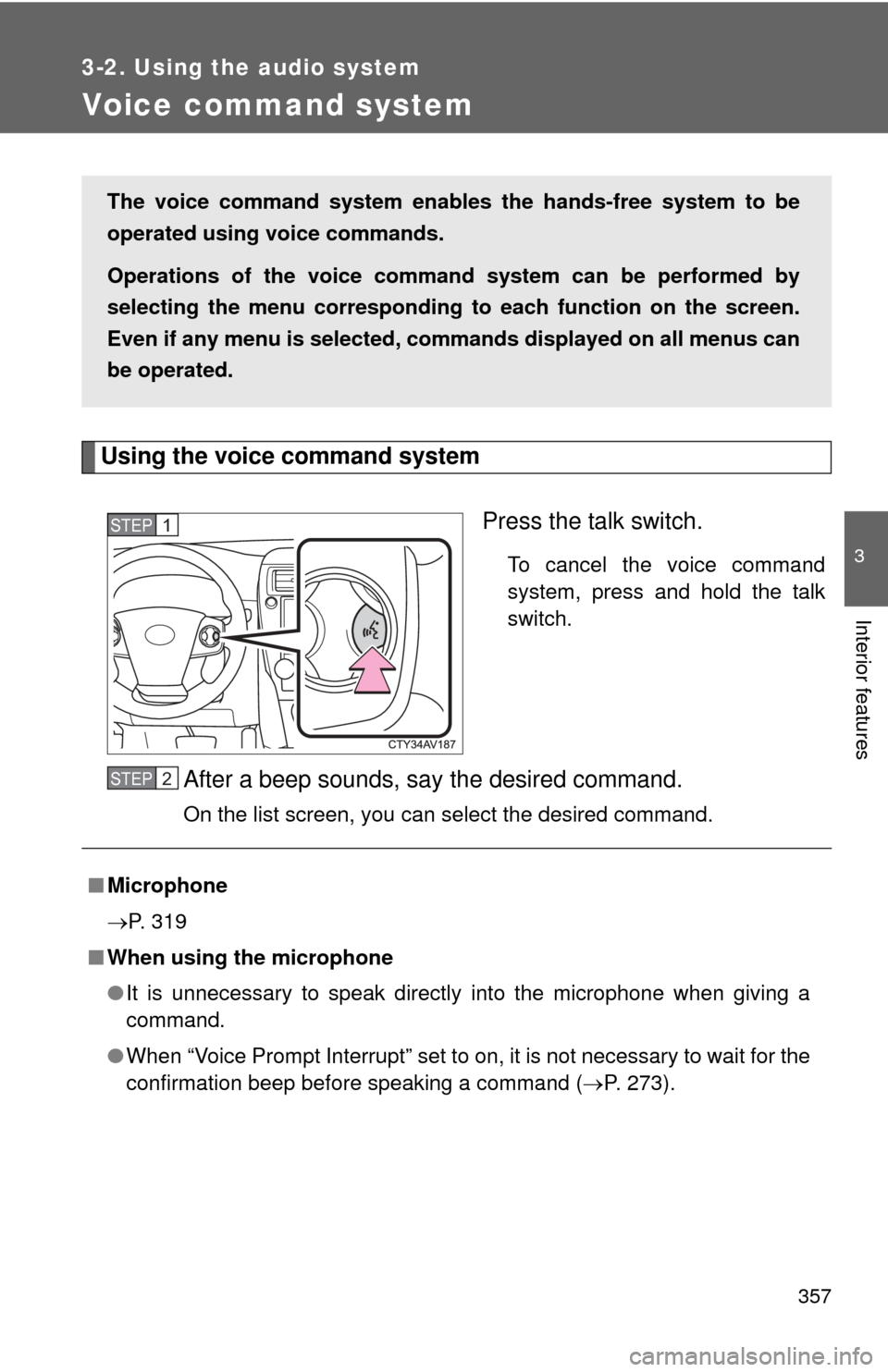
Using the voice command systemPress the talk switch.
To cancel the voice command
system, press and hold the talk
switch.
After a beep sounds, say the desired command.
On the list screen, you can select the desired command.
The voice command system enabl es the hands-free system to be
operated using voice commands.
Operations of the voice command system can be performed by
selecting the menu corr esponding to each function on the screen.
Even if any menu is selected, co mmands displayed on all menus can
be operated.
STEP1
■ Microphone
P. 319
■ When using the microphone
●It is unnecessary to speak directly into the microphone when giving a
command.
● When “Voice Prompt Interrupt” set to on, it is not necessary to wait for the
confirmation beep before speaking a command ( P. 273).
STEP2
Page 399 of 620

399
3-5. Other interior features
3
Interior features
CAUTION
Observe the following precautions.
Failure to do so may cause the driver's floor mat to slip, possibly interfering
with the pedals while driving. An unexpectedly high speed may result or it may
become difficult to stop the vehicle, leading to a serious accident.
■
When installing the driver's floor mat
●Do not use floor mats designed for other models or different model year
vehicles, even if they are Toyota Genuine floor mats.
● Only use floor mats designed for the driver's seat.
● Always install the floor mat securely using the retaining hooks (clips) pro-
vided.
● Do not use two or more floor mats on top of each other.
● Do not place the floor mat bottom-side up or upside-down.
■ Before driving
●Check that the floor mat is securely
fixed in the correct place with all the
provided retaining hooks (clips). Be
especially careful to perform this check
after cleaning the floor.
● With the engine stopped and the shift
lever in P, fully depress each pedal to
the floor to make sure it does not inter-
fere with the floor mat.