Page 139 of 620

139
2-1. Driving procedures
2
When driving
CAUTION
■
When starting the vehicle
Always keep your foot on the brake pedal while stopped with the engine run-
ning. This prevents the vehicle from creeping.
■ When driving the vehicle
●Do not drive if you are unfamiliar with the location of the brake and accel-
erator pedals to avoid depressing the wrong pedal.
• Accidentally depressing the accelerator pedal instead of the brake
pedal will result in sudden acceleration that may lead to an accident
that could result in death or serious injury.
• When backing up, you may twist your body around, leading to a diffi- culty in operating the pedals. Make sure to operate the pedals properly.
• Make sure to keep a correct driving posture even when moving the vehicle only slightly. This allows you to depress the brake and acceler-
ator pedals properly.
• Depress the brake pedal using your right foot. Depressing the brake pedal using your left foot may delay response in an emergency, result-
ing in an accident.
● Do not drive the vehicle over or st op the vehicle near flammable materials.
The exhaust system and exhaust gases can be extremely hot. These hot
parts may cause a fire if there is any flammable material nearby.
● Do not let the vehicle roll backward while the shift lever is in a driving posi-
tion, or roll forward while the shift lever is in R.
Doing so may cause the engine to stall or lead to poor brake and steering
performance, resulting in an accident or damage to the vehicle.
● If the smell of exhaust is noticed inside the vehicle, open the windows and
check that the trunk is closed. Large amounts of exhaust in the vehicle can
cause driver drowsiness and an accident, resulting in death or a serious
health hazard. Have the vehicle inspected by your Toyota dealer immedi-
ately.
● Do not shift the shift lever to P while the vehicle is moving.
Doing so can damage the transmission and may result in a loss of vehicle\
control.
Page 212 of 620
212 2-4. Using other driving systems
CAUTION
■The ABS does not operate effectively when
●The limits of tire gripping performance have been exceeded (such as
excessively worn tires on a snow covered road).
● The vehicle hydroplanes while driving at high speed on the wet or slick
road.
■ Stopping distance when the ABS is operating may exceed that of nor-
mal conditions
The ABS is not designed to shorten the vehicle's stopping distance. Always
maintain a safe distance from the vehicle in front of you, especially in the fol-
lowing situations:
● When driving on dirt, gravel or snow-covered roads
● When driving with tire chains
● When driving over bumps in the road
● When driving over roads with potholes or roads with uneven surfaces
■ TRAC may not operate effectively when
Directional control and power may not be achievable while driving on slip-
pery road surfaces, even if the TRAC system is operating.
Drive the vehicle carefully in conditions where stability and power may be
lost.
■ When the VSC is activated
The slip indicator light flashes. Always drive carefully. Reckless driving may
cause an accident. Exercise particular care when the indicator light flashes.
■ When the TRAC/VSC syst ems are turned off
Be especially careful and drive at a speed appropriate to the road condi-
tions. As these are the systems to help ensure vehicle stability and driving
force, do not turn the TRAC/VSC systems off unless necessary.
Page 217 of 620
217
2-4. Using other
driving systems
2
When driving
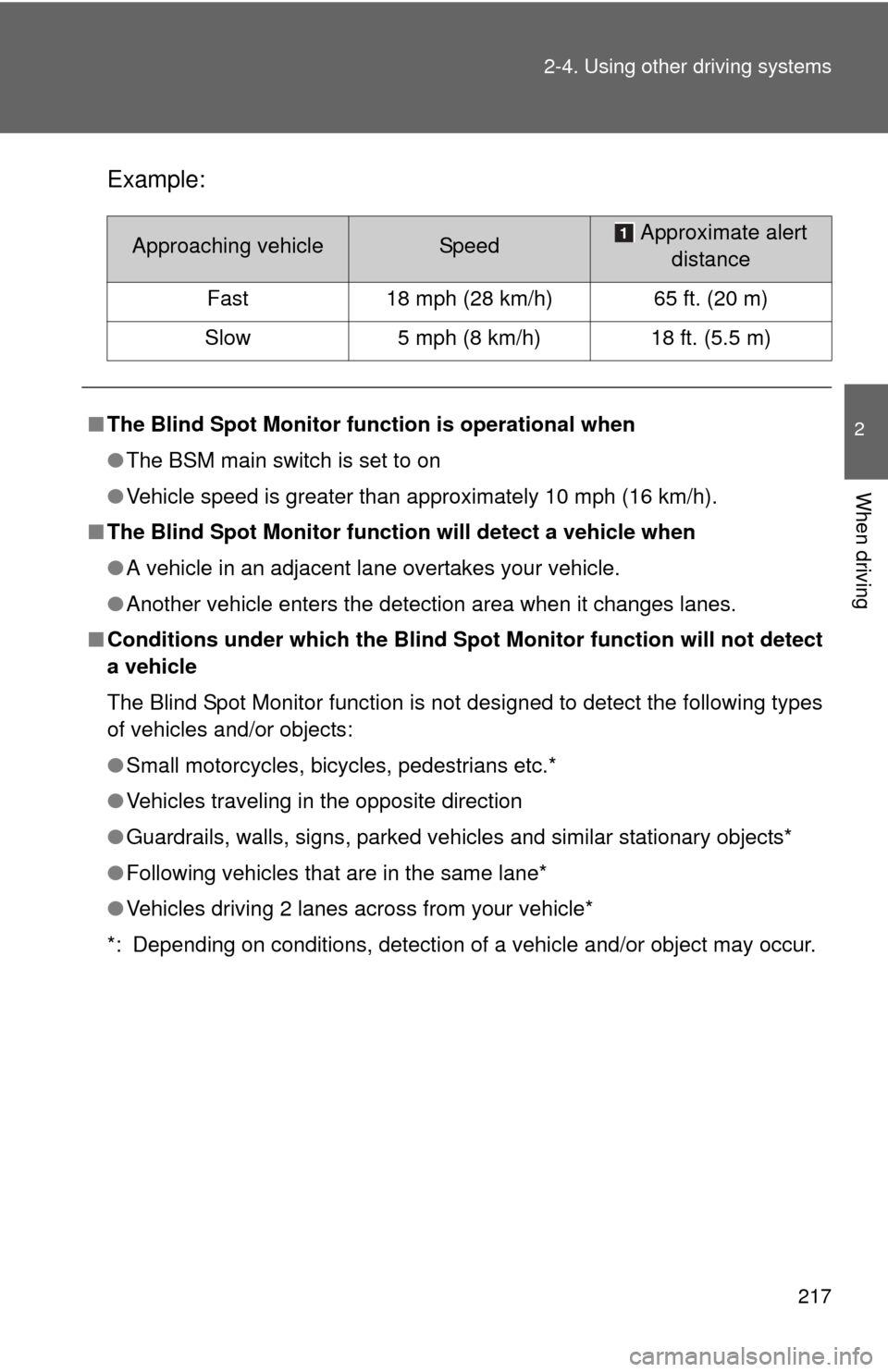
Example:
Approaching vehicleSpeedApproximate alert
distance
Fast 18 mph (28 km/h) 65 ft. (20 m)
Slow 5 mph (8 km/h) 18 ft. (5.5 m)
■ The Blind Spot Monitor function is operational when
●The BSM main switch is set to on
● Vehicle speed is greater than approximately 10 mph (16 km/h).
■ The Blind Spot Monitor functi on will detect a vehicle when
● A vehicle in an adjacent lane overtakes your vehicle.
● Another vehicle enters the detection area when it changes lanes.
■ Conditions under which the Blind Spot Monitor function will not detect
a vehicle
The Blind Spot Monitor function is not designed to detect the following types
of vehicles and/or objects:
●Small motorcycles, bicycles, pedestrians etc.*
● Vehicles traveling in the opposite direction
● Guardrails, walls, signs, parked vehicles and similar stationary objects*
● Following vehicles that are in the same lane*
● Vehicles driving 2 lanes across from your vehicle*
*: Depending on conditions, detection of a vehicle and/or object may occur.
Page 221 of 620

221
2-4. Using other
driving systems
2
When driving
■Certification for the Blind Spot Monitor
For vehicles sold in the U.S.A.
FCC ID: OAYSRR2A
This device complies with part 15 of the FCC Rules. Operation is subject to
the following three conditions:
(1) This device may not cause harmful interference.
(2) This device must accept any interference received, including interference
that may cause undesired operation.
FCC WARNING
Changes or modifications not expressly approved by the party responsible
for compliance could void the user’s authority to operate the equipment.
For vehicles sold in Canada
Applicable law: Canada 310
This device complies with Industry Canada licence-exempt RSS stan-
dard(s).
Operation is subject to the following two conditions:
(1) this device may not cause interference, and
(2) this device must accept any interference, including interference that may cause undesired operation of the device.
Frequency bands: 24.05-24.25 GHz
Output power: less than 20 milliwatts
Page 222 of 620

222 2-4. Using other driving systems
CAUTION
■Cautions regarding the use of the system
The driver is solely responsible for safe driving. Always drive safely, taking
care to observe your surroundings.
The Blind Spot Monitor function is a supplementary function which alerts the
driver that a vehicle is present in the blind spot. Do not overly rely on the
Blind Spot Monitor function. The function cannot judge if it is safe to change
lanes, therefore over reliance could cause an accident resulting in death or
serious injury.
The Rear Cross Traffic Alert function is only an assist and is not a replace-
ment for careful driving. Driver must be careful when backing up, even when
using Rear Cross Traffic Alert function. The driver’s own visual confirmation
of behind you and your vehicle is necessary and be sure there are no pedes-
trians, other vehicles etc. before backing up. Failure to do so could cause
death or serious injury.
According to conditions, the system may not function correctly. Therefore the
driver’s own visual confirmation of safety is necessary.
■ Handling the radar sensor
One Blind Spot Monitor sensor is installed inside the left and right side of the
vehicle rear bumper respectively. Observe the following to ensure the Blind
Spot Monitor can function correctly.
●Do not subject the sensor or surrounding area on the bumper to a strong
impact. If the sensor moves even slightly off position, the system may mal-
function and vehicles that enter the detection area may not be detected. If
the sensor or surrounding area is subject to a strong impact, always have
the area inspected by your Toyota dealer.
●Keep the sensor and its surrounding
area on the bumper clean at all times.
Page 268 of 620
268
3-2. Using the audio system
General settings
Screen for general settingsPress the “SETUP” button. Select “General” on the “Setup”
screen.
“English”, “Français” or
“Español” can be selected.
On/off can be selected to
sound beeps.
Select to change the screen
color.
Select to change the keyboard
layout.
The animation effect for the
audio source selection screen
can be set to on/off.
Select to delete personal data
( P. 269)
Select to update program ver-
sions. For details, contact your
Toyota dealer.
Select to display the software
information. Notices related to
third party software used in
this product are enlisted. (This
includes instructions for
obtaining such software,
where applicable.)
Settings are available for adjusting the operation sounds, screen
animation, etc.
STEP1
STEP2
Page 289 of 620

289
3-2. Using the audio system
3
Interior features
■
About iPod
●“Made for iPod” and “Made for iPhone” mean that an electroni\
c acces-
sory has been designed to connect specifically to iPod or iPhone,
respectively, and has been certified by the developer to meet Apple per-
formance standards.
● Apple is not responsible for the operation of this device or its compliance
with safety and regulatory standards. Please note that the use of this
accessory with iPod or iPhone may affect wireless performance.
● iPhone, iPod, iPod classic, iPod nano, and iPod touch are trademarks of
Apple Inc., registered in the U.S. and other countries. Lightning is a
trademark of Apple Inc.
■ iPod cover art
●Depending on the iPod and songs in the iPod, iPod cover art may be dis-
played.
● This function can be changed to On/Off. ( P. 287)
● It may take time to display iPod cover art, and the iPod may not be oper-
ated while the cover art display is in process.
● Only iPod cover art that is saved in JPEG format can be displayed.
■ iPod functions
●When an iPod is connected and the audio source is changed to iPod
mode, the iPod will resume play from the same point in which it was last
used.
● Depending on the iPod that is connected to the system, certain functions
may not be available. If a function is unavailable due to a malfunction (as
opposed to a system specification), disconnecting the device and recon-
necting it may resolve the problem.
Page 295 of 620
295
3-2. Using the audio system
3
Interior features
■
USB memory
●Compatible devices
USB memory device that can be used for MP3, WMA and AAC playback.
● Compatible device formats
The following device format can be used:
• USB communication format: USB2.0 HS (480 Mbps) and FS (12 Mbps)
• File system format: FAT16/32 (Windows)
• Correspondence class: Mass storage class
MP3, WMA and AAC files written to a device with any format other than
those listed above may not play correctly, and their file names and
folder names may not be displayed correctly.
Items related to standards and limitations are as follows:
• Maximum directory hierarchy: 8 levels
• Maximum number of folders in a device: 3000 (including the root)
• Maximum number of files in a device: 9999
• Maximum number of files per folder: 255
● MP3, WMA and AAC files
MP3 (MPEG Audio LAYER 3) is a standard audio compression format.
Files can be compressed to approximately 1/10 of their original size using
MP3 compression.
WMA (Windows Media Audio) is a Microsoft audio compression format. This
format compresses audio data to a size smaller than that of the MP3 format.
AAC is short for Advanced Audio Coding and refers to an audio compression
technology standard used with MPEG2 and MPEG4.
MP3, WMA and AAC file and media/formats compatibility are limited.