2014 SUBARU TRIBECA reset
[x] Cancel search: resetPage 183 of 426

4-6Climate control
!OFF button
The Automatic Climate Control systemturns off (the air conditioner compressorand fan turn off) when the“OFF”button ispressed.
When the“OFF”button is pressed, theoutside airintroduction mode (air inletselection OFF) is automatically selected.
!Temperature control dial
Driver’s side
Passenger’s side
It is possible to make separate tempera-ture settings for the driver’ssideandpassenger’sside.Eachtemperature
setting is shown on the display. With thedial set at your desired temperature, thesystem automatically adjusts the tempera-ture of air supplied from the outlets suchthat the desired temperature is achievedand maintained.
Turning the dial counterclockwise andreleasing it reduces the temperature by18F (0.58C). Turning the dial clockwiseand releasing it increases the temperatureby 18F (0.58C). Holdingthe dial in eitherturnedposition causes the temperature tochange continuously.
With the minimum temperature set, thesystemgives maximum cooling perfor-mance. With the maximum temperatureset, the system gives maximum heatingperformance.
Page 195 of 426
5-4Audio
Type A audio set (if equipped)
The audio set will operate only when the ignition switch is in the“Acc”or“ON”position.
&Radio operation
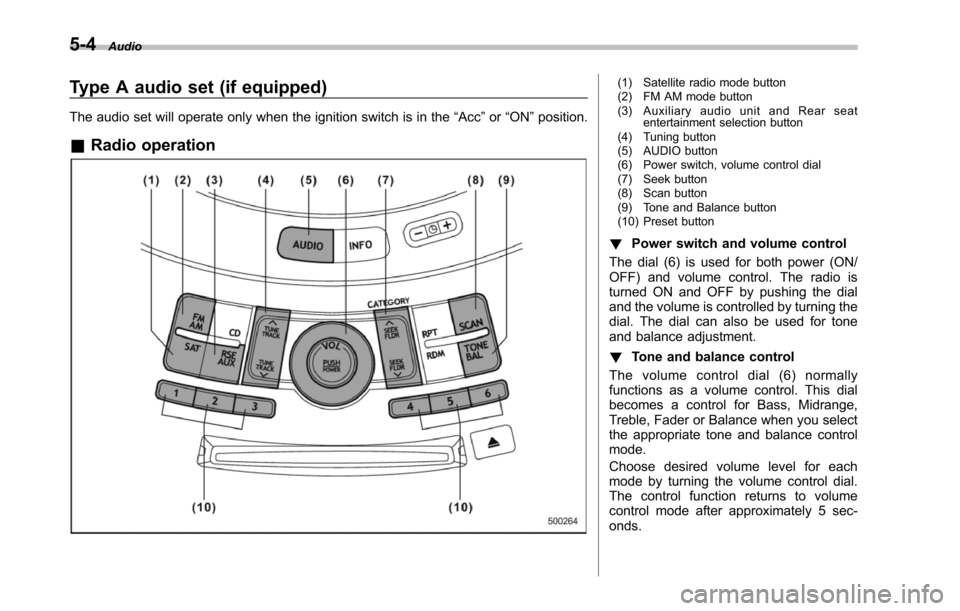
(1) Satellite radio mode button(2) FM AM mode button(3) Auxiliary audio unit and Rear seatentertainment selection button(4) Tuning button(5) AUDIO button(6) Power switch, volume control dial(7) Seek button(8) Scan button(9) Tone and Balance button(10) Preset button
!Power switch and volume control
The dial (6) is used for both power (ON/OFF) and volume control. The radio isturned ON and OFF by pushing the dialand the volume is controlled by turning thedial. The dial can also be used for toneand balance adjustment.
!Tone and balance control
The volume control dial (6) normallyfunctions as a volume control. This dialbecomes a control for Bass, Midrange,Treble, Fader or Balance when you selectthe appropriate tone and balance controlmode.
Choose desired volume level for eachmode by turning the volume control dial.The control function returns to volumecontrol mode after approximately 5 sec-onds.
Page 198 of 426
NOTE
While you are holding down either sideof the“TUNE TRACK”button, thetuning frequency will not stop chan-ging even if the frequency of a recei-vable station is reached.
!Seek tuning
If you press the“”or“”side of the“SEEK FLDR”button (7), the radio willautomatically search for a receivablestation and stop at the first one it finds.This function may not be available, how-ever, when radio signals are weak. In suchasituation,performmanualtuningtoselect the desired station.
!Automatic tuning (SCAN)
Press the“SCAN”button (8) to change theradio to the SCAN mode. In this mode, theradio scans through the radio band until astation is found. The radio will stop at thestation for 5 seconds while displaying thefrequency, after which scanning will con-tinue until the entire band has beenscanned from the low end to the highend. Press the“SCAN”button again tocancel the SCAN mode and to stop on anydisplayed frequency.
Press the“”or“”side of the“SEEKFLDR”button (7) again to cancel the scanmode and to stop on any displayed
frequency.
When the“SCAN”button is pressed forautomatic tuning, stations are scanned inthe direction of low frequencies to highfrequencies only.
Automatic tuning may not function prop-erly if the station reception is weakened bydistancefrom the station or proximity totall buildings and hills.
!Selecting preset stations
Presetting a station with a preset button(10) allows you to select that station in asingle operation. Up to six, AM, FM1 andFM2 stations each may be preset.
!How to preset stations
1. Press the“FM AM”button (2) to selectFM1, FM2, or AM reception.
2. Press the“SCAN”button (8) or tunethe radio manually until the desired stationfrequencyis displayed.
3. Press and hold one of the presetbuttons (10) to store the frequency. If thebutton is pressed briefly, the precedingselection will remain in memory.
NOTE
.If the connection between the radioand battery is broken for any reasonsuch as vehicle maintenance or radioremoval, all stations stored in the
preset buttons are cleared. If thisoccurs, it is necessary to reset thepreset buttons..If a cell phone is placed near theradio, it may cause the radio to emitnoise when it receives calls. This noisedoes not indicate a radio malfunction.
!Satellite radio mode (if equipped)
To receive satellite radio, it is necessary toinstall the SUBARU genuine satellitereceiver (optional part) and to enter intoa contract with a satellite radio networkservice such as“Sirius XMTMsatelliteradio”(for U.S.A. only)or“Sirius satelliteradio”(for Canada only). For details,please contact your SUBARU dealer.
!Sirius satellite radio (for Canadaonly)
Sirius satellite radio is a recent innovationthat allows the listener to experiencedigital sound quality and to have a greatervariety of channels.
Use of satellite radio (Sirius) requires atuner, antenna and a service contract. Fordetails, please contact your SUBARUdealer or visit Sirius Satellite Radio atwww.sirius.ca or call 1-888-539-7474 formore information. Sirius, the Sirius doglogo, channel names and logos are trade-marks of SIRIUS Satellite Radio Inc.
Audio5-7
–CONTINUED–
Page 199 of 426
5-8Audio
!Sirius XMTMSatellite Radio Acti-vation (for U.S.A. only)
Models with Sirius XMTMare eligible for a3-month complimentary subscription tothe Sirius XMTMSatellite Radio service.
Activation process:
You can activate the XM Satellite Radiofromthe website of the XM Satellite Radio.For details, visit the website.
!Satellite radio reception
Satellite radio signals are best received inareas with a clear view of the open sky. Inareas wherethere are tall buildings, trees,tunnels or other structures that mayobstruct the signal of the satellites, theremay be signal interruptions. Other circum-stances that may result in signal lossinclude driving near a wall, steep cliff orhill, or driving on the lower level of a multi-tiered road or inside a parking garage.
To help reduce this condition, satelliteradio providers have installed ground-based repeaters in heavily populatedareas. However, you may still experiencereception problems in some areas.
!Displaying satellite radio ID oftuner
When you activate satellite radio, youshould have your satellite radio tuner ID
ready because each tuner is identified byits unique satellite radio tuner ID.
The satellite radio ID will be needed whenyou activate satellite radio and receivesatellite radio customer support.
The satellite radio ID can be found on theaudio display by tuning the channel to“0”.
Turn the“TUNE TRACK”button (4) toselect the satellite radio channel.
!Band selection button
Push the“SAT”button (1) when the radiois off to turn on the radio.
Push the“SAT”button when the radio ison to select SAT1, SAT2 or SAT3 recep-tion.
!Channel selection
Press“”of the“TUNE TRACK”button(4) to select the next channel and press“”of the button to select the previouschannel.
Keep pressing“”of the button tochange to the next channel continuouslyand keep pressing“”of the button tochange to the previous channel continu-ously.
!Category selection
Press“”or“”of the“SEEK FLDR”button (7) to display the current category.Press“”again to select the next
category, and press“”again to selectthe previous category.
!Channel scan
Press the“SCAN”button (8) to change theradio to the SCAN mode. In this mode, theradio scans through the channels until astation is found. The radio will stop at thestation for 5 seconds while displaying thechannel number, after which scanning willcontinue until the entire channel has beenscanned from the low end to the high end.
Also during the category selection, chan-nel scan can be performed in that cate-gory.
Press the“SCAN”button again to cancelthe SCAN mode and to stop on anydisplayed channel.
!Selecting presetchannels
Presetting a channel with a preset button(10) allows you to select that channel in asingle operation. Up to six, SAT1, SAT2and SAT3 channels each may be preset.
!How to preset channels
1. Press the“SAT”button (1) to selectSAT1, SAT2 and SAT3 reception.
2. Press the“SCAN”button (8) or the“TUNE TRACK”button (4) to select thechannel.
3. Press and hold one of the preset
Page 200 of 426
buttons (10) to store the channel. If thebutton is pressed briefly, the precedingselection will remain in memory.
NOTE
If the connection between the radio andbattery is broken for any reason suchas vehicle maintenance or radio re-moval, all channels stored in the presetbuttons are cleared. If this occurs, it isnecessary to reset the preset buttons.
!Display selection
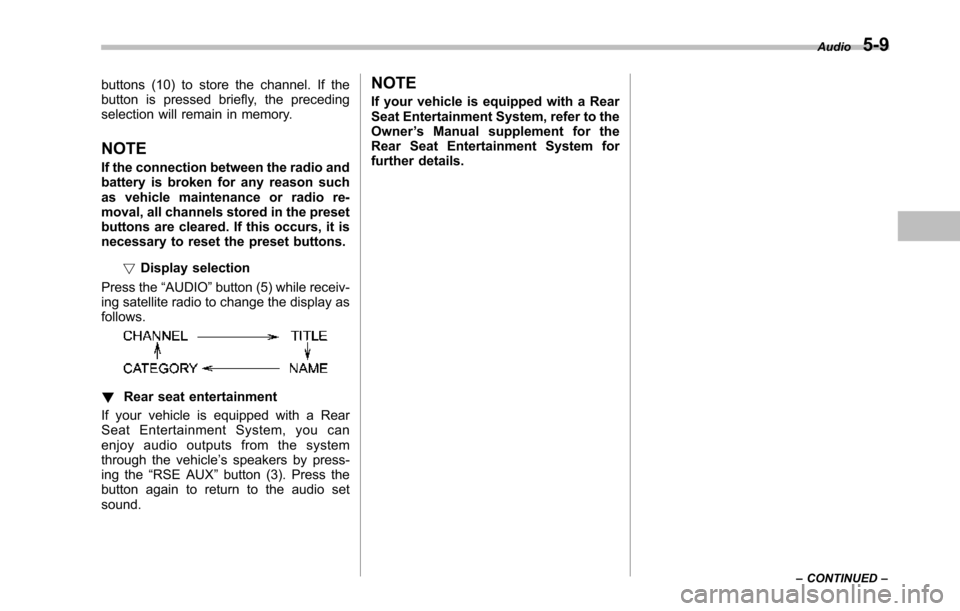
Press the“AUDIO”button (5) while receiv-ing satellite radio to change the display asfollows.
!Rear seat entertainment
If your vehicle is equipped with a RearSeat Entertainment System, you canenjoy audio outputs from the systemthrough the vehicle’s speakers by press-ing the“RSE AUX”button (3). Press thebutton again to return to the audio setsound.
NOTE
If your vehicle is equipped with a RearSeat Entertainment System, refer to theOwner’s Manual supplement for theRear Seat Entertainment System forfurther details.
Audio5-9
–CONTINUED–
Page 206 of 426
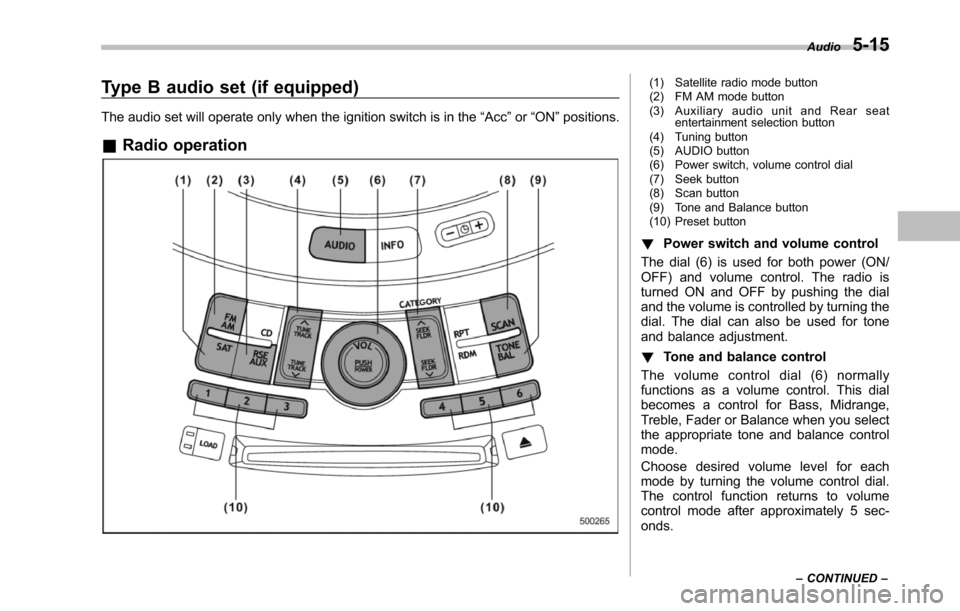
Type B audio set (if equipped)
The audio set will operate only when the ignition switch is in the“Acc”or“ON”positions.
&Radio operation
(1) Satellite radio mode button(2) FM AM mode button(3) Auxiliary audio unit and Rear seatentertainment selection button(4) Tuning button(5) AUDIO button(6) Power switch, volume control dial(7) Seek button(8) Scan button(9) Tone and Balance button(10) Preset button
!Power switch and volume control
The dial (6) is used for both power (ON/OFF) and volume control. The radio isturned ON and OFF by pushing the dialand the volume is controlled by turning thedial. The dial can also be used for toneand balance adjustment.
!Tone and balance control
The volume control dial (6) normallyfunctions as a volume control. This dialbecomes a control for Bass, Midrange,Treble, Fader or Balance when you selectthe appropriate tone and balance controlmode.
Choose desired volume level for eachmode by turning the volume control dial.The control function returns to volumecontrol mode after approximately 5 sec-onds.
Audio5-15
–CONTINUED–
Page 209 of 426
5-18Audio
NOTE
While you are holding down either sideof the TUNE/TRACK button, the tuningfrequency will not stop changing evenif the frequency of a receivable stationis reached.
!Seek tuning (SEEK)
If you press the“”or“”side of the“SEEK FLDR”button (7), the radio willautomatically search for a receivablestation and stop at the first one it finds.This function may not be available, how-ever, when radio signals are weak. In suchasituation,performmanualtuningtoselect the desired station.
!Scan tuning (SCAN)
Press the“SCAN”button (8) to change theradio to the SCAN mode. In this mode, theradio scans through the radio band until astationis found. The radio will stop at thestation for 5 seconds while displaying thefrequency, after which scanning will con-tinue until the entire band has beenscannedfrom the low end to the highend. Press the“SCAN”buttonagain tocancel the SCAN mode and to stop on anydisplayed frequency.
Press the“”or“”side of the“SEEKFLDR”button (7) again to cancel the scanmode and to stop on any displayed
frequency.
When the“SCAN”button is pressed forautomatic tuning, stations are scanned inthe direction of low frequencies to highfrequencies only.
Automatic tuning may not function prop-erly if the station reception is weakened bydistance from the station or proximity totall buildings and hills.
!Selecting preset stations
Presetting a station with a preset buttonallows you to select that station in a singleoperation. Up to six AM, FM1 and FM2stations each may be preset.
!How to preset stations
1. Press the“FM AM”button (2) to selectFM1, FM2 or AM reception.
2. Press the“SCAN”button (8) or tunethe radio manually until the desired stationfrequency is displayed.
3. Press and hold one of the presetbuttons to store the frequency. If thebutton is pressed briefly, the precedingselection will remain in memory.
NOTE
.If the connection between the radioand battery is broken for any reasonsuch as vehicle maintenance or radioremoval, all stations stored in the
preset buttons are cleared. If thisoccurs, it is necessary to reset thepreset buttons..If a cell phone is placed near theradio, it may cause the radio to emitnoise when it receives calls. This noisedoes not indicate a radio malfunction.
!Satellite radio mode (if equipped)
To receive satellite radio, it is necessary toinstall the SUBARU genuine satellitereceiver (optional part) and to enter intoa contract with a satellite radio networkservice such as“Sirius XMTMsatelliteradio”(for U.S.A. only) or“Sirius satelliteradio”(for Canada only). For details,please contact your SUBARU dealer.
!Sirius satellite radio (for Canadaonly)
Refer to“Sirius satellite radio (for Canadaonly)”F5-7.
!Sirius XMTMSatellite Radio Acti-vation (for U.S.A. only)
Refer to“Sirius XMTMSatellite RadioActivation (for U.S.A. only)”F5-8.
!Satellite radio reception
Refer to“Satellite radio reception”F5-8.
Page 210 of 426
!Displaying satellite radio ID oftuner
When you activate satellite radio, youshould have your satellite radio tuner IDready because each tuner is identified byits unique satellite radio tuner ID.
The satellite radio ID will be needed whenyou activate satellite radio and receivesatellite radio customer support.
The satellite radio ID can be found on theaudio display by tuning the channel to“0”.
Turn the“TUNE/TRACK”button (4) toselect the satellite radio channel.
!Band selection button
Push the“SAT”button (1) when the radiois off to turn on the radio.
Push the“SAT”button when the radio ison to select SAT1, SAT2 or SAT3 recep-tion.
!Channel selection
Press“”of the“TUNE TRACK”button(4) to select the next channel and press“”of the button to select the previouschannel.
Keep pressing“”of the button tochange to the next channel continuouslyand keep pressing“”of the button tochange to the previous channel continu-ously.
!Category selection
Press“”or“”of the“SEEK FLDR”button (7) to display the current category.Press“”again to select the nextcategory, and press“”again to selectthe previous category.
!Channel scan
Press the“SCAN”button (8) to change theradio to the SCAN mode. In this mode, theradio scans through the channels until astation is found. The radio will stop at thestation for 5 seconds while displaying thechannel number, after which scanning willcontinue until the entire channel has beenscanned from the low end to the high end.
Also during the category selection, chan-nel scan can be performed in that cate-gory.
Press the“SCAN”button again to cancelthe SCAN mode and to stop on anydisplayed channel.
!Selecting preset channels
Presetting a channel with a preset button(10) allows you to select that channel in asingle operation. Up to six, SAT1, SAT2and SAT3 channels each may be preset.
!How to preset channels
1. Press the“SAT”button (1) to selectSAT1, SAT2 and SAT3 reception.
2. Press the“SCAN”button (8) or the“TUNE TRACK”button (4) to select thechannel.
3. Press and hold one of the presetbuttons (10) to store the channel. If thebutton is pressed briefly, the precedingselection will remain in memory.
NOTE
If the connection between the radio andbattery is broken for any reason suchas vehicle maintenance or radio re-moval, all channels stored in the presetbuttons are cleared. If this occurs, it isnecessary to reset the preset buttons.
!Display selection
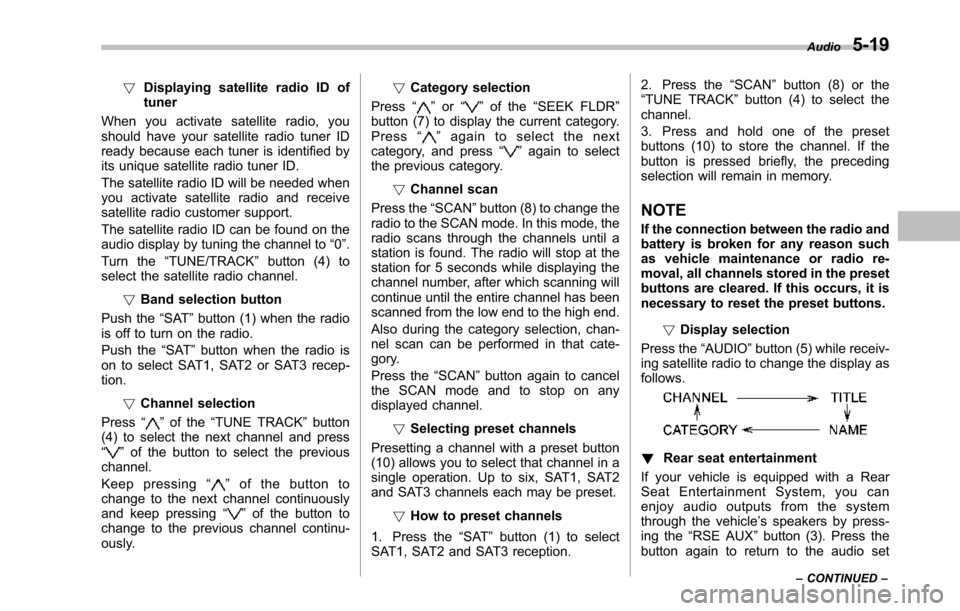
Press the“AUDIO”button (5) while receiv-ing satellite radio to change the display asfollows.
!Rear seat entertainment
If your vehicle is equipped with a RearSeat Entertainment System, you canenjoy audio outputs from the systemthrough the vehicle’s speakers by press-ing the“RSE AUX”button (3). Press thebutton again to return to the audio set
Audio5-19
–CONTINUED–