2014 SKODA YETI mirror
[x] Cancel search: mirrorPage 5 of 64
Table of Contents
Operating Instructions3
Notes
4
Declaration of conformity
5
Abbreviations
Familiarization with the unit
Introductory information
7
Important notes
7
Equipment overview
7
Unit operation
10
Operation on the device screen
10
Operation via the buttons / wheels on the multifunction steering wheel / operating
lever
11
voice control
14
Device Settings
18
Menu Sound
18
Menu Setup
18
Radio
22
Operation
22
Settings
26
Media
28
Operation
28
Audio sources
30
Pictures
35
Image viewer
35
Communication
37
Telephone
37
Pair
41
Connection
44
Dial telephone number
46Telephone functions49Text messages (SMS)50
MirrorLink ™
53
Index
2Table of Contents
Page 12 of 64
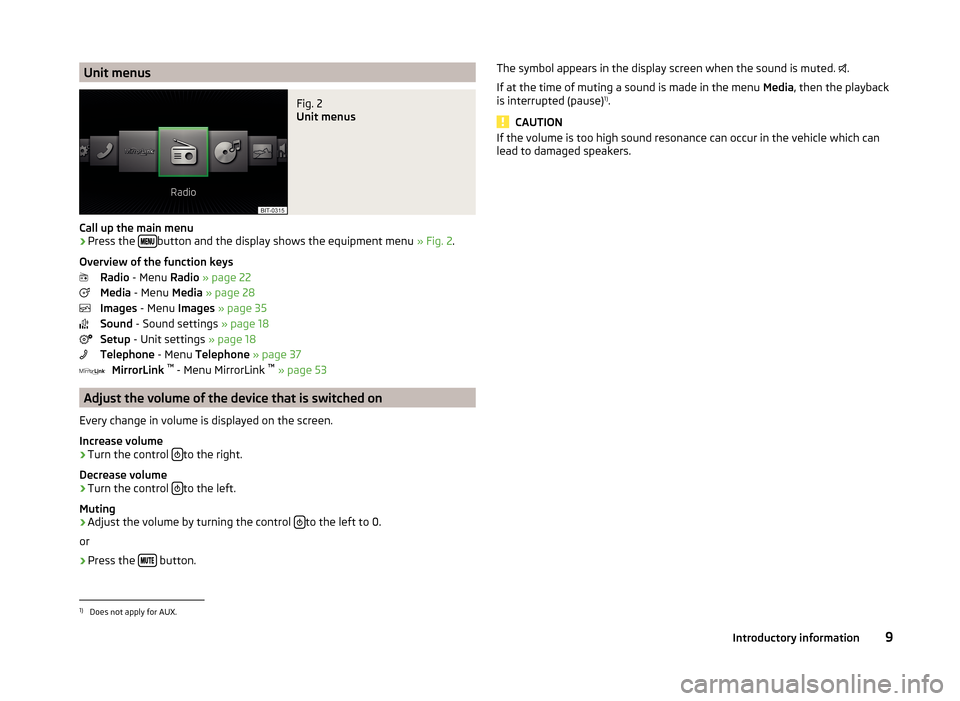
Unit menusFig. 2
Unit menus
Call up the main menu
›
Press the button and the display shows the equipment menu
» Fig. 2.
Overview of the function keys Radio - Menu Radio » page 22
Media - Menu Media » page 28
Images - Menu Images » page 35
Sound - Sound settings » page 18
Setup - Unit settings » page 18
Telephone - Menu Telephone » page 37
MirrorLink ™
- Menu MirrorLink ™
» page 53
Adjust the volume of the device that is switched on
Every change in volume is displayed on the screen.
Increase volume
›
Turn the control to the right.
Decrease volume
›
Turn the control to the left.
Muting
›
Adjust the volume by turning the control to the left to 0.
or
›
Press the button.
The symbol appears in the display screen when the sound is muted.
.
If at the time of muting a sound is made in the menu Media, then the playback
is interrupted (pause) 1)
.
CAUTION
If the volume is too high sound resonance can occur in the vehicle which can
lead to damaged speakers.1)
Does not apply for AUX.
9Introductory information
Page 23 of 64
Additional keypad language settings›
Press the button
→
→ More keypad languages .
In this menu, the keyboard character arrangement for the chosen language
can be selected, and with this the option for fast entry of the characters used
in the selected language.
It is then possible to swap between the languages in the input screen showing
a keyboard by pressing the function keys
» page 11 .
Voice control settings
›
Press the button
→
→ Voice control .
■ Dialogue style: - Setting the message style
■ Long - The device plays unabridged audible messages
■ Short - The device shortens some audible messages or substitutes them
with an acoustic signal
■ Display available commands - Switch on/off the menus containing basic
voice commands when voice control is activated
■ Voice control session start tone - Switch on/off the audible signal that is
output when voice control is activated
■ Voice control session end tone - Switch on/off the audible signal that is out-
put when voice control ends
■ Input tone in voice dialogue - Switch on/off the audible signal for voice con-
trol input
Note
For some languages, there is no voice control available. In this regard, an ap-
propriate warning message appears on the device screen.
Data transmission of mobile devices
›
Press the button
→
→ Mobile device data transfer .
The activated function enables transmission of vehicle data for applications in
connected devices (e.g. MirrorLink ™
Applications).
■ Activate data transfer for apps - Turning the data transfer on and off
Safe removal of the audio source›
Press the button
→
→ Remove safely .
■ SD card - Safe removal of the SD storage card
■ USB - Safe removal of the USB source
Restore factory settings
›
Press the button
→
→ Factory settings .
■ Reset all settings and data - menu to restore all settings
■ Restore factory settings - Reset all factory settings
■ Reset individual settings/data - menu for the recovery of individual settings
■ Sound - Reset default settings for sound
■ Radio - Reset default settings for radio
■ Telephone - Reset default settings for phone
■ Media - Reset default settings for media
■ Voice control - Restore the voice control
■ System - Reset the system default settings
■ MirrorLink ™
- Reset settings on the MirrorLink ™
- function
Bluetooth ®
settings
›
Press the button
→
→ Bluetooth .
■ Bluetooth - Switch on/off Bluetooth ®
function
■ Visibility: - Switch on/off the visibility of the Bluetooth ®
device for other de-
vices
■ Visible - Visibility is always on
■ Hidden - Visibility is off
■ Name: - Open the input screen with keyboard - Change the device name
■ Paired devices - Display the list of paired Bluetooth ®
devices; connect or de-
lete a paired device; delete the list of paired devices ■ Delete all - Delete all paired Bluetooth ®
devices
■ - Delete the paired Bluetooth ®
device
■ Find devices - Searches for available external devices with enabled Blue-
tooth ®
functions and activated visibility
■ Bluetooth audio (A2DP/AVRCP) - Switch on/off the connection option for
Bluetooth ®
profiles A2DP or AVRCP 1)
1)
A2DP or AVRCP are Bluetooth
®
profiles that support multimedia functions.
20Familiarization with the unit
Page 56 of 64
MirrorLink ™
Introduction
This chapter contains information on the following subjects:
Connection conditions
53
Start function
53
Operation
54
Settings
54
Function problems
54
First and foremost, pay attention to the safety instructions » page 7 , Impor-
tant notes .
MirrorLink ™
provides a function for the operation of some installed applica-
tions in the communication facility (e.g. telephone, hereinafter referred to only
as facility) by using the device.
Using this function is only for specially designed and certified applications. For
reasons of safety, the operation of some applications while driving is limited or
not possible (function keys of the applications are inactive).
WARNING■ No objects such as mobile telephone mounts, etc. must be attached to
the covers of the airbag modules or be located within their immediate vicin-
ity.■
Never leave communication facility in the deployment area of an airbag,
on a seat, on the dash panel or in another area, from which it can be
thrown during a sudden braking manoeuvre, an accident or a collision -
there is a risk of injury. There are storage compartments with lids and if
necessary there is the multimedia storage compartments to hold this » Ve-
hicle owner's manual , chapter Transport and practical equipment .
CAUTION
■
MirrorLink ™
Applications that use a mobile data connection, are dependent
on the quality of the signal supplied by your telephone service provider. ŠKODA
accepts no responsibility for the transmitted data volume.■
An intensive use of the function MirrorLink ™
and the work associated with
applications (e.g., GPS, mobile data, fully-backlit display and the like.) can lead
to battery discharge of the connected facility.
Connection conditions
Read and observe
and on page 53 first.
The connection between the facility and the device using the function
MirrorLink ™
is operational under the following conditions.
The ignition is switched on.
The facility supports the function MirrorLink ™
and contains applications
that support this feature.
The display of the equipment is unlocked.
The facility is connected to the USB input » Fig. 19 on page 33 .
Note
Before connecting the MirrorLink - Functions, unlock the device screen. While
using the function the display may automatically darken or the screen com-
pletely turns off.
Start function
Read and observe
and on page 53 first.
›
Press the button
→
™
→ Selection .
A list of the facilities connected to the USB input is displayed.
›
Select one of the MirrorLink ™
function supporting facilities.
If the facility is separated from the USB cable and the ignition is not off, it au- tomatically reconnects when a new connection to the device is made.
Note
■ If the facility is connected by means of the function MirrorLink ™
, it cannot be
used as a USB audio source Media menu.■
The list of available facilities and applications, which support the MirrorLink ™
function, can be seed in the ŠKODA Internet pages www.infotainment.skoda-
auto.com
53Communication
Page 57 of 64
OperationFig. 29
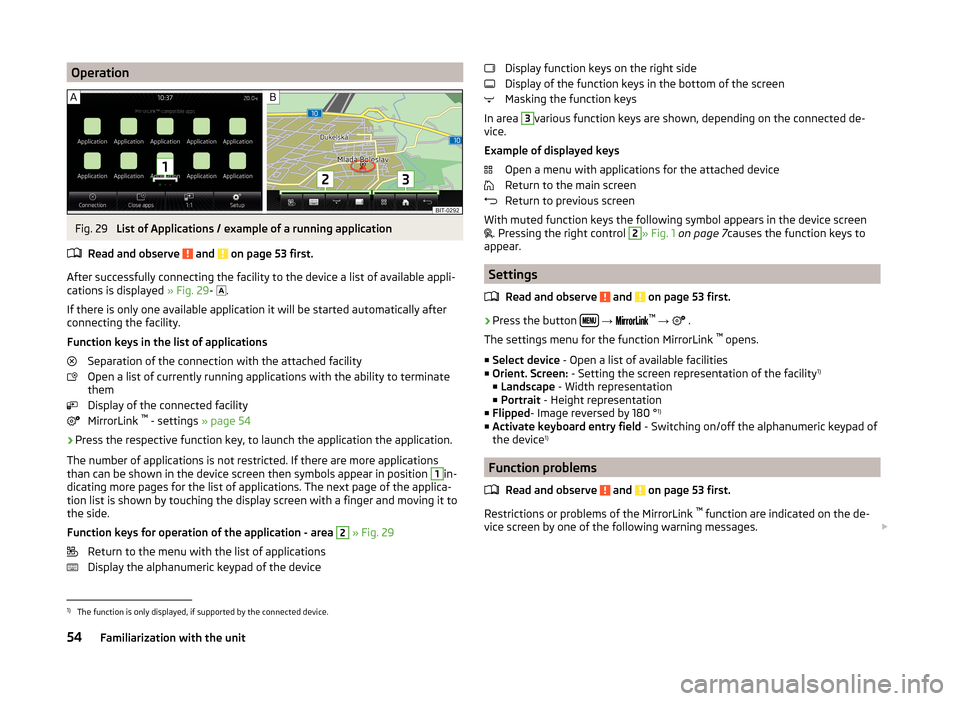
List of Applications / example of a running application
Read and observe
and on page 53 first.
After successfully connecting the facility to the device a list of available appli-
cations is displayed » Fig. 29-
.
If there is only one available application it will be started automatically after
connecting the facility.
Function keys in the list of applications Separation of the connection with the attached facility
Open a list of currently running applications with the ability to terminate
them
Display of the connected facility
MirrorLink ™
- settings » page 54
›
Press the respective function key, to launch the application the application.
The number of applications is not restricted. If there are more applications
than can be shown in the device screen then symbols appear in position
1
in-
dicating more pages for the list of applications. The next page of the applica-
tion list is shown by touching the display screen with a finger and moving it to
the side.
Function keys for operation of the application - area
2
» Fig. 29
Return to the menu with the list of applications
Display the alphanumeric keypad of the device
Display function keys on the right side
Display of the function keys in the bottom of the screen
Masking the function keys
In area 3
various function keys are shown, depending on the connected de-
vice.
Example of displayed keys Open a menu with applications for the attached device
Return to the main screen
Return to previous screen
With muted function keys the following symbol appears in the device screen
. Pressing the right control
2
» Fig. 1
on page 7 causes the function keys to
appear.
Settings
Read and observe
and on page 53 first.
›
Press the button
→
™
→ .
The settings menu for the function MirrorLink ™
opens.
■ Select device - Open a list of available facilities
■ Orient. Screen: - Setting the screen representation of the facility 1)
■ Landscape - Width representation
■ Portrait - Height representation
■ Flipped - Image reversed by 180 ° 1)
■ Activate keyboard entry field - Switching on/off the alphanumeric keypad of
the device 1)
Function problems
Read and observe
and on page 53 first.
Restrictions or problems of the MirrorLink ™
function are indicated on the de-
vice screen by one of the following warning messages.
1)
The function is only displayed, if supported by the connected device.
54Familiarization with the unit
Page 58 of 64
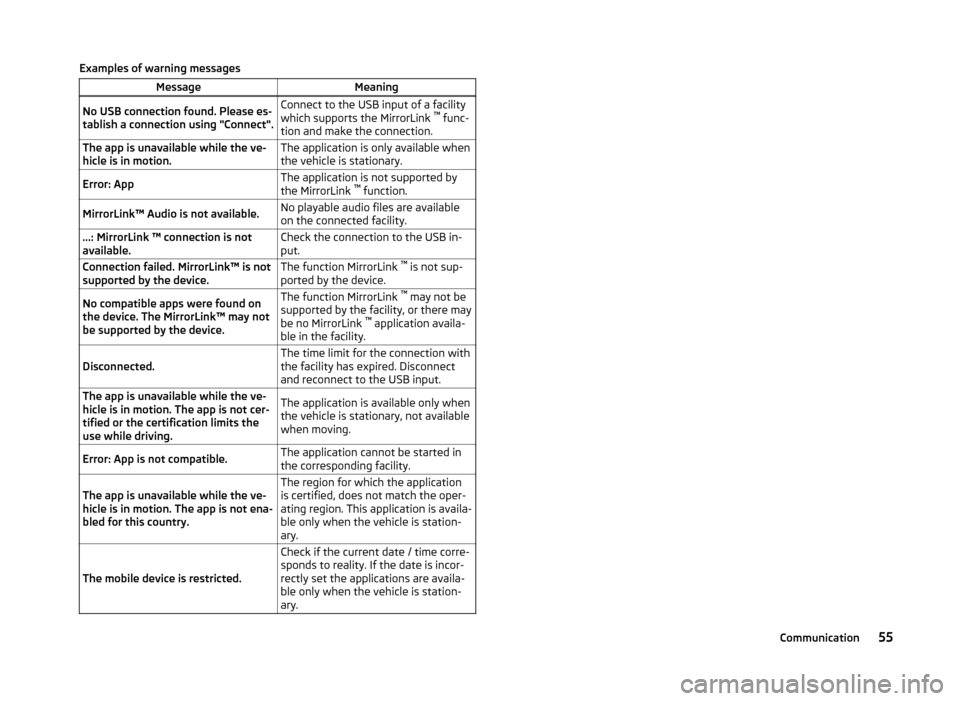
Examples of warning messagesMessageMeaningNo USB connection found. Please es-
tablish a connection using "Connect".Connect to the USB input of a facility
which supports the MirrorLink ™
func-
tion and make the connection.The app is unavailable while the ve-
hicle is in motion.The application is only available when
the vehicle is stationary.Error: AppThe application is not supported by
the MirrorLink ™
function.MirrorLink™ Audio is not available.No playable audio files are available
on the connected facility....: MirrorLink ™ connection is not
available.Check the connection to the USB in-
put.Connection failed. MirrorLink™ is not
supported by the device.The function MirrorLink ™
is not sup-
ported by the device.No compatible apps were found on
the device. The MirrorLink™ may not
be supported by the device.The function MirrorLink ™
may not be
supported by the facility, or there may
be no MirrorLink ™
application availa-
ble in the facility.Disconnected.The time limit for the connection with
the facility has expired. Disconnect
and reconnect to the USB input.The app is unavailable while the ve-
hicle is in motion. The app is not cer-
tified or the certification limits the
use while driving.The application is available only when
the vehicle is stationary, not available
when moving.Error: App is not compatible.The application cannot be started in
the corresponding facility.The app is unavailable while the ve-
hicle is in motion. The app is not ena-
bled for this country.The region for which the application
is certified, does not match the oper-
ating region. This application is availa-
ble only when the vehicle is station-
ary.
The mobile device is restricted.
Check if the current date / time corre-
sponds to reality. If the date is incor-
rectly set the applications are availa-
ble only when the vehicle is station-
ary.55Communication
Page 59 of 64
Index
A
Additional keyboard languages
20
Additional telephone39
Alphanumeric with keyboard11
AM22
Anti-theft protection7
Audio Media
28
Radio22
Audio source30
AUX33
B
Bluetooth Settings
20
Switch on/off20
Update21
Visibility20
Bluetooth - profile39
Bluetooth Player32
Breakdown service46
C
Call list Call list
49
Communication37
Component protection7
Conditions for coupling42
Conference call50
Connect device connected to a telephone
45
connected to two telephones45
more options of the telephone search45
no telephone connected45
Control lever14
Coupled device connected to a telephone42
connected to two telephones43
more options of the telephone search43
Couple device no telephone connected
42
Couple telephone Telephone to the device
43
D
DAB
22
Additional information23
Radio text and pictures presentation23
Settings26
Data transmission of mobile devices20
Delete the telephone from the list of paired de- vices
44
Description of the device7
Device connect to the telephone
44
Disconnection46
Pair with your telephone41
Device language19
Device menu Radio
22
Device menus Device Settings
18, 19
Media28
MirrorLink53
Pictures35
Sound18
Telephone37
Device operation Control lever
14
Device screen10
MAXI DOT display11
Multi-function steering wheel12
Multifunction steering wheel13
device screen keyboard
11
Device screen19
Area10
important information8
Maintenance8
Operation10
Dial telephone number46
Digital radio reception26
DTMF49
F
Factory settings
20
File formats Media
34
File Formats Pictures
36
FM22
Settings26
Frequency range23
See main menu22
Function keys10
Function problems MirrorLink
54
Telephone40
I
Images Display
36
Select source36
Settings36
Supported file formats36
Image viewer35
Important notes7
Info service46
Input screen with keyboard11
Introductory information7
K
keyboard
11
Keyboard19
56Index
Page 60 of 64
L
Language characters
20
List of available stations
23
of telephone contacts47
With folder / track list29
M
Main menu Media
28
MirrorLink54
Radio22
SMS51
Telephone38
Main telephone39
MAXI DOT display Media
12
Operation11
Phone13
Radio12
media voice control
14
Media28
Audio source30
AUX33
Bluetooth Audio32
Browser29
File formats34
Foreword28
List29
Main menu28
Multi-function steering wheel12
Multimedia database30
Operation28
Playback28
Requirements and limitations34
safe removal of the signal source20
SD memory card32
Select audio source31
Settings30
supported file formats34
supported sources34
USB33
MirrorLink53
Connection conditions53
Data transmission20
Function problems54
Operation54
Settings54
Start function53
Multi-function steering wheel Media
12
Radio12
Multi-media AUX
33
Multifunction steering wheel Phone
13
Multimedia USB
33
Multimedia database30
Mute9
O
Operation Media
28
MirrorLink54
Pictures35
Radio22
Telephone38
P
Pair device Pairing confirmation
44
Pair the telephone with your device
41
Phone Multifunction steering wheel
13
Pictures35
Operation35
safe removal of the signal source20
Playback Media28
R
radio voice control
14
Radio22
DAB settings26
FM - settings26
Frequency range23
List of available stations23
Main menu22
Multi-function steering wheel12
Operation22
Preface22
Save station24
Search for station24
Select station24
Settings26
Station Logo25
Traffic programme (TP)25
Radio station Logo
25
Save station24
Search for station24
Select station24
Radio station logo25
S
Safe removal of the signal source
20
Save radio station24
Screen see device screen
8
Screen display10
SD memory card32
Select frequency range See main menu
22
Select radio station See main menu
22
57Index