2014 SKODA YETI phone
[x] Cancel search: phonePage 5 of 64
Table of Contents
Operating Instructions3
Notes
4
Declaration of conformity
5
Abbreviations
Familiarization with the unit
Introductory information
7
Important notes
7
Equipment overview
7
Unit operation
10
Operation on the device screen
10
Operation via the buttons / wheels on the multifunction steering wheel / operating
lever
11
voice control
14
Device Settings
18
Menu Sound
18
Menu Setup
18
Radio
22
Operation
22
Settings
26
Media
28
Operation
28
Audio sources
30
Pictures
35
Image viewer
35
Communication
37
Telephone
37
Pair
41
Connection
44
Dial telephone number
46Telephone functions49Text messages (SMS)50
MirrorLink ™
53
Index
2Table of Contents
Page 9 of 64
AbbreviationsAbbreviationDefinitionA2DPa Bluetooth ®
profile for the one-sided audio data transmis-
sionAFAlternative frequencies for the current radio stationAMIdentification of the radio-frequency rangeAVRCPa Bluetooth ®
profile for the operation associated with the
transmission of audio data multimedia functionsBTBluetooth ®
- wireless communication for reception and
transmission of voice and data informationDABDigital radio receptionDRMa system for monitoring or restricting the use of digital me-
dia contentDTMFa dialling tone during a telephone communicationFMIdentification of the radio-frequency rangeHFPa Bluetooth ®
- profile for communication between a mobile
telephone and the hands-free equipment in the vehicleGPTmethod for the division of the areas in the data devices (to
be used for mass storage resources)GSMa telephone service of mobile communicationID3 tagan additional feature of a music file, which allows for the dis-
play of artist, title, album name, etc.MAPa Bluetooth ®
- profile for the exchange of text messages
(SMS) between the device and a connected devicemp3compressed audio formatMSCa communication protocol for a USB deviceMTPa communication protocol for a data devicePI codea program identification of the tuned radio station, which al-
lows a group sort of radio stationsPINpersonal identification numberRDSa system for the transmission of additional information for
FM radio receptionMessagesa service for short text messagesSSPthe quick coupling method of a Bluetooth ®
deviceAbbreviationDefinitionTPIdentification of a traffic information stationVINVehicle identification numberwmacompressed audio format6Abbreviations
Page 11 of 64
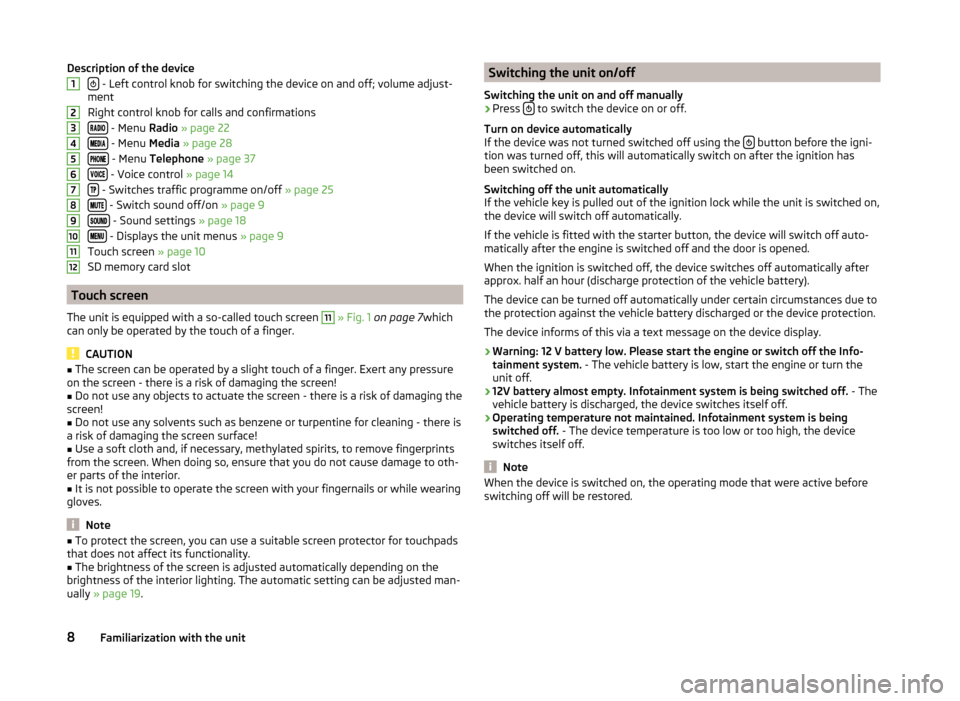
Description of the device
- Left control knob for switching the device on and off; volume adjust-
ment
Right control knob for calls and confirmations
- Menu Radio » page 22
- Menu Media » page 28
- Menu Telephone » page 37
- Voice control » page 14
- Switches traffic programme on/off » page 25
- Switch sound off/on » page 9
- Sound settings » page 18
- Displays the unit menus » page 9
Touch screen » page 10
SD memory card slot
Touch screen
The unit is equipped with a so-called touch screen
11
» Fig. 1 on page 7 which
can only be operated by the touch of a finger.
CAUTION
■ The screen can be operated by a slight touch of a finger. Exert any pressure
on the screen - there is a risk of damaging the screen!■
Do not use any objects to actuate the screen - there is a risk of damaging the
screen!
■
Do not use any solvents such as benzene or turpentine for cleaning - there is
a risk of damaging the screen surface!
■
Use a soft cloth and, if necessary, methylated spirits, to remove fingerprints
from the screen. When doing so, ensure that you do not cause damage to oth-
er parts of the interior.
■
It is not possible to operate the screen with your fingernails or while wearing
gloves.
Note
■ To protect the screen, you can use a suitable screen protector for touchpads
that does not affect its functionality.■
The brightness of the screen is adjusted automatically depending on the
brightness of the interior lighting. The automatic setting can be adjusted man-
ually » page 19 .
123456789101112Switching the unit on/off
Switching the unit on and off manually›
Press to switch the device on or off.
Turn on device automatically
If the device was not turned switched off using the
button before the igni-
tion was turned off, this will automatically switch on after the ignition has
been switched on.
Switching off the unit automatically
If the vehicle key is pulled out of the ignition lock while the unit is switched on,
the device will switch off automatically.
If the vehicle is fitted with the starter button, the device will switch off auto-
matically after the engine is switched off and the door is opened.
When the ignition is switched off, the device switches off automatically after
approx. half an hour (discharge protection of the vehicle battery).
The device can be turned off automatically under certain circumstances due to
the protection against the vehicle battery discharged or the device protection.
The device informs of this via a text message on the device display.
› Warning: 12 V battery low. Please start the engine or switch off the Info-
tainment system. - The vehicle battery is low, start the engine or turn the
unit off.
› 12V battery almost empty. Infotainment system is being switched off.
- The
vehicle battery is discharged, the device switches itself off.
› Operating temperature not maintained. Infotainment system is being
switched off. - The device temperature is too low or too high, the device
switches itself off.
Note
When the device is switched on, the operating mode that were active before
switching off will be restored.8Familiarization with the unit
Page 12 of 64
Unit menusFig. 2
Unit menus
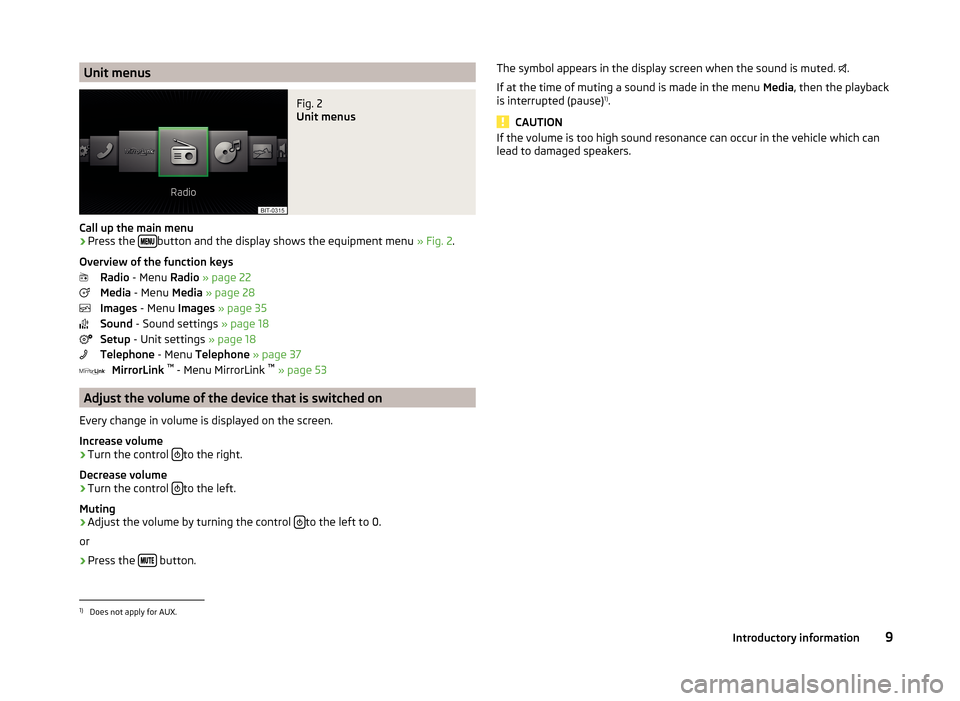
Call up the main menu
›
Press the button and the display shows the equipment menu
» Fig. 2.
Overview of the function keys Radio - Menu Radio » page 22
Media - Menu Media » page 28
Images - Menu Images » page 35
Sound - Sound settings » page 18
Setup - Unit settings » page 18
Telephone - Menu Telephone » page 37
MirrorLink ™
- Menu MirrorLink ™
» page 53
Adjust the volume of the device that is switched on
Every change in volume is displayed on the screen.
Increase volume
›
Turn the control to the right.
Decrease volume
›
Turn the control to the left.
Muting
›
Adjust the volume by turning the control to the left to 0.
or
›
Press the button.
The symbol appears in the display screen when the sound is muted.
.
If at the time of muting a sound is made in the menu Media, then the playback
is interrupted (pause) 1)
.
CAUTION
If the volume is too high sound resonance can occur in the vehicle which can
lead to damaged speakers.1)
Does not apply for AUX.
9Introductory information
Page 14 of 64
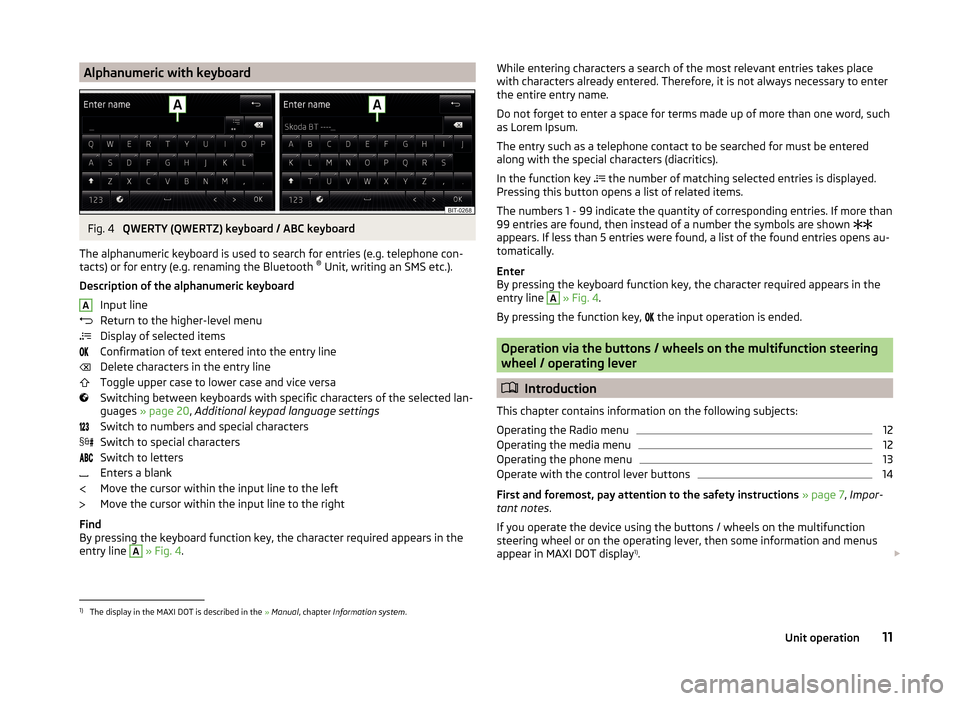
Alphanumeric with keyboardFig. 4
QWERTY (QWERTZ) keyboard / ABC keyboard
The alphanumeric keyboard is used to search for entries (e.g. telephone con-
tacts) or for entry (e.g. renaming the Bluetooth ®
Unit, writing an SMS etc.).
Description of the alphanumeric keyboard Input line
Return to the higher-level menu
Display of selected items
Confirmation of text entered into the entry line
Delete characters in the entry line
Toggle upper case to lower case and vice versa
Switching between keyboards with specific characters of the selected lan-
guages » page 20 , Additional keypad language settings
Switch to numbers and special characters
Switch to special characters
Switch to letters
Enters a blank
Move the cursor within the input line to the left
Move the cursor within the input line to the right
Find
By pressing the keyboard function key, the character required appears in the
entry line
A
» Fig. 4 .
AWhile entering characters a search of the most relevant entries takes place
with characters already entered. Therefore, it is not always necessary to enter
the entire entry name.
Do not forget to enter a space for terms made up of more than one word, such
as Lorem Ipsum.
The entry such as a telephone contact to be searched for must be entered
along with the special characters (diacritics).
In the function key
the number of matching selected entries is displayed.
Pressing this button opens a list of related items.
The numbers 1 - 99 indicate the quantity of corresponding entries. If more than 99 entries are found, then instead of a number the symbols are shown
appears. If less than 5 entries were found, a list of the found entries opens au-
tomatically.
Enter
By pressing the keyboard function key, the character required appears in the
entry line A
» Fig. 4 .
By pressing the function key, the input operation is ended.
Operation via the buttons / wheels on the multifunction steering
wheel / operating lever
Introduction
This chapter contains information on the following subjects:
Operating the Radio menu
12
Operating the media menu
12
Operating the phone menu
13
Operate with the control lever buttons
14
First and foremost, pay attention to the safety instructions » page 7 , Impor-
tant notes .
If you operate the device using the buttons / wheels on the multifunction
steering wheel or on the operating lever, then some information and menus
appear in MAXI DOT display 1)
.
1)
The display in the MAXI DOT is described in the
» Manual , chapter Information system .
11Unit operation
Page 16 of 64
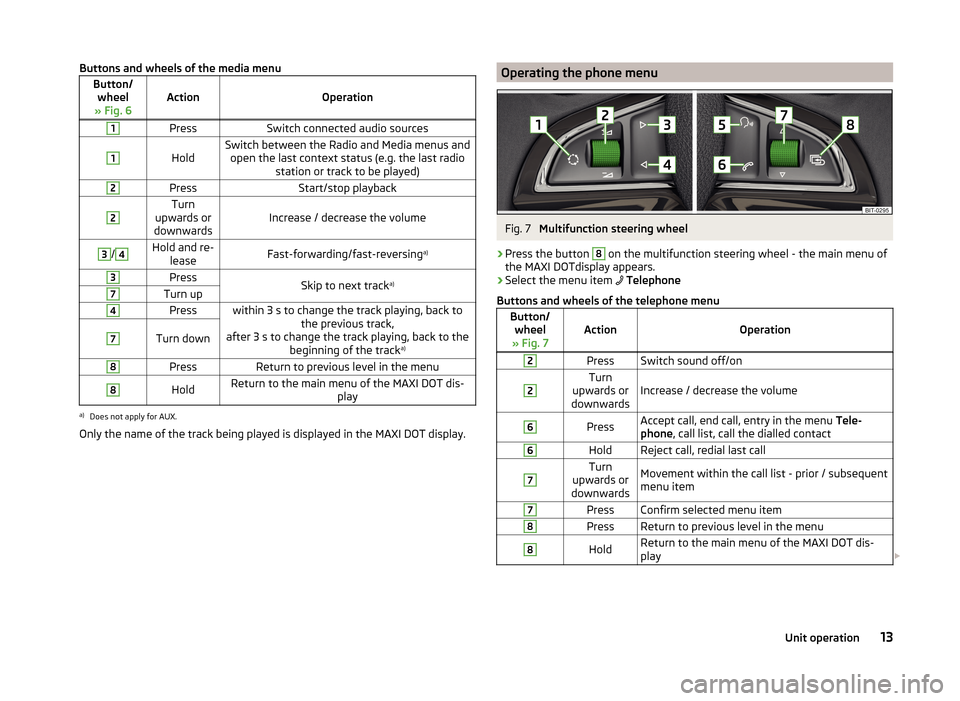
Buttons and wheels of the media menuButton/wheel
» Fig. 6ActionOperation
1PressSwitch connected audio sources1
HoldSwitch between the Radio and Media menus and open the last context status (e.g. the last radio station or track to be played)2PressStart/stop playback2Turn
upwards or
downwardsIncrease / decrease the volume
3/4Hold and re- leaseFast-forwarding/fast-reversing a)3PressSkip to next tracka)7Turn up4Presswithin 3 s to change the track playing, back to
the previous track,
after 3 s to change the track playing, back to the beginning of the track a)7Turn down8PressReturn to previous level in the menu8HoldReturn to the main menu of the MAXI DOT dis-
playa)
Does not apply for AUX.
Only the name of the track being played is displayed in the MAXI DOT display.
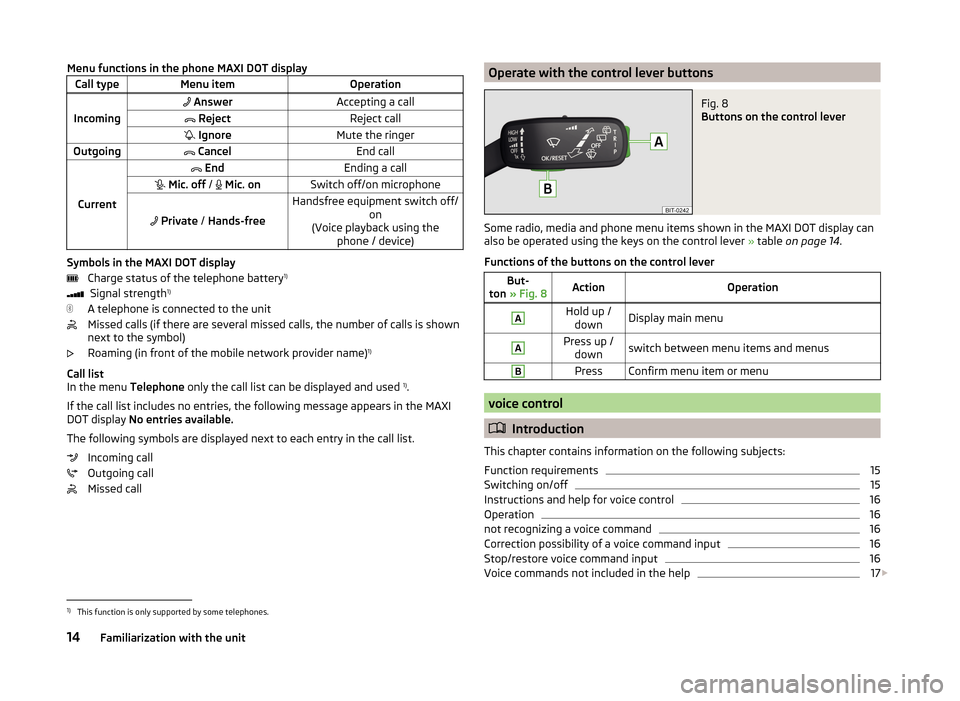
Operating the phone menuFig. 7
Multifunction steering wheel
›
Press the button
8
on the multifunction steering wheel - the main menu of
the MAXI DOTdisplay appears.
›
Select the menu item
Telephone
Buttons and wheels of the telephone menu
Button/ wheel
» Fig. 7ActionOperation
2PressSwitch sound off/on2Turn
upwards or
downwardsIncrease / decrease the volume
6PressAccept call, end call, entry in the menu Tele-
phone , call list, call the dialled contact6HoldReject call, redial last call7Turn
upwards or
downwardsMovement within the call list - prior / subsequent
menu item7PressConfirm selected menu item8PressReturn to previous level in the menu8HoldReturn to the main menu of the MAXI DOT dis-
play 13Unit operation
Page 17 of 64
Menu functions in the phone MAXI DOT displayCall typeMenu itemOperation
Incoming
AnswerAccepting a call RejectReject call IgnoreMute the ringerOutgoing CancelEnd call
Current
EndEnding a call Mic. off / Mic. onSwitch off/on microphone
Private / Hands-free
Handsfree equipment switch off/
on
(Voice playback using the phone / device)
Symbols in the MAXI DOT display
Charge status of the telephone battery 1)
Signal strength 1)
A telephone is connected to the unit
Missed calls (if there are several missed calls, the number of calls is shown
next to the symbol)
Roaming (in front of the mobile network provider name) 1)
Call list
In the menu Telephone only the call list can be displayed and used 1)
.
If the call list includes no entries, the following message appears in the MAXI
DOT display No entries available.
The following symbols are displayed next to each entry in the call list. Incoming call
Outgoing call
Missed call
Operate with the control lever buttonsFig. 8
Buttons on the control lever
Some radio, media and phone menu items shown in the MAXI DOT display can
also be operated using the keys on the control lever » table on page 14 .
Functions of the buttons on the control lever
But-
ton » Fig. 8ActionOperationAHold up /
downDisplay main menuAPress up / downswitch between menu items and menusBPressConfirm menu item or menu
voice control
Introduction
This chapter contains information on the following subjects:
Function requirements
15
Switching on/off
15
Instructions and help for voice control
16
Operation
16
not recognizing a voice command
16
Correction possibility of a voice command input
16
Stop/restore voice command input
16
Voice commands not included in the help
17
1)
This function is only supported by some telephones.
14Familiarization with the unit
Page 18 of 64
First and foremost, pay attention to the safety instructions » page 7 , Impor-
tant notes .
Some equipment functions can be operated by using voice commands. Thus,
the use of the device is accelerated and increased comfort while driving.
The voice control system can be used with the following menus.
› Radio
› Media
› Telephone
The voice control system can be used either by the driver or by the front pas-
senger.WARNINGDo not use the voice control function in an emergency or when under
stress. Your voice commands may not be recognized in such situations. The
telephone connection may not be established or the connection may take
too much time to complete. The emergency number should be dialled man-
ually!
Function requirements
Read and observe
on page 15 first.
Function requirements for voice control. The unit is switched on.
No phone call is in progress.
The parking aid is not active.
Requirements for optimum voice command recognition.
› The voice commands are only be spoken when the device screen or in the
MAXI DOT display the symbol
is displayed.
› Speak with a normal tone of voice without intonation and excessive pauses.
› Avoid a bad pronunciation.
› Close the doors, windows and sliding roof, in order to avoid disturbing envi-
ronmental influences on the function of the voice commands.
› It is recommended to speak louder at higher speeds, so that the tone of your
voice is louder than the increased surrounding noise.
› During voice control, limit additional noise in the vehicle, e.g. passengers
talking at the same time.
CAUTIONFor some languages, there is no voice control available. This device indicates
this fact through a text message that is displayed after setting the device lan-
guage screen » page 19.
Note
■
During voice control, no traffic announcements are played.■Some voice commands must be spelled out when pronouncing depending on
the selected language of communication, such as the Source Selection “ SD”
card .
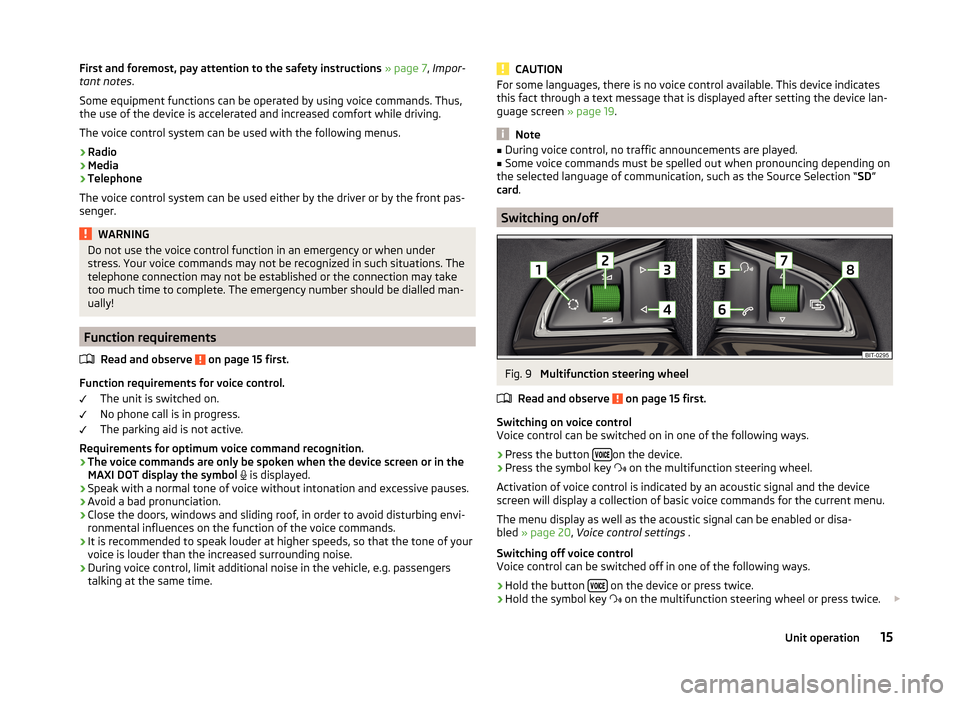
Switching on/off
Fig. 9
Multifunction steering wheel
Read and observe
on page 15 first.
Switching on voice control
Voice control can be switched on in one of the following ways.
›
Press the button on the device.
›
Press the symbol key
on the multifunction steering wheel.
Activation of voice control is indicated by an acoustic signal and the device
screen will display a collection of basic voice commands for the current menu.
The menu display as well as the acoustic signal can be enabled or disa-
bled » page 20 , Voice control settings .
Switching off voice control
Voice control can be switched off in one of the following ways.
›
Hold the button on the device or press twice.
›
Hold the symbol key
on the multifunction steering wheel or press twice.
15Unit operation