2014 SKODA YETI buttons
[x] Cancel search: buttonsPage 5 of 64
Table of Contents
Operating Instructions3
Notes
4
Declaration of conformity
5
Abbreviations
Familiarization with the unit
Introductory information
7
Important notes
7
Equipment overview
7
Unit operation
10
Operation on the device screen
10
Operation via the buttons / wheels on the multifunction steering wheel / operating
lever
11
voice control
14
Device Settings
18
Menu Sound
18
Menu Setup
18
Radio
22
Operation
22
Settings
26
Media
28
Operation
28
Audio sources
30
Pictures
35
Image viewer
35
Communication
37
Telephone
37
Pair
41
Connection
44
Dial telephone number
46Telephone functions49Text messages (SMS)50
MirrorLink ™
53
Index
2Table of Contents
Page 14 of 64
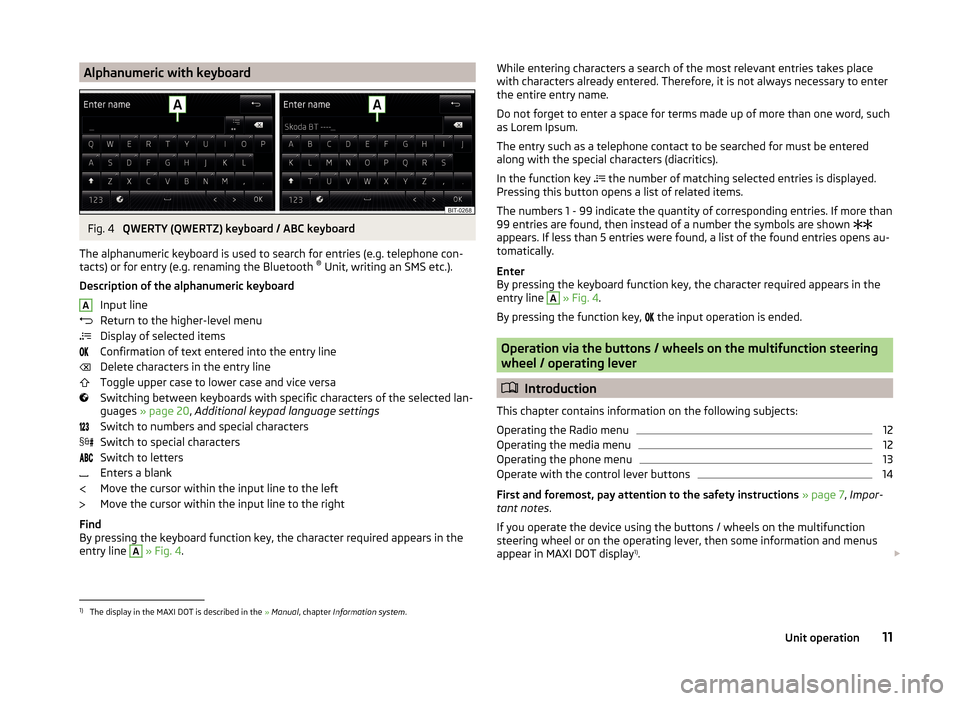
Alphanumeric with keyboardFig. 4
QWERTY (QWERTZ) keyboard / ABC keyboard
The alphanumeric keyboard is used to search for entries (e.g. telephone con-
tacts) or for entry (e.g. renaming the Bluetooth ®
Unit, writing an SMS etc.).
Description of the alphanumeric keyboard Input line
Return to the higher-level menu
Display of selected items
Confirmation of text entered into the entry line
Delete characters in the entry line
Toggle upper case to lower case and vice versa
Switching between keyboards with specific characters of the selected lan-
guages » page 20 , Additional keypad language settings
Switch to numbers and special characters
Switch to special characters
Switch to letters
Enters a blank
Move the cursor within the input line to the left
Move the cursor within the input line to the right
Find
By pressing the keyboard function key, the character required appears in the
entry line
A
» Fig. 4 .
AWhile entering characters a search of the most relevant entries takes place
with characters already entered. Therefore, it is not always necessary to enter
the entire entry name.
Do not forget to enter a space for terms made up of more than one word, such
as Lorem Ipsum.
The entry such as a telephone contact to be searched for must be entered
along with the special characters (diacritics).
In the function key
the number of matching selected entries is displayed.
Pressing this button opens a list of related items.
The numbers 1 - 99 indicate the quantity of corresponding entries. If more than 99 entries are found, then instead of a number the symbols are shown
appears. If less than 5 entries were found, a list of the found entries opens au-
tomatically.
Enter
By pressing the keyboard function key, the character required appears in the
entry line A
» Fig. 4 .
By pressing the function key, the input operation is ended.
Operation via the buttons / wheels on the multifunction steering
wheel / operating lever
Introduction
This chapter contains information on the following subjects:
Operating the Radio menu
12
Operating the media menu
12
Operating the phone menu
13
Operate with the control lever buttons
14
First and foremost, pay attention to the safety instructions » page 7 , Impor-
tant notes .
If you operate the device using the buttons / wheels on the multifunction
steering wheel or on the operating lever, then some information and menus
appear in MAXI DOT display 1)
.
1)
The display in the MAXI DOT is described in the
» Manual , chapter Information system .
11Unit operation
Page 15 of 64
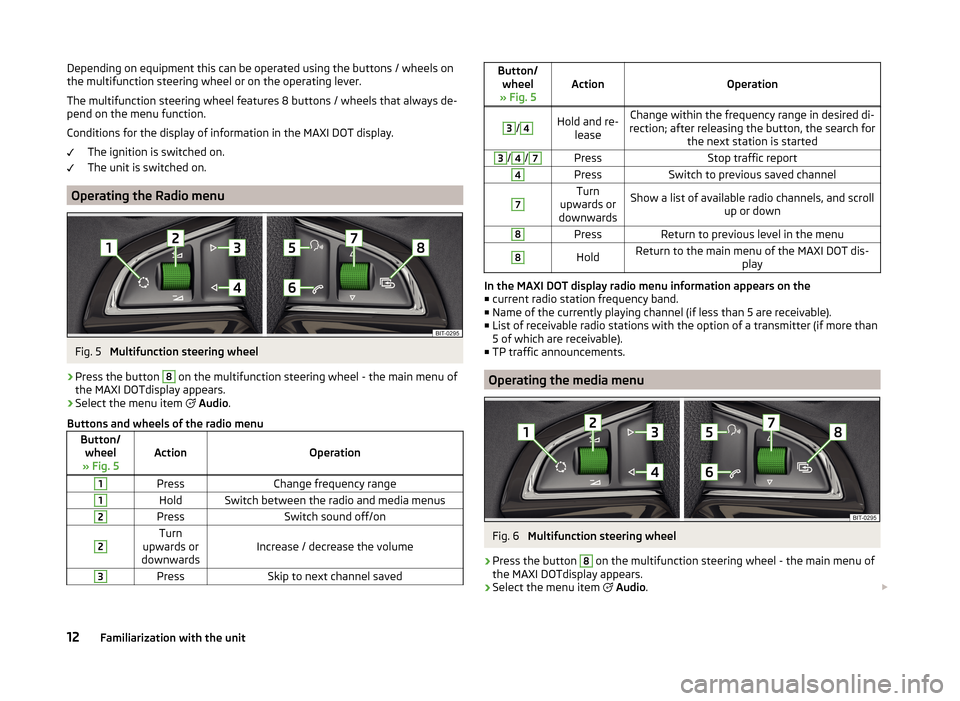
Depending on equipment this can be operated using the buttons / wheels on
the multifunction steering wheel or on the operating lever.
The multifunction steering wheel features 8 buttons / wheels that always de-
pend on the menu function.
Conditions for the display of information in the MAXI DOT display. The ignition is switched on.
The unit is switched on.
Operating the Radio menu
Fig. 5
Multifunction steering wheel
›
Press the button
8
on the multifunction steering wheel - the main menu of
the MAXI DOTdisplay appears.
›
Select the menu item
Audio .
Buttons and wheels of the radio menu
Button/ wheel
» Fig. 5ActionOperation
1PressChange frequency range1HoldSwitch between the radio and media menus2PressSwitch sound off/on2Turn
upwards or
downwardsIncrease / decrease the volume
3PressSkip to next channel savedButton/ wheel
» Fig. 5ActionOperation
3
/
4Hold and re- leaseChange within the frequency range in desired di-
rection; after releasing the button, the search for the next station is started3/4/7PressStop traffic report4PressSwitch to previous saved channel7Turn
upwards or
downwardsShow a list of available radio channels, and scroll up or down8PressReturn to previous level in the menu8HoldReturn to the main menu of the MAXI DOT dis- play
In the MAXI DOT display radio menu information appears on the■ current radio station frequency band.
■ Name of the currently playing channel (if less than 5 are receivable).
■ List of receivable radio stations with the option of a transmitter (if more than
5 of which are receivable).
■ TP traffic announcements.
Operating the media menu
Fig. 6
Multifunction steering wheel
›
Press the button
8
on the multifunction steering wheel - the main menu of
the MAXI DOTdisplay appears.
›
Select the menu item
Audio .
12Familiarization with the unit
Page 16 of 64
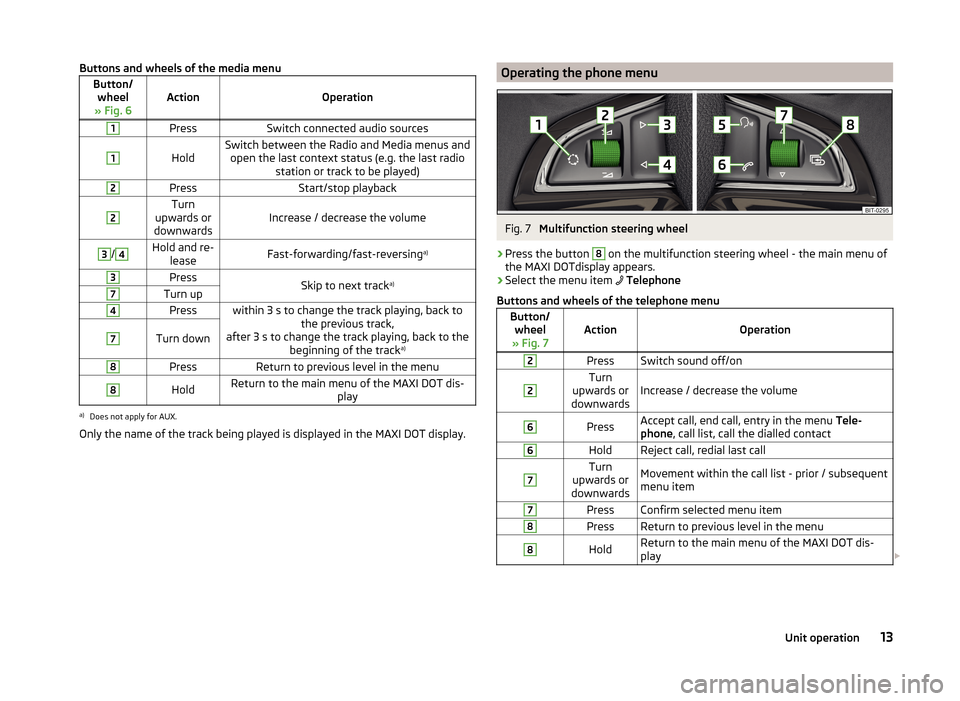
Buttons and wheels of the media menuButton/wheel
» Fig. 6ActionOperation
1PressSwitch connected audio sources1
HoldSwitch between the Radio and Media menus and open the last context status (e.g. the last radio station or track to be played)2PressStart/stop playback2Turn
upwards or
downwardsIncrease / decrease the volume
3/4Hold and re- leaseFast-forwarding/fast-reversing a)3PressSkip to next tracka)7Turn up4Presswithin 3 s to change the track playing, back to
the previous track,
after 3 s to change the track playing, back to the beginning of the track a)7Turn down8PressReturn to previous level in the menu8HoldReturn to the main menu of the MAXI DOT dis-
playa)
Does not apply for AUX.
Only the name of the track being played is displayed in the MAXI DOT display.
Operating the phone menuFig. 7
Multifunction steering wheel
›
Press the button
8
on the multifunction steering wheel - the main menu of
the MAXI DOTdisplay appears.
›
Select the menu item
Telephone
Buttons and wheels of the telephone menu
Button/ wheel
» Fig. 7ActionOperation
2PressSwitch sound off/on2Turn
upwards or
downwardsIncrease / decrease the volume
6PressAccept call, end call, entry in the menu Tele-
phone , call list, call the dialled contact6HoldReject call, redial last call7Turn
upwards or
downwardsMovement within the call list - prior / subsequent
menu item7PressConfirm selected menu item8PressReturn to previous level in the menu8HoldReturn to the main menu of the MAXI DOT dis-
play 13Unit operation
Page 17 of 64
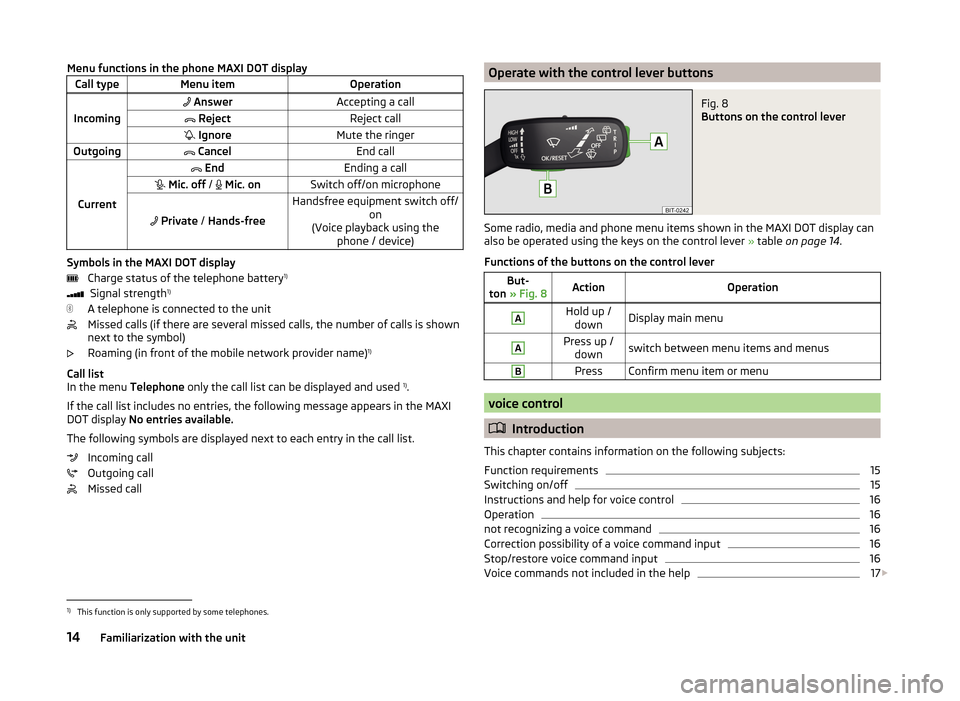
Menu functions in the phone MAXI DOT displayCall typeMenu itemOperation
Incoming
AnswerAccepting a call RejectReject call IgnoreMute the ringerOutgoing CancelEnd call
Current
EndEnding a call Mic. off / Mic. onSwitch off/on microphone
Private / Hands-free
Handsfree equipment switch off/
on
(Voice playback using the phone / device)
Symbols in the MAXI DOT display
Charge status of the telephone battery 1)
Signal strength 1)
A telephone is connected to the unit
Missed calls (if there are several missed calls, the number of calls is shown
next to the symbol)
Roaming (in front of the mobile network provider name) 1)
Call list
In the menu Telephone only the call list can be displayed and used 1)
.
If the call list includes no entries, the following message appears in the MAXI
DOT display No entries available.
The following symbols are displayed next to each entry in the call list. Incoming call
Outgoing call
Missed call
Operate with the control lever buttonsFig. 8
Buttons on the control lever
Some radio, media and phone menu items shown in the MAXI DOT display can
also be operated using the keys on the control lever » table on page 14 .
Functions of the buttons on the control lever
But-
ton » Fig. 8ActionOperationAHold up /
downDisplay main menuAPress up / downswitch between menu items and menusBPressConfirm menu item or menu
voice control
Introduction
This chapter contains information on the following subjects:
Function requirements
15
Switching on/off
15
Instructions and help for voice control
16
Operation
16
not recognizing a voice command
16
Correction possibility of a voice command input
16
Stop/restore voice command input
16
Voice commands not included in the help
17
1)
This function is only supported by some telephones.
14Familiarization with the unit
Page 25 of 64
Radio
Operation
Introduction
This chapter contains information on the following subjects:
Main menu
22
Radio DAB text and images presentation
23
Select the frequency range
23
List of available stations
23
Search and select available stations
24
Save radio station
24
Station logos
25
TP Traffic programme
25
First and foremost, pay attention to the safety instructions » page 7 , Impor-
tant notes .
The device allows analogue radio reception of FM and AM frequency ranges as
well as DAB digital radio reception.
CAUTION
■ For vehicles with window antennas do not stick foil or metal coated stickers
to the window as this can lead to interference.■
Car parks, tunnels, tall buildings or mountains can interfere with the radio
signal even causing it to fail completely.
Note
In countries where the RDS function is not supported, we recommend turning
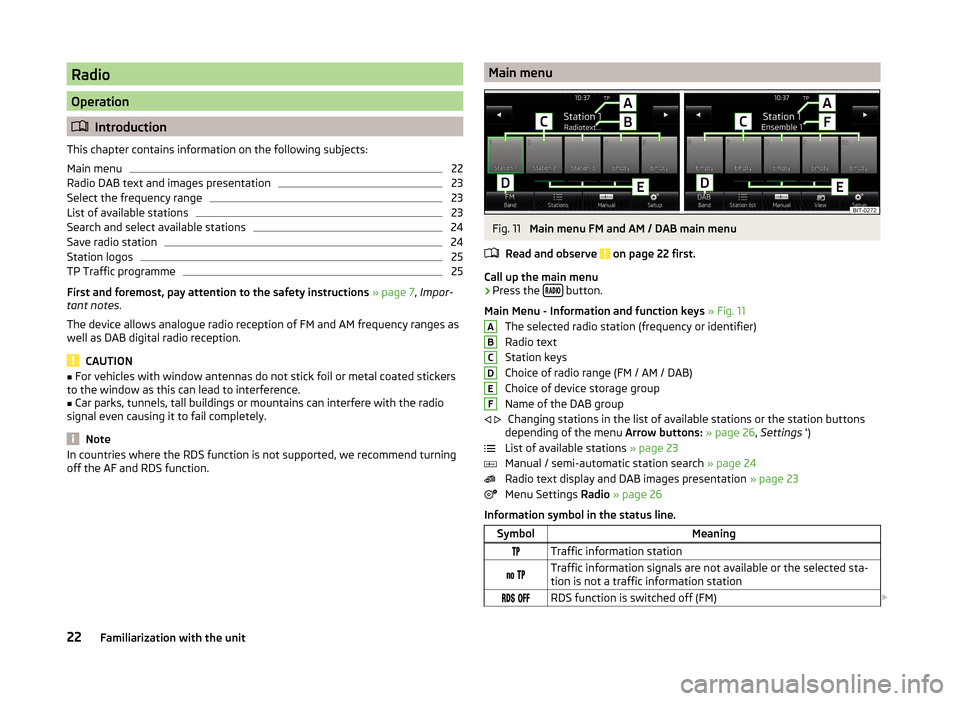
off the AF and RDS function.Main menuFig. 11
Main menu FM and AM / DAB main menu
Read and observe
on page 22 first.
Call up the main menu
›
Press the button.
Main Menu - Information and function keys » Fig. 11
The selected radio station (frequency or identifier)
Radio text
Station keys
Choice of radio range (FM / AM / DAB)
Choice of device storage group
Name of the DAB group Changing stations in the list of available stations or the station buttons
depending of the menu Arrow buttons: » page 26 , Settings ')
List of available stations » page 23
Manual / semi-automatic station search » page 24
Radio text display and DAB images presentation » page 23
Menu Settings Radio » page 26
Information symbol in the status line.
SymbolMeaningTraffic information station Traffic information signals are not available or the selected sta-
tion is not a traffic information station RDS function is switched off (FM) ABCDEF
22Familiarization with the unit
Page 27 of 64
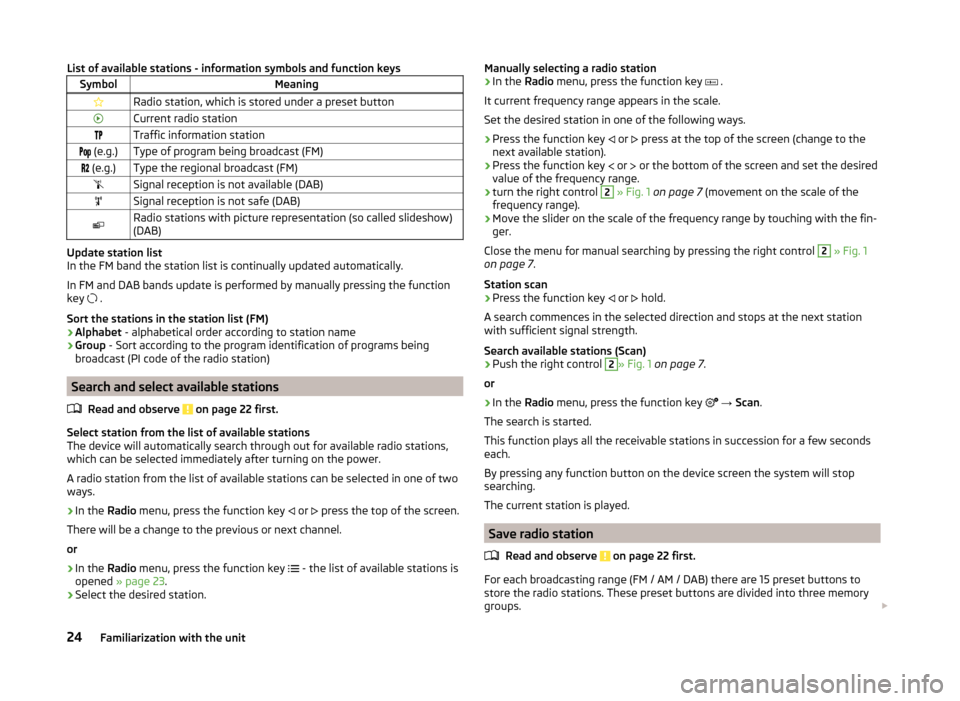
List of available stations - information symbols and function keysSymbolMeaningRadio station, which is stored under a preset buttonCurrent radio stationTraffic information station (e.g.)Type of program being broadcast (FM) (e.g.)Type the regional broadcast (FM)Signal reception is not available (DAB)Signal reception is not safe (DAB)Radio stations with picture representation (so called slideshow)
(DAB)
Update station list
In the FM band the station list is continually updated automatically.
In FM and DAB bands update is performed by manually pressing the function
key .
Sort the stations in the station list (FM) › Alphabet
- alphabetical order according to station name
› Group
- Sort according to the program identification of programs being
broadcast (PI code of the radio station)
Search and select available stations
Read and observe
on page 22 first.
Select station from the list of available stations
The device will automatically search through out for available radio stations,
which can be selected immediately after turning on the power.
A radio station from the list of available stations can be selected in one of two
ways.
›
In the Radio menu, press the function key
or
press the top of the screen.
There will be a change to the previous or next channel.
or
›
In the Radio menu, press the function key
- the list of available stations is
opened » page 23 .
›
Select the desired station.
Manually selecting a radio station›In the Radio menu, press the function key .
It current frequency range appears in the scale.
Set the desired station in one of the following ways.›
Press the function key
or
press at the top of the screen (change to the
next available station).
›
Press the function key
or
or the bottom of the screen and set the desired
value of the frequency range.
›
turn the right control
2
» Fig. 1 on page 7 (movement on the scale of the
frequency range).
›
Move the slider on the scale of the frequency range by touching with the fin-
ger.
Close the menu for manual searching by pressing the right control
2
» Fig. 1
on page 7 .
Station scan
›
Press the function key or
hold.
A search commences in the selected direction and stops at the next station with sufficient signal strength.
Search available stations (Scan)
›
Push the right control
2
» Fig. 1 on page 7 .
or
›
In the Radio menu, press the function key
→ Scan .
The search is started.
This function plays all the receivable stations in succession for a few seconds
each.
By pressing any function button on the device screen the system will stop
searching.
The current station is played.
Save radio station
Read and observe
on page 22 first.
For each broadcasting range (FM / AM / DAB) there are 15 preset buttons to
store the radio stations. These preset buttons are divided into three memory
groups.
24Familiarization with the unit
Page 28 of 64
A radio station can be stored in the device memory in one of the following
ways.
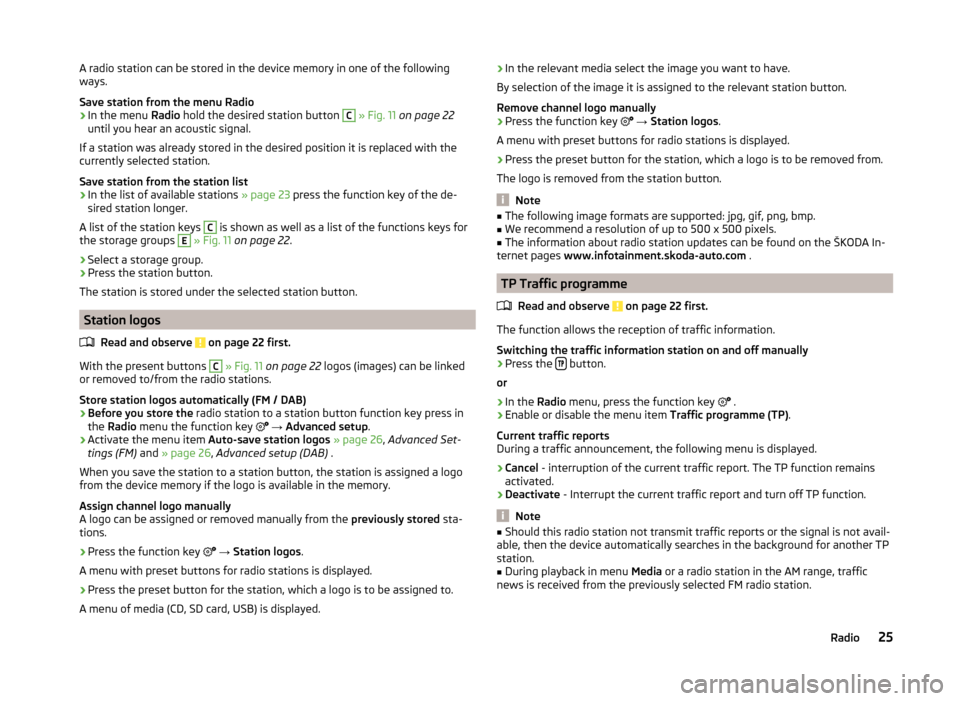
Save station from the menu Radio›
In the menu Radio hold the desired station button
C
» Fig. 11 on page 22
until you hear an acoustic signal.
If a station was already stored in the desired position it is replaced with the
currently selected station.
Save station from the station list
›
In the list of available stations » page 23 press the function key of the de-
sired station longer.
A list of the station keys
C
is shown as well as a list of the functions keys for
the storage groups
E
» Fig. 11 on page 22 .
›
Select a storage group.
›
Press the station button.
The station is stored under the selected station button.
Station logos
Read and observe
on page 22 first.
With the present buttons
C
» Fig. 11 on page 22 logos (images) can be linked
or removed to/from the radio stations.
Store station logos automatically (FM / DAB)
›
Before you store the radio station to a station button function key press in
the Radio menu the function key
→ Advanced setup .
›
Activate the menu item Auto-save station logos » page 26 , Advanced Set-
tings (FM) and » page 26 , Advanced setup (DAB) .
When you save the station to a station button, the station is assigned a logo
from the device memory if the logo is available in the memory.
Assign channel logo manually
A logo can be assigned or removed manually from the previously stored sta-
tions.
›
Press the function key
→ Station logos .
A menu with preset buttons for radio stations is displayed.
›
Press the preset button for the station, which a logo is to be assigned to.
A menu of media (CD, SD card, USB) is displayed.
› In the relevant media select the image you want to have.
By selection of the image it is assigned to the relevant station button.
Remove channel logo manually›
Press the function key
→ Station logos .
A menu with preset buttons for radio stations is displayed.
›
Press the preset button for the station, which a logo is to be removed from.
The logo is removed from the station button.
Note
■ The following image formats are supported: jpg, gif, png, bmp.■We recommend a resolution of up to 500 x 500 pixels.■
The information about radio station updates can be found on the ŠKODA In-
ternet pages www.infotainment.skoda-auto.com .
TP Traffic programme
Read and observe
on page 22 first.
The function allows the reception of traffic information.
Switching the traffic information station on and off manually
›
Press the button.
or
›
In the Radio menu, press the function key
.
›
Enable or disable the menu item
Traffic programme (TP).
Current traffic reports
During a traffic announcement, the following menu is displayed.
›
Cancel - interruption of the current traffic report. The TP function remains
activated.
›
Deactivate - Interrupt the current traffic report and turn off TP function.
Note
■
Should this radio station not transmit traffic reports or the signal is not avail-
able, then the device automatically searches in the background for another TP
station.■
During playback in menu Media or a radio station in the AM range, traffic
news is received from the previously selected FM radio station.
25Radio