Page 290 of 432
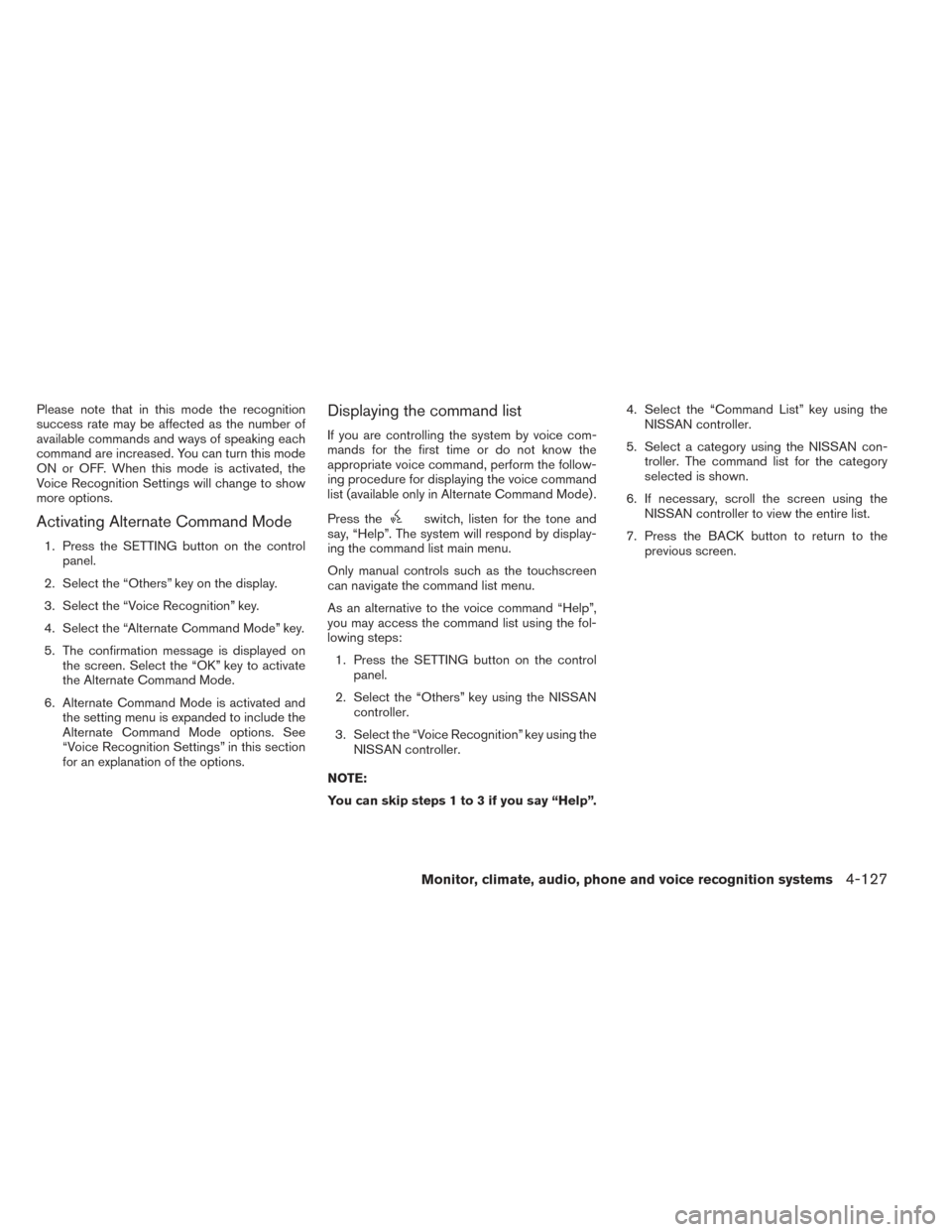
Please note that in this mode the recognition
success rate may be affected as the number of
available commands and ways of speaking each
command are increased. You can turn this mode
ON or OFF. When this mode is activated, the
Voice Recognition Settings will change to show
more options.
Activating Alternate Command Mode
1. Press the SETTING button on the controlpanel.
2. Select the “Others” key on the display.
3. Select the “Voice Recognition” key.
4. Select the “Alternate Command Mode” key.
5. The confirmation message is displayed on the screen. Select the “OK” key to activate
the Alternate Command Mode.
6. Alternate Command Mode is activated and the setting menu is expanded to include the
Alternate Command Mode options. See
“Voice Recognition Settings” in this section
for an explanation of the options.
Displaying the command list
If you are controlling the system by voice com-
mands for the first time or do not know the
appropriate voice command, perform the follow-
ing procedure for displaying the voice command
list (available only in Alternate Command Mode) .
Press the
switch, listen for the tone and
say, “Help”. The system will respond by display-
ing the command list main menu.
Only manual controls such as the touchscreen
can navigate the command list menu.
As an alternative to the voice command “Help”,
you may access the command list using the fol-
lowing steps:
1. Press the SETTING button on the control panel.
2. Select the “Others” key using the NISSAN controller.
3. Select the “Voice Recognition” key using the NISSAN controller.
NOTE:
You can skip steps 1 to 3 if you say “Help”. 4. Select the “Command List” key using the
NISSAN controller.
5. Select a category using the NISSAN con- troller. The command list for the category
selected is shown.
6. If necessary, scroll the screen using the NISSAN controller to view the entire list.
7. Press the BACK button to return to the previous screen.
Monitor, climate, audio, phone and voice recognition systems4-127
Page 293 of 432
Displaying user guide
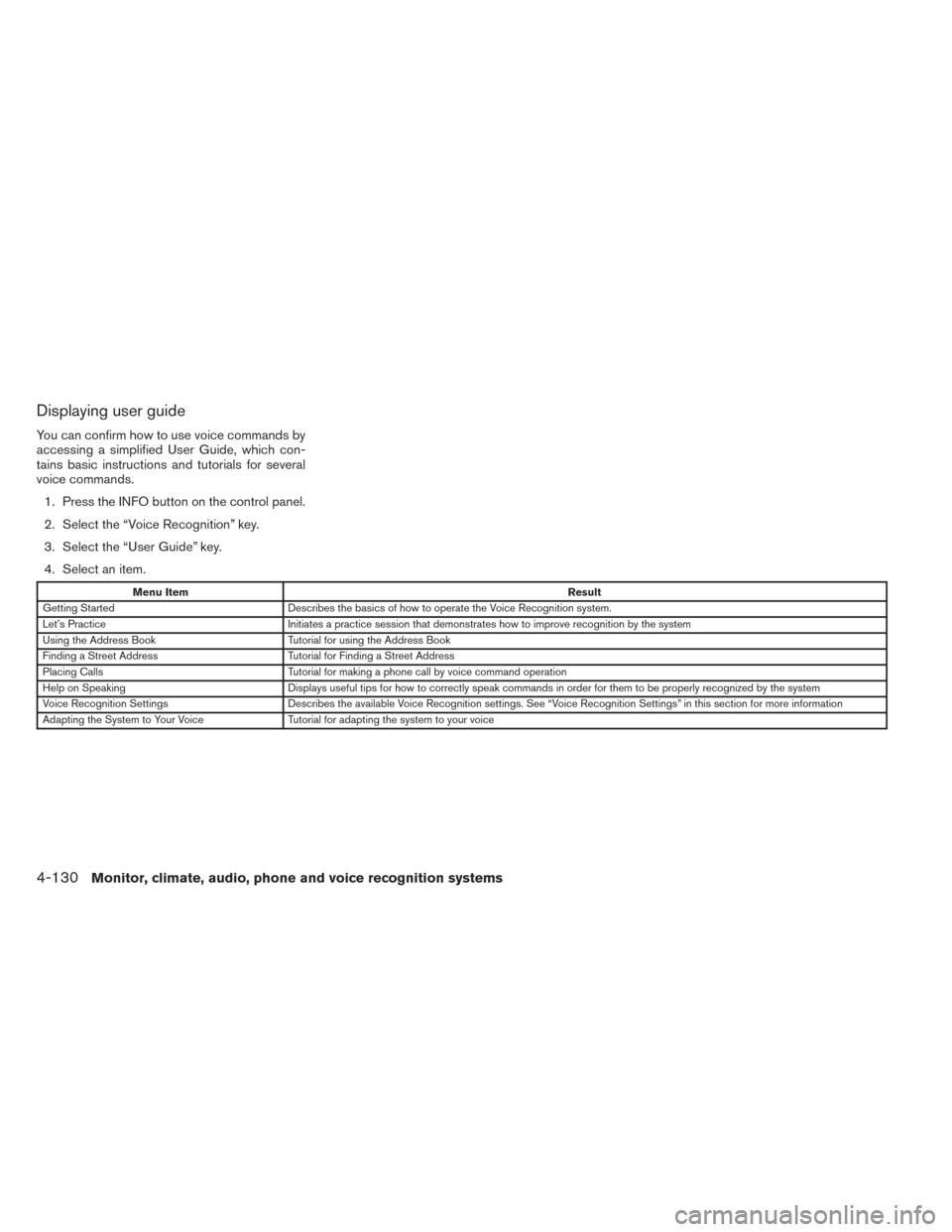
You can confirm how to use voice commands by
accessing a simplified User Guide, which con-
tains basic instructions and tutorials for several
voice commands.1. Press the INFO button on the control panel.
2. Select the “Voice Recognition” key.
3. Select the “User Guide” key.
4. Select an item.
Menu Item Result
Getting Started Describes the basics of how to operate the Voice Recognition system.
Let’s Practice Initiates a practice session that demonstrates how to improve recognition by the system
Using the Address Book Tutorial for using the Address Book
Finding a Street Address Tutorial for Finding a Street Address
Placing Calls Tutorial for making a phone call by voice command operation
Help on Speaking Displays useful tips for how to correctly speak commands in order for them to be properly recognized by the system
Voice Recognition Settings Describes the available Voice Recognition settings. See “Voice Recognition Settings” in this section for more information
Adapting the System to Your Voice Tutorial for adapting the system to your voice
4-130Monitor, climate, audio, phone and voice recognition systems
Page 296 of 432
Voice recognition settings
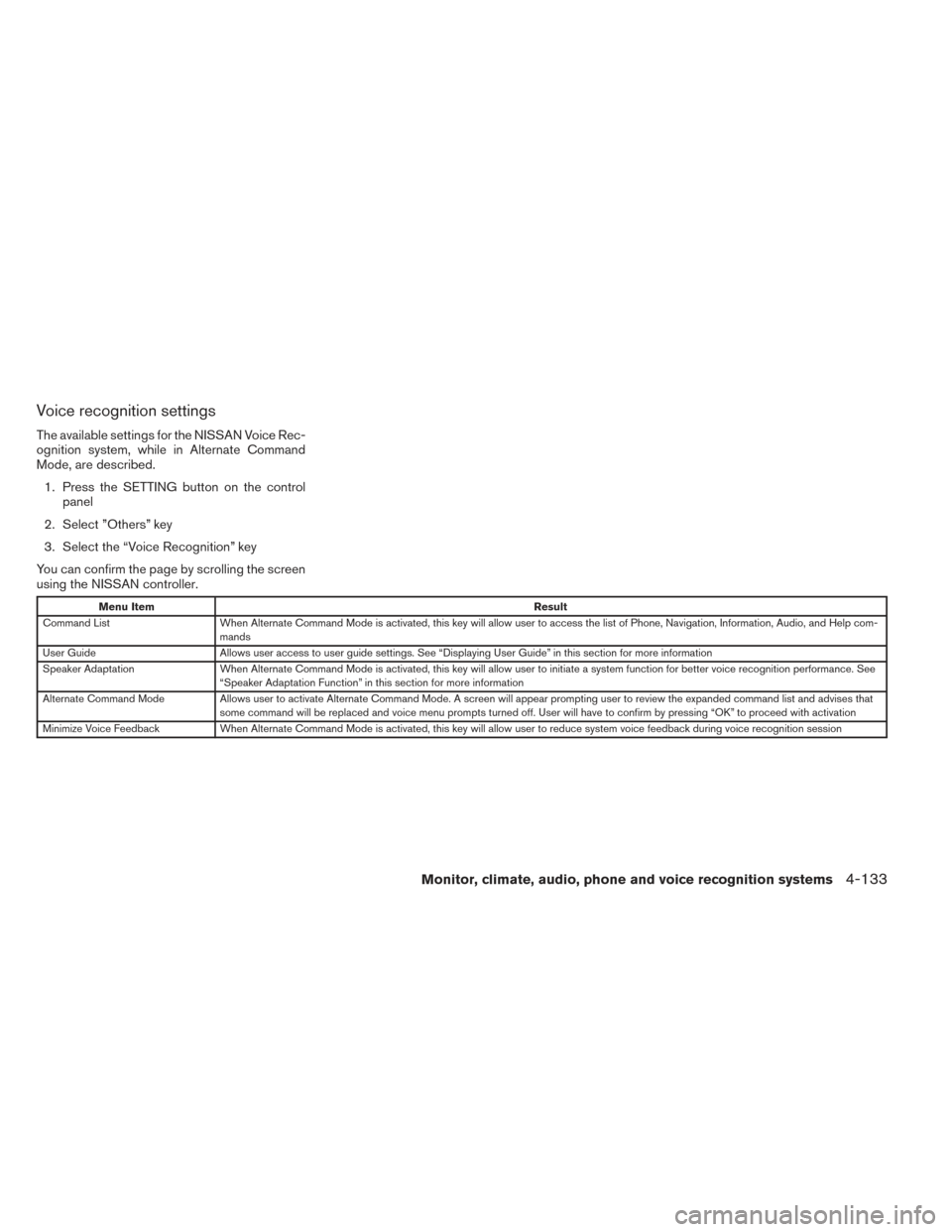
The available settings for the NISSAN Voice Rec-
ognition system, while in Alternate Command
Mode, are described.1. Press the SETTING button on the control panel
2. Select ”Others” key
3. Select the “Voice Recognition” key
You can confirm the page by scrolling the screen
using the NISSAN controller.
Menu Item Result
Command List When Alternate Command Mode is activated, this key will allow user to access the list of Phone, Navigation, Information, Audio, and Help com-
mands
User Guide Allows user access to user guide settings. See “Displaying User Guide” in this section for more information
Speaker Adaptation When Alternate Command Mode is activated, this key will allow user to initiate a system function for better voice recognition performance. See
“Speaker Adaptation Function” in this section for more information
Alternate Command Mode Allows user to activate Alternate Command Mode. A screen will appear prompting user to review the expanded command list and advises that
some command will be replaced and voice menu prompts turned off. User will have to confirm by pressing “OK” to proceed with activation
Minimize Voice Feedback When Alternate Command Mode is activated, this key will allow user to reduce system voice feedback during voice recognition session
Monitor, climate, audio, phone and voice recognition systems4-133
Page 298 of 432
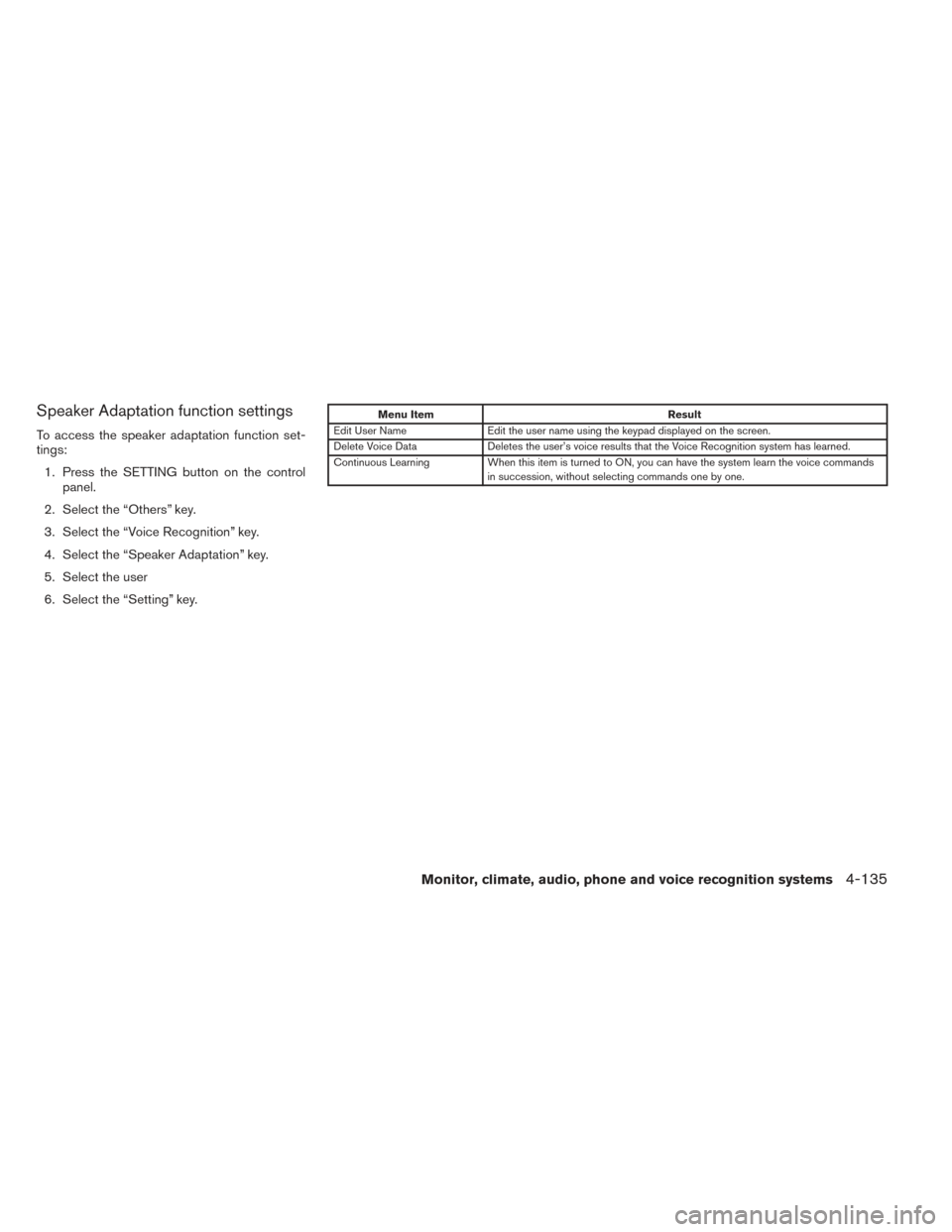
Speaker Adaptation function settings
To access the speaker adaptation function set-
tings:1. Press the SETTING button on the control panel.
2. Select the “Others” key.
3. Select the “Voice Recognition” key.
4. Select the “Speaker Adaptation” key.
5. Select the user
6. Select the “Setting” key.
Menu Item Result
Edit User Name Edit the user name using the keypad displayed on the screen.
Delete Voice Data Deletes the user’s voice results that the Voice Recognition system has learned.
Continuous Learning When this item is turned to ON, you can have the system learn the voice commands
in succession, without selecting commands one by one.
Monitor, climate, audio, phone and voice recognition systems4-135