Page 244 of 432
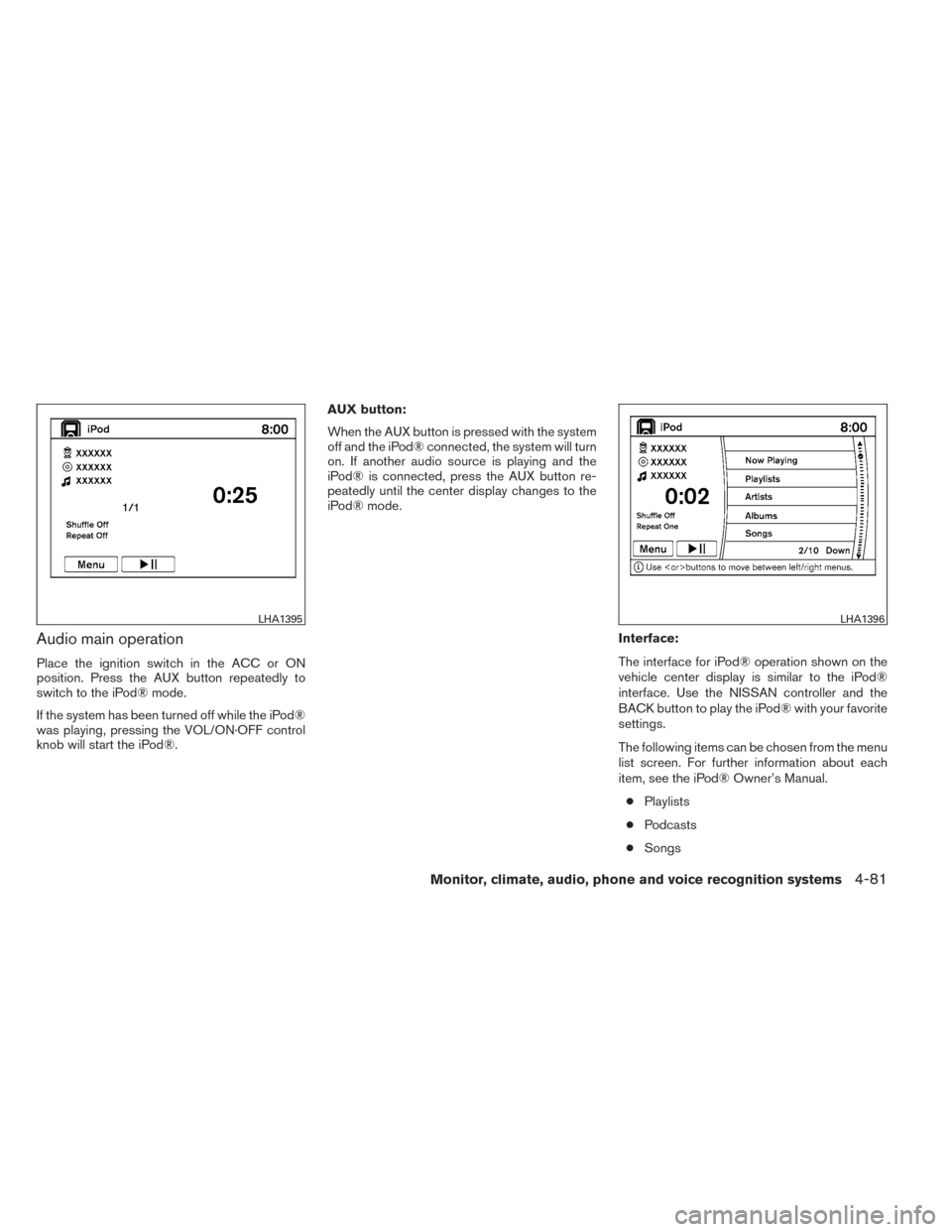
Audio main operation
Place the ignition switch in the ACC or ON
position. Press the AUX button repeatedly to
switch to the iPod® mode.
If the system has been turned off while the iPod®
was playing, pressing the VOL/ON·OFF control
knob will start the iPod®.AUX button:
When the AUX button is pressed with the system
off and the iPod® connected, the system will turn
on. If another audio source is playing and the
iPod® is connected, press the AUX button re-
peatedly until the center display changes to the
iPod® mode.
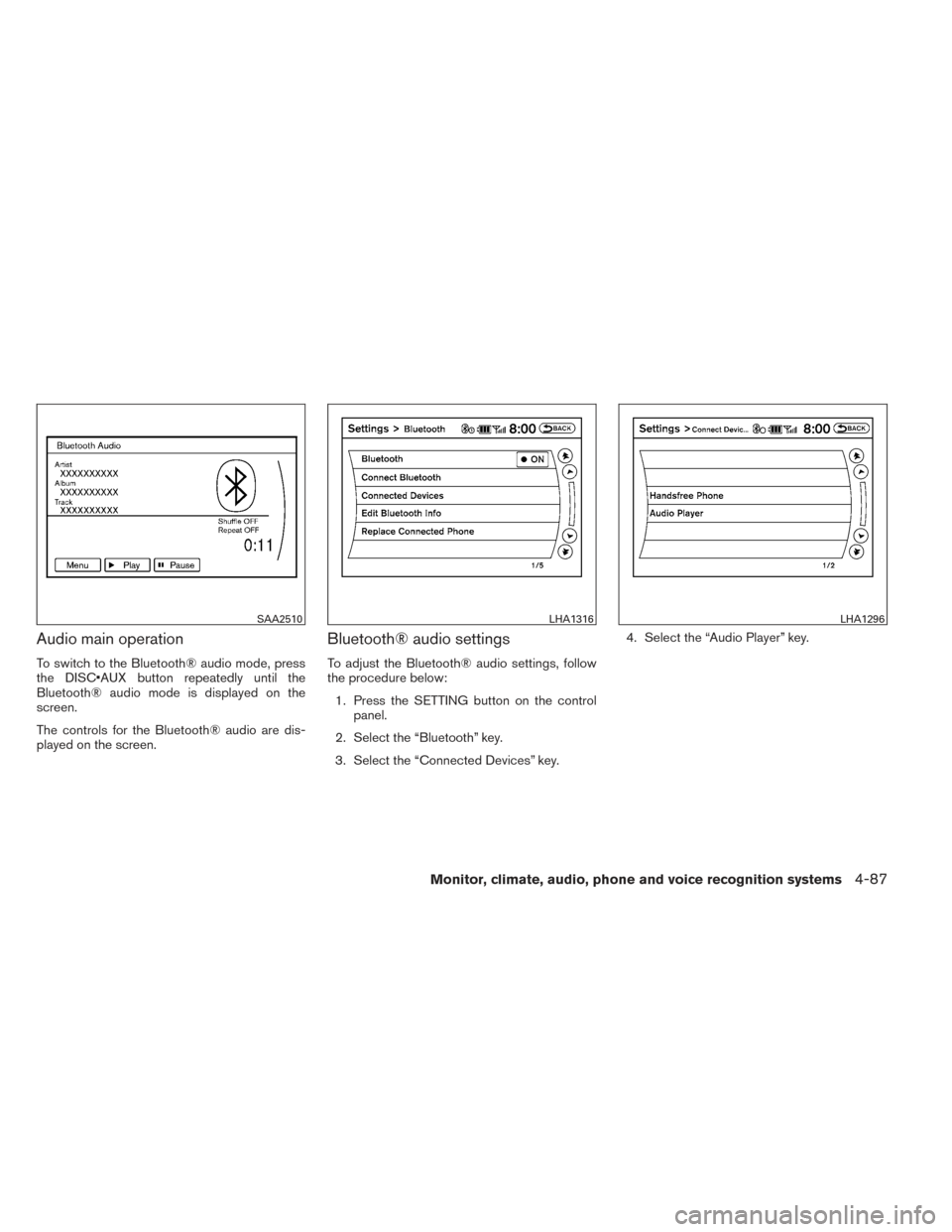
Interface:
The interface for iPod® operation shown on the
vehicle center display is similar to the iPod®
interface. Use the NISSAN controller and the
BACK button to play the iPod® with your favorite
settings.
The following items can be chosen from the menu
list screen. For further information about each
item, see the iPod® Owner’s Manual.● Playlists
● Podcasts
● Songs
LHA1395LHA1396
Monitor, climate, audio, phone and voice recognition systems4-81
Page 247 of 432
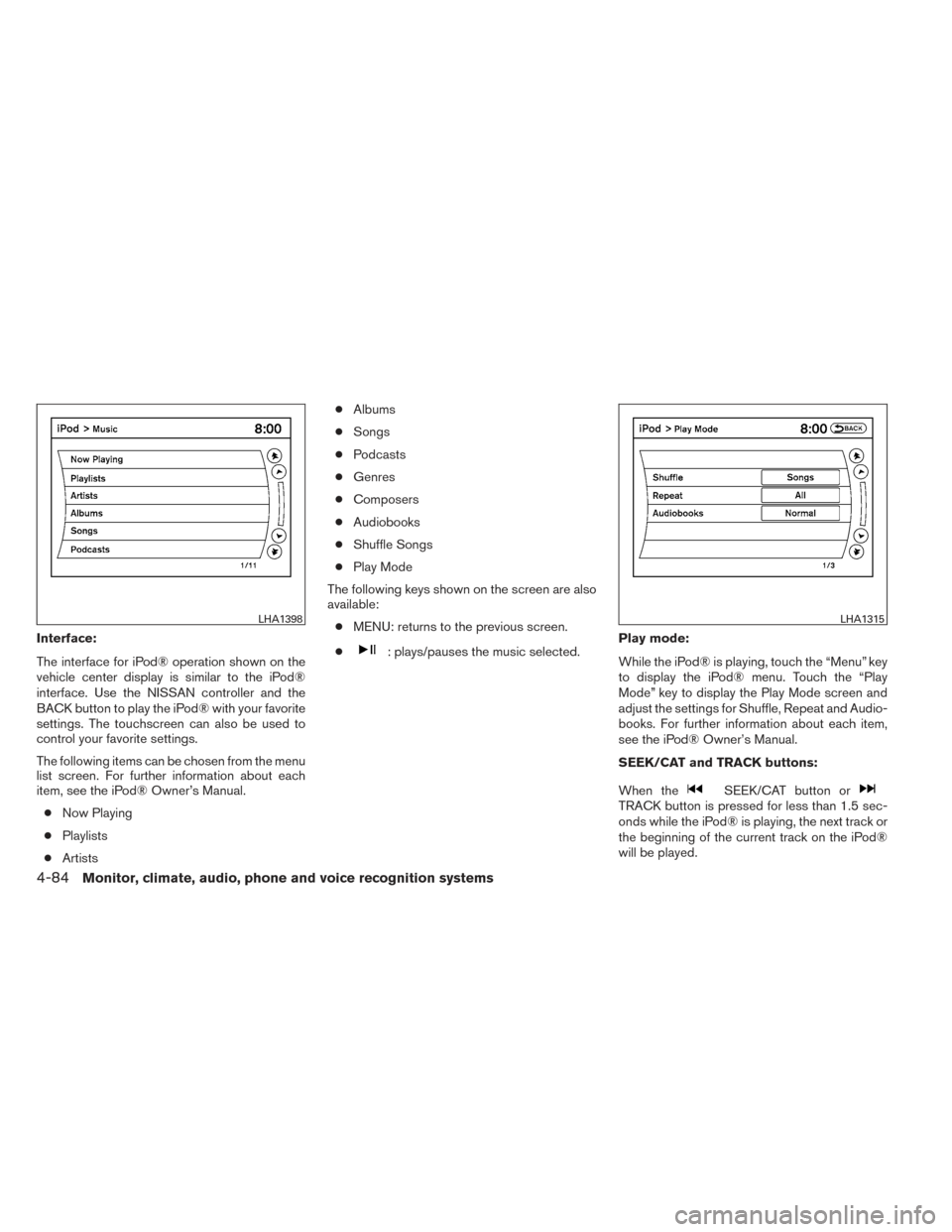
Interface:
The interface for iPod® operation shown on the
vehicle center display is similar to the iPod®
interface. Use the NISSAN controller and the
BACK button to play the iPod® with your favorite
settings. The touchscreen can also be used to
control your favorite settings.
The following items can be chosen from the menu
list screen. For further information about each
item, see the iPod® Owner’s Manual.● Now Playing
● Playlists
● Artists ●
Albums
● Songs
● Podcasts
● Genres
● Composers
● Audiobooks
● Shuffle Songs
● Play Mode
The following keys shown on the screen are also
available: ● MENU: returns to the previous screen.
●: plays/pauses the music selected. Play mode:
While the iPod® is playing, touch the “Menu” key
to display the iPod® menu. Touch the “Play
Mode” key to display the Play Mode screen and
adjust the settings for Shuffle, Repeat and Audio-
books. For further information about each item,
see the iPod® Owner’s Manual.
SEEK/CAT and TRACK buttons:
When the
SEEK/CAT button orTRACK button is pressed for less than 1.5 sec-
onds while the iPod® is playing, the next track or
the beginning of the current track on the iPod®
will be played.
LHA1398LHA1315
4-84Monitor, climate, audio, phone and voice recognition systems
Page 250 of 432
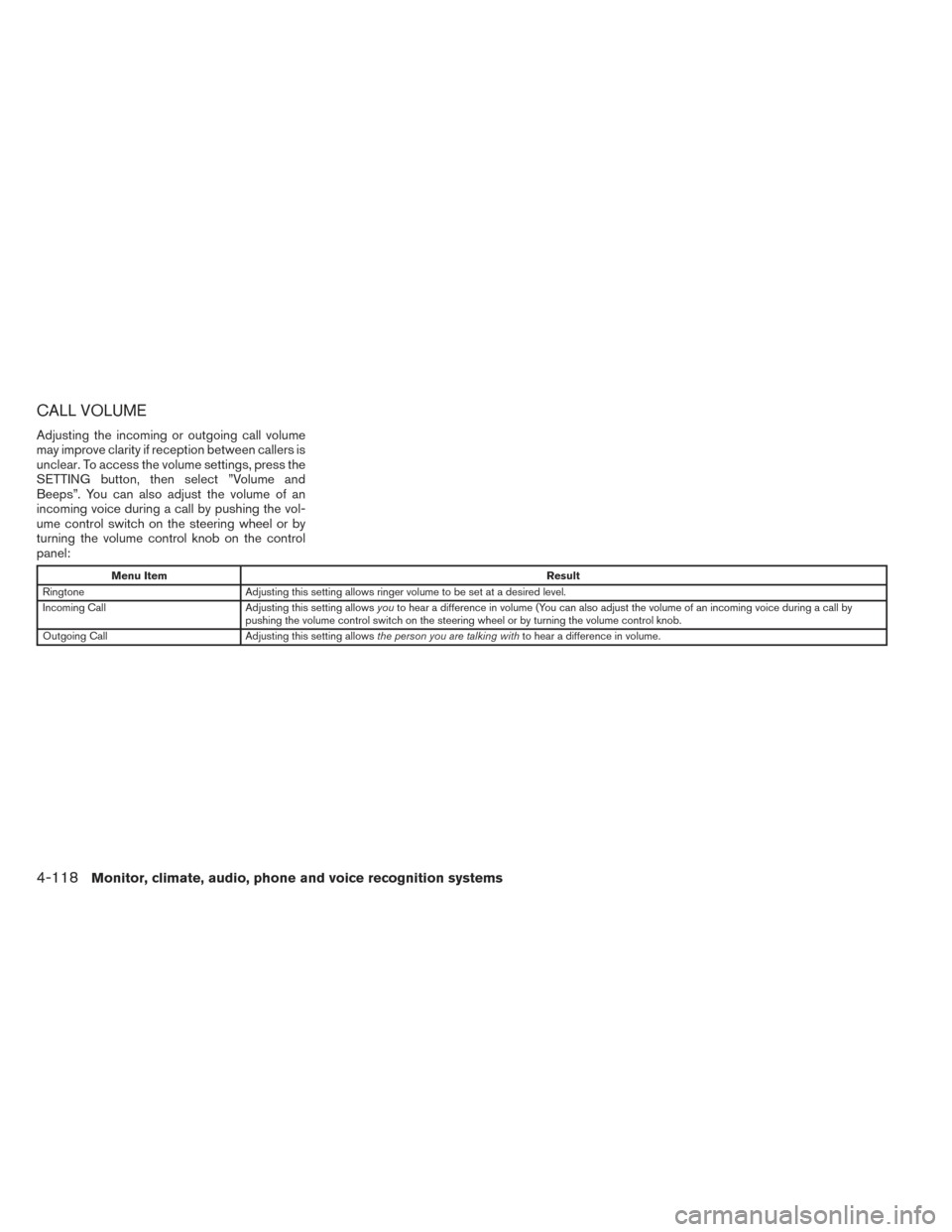
Audio main operation
To switch to the Bluetooth® audio mode, press
the DISC•AUX button repeatedly until the
Bluetooth® audio mode is displayed on the
screen.
The controls for the Bluetooth® audio are dis-
played on the screen.
Bluetooth® audio settings
To adjust the Bluetooth® audio settings, follow
the procedure below:1. Press the SETTING button on the control panel.
2. Select the “Bluetooth” key.
3. Select the “Connected Devices” key. 4. Select the “Audio Player” key.
SAA2510LHA1316LHA1296
Monitor, climate, audio, phone and voice recognition systems4-87
Page 272 of 432
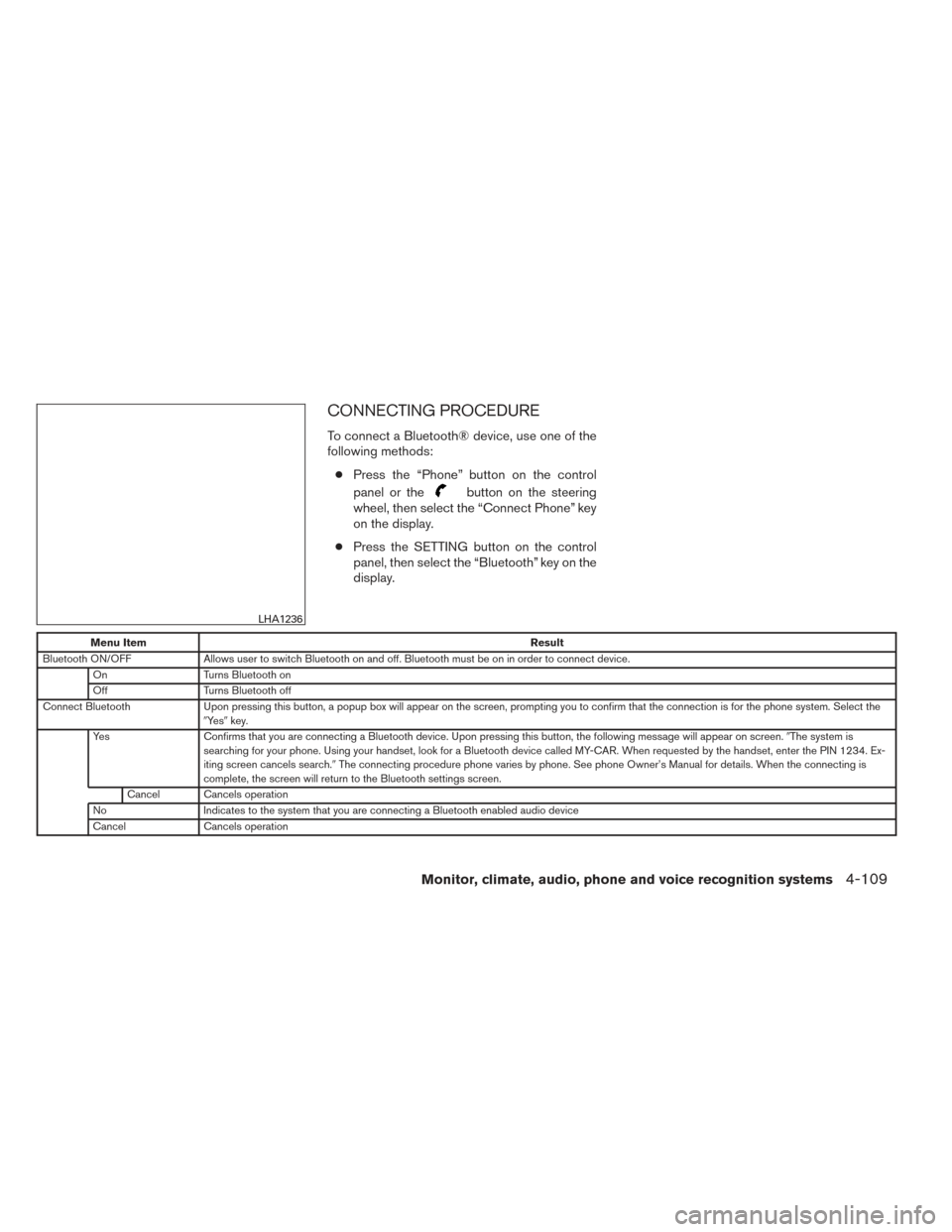
CONNECTING PROCEDURE
To connect a Bluetooth® device, use one of the
following methods:● Press the “Phone” button on the control
panel or the
button on the steering
wheel, then select the “Connect Phone” key
on the display.
● Press the SETTING button on the control
panel, then select the “Bluetooth” key on the
display.
Menu Item Result
Bluetooth ON/OFF Allows user to switch Bluetooth on and off. Bluetooth must be on in order to connect device.
On Turns Bluetooth on
Off Turns Bluetooth off
Connect Bluetooth Upon pressing this button, a popup box will appear on the screen, prompting you to confirm that the connection is for the phone system. Select the
�Ye s �key.
Yes Confirms that you are connecting a Bluetooth device. Upon pressing this button, the following message will appear on screen. �The system is
searching for your phone. Using your handset, look for a Bluetooth device called MY-CAR. When requested by the handset, enter the PIN 1234. Ex-
iting screen cancels search. �The connecting procedure phone varies by phone. See phone Owner’s Manual for details. When the connecting is
complete, the screen will return to the Bluetooth settings screen.
Cancel Cancels operation
No Indicates to the system that you are connecting a Bluetooth enabled audio device
Cancel Cancels operation
LHA1236
Monitor, climate, audio, phone and voice recognition systems4-109
Page 279 of 432
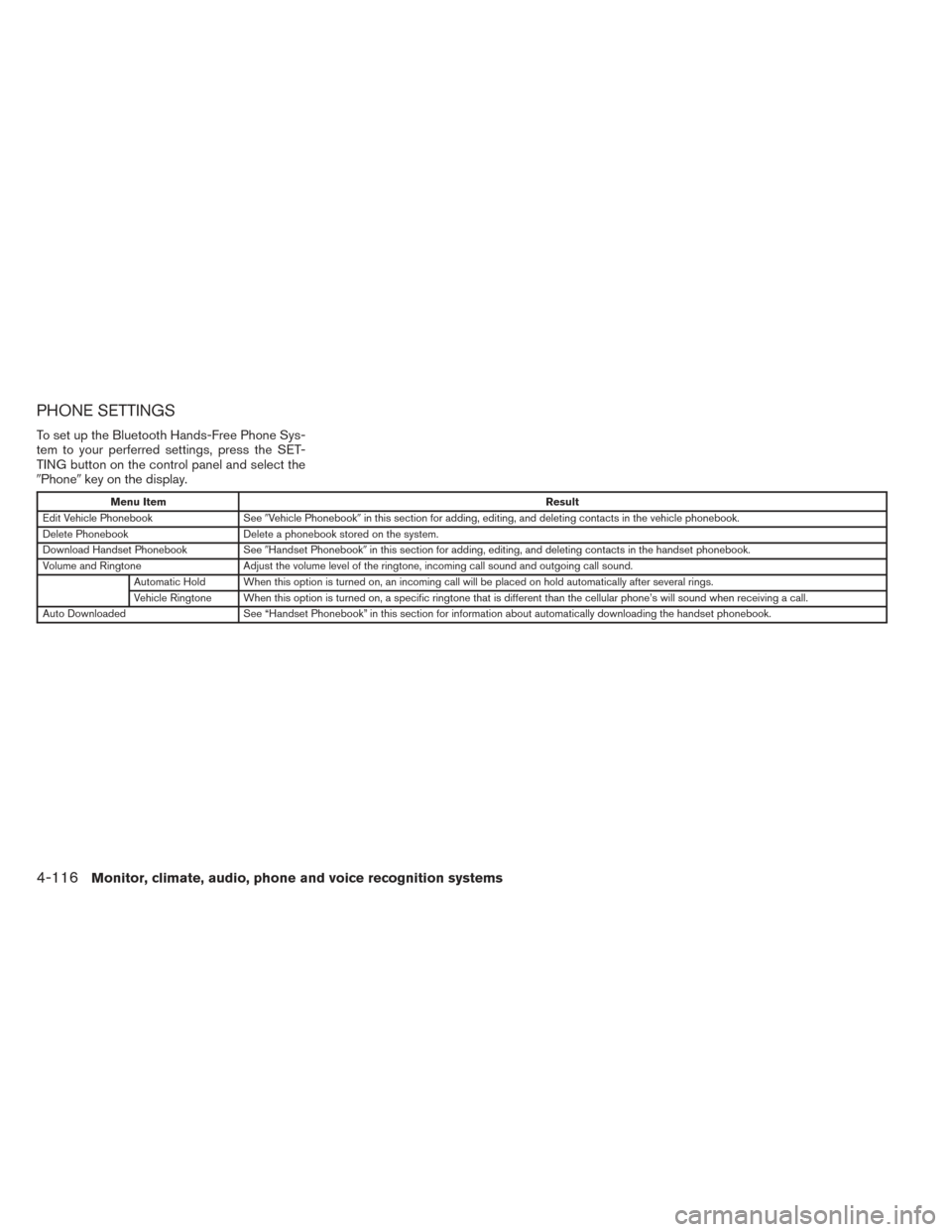
PHONE SETTINGS
To set up the Bluetooth Hands-Free Phone Sys-
tem to your perferred settings, press the SET-
TING button on the control panel and select the
�Phone�key on the display.
Menu Item Result
Edit Vehicle Phonebook See�Vehicle Phonebook �in this section for adding, editing, and deleting contacts in the vehicle phonebook.
Delete Phonebook Delete a phonebook stored on the system.
Download Handset Phonebook See�Handset Phonebook �in this section for adding, editing, and deleting contacts in the handset phonebook.
Volume and Ringtone Adjust the volume level of the ringtone, incoming call sound and outgoing call sound.
Automatic Hold When this option is turned on, an incoming call will be placed on hold automatically after several rings.
Vehicle Ringtone When this option is turned on, a specific ringtone that is different than the cellular phone’s will sound when receiving a call.
Auto Downloaded See “Handset Phonebook” in this section for information about automatically downloading the handset phonebook.
4-116Monitor, climate, audio, phone and voice recognition systems
Page 280 of 432
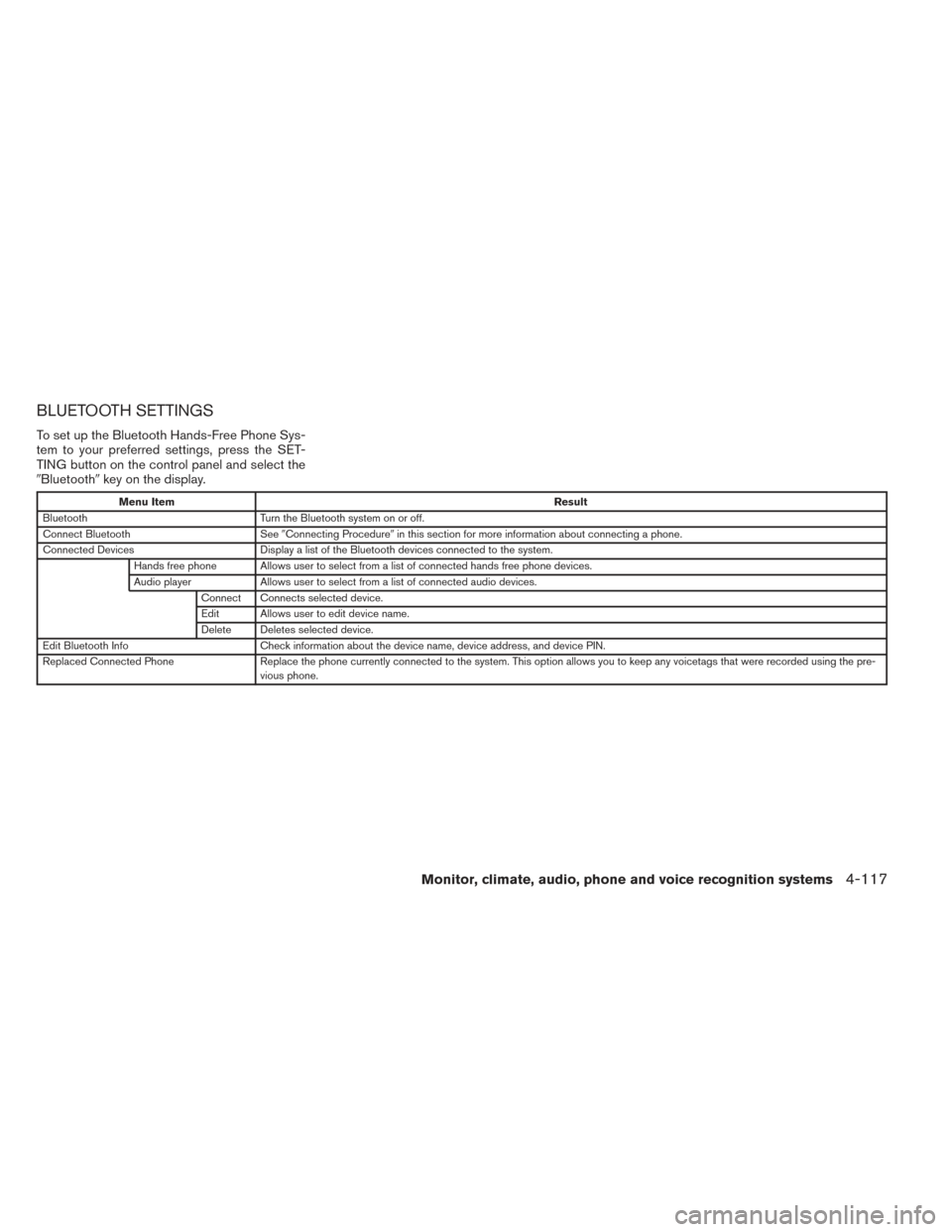
BLUETOOTH SETTINGS
To set up the Bluetooth Hands-Free Phone Sys-
tem to your preferred settings, press the SET-
TING button on the control panel and select the
�Bluetooth�key on the display.
Menu Item Result
Bluetooth Turn the Bluetooth system on or off.
Connect Bluetooth See�Connecting Procedure �in this section for more information about connecting a phone.
Connected Devices Display a list of the Bluetooth devices connected to the system.
Hands free phone Allows user to select from a list of connected hands free phone devices.
Audio player Allows user to select from a list of connected audio devices.
Connect Connects selected device.
Edit Allows user to edit device name.
Delete Deletes selected device.
Edit Bluetooth Info Check information about the device name, device address, and device PIN.
Replaced Connected Phone Replace the phone currently connected to the system. This option allows you to keep any voicetags that were recorded using the pre-
vious phone.
Monitor, climate, audio, phone and voice recognition systems4-117
Page 281 of 432
CALL VOLUME
Adjusting the incoming or outgoing call volume
may improve clarity if reception between callers is
unclear. To access the volume settings, press the
SETTING button, then select ”Volume and
Beeps”. You can also adjust the volume of an
incoming voice during a call by pushing the vol-
ume control switch on the steering wheel or by
turning the volume control knob on the control
panel:
Menu ItemResult
Ringtone Adjusting this setting allows ringer volume to be set at a desired level.
Incoming Call Adjusting this setting allowsyouto hear a difference in volume (You can also adjust the volume of an incoming voice during a call by
pushing the volume control switch on the steering wheel or by turning the volume control knob.
Outgoing Call Adjusting this setting allowsthe person you are talking with to hear a difference in volume.
4-118Monitor, climate, audio, phone and voice recognition systems
Page 283 of 432
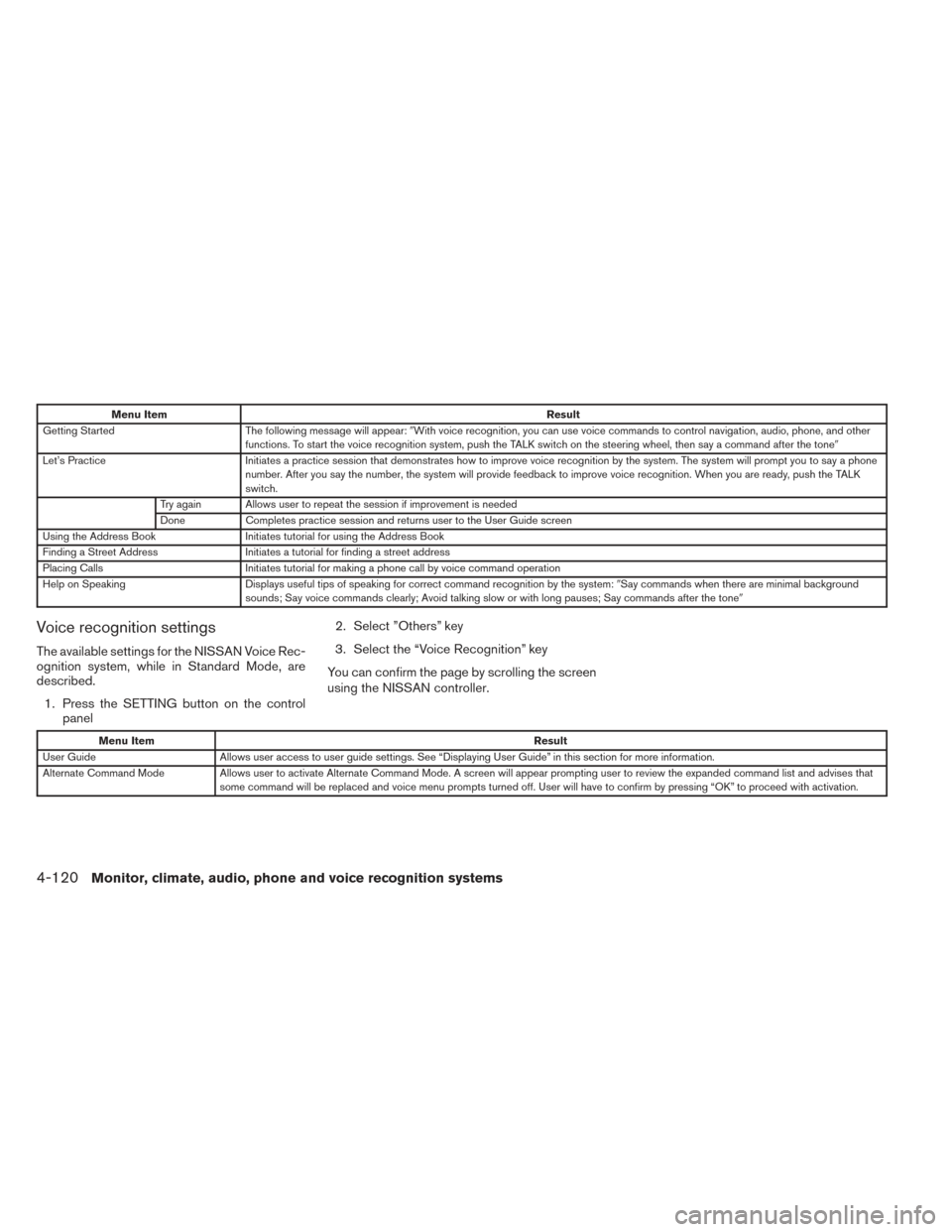
Menu ItemResult
Getting Started The following message will appear:�With voice recognition, you can use voice commands to control navigation, audio, phone, and other
functions. To start the voice recognition system, push the TALK switch on the steering wheel, then say a command after the tone �
Let’s Practice Initiates a practice session that demonstrates how to improve voice recognition by the system. The system will prompt you to say a phone
number. After you say the number, the system will provide feedback to improve voice recognition. When you are ready, push the TALK
switch.
Try again Allows user to repeat the session if improvement is needed
Done Completes practice session and returns user to the User Guide screen
Using the Address Book Initiates tutorial for using the Address Book
Finding a Street Address Initiates a tutorial for finding a street address
Placing Calls Initiates tutorial for making a phone call by voice command operation
Help on Speaking Displays useful tips of speaking for correct command recognition by the system: �Say commands when there are minimal background
sounds; Say voice commands clearly; Avoid talking slow or with long pauses; Say commands after the tone �
Voice recognition settings
The available settings for the NISSAN Voice Rec-
ognition system, while in Standard Mode, are
described.
1. Press the SETTING button on the control panel 2. Select ”Others” key
3. Select the “Voice Recognition” key
You can confirm the page by scrolling the screen
using the NISSAN controller.
Menu Item Result
User Guide Allows user access to user guide settings. See “Displaying User Guide” in this section for more information.
Alternate Command Mode Allows user to activate Alternate Command Mode. A screen will appear prompting user to review the expanded command list and advises that
some command will be replaced and voice menu prompts turned off. User will have to confirm by pressing “OK” to proceed with activation.
4-120Monitor, climate, audio, phone and voice recognition systems