2014 NISSAN JUKE ignition
[x] Cancel search: ignitionPage 203 of 402
4-48Heater, air conditioner, audio and phone systems
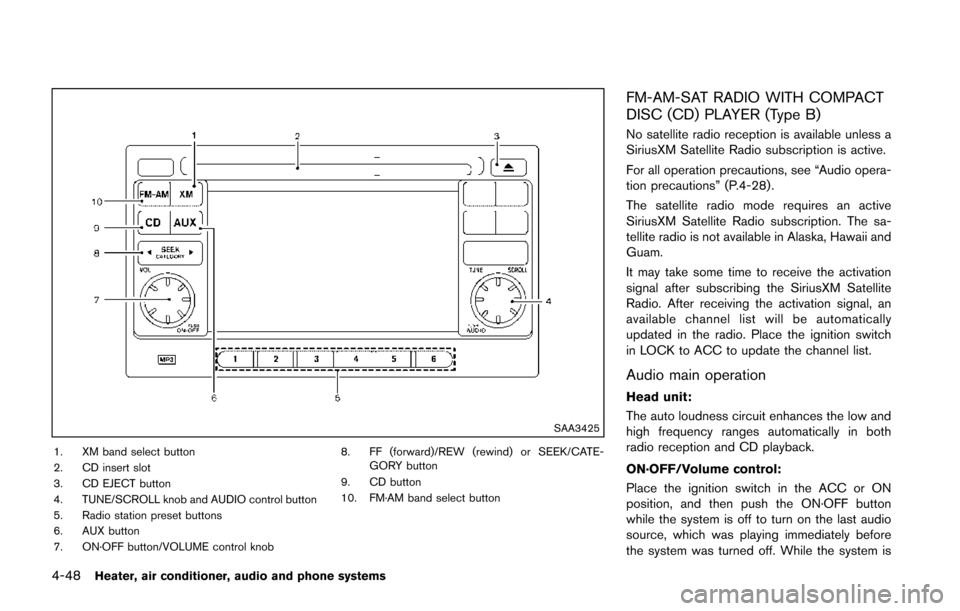
SAA3425
1. XM band select button
2. CD insert slot
3. CD EJECT button
4. TUNE/SCROLL knob and AUDIO control button
5. Radio station preset buttons
6. AUX button
7. ON·OFF button/VOLUME control knob8. FF (forward)/REW (rewind) or SEEK/CATE-
GORY button
9. CD button
10. FM·AM band select button
FM-AM-SAT RADIO WITH COMPACT
DISC (CD) PLAYER (Type B)
No satellite radio reception is available unless a
SiriusXM Satellite Radio subscription is active.
For all operation precautions, see “Audio opera-
tion precautions” (P.4-28) .
The satellite radio mode requires an active
SiriusXM Satellite Radio subscription. The sa-
tellite radio is not available in Alaska, Hawaii and
Guam.
It may take some time to receive the activation
signal after subscribing the SiriusXM Satellite
Radio. After receiving the activation signal, an
available channel list will be automatically
updated in the radio. Place the ignition switch
in LOCK to ACC to update the channel list.
Audio main operation
Head unit:
The auto loudness circuit enhances the low and
high frequency ranges automatically in both
radio reception and CD playback.
ON·OFF/Volume control:
Place the ignition switch in the ACC or ON
position, and then push the ON·OFF button
while the system is off to turn on the last audio
source, which was playing immediately before
the system was turned off. While the system is
Page 204 of 402
on, pushing the ON·OFF button turns the system
off.
Turn the VOL control knob to adjust the volume.
Adjusting tone quality and speaker bal-
ance:
To adjust Bass, Treble, Balance and Fade, push
the Audio control knob. When the display shows
the setting you want to change (Bass, Treble,
Balance and Fade) , rotate the Audio control
knob to set the desired setting. For the other
setting methods, see “How to use touch screen”
(P.4-4) .
This vehicle has some sound effect functions as
follows:
.Speed Volume
For more details, see “How to use the SETUP
button” (P.4-6).
Adjusting AUX level:
The volume level of incoming sound can be
selected from “Quiet”, “Medium” and “Loud”
when an auxiliary device is connected to the
system. For more details, see “How to use the
SETUP button” (P.4-6) .
Switching the display:
Pushing the AUX button will switch the displays
between USB/iPod
®and AUX.
FM-AM-SAT radio operation
When the radio band select button is pushed
while the ignition switch is in the ACC or ON
position, the radio will come on at the channel
last played.
The last channel played will also come on when
the ON·OFF button is pushed to ON.
If another audio source is playing when the radio
band select button is turned to ON, the audio
source will automatically be turned off and the
last radio channel played will come on.
When the stereo broadcast signal is weak, the
radio will automatically change from stereo to
monaural reception.
FM·AM radio band select:
Pushing the FM·AM radio band select button will
change the band as follows:
AM ?FM1 ?FM2 ?AM
SiriusXM Satellite Radio band se-
lect:
Pushing the XM radio band select button will
change the band as follows:
XM1 ?XM2 ?XM3 ?XM1
The satellite radio is not available in Alaska,
Hawaii and Guam. TUNE (Tuning):
. For AM and FM radio
Turn the TUNE knob for manual tuning.
. For SiriusXM Satellite Radio
Turn the TUNE knob to seek channels from
all of the categories when any category is
not selected.
SEEK tuning:
. For AM and FM radio
Push the SEEK/CATEGORY button
orto tune from low to high or high to low
frequencies and to stop at the next broad-
casting station.
. For SiriusXM Satellite Radio
Push the SEEK/CATEGORY button
orto tune to the first channel of the next or
previous category.
Tuning with the touch screen (AM and FM
radio):
When in AM or FM mode, the radio can be
tuned using the touch screen. To bring up the
visual tuner, touch the “Tune” key on the lower
right corner of the screen. A screen appears
with a bar running from low frequencies on the
left to high frequencies on the right. Touch the
screen at the location of the frequency you wish
to tune and the station will change to that
Heater, air conditioner, audio and phone systems4-49
Page 205 of 402
4-50Heater, air conditioner, audio and phone systems
frequency. To return to the regular radio display
screen, touch the “OK” key.
toStation memory operations:
12 stations/channels can be set for the FM band
(6 each for FM1 and FM2) , 18 for SiriusXM
Satellite Radio (6 each for XM1, XM2 and XM3)
and 6 stations can be set for the AM band.
1. Choose the radio band using the radio band select button.
2. Tune to the desired station/channel using the SEEK/CATEGORY button or the TUNE
knob.
3. Push and hold the desired station preset button
tountil the beep sound is
heard.
4. The station indicator will then come on and the sound will resume. Memorizing is now
complete.
5. Other buttons can be set in the same manner.
If the battery cable is disconnected, or if the fuse
opens, the radio memory will be erased. In that
case, reset the desired stations/channels.
Channels (SiriusXM Satellite Radio):
When the SiriusXM Satellite Radio is being
played, select “Channels” key to display a list of
channels. Select a preferred channel from the list to change to that channel.
Categories (SiriusXM Satellite Radio):
When the SiriusXM Satellite Radio is being
played, select “Categories” key to display a list
of channels. Select a preferred channel from the
list to display options within that category.
Compact Disc (CD) player operation
Place the ignition switch in the ACC or ON
position and insert the Compact Disc (CD) into
the slot with the label side facing up. The CD will
be guided automatically into the slot and start
playing.
If the radio is already operating, it will auto-
matically turn off and the CD will play.
If the system has been turned off while the CD
was playing, pushing the ON·OFF button will
start the CD.
Do not use 3.1 in (8 cm) discs.
PLAY:
When the CD button is pushed with the system
off and the CD loaded, the system will turn on
and the CD will start to play.
When the CD button is pushed with the CD
loaded and the radio playing, the radio will
automatically be turned off and the CD will start
to play. While listening to a CD or an MP3/WMA CD,
certain text may be displayed (when a CD
encoded with text is being used). Depending on
how the CD or MP3/WMA CD is encoded, the
text is displayed listing the artist, album and
song title.
Next/Previous Track and Fast
Forward/Rewind:
When the
orbutton is pushed for more
than 1.5 seconds while the CD is being played,
the CD will play while fast forwarding or
rewinding. When the button is released, the
CD will return to normal play speed.
When the
orbutton is pushed for less
than 1.5 seconds while the CD is being played,
the next track or the beginning of the current
track on the CD will be played.
When the rewind button is pushed for less than
1.5 seconds within 3 seconds after the current
track starts playing, the previous track will be
played.
Page 210 of 402
WARNING
Do not connect, disconnect or operate
the USB device while driving. Doing so
can be a distraction. If distracted you
could lose control of your vehicle and
cause an accident or serious injury.
CAUTION
.Do not force the USB device into the
USB port. Inserting the USB device
tilted or up-side-down into the port
may damage the port. Make sure
that the USB device is connected
correctly into the USB port.
. Do not grab the USB port cover (if
so equipped) when pulling the USB
device out of the port. This could
damage the port and the cover.
. Do not leave the USB cable in a
place where it can be pulled unin-
tentionally. Pulling the cable may
damage the port.
Refer to your device manufacturer’s owner
information regarding the proper use and care of the device.
Compatibility:
The following models are available:
. Fifth generation iPod
®(version 1.2.3 or
later)
. iPod Classic
®(version 1.1.1 or later)
. First generation iPod touch®(version 2.0.0
or later)
. Second generation iPod touch
®(version
1.2.3 or later)
. First generation iPod nano
®(version 1.3.1 or
later)
. Second generation iPod nano
®(version
1.1.3 or later)
. Third generation iPod nano
®(version 1.1 or
later)
. Fourth generation iPod nano
®(version 1.0.2
or later)
This unit may not control/operate correctly when
connected to some iPod
®versions/firmware and
iPhone®.
Make sure that the iPod®version is updated.
Audio main operation:
Place the ignition switch in the ACC or ON
position. Then, push the
button repeatedly
to switch to the iPod®mode.
If the system has been turned off while the iPod®
was playing, pushing the ON·OFF button will
start the iPod®.
.
PLAY:
When the
button is pushed with the
system off and the iPod®connected, the
system will turn on. If another audio source
is playing and the iPod
®is connected, push
thebutton repeatedly to switch to the
iPod®mode.
. Interface:
The interface for iPod
®operation shown on
the vehicle display is similar to the iPod®
interface. Use the touch screen, BACK
button or the TUNE/SCROLL knob to
navigate the menus on the screen.
The following items can be chosen from the
menu list screen. For further information
about each item, see the iPod
®Owner’s
Manual.
— Playlists
— Artists
— Songs
— Composers
— Audiobooks
— Podcasts
The following touch-panel buttons shown on
the screen are also available:
Heater, air conditioner, audio and phone systems4-55
Page 212 of 402
JVH0738X
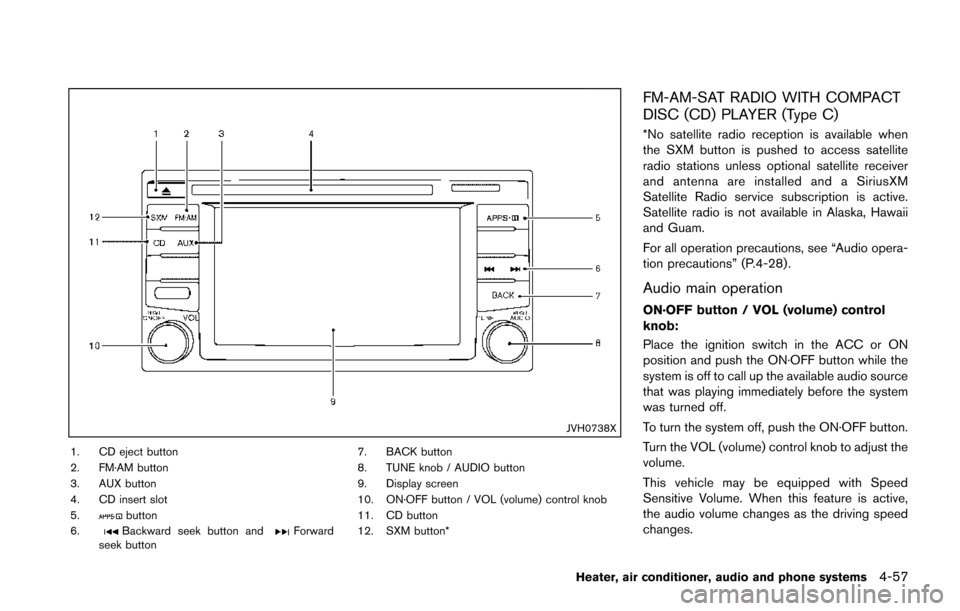
1. CD eject button
2. FM·AM button
3. AUX button
4. CD insert slot
5.
button
6.Backward seek button andForward
seek button 7. BACK button
8. TUNE knob / AUDIO button
9. Display screen
10. ON·OFF button / VOL (volume) control knob
11. CD button
12. SXM button*
FM-AM-SAT RADIO WITH COMPACT
DISC (CD) PLAYER (Type C)
*No satellite radio reception is available when
the SXM button is pushed to access satellite
radio stations unless optional satellite receiver
and antenna are installed and a SiriusXM
Satellite Radio service subscription is active.
Satellite radio is not available in Alaska, Hawaii
and Guam.
For all operation precautions, see “Audio opera-
tion precautions” (P.4-28) .
Audio main operation
ON·OFF button / VOL (volume) control
knob:
Place the ignition switch in the ACC or ON
position and push the ON·OFF button while the
system is off to call up the available audio source
that was playing immediately before the system
was turned off.
To turn the system off, push the ON·OFF button.
Turn the VOL (volume) control knob to adjust the
volume.
This vehicle may be equipped with Speed
Sensitive Volume. When this feature is active,
the audio volume changes as the driving speed
changes.
Heater, air conditioner, audio and phone systems4-57
Page 213 of 402
4-58Heater, air conditioner, audio and phone systems
Audio settings:
1. push the
button.
2. Touch the “Settings” key.
3. Touch the “Audio” key. Use the touch-screen to adjust the following
items to the desired setting:
.Bass:Adjusts the bass to the desired level.
.Treble:
Adjusts the treble to the desired level.
.Balance:Adjusts the balance to the desired level.
Balance adjusts the sound level between
the left and right speakers.
.Fade:Adjusts the fade to the desired level.
Fade adjusts the sound level between
the front and rear speakers.
.Speed Sensitive Vol.:Adjusts the speed sensitive volume
function, which increases the volume of
the audio system as the speed of the
vehicle increases. Set to “OFF” to dis-
able the feature. The higher the setting,
the more the volume increases in relation
to vehicle speed.
.AUX Volume Level:Controls the volume level of incoming
sound when an auxiliary device is con- nected to the system. Available options
are Low (Quiet) , Medium, and High
(Loud).
Bass, treble, balance and fade can also be
adjusted by pushing the AUDIO control knob
and turning it to select the item to adjust. When
the desired item is shown on the display, turn the
tuning to adjust and then push the AUDIO
button until the display returns to the main audio
screen. If the button is not pushed for approxi-
mately 10 seconds, the radio or CD display will
automatically reappear.
SXM settings:
To view the SXM settings:
1. Push the
button.
2. Touch the “Settings” key.
3. Touch the “SXM” key.
The signal strength, activation status and other
information are displayed on the screen.
FM/AM/SAT radio operation
FM·AM button:
Push the FM·AM button to change the band as
follows:
AM ?FM1 ?FM2 ?AM
If another audio source is playing when the
FM·AM button is pushed, the audio source
playing will automatically be turned off and the
last radio station played will begin playing.
The FM stereo indicator (ST) is shown on the
screen during FM stereo reception. When the
stereo broadcast signal is weak, the radio
automatically changes from stereo to monaural
reception.
SXM band select:
Pushing the SXM button will change the band
as follows:
SXM1* ?SXM2* ?SXM3* ?SXM1*
(satellite, if so equipped)
When the SXM button is pushed while the
ignition switch is in the ACC or ON position, the
radio will come on at the last station played.
The last station played will also come on when
the ON·OFF button is pushed.
*When the SXM button is pushed, the satellite
radio mode will be skipped unless an optional
satellite receiver and antenna are installed and a
Page 217 of 402
4-62Heater, air conditioner, audio and phone systems
JVH0742X
USB interface
Connecting a device to the USB port:
WARNING
Do not connect, disconnect, or operate
the USB device while driving. Doing so
can be a distraction. If distracted you
could lose control of your vehicle and
cause an accident or serious injury.
CAUTION
.Do not force the USB device into the
USB port. Inserting the USB device
tilted or up-side-down into the port
may damage the port. Make sure
that the USB device is connected
correctly into the USB port.
. Do not grab the USB port cover (if
so equipped) when pulling the USB
device out of the port. This could
damage the port and the cover.
. Do not leave the USB cable in a
place where it can be pulled unin-
tentionally. Pulling the cable may
damage the port
Refer to your device manufacturer’s owner
information regarding the proper use and care
of the device.
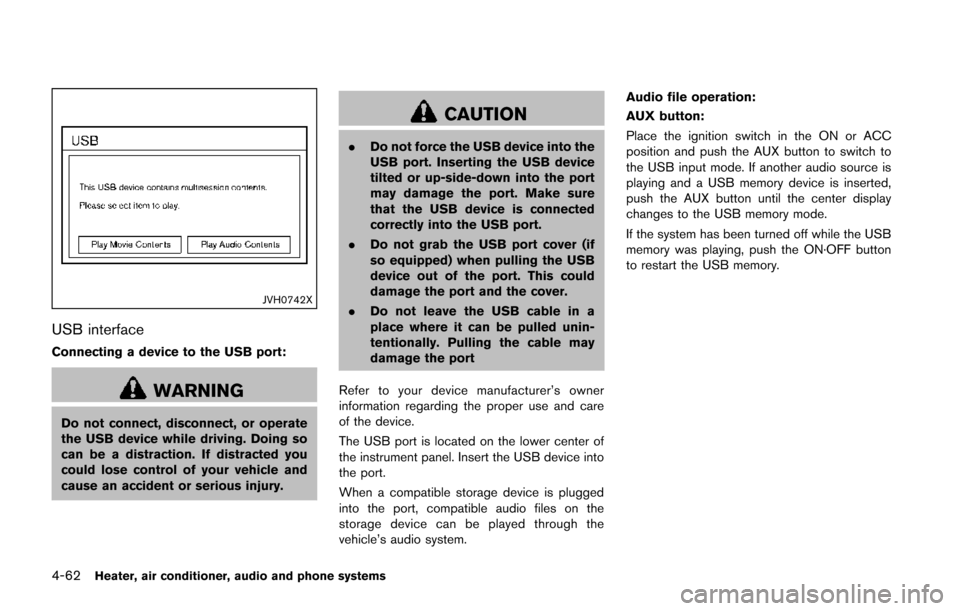
The USB port is located on the lower center of
the instrument panel. Insert the USB device into
the port.
When a compatible storage device is plugged
into the port, compatible audio files on the
storage device can be played through the
vehicle’s audio system. Audio file operation:
AUX button:
Place the ignition switch in the ON or ACC
position and push the AUX button to switch to
the USB input mode. If another audio source is
playing and a USB memory device is inserted,
push the AUX button until the center display
changes to the USB memory mode.
If the system has been turned off while the USB
memory was playing, push the ON·OFF button
to restart the USB memory.
Page 219 of 402
4-64Heater, air conditioner, audio and phone systems
CAUTION
.Do not force the USB device into the
USB port. Inserting the USB device
tilted or up-side-down into the port
may damage the port. Make sure
that the USB device is connected
correctly into the USB port.
. Do not grab the USB port cover (if
so equipped) when pulling the USB
device out of the port. This could
damage the port and the cover.
. Do not leave the USB cable in a
place where it can be pulled unin-
tentionally. Pulling the cable may
damage the port.
Refer to your device manufacturer’s owner
information regarding the proper use and care
of the device.
To connect an iPod
®to the vehicle so that the
iPod®can be controlled with the audio system
controls and display screen, use the USB port
located on the lower center of the instrument
panel. Connect the iPod
®-specific end of the
cable to the iPod®and the USB end of the cable
to the USB port on the vehicle. If your iPod®
supports charging via a USB connection, its battery will be charged while connected to the
vehicle with the ignition switch in the ACC or
ON position.
While connected to the vehicle, the iPod
®may
only be able to be operated by the vehicle audio
controls.
To disconnect the iPod
®from the vehicle,
remove the USB end of the cable from the
USB port on the vehicle, then remove the cable
from the iPod
®.
iPod®is a trademark of Apple Inc., registered in
the U.S. and other countries.
Compatibility:
The following models are compatible:
. iPod
®Classic 5th generation (firmware
version 1.3.0 or later)
. iPod
®Classic 6th generation (firmware
version 2.0.1 or later)
. iPod
®Classic 7th generation (firmware
version 2.0.4 or later)
. iPod
®Touch 2nd generation (firmware ver-
sion 4.2.1 or later)*
. iPod
®Touch 3rd generation (firmware ver-
sion 5.1 or later)
. iPod
®Touch 4th generation (firmware ver-
sion 5.1 or later) .
iPod
®nano - 1st generation (firmware
version 1.3.1 or later)
. iPod
®nano - 2nd generation (firmware
version 1.1.3 or later)
. iPod
®nano - 3rd generation (firmware
version 1.1.3 or later)
. iPod
®nano - 4th generation (firmware
version 1.0.4 or later)
. iPod
®nano - 5th generation (firmware
version 1.0.2 or later)
. iPod
®nano - 6th generation (firmware
version 1.1 or later)
. iPhone
®3G (firmware version 4.2.1 or later)
. iPhone®3GS (firmware version 5.1 or later)
. iPhone®4 (firmware version 5.1 or later)
. iPhone®4S (firmware version 5.1 or later)
* Some features of this iPod®may not be fully
functional.
Make sure that your iPod
®firmware is updated
to the version indicated above.