2014 NISSAN ALTIMA light
[x] Cancel search: lightPage 204 of 428
Reception conditions will constantly change be-
cause of vehicle movement. Buildings, terrain,
signal distance and interference from other ve-
hicles can work against ideal reception. De-
scribed below are some of the factors that can
affect your radio reception.
Some cellular phones or other devices may
cause interference or a buzzing noise to come
from the audio system speakers. Storing the de-
vice in a different location may reduce or elimi-
nate the noise.
FM RADIO RECEPTION
Range: FM range is normally limited to 25 – 30 mi
(40 – 48 km) , with monaural (single channel) FM
having slightly more range than stereo FM. Exter-
nal influences may sometimes interfere with FM
station reception even if the FM station is within
25 mi (40 km) . The strength of the FM signal is
directly related to the distance between the
transmitter and receiver. FM signals follow a line-
of-sight path, exhibiting many of the same char-
acteristics as light. For example, they will reflect
off objects.
Fade and drift: As your vehicle moves away from
a station transmitter, the signals will tend to fade
and/or drift.Static and flutter: During signal interference from
buildings, large hills or due to antenna position
(usually in conjunction with increased distance
from the station transmitter) , static or flutter can
be heard. This can be reduced by adjusting the
treble control to reduce treble response.
Multipath reception: Because of the reflective
characteristics of FM signals, direct and reflected
signals reach the receiver at the same time. The
signals may cancel each other, resulting in mo-
mentary flutter or loss of sound.
AM RADIO RECEPTION
AM signals, because of their low frequency, can
bend around objects and skip along the ground.
In addition, the signals can be bounced off the
ionosphere and bent back to earth. Because of
these characteristics, AM signals are also sub-
ject to interference as they travel from transmitter
to receiver.
Fading: Occurs while the vehicle is passing
through freeway underpasses or in areas with
many tall buildings. It can also occur for several
seconds during ionospheric turbulence even in
areas where no obstacles exist.
Static: Caused by thunderstorms, electrical
power lines, electric signs and even traffic lights.
SATELLITE RADIO RECEPTION (if so
equipped)
When the satellite radio is used for the first time
or the battery has been replaced, the satellite
radio may not work properly. This is not a mal-
function. Wait more than 10 minutes with satellite
radio ON and the vehicle outside of any metal or
large building for satellite radio to receive all of
the necessary data.
No satellite radio reception is available and “NO
SAT” is displayed when the SAT band option is
selected unless optional satellite receiver and
antenna are installed and a SiriusXM Satellite
Radio service subscription is active. Satellite ra-
dio is not available in Alaska, Hawaii and Guam.
Satellite radio performance may be affected if
cargo carried on the roof blocks the satellite radio
signal.
If possible, do not put cargo over the satellite
antenna.
A build up of ice on the satellite radio antenna can
affect satellite radio performance. Remove the
ice to restore satellite radio reception.
Monitor, climate, audio, phone and voice recognition systems4-35
Page 205 of 428
AUDIO OPERATION PRECAUTIONSCompact disc (CD) player
CAUTION
●
Do not force a compact disc into the CD
insert slot. This could damage the CD
and/or CD player.
● Trying to load a CD with the CD door
closed could damage the CD and/or CD
player.
● Only one CD can be loaded into the CD
player at a time.
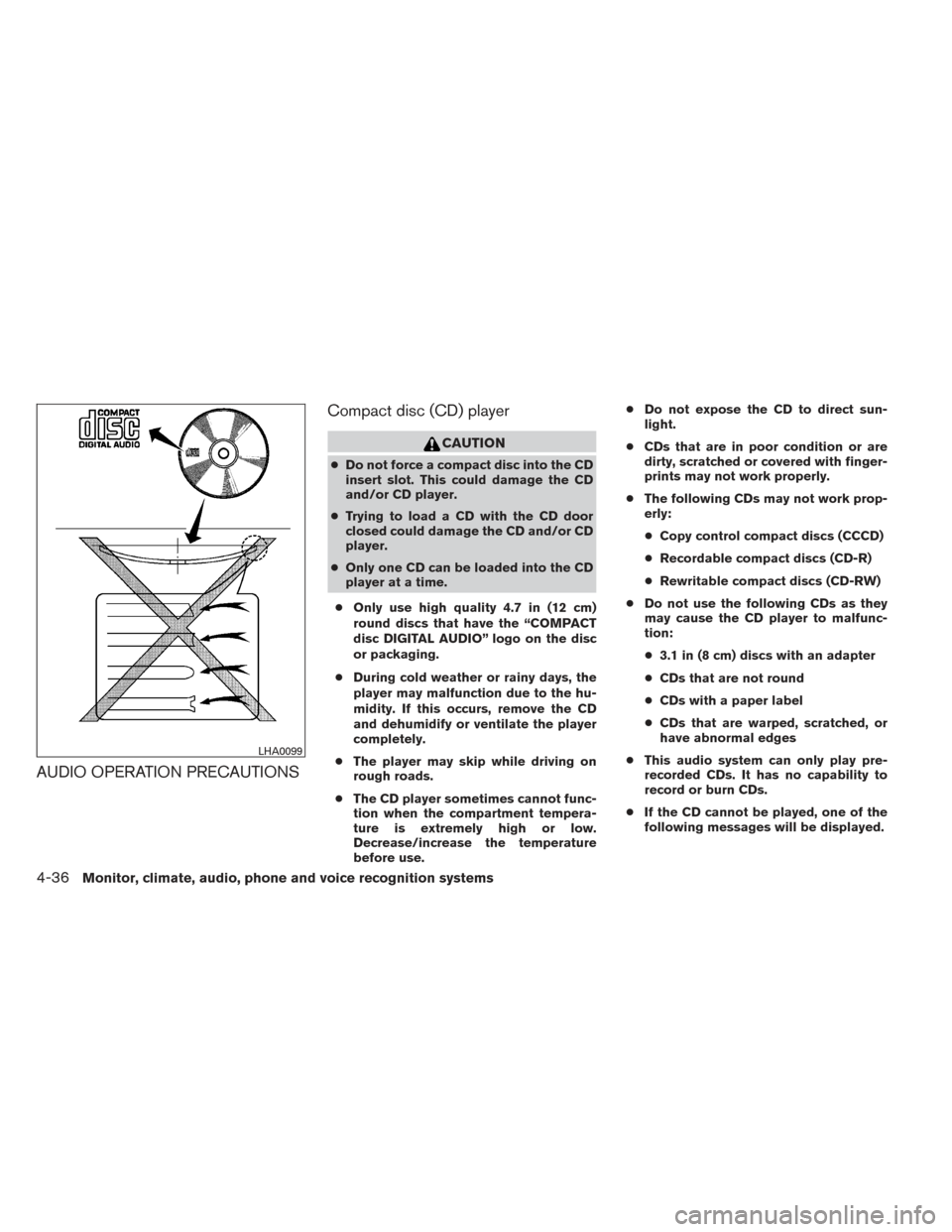
● Only use high quality 4.7 in (12 cm)
round discs that have the “COMPACT
disc DIGITAL AUDIO” logo on the disc
or packaging.
● During cold weather or rainy days, the
player may malfunction due to the hu-
midity. If this occurs, remove the CD
and dehumidify or ventilate the player
completely.
● The player may skip while driving on
rough roads.
● The CD player sometimes cannot func-
tion when the compartment tempera-
ture is extremely high or low.
Decrease/increase the temperature
before use. ●
Do not expose the CD to direct sun-
light.
● CDs that are in poor condition or are
dirty, scratched or covered with finger-
prints may not work properly.
● The following CDs may not work prop-
erly:
● Copy control compact discs (CCCD)
● Recordable compact discs (CD-R)
● Rewritable compact discs (CD-RW)
● Do not use the following CDs as they
may cause the CD player to malfunc-
tion:
● 3.1 in (8 cm) discs with an adapter
● CDs that are not round
● CDs with a paper label
● CDs that are warped, scratched, or
have abnormal edges
● This audio system can only play pre-
recorded CDs. It has no capability to
record or burn CDs.
● If the CD cannot be played, one of the
following messages will be displayed.
LHA0099
4-36Monitor, climate, audio, phone and voice recognition systems
Page 217 of 428
SETTING button:
Press the SETTING button to show the Settings
screen on the display. Turn the TUNE/FOLDER
knob to navigate the options and then press the
ENTER button to make a selection.
AudioBass Adjusts the bass to the desired level.
Treble Adjusts the treble to the desired level.
Balance Adjusts the balance to the desired level. Balance adjusts the sound level between the left and right speakers.
Fade Adjusts the fade to the desired level. Fade adjusts the sound level between the front and rear speakers.
Speed Sens Vol. (Speed Sensitive Volume) Adjusts the speed sensitive volume function, which increases the volume of the audio system as the speed of
the vehicle increases. Set to “OFF” to disable the feature. The higher the setting, the more the volume in-
creases in relation to vehicle speed.
AUX Vol. Choose a setting from 0 to +3 to control the boost of incoming auxilary device volume. A setting of 0 provides
no additional boost in volume. A setting of +3 provides the greatest boost in volume.
Brightness and Contrast Adjust the brightness or contrast to adjust the appearance of the display screen.
Clock adjust Press the ENTER button to highlight the hours or minutes and then use the TUNE/FOLDER knob to adjust the
value. Press the ENTER button again to set the value.
On-Screen Clock Toggles ON or OFF the clock display on the upper right corner of the display screen.
RDS Display Toggles ON or OFF the RDS information displayed on the screen while the radio is playing.
Language Select the desired language for the system from the available options.
Bass, treble, balance and fade can also be adjusted by pressing the AUDIO control knob and turning it to select the item to adjust. When the desired item
is shown on the display, turn the tuning to adjust and then press the AUDIO button until the display returns to the main audio screen. If the button is not
pressed for approximately 10 seconds, the radio or CD display will automatically reappear.
4-48Monitor, climate, audio, phone and voice recognition systems
Page 221 of 428
To turn the system off, press the(power)
button.
Turn the VOL (volume) control knob to adjust the
volume.
This vehicle may be equipped with Speed Sen-
sitive Volume. When this feature is active, the
audio volume changes as the driving speed
changes. SETTING button:
Press the SETTING button to show the Settings
screen on the display. Turn the TUNE/FOLDER
knob to navigate the options and then press the
ENTER button to make a selection.
Audio
Bass Adjusts the bass to the desired level.
Treble Adjusts the treble to the desired level.
Balance Adjusts the balance to the desired level. Balance adjusts the sound level between the left and right speakers.
Fade Adjusts the fade to the desired level. Fade adjusts the sound level between the front and rear speakers.
Speed Sens Vol. (Speed Sensitive Volume) Adjusts the speed sensitive volume function, which increases the volume of the audio system as the speed of
the vehicle increases. Set to “OFF” to disable the feature. The higher the setting, the more the volume in-
creases in relation to vehicle speed.
AUX Vol. Choose a setting from 0 to +3 to control the boost of incoming auxilary device volume. A setting of 0 provides
no additional boost in volume. A setting of +3 provides the greatest boost in volume.
Brightness and Contrast Adjust the brightness or contrast to adjust the appearance of the display screen.
Clock adjust Press the ENTER button to highlight the hours or minutes and then use the TUNE/FOLDER knob to adjust the
value. Press the ENTER button again to set the value.
On-Screen Clock Toggles ON or OFF the clock display on the upper right corner of the display screen.
RDS Display Toggles ON or OFF the RDS information displayed on the screen while the radio is playing.
Language Select the desired language for the system from the available options.
Bass, treble, balance and fade can also be adjusted by pressing the AUDIO control knob and turning it to select the item to adjust. When the desired item
is shown on the display, turn the tuning to adjust and then press the AUDIO button until the display returns to the main audio screen. If the button is not
pressed for approximately 10 seconds, the radio or CD display will automatically reappear.
4-52Monitor, climate, audio, phone and voice recognition systems
Page 225 of 428
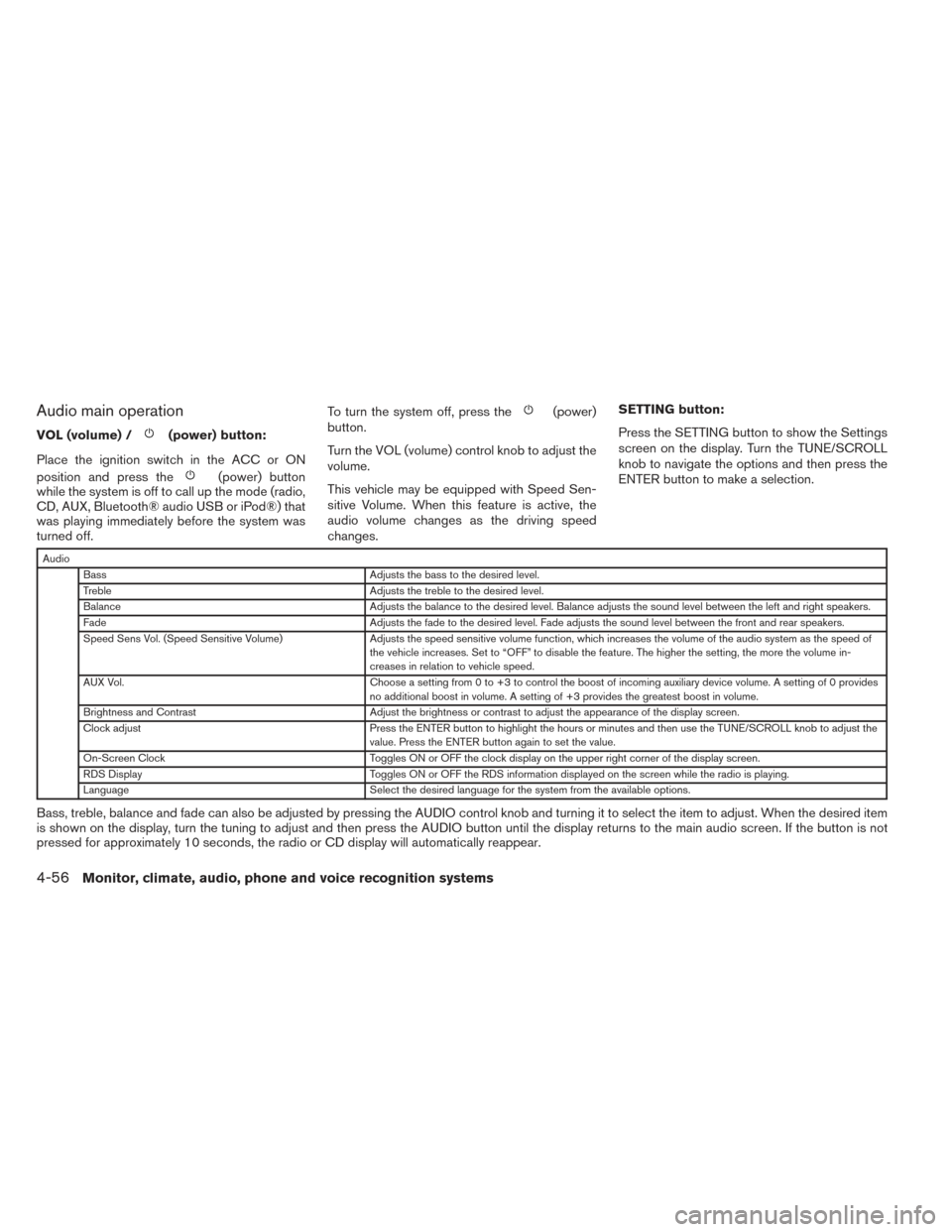
Audio main operation
VOL (volume) /(power) button:
Place the ignition switch in the ACC or ON
position and press the
(power) button
while the system is off to call up the mode (radio,
CD, AUX, Bluetooth® audio USB or iPod®) that
was playing immediately before the system was
turned off. To turn the system off, press the
(power)
button.
Turn the VOL (volume) control knob to adjust the
volume.
This vehicle may be equipped with Speed Sen-
sitive Volume. When this feature is active, the
audio volume changes as the driving speed
changes. SETTING button:
Press the SETTING button to show the Settings
screen on the display. Turn the TUNE/SCROLL
knob to navigate the options and then press the
ENTER button to make a selection.
Audio
Bass Adjusts the bass to the desired level.
Treble Adjusts the treble to the desired level.
Balance Adjusts the balance to the desired level. Balance adjusts the sound level between the left and right speakers.
Fade Adjusts the fade to the desired level. Fade adjusts the sound level between the front and rear speakers.
Speed Sens Vol. (Speed Sensitive Volume) Adjusts the speed sensitive volume function, which increases the volume of the audio system as the speed of
the vehicle increases. Set to “OFF” to disable the feature. The higher the setting, the more the volume in-
creases in relation to vehicle speed.
AUX Vol. Choose a setting from 0 to +3 to control the boost of incoming auxiliary device volume. A setting of 0 provides
no additional boost in volume. A setting of +3 provides the greatest boost in volume.
Brightness and Contrast Adjust the brightness or contrast to adjust the appearance of the display screen.
Clock adjust Press the ENTER button to highlight the hours or minutes and then use the TUNE/SCROLL knob to adjust the
value. Press the ENTER button again to set the value.
On-Screen Clock Toggles ON or OFF the clock display on the upper right corner of the display screen.
RDS Display Toggles ON or OFF the RDS information displayed on the screen while the radio is playing.
Language Select the desired language for the system from the available options.
Bass, treble, balance and fade can also be adjusted by pressing the AUDIO control knob and turning it to select the item to adjust. When the desired item
is shown on the display, turn the tuning to adjust and then press the AUDIO button until the display returns to the main audio screen. If the button is not
pressed for approximately 10 seconds, the radio or CD display will automatically reappear.
4-56Monitor, climate, audio, phone and voice recognition systems
Page 233 of 428
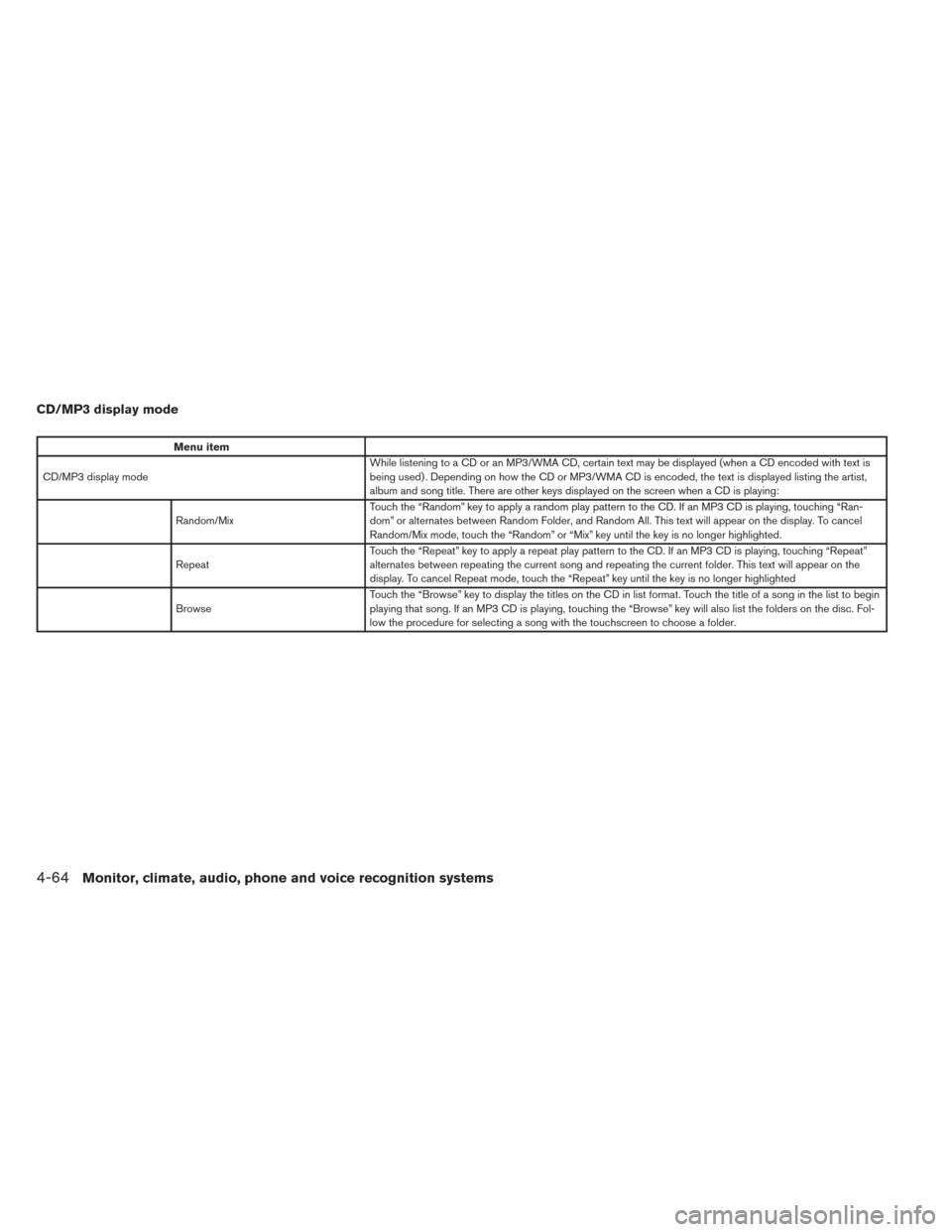
CD/MP3 display mode
Menu item
CD/MP3 display mode While listening to a CD or an MP3/WMA CD, certain text may be displayed (when a CD encoded with text is
being used) . Depending on how the CD or MP3/WMA CD is encoded, the text is displayed listing the artist,
album and song title. There are other keys displayed on the screen when a CD is playing:
Random/Mix Touch the “Random” key to apply a random play pattern to the CD. If an MP3 CD is playing, touching “Ran-
dom” or alternates between Random Folder, and Random All. This text will appear on the display. To cancel
Random/Mix mode, touch the “Random” or “Mix” key until the key is no longer highlighted.
Repeat Touch the “Repeat” key to apply a repeat play pattern to the CD. If an MP3 CD is playing, touching “Repeat”
alternates between repeating the current song and repeating the current folder. This text will appear on the
display. To cancel Repeat mode, touch the “Repeat” key until the key is no longer highlighted
Browse Touch the “Browse” key to display the titles on the CD in list format. Touch the title of a song in the list to begin
playing that song. If an MP3 CD is playing, touching the “Browse” key will also list the folders on the disc. Fol-
low the procedure for selecting a song with the touchscreen to choose a folder.
4-64Monitor, climate, audio, phone and voice recognition systems
Page 249 of 428
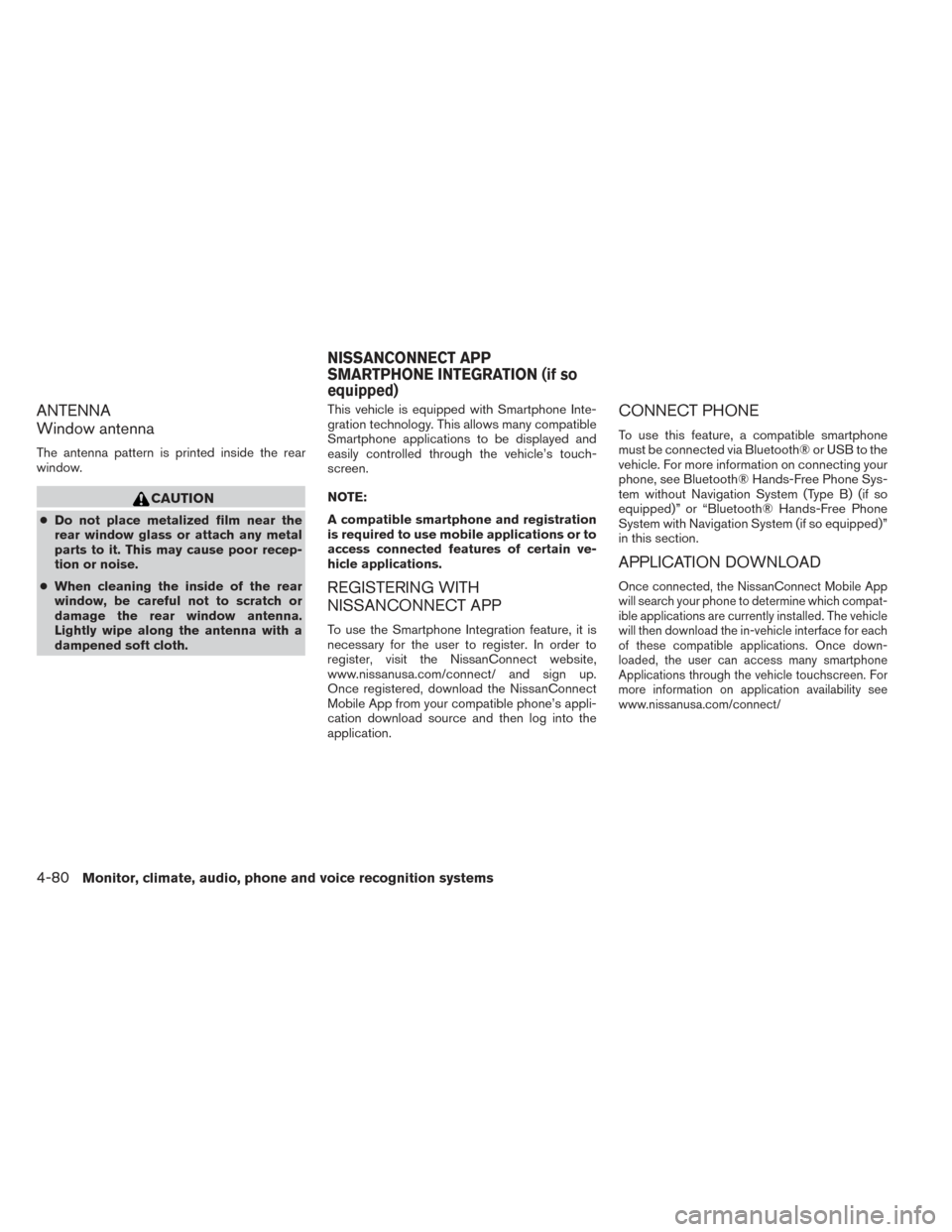
ANTENNA
Window antenna
The antenna pattern is printed inside the rear
window.
CAUTION
●Do not place metalized film near the
rear window glass or attach any metal
parts to it. This may cause poor recep-
tion or noise.
● When cleaning the inside of the rear
window, be careful not to scratch or
damage the rear window antenna.
Lightly wipe along the antenna with a
dampened soft cloth. This vehicle is equipped with Smartphone Inte-
gration technology. This allows many compatible
Smartphone applications to be displayed and
easily controlled through the vehicle’s touch-
screen.
NOTE:
A compatible smartphone and registration
is required to use mobile applications or to
access connected features of certain ve-
hicle applications.
REGISTERING WITH
NISSANCONNECT APP
To use the Smartphone Integration feature, it is
necessary for the user to register. In order to
register, visit the NissanConnect website,
www.nissanusa.com/connect/ and sign up.
Once registered, download the NissanConnect
Mobile App from your compatible phone’s appli-
cation download source and then log into the
application.
CONNECT PHONE
To use this feature, a compatible smartphone
must be connected via Bluetooth® or USB to the
vehicle. For more information on connecting your
phone, see Bluetooth® Hands-Free Phone Sys-
tem without Navigation System (Type B) (if so
equipped)” or “Bluetooth® Hands-Free Phone
System with Navigation System (if so equipped)”
in this section.
APPLICATION DOWNLOAD
Once connected, the NissanConnect Mobile App
will search your phone to determine which compat-
ible applications are currently installed. The vehicle
will then download the in-vehicle interface for each
of these compatible applications. Once down-
loaded, the user can access many smartphone
Applications through the vehicle touchscreen. For
more information on application availability see
www.nissanusa.com/connect/
NISSANCONNECT APP
SMARTPHONE INTEGRATION (if so
equipped)
4-80Monitor, climate, audio, phone and voice recognition systems
Page 293 of 428
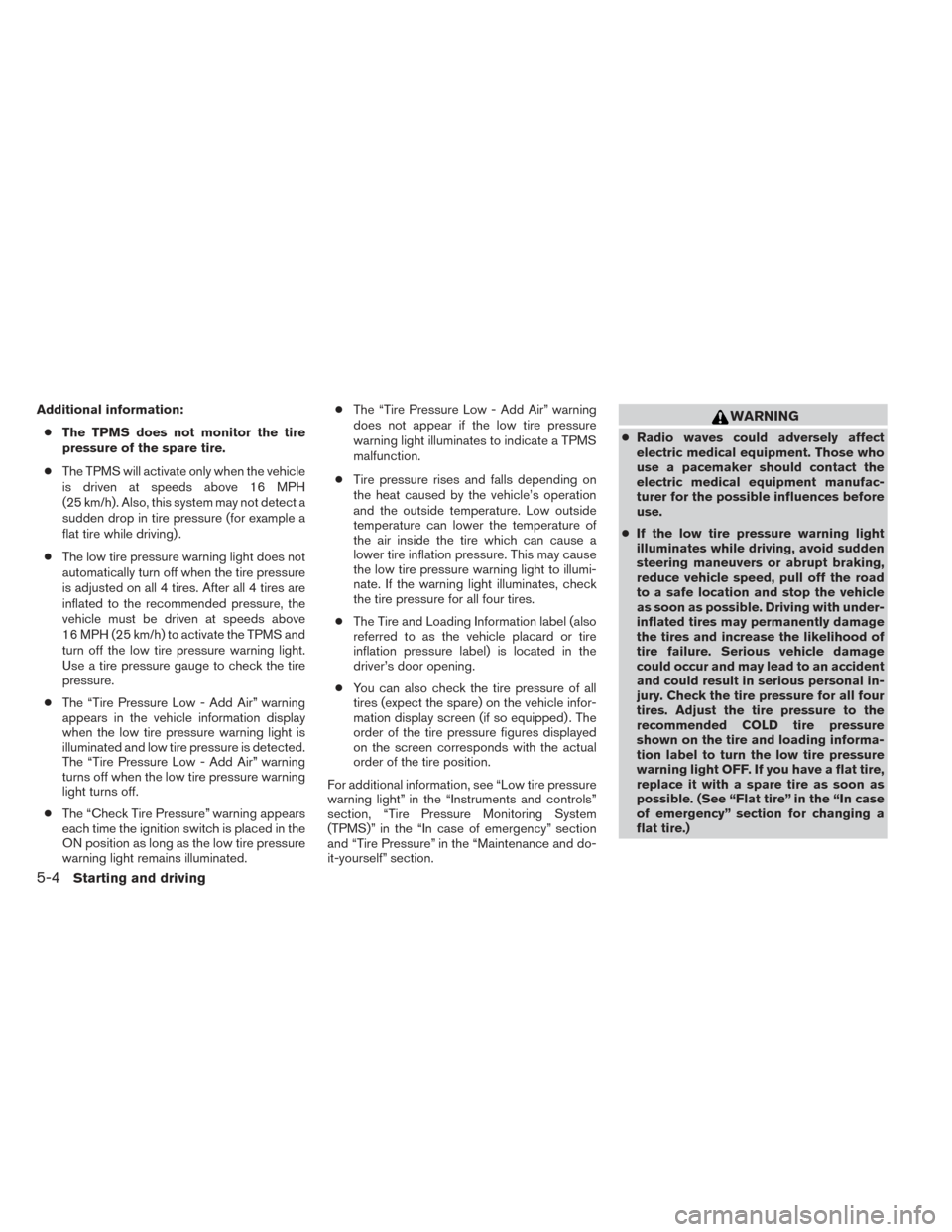
Additional information:● The TPMS does not monitor the tire
pressure of the spare tire.
● The TPMS will activate only when the vehicle
is driven at speeds above 16 MPH
(25 km/h). Also, this system may not detect a
sudden drop in tire pressure (for example a
flat tire while driving) .
● The low tire pressure warning light does not
automatically turn off when the tire pressure
is adjusted on all 4 tires. After all 4 tires are
inflated to the recommended pressure, the
vehicle must be driven at speeds above
16 MPH (25 km/h) to activate the TPMS and
turn off the low tire pressure warning light.
Use a tire pressure gauge to check the tire
pressure.
● The “Tire Pressure Low - Add Air” warning
appears in the vehicle information display
when the low tire pressure warning light is
illuminated and low tire pressure is detected.
The “Tire Pressure Low - Add Air” warning
turns off when the low tire pressure warning
light turns off.
● The “Check Tire Pressure” warning appears
each time the ignition switch is placed in the
ON position as long as the low tire pressure
warning light remains illuminated. ●
The “Tire Pressure Low - Add Air” warning
does not appear if the low tire pressure
warning light illuminates to indicate a TPMS
malfunction.
● Tire pressure rises and falls depending on
the heat caused by the vehicle’s operation
and the outside temperature. Low outside
temperature can lower the temperature of
the air inside the tire which can cause a
lower tire inflation pressure. This may cause
the low tire pressure warning light to illumi-
nate. If the warning light illuminates, check
the tire pressure for all four tires.
● The Tire and Loading Information label (also
referred to as the vehicle placard or tire
inflation pressure label) is located in the
driver’s door opening.
● You can also check the tire pressure of all
tires (expect the spare) on the vehicle infor-
mation display screen (if so equipped) . The
order of the tire pressure figures displayed
on the screen corresponds with the actual
order of the tire position.
For additional information, see “Low tire pressure
warning light” in the “Instruments and controls”
section, “Tire Pressure Monitoring System
(TPMS)” in the “In case of emergency” section
and “Tire Pressure” in the “Maintenance and do-
it-yourself” section.WARNING
● Radio waves could adversely affect
electric medical equipment. Those who
use a pacemaker should contact the
electric medical equipment manufac-
turer for the possible influences before
use.
● If the low tire pressure warning light
illuminates while driving, avoid sudden
steering maneuvers or abrupt braking,
reduce vehicle speed, pull off the road
to a safe location and stop the vehicle
as soon as possible. Driving with under-
inflated tires may permanently damage
the tires and increase the likelihood of
tire failure. Serious vehicle damage
could occur and may lead to an accident
and could result in serious personal in-
jury. Check the tire pressure for all four
tires. Adjust the tire pressure to the
recommended COLD tire pressure
shown on the tire and loading informa-
tion label to turn the low tire pressure
warning light OFF. If you have a flat tire,
replace it with a spare tire as soon as
possible. (See “Flat tire” in the “In case
of emergency” section for changing a
flat tire.)
5-4Starting and driving