Page 153 of 226

Maintenance 153
INFO/SETTINGS INFO
Display Contents
2)
3)
4) 1)
9)
8)
7) 6) 5)
1) Guidance
This sets whether or not to display
guidance when the parts replacement date
approaches or is past.
→“Set Maintenance
Information Guidance”(P155)
2) Parts
Displays the parts that can be maintained.
3)
Batch
The date of all parts maintenance
performance, the odometer reading
as of that time, and the distance
remaining until the next replacement are
updated.
→“Batch Updating”(P155)
4) Reset all
Resets all the maintenance
information.
→“Reset Maintenance
Information”(P155)
5) Date of Change
Displays the dates on which maintenance
was carried out.
6) Changed Date Dist
Displays the odometer reading as of the
date maintenance was performed.
7) Next Remaining
Displays the distance remaining until the
maintenance execution date.
8)
The date of maintenance performance
and the odometer reading as of that time
are updated.
→“Update Maintenance
Information”(P155)
9) Back
Returns to the previous screen.
Set Maintenance Information
You can set the maintenance fixed date and
maintenance distances.
1Press the INFO key.
This displays the info menu.
2Touch Maintenance .
3Touch the “part” to set.
4Touch Setup in “Fixed Date”.
5Touch ▲ or ▼ , input the
maintenance fixed date, then
touch
Set .
Continued on the next page
Page 154 of 226

154 Maintenance
6Touch Setup in Distance.
7Input the “distance”, then
touch
Enter .
→“How to Input Characters”(P18)
8Touch Back .
▼
The maintenance information setting is
complete.
NOTE
• The default values for distances and
maintenance fixed date are rough
yardsticks. Always input the values
according to the maintenance information
for your car.
Add Maintenance Information
You can add maintenance items that you want
to add.
1Press the INFO key.
This displays the info menu.
2Touch Maintenance .
3Touch USER* .
ADVICE
• Items from “USER1” to “USER3” can be
added.
4Touch Set Name .
→“How to Input Characters”(P18)
5Input the “part name” to add,
then touch
Set .
▼
The rest of the procedure is the same
as for Step 4 in “Set Maintenance
Information”(P153).
Set the “Maintenance Fixed Date” and
“Maintenance Distance”.
Delete Maintenance
Information
This deletes the “Date”, “Changed at
Odometer” and “Remaining Distance” for the
set part.
1Press the INFO key.
This displays the info menu.
2Touch Maintenance .
3Touch the “part” to delete.
4Touch Delete .
5Touch Ye s .
▼
The maintenance information deletion is
complete.
Page 166 of 226
166 Voice Control
About the Learning Function
The voice control system has a learning
function. (This function cannot be used by
voice control systems using a Bluetooth
®
2.0 interface.) This learning function inputs
the driver's voice and way of speaking, and
makes voice recognition easier.
Also, the learned data can be reset (deleted), so
reset the data if the user will change for a long
period of time.
→“Voice control settings” (P212)
Skip Audio Guide
During audio guide, press the “SPEECH” key
again to skip the guide.
End Voice Control
• To stop voice control after starting up,
execute one of the following procedures.
- Press and hold down “SPEECH” key.
- Press a key such as
MODE key.
• If you do not speak after starting up voice
control, the system will automatically be in
pause mode.
(Press the “SPEECH” key again to restart
voice control.) If there is no operation for
a while in pause mode, voice control will
automatically end.
• If voice control is forced to shut down such
as by pressing the
MODE key, the voice
control cannot restart from where you left off.
Page 211 of 226
System Settings 2 11
INFO/SETTINGS SETTINGS
7Touch Connect .
▼
This completes selection of the Bluetooth
device.
ADVICE
• If the Bluetooth device is capable of
both hands-free and Bluetooth audio
operation,
you can make the selection for one
device.
In this case, the display is as follows.
Hands-free
Bluetooth AUDIO
Setting a Passkey
This sets whether to keep the same passkey
(factory setting “1212”) or to set a different
passkey each time is registered.
1Press the SETTINGS key.
This displays the settings menu.
2Touch System .
3Touch Pairing .
4Touch Set Passkey .
5Touch Fixed or Random .
ADVICE
• If random is selected, no passkey input
screen is displayed.
6Enter any four-digit passkey,
then touch
Enter .
▼
The passkey setting is complete.
ADVICE
• If a passkey has already been set, touch
[Erase] and delete the passkey, then
input the new one.
Set Passcode
You can lock the telephone functions with a
passcode.
1Press the SETTINGS key.
This displays the settings menu.
2Touch System .
3Touch Pairing .
4Touch Set Passcode .
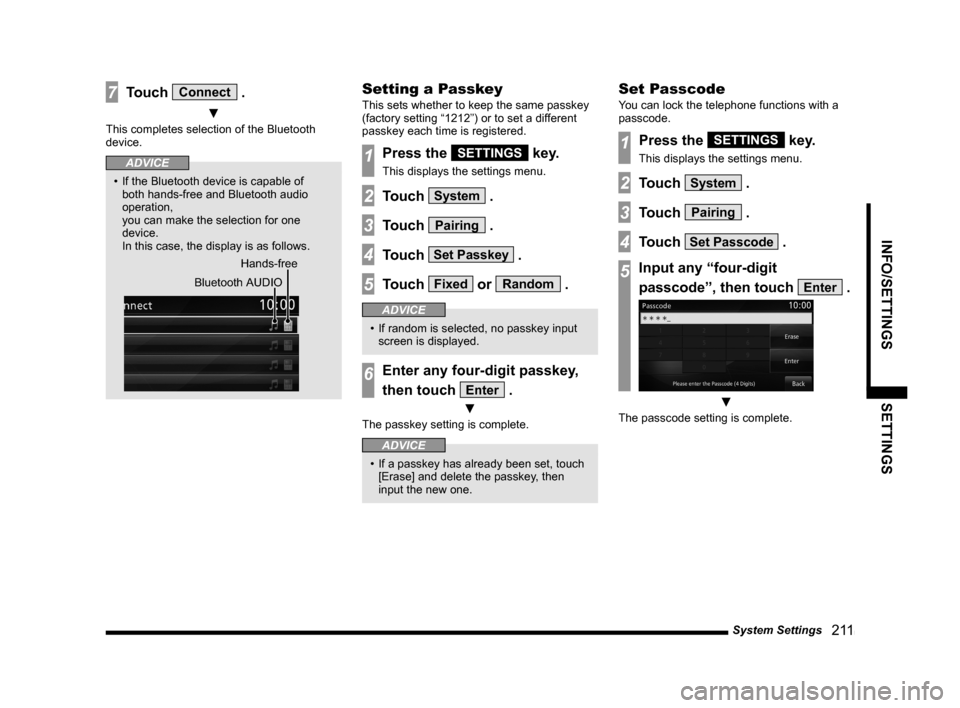
5Input any “four-digit
passcode”, then touch
Enter .
▼
The passcode setting is complete.