Page 49 of 226

Search for a Location 49
NAVIDestination Settings
Use the Search Histor y
You can use the search history of locations
that were set as the destination and display
again a map of the surroundings.
ADVICE
• The search history contains the most
recent 50 items.
1Press the key.
This displays the destination menu.
2Touch Previous 50 .
3Touch the “location” you are
searching for.
▼
This displays the guidance start screen (P56).
ADVICE
• Touching [info] displays a map of the
surroundings and related information.
Deleting from the Search
Histor y
You can delete a registered search history.
1Press the key.
This displays the destination menu.
2Touch Previous 50 .
3Touch Delete .
4Touch the “location” to delete.
Select All Selects all the registered
items. Touch to delete all.
Clear All Cancels all the selected
items.
5Touch Done .
6Touch Ye s .
▼
The search history deletion is complete.
Search from Address
Searches for a location from an address.
1Press the key.
This displays the destination menu.
2Touch Address/Intersection .
3Touch the item, then input the
“address”.
4Touch Set .
▼
This displays the guidance start screen (P56).
ADVICE
• Touching [Last 5] allows you to select
from among the last 5 searches.
• [All Intersections] can be selected when
the street is input.
• Depending on the state of the information
recorded in the map data, representative
locations for that area may be displayed.
Page 50 of 226

50 Search for a Location
Search by Inputting an
Establishment Name
The name of an establishment can be input to
search for its location.
1Press the key.
This displays the destination menu.
2Touch Point of Interest .
Touching [Last 5] allows you to select from
among the last 5 searches.
3Touch All Cities , then input
the “city name”.
4Touch All Categories , then
input the “category name”.
You can skip the category input and
perform the operation in Step 4.
My
Categories Allows you to select from the
pre-registered, frequently
used categories.
→“Editing
My Categories”(P51)
Last 5 Allows you to select from the
five most recently searched
items.
All Allows you to select from all
categories.
When [All] has been touched,
you can sort in order of genre
or by alphabetical order of
name by touching [Sort by
Genre] or [Sort by Alphabet].
5Touch All POIs , then input the
“name of the establishment”
you are searching for.
→“Input assist for searches”(P19)You can search without inputting the entire
establishment name.
6Touch List .
When you have input the first few
characters of the establishment name, if
there is only one candidate left, proceed
to Step 7.
If there are 5 or less candidates, a list is
displayed automatically.
7Touch the “establishment” you
are searching for.
Page 53 of 226

Search for a Location 53
NAVIDestination Settings
Searching for Establishments
near the Destination or a
Waypoint
1Press the key.
This displays the destination menu.
2Touch Advanced Search .
3Touch POI by Dest./Inter.dest. .
4Touch the “location” to search
for.
▼
The rest of the procedure is the same
as from Step 3 onward in “Searching
for Establishments around the Current Location”(P52)
.
Searching for Establishments
near a Street
This searches for establishments near any
desired street.
1Press the key, then touch
Advanced Search .
2Touch POI along a Street .
3Touch an item, then input the
“location”.
ADVICE
• Touching [Last 5] allows you to select
from among the last 5 searches.
• If there are no establishments near
the input location, “No POI found.” is
displayed, so touch [OK] and set a
different location.
4Input the “category” for
the establishment you are
searching for.
5Input the “name of the
establishment” you are
searching for.
→“Input assist for searches”(P19)
You can search without inputting the entire
establishment name.
6Touch List .
When you have input the first few
characters of the establishment name, if
there is only one candidate left, proceed
to Step 8.
If there are 5 or less candidates, a list is
displayed automatically.
7Touch the “establishment” you
are searching for.
8Touch Set .
▼
This displays the guidance start screen (P56).
Page 54 of 226

54 Search for a Location
Searching for Establishments
along a Freeway or near an
Exit
This searches for establishments along a
freeway or near an exit. You can only use this
when you are driving on a freeway.
1Press the key.
This displays the destination menu.
2Touch Advanced Search .
3Touch POI at FWY .
4Touch the “establishment” you
are searching for.
If there are multiple establishments, is
displayed for you to select from by touch.
5Touch Set .
▼
This displays the guidance start screen (P56).
Search from Telephone
Number
Used when you know the telephone number
of the location you are searching for.
1Press the key.
This displays the destination menu.
2Touch Phone Number .
3Input the “telephone number”.
4Touch Set .
▼
This displays the guidance start screen (P56).
ADVICE
• Private homes cannot be searched for.
Search from Zip Code
Used when you know the zip code of the
location you are searching for.
1Press the key.
This displays the destination menu.
2Touch Zip Code .
3Touch All Zip Codes .
Besides searching by “Zip code”, you can
also narrow the search by inputting the
“street”, “House#”, or “Intersection”.
4Input the “zip code”.
→“Input assist for searches”(P19)
5Touch Set .
▼
This displays the guidance start screen (P56).
Page 55 of 226
Search for a Location 55
NAVIDestination Settings
Search by Latitude and
Longitude
You can set the destination by specifying the
latitude and longitude.
1Press the key.
This displays the destination menu.
2Touch Latitude/Longitude .
3Touch Latitude or Longitude .
4Input the “latitude” or
“longitude” you are searching
for.
→“Keyboard for Number Input”(P19)
5Touch Set .
▼
This displays the guidance start screen (P56).
Set the Start Location as the
Destination
You can set the start location set for the route
as a new destination.
1Press the key.
This displays the destination menu.
2Touch Return Trip .
▼
This displays the guidance start screen (P56).
Page 61 of 226
Change the Route 61
NAVI Route Checking and Changing
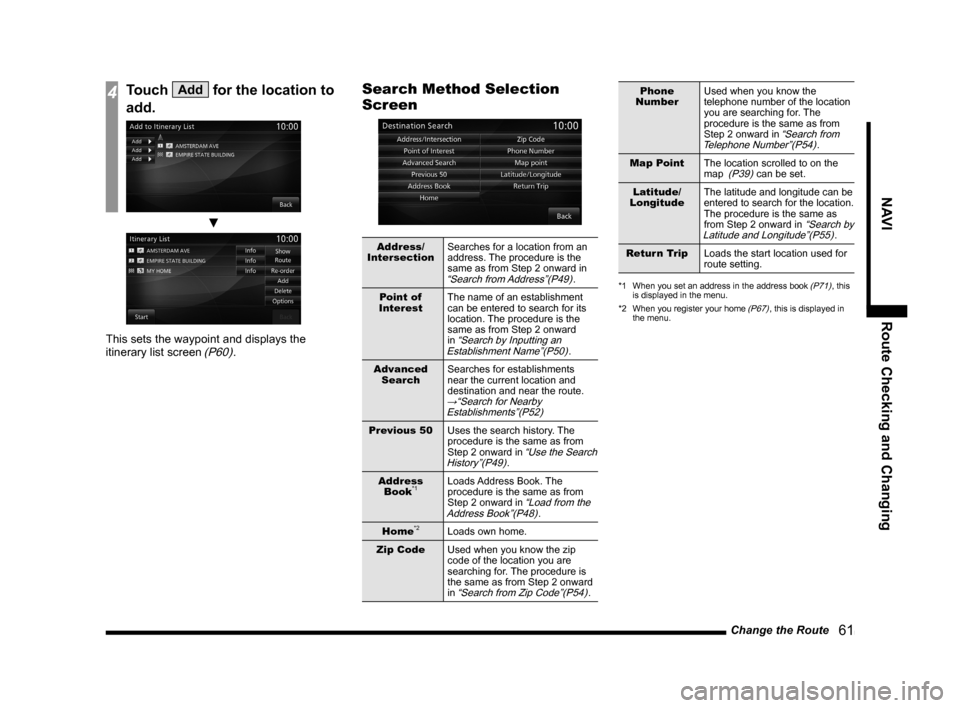
4Touch Add for the location to
add.
▼
This sets the waypoint and displays the
itinerary list screen (P60).
Search Method Selection
Screen
Address/
Intersection Searches for a location from an
address. The procedure is the
same as from Step 2 onward in
“Search from Address”(P49).
Point of
Interest The name of an establishment
can be entered to search for its
location. The procedure is the
same as from Step 2 onward
in
“Search by Inputting an
Establishment Name”(P50).
Advanced Search Searches for establishments
near the current location and
destination and near the route.
→“Search for Nearby
Establishments”(P52)
Previous 50 Uses the search history. The
procedure is the same as from
Step 2 onward in
“Use the Search
History”(P49).
Address Book
*1Loads Address Book. The
procedure is the same as from
Step 2 onward in
“Load from the
Address Book”(P48).
Home*2Loads own home.
Zip Code Used when you know the zip
code of the location you are
searching for. The procedure is
the same as from Step 2 onward
in
“Search from Zip Code”(P54).
Phone
Number Used when you know the
telephone number of the location
you are searching for. The
procedure is the same as from
Step 2 onward in
“Search from
Telephone Number”(P54).
Map Point The location scrolled to on the
map
(P39) can be set.
Latitude/
Longitude The latitude and longitude can be
entered to search for the location.
The procedure is the same as
from Step 2 onward in
“Search by
Latitude and Longitude”(P55).
Return Trip Loads the start location used for
route setting.
*1 When you set an address in the address book (P71), this
is displayed in the menu.
*2 When you register your home
(P67), this is displayed in
the menu.
Page 64 of 226
64 Change the Route
Searching for a Different
Route
This repeats the searches for the route.
1On the current location screen,
touch
▲ .
2Touch Change Route .
3Touch Alternative Route .
▼
The search for a different route is complete
and route guidance starts.
Pause Route Guidance
This pauses route guidance.
1On the current location screen,
touch
▲ .
2Touch Stop Guidance .
▼
This pauses route guidance.
ADVICE
• While the route guidance is paused, you
can change the destination, waypoints,
and search conditions. If you change
anything, the search is repeated, then the
route guidance starts.
Restarting Guidance
This restarts paused route guidance (P64).
1On the current location screen,
touch
▲ .
2Touch Start Guidance .
▼
The route is searched for again and route
guidance starts.
Delete a Route
This deletes the input destination and
waypoint and deletes the route.
1Press the NAVI MENU key.
This displays the navi menu.
2Touch Route Menu , and then
Delete Route .
3Touch Ye s .
▼
The deletion of the route is complete and the
current location screen (P29) is displayed.
ADVICE
• You can also delete the route by touching
the key, and then [Delete Route].
Operating from a Sub-menu
1On the current location screen,
touch
▲ .
2Touch Change Route .
3Touch Delete Route .
▼
The deletion of the route is complete.
Page 65 of 226

Change the Route 65
NAVI Route Checking and Changing
Select the DRG route
When the RTT message is detected, a route
based on the detected information is searched
and DRG (Dynamic Route Guidance) route
can be selected.
ADVICE
• It is necessary to set the [RTT Options]
“Dynamic Route Guidance” to [On].→
“Navi Settings” (P195)
1When the search for a new
route based on RTT messages
is complete...
The audio guide will announce the search
of a new route, and the [Show Route] is
displayed.
2Touch Show Route .
3Touch New .
▼
This shows the new route.
ADVICE
• Touching [Current] keeps the route
currently selected.
Register an Avoid Area
You can register and edit areas you want to
avoid passing through for route searches.
NOTE
• Up to 5 avoid areas can be registered.
1Press the NAVI MENU key.
This displays the navi menu.
2Touch Route Menu , and then
Avoid Areas .
3Touch any Empty .
▼
This displays the current location screen.
4Touch Search .
To register the displayed location, proceed
to Step 6.
ADVICE
• You can change the name of the avoid
area by touching [Name].
→“How to Input Characters”(P18)
5Touch an item, then input the
“location”.
Touching [Last 5] allows you to select from
among the last 5 searches.
6Touch Set .
If you do not want to adjust the area,
proceed to Step 12.
7Touch Adjust .
This adjusts the area range.
You can change the location by touching
the map screen.
8Touch Adjust Size .
9Touch , , , or to
adjust the range.
Continued on the next page
