2014 MITSUBISHI LANCER SPORTBACK bluetooth
[x] Cancel search: bluetoothPage 246 of 422
Bluetooth® 2.0 interface (if so equipped)
Features and controls 5-179
5
1. Press the SPEECH button (except for vehicles with Mitsubishi Multi-Commu- nication System) or PICK-UP button (for vehicles with Mitsubishi Multi-Commu-nication System). 2. Say “Phonebook.” 3. The voice guide will say “Select one ofthe following: new entry, edit number,edit name, list names, delete, erase all, or import contact.” Say “Import contact.” 4. The voice guide will say “Would you liketo import a single entry or all contacts?” Say “All contacts.”
5. The voice guide will say “Importing the contact list from the mobile phonebook. This may take several minutes to com- plete. Would you like to continue?”Answer “Yes,” transferring to the mobile phonebook the phonebook stored in the cellular phone will start.Answer “No,” the system will return to the main menu.
6. When the transfer is complete, the voice guide will say “Import complete” and then the system will return to the main menu.
N00566300053
MODEL: MMC FCC ID: CB2MDGMY10IC: 279B-MDGMY10 Your Bluetooth
® 2.0 interface operates on a
radio frequency subject to Federal Communi- cations Commission (FCC) Rules (For vehi- cles sold in U.S.A.) and Industry CanadaRules (For vehicles sold in Canada). This device complies with Part 15 of the FCC Rules and RSS-210 of the Industry CanadaRules. Operation is subject to the following two conditions: This device may not cause harmful inter- ference. This device must accept any interference received, including interference that may cause undesired operation.
All or part of data may not be transferred, even when the cellular phone supports Blue- tooth
®, depending on the compatibility of
the device. Only a home, a work, and a mobile number can be imported. The maximum supported telephone number length is 19 digits. Any telephone number of 20 digits or more will be truncated to the first19 digits. If telephone numbers contain characters other than 0 to 9,
*, # or +, these characters
are deleted before the transfer. For the connection settings on the cellular phone side, refer to the instructions for the cellular phone.NOTE
NOTE
The transfer may take some time to complete depending on the number of contacts. If the Bluetooth
® 2.0 interface could not be
connected to the Bluetooth
® compatible cel-
lular phone, the voice guide will say “Unable to transfer contact list from phone” and then the system will return to the main menu. If you press the HANG-UP button or press and hold the SPEECH button during the datatransfer, the transfer will be cancelled and the system will return to the main menu. If an error occurs during the data transfer, all transfer will be cancelled and the voice guide will say “Unable to complete the phonebookimport” and then the system will return to the main menu. If there are no contacts in the phonebook, the voice guide will say “There are no contacts on the connected phone.”
General information
CAUTION Changes or modifications not expressly approved by the manufacturer for compli-ance could void the user’s authority to oper- ate the equipment.
BK0200700US.book
179 ページ 2013年2月15日 金曜日 午後12時17分
Page 272 of 422
7
Comfort controlsVents ..........................................
.......................................................7-2
Manual air conditioning with MAX A/C mode (if so equipped) .....7-4 Manual air conditioning without MAX A/C mode (if so equipped) 7-9 Automatic air conditioning with Fahr
enheit scale (if so equipped)7-14
Automatic air conditioning with Cels
ius scale (if so equipped) .....7-20
Important air conditioning op
erating tips .......................................7-25
Air purifier .......................
...............................................................7-26
AM/FM radio/CD player (if so equipped) .....................................7-26 Handling of Discs .
.................................................
........................7-29
Audio Files (MP3/WMA/
AAC) ....................................................7-31
Important Points on Safety fo
r the Customer ................................7-35
Operation Keys ...............
...............................................................7-36
Listen to Radio ......
.................................................
........................7-39
Listen to Satellite Radio (if so equipped) .......................................7-40 Listen to CDs ..................
...............................................................7-42
Listen to MP3s ......
.................................................
........................7-43
Listen to an iPod ...
.................................................
........................7-44
Listen to Audio Files on
a USB Device .........................................7-46
Listen to Bluetooth Audio (i
f so equipped) ....................................7-49
Use AUX (if so equippe
d) ..............................................................7-50
Display Indicator ..
.................................................
........................7-52
Audio Quality and Volume Balance Adjustment ...........................7-53System Settings .....
.................................................
........................7-54
Troubleshooting ...............
...............................................................7-57
Antenna ................................................
...........................................7-59
General information about
your radio ............................................7-60
BK0200700US.bo
ok 1 ページ 2013年2月15日 金曜日 午後12時17分
Page 298 of 422
AM/FM radio/CD player (if so equipped)
Comfort controls 7-27
7
N00715000021
This product supports audio playback from iPod/iPhone devices, however dif- fering versions mean that playback cannot be guaranteed. Please be aware that depending on the iPod/iPhone model or version, operation may differ.
N00715200023
If the product becomes dirty, wipe with a soft cloth. If very dirty, use a soft cloth dipped in neutral detergent diluted in water, and then wrung out. Do not use benzene, thin-ners, or other chemical wipes. This may harm the surface.
N00715300024
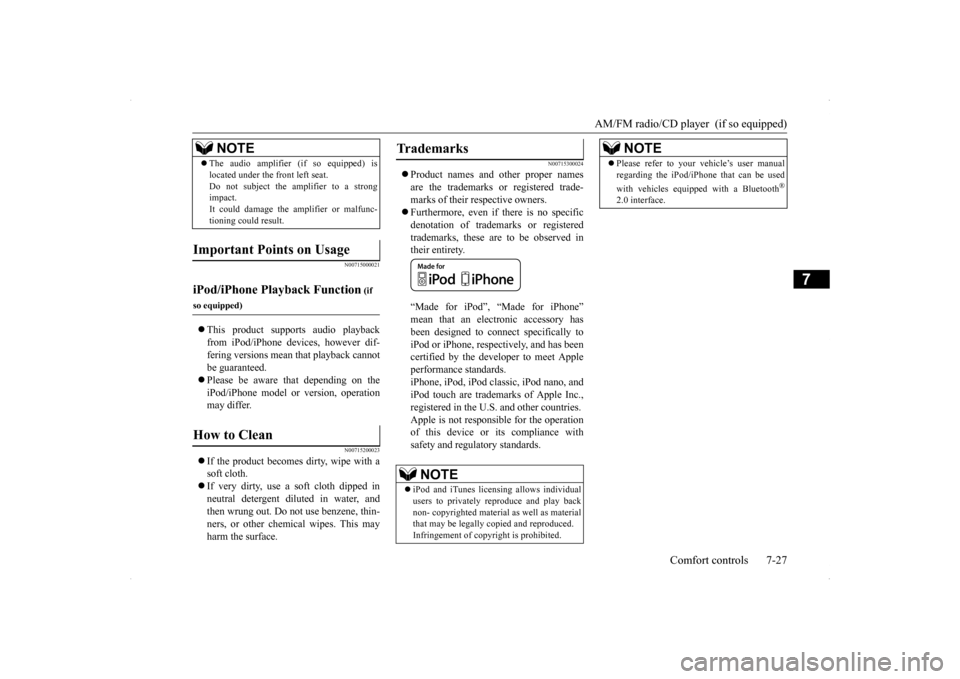
Product names and other proper names are the trademarks or registered trade-marks of their respective owners. Furthermore, even if there is no specific denotation of trademarks or registeredtrademarks, these are to be observed in their entirety. “Made for iPod”, “Made for iPhone” mean that an electronic accessory has been designed to connect specifically to iPod or iPhone, respectively, and has beencertified by the developer to meet Appleperformance standards. iPhone, iPod, iPod classic, iPod nano, and iPod touch are trademarks of Apple Inc.,registered in the U.S. and other countries. Apple is not responsib
le for the operation
of this device or its compliance withsafety and regulatory standards.
The audio amplifier (if so equipped) is located under the front left seat. Do not subject the amplifier to a strong impact. It could damage the amplifier or malfunc-tioning could result.
Important Points on Usage
iPod/iPhone Playback Function
(if
so equipped)How to Clean
NOTE
Tr a d e m a r k s
NOTE
iPod and iTunes licensing allows individual users to privately reproduce and play back non- copyrighted material as well as material that may be legally copied and reproduced.Infringement of copyright is prohibited.
Please refer to your vehicle’s user manual regarding the iPod/iPhone that can be used with vehicles equipped with a Bluetooth
®
2.0 interface.NOTE
BK0200700US.bo
ok 27 ページ 2013年2月15日 金曜日 午後12時17分
Page 309 of 422
Operation Keys 7-38 Comfort controls
7
N00716800055
13-
5 key Play/Pause Bluetooth Audio
*2, and use
as preset key 5 for radio.
14-
6 key Return during audio track search, and stop Bluetooth Audio
*2.
For radio, use as preset key 6.
15-
key/ key
For audio, select audio track/file; forradio, perform automatic station selec- tion. Select channels in the satellite radio*
1.
16- MENU key
Switch to Menu mode.
17-
/SEL key
Adjust audio quality and select items.For radio, manually select stations. Select channels in the satellite radio*
1.
*1: Requires a satellite tuner connection.*2: Requires a separately-purchased Blue- tooth-capable audio device in equip- ment by type (vehicles with a Bluetooth
® 2.0 interface).
Steering wheel audio remote control switches 1- Vol + key, - key
Adjust audio functions and the mobilephone function volume.
2-
CH key, key Select CD and other audio source tracks and radio stations.Hold down to skip up and down through tracks. Hold down to switch the satellite radioband during satellite radio reception.
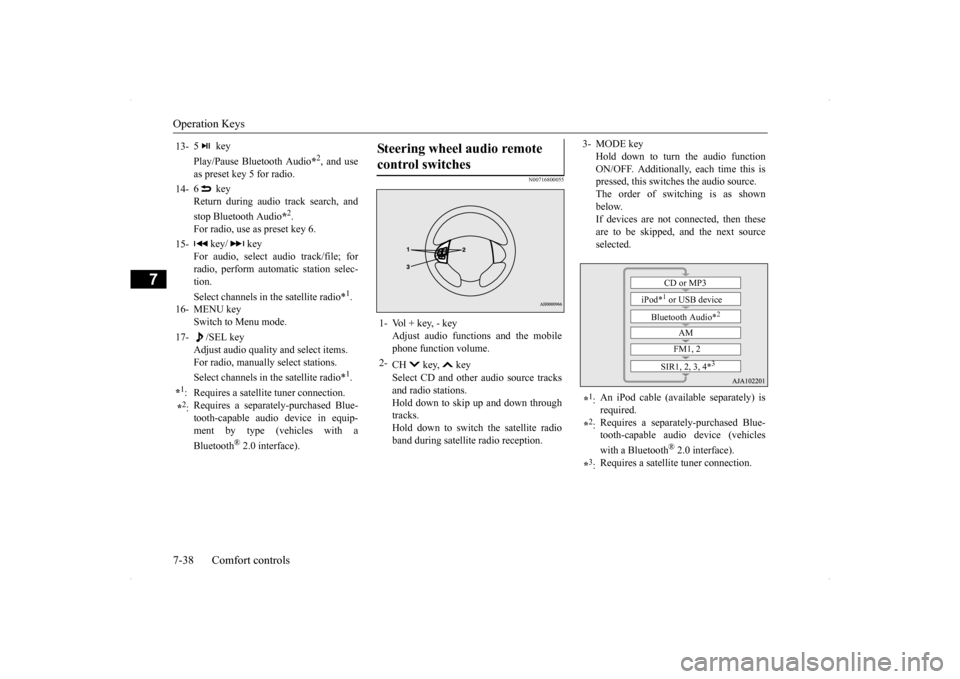
3- MODE key
Hold down to turn the audio functionON/OFF. Additionally, each time this is pressed, this switches the audio source. The order of switching is as shownbelow. If devices are not connected, then these are to be skipped, and the next sourceselected.
*1: An iPod cable (available separately) is required.
*2: Requires a separately-purchased Blue- tooth-capable audio device (vehicles with a Bluetooth
® 2.0 interface).
*3: Requires a satellite tuner connection.
CD or MP3
iPod*
1 or USB device
Bluetooth Audio*
2
AM FM1, 2
SIR1, 2, 3, 4*
3
BK0200700US.bo
ok 38 ページ 2013年2月15日 金曜日 午後12時17分
Page 316 of 422

Listen to an iPod
Comfort controls 7-45
7
Press the MEDIA key to set the iPod as the source. The selected source is indicated on the dis- play. Press the key or key to select the track. This enables selection of the next or previous track.
Hold down the 3 key or the 4 key. Fast forward/rewind is possible. Repeat playback and shuffle playback are possible. Press the 1RPT key. Repeat playback of th
e track currently being
played. Press the 2RDM key. Play tracks in the category currently being played in a random order.
Regarding details such as types of iPod/iPhone that can be connected to equip- ment by type (vehicles with a Bluetooth
® 2.0
interface), and types of files that can be played back, refer to “Types of connectabledevices and supported file specifications” on page 5-182. Regarding how to connect the iPod/iPhone, refer to “How to connect an iPod” on page 5-181. When connecting the iPod/iPhone, use a commercially-available iPod connectioncable. Set up the device in order that no unsafe actions, such as plugging in the connection cable are taken while driving. When inserting and removing the iPod/iPhone, for safety’s sake first stop the vehicle. Depending on the status of the iPod/iPhone, it may take some time until the device is rec- ognized, or playback starts. Buttons on the product will not operate while iPod/iPhone is connected. iPod/iPhone specifications and settings may mean that connection is not possible, or result in differences in operation or display. Depending on audio data in the iPod/iPhone, track information may not be displayed cor-rectly. Depending on the status of the vehicle and device, the iPod/iPhone may not play back after starting the engine.NOTE
Data containing copyright information may not play back. It is recommended that the iPod/iPhone equalizer settings be set to flat. Operate the iPod/iPhone while connected to this product. If the iPod/iPhone is connected via Bluetooth as a Bluetooth-capable audio device, then donot connect the iPod/iPhone using an iPod cable. Connection using both methods will result in erroneous operation. If an iPod/iPhone does not operate correctly, then remove the iPod/iPhone from the prod-uct, reset, then reconnect.
Play iPod Select the Track (File)
NOTE
Fast Forward or Rewind Switch Playback Mode Repeat Playback (RPT)
NOTE
Pressing again will cancel.
Shuffle Playback (RDM)
BK0200700US.bo
ok 45 ページ 2013年2月15日 金曜日 午後12時17分
Page 317 of 422
Listen to Audio Files on a USB Device 7-46 Comfort controls
7
Hold down the 2RDM key. Play back the album in a random order (tracks in any order on the album). Search categories or track names, and select a track. 1. Turn the /SEL key to select the cate- gory. 2. Press the /SEL key. Categories or tracks within the selected category are displayed. 3. Turn the /SEL key to select the cate- gory or track.
4. Press the /SEL key. Repeat steps 1 to 4, and search for tracks. Select the track, and press the /SEL key to play.
N00717400032
By connecting commercially-available USB devices such as USB memory to this product,
you can play back audio files on these through the product.
NOTE
Pressing again will cancel.
Album Shuffle Playback
NOTE
Pressing again will cancel.
Search Tracks
NOTE
While the category (1st level) is selected, press the 6 key to cancel track search mode. If there is no operation for 10 seconds after selecting the category, then track searchmode will be cancelled. Select the category, and hold down the
/SEL key to start playback from the first
track in that category. While the track is selected, press the 6 key to return to the previous operation. While the track is selected, hold down the 6 key to cancel track search mode. If there is no operation for five seconds after selecting the track, that file is played back. iPod operations such as selecting a track will cancel track search mode.
Listen to Audio Files on a USB Device
CAUTION Do not leave the USB device unattended in the vehicle. Never hold these devices in your hand to operate while driving, as this is dangerous. Do not use hard discs, card readers, or mem- ory readers, as damage may occur to these or to the data contained therein. If these areerroneously connected, then turn the ignition switch to the “LOCK” position, then remove. Because of the risk of data loss, it is recom- mended that files be backed up. No guarantee is made as regards damage to the USB device, nor regarding loss or dam- age to data contained therein. Depending on how the devices are handled, audio files being damaged or lost, thereforeit is recommended that data be backed up.NOTE
Regarding details such as types of USB devices that can be connected, and USB input ports, refer to “Device types” on page 5-182. Regarding details of types of files that can be played back in equipment by type (vehicles with a Bluetooth
® 2.0 interface), refer to
“File specifications” on page 5-182.
BK0200700US.bo
ok 46 ページ 2013年2月15日 金曜日 午後12時17分
Page 318 of 422

Listen to Audio Files on a USB Device
Comfort controls 7-47
7
Press the MEDIA key to set USB as the source. The selected source is indicated on the dis- play. Press the key or key to select the track. This enables selection of the next or previous track.
Hold down the 3 key or the 4 key. Fast forward/rewind is possible. Repeat playback, random playback, and scan playback are possible. Press the 1RPT key. Repeat playback of th
e track currently being
played. Hold down the 1RPT key.
Regarding how to connect USB devices, refer to “How to connect a USB memory device” on page 5-180. When connecting a USB device, use a con- nection cable. Failure to use a connection cable when connecting may place undue load on, or damage the USB connector. Set up the device in order that no unsafe actions, such as plugging in the connectioncable are taken while driving. When inserting and removing the USB device, for safety’s sake first stop the vehi- cle. Do not insert other than audio devices into the USB port. Damage to the device or equipment may result. Depending on the status of the USB device, it may take some time until the device is rec-ognized, or playback starts. Depending on USB devices, buttons on the product will not operate while the USB device is connected. USB device specifications and settings may mean that connection is not possible, or result in differences in operation or display. Depending on audio data in the USB device, track information may not be displayed cor- rectly. Depending on the status of the vehicle and device, the iPod/iPhone may not play back after starting the engine. Data containing copyright information may not play back.NOTE
This product can play back MP3, WMA, and AAC format audio files. Depending on the type of USB device, usage may not be possible, or functions that can beused may be restricted. The recommended file system for USB memory is FAT32. The maximum supported capacity for USB memory is 32GB. Operate the USB device containing recorded audio files while connected to this product.
Play Back of Audio Files on a USB Device Select the Track (File)
NOTE
Fast Forward or Rewind Switch Playback Mode Repeat Playback (RPT)
NOTE
Pressing again will cancel. Selecting a file will cancel this. However, it will not be cancelled in vehicles with a Bluetooth
® 2.0 interface.
Folder Repeat Playback
BK0200700US.bo
ok 47 ページ 2013年2月15日 金曜日 午後12時17分
Page 320 of 422
Listen to Bluetooth Audio (if so equipped)
Comfort controls 7-49
7
N00717500020
This product can play back tracks on com- mercially-available Bluetooth-capable audio devices.
Regarding how to connect your Bluetooth device, refer to “Connecting the Bluetooth
®
2.0 interface and Bluetooth device” on page 5-165. Operation methods below describe situations once connection has been completed. 1. Press the MEDIA key to set Bluetooth Audio as the source. The selected source is indicated on the display. 2. Press the 5 key. Bluetooth Audio play- back starts.
While the file is selected, press the 6 key to return to the previous operation. While the file is selected, hold down the 6 key to cancel track search mode. If there is no operation for five seconds after selecting the file, that file is played back. Operations such as selecting a track will can- cel track search mode.
Listen to Bluetooth Audio
(if
so equipped)
CAUTION Never hold these devices in your hand to operate while driving, as this is dangerous. Do not leave the Bluetooth audio device unattended in the vehicle. Depending on how the devices are handled, audio files being damaged or lost, therefore it is recommended that data be backed up.NOTE
NOTE
Depending on the type of Bluetooth-capable audio devices, usage may not be possible, or functions that can be used may be restricted. Confirm together with the user manuals for the commercially-available Bluetooth-capa- ble audio devices. Depending on the type of Bluetooth-capable audio devices, volume levels may differ. There is the danger of loud volumes, so priorto use, it is recommended that you turn the volume down. “Adjust Volume” (P.7-36)
Depending on the status of the Bluetooth audio device, it may take some time until thedevice is recognized, or playback starts. Bluetooth audio device specifications and settings may mean that connection is not possible, or result in differences in operation or display. Depending on audio data in the Bluetooth audio device, track information may not bedisplayed correctly. Depending on the status of the vehicle and device, the iPod/iPhone may not play back after starting the engine.
Connect a Bluetooth-capable Audio Device
NOTE
If the iPod/iPhone is connected via Bluetooth as a Bluetooth-capable audio device, then donot connect the iPod/iPhone using an iPod cable. Connection using both methods will result in erroneous operation.
Play Bluetooth Audio
NOTE
Hold down the 5 key to pause. Press the 6 key to stop.
BK0200700US.bo
ok 49 ページ 2013年2月15日 金曜日 午後12時17分